Whether you want the text to be bigger or smaller, the question of "how to change font size on iPhone" is incredibly common and fortunately it's an easy fix.
Just follow along and we'll have the text on your iPhone tuned to the perfect size for your needs.
How to increase text size on iPhone
We'll address the opposite in just a moment, but most people are looking to increase the text size on iPhone, so we'll tackle that first.
1. Open Settings
2. Select Display & Brightness
3. Tap Text Size
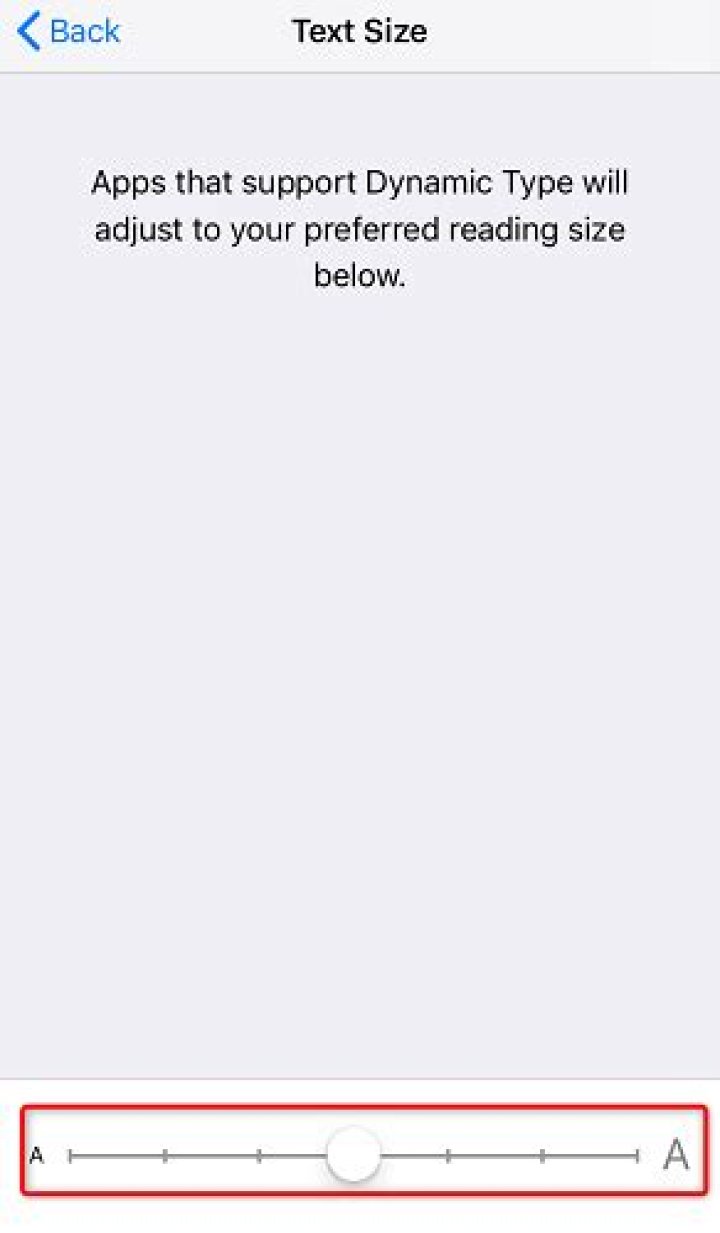
4. Move the white circle on the slider at the bottom of the screen to the right until the text is at your preferred size.
Just hit the back button and enjoy you're new larger text size. If you want another little boost to readability you can also tap on the Bold text toggle just below Text Size.
How to reduce text size on iPhone
If you read the section above this is going to be extremely repetitive, but we'll go over shrinking your iPhone text size quickly for you eagle-eyed readers.
1. Open Settings
2. Select Display & Brightness
3. Tap Text Size
4. Move the white circle on the slider at the bottom of the screen to the left until the text is at your preferred size.
Get our in-depth reviews, helpful tips, great deals, and the biggest news stories delivered to your inbox.
Congrats on your outstanding eyesight and your now lilliputian text size. If you end up regretting this decision, just follow the directions from the above section to bump the text size up again.




