Google stores a history of all the searches you’ve made while signed in, tying it to your Google account. You can now quickly erase this history from Google’s search results rather than heading to the Google Account dashboard.
Bear in mind that Google uses your search history to learn about you, so deleting the search history will make your search results less personalized.
How to Clear Your Google Search History on Desktop
To erase your Google search history on desktop, click Settings > Your Data in Search at the top of the page, right below the right side of the search box.
Scroll down to the “Your search activity section.” To delete all your Google search history, click the “Delete all Search activity” button. To clear just the last hour of search history, click the “Delete last hour” button.
How to Clear Your Google Search History on Mobile
On a smartphone, tap the menu button at the top-left corner of the Google search results page.
Tap “Your Data in Search.”
Scroll down to the “Delete your search activity section” and tap either “Delete last hour” or “Delete all Search activity,” depending on how much of your search history you want to clear.
How to Stop Google From Collecting Search History
Of course, Google will still keep collecting search history even after you clear it. If you’d like to stop Google from doing this, click or tap the “Web & App Activity” option under “Google-wide controls” on the Your Data in Search page.
On the Activity Controls page that appears, turn off the “Web & App Activity” slider.
Stay Tuned For More
Google added this feature on October 24, 2018, but it’s just the first step. Here’s what Google said:
Next year, we’ll expand this to Maps, followed by many other Google products. Having access to relevant and actionable privacy controls directly from the Google products you use every day is just one way that we are continuously working to build privacy that works for everyone.
The company provides a slew of really great products. But you have to remember, you are also a product in their profit stream
- Comments
File photo – A Google search page is seen through a magnifying glass in this photo illustration taken in Brussels May 30, 2014 . (REUTERS/Francois Lenoir)
I use Google for so many things, from looking things up, handing my email and calendar, video chatting with my team, to peeking in on the Nest cam in my mother’s living room. The company provides a slew of really great products. But you have to remember, you are also a product in their profit stream.
Lately, there’s been an anti-Google movement with more people interested in options. You can use a different search site that won’t track you. There are also private email servers and video sites that aren’t YouTube. Tap or click here for a list of Google alternatives.
Google Play Music is shutting down, which means all those songs you’ve gathered over the years could be lost forever. You can transfer your music collection over to YouTube Music and that likely means a paid subscription. If you want control and no monthly fees, set up your own music server. Tap or click here for the steps to set up your own music server on my site.
Here are some ways that Google has control over your data and what you can do about it.
1. Blur your house on Google Maps
As convenient as Google Maps and Street View is, it can be unnerving when your house and address number are visible to anyone in a photo. You can request a privacy blur over any pictures of your home:
- Open Google Maps or the Street View gallery and look up your address.
- Find and open the Street View photo you want to have blurred. The image has to show your face, home, or other identifying information.
- In the bottom right, click Report a problem. Complete the form.
- Click Submit.
Once the photo is reported and blurred, there’s no way for Google to reverse it. Make sure you’re 100% certain about removing the image.
2. Erase your voice commands
Do you use Google Assistant? It’s a handy way to set reminders, get quick answers and much more. Google keeps tabs on those interactions with Google Assistant to improve its AI and personalize your account. If this creeps you out, delete those recordings.
- Open your Google Account page.
- From the left navigation panel, click Data & personalization.
- In the Activity controls panel, click Web & App Activity, followed by Manage Activity. From this page, you’ll see a list of your past activity — and items with the microphone icon indicate a recording.
- Next to the items you want to delete, select the three-dot icon and then Delete
3. Remove your Google Search history
Google uses your search history to build a detailed profile about you that it shares with advertisers. This personalizes the ads and content you see. It’s also part of the reason why data is such a big business. Tap or click here to see how much money your data can sell for online. You’ll be shocked.
If you want to start removing your information from Google, your search history is where to begin. Here’s how you can clear your search history and activity:
- Go to myaccount.google.com and log in. Alternatively, go to google.com while logged in and click the circle icon in the upper right-hand corner with your image or initials inside. Then click Manage your Google Account.
- Click Manage your data & personalization, located under Privacy & Personalization.
- Under the Activity controls panel, you will see checkmarks next to Web & App activity tracking, Location History and YouTube History. Click each one to adjust your settings. You can toggle them off to stop further tracking.
- Below Activity controls, click on My Activity under Activity and timeline.
- On the menu that appears in the left sidebar, click Delete activity by. Select how far back you would like to delete your history in the pop-up menu. Click Delete to confirm.
Once you’ve followed these steps, not only will your search history be gone, but you’ll also have disabled tracking through apps, location history and YouTube views.
4. Remove data from Chrome
If you use Google’s web browser, Chrome, you’re also giving the company access to your web history. Go ahead and remove your Chrome browsing data, too.
- To get started, open Chrome and click the three-dot menu.
- Hover over History and click History at the top of the menu.
- Click Clear browsing data and select your date range for deletion.
From here, you can choose to delete your history, cookies and cache. Select the time range you want to wipe, from the past 24 hours to as early as the beginning of your browsing activity.
5. Have Google tell you what it finds about you
If you want to stay on top of information that pops up about you on social media (or the rest of the web), you can set up a free Google Alert for your name. It’s an easy way to keep tabs on your online reputation.
Here’s how to set up a Google Alert for your name:
- Visit and type what you want Google to alert you about in the search bar.
- Click Show options to change settings for frequency, sources, language and region. You can also specify how many results you want and where you want them delivered.
- Click Create Alert to start receiving alerts on yourself or other search topics that interest you.
What do you do if you want something about you on a website removed? Tap or click here for our step-by-step guide.
Need more help? Get concrete answers from me, along with other tech pros for 30 days for free. Sign up at GetKim.com, no promo code required.
What digital lifestyle questions do you have? Call Kim’s national radio show and tap or click here to find it on your local radio station. You can listen to or watch The Kim Komando Show on your phone, tablet, television or computer. Or tap or click here for Kim’s free podcasts.
YouTube. Panera. Facebook. Equifax. Every week, it seems, there’s a new hack to worry about.
This ever-expanding list has many people realizing their personal information is less secure than they thought. Consumers are looking for ways to limit their online exposure and take proactive measures to protect themselves and their information.
One way to start taking control of your online information is to minimize the ways that advertisers and other companies track and store data they’ve collected on you.
Daily Money
Deleting your Google web browser history and Google search history is one way to limit how much data you allow to be collected about you on the internet. Even if you’re someone who already uses Google’s incognito web browser, you’re still not being kept completely anonymous online.
Believe it or not, there are other web browsers out there besides Google, they are just much less well-known. One example of a search engine that prioritizes user privacy is DuckDuckGo, which is essentially a Google that doesn’t track you online. “It feels like the standard of trust online has really gone down, and we are trying to set a new standard of trust online,” said DuckDuckGO’s CEO and founder, Gabriel Weinberg. “Our mission is to make getting privacy as easy as closing the blinds.”
Even though the push for more transparency online is gaining traction with some newer companies, if you’re one of the people making some of the 3.5 billion search queries each day that are processed by Google, chances are you still might want to delete some, or all, of your internet history.
Deleting all of your web browsing activity doesn’t get rid of all of the information Google has about you, though. You also have to separately delete certain data like your maps activity if you have “location history” turned on.
Even if you delete all or some of your activity, Google still maintains records data about the way you used its web browser related to the deleted data — if you search for something, it’ll still keep a record of the fact that you searched for something at that specific time and date, but not what you specifically you searched for, according to the company’s website.
Unlike some other tech companies, Google says it will actually delete the data associated with your account after you completely delete it. Aside from using a web browser like DuckDuckGo, one of the easiest things you can do to ensure your future online activity is not tracked moving forward is to choose “Stop Saving Activity” when you adjust your Google settings.
How to turn off your activity:
- On your computer, go to Activity controls.
- Turn off the activity you don’t want to save.
- To confirm, select Pause.
Just remember if you delete your history, all of your saved passwords will be wiped too, so you’ll have to re-login to all of the sites you had saved passwords for.
Since you’ve probably already used Google thousands of times in your life at this point, if you want to delete your Google search history and Google browser history, here’s how.
How do I delete my Google browser history:
Make sure you’re signed into your Google account first (the instructions differ slightly depending on the device you use, but Google has step by step instructions for all kinds of tech).
- On your computer, open Chrome.
- At the top right, click More.
- Click History.
- On the left, click Clear browsing data. A box will appear.
- From the drop-down menu, select how much history you want to delete. To clear everything, select the beginning of time.
- Check the boxes for the info you want Google Chrome to clear, including “browsing history.” There are also other types of browsing data you can delete.
- Click Clear browsing data.
How do I delete my Google search history:
- Go to “My Activity” on your computer.
- At the top right of the page, choose More –>Delete activity by.
- Below “Delete by date,” select the Down arrow –>All time.
- Select Delete.
If you want to delete only specific items or activity you can also do that in “My Activity”:
- Browse by day. At the top right of the page, choose More –>Item view
- Search or use filters.
- On the item you want to delete, choose More –>Delete.
- Browse by day. At the top right of the page, choose More –>Item view
- Search or use filters.
Clear searches and prior destinations from your phone
- Tweet
- Share
What To Know
- Open Settings >Maps history >Choose. automatically. Pick a time frame. Press Next >Confirm/Got it.
- For specific locations, scroll through the history, and select the location. Tap the three vertical dots >Delete >Delete.
- iOS: Menu >Settings >Maps history. Search or Filter by date. Tap the three dots >Delete results >Delete. Use an entry’s dots to delete it.
This article explains how to delete your Google Maps search history. These instructions apply to any Android or iPhone able to use Google Maps.
How to Clear Google Maps History From Your Android
These instructions apply to both Android phones and tablets. To remove Google Maps history from your Android device, follow these steps.
Open the Google Maps app using your Google account.
Swipe in from the left edge to view the Google Maps menu.
Scroll down to and tap Settings.
Tap Maps history. You have two options here: You can either select auto-deletion settings or scroll down to delete individual locations from your history. To use auto-deletion settings, continue to step 5. To delete individual locations, skip to step 8.
To create auto-deletion settings, tap Choose to delete automatically and make a selection between 3 and 18 months. If you have already set up this automated process, you will see an option of Choose how long to keep instead.
Tap Next.
Tap Confirm or Got It. (This selection depends upon whether or not you needed to set up automatic deletion or not.)
To remove individual locations from your search history, scroll down to find the specific location you want to delete.
Tap the vertical menu (three dots vertically placed on the upper right of the location you wish to delete).
Tap Delete.
Tap Delete again when you are prompted at the pop-up.
How to Delete Offline Google Maps From Your Android
If you have downloaded any maps to your phone or tablet for offline use, those need to be removed a little differently.
Follow these steps to delete offline Google maps
Open the Google Maps app using your Google account.
Tap the Maps menu in the upper left of your screen (three horizontal lines placed vertically above one another).
Tap Offline maps.
Tap the three vertical dots next to the offline map you want to delete.
Tap Delete.
How to Delete Google Maps History From Your iPhone or Other iOS Device
These instructions apply to both iPhones and iPads. To remove Google Maps history from your iOS device, follow these steps.
Open the Google Maps app using your Google account.
Tap the Menu button.
Tap Settings.
Tap Maps History.
To see your entire Maps history, type Maps in the search field and tap Done. Tap Filter by date and enter a date range (or leave as All Time). Choose Apply.
Tap the vertical menu (three dots vertically placed on the upper right of the search results).
Tap Delete Results to get rid of all of your history. Tape Delete again to confirm.
To delete individual items from your search history, scroll to the item and tap the vertical menu (three dots vertically placed on the upper right of each item). This is the same as on Android.
Tap Delete next to each entry you want to be removed. Continue doing this for each item you want to be removed if you also want to keep some items.
Google Navigation: How Google Maps Works
Every time you ask Google Maps for directions, including just looking up a quick address to see where something might be in relation to your location, Google thinks you might want to keep that search forever. Maybe you want to return to that restaurant someday, it reasons, or perhaps you’ll need directions back to that incorrect address you entered a few years ago. Google doesn’t know or care why you enter an address; it simply records all the information and retains it so you can use it again if you ever want to.
Most of the time, however, you don’t need directions to the same place over and over again. Plus, there might be times when you simply don’t want anyone else to see where you’ve been or thought about going. When you want to get rid of something in your Google Maps search history, you’ve got options depending upon the device you’re using:
- You can remove some selected places from your history.
- You can delete all places from your history automatically.
Removing selected places works a bit differently on an Android than it does on iOS devices so we’ll outline the steps for each in the following instructions.
If you have an iPhone, you can use Maps without a Google account. Just open the Google Maps app, tap your profile picture, and tap Use Maps without an account.
Do you want to find a webpage or website you visited a while ago, but cannot remember where it was located? Perhaps you found it on your phone back then, but you’re having trouble finding it again on your PC. Luckily, Google keeps track of all websites and links you’ve ever opened.
You can use the history feature to find any webpage you’ve explored and revisit it as if you never lost it in cyberspace—or in your brain. Here’s how to use Google’s search history function.
Note: You can access your Google account history at any time and from any device, as long as your Gmail profile is synced on all your devices. Google keeps a detailed history of web and product searches, viewed images, watched videos, apps used, and blog post you’ve read.
You can access your Google account history from any device with a browser, such as a Windows PC, Mac, mobile phone, or tablet. The process is very simple as you need only your username and password. Here is what you have to do:
- Open your browser and load the Google homepage. Click on the “Sign In” button located in the top right corner (if you are not currently logged in) and enter your credentials.
- Click on your profile icon in the top-right corner and select the “Manage your Google Account.”
- Select the “Data & Personalization” tab.
- Scroll down to the “Activity and Timeline” section, then click on “My Activity.”
- Scroll down the page to use the general search bar or the “Filter by Date and Product” option (Android, Maps, YouTube, etc.), or just scroll down the list and browse by date and time.
When using the various view options above, you get a list that includes websites, apps, and/or updates for all devices tied to your Google Account. The search bar allows you to find specific activities, apps, or websites. The filtered options include sorting by date, date range, and apps.
The activity page used above remembers everything you did through your Google account since the last time you deleted the history, if ever.
Deleting your Google Account History Manually
You can delete your entire history or only specific activities. You can remove one item at a time by clicking on the three dots next to every activity. You can also delete them in bulk by specifying how far back you want to delete the activities.
Here is what you need to do:
- Open your browser and write “My Activity” in the search bar to access the activity page.
- Google My Activity should pop up as the top result. If not, find it and click on it.
- Once there, select “Activity controls” on the left side.
- You will see that the Google account activities are divided into several groups. You can delete each feature separately. These include web searches and history, locations, device information, voice and audio activity, and YouTube history. If you click the little switch next to an option, Google won’t remember your future actions.
You can also delete items by time. On the left side of the “Web & App Activity” window, you will see several options. Click “Delete activity by” to select how far back you want to delete your activity.
It can be a specific date or you can choose one of the predesigned options and delete everything a week, a month, or all the way back to your account creation. You can also select which type of data to delete.
Automatic Deletion
However, you can also choose to delete your history automatically. On the top of the same page, you will see an option that says “Choose to delete automatically.” That allows you to turn on the automatic deletion feature, so you don’t have to delete things yourself.
Review Your Actions at Any Time
The Google Account history feature can be handy if you can’t remember the name of some website you want to visit again or if you want to double-check if you have updated your devices. Google saves everything for you, and you can quickly go back to any link at any time. You can also delete your activity history to clear your locations, device updates, and other items.
Do you prefer keeping a history of your Google account actions? Which tracking options do you use? Tell us what you think about this feature in the comment section below.
The company provides a slew of really great products. But you have to remember, you are also a product in their profit stream
- Comments
File photo – A Google search page is seen through a magnifying glass in this photo illustration taken in Brussels May 30, 2014 . (REUTERS/Francois Lenoir)
I use Google for so many things, from looking things up, handing my email and calendar, video chatting with my team, to peeking in on the Nest cam in my mother’s living room. The company provides a slew of really great products. But you have to remember, you are also a product in their profit stream.
Lately, there’s been an anti-Google movement with more people interested in options. You can use a different search site that won’t track you. There are also private email servers and video sites that aren’t YouTube. Tap or click here for a list of Google alternatives.
Google Play Music is shutting down, which means all those songs you’ve gathered over the years could be lost forever. You can transfer your music collection over to YouTube Music and that likely means a paid subscription. If you want control and no monthly fees, set up your own music server. Tap or click here for the steps to set up your own music server on my site.
Here are some ways that Google has control over your data and what you can do about it.
1. Blur your house on Google Maps
As convenient as Google Maps and Street View is, it can be unnerving when your house and address number are visible to anyone in a photo. You can request a privacy blur over any pictures of your home:
- Open Google Maps or the Street View gallery and look up your address.
- Find and open the Street View photo you want to have blurred. The image has to show your face, home, or other identifying information.
- In the bottom right, click Report a problem. Complete the form.
- Click Submit.
Once the photo is reported and blurred, there’s no way for Google to reverse it. Make sure you’re 100% certain about removing the image.
2. Erase your voice commands
Do you use Google Assistant? It’s a handy way to set reminders, get quick answers and much more. Google keeps tabs on those interactions with Google Assistant to improve its AI and personalize your account. If this creeps you out, delete those recordings.
- Open your Google Account page.
- From the left navigation panel, click Data & personalization.
- In the Activity controls panel, click Web & App Activity, followed by Manage Activity. From this page, you’ll see a list of your past activity — and items with the microphone icon indicate a recording.
- Next to the items you want to delete, select the three-dot icon and then Delete
3. Remove your Google Search history
Google uses your search history to build a detailed profile about you that it shares with advertisers. This personalizes the ads and content you see. It’s also part of the reason why data is such a big business. Tap or click here to see how much money your data can sell for online. You’ll be shocked.
If you want to start removing your information from Google, your search history is where to begin. Here’s how you can clear your search history and activity:
- Go to myaccount.google.com and log in. Alternatively, go to google.com while logged in and click the circle icon in the upper right-hand corner with your image or initials inside. Then click Manage your Google Account.
- Click Manage your data & personalization, located under Privacy & Personalization.
- Under the Activity controls panel, you will see checkmarks next to Web & App activity tracking, Location History and YouTube History. Click each one to adjust your settings. You can toggle them off to stop further tracking.
- Below Activity controls, click on My Activity under Activity and timeline.
- On the menu that appears in the left sidebar, click Delete activity by. Select how far back you would like to delete your history in the pop-up menu. Click Delete to confirm.
Once you’ve followed these steps, not only will your search history be gone, but you’ll also have disabled tracking through apps, location history and YouTube views.
4. Remove data from Chrome
If you use Google’s web browser, Chrome, you’re also giving the company access to your web history. Go ahead and remove your Chrome browsing data, too.
- To get started, open Chrome and click the three-dot menu.
- Hover over History and click History at the top of the menu.
- Click Clear browsing data and select your date range for deletion.
From here, you can choose to delete your history, cookies and cache. Select the time range you want to wipe, from the past 24 hours to as early as the beginning of your browsing activity.
5. Have Google tell you what it finds about you
If you want to stay on top of information that pops up about you on social media (or the rest of the web), you can set up a free Google Alert for your name. It’s an easy way to keep tabs on your online reputation.
Here’s how to set up a Google Alert for your name:
- Visit and type what you want Google to alert you about in the search bar.
- Click Show options to change settings for frequency, sources, language and region. You can also specify how many results you want and where you want them delivered.
- Click Create Alert to start receiving alerts on yourself or other search topics that interest you.
What do you do if you want something about you on a website removed? Tap or click here for our step-by-step guide.
Need more help? Get concrete answers from me, along with other tech pros for 30 days for free. Sign up at GetKim.com, no promo code required.
What digital lifestyle questions do you have? Call Kim’s national radio show and tap or click here to find it on your local radio station. You can listen to or watch The Kim Komando Show on your phone, tablet, television or computer. Or tap or click here for Kim’s free podcasts.
Do you want to find a webpage or website you visited a while ago, but cannot remember where it was located? Perhaps you found it on your phone back then, but you’re having trouble finding it again on your PC. Luckily, Google keeps track of all websites and links you’ve ever opened.
You can use the history feature to find any webpage you’ve explored and revisit it as if you never lost it in cyberspace—or in your brain. Here’s how to use Google’s search history function.
Note: You can access your Google account history at any time and from any device, as long as your Gmail profile is synced on all your devices. Google keeps a detailed history of web and product searches, viewed images, watched videos, apps used, and blog post you’ve read.
You can access your Google account history from any device with a browser, such as a Windows PC, Mac, mobile phone, or tablet. The process is very simple as you need only your username and password. Here is what you have to do:
- Open your browser and load the Google homepage. Click on the “Sign In” button located in the top right corner (if you are not currently logged in) and enter your credentials.
- Click on your profile icon in the top-right corner and select the “Manage your Google Account.”
- Select the “Data & Personalization” tab.
- Scroll down to the “Activity and Timeline” section, then click on “My Activity.”
- Scroll down the page to use the general search bar or the “Filter by Date and Product” option (Android, Maps, YouTube, etc.), or just scroll down the list and browse by date and time.
When using the various view options above, you get a list that includes websites, apps, and/or updates for all devices tied to your Google Account. The search bar allows you to find specific activities, apps, or websites. The filtered options include sorting by date, date range, and apps.
The activity page used above remembers everything you did through your Google account since the last time you deleted the history, if ever.
Deleting your Google Account History Manually
You can delete your entire history or only specific activities. You can remove one item at a time by clicking on the three dots next to every activity. You can also delete them in bulk by specifying how far back you want to delete the activities.
Here is what you need to do:
- Open your browser and write “My Activity” in the search bar to access the activity page.
- Google My Activity should pop up as the top result. If not, find it and click on it.
- Once there, select “Activity controls” on the left side.
- You will see that the Google account activities are divided into several groups. You can delete each feature separately. These include web searches and history, locations, device information, voice and audio activity, and YouTube history. If you click the little switch next to an option, Google won’t remember your future actions.
You can also delete items by time. On the left side of the “Web & App Activity” window, you will see several options. Click “Delete activity by” to select how far back you want to delete your activity.
It can be a specific date or you can choose one of the predesigned options and delete everything a week, a month, or all the way back to your account creation. You can also select which type of data to delete.
Automatic Deletion
However, you can also choose to delete your history automatically. On the top of the same page, you will see an option that says “Choose to delete automatically.” That allows you to turn on the automatic deletion feature, so you don’t have to delete things yourself.
Review Your Actions at Any Time
The Google Account history feature can be handy if you can’t remember the name of some website you want to visit again or if you want to double-check if you have updated your devices. Google saves everything for you, and you can quickly go back to any link at any time. You can also delete your activity history to clear your locations, device updates, and other items.
Do you prefer keeping a history of your Google account actions? Which tracking options do you use? Tell us what you think about this feature in the comment section below.
All web browsers remember a list of the web pages you’ve visited. You can delete this list at any time, clearing your browsing history and erasing the tracks stored on your computer, smartphone, or tablet. Each browser has its own separate history, so you’ll need to clear the history in multiple places if you’ve used more than one browser.
In the future, you can use private browsing mode to browse sensitive websites without your browser saving any history. You won’t have to clear your history afterwards.
Google Chrome for Desktop
To clear your browsing history in Chrome, on Windows, macOS, or Linux, click the three dots menu > More Tools > Clear Browsing Data. You can also press Ctrl+Shift+Delete to open this screen on Windows, or press Command+Shift+Delete on a Mac.
To delete your entire browsing history, select from “the beginning of time” in the box at the top of the screen and check the “Browsing history” option. You can also choose to clear other private data from here, including your download history, cookies, and browser cache.
Google Chrome on Android or iOS
To clear your browsing history in Google Chrome on Android or iOS, tap menu > Settings > Privacy > Clear Browsing Data.
On an Android device, you’ll need to choose how much data you want to delete at the top of the screen. Select from the “beginning of time” to clear everything. On an iPhone or iPad, Chrome will clear all your browsing data by default and won’t allow you to choose other time periods here.
Ensure the “Browsing history” option is checked here and tap the “Clear Data” or “Clear Browsing Data” button. You can also choose to clear other types of personal data from here, including cookies and cached files.
Safari on iOS
To clear your browsing history on Safari on an iPhone or iPad, you’ll need to visit the Settings app. Navigate to Settings > Safari > Clear History and Website Data. Tap the “Clear History and Data” option to confirm your choice.
This button will clear all sensitive browsing data, including your cookies and cache.
Mozilla Firefox
To clear your browsing history in Firefox on the desktop, click menu > History > Clear. You can also press Ctrl+Shift+Delete to open this tool on Windows, or press Command+Shift+Delete on a Mac.
To delete your entire browsing history, select “Everything” at the top of the window and check “Browsing & Download History” in the detailed list of items to clear. You can also choose to clear other types of private data from here, including your cookies, browser cache, offline website data, and website-specific preferences.
Microsoft Edge
To clear your browsing history in Microsoft Edge, click menu > Settings > Choose what to clear. You can also press Ctrl+Shift+Delete to open these options.
Ensure the “Browsing history” box is checked and click “Clear”. You can also choose to clear other types of private data from here, including your download history, cached data, cookies, and tabs you’ve set aside. Just check the type of data you want to delete and click the “Clear” button.
Safari on a Mac
To clear your browsing history in Safari on a Mac, click History > Clear History in Safari. Select the time period you want to clear history from and click “Clear History. To clear everything, select “all history”.
Safari will delete your browsing history as well as your cookies, cached files, and other browsing-related data.
Internet Explorer
To clear your browsing history in Internet Explorer, click menu > Safety > Delete Browsing History or press Ctrl+Shift+Delete.
Ensure the “History” option is checked here and click “Delete”. You can also choose to delete other types of private data from here, including your temporary Internet files, download history, and cookies.
By default, Internet Explorer will keep cookies and temporary Internet files for websites you’ve saved as favorites. Uncheck “Preserve Favorites website data” here to ensure Internet Explorer deletes everything.
If you’re using another browser, you should be able to easily find a “clear browsing history” option somewhere in its menus or on its settings screen. For example, in Opera, this option is at menu > More tools > Clear browsing data.
fBeing a denizen of the Internet means that you likely have a Google account, and using a Google account means that a business you don’t really know that much about has a lot of your personal information and search history on hand. Privacy and security concerns are a big deal for modern Internet users, and for that reason you may want to know how to delete Google history permanently.
Clearing Your Google Search History
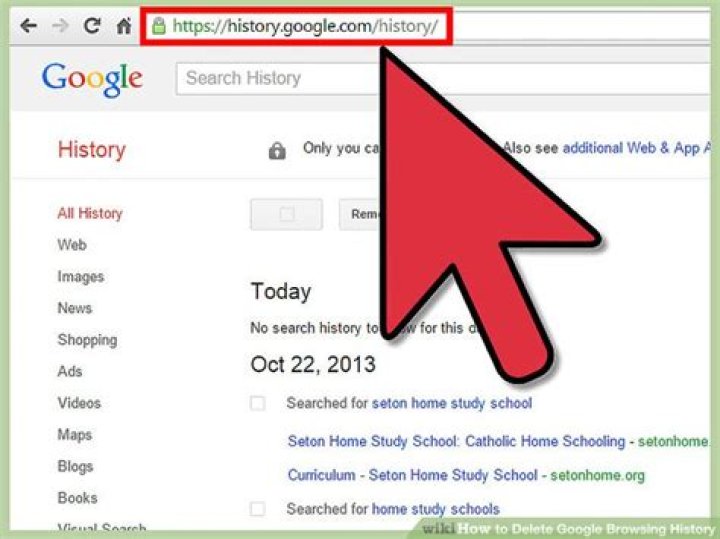
When most people want to clear Google history, it usually means they want to clear their Google “search” history and not all of their Google app information (though we’ll dive more into that later on in the article). To delete any history data from Google’s servers, you’ll have to start by going to Google’s My Activity page.
Now that you’ve done that, note the “Filter by date and product” just under the Search bar on the screen. Click that and you’ll get a popup window that looks something like the following.
“All time” will be selected at the top by default. You can adjust that as you please. Scroll down the options of Google products to select “Search,” then click the Search button at the top of the screen. This will present you with a list of all of your search activity.
Now all you have to do is click the Options icon in the Search bar, and then “Delete results” to purge your search history. By default, this will delete all of your Google search history: be sure to add a filter if that’s not what you want to do!
Clearing Individual Google App History
Of course, maybe you don’t want to clear your search history. Instead, you may want to clear a particular Google app’s history or the history of multiple apps. Fortunately, you can do this here, too, in mostly the same way.
Open your Filters again and find the product history that you want to get rid of. In this screenshot I’ve chosen to clear the Google history for their Maps Timeline which records everywhere I’ve been with my Android phone. Many people consider things like this to be creepy, so it’s one-hundred percent understandable if you decide you want to delete it.
Finally, maybe you’re done with Google altogether or you want to start anew with a clear history on your account. In either case, read on below to find out how to clear Google history entirely.
Clear Google History Entirely
It’s time to delete everything! This will get rid of just about all the data Google has on you besides your basic Google account information. To get to the page to do this, just click here.
Under the “Delete by date” option, you can choose how you want to get rid of your Google history. If you’re ready to completely purge everything, click the “All time” option and then the “Delete” button to let it rip.
Conclusion
Hopefully this article gave you insight into how to delete your Google history, should you need to. If you’re using this tutorial, why don’t you sound off below and talk about the reasons why? We’d love to hear from you!
I’m a longtime gamer, computer nerd and general tech enthusiast. While working at MakeTechEasier, I focused on writing about my passion for tech and building my name. Nowadays, I do tech how-tos and reviews for EasySMX and WePC, among other clients. You can also click here to see my work elsewhere.
By: Nathan Chandler | Updated: Jan 19, 2021
Your web browser history is a peek into your inner world, motivations and behaviors. And as such, you might not want your Google digital diary shouting its contents to anyone who peeks over your shoulder at just the wrong moment.
You can manage this sensitive history no matter which browser you use, from Chrome, to Firefox, to Apple’s Safari, but the steps are all a little different. And keep in mind that if you have multiple devices — and more than one browser on each device — that you may have to repeat some of these processes so that your main squeeze doesn’t know that you’ve been, for example, searching for an engagement ring online.
Here’s how to view and delete your history in various browsers. We’ll start with Chrome, which is made by Google. Google is now such a ubiquitous and powerful search engine that the company’s products, such as its Chrome browser, log your previous searches by syncing them between your various devices (laptop, tablet smartphone). However, once you delete your history in one device, it will remove it from all devices. These steps will remove searches using other search engines as well.
In Google Chrome:
- Click or tap the menu icon with three dots on the upper-right side of the browser window.
- Click or tap History > History (CTRL+H).
- On the left hand side, scroll to Clear Browsing Data. A box will appear which will ask you how much history you want to delete.
- If you want to completely clear out your history, also click the boxes for cookies and other site data and cached images and files. Then click Clear Data. That’ll clear out your previous searches.
- You may also want to prevent Chrome from auto-completing searches in the future. In Settings, (also found by tapping on the three dots on the upper-right of your browser) click Sync and Google services, and scroll to Other Google Services. Under Other Google Services, find Autocomplete searches and URLs and toggle this switch off (to the left).
- If you need to clear your mobile history, tap on the three dots, then on History. Click on Clear Browsing Data, then tap Clear Data.
For Firefox:
- Click or tap the menu icon with three lines on the upper-right side of the browser. window.
- Click on the Library icon from the drop-down menu.
- Click on the History icon that comes up in the drop-down menu inside the Library tab.
- Click on the View History sidebar. You’ll see options ranging from “Today” to “Older Than 6 Months.”
- Right-click on the option you want and press Delete.
- For mobile, tap the three-bar menu icon on the upper right side of the browser, then tap Settings.
- Tap Search, scroll down, and then clear the Show search history check box.
For Safari (desktop):
- Click the Safari menu, then click the History tab.
- Click on Clear History and Website Data.
- From the drop-down menu, choose the time frame you want to delete (most likely all history.)
- Click Clear History.
For Safari (mobile):
- Go to the Settings icon on the home screen.
- Scroll down to Safari.
- Tap on Clear History and Website Data.
- Keep in mind that this process deletes every bit of your browsing data, as well as browser cookies.
For Internet Explorer:
This will depend on the version you are using. For older versions:
- Click on the Favorites button (the star icon) in the top right hand corner.
- Select the History tab and click on how you want to view your history (date, site, etc.)
- Right-click on whatever you want to delete and select the Delete option.
For IE 10 or 11:
- Click on the Tools button (the wheel).
- Select Safety and then Delete Browsing History.
- This will give you several options on deleting files, cookies and history.
To delete search activity from Google Maps, YouTube and Other Google products:
- Go to your Google account ()
- Scroll the left hand panel and click Privacy & personalization.
- Under “Activity and timeline,” click My Activity.
- From the left hand panel, click Delete activity by.
- Select the date or time you wish to delete and hit delete.
On your Android phone/tablet:
- Open your device’s Settings app to Google or click on the Google icon from your phone’s main screen.
- Click on Google Account or Manage Your Account (depending on which way you arrived at the account)
- Click on Manage Your Data & Personalization
- Under Activity and time, click My Activity
- To the right of the search bar, click on the three dots and select Delete activity by
- Select the date or time you wish to delete and hit delete.
On your iPhone/iPad:
- Open the Gmail app. If you don’t use Gmail, go to )
- Click on Menu (three bars), then Settings, then your account, Click on Manage your Google Account
- At the top, click on Data & Personalization
- Under “Activity and timeline,” click My Activity
- At the top right of the page, click on the three dots and select Delete activity by
- Select the date or time you wish to delete and hit delete.
Signing into any Google service, like Gmail, also automatically logs you into Chrome, and thus, offers up your search history. That could be a problem, particularly on a shared devices. Use these steps to prevent automatic Chrome login.




