Nothing stings quite like a typo on the internet. If you’ve accidentally written something you’d rather take back or you want to remove someone else’s comment left on your post, here’s how to delete an Instagram comment on iPhone, Android, and on the web.
Delete an Instagram Comment on iPhone and Android
Start by opening the “Instagram” app on your iPhone or Android device and then finding the Instagram post in question. After opening the Instagram app, you can go to the Notifications section to find recent comments left on your post.
When you’re viewing the post, tap on the Comments icon (speech bubble icon) to view every comment associated with the post.
Here, locate the comment (your own or someone else’s) that you want to delete.
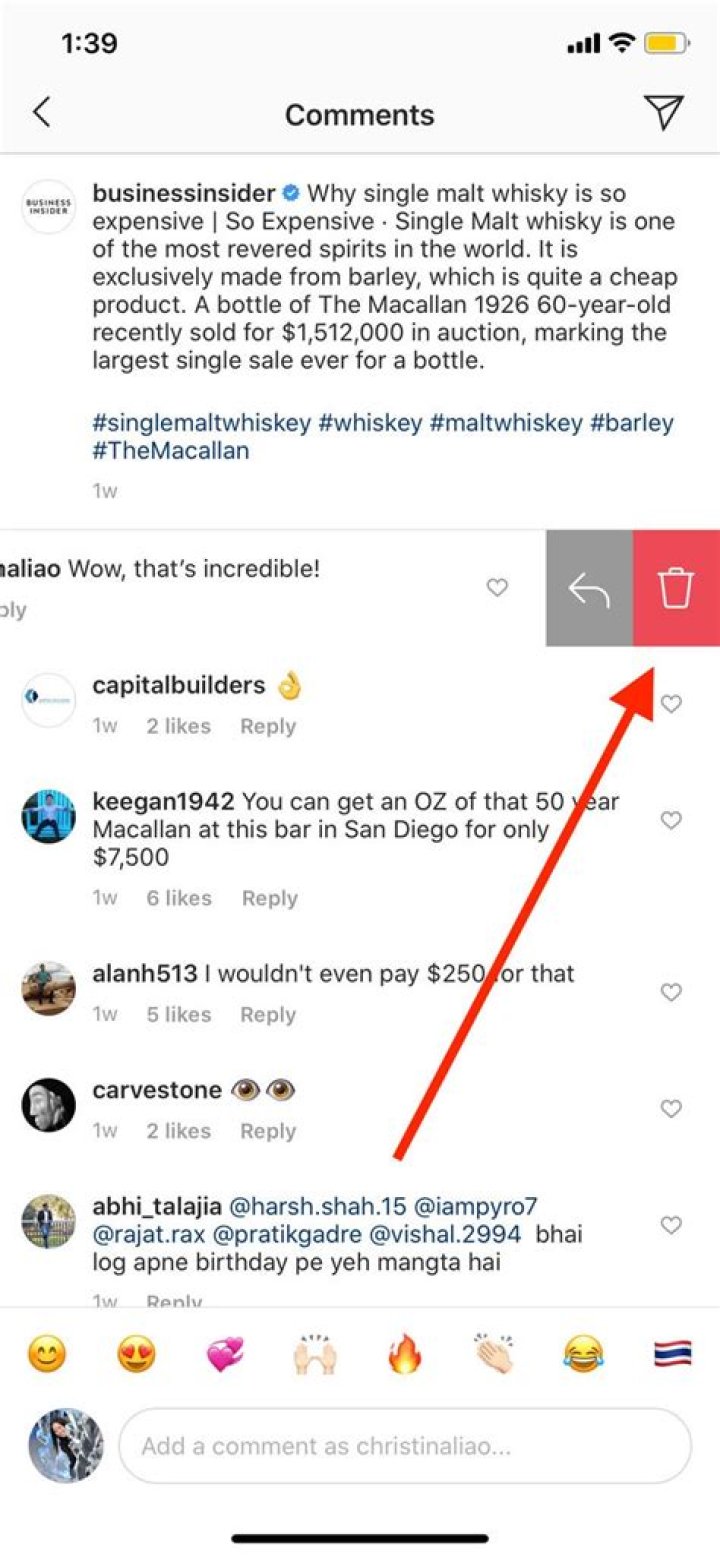
If you’re using an iPhone, swipe left on the comment to reveal options.
Here, tap on the Trash Can icon to delete the comment.
If you’re using an Android smartphone, tap and hold on the comment to select it.
Then, tap on the Trash Can icon found in the top toolbar to delete the comment.
You’ll see a banner at the top of the screen informing you that the comment has been deleted. If you change your mind, you have a couple of seconds to tap the “Undo” button to restore the comment.
Delete an Instagram Comment Online
Instagram’s website for desktop is getting better every day. If you’re fond of using Instagram on your computer, you’ll be happy to know that you can delete comments from here as well.
Open the Instagram website in your browser, of course, and then click on a post to expand it. You’ll now see the Comments section on the right-hand side.
Find the comment that you want to delete and hover over it. Then, click on the “three-dot Menu” button.
From here, choose the “Delete” option.
The comment will be instantly deleted from the post.
Instagram is a social photo and video sharing platform. A lot of people are using it for different purposes. From stories to IGTV, there is too much going on on Instagram. It is such a platform to find any kind of account to follow according to your interests. It is not only that; there is contact on Instagram as well. You can send messages to people by replying to their stories or just writing them directly. But what if your messages are deleted. In this article, we are going to explain how to recover deleted Instagram messages.
Instagram is not a chatting platform, but sometimes we can find a topic to write a lot about. Usually, this comes out when you are replying to someone’s story. You might delete messages by mistake or for other reasons, but when you want to recover deleted Instagram messages, it is possible, and there are three ways to do it.
Recovering Messages From the Other Side
When you delete messages on Instagram, you only delete them from your account. So your messages are still in the Direct Messages of the other person if he or she did not delete them as well.
One of the easiest ways to recover your messages is to ask the recipient to hand them over to you. It is one of the fastest ways for Instagram message recovery. However, if you do not follow each other anymore, you might want to try the other ways to get your messages again.
Recovering From Facebook Account
In 2012, Facebook bought Instagram, and since then, it is possible to connect your Instagram account to Facebook. For those who connected their accounts, there is good news. If you have connected your Instagram account to the Facebook account, it is much easier to recover deleted Instagram messages.
Your messages are collected on Facebook, as well. So you can find your Instagram direct messages in Facebook Inbox. Just follow these simple steps to see your deleted messages on Instagram:
- Log in to your Facebook account.
- Click on the ‘Messages’ button on the upper right side of the page.
- Now you have reached your inbox.
- There will be a menu on the left side, click on the ‘Instagram Direct’ icon, and you will find your DM messages here.
Recovering Messages Manually
If you have not connected your account to Facebook, don’t worry. Recovering from Facebook is easy, but not everyone connects their account, and it is still possible to recover deleted Instagram messages without a Facebook account.
Instagram started a function that allows you to download any kind of data from its website page. You can download direct messages, photos, videos, comments, and such. Now let’s take a look at how you can download your messages:
- Open the Instagram website page on a PC and log in to your account by entering your username and password.
- Go to your profile; there is a profile icon on the upper right corner of the page.
- Click on ‘Settings’ and select ‘Privacy and Security’ from the pop-up menu.
- Scroll down the page and click on the ‘Data Download’ button. Instagram will ask you to verify yourself, log in to your account again.
- Then enter your e-mail address to get a link from Instagram to download your messages, photos, videos, and profile information.
- Click on ‘Next’ and enter your Instagram password and click on ‘Request Download.’
- After you have done that, you will get an e-mail from Instagram with the subject of ‘Your Instagram Data’ in 48 hours.
- Open the e-mail and click on ‘Download Data,’ then all the data you have shared on Instagram will be downloaded in a ZIP file.
- Extract the files from the ZIP file and look for the messages file. Once you open it, you can see the deleted Instagram messages of yours.
FAQs About Instagram Messages
Blocked users cannot send messages to you but both sides can see past conversations. If you don’t want to see them, you have to delete them manually.
There is no hiding direct messages feature on Instagram DMs but you can mute other users. To do that, go to your DM section, tap and hold on the account you want to mute, tap on ‘Mute Messages.’
If you block someone and you are in the same group with him/her you can still see their messages but if that person tries to contact you in DM, it is not possible.
There’s no expiration date for Instagram messages; unless you delete them manually, or the person you’re talking to blocks you, the messages stay.
Instagram does not store users’ messages after the user deletes them.
Conclusion on Instagram Messages
As you can see, it is possible to recover deleted Instagram messages one way or another. Your messages are not deleted from the recipient so one of the easiest ways to recover them is just asking the recipients for the messages.
If you cannot do that, you can recover them from your Facebook account, if you have connected your accounts of course. The third way might be the hardest but the most difficult thing about it is just waiting.
If you want to learn more about Instagram, read our latest articles about it and use Instagram effectively.
Normally we are thrilled when someone comments on our Instagram photos as it usually means they like your post, but there are other times when you wish those comments hadn’t appeared. Whether it’s spam or an insult, or just something that doesn’t seem to make sense, the fact is that when such a comment appears on your photos, you have control over which comments you want to keep and which you do not. At OneHowTo.com we tell you how to delete comments on Instagram.
The first step to knowing how to delete comments on Instagram is to open the app and click on the photo that has the comment you want to delete.
You will see at the bottom of the picture a heart that means “like”, and a sandwich to comment. Click on the sandwich, as if you were going to comment on the photo.
To delete comments on Instagram you must find the comment you want to delete and hold the mouse on it for a few seconds, until a menu opens.
The first option in this menu is “Delete comment“. Click on it. If the comment is spam or some other kind of abuse, click the second option “Delete comment and report it as abuse”.
Finally, you will see a window where you will be asked if you are sure you want to remove the comment on Instagram. Click “Remove” and the comment will disappear. You should check your comments regularly to make sure that negative comments are removed in a timely manner.
If you are a regular user of Instagram, there are lots of useful OneHowTo articles to teach you the different uses and applications of this social network. Click here for articles about how Instagram works.
If you want to read similar articles to How to delete comments on Instagram, we recommend you visit our Internet category.
How to Delete a Comment on Instagram? It can be pretty hard on your nerves to leave a comment on someone’s profile and see it getting ignored. Otherwise, every one of us did have cringy drops on some meme pages. However, there’s a legit way to have some headspace and delete a comment on Instagram.
Since its establishment, Instagram was merely a photo-sharing platform. Some say that was the uniqueness of the network, and some say this situation was taking the digital behemoth back. Either way, we are here now. Furthermore, reports show us that the platform is doing great.
How to Delete Instagram Comments on Computer
You should know that first, it is possible to delete all of the comments you’ve posted before. The comments just have to be on your profile. On someone else’s feed, you can only delete your own comments.
- Go to Instagram through your web browser, preferably with Chrome.
- After that, right-click on any part of the page, you should see the Inspect tab.
- Open the Inspect section and let Instagram recognize the browser as a mobile device by setting your browser in the Tablet/Phone Mode.
- Find the post you want to remove any comments from and open the post.
- Click on the bubble icon below to open the comments section.
- Either swipe or long-tap on the post, in this way, you will get the prompt to delete a comment on Instagram.
Why People Delete Comments?
People may have very different motives for deleting their or other people’s comments. Some of them have no reason at all for this act. This situation makes some people feel irritated. However, you should know that everyone is free in their own choice of action.
You can delete people’s comments just because you do not like them. Additionally, some people choose to remove their ex-lovers’ comments as they feel like it’s degrading themselves. Furthermore, old friends can make new enemies. As sad as it sounds, people state that they cancel their old friends’ comments.
In situations like this, you should take a minute for yourself to delve deep in this subject. Is it really worthwhile to potentially gaining a new enemy? We do not think so. Therefore, we highly suggest that you should think twice before deleting any comments.
How Do I Turn Comments on or off for My Instagram Posts?
Great news, with the newest features of Instagram, it is actually possible to disable Instagram comments only for a single post or more. When you turn off the post’s future comments, all already visible comments get hidden too.
Alternatively, set the comments as allowed again for that post; all of the old comments will reappear again. Therefore, you should know that this is not the right way to delete all the comments you have.
- Go to the official Instagram app on your mobile device.
- Enter your profile and choose any post you want to tear apart its comments.
- When on the post screen, tap on the three-dotted icon at the right side of the page.
- From there, you can either Turn off Commenting or Turn on Commenting.
Here are the steps to delete an Instagram comment you made on your Desktop or Mobile device.
Delete Instagram Comment on Desktop Computer
- Select the triple dots in the bottom corner of your Instagram post.
- Select Remove comments.
- Finally, click the X next to the Instagram comment you want to delete.
You will receive a confirmation prompt. Select Delete Comment.
Delete Instagram Comment on Mobile Device
- Swipe left on your Instagram comment to reveal the delete trashcan icon.
- Tap the trash icon to delete the comment.
Related Posts
How To Save Instagram video BEFORE sharing/posting – iPhone
Why: The network response was invalid – Venmo
There was a problem deleting this. Please try again later. Facebook (iOS)
- Comments
- Disqus Comments
Comments
I’m on a Mac, and it worked for me. Thank you for this solution. For some reason, I was unable to delete the comments on my phone, so doing it from the desktop took care of the problem.
This only works on your own posts. If the comment you want to delete is on someone elses post It wont have the option to remove comments when you hit the 3 dots.
Facebook has totally ruined instagram, this no longer works on the computer. Instagram is more buggy and laggy than ever before thanks to facebook buying it. Something as simple as deleting ones own comments can’t even be done.
My experience is as Daryl noted: “There is no longer a remove comment option under the 3 dots on a PC.” I recall being able to do this, previously, but the option no longer appears to exist. I welcome any suggestions or corrections from someone more knowledgeable than myself. By the way, I do not have a Smartphone/mobile device to try. Thanks.
We will talk about the process of deleting comments on Instagram today. With Instagram, you can delete comments in your posts that you do not like or don’t want to see. So let’s see how to delete comments on Instagram.
Do you know that you can buy automatic Instagram likes to lift your account to its true and pure potential?
How to Delete a Comment on Instagram on Mobile
Deleting a comment you don’t like is one of the easiest things you can do on Instagram. Deleting Instagram comments on your iOS or Android operating system phone only takes 1 second. To do so:
- First, open your Instagram app from your phone and go to the comment which you want to delete.
- Then, you have to touch and hold your comment, and you will see the Report or Delete button, touch the Delete button in the top right corner.
- Or, you have to scroll the comment to the left and press the trash can icon.
The process of deleting comments on Instagram on phones with iOS and Android operating systems is done in this way, and if you think that the comment made under your post is inappropriate, you can use the Report button. Or, if deleting the comment doesn’t stop the person commenting on you, it may be a good option to block that person.
When I delete someone’s comment, does this person gets any notification?
No, no one will get a notification when you delete their comments. Users can only understand that you have deleted your comment if they remember that they have commented on your post and re-enter your post and cannot see their comments. It is not possible to receive a notification about this on Instagram.
How to Delete a Comment on Instagram on PC
Time needed: 1 minute.
You can now delete Instagram comments not only from your mobile device but also from your computer. This method can be performed quite simply and quickly, just like the method of deleting comments from the phone.
- Go to the Instagram website.
- First, visit the Instagram website and log in to your account. Go to the post and find the comment which you want to delete.
- Click the three-point icon.
- After finding the comment, you will see the three-points icon next to the comment you’d like to delete. Click it.
- Click to the Delete option.
- After you click to the three-points icon, you will see Report and Delete options, select the delete option and the comment will be deleted.
Why does a comment I deleted on Instagram still exist?
If you delete a comment and still see that comment when you refresh the page, there may be a problem with your internet connection during this process.
So it’s a good idea to try this process again and check your internet connection.
How to Turn off or Filter Comments on Instagram
To avoid annoying comments, you can use filtering or turn your photo directly to comment. In particular, Instagram accounts can complain about the excess of comments.
These comments may contain spam, advertising, offensive terms, or insults. If you want to have an active account but no annoying comments under your posts, you can use Instagram’s comment filtering.
Or edit the Instagram comment to fix a typo
- Tweet
- Share
What to Know
- Swipe left and tap the Trash icon (iPhone), tap and hold until you can tap the Trash icon (Android), or click the three dots >Delete (web).
- You can delete your own comments or comments left on your posts by someone else.
- You can’t edit comments, but you can delete a comment and then replace it with a new one.
This article explains how to delete an Instagram comment on an iPhone, Android, or web browser.
How to Delete an Instagram Comment on Your Phone
Whether you post a comment you later want to retract or someone leaves a comment you want to remove from your own post, it’s easy to delete comments on Instagram.
Just remember these rules: You can only delete your own comments or comments left on a post you own. You can’t delete comments from other people on a post that doesn’t belong to you.
Open Instagram on your phone and find the post with the comment you want to delete.
Tap the comment bubble icon to see all the comments associated with this post.
On the iPhone, swipe the comment to the left and tap the Trash can icon.
On Android, tap and hold the comment until the pop-up bar appears at the top of the screen, and then tap the Trash can icon.
How to Delete an Instagram Comment in a Web Browser
If you’re using a web browser instead of a the Instagram mobile app, you can still delete unwanted comments with just a few clicks.
Open Instagram in a web browser and find the post with the comment you want to remove.
Click the post to see it pop up in a window with all the associated comments.
Hover your mouse pointer over the comment you want to remove, and then click the three dots to the right of the comment.
In the pop-up window, click Delete.
Can You Edit a Comment on Instagram?
Unfortunately, Instagram does not allow you to edit comments, even if they’re your own.
There is a workaround, though: You can simply replace the comment with a new one. This isn’t necessarily ideal, especially if your comment already had other replies or a lot of likes. Deleting a comment removes all likes and replies associated with it.
If you are okay with that compromise, follow the instructions above to find and delete the comment you want to edit. Delete it, and then add a new comment to the post with the edits you were planning to make.
Here are the steps to delete an Instagram comment you made on your Desktop or Mobile device.
Delete Instagram Comment on Desktop Computer
- Select the triple dots in the bottom corner of your Instagram post.
- Select Remove comments.
- Finally, click the X next to the Instagram comment you want to delete.
You will receive a confirmation prompt. Select Delete Comment.
Delete Instagram Comment on Mobile Device
- Swipe left on your Instagram comment to reveal the delete trashcan icon.
- Tap the trash icon to delete the comment.
Related Posts
YouTube Update iOS – 12.15 April 25 2017
YouTube Update Android – 12.13.53 April 11 2017
YouTube Update – 12.29 August 01 2017
- Comments
- Disqus Comments
Comments
I’m on a Mac, and it worked for me. Thank you for this solution. For some reason, I was unable to delete the comments on my phone, so doing it from the desktop took care of the problem.
This only works on your own posts. If the comment you want to delete is on someone elses post It wont have the option to remove comments when you hit the 3 dots.
Facebook has totally ruined instagram, this no longer works on the computer. Instagram is more buggy and laggy than ever before thanks to facebook buying it. Something as simple as deleting ones own comments can’t even be done.
My experience is as Daryl noted: “There is no longer a remove comment option under the 3 dots on a PC.” I recall being able to do this, previously, but the option no longer appears to exist. I welcome any suggestions or corrections from someone more knowledgeable than myself. By the way, I do not have a Smartphone/mobile device to try. Thanks.
Instagram can be a wonderful social network for sharing and commenting on photos and videos, but sometimes the comments you get on your photos and videos do little more than prove human evolution is really still a work in progress. However, if you get a comment that’s rude, crude, or otherwise immature on one of your Instagram photos or videos, hope is not lost — you can delete it or report it for abuse. The method for doing so isn’t exactly obvious, but once you figure it out you’ll be able to use it whenever you need it.
How to report and delete an Instagram comment
- Launch Instagram from your iPhone Home screen.
- Go to the photo or video that has the comment you want to moderate.
- Tap the Comment button just like you would to leave a new comment.
- Scroll to the comment you want to moderate.
- Swipe from right to left to reveal the Trash can button.
- Tap the Trash can button.
- Choose if you simply want to delete the comment or if you want to report it for abuse.
That’s it, the offending comment will be gone and those coming across your Instagram photos or videos will no longer be subjected to anything that’s decidedly less than social.
If you have cause to use it, let me know how it works for you!
‘For All Mankind: The Official Podcast’ will debut alongside season 2
There’s now a podcast to go with the show.
Review: We can sit in Anda Seat Marvel Series Gaming Chairs all day
Anda Seat recently released a collection of premium gaming chairs that are aimed for Marvel superfans, and we can sit in these all day.
Zuckerberg told Facebook ‘We need to inflict pain’ on Apple
A new report says Mark Zuckerberg told staff he wanted to inflict pain on Apple over its perceived treatment of the social network.
Great video editing software for your Mac
You don’t need to buy expensive video-editing software to get the job done. Here are some of the hottest video-editing software for Mac on the market today.
Isn’t it one of the worst feelings when you take your time to write a comment on an Instagram post and you look back only to see a bunch of typos and words autocorrect wrongly replaced?
You feel ashamed and stupid and illiterate.
So you go back trying to edit it.
But how to edit an Instagram comment?
Well, sadly, Instagram doesn’t exactly throw us a bone when it comes to editing comments, so our only choice is to wallow in our own shame.
Or delete. Yes, delete.
You can’t edit a comment on Instagram, you can only delete it and repost the edited version. To delete a comment on Instagram, you can tap and hold the comment you want to delete on your Android phone or swipe left on your iPhone. On your desktop, click on the three dots that appear to the right of your comment and click delete.
Now I know it’s a hassle and you’d rather edit your comment than delete and write it all over again, but until Instagram decides to give us that option (maybe never), that’s the only thing you can do.
You can do this with all of your comments on your own posts or someone else’s posts, and even other people’s comments if they are under your post.
- Edit an Instagram comment on your smartphone
- Edit An Instagram comment on your desktop
So here’s how to edit an Instagram comment… by deleting it:
I’ve briefly summed it up above, but let’s see how you can delete and edit an Instagram comment on your phone and desktop in more detail:
How to edit an Instagram comment on your smartphone
1. If the Instagram comment you wish to change is under one of your posts, go to your profile by tapping the little human icon in the bottom right corner.
2. Then go to the post you want to edit the comment of and tap the speech bubble. On Androids, tap and hold your comment — which will be highlighted in a light blue color — and tap the trash can icon. On iPhones, swipe left over your comment and tap the trash can icon. Be careful, once you press it, you can’t go back, it will delete it immediately.
3. Write your new and improved comment and tap on “Post”.
4. What if you want to edit a comment on someone else’s instagram? If the comment you want to edit is under someone else’s post, you have to go to that person’s profile — by writing their name in the search box or looking for them under the “followers” or “following” tabs in your profile — and search for their post, then tap the speech bubble icon to find your comment and delete it by tapping on your Android or swiping left on your iPhone.
5. If there are a lot of comments, this might prove a little difficult and time-consuming, but there might be a workaround. If someone has already liked or replied to your comment, you can find it very easily. Just tap the heart icon on the bottom of the Instagram app and you will see all the likes, mentions and replies to your comments and posts. If someone has already liked or replied to your comment, you will find it there.
Bonus tip: you can also delete other people’s comments the same way if they’re under your posts.
How to edit an Instagram comment on your desktop
If you think not being able to edit your comment without deleting it is a nightmare, think again. In the Instagram application on your desktop, you couldn’t even do that before. Now you can and here’s how:
1. Go to instagram.com on your desktop and sign in.
2. Go to your profile by clicking on your profile photo in the top right corner, or search for another person’s profile in the search box or by going to the “followers” or “following” tabs under your profile name.
3. Search for the post you commented on.
4. The same goes here as on your smartphone. If someone has liked or replied to your comment, you can find it easier by clicking on the heart icon at the top of the screen.
5. Find your comment and click on the three dots that appear to the right of your comment.
6. Click delete.
7. BUT FIRST, don’t forget to copy-paste your comment before deleting it so that you can actually edit it without having to write it all over again. You can’t do that on your smartphone, once you select the comment on your smartphone, you can’t select the text, you can only delete it. So if you have the choice, and especially if you’ve taken the time to write a long comment that you can’t fully replicate, edit it on your desktop.
8. Then add your new comment in the comment box and click post.
So there you have it. You can’t actually edit an Instagram comment, but you can at least delete it and post it again.
But seriously Instagram, get your marbles together and let us edit our own comments like normal human beings!
I hope this short tutorial on how to edit an Instagram comment has helped you in some way, and if you have a magical workaround for this, do let us know in the comments below. We’re hot for new social media tricks!




