Outlook add-ins and COM add-ins are programs that run within Outlook and perform actions that Outlook doesn’t provide. For example, if you use a password management service or an online meeting service, including Skype, you may have an Outlook add-in assisting you.
Since add-ins are separate programs, occasionally an Outlook COM add-in can encounter problems that slows down the rest of Outlook. These problems could be due to latency of events such as switching between Outlook folders, arrival of new emails, opening Calendar items, etc.
When such issues arise, Outlook will perform one of two actions:
Disable the add-in automatically. When this happens, Outlook displays a warning in the notification bar
Or, if the add-in is Always Enabled by the user, then Outlook displays the reason why it marked the add-in as unhealthy in the warning notification and seeks permission from you to disable it when you select View More Details
Fixing Outlook unhealthy add-in notifications
All the unhealthy COM add-ins are listed under the dialog File -> Slow and Disabled COM Add-ins. It will show the average delay time next to each unhealthy add-in. You can also reach the dialog when you click on View Disabled Add-ins or View More Details from the notification that pops up.
1. In the case where the unhealthy COM add-in is automatically disabled by Outlook or disabled by you, the dialog box will give you an option to check ‘Always enable this add-in’.
2. If the unhealthy COM add-in is in Always Enabled List, it allows you to choose from one of the following options
Always monitor this add-in
Do not monitor the add-in for the next 7 days
Do not monitor this add-in for the next 30 days
Disable this add-in
Outlook soft resiliency add-in notifications
For some scenarios (or events), Outlook doesn’t disable the unhealthy add-in automatically, but takes a more softened approach where it shows the following notification and provides an option to disable in case you want to disable it yourself.
Troubleshooting Outlook add-in problems
If an Outlook detects a problem with an add-in, you can uninstall and reinstall the add-in. If that doesn’t solve the issue, contact the company that supplied the add-in. For most add-ins, you can find the company that supplied the add-in by selecting File > Add-ins. The add-in supplier is listed in the provider column. Select the add-in to display additional information about the add-in in the right pane
If the Outlook client starts behaving oddly, one of the first things to do is see whether add-ins are causing the problem. Here’s how to disable them so you can tell if they’re the issue.
What are Add-Ins?
Add-ins are extra bits of functionality that software providers create to hook their application into Outlook. You can install add-ins yourself by opening Outlook and clicking Home > Get Add-ins, which will show you some of the add-ins available to you.
However, most add-ins are installed automatically when you install a piece of software on your computer. You may never use the add-ins, or even be aware that they’re there, but they aren’t (usually) malware or anything nasty. They’re intended to make it easier for you to use a product. For example, when you install Adobe’s Acrobat PDF reader, it installs an Outlook add-in that lets you make PDFs out of emails.
There’s usually no need to remove add-ins, but if Outlook starts behaving oddly—especially if it freezes, crashes, or refuses to open—then disabling the add-ins will tell you if they’re the problem.
How to Disable All Add-Ins
Troubleshooting is all about finding the cause of a problem. The best way to do this is to gradually narrow down the possible issues until you’re left with just the cause of the problem. In the case of Outlook problems, this means disabling all the add-ins and, if the problem goes away, re-enabling the add-ins one by one to identify which one is causing the problem. This is particularly true if Outlook is encountering problems at startup.
The easiest way to disable all of the add-ins at once is to open Outlook in Safe Mode. This disables all the add-ins but doesn’t change anything else, so if one (or more) of the add-ins is causing the problem, everything will work as expected in Safe Mode. There are several ways to open Outlook in Safe Mode, depending on what version of Outlook and which version of Windows you’re using. There are a couple of methods that generally should work across all the combinations of supported versions of Outlook and Windows, but if these don’t work then search online for your particular combination.
Method One: Hold the Ctrl Key While Launching Outlook
This works whether you click an icon on your taskbar, desktop, or from the Windows menu. Hold down the CTRL key on your keyboard while clicking the Outlook icon (or double-clicking if your icon is on the desktop). A confirmation message will be displayed.
Click “Yes” to open Outlook in Safe Mode.
Method Two: Use the Run Dialog or Windows 10 Start Menu
In Windows 10 press the Windows key, or in Windows 7 or 8 press the Windows key + R. In Windows 10 this will bring up the Windows menu where you can type commands directly, and in Windows 7 or 8 this will bring up the Run dialog, where you can also type run commands. Either way, type “outlook.exe /safe” (without the quote marks) and then hit Enter. This will bring up the Profile Chooser.
Choose the profile you want to open (for most people there will only be a single “Outlook” profile to choose) and then click “OK.” This will open Outlook in Safe Mode.
Whichever method you choose, Outlook will be open in Safe Mode. The name of the program in the header bar will change from “Microsoft Outlook” to “Microsoft Outlook (Safe Mode).”
All of the add-ins will be disabled, EXCEPT some core Microsoft Office add-ins. These are very unlikely to be the cause of an Outlook issue, but you can disable them manually once Outlook is open. Next time you open Outlook as usual (i.e., not in Safe Mode), the add-ins will be enabled again, unless you’ve manually disabled them.
How to Disable Individual Add-ins
Starting in Safe Mode will tell you if one of your add-ins is the problem, but if you want to disable a single add-in—such as one that’s just been installed or a core Microsoft add-in that isn’t disabled in Safe Mode—you can do that too. Click File > Options, and then click the “Add-Ins” category on the left.
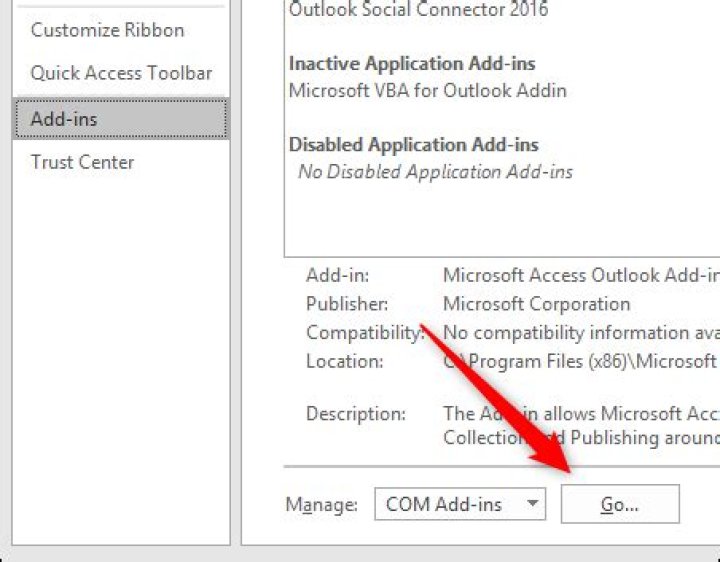
This will open the Add-ins section. To enable or disable add-ins, make sure that “COM Add-ins” is selected in the dropdown (it’s the default, so you shouldn’t need to change it) and then click “Go.”
This opens up the COM Add-ins dialogue, where you can enable or disable add-ins.
Enabling and disabling is a tick-box exercise—a tick means the add-in is enabled; no tick means the add-in is disabled. To disable an add-in, untick it and then click “OK.”
Important: Make sure that you don’t click “Remove.” This will uninstall the selected add-in, not disable it!
When you go back into File > Options > Add-ins, the add-in you disabled will be visible in the disabled add-ins section.
The add-in will remain disabled until you enable it again. Test to see if your problem occurs when the add-in is disabled; if it does, keep disabling your add-ins one by one until you find the culprit.
How to Enable Individual Add-ins
Once you’ve worked out what add-in is causing the problem (if any of them are), you can re-enable any other add-ins that you disabled. Enabling individual add-ins is as simple as disabling them: click File > Options > Add-Ins, make sure that “COM Add-ins” is selected in the dropdown, and then click “Go” to open up the COM Add-ins dialogue.
Tick the add-ins you want to enable and then click “OK.” You might have to restart Outlook for the add-ins to load, and it’s generally a good idea to do that anyway to make sure everything is working correctly.
You can disable and enable add-ins whenever you’re troubleshooting an Outlook problem. They’re not always the cause, but if Outlook has been working fine and then a problem occurs after a new add-in has been installed, it’s a good place to start looking.
If the Outlook client starts behaving oddly, one of the first things to do is see whether add-ins are causing the problem. Here’s how to disable them so you can tell if they’re the issue.
What are Add-Ins?
Add-ins are extra bits of functionality that software providers create to hook their application into Outlook. You can install add-ins yourself by opening Outlook and clicking Home > Get Add-ins, which will show you some of the add-ins available to you.
However, most add-ins are installed automatically when you install a piece of software on your computer. You may never use the add-ins, or even be aware that they’re there, but they aren’t (usually) malware or anything nasty. They’re intended to make it easier for you to use a product. For example, when you install Adobe’s Acrobat PDF reader, it installs an Outlook add-in that lets you make PDFs out of emails.
There’s usually no need to remove add-ins, but if Outlook starts behaving oddly—especially if it freezes, crashes, or refuses to open—then disabling the add-ins will tell you if they’re the problem.
How to Disable All Add-Ins
Troubleshooting is all about finding the cause of a problem. The best way to do this is to gradually narrow down the possible issues until you’re left with just the cause of the problem. In the case of Outlook problems, this means disabling all the add-ins and, if the problem goes away, re-enabling the add-ins one by one to identify which one is causing the problem. This is particularly true if Outlook is encountering problems at startup.
The easiest way to disable all of the add-ins at once is to open Outlook in Safe Mode. This disables all the add-ins but doesn’t change anything else, so if one (or more) of the add-ins is causing the problem, everything will work as expected in Safe Mode. There are several ways to open Outlook in Safe Mode, depending on what version of Outlook and which version of Windows you’re using. There are a couple of methods that generally should work across all the combinations of supported versions of Outlook and Windows, but if these don’t work then search online for your particular combination.
Method One: Hold the Ctrl Key While Launching Outlook
This works whether you click an icon on your taskbar, desktop, or from the Windows menu. Hold down the CTRL key on your keyboard while clicking the Outlook icon (or double-clicking if your icon is on the desktop). A confirmation message will be displayed.
Click “Yes” to open Outlook in Safe Mode.
Method Two: Use the Run Dialog or Windows 10 Start Menu
In Windows 10 press the Windows key, or in Windows 7 or 8 press the Windows key + R. In Windows 10 this will bring up the Windows menu where you can type commands directly, and in Windows 7 or 8 this will bring up the Run dialog, where you can also type run commands. Either way, type “outlook.exe /safe” (without the quote marks) and then hit Enter. This will bring up the Profile Chooser.
Choose the profile you want to open (for most people there will only be a single “Outlook” profile to choose) and then click “OK.” This will open Outlook in Safe Mode.
Whichever method you choose, Outlook will be open in Safe Mode. The name of the program in the header bar will change from “Microsoft Outlook” to “Microsoft Outlook (Safe Mode).”
All of the add-ins will be disabled, EXCEPT some core Microsoft Office add-ins. These are very unlikely to be the cause of an Outlook issue, but you can disable them manually once Outlook is open. Next time you open Outlook as usual (i.e., not in Safe Mode), the add-ins will be enabled again, unless you’ve manually disabled them.
How to Disable Individual Add-ins
Starting in Safe Mode will tell you if one of your add-ins is the problem, but if you want to disable a single add-in—such as one that’s just been installed or a core Microsoft add-in that isn’t disabled in Safe Mode—you can do that too. Click File > Options, and then click the “Add-Ins” category on the left.
This will open the Add-ins section. To enable or disable add-ins, make sure that “COM Add-ins” is selected in the dropdown (it’s the default, so you shouldn’t need to change it) and then click “Go.”
This opens up the COM Add-ins dialogue, where you can enable or disable add-ins.
Enabling and disabling is a tick-box exercise—a tick means the add-in is enabled; no tick means the add-in is disabled. To disable an add-in, untick it and then click “OK.”
Important: Make sure that you don’t click “Remove.” This will uninstall the selected add-in, not disable it!
When you go back into File > Options > Add-ins, the add-in you disabled will be visible in the disabled add-ins section.
The add-in will remain disabled until you enable it again. Test to see if your problem occurs when the add-in is disabled; if it does, keep disabling your add-ins one by one until you find the culprit.
How to Enable Individual Add-ins
Once you’ve worked out what add-in is causing the problem (if any of them are), you can re-enable any other add-ins that you disabled. Enabling individual add-ins is as simple as disabling them: click File > Options > Add-Ins, make sure that “COM Add-ins” is selected in the dropdown, and then click “Go” to open up the COM Add-ins dialogue.
Tick the add-ins you want to enable and then click “OK.” You might have to restart Outlook for the add-ins to load, and it’s generally a good idea to do that anyway to make sure everything is working correctly.
You can disable and enable add-ins whenever you’re troubleshooting an Outlook problem. They’re not always the cause, but if Outlook has been working fine and then a problem occurs after a new add-in has been installed, it’s a good place to start looking.
Microsoft Outlook is a powerful and friendly application that allows users to install add-ins inside. Worse of all, few of add-ins may conflict with other or inactive. Therefore, we have to disable, remove or fix add-ins Outlook. Walk through the tutorial below to learn the details.
Part 1: How to Disable Add-ins Outlook
Step 1: Launch your Microsoft Outlook on the desktop.
Step 2: At the top-right, click on Store icon to view more add-ins.
Step 3: Click the trigger behind the add-ins you want to remove. When you wonder enabling it, switch it to another side.
Part 2: How to remove add-ins Outlook
Step 1: For Outlook 2010/2013/2016, click on File at the upper-left corner, select Options from the left panel.
For Outlook 2007, click on Tools from the Menu Bar then select Trust Center on the drop-down.
Step 2: In the Outlook Options window, click on Add-ins tab. At the bottom of the window, select COM Add-ins behind Manage and tap on Go.
Step 3: Choose the add-ins and click Remove.
Part 3: How to fix add-ins Outlook by Registry Editor
Step 1: Press Windows + R combination to invoke Run dialog box. Input regedit and hit Enter.
Step 2: Expand the following folders:
HKEY_CURRENT_USER\Software\Microsoft\Office\15.0\Outlook\Resiliency
Step 3: Find out REG_BINARY type of key in the DisabledItems and CrashingAddinList folder and delete them.
Related Links:
iSunshare is dedicated to providing the best service for Windows, Mac, Android users who are in demand for password recovery and data recovery.
Microsoft Outlook is a powerful and friendly application that allows users to install add-ins inside. Worse of all, few of add-ins may conflict with other or inactive. Therefore, we have to disable, remove or fix add-ins Outlook. Walk through the tutorial below to learn the details.
Part 1: How to Disable Add-ins Outlook
Step 1: Launch your Microsoft Outlook on the desktop.
Step 2: At the top-right, click on Store icon to view more add-ins.
Step 3: Click the trigger behind the add-ins you want to remove. When you wonder enabling it, switch it to another side.
Part 2: How to remove add-ins Outlook
Step 1: For Outlook 2010/2013/2016, click on File at the upper-left corner, select Options from the left panel.
For Outlook 2007, click on Tools from the Menu Bar then select Trust Center on the drop-down.
Step 2: In the Outlook Options window, click on Add-ins tab. At the bottom of the window, select COM Add-ins behind Manage and tap on Go.
Step 3: Choose the add-ins and click Remove.
Part 3: How to fix add-ins Outlook by Registry Editor
Step 1: Press Windows + R combination to invoke Run dialog box. Input regedit and hit Enter.
Step 2: Expand the following folders:
HKEY_CURRENT_USER\Software\Microsoft\Office\15.0\Outlook\Resiliency
Step 3: Find out REG_BINARY type of key in the DisabledItems and CrashingAddinList folder and delete them.
Related Links:
iSunshare is dedicated to providing the best service for Windows, Mac, Android users who are in demand for password recovery and data recovery.
Have the issue in Outlook 2016.
It shows the Outlook detected a com add-in problem so it decreases the performance of Outlook or Crash a Outlook.
It shows the Microsoft RMS Add-in and this add-in caused Outlook to start slowly.
Let me know the solution and the root cause of this problem.
Reach me at anytime – ( My contact no – ***Personal Information***.
***Post moved by the moderator to the appropriate forum category.***
***Personal information deleted by the moderator. Please see the Microsft Community Frequently Asked Questions for more information on how you can protect your privacy.***
Replies (6)
Regarding your Outlook issue, that could happened due to third party add-ins. To resolve you issue, we suggest that you disable your add-ins. You can follow the steps on this link: Add-ins are user re-enabled after being disabled by Office programs.
If your Outlook keeps on crashing, we suggest you run Outlook in a safe mode and try to disable the add-ins. You can follow the steps on this link: Open Office apps in safe mode on a Windows PC.
Let us know if you need any assistance.
3 people found this reply helpful
Was this reply helpful?
Sorry this didn’t help.
Great! Thanks for your feedback.
How satisfied are you with this reply?
Thanks for your feedback, it helps us improve the site.
How satisfied are you with this reply?
Thanks for your feedback.
Thanks for your response.
The problem here is, i cannot disable the RMS add-ins as it’s an solution that we have provided to client.
So without disable the RMS add-ins, we need to fix the issue.
As microsoft visual studio 10 is an pre-requesties to run office programs, i have installed and verified that too in the machine.
Installed Visual studio 2010.
Restarted the system
Still the problem persists.
Please share your ideas on this issue.
My contact no ***Personal Information***.
***Personal information deleted by the moderator. Please see the Microsft Community Frequently Asked Questions for more information on how you can protect your privacy.***
Was this reply helpful?
Sorry this didn’t help.
Great! Thanks for your feedback.
How satisfied are you with this reply?
Thanks for your feedback, it helps us improve the site.
How satisfied are you with this reply?
Thanks for your feedback.
Please tell me the root cause and solution steps for this issue.
- We are using Outlook 2016.
- Installed Visual studio 2010 as well.
- We cannot disable the RMS add-ins.
Let me know if you need any more details.
2 people found this reply helpful
Was this reply helpful?
Sorry this didn’t help.
Great! Thanks for your feedback.
How satisfied are you with this reply?
Thanks for your feedback, it helps us improve the site.
How satisfied are you with this reply?
Thanks for your feedback.
Was this reply helpful?
Sorry this didn’t help.
Great! Thanks for your feedback.
How satisfied are you with this reply?
Thanks for your feedback, it helps us improve the site.
How satisfied are you with this reply?
Thanks for your feedback.
Thanks palcouk for your suggestions.
We have already using the latest version of the RMS client. (Version 2.1)
I have installed Microsoft Visual studio 2010
I have checked the RMS Client version
In Outlook i cannot enable the Auto enable updates as it’s in client scenario.
Also i cannot disable the RMS add-ins.
So Please suggest me other any possible ways to fix the issue.
And also i need to know its an known issue for an clients ?
Was this reply helpful?
Sorry this didn’t help.
Great! Thanks for your feedback.
How satisfied are you with this reply?
Thanks for your feedback, it helps us improve the site.
How satisfied are you with this reply?
Thanks for your feedback.
There are several reasons why you’re encountering this issue, one of this is a file corruption. We suggest that you try to follow the steps below on how to disable Add-ins in Outlook 2016:
- Launch Outlook 2016 on Safe Mode.
- On the File menu, click Option, and then click Add-ins.
- In the Add-ins box, identify the add-in that you want to disable and note the Add-in type located in the Type column.
- Select the Add-in type in the Manage box and then click Go.
- Select or clear the check box for the Add-in that you want disable and then click OK.
We also encourage you to check Azure Rights Management Administration Tool. To know more about this, kindly refer to the following links:
Let us know if you need further assistance.
Was this reply helpful?
Sorry this didn’t help.
Great! Thanks for your feedback.
How satisfied are you with this reply?
Thanks for your feedback, it helps us improve the site.
By Mitch Bartlett 1 Comment
Learn how to enable or disable Microsoft Outlook 2016 plugins with these steps.
Disable All Plugins/Add-ins at Startup
You can prevent plugins from loading at Outlook startup. These are the perfect steps when troubleshooting problems with plugins crashing or freezing Outlook.
Option 1
- Close Outlook.
- Hold down the “CTRL” key on your keyboard, then launch Outlook.
- When prompted with the “Do you want to start Outlook in safe mode?” message, select “Yes” or “No” as desired.
Option 2
- Close Outlook.
- Hold the Windows Key, then press “R” to bring up the “Run” box.
- Type the following then press “Enter“:
Outlook /safe:3
Outlook then starts without plugins loaded.
Turn Add-ins On or Off
- Open Outlook.
- Select “File” > “Options“.
- Select “Add-ins” on the left pane.
- In the “Manage” area at the bottom of the window, select “COM add-ins“, then select “Go“.
- To turn add-ins off, uncheck any add-ins you don’t want to load. You can also highlight items and select “Remove“. Select “Add” to add any plugins you like.
- Select “OK“.
Where is the folder where Outlook add-ins reside?
By default, it’s at: C:\Users\username\AppData\Roaming\Microsoft\AddIns
You Might Also Like
Turn Global Logging On or Off in Microsoft Outlook 2016
Turn Mail Notification Sound On/Off in Outlook 2016
How to Turn Off “Reply to All” For Email Recipients…
Turn Off AutoDiscover Redirect Warning in Outlook…
How to Connect Outlook 2016 to Gmail
Fix Outlook 2016 Won’t Startup Because it Crashes
Outlook 2016: Can’t Add Words to Dictionary
Why is “Junk” Grayed Out in Outlook 2016?
- How to Sync iPhone or iPad With Outlook 2016
Filed Under: Office Tagged With: Outlook 2016
Box for Outlook enables you to work seamlessly between Box and Outlook across Windows, Macs, iOS, Android, and the Outlook Web app. This makes it easier to share files with people beyond the four walls of your enterprise, but still maintain data privacy and security. Since people are sending shared links in their email messages – not actual files – you preserve any security restrictions around the content, so no one who receives an email with a shared link can in turn share the document, intentionally or accidentally, with someone who isn’t supposed to see it.
Meanwhile, admins can deploy Outlook add-ins from a central location for all the Box account holders in their enterprise. And they can ensure secure authentication between Outlook apps and Box user accounts.
Below are the steps Box admins must take to make Box for Outlook available to their organization.
Note
Customers with free Box accounts can follow the procedure in Step 3 below to add the Box for Outlook integration.
Installing Box for Outlook
Much of the work to install Box for Outlook happens on the Microsoft side, by Office 365 admins. During the installation process they can opt whether to deploy the Box for Outlook add-in:
- directly to an individual
- to multiple individuals via a group, or
- to everyone in the tenant using the Centralized Deployment feature in the Office 365 admin center
Note
When deploying to a group, you can assign users either individually or as part of top-level groups. However, Microsoft does not support nested groups.
Important
If you are using earlier Box for Office add-ins for Outlook (add-ins from anytime before 2019), we recommend that you first deactivate these plug-ins before installing this one. Scroll down to the Related Links section for a link to instructions on how to do this. Anyone who has installed the add-in themselves can uninstall by following these instructions on the Microsoft Office 365 Support site.
To install Box for Outlook
- If you use Office365, go to the admin center.
- Go to Settings >Service and Add-ins >Integrated apps. Then, next to Let people in your organization decide whether third-party apps can access their Office 365 information, set the slider to On.
- Return to Settings >Service and Add-ins, then click Deploy Add-ins.
- When the Centralized Deployment screen displays, click I want to add an Add-in from the Office store. Then click Next.
- The Microsoft Office App store displays. Search for Box, and then select it.
- The system displays a screen describing the Box Add-in. Click Next.
- When the User Default screen displays, click Mandatory, always enabled.
- The Specify Who Has Access screen displays. Select whether authorize access for everyone, certain groups only, or only yourself. Then click Deploy Now.
- From your Admin Console, enable Box for Outlook. See Application Settings for your Enterprise for this procedure. You can also view a detailed description of the app.
The Box add-in button displays for everyone you’ve authorized. Everyone using this add-in for the first time must click this button to complete a one-time authentication. Then the system prompts them to log in to Box and grant access. They only need to do this once per client.
Note
If someone doesn’t use Box for Outlook for a period of two weeks, he or she must re-authenticate before using it.
Disabling Box for Microsoft Outlook
There are several methods of disabling Box for Outlook.
Step 1 – Check Version
Make sure you are running our latest version. There is also a known issue with Office 2007 or earlier if a component of Office 2010 such as Visio, Project or Excel is installed. See KB Article.
Step 2 – Disable all other Add-ins
There may be a conflict with other add-ins that are being loaded in the Office application. Disable all other Add-Ins except the one in question and retry. You can either use the Manage Add-ons button in Outlook or make registry changes to the LoadBehavior typically found in one of these keys (make the LoadBehavior = 3 for subkeys EIOBoard Outlook Addin and EIOBoard Outlook Addin Ext and LoadBehavior = 0 for the rest): HKEY_CURRENT_USER\Software\Microsoft\Office\Outlook\Addins HKEY_LOCAL_MACHINE\SOFTWARE\Microsoft\Office\Outlook\AddIns
Step 3 – Outlook Add-in shows pencil icon in task tray, but nothing in Outlook
If the Outlook Add-in is installed and the pencil icon is showing up in the task tray, but the Add-in menus and main view are not appearing in Outlook, you may have multiple instances of Outlook open. The Outlook Add-in will only display in the first instance that was opened.
You can check if you have multiple instances of Outlook open in a couple of different ways. The easiest check is to see if you have multiple Outlook windows on your Taskbar. If so, close the duplicates and retain just the window that displays the EIOBoard Outlook Add-in.
If you only see one window but still have this issue, you may have “Hide when minimized” checked on your task tray icon. Right-click on the Outlook icon in the task tray (by the clock) and uncheck “Hide when minimized”. This will place all instances of Outlook back into the Taskbar. Again, close the duplicates and only retain the first instance, which should be displaying the EIOBoard Outlook Add-in. When you minimize Outlook now, it should remain in the Taskbar instead of disappearing.
Step 4 – Disable or Uninstall all Antivirus Programs
The Antivirus on the system may be blocking the Add-In load. Run latest updates for the Antivirus and retry. If this doesn’t help, disable the Antivirus program completely and retry. Sometimes the Antivirus software also installs additional Office add-in, you may need to disable these additionally by running through the Antivirus control panel (Settings). Here is one
such KB article that talks about Norton Antivirus: How to use Office programs with the Norton AntiVirus Office plug-in
Step 5 – Repair Office
Open Add/Remove Programs and look for “Microsoft Office. “. Right click this and select “Change”. A window will pop up that allows you to repair Office. This may take sometime, but it can fix any corruption that has occurred in DLL files or Registry keys that EIOBoard depends on.
Step 6 – Try uninstalling the EIOBoard Outlook Add-in and Dependent Tools
Uninstall EIOBoard Add-in and all versions of VSTO in the add/remove programs Restart PC Reinstall EIOBoard Enable the add-in or change its behavior to start up.
If it still does not load, try manually installing the VSTO dependencies:
If it still does not load, try manually installing the Office Primary Interop Assemblies (PIAs)
Step 7 – Configure your environment to see Add-in Errors
Visual Studio Tools for Office can write all errors that occur during startup to a log file or display each error in a message box. By default, these options are turned off. You can turn the options on by adding and setting environment variables.
Configure Office to Display Add-in Load Issues in a Message Box
To show the details of any run-time errors that occur during the loading of an Add-in, set the VSTO_SUPPRESSDISPLAYALERTS environment variable to 0. You may need to add “VSTO_SUPPRESSDISPLAYALERTS=0” to your environment variables if it does not exist.
Configure Office to Log Add-in Load Issues to a File
To write the errors to a log file, set the VSTO_LOGALERTS environment variable to 1 (one). Visual Studio Tools for Office creates the log file in the folder that contains the application manifest. The default name is .manifest.log. To stop logging errors, set the variable to 0 (zero).
Tip: For information about setting environment variables in Microsoft Windows XP, see “How To Manage Environment Variables in Windows XP” ( b;en-us;310519).
Step 8 – Enable the Fusion Log for additional information The fusion log will give you extremely detailed info about VSTO (Visual Studio Tools for Office) components as they attempt to run. To enable Fusion logs, you can either make registry entries to enable logging or try to use the “Assembly Binding Log Viewer” (fuslogvw) .NET framework tool. Using the Registry Here are the registry entries that need to be made:
- Open regedit and browse to “HKEY_LOCAL_MACHINE\SOFTWARE\Microsoft\Fusion”
- Create a DWORD value by name “EnableLog” and set its value to 1.
- Create a DWORD value by name “ForceLog” and set its value to 1.
- Create a DWORD value by name “LogFailures” and set its value to 1.
- Create a String value by name “LogPath” and set its value to “c:\Fusion”
- Create the folder “c:\Fusion”
Using the Assembly Binding Log Viewer (GUI)
Run fuslogvw.exe from %ProgramFiles%\Microsoft.Net\SDK\v2.0\bin, click Settings, select Log all binds to disk, and click Ok. Try to load your Add-in. Then click the refresh button in the Log Viewer. Check the log to see where Fusion is looking for things and see if that gives you any hints.
After reproducing the issue, launch Outlook with the Environment variable VSTO_SUPPRESSDISPLAYALERTS=0 discussed above to get even more information in the Message Box Prompt or look at each of the files created under “C:\Fusion\ Default \\” folder. Fix any failures and retry.
To learn more about Assembly Binding Log Viewer (fuslogvw), please refer: Assembly Binding Log Viewer (Fuslogvw.exe) (VS.80).aspx
Developer-Guided Troubleshooting




