This page includes affiliate links where TROYPOINT may receive a commission at no extra cost to you. Many times, you will receive a discount due to the special arrangements made for our visitors. I will never promote something that I personally don’t use or recommend. Purchasing through my links directly supports TROYPOINT which keeps the content and tools coming. Thank you!
This step-by-step guide will show you How to Reset Android TV Box.
There are hundreds of variations of Android TV Box including NVIDIA SHIELD, Chromecast with Google TV, MECOOL, and more.
Resetting your Android TV Box will return the device to the same state it was in when you first purchased it.
If you are having issues with your Android TV device, a factory reset is a great way to get it functioning as though it is brand new again.
This factory reset will erase all of the applications that you have installed on your device. You can think of this as a fresh start.
If you do not want to reset your device completely, we suggest simply restarting it to help alleviate any issues you are having.
Many Android TV Boxes come with limited storage and once you install a few dozen apps you may notice a sluggish system.
Yes, you can uninstall the Android apps that you no longer use but some of them leave remnants behind that aren’t deleted.
Below, you will find two methods for resetting an Android TV Box.
In the second method, we are using the provided pin-hole that isn’t available for all boxes.
In the tutorial below, we are using the popular X96 Max Android TV Box.
Because a factory reset will eliminate your installed applications, you will have to re-install any you previously had on your device.
Luckily, you can use the free TROYPOINT App with Rapid App Installer to reinstall your favorite streaming apps & tools in a matter of minutes.
 Install the Best Streaming Apps in Minutes
The free TROYOINT app includes over 50 of the best streaming apps including the one you’re about to install on this page.
You won’t need the following tutorial or any others for that matter after installing the TROYPOINT App with Rapid App Installer.
How to Reset Android TV Box
Factory Reset through Settings
1. Click the Settings icon or menu button on the Android TV Box screen.
2. Click Storage & Reset.
3. Click Factory data reset.
4. Click Factory data reset again.
Your Android TV Box will now reset back to factory default settings. Please be patient while this process completes.
Your Android TV Box settings page may look different than the example above.
If so, follow the instructions below.
5. Click System.
6. Click Reset options.
7. Click Erase all data (factory reset). I had to use the mouse pointer on my remote to click this option.
8. Click Reset Phone.
Android TV Box Pin-hole Reset
If your Android TV Box is not functioning and you are unable to access the settings tab, this method may work for you.
Look for a small hole on your Android TV Box that you could insert the end of a paper clip into.
It may be located on the bottom of your box. Not all Android TV Boxes will have these available.
You may also find this pinhole located inside the AV port. This is where it is located on the X96 Max.
1. Disconnect your Android TV Box power cord from the back of the device.
2. Press and hold the reset button by inserting a paper clip or toothpick into the pin-hole (don’t let go).
3. While pressing the reset button, reconnect the power cord to the Android TV Box.
4. Keep pressing the reset button for 10 to 15 seconds and then let go.
5. You should now see the Recovery Mode screen with the option to Wipe data/factory reset, press that option.
6. After you click the reset button you will be asked to confirm.
7. Once the process has completed, you will be back on the screen displayed above.
8. Click “Reboot system now”. Be patient during the reboot.
If you are wondering how to reset other popular streaming devices, check out our other device reset tutorials.
After resetting your Android TV Box, your device will now be refreshed and return to its original factory settings.
Most Android TV Box owners use a VPN to protect their privacy when using Streaming Apps & APK’s.
To ensure your streaming and online activity is always protected from your ISP, app developers, and others, we suggest installing a VPN on Android TV Box.
Frequently Asked Questions
How do I force reset my Android TV Box?
If you have the option, you can use the pinhole on your Android TV Box to reset the device.
How do I fix my Android TV Box?
Resetting your Android box to factory settings is a great way to fix any problems you may be enountering.
Will I lose my installed apps if I reset my Android Box?
Yes. You will have to reinstall any apps you previously had installed after a factory reset.
If you’re looking for a simple and straightforward way to reset Android TV Box, you’ve come to the right place. At the end of this process, your Android TV Box will work like new and you’ll have a ton of space to enjoy new shows at super-fast loading speeds. That’s because when you reset Android TV Box, you essentially delete any and all applications within it, thus starting on a clean slate.
But how to reset Android TV box? The following ways to reset Android TV Box are very effective at eliminating all of these problems.
Why Do a Factory Reset Android TV Box?
How to hard reset Android TV Box? Here are some of the most common reasons why people choose to reset Android TV Box.
When the Android Box refuses to boot up:
Sluggish speed:
Constant buffering:
There’s nothing more annoying than dealing with constant buffering from your Android TV Box. Unfortunately, this often happens when people start using streaming services like Kodi. Sure, you can apply some buffering fixes but this is a temporary solution. For the best results, go with an effective fix like restoring your Android TV Box to its factory settings.
How to Reset Android Box to Factory Settings
1. Click on the “Settings” page or menu.
2. Select “Storage and Reset.”
3. Select “Factory Reset.”
4. Select “Factory Reset” again.
In case the MX Box Reset Button not working and your Android TV Box settings page looks “off” try the following:
1. Select “System”
2. Select “Reset options”
3. Select “Erase all data”
4. Then, click on “Reset Phone”
Attention: Read before you continue
Governments and ISPs across the world monitor their users online activities. If found streaming or browsing content on your Fire TV Stick, mobile or PC, you could get into serious trouble.
Currently, the following information is visible:
- Your IP:
- Your Country:
- Your City:
- Your ISP:
If this is your real information, you need to use a VPN to protect your identity.
We strongly recommend you to get a good VPN and hide your identity so that your online experience doesn’t take a bad turn.
We use IPVanish which is the fastest and most secure VPN in the industry. It is very easy to install on any device including Amazon Fire TV Stick. Also, it comes with a 30-day money-back guarantee. If you don’t like their service, you can always ask for a refund. IPVanish also runs a limited time offer where you can save 76% on your VPN and they allow you to use one account on unlimited devices.
This is a flash sale that can expire at any time!
Smart displays are a new breed of devices that will likely be invading your home soon enough. If they have not already.
Amazon, Facebook and Google all have their own smart display products available to buy although when it comes to Google, there’s also a number of third-party devices to choose from.
These wider Google smart displays are linked through their use of the Google Assistant and Cast technology. Due to this, and although they are branded as different devices, they are derivatives of the same single product – a Google Assistant smart display.
Like Android, one of the benefits of this derivative market is that many of the features are the same regardless of which smart display you opt for, and factory resetting a device is a prime example.
Does my smart display need a factory reset?
There are many reasons as to why you might want to consider factory resetting a smart display. For example, maybe you are selling or returning a smart display and just want to make sure all of your data has been wiped off the device beforehand.
A far more common reason however is the general performance of the device.
Smart displays are still early in their product line life cycle and this does mean the experience can be a little buggy at the best of times. Sometimes the cast won’t work properly. Sometimes the display fails to connect to the Wi-Fi or consistently. Sometimes, they just fail.
In most cases, these issues can be easily remedied by doing a reset and here’s how you can do that.
Try a soft reset first
If you are encountering issues with a smart display then one of the easiest ways to clear lingering issues is to perform a soft reset. Like any soft reset, this is a non-intrusive procedure so you won’t have to worry about any additional effects related to the reset – unlike with a hard reset.
Therefore, when it comes to annoying issues (whether they be connection, performance or anything else) a soft reset is usually always the first port of call.
Similar to how soft resets are performed on most devices, the procedure could not be any easier. Simply turn off and/or unplug the device, wait ten seconds and then plug it back in again.
The smart device will boot up again and in some cases, you might find this is enough to clear any superficial, but annoying issues you might have.
How to factory (hard) reset a smart display
If you’ve gone down the soft reset route and found it hasn’t worked then it may be time to take things to the next level with a factory (hard) reset.
As the name implies, this type of reset reverts the unit back to its factory settings and condition. Basically, it will revert the device back to the state it was in when you first took it out of the box. This is usually a far more thorough and effective device-cleansing experience but it does come with some additional consequences.
Warning: Factory resets reset everything. This includes all of your user data, information and settings. Once the factory reset is complete you will once again have to go through the process of setting the device up again like you did the first time.
Unlike smartphones, there’s no option within the settings or the interface to perform a factory reset and generally speaking, the information on how to do this is not provided with the device.
Regardless of what smart display you have, as long as it is a Google Assistant-powered smart display, the process is the same – and very easy.
To reset a Google Assistant smart display all you need to do is make sure the device is powered up and then hold down the volume up and volume down buttons at the same time.
This works for the Google Home Hub as well as the Lenovo Smart Display and the JBL Link View.
However, the length of time you need to hold down the buttons for may vary a little. For example, Google says Home Hub users need to hold the volume up and down buttons for about 10 seconds. In contrast, Lenovo states the volume buttons only have to be held down for 8 seconds.
Unlike Google and Lenovo, JBL does not seem to provide accurate documentation for this online, although applying the Home Hub’s ten-second rule works for the JBL Link View.
No matter what smart display you are using, the longest you should have to hold the buttons down for is ten seconds and once the time limit has been reached a message will pop up on the display advising of the request to do a factory reset.
At this point there are two ways to proceed. Users can manually approve the request by hitting the “Yes do it!” button that’s shown on the display. This will then immediately start the reset. Alternatively, once the notification is visible a countdown will commence. This countdown is usually about 10 seconds and if the user does not respond before it reaches zero, the reset will begin automatically.
Users can always cancel the factory reset by hitting the “cancel” button before the countdown finishes or the “Yes do it!” button has been pressed.
Once the factory reset has been initiated, the device will turn off completely and begin the factory reset.
The reset itself can take a few minutes to complete and when it has finished the device will turn itself back on again and boot up.
You’ll be presented with the same “Welcome” screen you were when you first purchased the device along with the instructions on how to set the smart display up again.
Hopefully, you’ll also now have an issue-free smart display.
Tick this box to proceed to Samsung.com.
Samsung.com Services and marketing information, new product and service announcements as well as special offers, events and newsletters.
Check Preferences
Help us to make recommendations for you by updating your product preferences.
What are you looking for?
Choose your location or language
This site uses cookies to enhance your web site experience. By continuing to browse or use this site, you are agreeing to our use of cookies. See our privacy-policy” data-link_cat=”cookie-bar”> privacy policy here.
Want to get hands-on with latest Galaxy device?
Come meet a Samsung representative for your S10 purchase
A Samsung representative at Best Buy will call to schedule your Galaxy S10 try out.
Please share your ZIP Code to find a nearby Best Buy to try out your next phone.
A Samsung representative at Best Buy can set up a personal demonstration for your next galaxy device.
Please share your ZIP Code to find a nearby Best Buy location
, our Samsung representative, wants to know about you so they can assist you better.
, our Samsung representative at Best Buy, want to know about you to set up a personal demonstration on your next galaxy device.
meet representative for purchase>customer info”>CONNECT WITH EXPERT meet representative for try out>customer info”>REQUEST DEMO
By submitting this form you acknowledge you have read the meet representative for purchase>customer info”>Privacy Policy meet representative for try out>customer info”>Privacy Policy and consent to receiving calls/texts from Samsung representative. Message and data rates may apply.
We will see you soon!
, our Samsung representative will be in touch with you.
Buy the Samsung Galaxy Note10/Note10+ and get 6 months of Spotify Premium for free.
Tick this box to proceed to Samsung.com.
Samsung.com Services and marketing information, new product and service announcements as well as special offers, events and newsletters.
Check Preferences
Help us to make recommendations for you by updating your product preferences.
What are you looking for?
Choose your location or language
This site uses cookies to enhance your web site experience. By continuing to browse or use this site, you are agreeing to our use of cookies. See our privacy-policy” data-link_cat=”cookie-bar”> privacy policy here.
Want to get hands-on with latest Galaxy device?
Come meet a Samsung representative for your S10 purchase
A Samsung representative at Best Buy will call to schedule your Galaxy S10 try out.
Please share your ZIP Code to find a nearby Best Buy to try out your next phone.
A Samsung representative at Best Buy can set up a personal demonstration for your next galaxy device.
Please share your ZIP Code to find a nearby Best Buy location
, our Samsung representative, wants to know about you so they can assist you better.
, our Samsung representative at Best Buy, want to know about you to set up a personal demonstration on your next galaxy device.
meet representative for purchase>customer info”>CONNECT WITH EXPERT meet representative for try out>customer info”>REQUEST DEMO
By submitting this form you acknowledge you have read the meet representative for purchase>customer info”>Privacy Policy meet representative for try out>customer info”>Privacy Policy and consent to receiving calls/texts from Samsung representative. Message and data rates may apply.
We will see you soon!
, our Samsung representative will be in touch with you.
Buy the Samsung Galaxy Note10/Note10+ and get 6 months of Spotify Premium for free.
Smart displays are a new breed of devices that will likely be invading your home soon enough. If they have not already.
Amazon, Facebook and Google all have their own smart display products available to buy although when it comes to Google, there’s also a number of third-party devices to choose from.
These wider Google smart displays are linked through their use of the Google Assistant and Cast technology. Due to this, and although they are branded as different devices, they are derivatives of the same single product – a Google Assistant smart display.
Like Android, one of the benefits of this derivative market is that many of the features are the same regardless of which smart display you opt for, and factory resetting a device is a prime example.
Does my smart display need a factory reset?
There are many reasons as to why you might want to consider factory resetting a smart display. For example, maybe you are selling or returning a smart display and just want to make sure all of your data has been wiped off the device beforehand.
A far more common reason however is the general performance of the device.
Smart displays are still early in their product line life cycle and this does mean the experience can be a little buggy at the best of times. Sometimes the cast won’t work properly. Sometimes the display fails to connect to the Wi-Fi or consistently. Sometimes, they just fail.
In most cases, these issues can be easily remedied by doing a reset and here’s how you can do that.
Try a soft reset first
If you are encountering issues with a smart display then one of the easiest ways to clear lingering issues is to perform a soft reset. Like any soft reset, this is a non-intrusive procedure so you won’t have to worry about any additional effects related to the reset – unlike with a hard reset.
Therefore, when it comes to annoying issues (whether they be connection, performance or anything else) a soft reset is usually always the first port of call.
Similar to how soft resets are performed on most devices, the procedure could not be any easier. Simply turn off and/or unplug the device, wait ten seconds and then plug it back in again.
The smart device will boot up again and in some cases, you might find this is enough to clear any superficial, but annoying issues you might have.
How to factory (hard) reset a smart display
If you’ve gone down the soft reset route and found it hasn’t worked then it may be time to take things to the next level with a factory (hard) reset.
As the name implies, this type of reset reverts the unit back to its factory settings and condition. Basically, it will revert the device back to the state it was in when you first took it out of the box. This is usually a far more thorough and effective device-cleansing experience but it does come with some additional consequences.
Warning: Factory resets reset everything. This includes all of your user data, information and settings. Once the factory reset is complete you will once again have to go through the process of setting the device up again like you did the first time.
Unlike smartphones, there’s no option within the settings or the interface to perform a factory reset and generally speaking, the information on how to do this is not provided with the device.
Regardless of what smart display you have, as long as it is a Google Assistant-powered smart display, the process is the same – and very easy.
To reset a Google Assistant smart display all you need to do is make sure the device is powered up and then hold down the volume up and volume down buttons at the same time.
This works for the Google Home Hub as well as the Lenovo Smart Display and the JBL Link View.
However, the length of time you need to hold down the buttons for may vary a little. For example, Google says Home Hub users need to hold the volume up and down buttons for about 10 seconds. In contrast, Lenovo states the volume buttons only have to be held down for 8 seconds.
Unlike Google and Lenovo, JBL does not seem to provide accurate documentation for this online, although applying the Home Hub’s ten-second rule works for the JBL Link View.
No matter what smart display you are using, the longest you should have to hold the buttons down for is ten seconds and once the time limit has been reached a message will pop up on the display advising of the request to do a factory reset.
At this point there are two ways to proceed. Users can manually approve the request by hitting the “Yes do it!” button that’s shown on the display. This will then immediately start the reset. Alternatively, once the notification is visible a countdown will commence. This countdown is usually about 10 seconds and if the user does not respond before it reaches zero, the reset will begin automatically.
Users can always cancel the factory reset by hitting the “cancel” button before the countdown finishes or the “Yes do it!” button has been pressed.
Once the factory reset has been initiated, the device will turn off completely and begin the factory reset.
The reset itself can take a few minutes to complete and when it has finished the device will turn itself back on again and boot up.
You’ll be presented with the same “Welcome” screen you were when you first purchased the device along with the instructions on how to set the smart display up again.
Hopefully, you’ll also now have an issue-free smart display.
Google changed the device-to-TV scene with Chromecast, but as with all technology, it can have problems. At some point, you may need to reboot or factory reset your Chromecast. While these options are slightly hidden to prevent an accidental reset, it’s a straightforward and simple process.
It’s worth noting here that rebooting and resetting have two very different outcomes. Rebooting harmlessly shuts down and restarts the Chromecast, while resetting wipes all your user information and makes the Chromecast as if you just took it out of the box.
How to Reboot or Reset Your Chromecast from the Google Home App
If have already have a Chromecast—be it a first or second generation—you undoubtedly have the Google Home app, since that’s required to set the device up in the first place. The reboot or reset process is the same regardless of whether you’re using iOS or Android, though naturally the menus look slightly different. I’m using an Android device for this tutorial, but you should be able to follow along easily with your iPhone or iPad as well.
The first thing you’ll want to do is make sure your Chromecast is on and connected to the network. If it’s powered by an AC adapter plugged into the wall, you shouldn’t even need to have the TV turned on (though it’s probably still a good idea so you’ll know it’s reacting appropriately). If you have it powered through a USB port on your TV, however, the set will likely need to be on before the Chromecast will power up.
Once your TV is on, fire up the Google Home app on yoru phone or tablet and tap the “Devices” button in the upper right corner. If you have multiple Google Cast devices, just scroll until you find the Chromecast you want to reboot or reset. Tap on the three-dot overflow menu in the top-right corner of the Chromecast card—it should be showing the same image that’s currently on your TV, known as a “backdrop.”
To reboot the Chromecast, just tap the “Reboot” option. Easy peasy.
To factory reset the Chromecast, tap the “Settings” button. Then, tap the three dot menu in the upper right corner and choose “Factory reset.”
Regardless of which one you choose, you’ll get a confirmation popup verifying that you want to execute that command. Once you’re sure that’s what you want to do, just tap “OK.” The device will do its thing—if you chose to reboot it, it’ll be back in action in just a few minutes.
If you’re performing a factory reset, it’ll take a few minutes to completely reset the device, then it will reboot and you can either unplug it (if you plan on selling it or the like), or go ahead and set it up again.
How to Factory Reset Your Chromecast Directly from the Device
If you can’t seem to access your Chromecast from the Google Home app, you’ll need to take a more hardware-based approach.
There’s no “true” way of merely rebooting the unit from the physical device. If you need to restart it, just unplug it and plug back up. It’s kind of a janky solution, but it gets the job done.
If you need to do a factory reset, you’re in luck: Google put a hard reset button on both the first and second generation Chromecasts, so you can perform a factory reset easily. And regardless of which model you have, the process is the same, making it even simpler.
The first thing you’ll need to do is physically access the device. That means pulling out the TV and digging around behind it. I’m sorry.
Once you’ve got the Chromecast in-hand—still plugged into the power and TV!—just press the one and only physical button on the side of the unit for roughly eight seconds. The Chromecast’s indicator light will blink while you’re holding the button—slowly at first, then faster once it gets closer to resetting. When the light goes solid again, you can let go. The Chromecast will reboot and reset.
After it reboots, you’re free to unplug it if you plan on getting rid of it. Otherwise, just go ahead and set it up again.
The Chromecast is a simple device with a lot of really practical uses under its hood. It’s always good to know how to reboot or reset your device should the need arise so you can get this brilliant little stick back into usable order as quickly as possible.
by Jenefey Aaron Updated on 2019-07-25 / Update for Android Tips
An Android device usually comes preloaded with several modes that allow you to perform various tasks on your device. One of these Android modes is factory mode that allows you to put your phone into the factory mode and perform tasks available in the mode for you. This mode may be a new mode for you as almost everyone is aware of the recovery mode and a few other modes, but factory mode is something that is less discussed.
Factory mode is a great option as it lets you unbrick your device, fix many of the issues on your device, and even bring back all the stock goodies on your device. However, sometimes the mode itself becomes the cause of the issue and it does not let you exit out of the mode on your device.
If you are stuck in factory mode and all you see on your screen is some information about your device, you may want to do something to get out of or you risk bricking your device.
Part 1. What is Factory Mode on Android
First things first – let’s discuss what exactly the factory mode on your Android device is. Factory mode is one of the options available in the recovery mode on your device. It allows users like you to reset your device to the factory settings.
The mode is extremely useful as it lets you get your highly customized Android device back to the factory settings with the touch of an option. The only downside of the mode is that it erases all the data stored on your device.
Not all phones have a factory mode that the user can access. Most phones use wipe data/ factory reset option in recovery mode. No matter what it is, factory mode will wipe off all the data and you will not be able to recover anything once the data is gone. If you have your important files stored on your Android phone or tablet, you may want to back them up to your computer or on cloud storage before you use the factory mode.
Part 2. The Easiest Way to Fix Android Stuck on Factory Mode
If you are in a situation Android stuck in factory mode/factory mode downloading screen, get ReiBoot for Android, a software that should allow you to fix the core system of your device and let you get out of the factory mode on your Android device. The system repair option in the software should take care of all the issues you are facing on your device. The following is how it works:.
Step 1 Download and launch the software and click on Repair Android System and then Repair Now on the following screen.
Step 2 Enter in your device details and click on Next. Let the software finish downloading a firmware package for your device.
Step 3 Click on Repair Now followed by Continue to start repairing your device.
Step 4 Put your phone into the download mode as shown on your screen. It will then start repairing your device. You will see the following when your device is repaired.
You are all set. Your device should be fixed and out of factory mode.
Part 3. Other Methods to Exit Android Factory Mode
If your device displays an annoying transparency black background which contains some info about your device (PDA, Phone, CSC, H/W, Camera,) in yellow text … and lock screen is not working, mean that your device is in factory mode.
“Factory Mode” is enabled if the EFS partition is corrupted because of installing custom ROMs, bad Mods or downgrading your current system version or after you succeeded in fixing the EFS partition. Fortunately, there are two easy ways you can use to get rid of the Android factory mode stuck on your device.
Method 1. Using ES File Explorer
If you have the ES File Explorer app installed on your device, you can use it to exit factory mode Android. The following should teach you how to do it on your device.
Step 1 Launch the ES File Explorer app on your device and tap on three horizontal lines at the top-left corner. Then, enable the Root Explorer option.
Step 2 Head to the following directory, launch factory mode in the editor, and add ON into it.
Local> Device> efs> Factory App
Step 3 Restart your device to bring changes into effect.
Method 2. Using Terminal Emulator
If you love running commands on your device, you can use the Terminal Emulator app to run a command and get out of the factory mode on your device.
Step 1: Download and install the Terminal Emulator app on your device if you do not already have it.
Step 2: Type in “su” (without quotes)” and then enter the following commands one by one and hit Enter:
- rm /efs/FactoryApp/keystr
- rm /efs / FactoryApp/ Factorymode
- Echo –n ON >> / efs/ FactoryApp/ keystr
- Echo –n ON >> / efs/ FactoryApp/ factorymode
- chown 1000.1000/ efs/FactoryApp/keystr
- chown 1000.1000/ efs/FactoryApp/ factorymode
- chmod 0744 / efs/FactoryApp/keystr
- chmod 0744 / efs/ FactoryApp/ factorymode reboot
That is how to exit factory mode using Terminal Emulator on your device.
Conclusion
The factory mode on your Android device lets you do many things and the above guide teaches you how you can get into the mode on your device. We hope the guide helps you with any of your factory mode tasks on your device.
Updated on 2019-07-25 / Update for Android Tips
Most Read
- 236
- RSS
- Comments
Sometimes things go wrong and knowing how to hard reboot or reset your Android device can come handy.
To kick things off I think it is best to explain the difference rebooting and resetting. Rebooting is the same as restarting, and close enough to powering off and then turning off your device. The purpose is to close and reopen the operating system.
Resetting, on the other hand, means taking the device back to the state in which it left the factory. Resetting wipes all your personal data. Although the terms may seem similar they are quite different.
Soft and Hard Reboot
Rebooting or restarting is the way to go if your phone or tablet starts acting funny, or maybe showing a bit of sluggishness. If you experience one of those symptoms all you need to reboot is press the power button and choose restart. This is also known as a “soft” restart.
But what if you device freezes, goes blank, or becomes unresponsive and you can’t get to that menu… What do you do then?
You can go for what is known as a “hard” reboot. Depending on your device, this can be achieved by pressing a combination of buttons. In most Android devices, you have to simultaneously press the power and volume down buttons for 5 seconds. This should work for any stock Android device like Google Nexus and Google Pixel, Samsung Galaxy, and LG phones.
Some other devices, like most Motorola phones are slightly different, the procedure is the same but instead of using the volume down button you use the volume up button.
The Factory Reset
If you need to reset your Android device to its factory state (a common reason is if you’re selling and moving to a new phone), there are two ways to perform a reset.
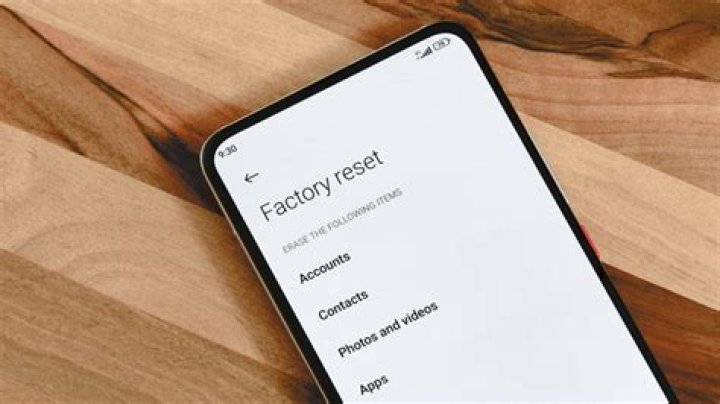
Android offers a built-in soft reset option, readily available from your phone’s settings menu. Go to Settings, choose Backup & Reset and the select “Factory Data Reset.” You will be prompted to confirm. Once you take the plunge, your phone will be wiped from any personal data and clean boot exactly how it was when it came out of the box. Do note memory cards inserted will be left untouched.
Finally, there is the hard reset. This is somewhat of a last resort. The most common scenario for using this option is a bricked device, something went awfully wrong, and there’s no way of getting Android to boot.
To perform a hard reset:
- Turn off your device.
- Hold the power button and the volume down button simultaneously until you get the Android bootloader menu.
- In the bootloader menu you use the volume buttons to toggle through the different options and the power button to enter/select.
- Choose the option “Recovery Mode.”
- You should see the words “no command” in a black screen.
- Press and hold the power button. While holding the power button press and release the volume up button.
- You should now see a list menu with the option to Wipe data/Factory reset.
After selecting the Factory reset option you will warned you are about to erase all user data. If your mind is made up, select Yes and your device will be restored to its factory state.
5 days, 5 killer tech tips is a TechSpot monthly feature
On the third week of every month, we’ll publish 5 killer tech tips, one for each day of the week for a given app, service, or platform. This month we’re covering Android.




