Tips to get you back to playing quickly
- Tweet
- Share
Xbox One system update errors can manifest in a few different ways. When your console fails to complete the process, you will typically see one of the following messages:
- Something went wrong
- There was a problem with the update
- Error codes like 800072xxx
- Error codes like Exxx xxxxxxxx xxxxxxxx
- Your Xbox is almost full
The last three digits in the error code may vary, but they all indicate system update problems.
Additionally, you may experience one of two different problems that aren’t associated with error messages:
- Your Xbox One may get stuck on the screen startup animation with the Xbox logo.
- Your console may display a black screen instead of the startup animation after which it may load into a broken home screen.
Causes of Xbox One Update Errors
When your Xbox One fails to update, a few things may be going on. Possible causes include:
- Your console has a hardware issue.
- Your Xbox One has disconnected from the internet.
- Your hard drive is full.
How to Fix Xbox One Update Errors
An Xbox One system update error can manifest in several ways, but the following solutions will resolve nearly every updating problem. Most of them require very little effort.
Here are some common methods to use to fix Xbox One update errors:
Restart your Xbox One. Sometimes your Xbox One just needs a helpful little push to finish updating itself. This option can resolve problems like error messages, codes, and getting stuck on the loading screen.
Press and hold the Xbox button in the middle of your controller to open a menu, and then select Restart console.
Power-cycle the Xbox One from the Something Went Wrong screen. If your screen is showing the “Something Went Wrong” message, select Restart this Xbox. Wait for the console to restart, and see if the update is able to finish. If the update still doesn’t proceed, shut down your Xbox and unplug it for at least 30 seconds. Plug it back in, turn it on, and see if the update finishes.
If you aren’t able to get the Something went wrong screen, power cycle your Xbox by holding the power button down for at least 10 seconds. After the Xbox turns off, press the power button again to turn it on.
Reset your Xbox One. Performing a soft reset is an easy fix that can help your Xbox One complete the update process if you have an error code, error message, or the loading screen is stuck. Resetting is different from restarting, but it’s less drastic than a full factory reset.
Check your network connection. Whenever an Xbox One update fails, it could be due to a network error. If you have access to the troubleshooter, or your console boots normally, test the network connection.
Error 8B050033 indicates that the update is not currently available. If your internet connection and network have no problems, then there may be an issue with the Xbox servers. Wait and try the update later.
Attempt an offline update. In cases where an Xbox one fails to update due to issues like network problems and corrupted data, an offline update can get you going. If neither restarting or resetting helps, or if you have network issues, this tactic will probably fix your problem. To do a manual update:
- Download this file from Microsoft to your computer.
- Extract the compressed bundle and copy the $SystemUpdate file to a flash drive with the NTFS format.
- Turn off your Xbox One, and disconnect it from power.
- Plug the flash drive into your Xbox One.
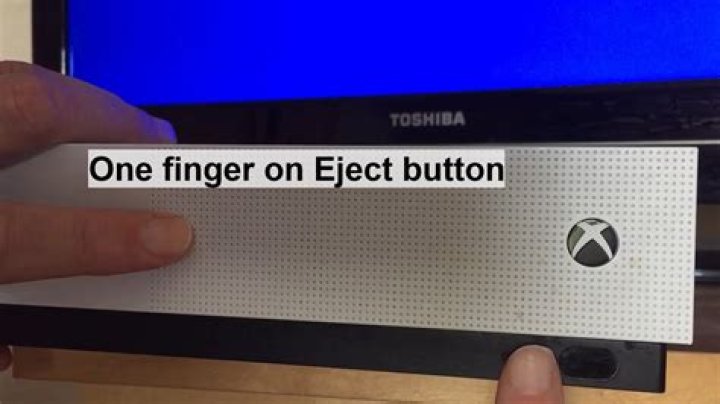
- After waiting at least 30 seconds, press the bind button and the eject button on your Xbox one.
The bind button is the button you press to sync a wireless controller, and the eject button is the one you press to eject a disc.
Free up space on your hard drive. An Xbox One update can fail when it doesn’t have enough space to download and complete the update. When you see an error message that states your Xbox One is almost full, freeing up hard drive space by uninstalling games and apps usually fixes the problem.
The Xbox One supports external storage media. To clear space without deleting anything anything, try plugging in an external USB hard drive, and move some of your games there instead.
Factory reset your Xbox One. You shouldn’t attempt this fix until you’ve exhausted all of your other options. Performing a factory reset permanently deletes all of your locally stored files and game saves.
Contact Microsoft Support. If all of these fixes fail, and you still can’t update your console, then you may have a physical hardware failure. In that case, you will need to contact Microsoft.
You can use error codes to receive specific assistance from Microsoft technical support, but nearly every error code has these same fixes. A handful of exceptions exist, however. For example, an error code that starts with 8B050033 usually indicates an Xbox server issue, and a code that starts with E100 indicates a hardware fault that you won’t be able to fix yourself.
Obviously, turning your Xbox One off and on again isn’t difficult, and it doesn’t require getting up from the sofa. But sometimes you just want to reboot it quickly without going through a full shutdown.
There’s a way to do this, but it’s easy enough to miss. Here’s how.
How reboot Xbox One
To reboot your Xbox One, follow these simple steps:
- Press the guide button on your controller.
- Navigate to the system menu by pressing the right bumper three times.
- Select restart console.
- Select restart at the next window.
Presto, the console will reboot without the need to shut down and power back up.
If you’re in the settings, the same option can be found under the Power & startup menu, which is useful if you’re doing something in there, such as tinkering with network settings, and want to give it a quick reboot.
Sea of Thieves is more rewarding to play than ever in 2021
When Sea of Thieves launched back in 2018 it had a serious content problem, but after 3 years of updates and plenty of massive additions to the game there’s never been a better time to grab a crew and hit the seas.
Need a new laptop to run VR? Here are the best devices out there now.
Using a laptop to power your VR system makes it easy to take it with you wherever you go. Not just any laptop is going to work for VR, though, so we rounded up your best options right here.
Review: Kensington’s SD5600T premium docking station fails to perform
Kensington is a top manufacturer of PC accessories, and many of our favorite docks are made by the company. However, the SD5600T fails to work as it should.
Best Xbox Game Pass games for Xbox One
Pick up the best Xbox One games included with an Xbox Game Pass subscription.
There are some scenarios where your Xbox One might have a few problems signing into Xbox Live, specifically when Xbox Live is active – as opposed to offline – which are best addressed by performing a hard reset on the console.
Usually this problem occurs after a period of Xbox Live service outage or after you’ve installed or updated a game. The result is you can’t sign-in to Xbox Live even though the service is up, OR alternatively you get games hanging on the title screen.
To Perform A Hard Reset On Your Xbox One
Xbox One Hard Reset Method 1
- Holding the power button down for 10 seconds while the system is on will perform a hard reset.
- The Xbox One Will Switch Off.
- Power on the Xbox One again. You’ll see a green start-up screen.
- All your data is preserved, but the cache will be cleared and settings may reset.
Xbox One Hard Reset Method 2
- With the Xbox One powered on, go to SETTINGS > POWER & STARTUP
- Change POWER MODE from “Instant-On” to “Energy-saving”.
- Select “Turn Xbox off”.
- Turn the Xbox One back on by holding down the GUIDE button on the Xbox controller or the button on the front of the Xbox console.
- Once re-booted go back to SETTINGS > POWER & STARTUP
- Re-enable Instant-on in POWER MODE.
Xbox One Hard Reset Method 3
- Power down the Xbox One.
- Unplug the Xbox One.
- Wait for 10 seconds.
- Plug everything back in
- Power the Xbox One back on.
Apple expert and novelist, Michael Grothaus has been covering tech on KnowYourMobile for the best part of 10 years. Prior to this, he worked at Apple. And before that, he was a film journalist. Michael is a published author; his book Epiphany Jones was voted as one of the best novels about Hollywood by Entertainment Weekly. Michael is also a writer at other publications including VICE and Fast Company.
Comments
Contact
RPGEE Media, Unit 25129, PO Box 6945, London, W1A 6U
Follow us – for Mobile
Follow us
Resource Guides
- © 2019
- About Us
- Terms & Conditions
- Privacy Policy
- Site Map
KnowYourMobile, and its parent company, RPGEE Media LIMITED, is a participant of Amazon Services LLC Associates Program, an affiliate program that is designed to help sites generate revenue by linking to products inside Amazon. We also use other, third-party affiliate networks and retailer affiliate networks. We never recommend any product, however, unless we think it is worthy of your time and money. All products and services are rigorously tested and vetted by our expert team of writers. Affiliate marketing allows us to generate fees that support the maintenance of the site and help pay our writers.
Most Xbox One users don’t encounter problems with their console but for those who may have to deal with some problems, knowing how to reset their device might find it handy. There are three types of reset that you can perform on an Xbox One. Each of them may be necessary to fix a certain problem. This brief article will show you what’s the difference between each of these resets.
Three types of resets on an Xbox One
Below are the 3 types of resets that you can perform on your Xbox One. Let’s discuss each of them briefly.
What is Soft Reset?
Soft reset, also known as restart, happens when you turn off the console via the Power Center or using the Guide button. Your Xbox One is NOT powered all the way down when you restart it and it still retains information from its last power-on state. This can be a useful trick if your console runs slow or if you encounter a minor glitch with your game.
To restart your Xbox One via the Power Center:
- Press and hold the Xbox button in the center of your Xbox One controller to open the Power Center.
- Select Restart console.
- Select Restart.
To restart your Xbox One from the guide:
- Press the Xbox button to open the guide.
- Select System > Settings > General > Power mode & startup.
- Select Restart now.
What is Hard Reset?
On the other hand, a hard restart or reset occurs when you power down your Xbox One. The other name we use for this type of reset is power cycle. You can do this by pressing and holding the Xbox button in front of the console for about 10 seconds. Once the console is off, you can leave the console unplugged from the power outlet for about 2 minutes to clear its memory.
Like soft reset, this won’t erase any data but it may be helpful in fixing temporary or minor bugs that may have developed after leaving the console on for a long time.
You can turn the Xbox One back on by pressing the Power button in front of the console.
What is Factory Reset?
Xbox One factory reset wipes the data stored in the hard drive and returns the software settings to its factory state. This reset will erase all saved game data, installed apps and games, and other settings that you configured before. In other words, the software will revert to a state when your console was first shipped.
Reasons why you might want to factory reset your Xbox One
Doing a factory reset is usually a recommended troubleshooting step if you encounter problems that regular steps like soft or hard reset can’t fix. For example, if your console keeps on freezing or crashing games all the time, it’s possible that there may be a software issue behind it, or the game in question may have corrupted files. To fix the problem, you can perform a factory reset to bring back the known working factory state of the software.
You also need to factory reset your Xbox One if you plan in giving it away or if you want to sell it. Doing so will remove all your personal information such as your gamertag, saved games, downloaded apps and games, from the hard drive.
How to factory reset your Xbox One?
Reverting the software settings of your Xbox One to its factory state is simple. Keep in mind that this will erase your data so be sure to back up the stuff you need before proceeding.
- On your controller, press the Home button.
You can also press left on the D-pad until the main Home menu appears.
Go to Settings menu.
Select the gear icon to open the settings menu.
Select System from Settings menu.
Go to Console info.
Select Console info under System.
Go to Reset console.
Select Reset console under Console info.
Format the hard drive.
Select Reset and remove everything for a full factory reset.
Once you’ve selected Reset and remove everything, there will be no prompt to ask you for a confirmation. Be careful not to proceed with the reset if you haven’t prepared your backup yet.
Suggested readings:
- How To Fix Xbox One No Video | Black Or Blank Screen Issue
- Easy Ways Fix PS4 No Video Issue | Won’t Connect To TV
- Easy Ways To Fix Xbox One No Sound Issue| Audio Not Working
- What To Do If Your PS4 Has No Sound | Easy Fix For No Audio
Get help from us
Having Issues with your phone? Feel free to contact us using this form. We’ll try to help. We also create videos for those wanting to follow visual instructions. Visit our TheDroidGuy Youtube Channel for troubleshooting.
- You can reset an Xbox One in three different ways if it’s malfunctioning.
- You should try a soft reset and a hard reset first, as these are the easiest and most common fixes.
- If your Xbox One is still malfunctioning after a soft and hard reset, you can force a factory reset that will erase all of your saved data but should restore the console to proper working order.
- Visit Business Insider’s homepage for more stories.
Like any technologically advanced device, the Xbox One can sometimes lag, freeze, or experience other glitches.
These issues can be caused or exacerbated by the upload of new software or by periods of protracted use. Fortunately, most such issues are remedied by a quick restart or reset.
For problems that you can’t fix by restarting your Xbox One, you may find a solution in a factory reset. Granted, this extreme step will delete all of your data and game progress, meaning you will have to reupload purchased games and replay your way through every challenge — but that still beats buying a whole new console.
Here’s how to reset your Xbox One in three different ways.
Check out the products mentioned in this article:
Xbox One S (From $249.99 at Best Buy)
How to soft reset an Xbox One
To perform a soft reset that should jog a glitchy Xbox One back to proper function, simply turn it off, wait a few seconds, then power it back on.
You can turn off an Xbox One by pressing and holding the Xbox button on the controller, then choosing either “Restart console” or “Turn console off.”
To turn the Xbox One off using the console itself, simply press and release the power button on the front of the unit.
How to hard reset an Xbox One
Hold the power button on the front of the console down for 10 seconds, releasing it only after the device shuts down. Disconnect the power cable and wait for an additional 10 seconds, then reconnect the power and turn the console back on.
How to factory reset an Xbox One
If all the resets and other troubleshooting tricks don’t have your Xbox One working again, it’s time for a factory reset that will wipe all your data but might just restore the hardware itself.
1. While the console is on, press the home button on the controller.
2. Select the Settings menu via the gear-shaped icon.
3. Click through the System link and then go to Console Info.
4. Select Reset Console.
5. Click Reset and Remove Everything.
Now sit back and wait (for a while) as the Xbox One restores itself back to its factory settings.
There are many situations where you may want to factory reset your Xbox. Maybe you’re experiencing technical issues, or perhaps you want to get rid of your personal data before selling your console (especially if you want to upgrade to the recently-launched Xbox Series X/S). No matter the reason, we show you how to factory reset your Xbox, covering all the currently possible ways in 2021.
Note: Keep in mind that resetting your console to its factory defaults erases all accounts, saved games, settings, and more. Anything that is not synchronized with your Xbox Live account (or your Game Pass subscription) will be lost. To back up your Xbox using an external drive, go to “Settings -> System -> Backup & Transfer.”
How to Reset Your Xbox One X/S & Xbox Series X/S to Factory Settings
Microsoft pushes new Xbox software updates on a regular basis, so before you begin, make sure you have updated your Xbox to the latest available software version. This is done by navigating to “Settings -> System -> Updates.”
Resetting your Xbox One X/S as well as Xbox Series X/S console to the factory settings is quite easy.
1. Press the “Xbox” button on your controller, which will open the guide menu (on the left side of your TV screen).
2. Navigate to “My Games & Apps -> See All.” This will open a new window where you can see all your locally-installed games, apps, and other types of software.
3. Scroll down to Apps and then launch “Settings.” Navigate to “System -> Console Info.” At this moment you should see a series of information about your console, including your device’s serial number, console ID, and similar.
4. On the left side of the screen, navigate to “Reset Console.” You will see three options. Take a look below to learn what each of those options can do.
- If you plan on selling your Xbox console or giving it away, you’ll want to select “Reset and Remove Everything.” This completely erases your Xbox One X/S or Xbox Series X/S and restores the console to the factory defaults. In other words, this option completely removes all personal data, including account info, games, and installed apps.
- On the rare occasion your Xbox is not functioning properly, you can reset the console as a way of troubleshooting the problem. Selecting “Reset & Keep My Games & Apps” will reset your Xbox’s operating system. Doing so has the potential to find and delete corrupted files without deleting your games or apps.
Based on what you select, your Xbox One X/S or Xbox Series X/S will start to erase its data and restore everything to default values. Remember that if you decide to reset your Xbox completely, this process can take some time to complete.
How to Reset Your Xbox One X/S or Xbox Series X/S Using a USB Drive
If for some reason you cannot access the Settings app or there’s no picture on your TV screen, don’t fret. You can still reset your Xbox One with a USB drive.
Prepare the USB Flash Drive on Your PC
The first thing you’ll need to do is plug your USB drive (minimum 4GB) into your computer. Most USB drives come formatted as FAT32 out-of-the-box to ensure compatibility with both macOS and Windows.
For this, you’ll need to format it to NTFS. If you are using a Mac, you can use “Disk Utility.” If you’re using a Windows PC, right-click the drive in File Explorer and select “Quick Format” (while making sure to pick “NTFS” via the “File System” field).
Once your flash drive is formatted, download the Restore to Factory Default file. This is a compressed .zip file that contains all of the necessary files to reset your Xbox One console. Once you’ve downloaded this file, unzip it. Locate the file labeled “$SystemUpdate.” Copy it to the root of your USB drive.
Prepare Your Xbox One X/S or Xbox Series X/S
There are a few things you’ll want to do before you plug the USB drive into your Xbox console:
1. First, unplug the network cable if you are using a wired Internet connection. If your Xbox connects to the Internet over Wi-Fi, you can ignore this step.
2. Shut down the console completely. Don’t put it in rest mode – turn it off completely (which you can do by pressing the “Power” button on your Xbox for about 10 seconds until its light turns off).
3. Once your Xbox shuts down, unplug the power cable to make sure your console is totally powered off. Wait for around 30 seconds or so before you plug the power cable back in.
Begin the Reset Process on Your Xbox Console
With your Xbox powered off, plug the flash drive into a USB port on the console. Press and hold the BIND button and the EJECT button (at the same time). While holding these two buttons down, press the Xbox button on the console. Continue to hold down the BIND and EJECT buttons for an additional 10 to 15 seconds.
Note: The BIND button is also known as the “pairing” button. It is the same button one would press to pair a new controller to the console. If you’re not sure where that button is located, refer to the diagram below. Also, when it comes to Xbox Series X/S consoles, this button is found on their front side.
At this point you should hear two “power-up” tones a few seconds apart. Release the BIND and EJECT buttons after the second tone. Also, feel free to remove the USB stick when the console restarts and powers on again.
Once your Xbox One X/S or Xbox Series X/S restarts, you should see your console’s “Digital Setup Experience” guide on your TV screen. This will indicate that your Xbox has returned to its factory settings.
Note: If you don’t hear anything after 15 seconds, that means the process has failed. Also, if you hear any “power-down” tones, that also means you’ve entered the process incorrectly. Therefore, you’ll want to try the sequence again.
Now that we’ve shared how to factory reset your Xbox console, we’d like to share a few useful articles. Here’s all you need to know about the backward compatibility of Xbox Series X/S consoles. You’ll also want to learn how to format Xbox external hard dives for use on a PC.
Related:
Isaac is a freelance writer with over a decade of experience covering the latest technological innovations. Mainly focused on Apple-related software and hardware systems, his aspiration is to explore all the ways today’s digital world intertwines with our everyday life.
Since purchasing an Xbox Series X/S, is your Xbox One now redundant? Have you decided to sell or give your older console away? If so, you’re going to need to restore your Xbox One to factory settings.
We imagine you don’t want your Xbox account details to be in the hands of another user, especially if the next owner will be a stranger. And ideally, the next owner will want to set the console to their liking anyway.
Therefore, a factory reset is in everybody’s best interests. Luckily, this process is a bit less complicated on Xbox One than it is on PS4.
There’s only really one stage you need to go through, but we’d advise you to make a back-up of any data you want to keep before you restore your Xbox One to factory settings.
Here’s how you restore your Xbox One to factory settings:
- Turn the console on
- From the main menu, press and hold the home button on the Xbox One controller
- Select the main Settings menu – this is the little gear icon
- From System link, select Console Info
- From here, select Reset Console
- Click on the option to Reset and Remove Everything
- Click confirm
After this the process will begin, but we warned, it can take quite a long time to complete.
Just be sure to have backed everything up before you complete this process!
Once it has, your console will go back to factory settings, allowing you to completely restore your Xbox One to how it was on the day you originally bought it.
However, before you sell your Xbox One, here are a few things to consider and what to do before selling your PS4 or Xbox One console.
If your Xbox Series X or S is acting up, try a soft or factory reset
- Tweet
- Share
What to Know
- To do a soft reset, turn the console off and back on again.
- To perform a hard reset turn off the console, disconnect the power, wait 5 minutes and then reconnect it and turn the console back on.
- To factory reset the console, press the Guide button >Profile & settings >Settings >System >Console info >Reset console.
This article explains how to soft reset, hard reset, and factory reset an Xbox Series X or S.
Resetting vs. Hard Resetting vs. Factory Resetting
Resetting an Xbox Series X or S can fix a lot of problems, including poor performance, long app load times, mic echo, and more, but there are different types of resets and reboots.
- Soft reset: When you shut your Xbox Series X or S off by pushing the power button or using the on-screen menu option, and subsequently turn it back on, that’s known as a soft reset or reboot. This is the least invasive, and it happens each time you turn your console off.
- Hard reset: This type of reset requires you to power your console all the way down before turning it back on. Since power is removed completely, this clears out more things and fixes more problems.
- Factory reset: This type of reset reverses all of the changes that were made to your console after it left the factory. Local data is removed, and you have to reinstall system updates, download your games again, etc.
In many circumstances, hard reset and factory reset are used interchangeably. In the case of the Xbox Series X or S, and other consoles like the Xbox One that are never fully turned off during normal use, the term hard reset instead refers to removing power from the device.
How to Soft Reset an Xbox Series X or S
If you leave your console on all the time, just allowing it to enter a low power mode between sessions, then a soft reset every once in a while can fix some problems.
There are two ways to achieve a soft reset:
- Use the Power button on the console.
- Use the on-screen menu option.
To use the first method, you simply press the Power button, release it, and check to make sure that the console powers down and that the video input to your television ceases. Once that has happened, you can push the button again to turn the console back on, and you have performed a soft reset.
To use the on-screen menu option:
Press the Guide button.
Navigate to Profile & system > Power.
Select Restart Console.
How to Hard Reset an Xbox Series X or S
Hard resetting an Xbox Series X or S is a little more involved, but it’s still very easy. This process doesn’t delete any of your information, so you can safely perform it without fear of losing any game data.
Here’s how to hard reset your Xbox Series X or S:
Shut down your console by pressing the power button.
When the console shuts off, release the power button.
Unplug the console from power.
Wait at least five minutes.
Plug the console back in.
Turn the console on.
How to Factory Reset an Xbox Series X or S
Unlike the other types of resets, a factory reset removes your personal data. While this type of reset can fix a lot of problems, it’s a last resort option as you will have to reinstall any relevant system updates and download your games again. Other personal information, like achievements and cloud saves, aren’t stored on your Xbox, so they won’t be affected. Anything that is stored on your Xbox, however, will be removed.
Here’s how to factory reset your Xbox Series X or S:
Press the Guide button, and navigate to Profile & settings > Settings.
Navigate to System > Console info.
Select Reset console.
Select RESET AND REMOVE EVERYTHING for a full factory reset, or RESET AND KEEP MY GAMES & APPS to return the console to factory settings without deleting things you have downloaded.
Your console will immediately reset itself as soon as you select one of these options. There is no confirmation, and there is no turning back. You may want to start with RESET AND KEEP MY GAMES & SAVES since it’s less invasive, then try the other option later if your problem persists.
When executing a Hard Reset, your XBox One will attempt to remove any and all files, this includes; saves, installation files, downloaded content and a lot more
If you’re having problems with your Games not downloading, installing, Crashing and Freezing then it may be an idea to try deleting your current saves. This guide will guide you through how to delete your game saves, starting fresh and how to factory reset your XBox One Console.
There are a few reasons why you may need to re-install games or delete game saves. Sometimes patch downloads may make your game files corrupt or damaged. Poor console care when your games are saving can also cause fault with your games.
The following guides will help you resolve and fix the issues that you’re having with certain games.
How to Re-Install Games on XBox One.
Sometimes over time our game files can become corrupt. This is due to poor care being taken when saving data. You can avoid this in the future by practising simple console care. Trust us the benefits outweigh the negatives.
If you’re game files are corrupt or your game is not loading or installing then it maybe a good idea to start fresh. Here’s how you re-install any software installed on your XBox One.
To Delete Specific Game Files on your XBox One Complete the Following.
1: Click Home Button on Controller.
2: Toggle to “System”
3: Click “Settings”
Once you have done this you will be on the main XBox One Settings Page. From here simply complete the following.
1: Toggle “System”
2: Click “Storage” Then click to the right to “Manage Storage”
This will present you with your Storage Hub. From here you will be able to cycle through your games and un-install and delete specific game files and saves.
Once the games have been un-installed you will be able to place the original game disc inside to attempt to install. If it’s a digital product you will never lose access to your content.
The good thing about purchasing games digitally is you never lose them and will always have access to your games regardless of the console.
Deleting Game Saves on XBox One.
Games Crashing at a specific point over and over may indicate a corrupt or damaged game save. You can easily fix this by simply deleting the game save and starting fresh.
If you strongly believe the fault of the issue lies within your Game Saves and not the actual game install then you can manually delete or re-write game saves.
The bad news is your progress and data will be lost. However some games do have the ability to revert back to previous states of play which will allow you to continue.
To Delete Specific Game Files on your XBox One Complete the Following.
1: Click Home Button on Controller.
2: Toggle to “System”
3: Click “Settings”
Once you have done this you will be on the main XBox One Settings Page. From here simply complete the following.
1: Toggle “System”
2: Click “Storage” Then click to the right to “Manage Storage”
Once the save game has been deleted simply re-boot the game and proceed from an earlier game save. If this is not possible sadly you will have to start again.
How To Factory Reset your XBox One.
If you have tried both of the above steps but you’re still having problems with your Games Not Loading, Not Downloading, Crashing and Freezing on you. Then it maybe time for you to Factory Reset your XBox One.
Factory Resets are also great if you want to purge your console of any and all personal details if you’re looking to re-sell your console.
Something to consider while you’re doing this. Although you wont be able to inflict any hardware damage. If for what ever reason you power off your XBox one while it factory resets you may damage the firmware.
In the event that your console is damaged and you are not able to factory reset. Be sure to reach out to the place of purchase and you may be eligible for a repair or replacement.
Advantages of Factory Resetting Your XBox One
Possibly Fix An Error On Your Hard-Drive.
Allows You To Sell Your XBox One Free From Fraud.
Disadvantages of Factory Resetting Your XBox One
If Completed In-Correctly May Cause Permanant Damage To Your Console.
Once Files are Deleted Their Is Zero Chance Of Retrieving Them.
How To Factory Reset XBox One
1: Press the Home Button on your controller.
2: Toggle “System”
3: Click Settings.
This will present you with the Main Menu Settings for your XBox One. From Here complete the following.
1: Click “System”
2: Click “Console Info”
3: Click “Reset Console”
4: Click “Reset and Remove Everything”.
Once again during this process it’s important that you do no turn off your console or distrupt the process in any wasy. You may risk damaging the firmware of the console.
After the XBox One Factory Reset
Once the Format has been completed your XBox One console will restart back to it’s original settings. This includes inputting time, location date and more. You will also have to re-sign into any previous accounts you may have.
Dont worry any content purchased on your account will be accessible by re-downloading it onto your fresh install.
Factory Reset Not Fixed Game.
If you have found that the Factory Reset has not resolved your original problem. It is now very likely that either a fault lies with the game that you’re playing.
Or alternative to this the fault lies with your console. The good news is when you buy a XBox One you will have a standard warranty. This will allow you to seek a repair or replacement for your console.
Reaching out to Microsoft Support.
If you’re still waiting on a replacement or repair you can always reach out to Microsoft. They have an incredibly strong customer support team whom will gladly help.
Contact Microsoft and explain the situation. They may take some time but they will definitely try their best to resolve the situation.
Conclusion.
The XBox one is an incredibly sturdy console. It suffers very few hardware faults and even when it does the warranty provided by the retailers will cater for that.
Sadly Data corruption and damaged patch files are common place and can happen to any user. Of course there are ways in which you can avoid this.
However we hope the guide above has helped resolve your problem. If you’re still having issues be sure to check the following guides.




