Anyone can use Microsoft’s Word, Excel and PowerPoint apps without spending a cent. Here’s how.
If you’re staying at home for the foreseeable future due to the coronavirus pandemic, you might be in need of some basic tools on your personal or work computer, like Microsoft 365 . Formerly known as Office 365, Microsoft 365 is a service that debuted in April that adds more features to the office software. But if you don’t want to shell out the cash, there are a few ways you can get the service and its apps for free.
Microsoft’s suite of productivity software — including Word, Excel, PowerPoint, Outlook, Microsoft Teams , OneDrive and SharePoint — typically costs $150 for a one-time installation (as Office 365), or between $70 and $100 every year for subscription service access across devices and family members (as Microsoft 365). Microsoft also recently said it would release a new standalone version of Microsoft Office for both Windows and Mac — no subscription required — at some point in 2021.
Get more out of your tech
Here are the versions of Office 365, Microsoft 365 and their apps that you can find online for free right now.
For students and teachers
If you’re a student, teacher or faculty member with a school email address, you are likely eligible to get access to Office 365 for free through Microsoft — including Word, Excel, PowerPoint, OneNote, Microsoft Teams and additional classroom tools.
All you have to do is enter your school email address on this page on Microsoft’s website: Get started with Office 365 for free . In many cases, you’ll be instantly granted access thanks to an automated verification process. If you attend an institution that needs to be verified, it might take up to a month to confirm your eligibility.
Recent graduates who want to stick with Office 365 can also get Office 365 Personal for $12 for 12 months , with a valid school email address.
For everyone else
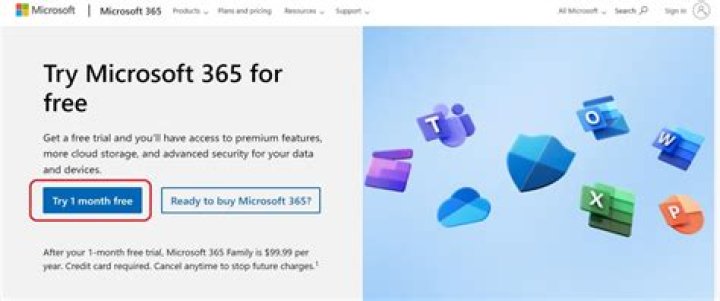
Anyone can get a one-month free trial of Microsoft 365 to try it out. However, it does require you to enter a credit card, and if you don’t cancel before the month is up, you’ll be charged $100 for a one-year subscription to Microsoft 365 Family (formerly called Office 365 Home).
The good news is, if you don’t need the full suite of Microsoft 365 tools, you can access a number of its apps online for free — including Word, Excel, PowerPoint, OneDrive, Outlook, Calendar and Skype. Here’s how to get them:
- Go to Office.com.
- Login to your Microsoft account (or create one for free). If you already have a Windows, Skype or Xbox login, you have an active Microsoft account.
- Select the app you want to use, and save your work in the cloud with OneDrive.
Read more at TechRepublic: Microsoft 365: A cheat sheet
Use the browser-based version of the Microsoft Word app for free.
Screenshot by Alison DeNisco Rayome/CNET
So what’s the catch for the free version?
You may be saying, wait a minute — if I can get all of those apps for free, why pay for Microsoft 365 in the first place? The reason is that the functionality of these apps is limited: They only run through your web browser, and you can’t use them if you aren’t online. There are also fewer features than the full Microsoft 365 versions.
However, there are still a number of benefits, including the ability to share links to your work and collaborate in real time, similar to G Suite tools. If you’re looking for basic versions of each of these apps, the free version should work well for you.
Introducing a free version of Microsoft Teams
A powerful hub for teamwork that brings together chat, video calling, files, and apps into a shared work space.
Anywhere access
Whether you’re at work or on the go, create your best work on your favorite desktop browser.
Familiar experience
The familiar Office experience you know and trust, so there’s nothing new to learn.
Work with anyone
Share your documents with anyone and work together in real-time.
Word for the web
Craft great-looking resumes, newsletters, and documents while inviting others to review and coauthor in real time. Plus, access free templates, formatting tools for APA, MLA, and Chicago style, and add functionality with free add-ins.
Excel for the web
Organize your data in familiar spreadsheets and workbooks, with all changes saved automatically. Create modern visuals that turn numbers into valuable insights. Work together in real time knowing that everyone is on the same page.
PowerPoint for the web
Turn your ideas into compelling presentations using professional-looking templates. Use animations, transitions, photos, and online videos to tell one-of-a-kind stories. Coauthor team presentations at the same time, from anywhere.
Microsoft Office for Windows 10 PC: Download Microsoft Office for Windows 10/8/7 64-bit/32-bit. ✓ Safe and secure download! Microsoft Office is one of the most popular Office and Business Tools apps nowadays! Install Microsoft Office latest official version on your PC/laptop for free.
Microsoft Word, Excel, PowerPoint, OneNote and Outlook applications
Table of Contents
Microsoft Office is a very fast, small, compact and innovative Office and Business Tools for Windows PC. It is designed to be uncomplicated for beginners and powerful for professionals. This app has unique and interesting features, unlike some other Office and Business Tools apps. Microsoft Office works with most Windows Operating System.
Microsoft Office is a Office and Business Tools application like Visio, Ron`s Editor, and Maplesoft from Microsoft Corporation. It has a simple and basic user interface, and most importantly, it is free to download. Microsoft Office is an efficient software that is recommended by many Windows PC users.
Although there are many popular Office and Business Tools software, most people download and install the Trial version. However, don’t forget to update the programs periodically. You can get Microsoft Office free and download its latest version for Windows 10/8/7 PC from below.
It’s better to know the app’s technical details and to have a knowledge about the app. Therefore, you can find out if Microsoft Office will work on your Windows device or not.
| App Name: | Microsoft Office |
| Developer: | Microsoft Corporation |
| Category | Office and Business Tools |
| License: | Trial |
Download Microsoft Office (latest version) free for Windows 10 (64-bit and 32-bit) PC/laptop/tablet. Safe Download and Install from the official link!
Microsoft Office 64-bit and 32-bit download features:
- Compatible with Windows 10 64-bit and 32-bit
- Microsoft Office direct, free and safe download
- Latest version update
- Download Microsoft Office for your PC or laptop
Microsoft Office Setup Installer
Download & install the latest offline installer version of Microsoft Office for Windows PC / laptop. It works with both 32-bit & 64-bit versions of Windows 10/8/7.
What is New in the Microsoft Office Latest Version?
✓ Compatibilities improvement for new Windows update.
✓ Fixes bugs.
Isn’t Microsoft Office what you were looking for? We prepared a list of alternatives below!
- NFO Viewer
- WORD to JPG
- SnapGene
- PhraseExpress
- VIKI Translato
NFO Viewer, WORD to JPG, and SnapGene is the strong competitor of Microsoft Office. Otherwise, PhraseExpress and VIKI Translato also quite good as the alternative of this software. There are also other similar apps such as Maplesoft, Ron`s Editor, and Visio that also need to try if you want to find the best alternative of Microsoft Office.
The Microsoft Office for Windows PC is unquestionably the best Office and Business Tools that you can find nowadays. It also is the most reliable when it comes to performance and stability. You can find that out for yourself. That is why a lot of PC users recommend this app.
Get superb and impressive experience using this Microsoft Office application developed by Microsoft Corporation. Microsoft Office nowadays are already getting better each time.
If you have some questions related to this app, feel free to leave your queries in the comment section. Or you can share with us your experience when using this Microsoft Office on your Windows 10 PC. And if you know other people who want to experience Microsoft Office for Windows PC, you can share this article to help them. Enjoy using Microsoft Office for Windows PC.
Q: What is Microsoft Office for PC?
A: For more information about this app, please go to the developer link on the above of this page.
Q: Is this Microsoft Office will typically run on any Windows?
A: Yes! The Microsoft Office for PC will typically work on most recent Windows operating systems 64-bit and 32-bit.
Q: Is Microsoft Office free? If not, how much does it price to download this app?
A: Absolutely no cost! You can download this app from official websites for free by this website—any extra details about the license you can found on the owner’s websites.
Q: What’s the difference between 64-bit and 32-bit versions of Microsoft Office?
A: The Microsoft Office 64-bit version was specially designed for 64-bit Windows Operating Systems and performed much better on those. The Microsoft Office 32-bit version was initially intended for 32-bit Windows Operating Systems, but it can also run on 64-bit Windows Operating Systems.
Q: How do I access the free Microsoft Office download for Windows PC?
A: It is easy! Just click the free Microsoft Office download button in the above of this page. Clicking the download button will start the installer to download Microsoft Office free for a PC/laptop.
Q: What’s the importance of downloading the latest version of Microsoft Office?
A: We recommend downloading the latest version of Microsoft Office because it has the most recent updates, which improves the quality of the application.
Microsoft Office is an application that builds by Microsoft Corporation. All trademarks, product names, company names, and logos mentioned here are their respective owners’ property. This site (autotechint.com) is not affiliated with them directly. All information about applications, programs, or games on this website has been found in open sources on the Internet.
We are always compliant with DMCA regulations and respect the application owners. We are happy to work with you. Please find the DMCA / Removal Request page below.
When you buy through links on our site, we may earn an affiliate commission.
Just the other day whilst I was in class, my teacher asked us to learn how to use Microsoft Access, which is an app by Microsoft that’s used to model and create databases.
Now just so you know, like you, I am a student too and I am currently doing Computer Science which explains my situation and why I needed to learn Microsoft Access.
But here’s the problem I had:
I installed Microsoft Windows 10 together with the Office 365 a few months back when I got my laptop but for some reason now I couldn’t find the application, Microsoft Access, installed on my computer.
So I tried to ask around, ask on Reddit, and do my Google research to find a way to somehow get Microsoft Access so that I could learn it in time before my exam came up which was just two days away.
I didn’t intent to spend another $100+ on a new Office 365 license either just so that I can get Microsoft Access. So my last option was to look around if Microsoft was offering any promotion for students, which I thought at least that way I could get the Office 365 cheaper. Much to my surprise, I found that Microsoft does provide Office 365 for free if you have the email address (for example, harvard.edu) that your school, college or university provided for you.
In this quick and simple guide, I’ll show you exactly how to install Office 365 for free (if you’re a student or even if you’re a teacher) using your school email address in just seven simple steps.
Head’s up!
You can use the plan as long as you’re still in school with your (.edu) email address active.
Awesome! Let’s dive right in.
How to Get Microsoft Office 365 for Free (for Students): 7 Steps
Step 1: Jump into Microsoft Office 365 Education page and you should be able to see Get Office 365 for Free. Do you see it? Sweet! Just enter your school email address here (the email address that your school, college or university gives you) and then tap on the green Get Started button.
Step 2: Next, tap on I’m a student. (If you’re a teacher then tap on I’m a teacher instead)
Step 3: Now you will be greeted by Microsoft that “You have an account with us”. Just tap on Sign in to get your free Office 365.
Step 4: Now sign in with your school email address.
Step 5: You’re almost done! Now you’ll be shown another message saying “No need to sign up” and that you already have a license for Office 365 Education. Just tap on OK, got it .
Step 6: Sweet! You’re in. All you have to do now is just tap on Install Office apps which is to your top right hand side. Then from the drop down list choose Office 2016. Your free Microsoft Office 365 will start downloading right now.
Note
You can also choose Other Install options if you want to see whether an application (such as Microsoft Excel, Access or PowerPoint etc.) is included with your Office 365 installation.
From there just choose your preferred language from the drop down list and hit Install .
You don’t have to change the version at all. The 32-bit version that Microsoft has already set is more than enough to handle all the tasks you’ll ever need.
Step 7: From here, just continue with the installation like you always do and once it’s done you’ll get your Microsoft Office 365. 🙂
Anyone can use Microsoft’s Word, Excel and PowerPoint apps without spending a cent. Here’s how.
If you’re staying at home for the foreseeable future due to the coronavirus pandemic, you might be in need of some basic tools on your personal or work computer, like Microsoft 365 . Formerly known as Office 365, Microsoft 365 is a service that debuted in April that adds more features to the office software. But if you don’t want to shell out the cash, there are a few ways you can get the service and its apps for free.
Microsoft’s suite of productivity software — including Word, Excel, PowerPoint, Outlook, Microsoft Teams , OneDrive and SharePoint — typically costs $150 for a one-time installation (as Office 365), or between $70 and $100 every year for subscription service access across devices and family members (as Microsoft 365). Microsoft also recently said it would release a new standalone version of Microsoft Office for both Windows and Mac — no subscription required — at some point in 2021.
Get more out of your tech
Here are the versions of Office 365, Microsoft 365 and their apps that you can find online for free right now.
For students and teachers
If you’re a student, teacher or faculty member with a school email address, you are likely eligible to get access to Office 365 for free through Microsoft — including Word, Excel, PowerPoint, OneNote, Microsoft Teams and additional classroom tools.
All you have to do is enter your school email address on this page on Microsoft’s website: Get started with Office 365 for free . In many cases, you’ll be instantly granted access thanks to an automated verification process. If you attend an institution that needs to be verified, it might take up to a month to confirm your eligibility.
Recent graduates who want to stick with Office 365 can also get Office 365 Personal for $12 for 12 months , with a valid school email address.
For everyone else
Anyone can get a one-month free trial of Microsoft 365 to try it out. However, it does require you to enter a credit card, and if you don’t cancel before the month is up, you’ll be charged $100 for a one-year subscription to Microsoft 365 Family (formerly called Office 365 Home).
The good news is, if you don’t need the full suite of Microsoft 365 tools, you can access a number of its apps online for free — including Word, Excel, PowerPoint, OneDrive, Outlook, Calendar and Skype. Here’s how to get them:
- Go to Office.com.
- Login to your Microsoft account (or create one for free). If you already have a Windows, Skype or Xbox login, you have an active Microsoft account.
- Select the app you want to use, and save your work in the cloud with OneDrive.
Read more at TechRepublic: Microsoft 365: A cheat sheet
Use the browser-based version of the Microsoft Word app for free.
Screenshot by Alison DeNisco Rayome/CNET
So what’s the catch for the free version?
You may be saying, wait a minute — if I can get all of those apps for free, why pay for Microsoft 365 in the first place? The reason is that the functionality of these apps is limited: They only run through your web browser, and you can’t use them if you aren’t online. There are also fewer features than the full Microsoft 365 versions.
However, there are still a number of benefits, including the ability to share links to your work and collaborate in real time, similar to G Suite tools. If you’re looking for basic versions of each of these apps, the free version should work well for you.
– October 15, 2019
Office for free? You want it, right? Microsoft Office remains the top dog of office apps. As good as the apps are, however, we understand that not everybody can afford to pay for them. We’ve covered here the best free Office alternatives, like Google Docs and LibreOffice, but we also know that some of you might want the real version of Office. Don’t worry though, Softonic has your back: put that credit card away (except for number 5) because here are 7 ways to get free access to the Microsoft Office suite on Windows and Mac.
1. Use Microsoft Office Online
Little by little, Microsoft has been growing the number of Office apps that you can use for free online. You’ve got Microsoft Word, Excel, PowerPoint, OneNote, Sway, Email, Contacts, Calendar, OneDrive and Docs.com all without the need to install Office on your hard drive. If you have a Microsoft account and a reliable internet connection, you can use these free office programs on a Windows PC, Apple Mac, or Linux using web browsers like Google Chrome and Microsoft Edge. Microsoft Office Online programs even offer some cool and unique features like real-time Skype chats while collaborating on documents with friends or colleagues.
Try out Microsoft Office online here, choose the app you want to use, and log into your Microsoft account. You’ll also find Office Online in the Products menu over at office.com.
You won’t get all the Office 365 features with Microsoft Office Online, but you will at least be able to edit documents.
2. Use mobile apps
The Mobile office apps work just like the online versions we’ve already mentioned. The difference is that they’ve been optimized for mobile devices.
Here we’ve listed the available Microsoft Office mobile apps, which are available for free on Android:
For iPhone and iPad, it’s more difficult to list the mobile Office applications as there are different versions for both Apple devices. You can find the list of all Office apps for Apple devices, including those for the new iPad Pro, on Microsoft’s iTunes listing.
Again though, don’t expect the full Office 365 experience, but this free version of Office will allow you to do basic editing.
If you want to get Office 365, you’ll have to try one of the following methods.
3. Get Office from your school
If you’re a student or teacher, you may be entitled to an Office 365 education subscription. Enter your school email address here. You’ll get Office software including Word, Excel, PowerPoint, Microsoft Teams, and OneDrive storage among other tools, totally free. If your school isn’t registered, let them know what they’re entitled to ASAP!
4. Persuade your boss
Huh? What kind of company doesn’t have Microsoft Office 365? If yours doesn’t, it could be time for you to step up. You’ll have to sell it though, and go through the numerous Office 365 options available and the benefits they’ll bring to the business. The important thing is that your company will foot the bill!
5. Sign up for a free month trial of Office 365
Try out the Office 365 Home version. You’ll have a 1 month trial to experiment with the Office 365 personal package that includes Word, Excel, PowerPoint, Outlook… Also, the trial gives you access to 1TB of cloud storage on OneDrive.
Keep in mind, however, that to download the trial, you’ll have to enter a current debit or credit card number. When your one-month trial ends, you’ll automatically be charged for an Office 365 subscription so make sure you don’t forget to deactivate your account before the trial ends.
6. Sign up for a free trial of Office 365 ProPlus
Have you already finished your one-month free Office 365 personal trial? What about 30 MORE days? Well, here you go. Sign up here for Office 365 ProPlus. You’ll have to sign up for the Evaluation Center, but in our final trick, we’ll go into this in a little more detail.
7. Try your luck with the TechNet Evaluation Center
Microsoft likes having users try out their products’ new features before officially launching them and this includes everything from DocX Word documents to Microsoft’s latest and greatest software innovations. This allows the software giant to resolve any software issues and problems, before they’re rolled out to all users.
This is where Microsoft’s TechNet Evaluation Center comes into play. If you sign up, you can get free access to the products Microsoft needs testing. This usually means you’ll get to try them for 30-60 days. Sometimes, you might even cross paths with Office, like with the trial for the ProPlus version we just told you about.
Remember though, that the versions you’ll find in the Evaluation Center are still rough around the edges. You should expect all sorts of surprises!
What if you’ve used up all these options?
What happens if you’ve already used up all your free trials? Then you’ve got no choice but to buy Office (unless you’re satisfied with the online and mobile versions). Our personal recommendation is Office 365 Personal, which costs $69.99 a year or $6.99 a month.
If you don’t want to invest in the office package, don’t worry because there are other options out there! Try out these free alternatives to Microsoft Office and you won’t be disappointed.
Check your school’s eligibility for Microsoft 365 Education
- Tweet
- Share
Microsoft features a bunch of Microsoft 365 plans for personal, business, or non-profit use. One such plan may already be in place at your school. Not only can students and teachers easily check their school’s eligibility for a free Microsoft 365 subscription, but they should also be able to sign up for the offer themselves rather than going through an administrator.
The following eligibility check will determine whether you can get a free Microsoft Office account for students and teachers. If you’re not eligible, ask your school’s administration whether they support Microsoft 365 Education.
What is Included for Eligible Students and Teachers
The free Microsoft Office accounts for students and teachers include the latest available desktop versions of Word, Excel, PowerPoint, OneNote, Access and Publisher (Office 2019 for Windows or Office 2019 for Mac). Not only that, but these desktop programs can be installed on as many as five PCs or Macs as well as up to five mobile devices.
These desktop applications integrate with Office Online, the browser-based version of Word, Excel, PowerPoint, and OneNote. The important thing about Office Online is that it allows you to collaborate on a document in real-time with other students or teachers. If you do need to work offline, you can save locally then sync changes after a connection is reestablished.
The offer also includes free storage in OneDrive. Documents saved to OneDrive can be accessed across all your mobile and desktop devices. The Microsoft 365 Education plan typically allows educational institutions to offer the Office and OneDrive experience plus sites, free email, instant messaging, and web conferencing. You may need to check with your school for details on these components.
How to Determine Your Eligibility
This program has been in effect for a while, but now it is easier to determine whether your school is a qualifying institution.
Checking for eligibility requires a school email address. Next, visit the appropriate website to further investigate the possibilities for your school:
- Students should visit
- Teachers should visit
What Administrators of Eligible Institutions Need to Do
Administrators don’t need to do much. This is the elegant thing about Microsoft’s offer, as described on their Office in Education site:
“There are no administrative actions your institution needs to take to enroll. You can simply communicate the availability of Microsoft 365 Education for Students to your students using content from our toolkit. Access the toolkit. Contact your Microsoft representative with specific questions about the steps your school should take.”
For Non-Eligible Students or Teachers
Your interest may prompt important conversations on behalf of the other students or teachers at your school. If your school is not eligible, contact your school’s administration to request that they reach out to Microsoft regarding failed eligibility.
I vividly remember the days of deciding whether it was worth the $350 to buy Microsoft Office or if you could live without it. Since it’s no longer 2003, it rarely makes sense to drop the big bucks on it when you can get Microsoft Office for free in many cases. This is especially true if you’re a student or teacher, or willing to use Office on the web or your tablet. Here are the four best ways to get free Microsoft Office in 2020 plus some great alternatives if you don’t want to use their software.
1. Use Office Online in a Browser…It’s Free
Maybe you’re not a heavy Microsoft Office user but do need it occasionally.
If this is you, don’t pay for it!
Instead simply use Microsoft Office Online and get free access to almost the entire suite of Office products.
It even comes with 5GB of cloud space via Microsoft OneDrive so you can save all your files and access them on different devices.
This feature makes for easy collaboration with coworkers or fellow students.
So you’re probably thinking “Free huh? What’s the catch?”
Well, there are some features that you DON’T get with Office Online that might make it a deal breaker.
Here are the 3 biggest things you don’t get:
1 – No Microsoft Access – Access is a database management application. I’m guessing if you need this app you’re not looking at using Office Online anyways.
2 – Stripped Down Features – While the average user probably won’t notice, Office Online is lacking some of the advanced features.
3 – You NEED an Internet Connection – If you are traveling or are without an internet connection, you’re out of luck as you can’t access or edit files.
2. Download Office for Free if You’re a Student or Teacher
If you’re a student or teacher, you can take advantage of Office 365 for free.
Just enter your school email address (.edu) and they’ll walk you through the process of getting your Microsoft office free download to your laptop or desktop computer.
You’ll get Word, Excel, PowerPoint, Outlook, OneNote, and Teams.
If you want full access to all the Office desktop apps (like Publisher and Access) you’ll have to pay a reasonable $2.50/month.
3. Use Free Office “Mobile Apps”
I recently was amazed to discover that Microsoft has made all of their Office 365 apps completely free to download and use.
As long as you have a Microsoft account you can create, edit, save, and share your documents via your smartphone or tablet using these free apps.
The apps include Word, Excel, PowerPoint, Outlook, OneNote, OneDrive, and Teams.
Bonus TIP: They also have the Office app which very few people know about that is also FREE and helps you “find all your Office apps and files in one place so you can jump quickly into your work.”
The coolest thing about the app is it can be used with all free web-based versions of Office, NO subscription required.
4. Take Advantage of a 30-Day Free Trial
A 30-day trail to Office 365 is a pretty legit trial length, especially compared to other services that tend to go with a 7 or 15 day trial period.
Keep in mind that Microsoft will ask for your credit card information and charge you $99.99 annually if you don’t cancel before your 30 days is up.
The biggest advantage of using the free trial, instead of the online version, is you will have full document editing capabilities when your offline.
You will also have full access to ALL of the features of Office so you can make an informed decision if it’s right for you.
You can even share your free trial with up to 5 people so they can give it a whirl too.
Still not sure after 30 days? I’ve been told you can get an additional free 30-day trial by using a different Microsoft account or credit card.
3 Free Alternatives to MS Office
If you’re adverse to Microsoft products for any reason, here are three alternatives to Office that are completely free and quite popular.
Google Docs
Google Docs is a direct competitor of Microsoft Word online and in many cases is much more popular as some schools have gone to using Google Suite for their virtual classroom.
Google Docs is also free to use, you just need a Google account, and lets you quickly convert Word files to Google Docs and vice versa.
WPS Office
WPS Office is a free and complete office suite designed to compete directly with Microsoft.
It is compatible with both Microsoft Office and Google Docs.
It also comes with a PDF editor which makes it compatible with Adobe PDF.
Apache OpenOffice
OpenOffice is another popular free productivity suite that is open source software.
The great thing about it being “open source” is anybody can report bugs and request new features to make it even better. Worth a look.
Ask the Reader: Have you used any of these free alternatives to Office? If so, which one is the best?
By Kyle James
Check your school’s eligibility for Microsoft 365 Education
- Tweet
- Share
Microsoft features a bunch of Microsoft 365 plans for personal, business, or non-profit use. One such plan may already be in place at your school. Not only can students and teachers easily check their school’s eligibility for a free Microsoft 365 subscription, but they should also be able to sign up for the offer themselves rather than going through an administrator.
The following eligibility check will determine whether you can get a free Microsoft Office account for students and teachers. If you’re not eligible, ask your school’s administration whether they support Microsoft 365 Education.
What is Included for Eligible Students and Teachers
The free Microsoft Office accounts for students and teachers include the latest available desktop versions of Word, Excel, PowerPoint, OneNote, Access and Publisher (Office 2019 for Windows or Office 2019 for Mac). Not only that, but these desktop programs can be installed on as many as five PCs or Macs as well as up to five mobile devices.
These desktop applications integrate with Office Online, the browser-based version of Word, Excel, PowerPoint, and OneNote. The important thing about Office Online is that it allows you to collaborate on a document in real-time with other students or teachers. If you do need to work offline, you can save locally then sync changes after a connection is reestablished.
The offer also includes free storage in OneDrive. Documents saved to OneDrive can be accessed across all your mobile and desktop devices. The Microsoft 365 Education plan typically allows educational institutions to offer the Office and OneDrive experience plus sites, free email, instant messaging, and web conferencing. You may need to check with your school for details on these components.
How to Determine Your Eligibility
This program has been in effect for a while, but now it is easier to determine whether your school is a qualifying institution.
Checking for eligibility requires a school email address. Next, visit the appropriate website to further investigate the possibilities for your school:
- Students should visit
- Teachers should visit
What Administrators of Eligible Institutions Need to Do
Administrators don’t need to do much. This is the elegant thing about Microsoft’s offer, as described on their Office in Education site:
“There are no administrative actions your institution needs to take to enroll. You can simply communicate the availability of Microsoft 365 Education for Students to your students using content from our toolkit. Access the toolkit. Contact your Microsoft representative with specific questions about the steps your school should take.”
For Non-Eligible Students or Teachers
Your interest may prompt important conversations on behalf of the other students or teachers at your school. If your school is not eligible, contact your school’s administration to request that they reach out to Microsoft regarding failed eligibility.




