For a while, Facebook thought I was into basketball. Almost every ad was for something to do with basketball. The thing is, I’m not sure Ireland even has a basketball team. We certainly don’t have a professional one and I’ve never watched a game in my life. It was a confusing phase of my digital life and it took a few months before I started seeing relevant ads again.
Facebook won’t always be so off base with who you are or what you’re into, but there’s a good chance that it will occasionally show you ads you have no interest in, annoy you, or even offend you. If that happens, it’s simple to hide them. The process is the same whatever platform you use, so here’s how.
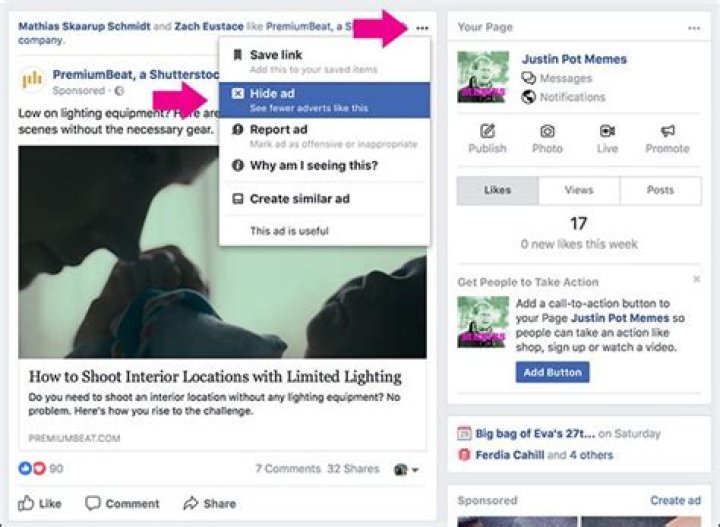
Click or tap on the three dots in the top right corner of the ad and select Hide Ad.
If you’re using the website, select one of the reasons you don’t want to see it and click Continue.
Now you’ll never see that ad again. If you want to get rid of every ad from the same company, select Hide All Adverts From [Company].
If you’re offended by the ad and want someone at Facebook to review it, select Report Ad and then select a reason it’s offensive. Click or tap Continue and it will be sent to Facebook for review as well as hidden from your News Feed.
There’s no guarantee that what you find offensive is actually against Facebook’s Terms of Service, but at least it also hides it so you won’t see it again.
Facebook earns revenue from advertisements, but those ads and banners that keep popping up on your sidebar are annoying. Of course, Facebook doesn’t want those ads removed, and there is no official guide or application to remove them. To get rid of ads generated by Facebook, you can download ad-blocking programs to clean up your browser page. If you have Firefox, Safari or Chrome, you can download the Adblock Plus extension. Once installed, this popular add-on blocks the upload of ads that originate from certain advertisement sites.
When you click “like” on a product or page, Facebook can then use that information and your name and profile picture, to display targeted social ads on your friends’ pages. Using personal information from your profile to target an audience raises privacy issues. Third-party advertisers can also use Facebook to promote their products by posting auto-generated advertisements. You may have noticed this when you do a search on Google for a product and see an ad for it appear in your Facebook feed.
You can’t opt out of seeing Facebook ads completely, but you can opt out of ads based on your browsing habits. To opt out, log on to your Facebook account, and click on “Settings” at the upper right-hand corner of your homepage. It’s just above the command to log out. Then, scroll down to the section in “Settings” marked “Ads.” You’ll see a number of ad preferences. Go to “Ad Settings.” Change the settings for “Ads based on data from partners” and “Ads based on your activity on Facebook Company Products you see elsewhere” to “Not Allowed.” The section marked “Ads that include your social actions” (i.e. pages you have liked) can be changed from being seen by “Only Friends” to “No One” also.
In the section marked “Your Information” (above “Ad Settings”) you’ll see Facebook also serves up ads based your marital status, education, employer and job title. You can also disable those requests and/or remove that information from your profile. The profile is in the “About” tab of the Facebook page with your name.
The most annoying part about any site including Facebook is the thousands of ads. Here’s how you can get rid of these irritating ads.
When on Facebook, users often have the tendency to like whatever that comes their way while scrolling. However, its later that they complain about the hundreds and thousands of ads appearing on their timeline.
These annoying ads can’t simply vanish from any website as it fetches the company with a lot of revenue, whether its Facebook or any other site. But users can take necessary precautions mentioned below to hide or block these ads.
Hide Ads on Facebook With FB Purity
A Facebook user can now very easily block the annoying ads appearing on their timeline. One just needs to put FB Purity as the browser extension, and it will take seconds to automatically hide all the ads from Facebook.
FB Purity includes a several news feeds filtering options that allow the user to choose the type of posts they want to see or hide on their news feeds.
Block Ads by Using Facebook Settings
#1 Go to Settings>Facebook Ads
#2 There will appear three options Ads based on my use of websites and apps, Ads with my social actions, and Ads based on my preferences
#3 Go to Choose Settings>You can Click either on ON or OFF as per your requirement
#4 Selecting OFF for all three will block/hide all Ads from your timeline
Please note: In ‘Ads based on my preferences‘ option, if you click on view preferences, you can simply manage your likes, and restrict the Ads accordingly.
Click Here for New Tablets Best Online Deals
Adblock Plus Blocks the Ads Showing on Your Timeline
Adblock Plus has found a way to strip ads even from Facebook’s new ad blocker-proof format. If you have a fully updated version of Adblock Plus, you will be able to avoid ads in Facebook’s sidebar and also in News Feeds.
Be Limited on Which Pages You Like
Normally, in case you like a page or a product or brand, it is quite obvious that there will appear posts and ads related to what you prefer and like.
So, the more limited your in liking stuffs or pages on Facebook, lesser will be the number of ads on your timeline.
Click Here for New Android Smartphones Best Online Deals
Download Greasemonkey
For all the Firefox users. downloading Greasemonkey is required to block the Ads from their Facebook timeline. This extension enables users to customize their Webpage by blocking ads and banners.
Click Here for New Smartphones Best Online Deals
Facebook earns revenue from advertisements, but those ads and banners that keep popping up on your sidebar are annoying. Of course, Facebook doesn’t want those ads removed, and there is no official guide or application to remove them. To get rid of ads generated by Facebook, you can download ad-blocking programs to clean up your browser page. If you have Firefox, Safari or Chrome, you can download the Adblock Plus extension. Once installed, this popular add-on blocks the upload of ads that originate from certain advertisement sites.
When you click “like” on a product or page, Facebook can then use that information and your name and profile picture, to display targeted social ads on your friends’ pages. Using personal information from your profile to target an audience raises privacy issues. Third-party advertisers can also use Facebook to promote their products by posting auto-generated advertisements. You may have noticed this when you do a search on Google for a product and see an ad for it appear in your Facebook feed.
You can’t opt out of seeing Facebook ads completely, but you can opt out of ads based on your browsing habits. To opt out, log on to your Facebook account, and click on “Settings” at the upper right-hand corner of your homepage. It’s just above the command to log out. Then, scroll down to the section in “Settings” marked “Ads.” You’ll see a number of ad preferences. Go to “Ad Settings.” Change the settings for “Ads based on data from partners” and “Ads based on your activity on Facebook Company Products you see elsewhere” to “Not Allowed.” The section marked “Ads that include your social actions” (i.e. pages you have liked) can be changed from being seen by “Only Friends” to “No One” also.
In the section marked “Your Information” (above “Ad Settings”) you’ll see Facebook also serves up ads based your marital status, education, employer and job title. You can also disable those requests and/or remove that information from your profile. The profile is in the “About” tab of the Facebook page with your name.
Facebook can become a cesspool of negative, offensive, and depressing commentary when left to its own devices. Here’s how you can survive it.
Jan 27, 2021, 1:42 pm*
Nearly everyone has a Facebook account, and people use it for all sorts of things: watching videos with the sound off, looking at your bestie’s vacation pics, or just talking to friends and family who live far away. But a lot of younger users tend to favor other social media platforms these days. Why? Because of the garbage that overwhelms the News Feed. As if the borked algorithm isn’t annoying enough to deal with, users also have to sift crappy comments. Luckily, you can start hiding comments on Facebook.
Rather than logging out or deleting the app entirely, there are quick and easy ways of cleaning up the comments section on Facebook.
Before we get into it, however, here’s a quick tutorial on the difference between hiding a comment, deleting a comment, and reporting a comment.
Hide, delete, or report?
Hiding comments on Facebook will simply make the comment disappear from your point of view—the person who posted it as well as any common friends you share with them will still be able to view it. You can hide a Facebook comment from specific people, like an ex or your parents. You can hide Facebook comments that have grammatical errors. Basically, when you don’t like a comment but aren’t sure if you want it gone forever, this is the solution.
Deleting the comment will remove it completely and forever, so be sure you really want it gone before choosing this option! You, the person who posted it, and the friends you have in common will no longer be able to see it. You can delete duplicate comments. You can delete comments that spoil TV shows, books, or movies. You can delete comments that blurt out your secrets without your consent. These are instances where hiding a comment option may not be enough.
Finally, reporting a comment is reserved for comments that are truly, irrevocably offensive. It subjects the comment to Facebook for further review and if it does violate Facebook’s standards for acceptable content, it will be deleted. (Here’s more information on reporting things on Facebook.)
Now that we’re clear on the terms, we can talk specifically about hiding a comment on Facebook.
Cleaning up Facebook comments via browser
Hiding comments on your personal Facebook timeline through your web browser is actually pretty straightforward. Click on “Comment” under the post in question to expand the reply section. When you find a comment you’d rather not see, hover your cursor to the right of it until you see the three dots. Clicking on the three dots will give you the option to either “Delete” or “Hide comment”.
You can always “unhide” a comment if you want it to show back up.
If you find that you would rather not read some of the Facebook comments that appear on other people’s posts, not to worry, you can also hide comments on your contacts’ posts. More importantly, you can also hide comments on content posted by Facebook pages you follow. (Goodbye, trolls!)
You can do it through your web browser by once again hovering your cursor to the right of the comment, tapping on the three dots, and clicking “Hide comment”.
Same rules apply as above: You’re the only one who remains oblivious to the hidden comment; everybody else can still see it. You can also unhide it whenever you want. The only thing that changes is you cannot delete the comment yourself. You can, however, report the comment to Facebook, as a last resort.
Hiding Facebook comments via the Facebook app
To get started, tap “Comment” on the post to show you all the comments posted in reaction to it. Long press the comment you want to hide to pull up the menu and tap “Hide comment.”
Once you do this, the comment will be replaced with a notice that says “This comment has been hidden” and will remain in the comment section of the post, but it will be grayed out. And just like in the web browser, you can also unhide it: Simply long-press the grayed-out message and choose “Unhide comment.”
If the comment you wish to hide is in the comment section of a Facebook page you follow or a friend’s post, you can follow the same procedure as above: Long press on the comment and choose “Hide comment.” You can unhide it if and when you want to see the comment again. Again, if the comment goes beyond the normal level of offensive, you can choose to report it.
Jam Kotenko
Jam Kotenko is a technology reporter who specializes in coverage of Instagram, Facebook, and other social media apps. Her work has been published by Digital Trends, Bustle, and Gotta Be Mobile.
Trump’s supposed nickname for his mistress shows he doesn’t understand sex, dams
How to look like a Republican woman is TikTok’s newest makeup trend
Parler returns, pledges commitment to free speech
The_Donald: How Trump’s online fan community compromised our national security
Take control of your Facebook experience by doing these things in your profile settings right now.
Facebook gives us so much: ways to connect with old friends and keep in touch with family members, endless recipe videos to watch but never make, and even a way to get a quote from a handyman. But with each new feature roll out comes notification, privacy, and sometimes butt-dialing consequences, and we’re over it. From pesky notifications to “On This Day” memories you may not want to remember, here’s how to take control of your Facebook experience.
Some memories belong in the past. You can control whether you get any of the On This Day memory posts and even go as far as listing a specific person and a specific date that you do not want to be reminded of. On the left-hand side, in the same column that has your News Feed, Messenger, and Marketplace listed go down to Explore and find “On This Day.” Click on this page to either go through all your old memories that happened on this day, limit what memories you see, or all of the above. On the top right-hand side, you will see “Notifications” and “Preferences.” Notifications will allow you to control all the memories deciding whether you want to see none at all or just the highlights. Preferences is where you can get down to the nitty gritty and decide if there are certain people or certain days you would rather not be reminded of. You make the rules!
Scrolling through your newsfeed, there are some videos you just do not want to see but with no warning they play anyway. To stop videos from auto playing all you have to do is go to “Settings,” click on the “Video” section, select the drop-down menu to the right of “Auto-Play Videos” and switch it from default to off.
With Facebook Messenger, you can now see what friends are nearby, but to do so you have to share your location with Facebook. If you want Facebook to stop sharing your location all you have to do is go to “Settings” on your Facebook app, click “Location,” and make sure Location is set to never. You can always change this back should you decide you want to start sharing your location again.
We’ll show you the easiest and the hardest way
The problem with Facebook is that your group of “friends” really consists of just about everyone you know including your family, relatives, friends, work colleagues, professional contacts, etc., etc. Yes, you can create lists and group people into them, but it’s a hard to find feature that no one really ever uses it. However, I’ll still mention how to use lists in Facebook in case you really want to organize your friend list.
So what’s the best way to hide your Facebook status from one person or a specific set of friends? The best way in my opinion is to use the privacy controls while you are actually creating the status update. In this article, I’ll show you how to control the privacy of a single status update and all future status updates too.
Single Status Update
Since you’ll probably only be restricting your status updates some of the time, the simplest solution is to click on the little privacy control button at the bottom right of the status update window.
The privacy control will be set to whatever is your default option for who can see your Facebook status updates. In my case, my default setting is only Friends. If you want to change this for a particular post, go ahead and click on the down arrow.
At the top, you’ll get three main choices: Public, Friends and Only Me. Below that you get more options like Friends except Acquaintances and then Custom. Below those options, Facebook will give you some custom lists that it creates on its own.
In my case, it gives me options for friends who live in certain areas, my family, close friends, friends who’ve gone to the same school as me, etc. If you already have a list and you want only those people to see your status, just select the list and you’re good to go.
In order to exclude someone or an entire list, you have to click on Custom. This will bring up the Custom Privacy popup window.
Here you can edit exactly who you want to share or not share the status update with. In my example above, everyone will see my post except the people in the Family list. You can type in individual names or pick from your lists. Click Save Changes and you’re good to go.
So is there any way for someone to find out that you hid a post from them on Facebook? Well, Facebook does not let the person know, unless you happen to tag them! So make sure you don’t tag a person you are trying to hide your status from.
In addition, even if the person you tagged is friends with a person you hide the post from, the latter will not be able to see it on the former’s wall or in their own news feed. From a technical standpoint on Facebook, the excluded people will have no way to know that you posted the status update. Obviously, if someone mentions it outside of Facebook, you might be in trouble!
Future Status Updates
Once you change the setting inline while posting a status update, Facebook assumes you’ll want to continue doing this. If you go to post another status update, you’ll see it still says Custom instead of whatever it was earlier. You can also check this setting under the privacy settings in Facebook. Go ahead and click on the little lock icon at the top right.
Then click on Who can see my stuff? to expand those options. Under who can see my future posts?, go ahead and click on the box and choose Custom. In my case, it was already set to Custom since I had just posted a status update with custom privacy settings.
Create Facebook Lists
The pre-created lists created by Facebook are useful, but sometimes you need to create a list that is for a specific set of people not already in a list. To do this, you have to go to your main News Feed and then hover your mouse over Friends in the left sidebar until you see More.
Now you’ll see all of your lists. At the top, you can click on Create a List.
Give you list a name and start typing names to create the list. Click the Create button and it’s as simple as that!
Now you can use this list in various settings across Facebook that allow lists. Hopefully, this helps you control the privacy of your Facebook status updates. Make sure to read my other posts on about Facebook like how to hide your online Facebook status, update Facebook status via text message, and how to hide from one Facebook friend from another. Enjoy!
Founder of Online Tech Tips and managing editor. He began blogging in 2007 and quit his job in 2010 to blog full-time. He has over 15 years of industry experience in IT and holds several technical certifications. Read Aseem’s Full Bio
On an average, every sixth post you see on your Facebook Timeline is an ad.
While browsing through updates from our friends, coming across an ad can indeed be really annoying. But, you know, you don’t have to put up with it if you don’t want to. Facebook takes user experience very seriously, which is why it always lets you make a choice. It’s your timeline and you can customize it according to your preference.
How you can stop seeing ads on Facebook
Getting rid of those Sponsored Ads
You see these ads most commonly, don’t you? The word “Sponsored” below the page’s name shows you that you are seeing the ad without following it because the post was pushed to you through paid advertising. Here’s what you can do to stop seeing it:
First, click on the 3 dots in horizontal that you can see on the top right side of the ad.
Now, choose the Hide ad option.
You will see this dialog box pop-up. Choose your reason and hit Continue.
In the following screen, click on the option “Make changes to your ad preferences”.
You will then land on the Ad preferences page. Scroll down.
You will see a few bars of which one is “Ad settings” which when clicked on will expand to show you 3 sections. You must choose not allow for all categories (in the third part, you may choose “no one”). As you can see below, Ads based on your activity… says “Allowed”. Click on the same.
Choose “Not allowed” from the bottom left dropdown. You’re done!
Now, you can go ahead and make more customizations. You can stop seeing Ads from a particular page or you may hide a few topics if you do not wish to see Ads from those specific topics only.
The above method will help you stop seeing Ads on Facebook.
Tired of being retargeted?
Remember the last time you shopped on Amazon and thought a pair of shoes was pretty? Did that pair magically appear on your newsfeed on Facebook? Congratulations, you’ve been retargeted!
Facebook allows businesses to (re)target those who have visited their website. It also allows you to opt out of this. Here’s what you should do:
Click on the little inverted triangle beside the question mark on the right -hand side of your Facebook home page.
You will see this set of options:
Now click on Settings, which is the penultimate option, right above Log Out. You will see a set of options to your left:
Click on Ads (fourth from bottom).
You will be taken to your ad preferences. Scroll down (just like you did for Sponsored Ads) and click on Ad Settings. You are looking for the second option: Ads on apps and websites off of the Facebook Companies. Click on it and choose “No” at the bottom.
This Article was Written in Social media Posts by Best Digital Marketing agency in Hyderabad
Because life can get complicated quickly
“Show me who your friends are, and I’ll tell you who you are” might be a powerful saying. But in today’s digital world it’s all about privacy and keeping certain things to yourself. That’s especially relevant for social networks, as we tend to share more information there than we should.
For instance, when you add someone to your friends list on Facebook, you can see their friends and they can see yours by default. But for a variety of reasons, you might not want to give those kind of details about your private life to everyone.
There could be a million reasons for wanting to hide friends on Facebook. Whether you’re trying to keep your professional and personal life separate, or just want to keep peace between yourself and two of your friends that hate each other, here’s how you can improve your Facebook privacy and hide your friends on Facebook from one another.
Hide Your Facebook Friends From Everyone
This is the route you can take if you don’t want anyone at all to see who your Facebook friends are. You can simply change your privacy settings so that you’re the only one who can see your friends list. In order to do that, take the following steps:
- Log into your Facebook account and go to your profile page by clicking on your name in the upper-left corner.
- Go to your friends list by clicking on the Friends tab.
- On the Friends page, click on the pencil icon in the upper-right corner, then go to Edit privacy.
- In the pop-up window, click on the down arrow icon in the upper-right corner. There you’ll get different options for “Who can see your friends list“. Choose Only me and that will restrict people from seeing others on your friends list.
- Click Done to save changes.
As mentioned before, this will completely hide your friends list from anyone on Facebook. The only information other people will be able to see is mutual friends.
Keep in mind though that you can only control your own profile the same way your friends control theirs. That means that if you set your friends list to Only Me, and your friend has their friends list set to Public, people will still see that you’re friends on their profile.
Hide One Facebook Friend From Another
In case you find the first option a little hardcore and don’t want to hide friends on Facebook from absolutely everyone, there’s a different path to take.
Currently Facebook doesn’t have an option to prevent two people from seeing each other while still being able to see all of your other friends. The only way to get it done is to completely deny those two individuals access to your Facebook friends.
If for whatever reason you want to hide one of your Facebook friends from another, you’ll need to do the following:
- Follow the steps 1 to 3 from the process above.
- In Edit privacy window, click the down arrow icon again. Only this time choose Custom.
- In Custom privacy window, go to Don’t share with and type the names of both of your friends who you want to hide from one another. You can also just type one name in there if it’s just one person that you want to prevent from seeing your Facebook friends.
- Click Save Changes.
Alternatively, you can take a different route.
- Follow the steps 1 to 3 as described above.
- In Edit privacy, tap on the down arrow, and choose Friends except…
- Here type the name of a friend(-s) who you want to prevent from seeing your Facebook friends, or choose their name from the list.
- Click Save Changes.
In both scenarios, you will prevent those specific people from accessing your friends list. Except for them, everyone else will be able to see your friends on Facebook.
Many people have hundreds of Facebook friends, and managing all of them can be tricky. Friends list isn’t the only thing that you might want to keep to yourself. Tweaking certain privacy settings can help you hide your updates from specific Facebook friends. Or prevent people from seeing your Facebook online status.
Anya is a freelance technology writer. Originally from Russia, she is currently a full-time Remote Worker and Digital Nomad. With a background in Journalism, Language Studies, and Technical Translation, Anya couldn’t imagine her life and work without using modern technology on a daily basis. Always looking out for new ways to make her life and location-independent lifestyle easier, she hopes to share her experiences as a tech- and internet-addict through her writing. Read Anya’s Full Bio




