The two giants in the ebook-reading field right now are Pocket and Instapaper. While about 70% of people use Pocket over Instapaper, recently, they have got quite a few reasons to switch over to the latter. First off, Instapaper Premium has just gone free, so why wouldn’t anyone want to miss using the prime features?
Or, it could be the other way around as well. People using Instapaper might just prefer Pocket thanks to its simplicity and attention to detail. In either case, the user will not have trouble getting used to the different reading service, the only issue is that you will need to backup and import your articles either from Pocket to Instapaper, or vice-versa.
In this guide, we will be taking a look at how you can switch between Pocket and Instapaper. While the procedure is quite a nuisance, we will try our best to keep it short and simple to follow. Lastly, we expect you to have a reliable internet connection, and more importantly, a PC or laptop to work with, since there’s going to be some exporting and importing business.
Switch Between Pocket and Instapaper (Import Articles)
1. First, head over to the website of the service you are currently using.
2. Next, export your list of saved articles from your preferred service.
- Pocket: Head to their website, and click on your username, then click on ‘Options‘. Now select ‘Export‘, and export it as an HTML file, and download it.
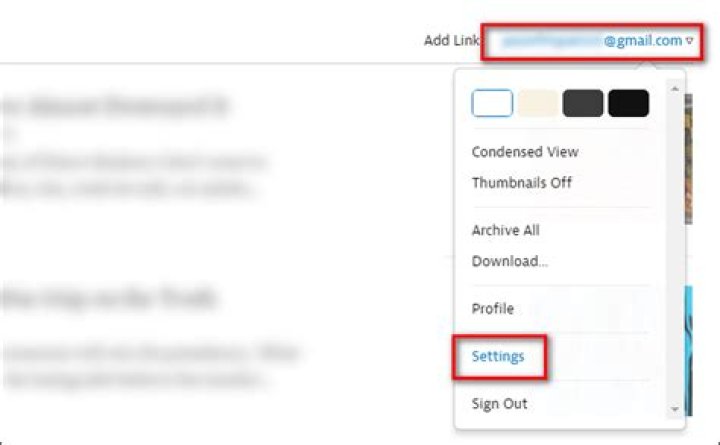
- Instapaper: Head over to their website, click on your username, and then click on ‘Settings‘. Once again, click on ‘Export‘, and download it as an HTML file.
3. Now, head over to the new service you would like to start using and import your settings.
- Pocket: Head over to Pocket, create a new account, and then you can import your Instapaper articles to Pocket. Click on ‘Import‘, and select the Instapaper Export (instapaper-export.html).
- Instapaper: Head over to their website, create a new account, and navigate to Settings >Import, and import the Pocket Export.
4.) Enjoy your new reading service!
If you have any queries, feel free to let us know via your comments section below.
The two giants in the ebook-reading field right now are Pocket and Instapaper. While about 70% of people use Pocket over Instapaper, recently, they have got quite a few reasons to switch over to the latter. First off, Instapaper Premium has just gone free, so why wouldn’t anyone want to miss using the prime features?
Or, it could be the other way around as well. People using Instapaper might just prefer Pocket thanks to its simplicity and attention to detail. In either case, the user will not have trouble getting used to the different reading service, the only issue is that you will need to backup and import your articles either from Pocket to Instapaper, or vice-versa.
In this guide, we will be taking a look at how you can switch between Pocket and Instapaper. While the procedure is quite a nuisance, we will try our best to keep it short and simple to follow. Lastly, we expect you to have a reliable internet connection, and more importantly, a PC or laptop to work with, since there’s going to be some exporting and importing business.
Switch Between Pocket and Instapaper (Import Articles)
1. First, head over to the website of the service you are currently using.
2. Next, export your list of saved articles from your preferred service.
- Pocket: Head to their website, and click on your username, then click on ‘Options‘. Now select ‘Export‘, and export it as an HTML file, and download it.
- Instapaper: Head over to their website, click on your username, and then click on ‘Settings‘. Once again, click on ‘Export‘, and download it as an HTML file.
3. Now, head over to the new service you would like to start using and import your settings.
- Pocket: Head over to Pocket, create a new account, and then you can import your Instapaper articles to Pocket. Click on ‘Import‘, and select the Instapaper Export (instapaper-export.html).
- Instapaper: Head over to their website, create a new account, and navigate to Settings >Import, and import the Pocket Export.
4.) Enjoy your new reading service!
If you have any queries, feel free to let us know via your comments section below.
If you’re considering leaving your read-it-later application of choice for greener pastures, you don’t have to start from scratch. Here’s how to move everything from Pocket to Instapaper, or vice versa, without missing a beat.
Why move? Maybe you want to try out a new feature set. Maybe you bought a new ebook reader that has really slick integration with a different service (like Pocket has with Kobo ebook readers, for example). Or maybe you saw the recent announcement that Instapaper premium is now free and you want to take it for a spin.
At any rate, it’s trivially easy to do if you know where to look in the respective settings menus and options of the services (an area, if you’re a bookmarklet ‘n ebook reader kind of user, you probably don’t spend a lot of time in).
How to Back Up Your Pocket Articles and Import Them to Instapaper
If you’d like to take Instapaper for a spin, you’ll want to export your Pocket content and bring it with you. To do so visit getpocket.com, log in, and then visit the options menu by clicking on your username and “Options”.
Within the resulting Options menu, select “Export” from either the left hand navigation menu or the central column.
In the Export menu click on the link “Export HTML file”. The file will be saved to your computer. There is no limit on the number of articles you can export—you entire catalog of saved Pocket articles will be packaged and downloaded to your computer.
File in hand, it’s time to head over to Instapaper. Log into your account and then navigate to the settings menu.
Scroll down in the Settings menu until you see the “Import” section. Click on “Import from Pocket”.
You’ll be presented with a file browser, browse to the location of the .HTML file and select it. Click “OK”. Afterwards the import process will start and you’ll be returned to the main Instapaper page with the following message:
How many minutes your articles will be available in is dependent on the size of the import pool. If you’re importing years worth of saved articles, expect it to take a few minutes to parse through the file and import them.
Once the import process is over, you can now enjoy all your articles on Instapaper and continue to grow your reading list. While you’re still playing around with your account, now would be a great time to read over the Instapaper help file to familiarize yourself with the different features, how to save articles to the service, and so on.
How to Back Up Your Instapaper Articles and Import Them to Pocket
In order to jump ship to Pocket, you first need to take a stop at your Instapaper account to grab your content. Unlike Pocket, however, there’s one small hitch in the export process. At the time of this writing, the export process is limited to your last 2,000 saved articles. While this limitation is likely only problematic for a small percentage of users, it’s something to aware of.
To get start visit instapaper.com, login, click on your username in the upper right corner, and select Settigns (or, you can just jump right to your user settings here).
Inside the settings menu, scroll down to the bottom and look for the “Export” category. Click on the “Download .HTML file” link.
The file will save as “instapaper-export.html”. With the file safely downloaded to your computer, head over to your getpocket.com and log into your (or create a new) account. Once you’re logged into the service, rather than navigate through the Options menu to import your Instapaper files, you need to visit this link directly.
There, in the import menu, click “Choose File” and browse to the location of the .HTML file you just saved to your computer. Once the file is selected, click “Import”.
After the import process finishes, you’ll be presented with the following feedback:
Two things of note here. First, we have to hand it to Pocket here. From a user friendliness standpoint, they really nailed it with import splash page. Second, you’ll see a note about how your Instapaper likes weren’t imported because they aren’t a part of the export file you grabbed from Instapaper and you need to content them. We found no information in Instapaper’s help files on the matter, so it really does seem that if you really need those liked articles you’ll need to directly contact Instapaper tech support to get it sorted out.
Other than that small caveat though, you can immediately jump right into reading your old articles and storing new ones in Pocket.
Thanks to the magic of standardized file types and the good data citizenship behavior of both Pocket and Instapaper, it’s a snap to switch between the two services provided you have a few minutes of time to dedicate to the effort.
- Tips
- Blog
- Bagaimana Untuk
- Windows
- Telefon
- Utama
- Blog
- Bagaimana Mengimport Artikel Antara Pocket dan Instapaper
Sekiranya anda mempertimbangkan untuk meninggalkan aplikasi pilihan baca-nanti untuk pilihan padang rumput yang lebih hijau, anda tidak perlu bermula dari awal. Berikut adalah cara untuk mengalihkan segalanya dari Pocket ke Instapaper, atau sebaliknya, tanpa kehilangan pukulan.
Mengapa bergerak? Mungkin anda ingin mencuba set ciri baru. Mungkin anda membeli pembaca ebook baru yang benar-benar licin dengan perkhidmatan yang berbeza (seperti Pocket mempunyai pembaca Kobo ebook, misalnya). Atau mungkin anda melihat pengumuman baru-baru ini bahawa premium Instapaper kini percuma dan anda mahu mengambilnya untuk putaran.
Walau apa pun, ia sangat mudah dilakukan jika anda tahu di mana hendak melihat menu tetapan dan pilihan perkhidmatan masing-masing (kawasan, jika anda seorang pembaca buku ebooklet jenis pengguna, anda mungkin tidak membelanjakan banyak masa dalam).
Cara Menyusun Artikel Pocket Anda dan Import Mereka ke Instapaper
Jika anda ingin mengambil Instapaper untuk putaran, anda akan mahu mengeksport kandungan Pocket anda dan membawanya bersama anda. Untuk melakukannya lawati getpocket.com, log masuk, dan kemudian lawati menu pilihan dengan mengklik nama pengguna dan “Pilihan”.
Dalam menu Opsyen yang dihasilkan, pilih “Eksport” dari menu navigasi kiri atau lajur tengah.
Dalam menu Eksport klik pada pautan “Export HTML file”. Fail akan disimpan ke komputer anda. Tiada batasan pada jumlah artikel yang anda boleh eksport-keseluruhan katalog artikel Pocket yang disimpan akan dibungkus dan dimuat turun ke komputer anda.
Fail di tangan, sudah tiba masanya untuk menuju ke Instapaper. Log masuk ke akaun anda dan kemudian navigasi ke menu tetapan.
Tatal ke bawah dalam menu Tetapan sehingga anda melihat bahagian “Import”. Klik pada “Import dari Pocket”.
Anda akan dibentangkan dengan penyemak imbas fail, semak imbas ke lokasi fail .HTML dan pilihnya. Klik “OK”. Selepas itu proses import akan bermula dan anda akan dikembalikan ke halaman Instapaper utama dengan mesej berikut:
Berapa minit artikel anda boleh didapati bergantung kepada saiz kolam import. Sekiranya anda mengimport artikel bernilai tahun yang disimpan, harapkan untuk mengambil beberapa minit untuk mengurai melalui fail dan importnya.
Setelah proses import berakhir, kini anda boleh menikmati semua artikel anda di Instapaper dan terus mengembangkan senarai bacaan anda. Semasa anda masih bermain-main dengan akaun anda, kini menjadi masa yang tepat untuk membaca fail bantuan Instapaper untuk membiasakan diri dengan ciri-ciri yang berbeza, cara menyimpan artikel ke perkhidmatan, dan sebagainya.
Cara Mencadangkan Artikel Instapaper Anda dan Import Mereka ke Pocket
Untuk melompat kapal ke Pocket, pertama anda perlu berhenti di akaun Instapaper anda untuk merebut kandungan anda. Walau bagaimanapun, tidak seperti Pocket, ada satu halangan kecil dalam proses eksport. Pada masa penulisan ini, proses eksport adalah terhad kepada 2,000 artikel terakhir anda yang disimpan. Walaupun batasan ini mungkin hanya bermasalah untuk peratusan kecil pengguna, ia adalah sesuatu yang perlu diketahui.
Untuk mula melayari instapaper.com, log masuk, klik pada nama pengguna anda di sudut kanan atas, dan pilih Settigns (atau, anda boleh melompat ke tetapan pengguna anda di sini).
Di dalam menu tetapan, tatal ke bawah dan cari kategori “Eksport”. Klik pada pautan “Muat turun .HTML fail”.
Fail tersebut akan disimpan sebagai “instapaper-export.html”. Dengan fail yang dimuat turun dengan selamat ke komputer anda, pergi ke getpocket.com anda dan log masuk ke akaun anda (atau buat akaun baru). Sebaik sahaja anda log masuk ke perkhidmatan, dan bukannya menavigasi menu Opsyen untuk mengimport fail Instapaper anda, anda perlu melawat pautan ini secara langsung.
Di sana, dalam menu import, klik “Pilih Fail” dan semak imbas ke lokasi fail .HTML yang telah anda simpan ke komputer anda. Setelah fail dipilih, klik “Import”.
Selepas proses import selesai, anda akan dibentangkan dengan maklum balas yang berikut:
Dua perkara yang perlu diperhatikan di sini. Pertama, kita perlu menyerahkannya kepada Pocket di sini. Dari segi keramahan pengguna, mereka benar-benar memaku dengan halaman splash import. Kedua, anda akan melihat nota mengenai bagaimana Instapaper anda suka tidak diimport kerana ia bukan sebahagian daripada fail eksport yang anda ambil dari Instapaper dan anda perlu memberi kandungan kepada mereka. Kami tidak menemui sebarang maklumat dalam fail bantuan Instapaper mengenai perkara itu, jadi ia benar-benar kelihatan seperti jika anda benar-benar memerlukan mereka yang suka artikel yang anda perlukan untuk terus menghubungi sokongan teknologi Instapaper untuk menyelesaikannya.
Selain daripada kaveat kecil ini, anda boleh segera melompat terus membaca artikel lama anda dan menyimpan yang baru dalam Pocket.
Terima kasih kepada keajaiban jenis fail yang diseragamkan dan tingkah laku kewarganegaraan data yang baik dari Pocket dan Instapaper, ia adalah snap untuk bertukar antara kedua-dua perkhidmatan dengan syarat anda mempunyai beberapa minit untuk mendedikasikan usaha.
Instapaper and Pocket (formerly known as Read It Later) are two of the greatest services that offer users the ability to save something for reading at a later time. If you are in hurry and want to save, say an article, to be read later, just drop its link to any of these sites and they will save it for you. If you are transitioning from Instapaper to Pocket, you may like to move all of your links from the former over to the latter one. The procedure to do so is extremely easy and shouldn’t take more than a few minutes.
Things To Keep In Mind
Instapaper only allows 2,000 articles to be exported. Therefore, only the most recent 2,000 articles will be available to you at Pocket.
If you have tagged any articles as favorites in Instapaper, they won’t have the same tag over at Pocket. Instead, they will be shown as normal articles. This is due to Instapaper not providing the tag info in their exported HTML file.
Exporting the Articles
The first thing you should do is to log-in on both of these websites as it will save you from being distracted while importing the articles. Head over to the Instapaper and Pocket websites and get yourself logged-in.
Go to the Instapaper site and click on your Username. It is located in the bottom-left corner on your screen.
You should now be on your “Account Settings” page. Click on the “Export” tab to export your articles. On the next screen, click the “Download HTML file” button and it will generate an HTML file containing your most recent 2000 articles.
Save the HTML file on your PC, preferably on your Desktop so you can find it easily while importing to the Pocket.
Importing Articles into Pocket
Pocket has a dedicated page for importing Instapaper articles. So, just head over to the Import Page where it will let you upload the file you exported from Instapaper.
Click on “Choose File” button on that page and navigate to the directory on your PC where you have saved the HTML file and choose it to be uploaded.
Once you have chosen the HTML file, click on “Import” button given beneath and it will start the procedure to import your articles.
As soon as it has completed the process, it will take you to the success page where it will show the details of your import. It has information like how many articles are imported, etc.
Your transition from Instapaper to Pocket is now complete and you should find all of your articles appearing in the Pocket website as well as its iPad and Android apps.
Conclusion
Often times, users find it difficult to move from one service over to another similar service as there are obstacles likes not having the same format of files and so on. But with the companies like Pocket understanding users’ pain, they have developed an entire section helping users solve their transition issues and making the move a breeze.
Mahesh Makvana is a freelance tech writer who’s written thousands of posts about various tech topics on various sites. He specializes in writing about Windows, Mac, iOS, and Android tech posts. He’s been into the field for last eight years and hasn’t spent a single day without tinkering around his devices.
Wenn Sie in Erwägung ziehen, Ihre später lesbare Anwendung für grünere Weiden zu belassen, müssen Sie nicht bei Null anfangen. So verschieben Sie alles von Pocket nach Instapaper oder umgekehrt, ohne einen Takt zu verpassen.
Warum umziehen? Vielleicht möchten Sie ein neues Feature-Set ausprobieren. Vielleicht haben Sie einen neuen E-Book-Reader gekauft, der eine wirklich glatte Integration in einen anderen Dienst bietet (wie beispielsweise Pocket mit Kobo-E-Book-Readern). Oder vielleicht haben Sie kürzlich die Ankündigung gesehen, dass Instapaper premium jetzt kostenlos ist und Sie es gerne einmal ausprobieren möchten.
Es ist auf jeden Fall ein Kinderspiel, wenn Sie wissen, wo Sie in den jeweiligen Einstellungsmenüs und -optionen der Dienste nachsehen müssen (in einem Bereich, wenn Sie ein Bookmarklet und ein E-Book-Reader-Benutzer sind, verbringen Sie wahrscheinlich keine viel Zeit in).
So sichern Sie Ihre Pocket-Artikel und importieren sie in Instapaper
Wenn Sie Instapaper für einen Dreh mitnehmen möchten, möchten Sie Ihren Pocket-Inhalt exportieren und mitbringen. Besuchen Sie dazu getpocket.com, melden Sie sich an und rufen Sie das Optionsmenü auf, indem Sie auf Ihren Benutzernamen und „Optionen“ klicken.
Wählen Sie im daraufhin angezeigten Optionsmenü entweder im linken Navigationsmenü oder in der mittleren Spalte „Exportieren“.
Klicken Sie im Export-Menü auf den Link “HTML-Datei exportieren”. Die Datei wird auf Ihrem Computer gespeichert. Es gibt keine Beschränkung für die Anzahl der Artikel, die Sie exportieren können. Der gesamte Katalog der gespeicherten Pocket-Artikel wird verpackt und auf Ihren Computer heruntergeladen.
Datei in der Hand, es ist Zeit für Instapaper. Melden Sie sich bei Ihrem Konto an und navigieren Sie zum Einstellungsmenü.
Scrollen Sie im Einstellungsmenü nach unten, bis Sie den Abschnitt “Importieren” sehen. Klicken Sie auf “Import from Pocket”.
Sie sehen einen Dateibrowser, navigieren Sie zum Speicherort der .HTML-Datei und wählen Sie sie aus. OK klicken”. Danach wird der Importvorgang gestartet und Sie werden mit der folgenden Meldung auf die Hauptseite von Instapaper zurückgegeben:
Wie viele Minuten Ihre Artikel zur Verfügung stehen, hängt von der Größe des Importpools ab. Wenn Sie gespeicherte Artikel über Jahre hinweg importieren, können Sie davon ausgehen, dass es einige Minuten dauert, um die Datei zu analysieren und zu importieren.
Sobald der Importvorgang abgeschlossen ist, können Sie jetzt alle Ihre Artikel zu Instapaper genießen und Ihre Leseliste erweitern. Während Sie noch mit Ihrem Konto herumspielen, sollten Sie sich jetzt die Instapaper-Hilfedatei durchlesen, um sich mit den verschiedenen Funktionen, dem Speichern von Artikeln und dem Dienst vertraut zu machen.
So sichern Sie Ihre Instapaper-Artikel und importieren sie in die Tasche
Um schnell nach Pocket zu springen, müssen Sie zunächst bei Ihrem Instapaper-Konto anhalten, um Ihre Inhalte zu erfassen. Im Gegensatz zu Pocket gibt es jedoch beim Exportvorgang einen kleinen Haken. Zum Zeitpunkt dieses Schreibens ist der Exportvorgang auf Ihre letzten 2.000 Artikel beschränkt. Während diese Einschränkung wahrscheinlich nur für einen kleinen Prozentsatz von Benutzern problematisch ist, ist dies etwas zu beachten.
Um zu beginnen, besuchen Sie instapaper.com. Melden Sie sich an, klicken Sie auf Ihren Benutzernamen oben rechts und wählen Sie Settigns (oder setzen Sie sich direkt zu Ihren Benutzereinstellungen).
Scrollen Sie im Einstellungsmenü nach unten und suchen Sie nach der Kategorie “Export”. Klicken Sie auf den Link “.HTML-Datei herunterladen”.
Die Datei wird als “instapaper-export.html” gespeichert. Wenn die Datei sicher auf Ihren Computer heruntergeladen wurde, navigieren Sie zu Ihrem getpocket.com und melden Sie sich in Ihrem Konto an (oder erstellen Sie ein neues) Konto. Wenn Sie sich beim Dienst angemeldet haben, müssen Sie diesen Link direkt aufrufen, anstatt durch das Optionsmenü zu navigieren, um Ihre Instapaper-Dateien zu importieren.
Klicken Sie im Import-Menü auf “Choose File” (Datei wählen) und navigieren Sie zum Speicherort der .HTML-Datei, die Sie gerade auf Ihrem Computer gespeichert haben. Nachdem Sie die Datei ausgewählt haben, klicken Sie auf “Importieren”.
Nachdem der Importvorgang abgeschlossen ist, erhalten Sie folgende Rückmeldung:
Zwei wichtige Dinge hier. Zuerst müssen wir es hier an Pocket übergeben. Aus Sicht der Benutzerfreundlichkeit haben sie es wirklich mit der Import-Splash-Seite genagelt. Zweitens sehen Sie eine Notiz darüber, wie Ihre Instapaper-Likes nicht importiert wurden, da sie nicht Teil der Exportdatei sind, die Sie aus Instapaper übernommen haben, und Sie müssen sie zufriedenstellen. Wir haben in den Hilfedateien von Instapaper keine Informationen zu der Angelegenheit gefunden. Es scheint also, dass Sie, wenn Sie solche Artikel wirklich brauchen, direkt mit dem technischen Support von Instapaper Kontakt aufnehmen müssen, um die Informationen zu klären.
Abgesehen von dieser kleinen Einschränkung können Sie Ihre alten Artikel sofort lesen und neue in Pocket speichern.
Dank der Magie standardisierter Dateitypen und des guten Verhaltens der Bürger sowohl von Pocket als auch von Instapaper ist es ein Kinderspiel, zwischen den beiden Diensten umzuschalten, sofern Sie einige Minuten Zeit haben, um sich dem Aufwand zu widmen.
Si está pensando en dejar su aplicación de elección de lectura para pastos más verdes, no tiene que empezar de cero. Aquí se explica cómo mover todo, desde Pocket a Instapaper, o viceversa, sin perder el ritmo.
RELACIONADO: Cómo enviar artículos a su Kindle para leer más tarde con Tinderizer, Instapaper o Pocket
¿Por qué moverse? Tal vez quiera probar un nuevo conjunto de características. Tal vez usted compró un nuevo lector de libros electrónicos que tiene una integración realmente elegante con un servicio diferente (como Pocket tiene con lectores de libros electrónicos Kobo, por ejemplo). O tal vez vio el reciente anuncio de que Instapaper premium ahora es gratis y desea llevarlo a cabo.
En cualquier caso, es trivialmente fácil de hacer si sabe dónde buscar en los respectivos menús de configuración y opciones de la servicios (un área, si usted es un usuario de bookmarklet ‘n ebook reader, es probable que no pase mucho tiempo en ella).
Cómo hacer copias de seguridad de sus artículos de bolsillo e importarlos a Instapaper
Si desea ejecutar Instapaper, querrá exportar su contenido de bolsillo y llevarlo con usted. Para hacerlo, visite getpocket.com, inicie sesión y luego visite el menú de opciones haciendo clic en su nombre de usuario y “Opciones”.
En el menú de Opciones resultante, seleccione “Exportar” en el menú de navegación de la izquierda o en la central columna.
En el menú Exportar, haga clic en el enlace “Exportar archivo HTML”. El archivo se guardará en su computadora. No hay límite en la cantidad de artículos que puede exportar: todo su catálogo de artículos de bolsillo guardados se empacará y descargará en su computadora.
Archivo en la mano, es hora de dirigirse a Instapaper. Inicie sesión en su cuenta y luego vaya al menú de configuración.
Desplácese hacia abajo en el menú Configuración hasta que vea la sección “Importar”. Haga clic en “Importar desde el bolsillo”.
Aparecerá un buscador de archivos, busque la ubicación del archivo .HTML y selecciónelo. Haga clic en Aceptar”. Después, se iniciará el proceso de importación y volverá a la página principal de Instapaper con el siguiente mensaje:
¿Cuántos minutos estarán disponibles sus artículos depende del tamaño del grupo de importación? Si está importando años de artículos guardados, espere unos minutos para analizar el archivo e importarlos.
Una vez que el proceso de importación haya finalizado, ahora puede disfrutar de todos sus artículos en Instapaper y seguir creciendo. tu lista de lectura Mientras todavía juegas con tu cuenta, ahora sería un buen momento para leer el archivo de ayuda de Instapaper y familiarizarte con las diferentes funciones, cómo guardar artículos en el servicio, etc.
Cómo volver atrás Descargue sus artículos de Instapaper e impórtelos a Pocket
Para poder enviarlos a Pocket, primero tiene que detenerse en su cuenta de Instapaper para tomar su contenido. A diferencia de Pocket, sin embargo, hay un pequeño problema en el proceso de exportación. En el momento de escribir esto, el proceso de exportación está limitado a sus últimos 2,000 artículos guardados. Si bien esta limitación probablemente solo sea problemática para un pequeño porcentaje de usuarios, es algo de lo que debe tenerse cuenta.
Para comenzar, visite instapaper.com, inicie sesión, haga clic en su nombre de usuario en la esquina superior derecha y seleccione Settigns (o, puede ir directamente a su configuración de usuario aquí).
Dentro del menú de configuración, desplácese hacia abajo hasta la parte inferior y busque la categoría “Exportar”. Haga clic en el enlace “Descargar archivo .HTML”.
El archivo se guardará como “instapaper-export.html”. Con el archivo descargado de manera segura a su computadora, diríjase a su getpocket.com e inicie sesión en su cuenta (o cree una nueva). Una vez que haya iniciado sesión en el servicio, en lugar de navegar por el menú Opciones para importar sus archivos de Instapaper, debe visitar este enlace directamente.
Allí, en el menú de importación, haga clic en “Seleccionar archivo” y busque la ubicación del archivo .HTML que acaba de guardar en su computadora. Una vez que se haya seleccionado el archivo, haga clic en “Importar”.
Después de que finalice el proceso de importación, se le presentarán los siguientes comentarios:
Dos cosas de nota aquí. Primero, tenemos que entregarlo a Pocket aquí. Desde un punto de vista de facilidad de uso, realmente lo clavaron con la página de importación de salpicaduras. En segundo lugar, verás una nota sobre cómo tus Me gusta de Instapaper no fueron importados porque no son parte del archivo de exportación que capturaste de Instapaper y necesitas contentarlos. No encontramos información en los archivos de ayuda de Instapaper sobre el asunto, por lo que realmente parece que si realmente necesita esos artículos preferidos, deberá ponerse en contacto directamente con el soporte técnico de Instapaper para resolverlos.
Aparte de esa pequeña advertencia , puede pasar directamente a leer sus artículos antiguos y almacenarlos en Pocket.
Gracias a la magia de los tipos de archivos estandarizados y al buen comportamiento de ciudadanía de datos tanto de Pocket como de Instapaper, es muy sencillo cambiar entre los dos servicios. siempre que tenga unos minutos para dedicarle al esfuerzo.
Casi todas las versiones nuevas de Windows tienen muchos componentes tomados de versiones anteriores del sistema operativo. La mayoría de las veces, es una versión mejorada del software anterior. A veces, como en Windows 8, se incluyen varias versiones de la misma función y puede empeorar las cosas.Po
Se suponía que íbamos a vivir en un futuro inalámbrico, pero todavía no hemos llegado. Aún así, muchas cosas que hacemos con los cables ya no requieren cables, puede ir sin cables con solo algunos ajustes. Todavía hay razones por las que puede sentir que tiene que conectar su teléfono a su computadora o conectarlo un cable, pero estos se pueden evitar con estos trucos.
“Read Later” tools such as Instapaper, Pocket, Readability, Evernote Clearly etc. are great to pass your time. I have been using both Pocket and Instapaper for long time and both are great to organize my favorite articles.
Whenever I find something interesting on the web but due to some reason if I can’t manage time to read them, I save the page in Instapaper on my Android and read that when I get few time in my hands.
I have no reason to import all articles from Instapaper to Pocket personally. I came across to this option on both and that is why I would like to share the technique with you.
This is however very easy and not yet much time spending to complete the entire task. You don’t have to install any third party app on your any device. The option is almost there in those services. You just have to use them.
How to import all articles from Instapaper to Pocket?
This is however very easy and will take a minute to be finished the migration. At first open your Instapaper account and click the “Username” which is located in your left pane.
Import All Articles from Instapaper to Pocket
” data-medium-file=” data-large-file=” loading=”lazy” alt=”Import All Articles from Instapaper to Pocket” src=”
trave373/ width=”370″ height=”427″ srcset=” 370w, 259w” sizes=”(max-width: 370px) 100vw, 370px” data-recalc-dims=”1″ />
Then go through the Export tab and click the button that says “Download HTML file”.
Import All Articles from Instapaper to Pocket
” data-medium-file=” data-large-file=” loading=”lazy” alt=”Import All Articles from Instapaper to Pocket” src=”
trave373/ width=”674″ height=”278″ srcset=” 858w, 300w” sizes=”(max-width: 674px) 100vw, 674px” data-recalc-dims=”1″ />
After that, sign in to your Pocket account and go to this Import Page. Here you will have to select the downloaded file. Choose the file and click the “Import” button.
Import All Articles from Instapaper to Pocket
” data-medium-file=” data-large-file=” loading=”lazy” alt=”Import All Articles from Instapaper to Pocket” src=”
trave373/ width=”674″ height=”471″ srcset=” 717w, 300w” sizes=”(max-width: 674px) 100vw, 674px” data-recalc-dims=”1″ />
That’s all! It won’t take more than a minute to complete the relocation.
Note: Instapaper can export only latest 2000 articles. So, make sure that your important article in one of those 2k articles.
Feel Free to share your thoughts in the comment section below.
Don’t forget to follow us on Twitter, like our Facebook Fan Page and Add us to your circles on Google+ to keep you updated with the latest technology news, gadget reviews, launches around the world and much more
Below are some of the most frequently asked questions about Instapaper. You can also email [email protected] & tweet at @InstapaperHelp with ideas, feedback, and questions not covered here. We always love to hear from you.
What does Instapaper do?
Instapaper turns web content – articles, stories, posts, videos, and even long emails – into a great reading experience.
Over the course of your day, you’ll encounter things you want to save for later. With Instapaper, you simply push a button in your browser, or choose “send to Instapaper” in a linked mobile app. Instapaper then saves it for you, and makes it available in a beautiful, uncluttered, reading-optimized format on your mobile phone, your tablet, your Kindle, or your browser.
I can’t get something to work, what should I try first?
- Make sure cookies are enabled in your browser.
- Make sure Javascript is enabled in your browser.
- If you’re using Android or iOS, make sure you’re using the same Instapaper username between your computer, the application, and your mobile browser.
- Switch to Safari, Chrome, or Firefox. There are plenty of other reasons to do this, too. If you’re not sure how or why you should do this, ask your nearest computer geek, we assure you they’ll have an opinion on the matter.
Will you add [some cool feature]?
Quite possibly! Please let us know what you’d like. We read every idea or suggestion. We make changes to Instapaper very carefully, but we aim to be constantly improving.
Are there storage limits?
There’s no limit to how many articles you can store, and your archive of read items is kept indefinitely (unless you delete from it).
Does Instapaper make money?
Yes. We are a small team and our goal is to build a long-term sustainable product and business, without venture capital. In order to do so, it’s essential that the product generates enough revenue to cover its cost. If you’d like to support Instapaper, the best way to do so is to purchase Instapaper Premium.
Instapaper Premium users receive:
- Full-text search
- Unlimited highlighting
- Third-party API access
- Better Kindle functionality
- Ads removed from website
I’m trying to create an account but it says my email is already taken.
Usually this is because you created another account with your email address sometime in the misty, distant past. Try logging in with the credentials you might have previously used.
If you want to get rid of the old account, you can rename or delete the old one from Settings when you’re logged into it.
My device is telling me my password is incorrect but I can login with those credentials on web.
If you can login on web, chances are it’s your device time that’s incorrect. Please go to your device’s date/time settings and make sure they’re accurate. Setting your time to be set automatically is always the safe bet in this case.
How do I install the Instapaper bookmarklet on mobile Safari?
With the introduction of the system share sheet in iOS 8, mobile bookmarklets are no longer required. To save on mobile Safari, and any other compatible apps/browsers, please add Instapaper to the system share sheet. This can be done by opening the share sheet (box with arrow icon), scrolling all the way to the right of the top row, choosing “More,” and enabling Instapaper. Instapaper will then be an option on the share sheet.
I save pages, but they don’t appear in the app.
Please ensure that you’re using the same account name on both the web browser (where you’re saving articles) and the iPhone app (where you’re reading them). Your account name is displayed:
- On the website: In the lower left, inside the nav bar.
- In the iOS app: In the Settings screen, under Account.
- In the Android app: In the Settings screen, under Your Account.
Why do I have to sign in every time I click the Instapaper bookmarklet?
First and foremost, please make sure you’re not in Private/Incognito browsing mode.
If browsing mode is not private, please enable third-party cookies for:
If the issue persists, please reinstall your bookmarklet/extension from
When I click the Instapaper bookmarklet, nothing happens, or it hangs after “(Saving. )”. (Most commonly occurs with Firefox.)
Please make sure that you do not have any add-ons or settings that would interfere with Javascript’s operation. This includes the Firefox NoScript add-on and some types of ad-blocking software.
Why can’t it save pages from [some site]?
There are many reasons why certain pages aren’t accessible offline or in Text view. The most common:
- The page requires a login. The Instapaper server must fetch a copy of the page without knowing your username, password, or session details. Pages such as Gmail messages or travel itineraries generally can’t be reached without logging in, so Instapaper cannot access them for offline saving.
- It does not allow this type of access. Some sites block access to web crawlers, which will block or restrict Instapaper from saving them.
We’re always working to improve page compatibility, but the web is vast, complex, and always changing — so we can never guarantee perfect or complete compatibility with every site.
We encourage you to submit sites you’re having saving issues with to Support so we can look into the saving behavior for you.
Are PDF files supported?
Instapaper currently does not support PDF files.
Amazon’s fees for 3G delivery
Instapaper uses Amazon’s Kindle Personal Documents Service to deliver its documents to your Kindle.
Kindles with Wi-Fi only (no 3G) receive Instapaper’s documents for free whenever they’re connected to a Wi-Fi network.
For Kindles with 3G, such as the Kindle 1, Kindle 2, Kindle DX, Kindle 3 3G, Kindle Keyboard 3G, and Kindle Touch 3G, Amazon charges small fees for delivery over 3G when the Kindle is not connected to a Wi-Fi network. See this Amazon document for details. To avoid fees with 3G Kindles, use the @free.kindle.com option.
Instapaper assumes no responsibility for charges incurred by your use of this feature.




