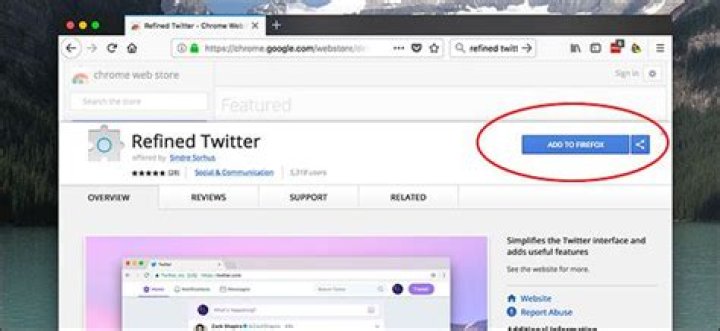
Firefox is a great browser, but if you’ve ever eyed all those great Chrome extensions, you may have been tempted to switch. You don’t have to. Chrome Store Foxified is a Firefox extension that lets you install extensions from the Chrome Web Store.
Update: As of 2018, the Chrome Store Foxified extension’s developer is no longer supporting this extension. Unfortunately, it’s no longer available for download.
Opera extensions work too! This is possible in part because of Firefox Quantum, which made Firefox extensions more like Chrome extensions. But that only makes it easier for developers to port an extension from one platform to another—this tool makes it easy for users. We tried this out, and it’s not perfect: OneNote installed, for example, but didn’t really work. For simple extensions that do one thing, however, this is worth giving a shot, if only as a stopgap.
Set Up Chrome Store Foxified
To get started, head to the Chrome Store Foxified page and click the “Add To Firefox” button.
Run through the confirmation dialogs, and you’ll eventually see this screen:
You’re just about ready! Before you start installing Chrome or Opera extensions, however, head to addons.mozilla.com and make sure you’re signed in:
Log in with your Firefox account (or create one if you haven’t already). This is necessary before you can install anything from the Chrome Web Store.
Install Chrome Add-ons In Firefox
When you’ve got the Chrome Store Foxified extension installed and you’re signed in with your Firefox account, head to the Chrome Web Store and start installing things. I tried this out using Millienials to Snake People, and an “Add to Firefox” button was waiting for me.
Hit that button and you’ll see a few prompts, but eventually you’ll be asked if you want to install it. Even the permissions are accurate.
Just like that, you’ve installed a Chrome extension in Firefox. Mine is working just great:
I tried this with Refined Twitter as well, and it also worked just fine.
Most Chrome extensions eventually make their way to the Firefox ecosystem, and it’s probably better to install the native version when available. If you don’t want to wait for that, however, this method gives you a stopgap solution for extensions that are currently Chrome-only. Just be sure to check for a Firefox version later on.
Google Chrome has a ton of great extensions support to improve your browsing performance. Each Chrome Extension has its unique functionality and set of features to improve the productivity of Chrome browser.
We all know Chrome is power hungry. Sometimes it uses all your system resources to serve you with maximum performance. Due to this reason, the entire system performance will be slow down, sometimes killing the Chrome is the only option to release the consumed RAM memory.
This is the main reason for many switching to Firefox. However, we have some differences between Chrome and Firefox.
Differences between Google Chrome and Mozilla Firefox
| Chrome | Firefox |
| Current Build Version 64.0.3282.186 | Current Build 59.0b10 |
| Don’t support Tab groups | Support Tab Groups |
| Vorbis, WebM, Theora, AAC, MP3, H.264 | WebM, Ogg Theora Vorbis, Ogg Opus, MPEG H.264 (AAC or MP3), WAVE PCM |
| Windows, OS X, Linux, Android, iOS | Windows, OS X, Linux, Android, iOS, Firefox OS (Unofficial ports to BSDs, Solaris, OpenSolaris, IBM AIX, HP-UX, UnixWare) |
| Blink (an open-source fork of WebKit) | Gecko, SpiderMonkey, WebKit |
Mozilla Firefox is a great browser with a ton of browsing options except for the exclusive Chrome Extensions. Luckily we have a chance to install Chrome Extensions on Mozilla Firefox with a simple trick.
Install Chrome Extensions in Firefox
First, you have to know the difference between Chrome extensions and Firefox add-ons. Both have same productive features developed in different formats. Chrome extensions have a file type .crx and Firefox add-ons are of type .xpi. To use a .crx file extension on Firefox you need to convert into .xpi. This is the basic thing behind the Chrome extensions installation on Firefox. The below steps contain a detailed guide for installing Chrome Extensions on Mozilla Firefox.
1. Open Mozilla Firefox on your Mac, PC or Linux based machine. This trick will work on any machine irrespective of platforms.
Chrome Store Foxified
” data-medium-file=” data-large-file=” svg+xml,%3Csvg%20xmlns=’ alt=”Chrome Store Foxified” width=”879″ height=”452″ data-lazy-srcset=” 879w, 300w, 600w” data-lazy-sizes=”(max-width: 879px) 100vw, 879px” data-recalc-dims=”1″ data-lazy-src=” />
2. Now open Firefox browser and then add the Chrome Store Foxified add-on present on the Mozilla add-on store.
3. After the add-on installation, it is available at the top right corner of the Firefox window.
4. Now click on the Chrome Store Foxified icon.
5. This action will open a new tab page with Chrome Store Foxified options.
Chrome Store Foxified Dashboard
” data-medium-file=” data-large-file=” svg+xml,%3Csvg%20xmlns=’ alt=”Chrome Store Foxified Dashboard” width=”1911″ height=”702″ data-lazy-srcset=” 1911w, 300w, 600w” data-lazy-sizes=”(max-width: 1000px) 100vw, 1000px” data-recalc-dims=”1″ data-lazy-src=” />
6. Here, you can directly add the Chrome Extension weblink or you can upload the .crx file of an extension in the box.
7. Once the conversion is completed, you’ll be provided with a number of options to install. The basic procedure is to first digitally sign the add-on (converted from Chrome extension) through addons.mozilla.org (AMO) and then install it on your browser.
8. Here you must have to log in to the AMO server to digitally sign the converted extension.
9. In the next step, click on Sign Addon then Install to let Firefox process the addon file.
10. Once your AMO account is signed, the addon file will be uploaded to AMO for signing. If the signing failed during the signing procedure you can try next time for successful signing.
11. After successful signing, you can install the extension on Firefox. (If you just want to use the Chrome extension in Firefox temporarily, you can click on the “Install Temporarily” .)
Conclusion
Chrome Store Foxified is a great add-on for installing Chrome Extension on Firefox. In our testing, we are successfully able to install almost all extensions we use on Chrome. Undoubtedly, a majority of the Chrome Extensions work in Mozilla Firefox. This simple extension makes Firefox one step advance to the rest of browsers with more productive tools support.
That’s all for now. Please do share your views and feedback in the comment box below.
There was a time when Mozilla’s Firefox browser went toe to toe with Google Chrome when it comes to market share. However, a lot has changed and Google Chrome is now the undisputed king of the browsers. The ton of Chrome extensions that the Chrome Web Store houses is one of the various reasons of Chrome’s dominance. While a number of Chrome extensions are also available for Firefox, there are some that are exclusive to the Google browser. However, Mozilla has a new trick up its sleeve.
The company has been working on WebExtensions support for Firefox, which will make it compatible with all the Chrome extensions. Well, we are already seeing fruits of the work, as there’s already a pretty simple way to install Chrome extensions for Firefox:. Here’s how to do it:
1. Open Firefox and install the Chrome Store Foxified extension.
2. Once done, head over to the Chrome Web Store and search for an extension you want. For instance, we tried installing the “Google Translate” extension. You will notice that the extension page features a “Add to Firefox” button. Click on it.
3. Then, the extension will be fetched from the Chrome Web Store and converted to Firefox format. You will then see numerous options to install or save the extension.
4. If you plan on using the add-on permanently in Firefox,, you can click on “Sign Addon then Install“. For this option, the add-on will be signed and for that, you need to have an Firefox account at addons.mozilla.org (AMO). You can easily create an account if you don’t have one.
If you just want to use the Chrome extension in Firefox temporarily, you can click on the “Install Temporarily” and you are good to go. However, the extension will be removed from Firefox if you close the browser.
5. After you have created an account, you can then choose to “Sign Addon then Install” or “Just Sign and Download” to save the add-on. The add-on will then be uploaded to AMO and signed.
6. Once the add-on is signed, you will get options to save or install the add-on, you will get a pop-up on the left top, click on the “Install” button and the Chrome extension will be added to Firefox. You can then click on the extension and use it like you would on Chrome.
Note : If you don’t get the pop-up, click on “Install Signed Add-on” and you should see it.
While all the Chrome extensions are installed in Firefox easily with this method, not all Chrome extensions work. In our testing, we tried a number of Chrome extensions on Firefox and only few managed to work and even those that did work, did not function as well as we would have liked. Considering the fact that the WebExtensions project is still in development, we can expect things to improve in the future.
If you are looking for some Chrome extensions to try, check out our video on 10 useful Chrome extensions:
Ready to try out Chrome Extensions on Firefox?
The WebExtensions initiative will certainly help Mozilla retain users already using Firefox but it’ll be interesting to see if the move manages to keep people from movie to Chrome. Well, we certainly hope so, as any competition in tech is a win for the consumers. Well, if you can’t wait for WebExtensions to arrive in full-fledged form, you can try installing Chrome extensions in Firefox using the aforementioned method. Just keep your expectations low and you might even get surprised. Do let us know your experience in the comments section.
- TAGS
- chrome
- firefox
1 COMMENT
Hi , Chrome store foxified is not available on Firefox now . Please provide aupdated method to install chrome extension into firefox
The following guide walks you through the steps of installing Google Chrome extensions in Firefox.
Mozilla is currently working on implementing WebExtensions support in the Firefox web browser which will make the browser compatible with many of the extensions offered for Google Chrome and Chrome compatible browsers.
The organization plans to release an initial stable version of WebExtensions in Firefox 48 Stable which will be released on on August 2, 2016 if things go as planned.
While that particular release won’t have feature parity with Google Chrome, it marks the first big step in reaching that goal.
One of the main benefits of adding WebExtensions support is that Firefox users will be able to install the majority of extensions for Google Chrome.
This guide shows you how.
Install Google Chrome extensions in Firefox
Note : While you can install pretty much any Google Chrome extension in Mozilla Firefox 48 or newer, you will notice that not all of them work right now.
The main reason for that is that WebExtensions is a work in progress and that support is not fully complete yet. Also, some WebExtensions make use of Chrome specific features that Firefox does not support.
With the warning out of the way, let’s get started.
Step 1: Install Chrome Store Foxified
The first thing you need to do is install the Firefox add-on Chrome Store Foxified which powers the conversion and installation process in the background.
The Firefox add-on replaces the “get Google Chrome” notification on the Chrome Web Store when you open it in Firefox with an “add to Firefox” button on extension pages.
Step 2: Install Chrome extensions in Firefox
Visit the Google Chrome Web Store and open extensions that you are interested in. Locate the add to Firefox button and click on it.
Depending on how you have configured the Firefox add-on, the Chrome extension may be installed automatically or manually at this point.
Chrome Store Foxified can install the Chrome extension as a temporary Firefox add-on that is only installed during the browsing session.
This is a good solution if you want to test the Chrome extensions’ functionality to see if it works in Firefox yet.
Another reason why that is a good solution is that you may run into Firefox add-on signing issues otherwise.
The developer of the Firefox add-on has integrated an option to sign the extensions that you install automatically, but you need to sign in to a Mozilla account for that.
Doing so is the only option if you want to use the Chrome browser extension permanently in the Firefox browser.
When you hit the add to Firefox button the first time after installing the add-on, a small notification prompt is displayed that gives you options to install the Chrome extension temporarily, or to install it permanently by signing in to a Mozilla account.
You can configure the Firefox add-on to automatically select the temporary option for you so that you don’t get the prompt all the time.
Here is what happens in the background
The Firefox add-on downloads the Chrome extension and converts it from crx (Google format for extensions) to xpi (Mozilla format).
It will edit the manifest.json file of the extension to make it compatible with Firefox, and save the processed file to the desktop or another location of your choosing (if you change it in the settings).
It will then install the extension and display the prompt to you or install it automatically as a temporary add-on depending on the preferences.
Closing Words
You may notice that extensions add icons to the Firefox main toolbar, and you can use those icons. The screenshot above shows the functioning Google Translate extension for Chrome in Firefox for example.
You may notice slight issues with some extensions, like a layout that is not 100% accurate yet.
While some Chrome extensions work without issues already in Firefox, others either don’t work at all or are not working properly yet.
I have yet to encounter a Chrome extensions that could not be installed in Firefox, but that does not tell you anything about whether it is working or not.
Tests were run using Firefox 49 which is currently available on the Nightly channel.
It seems likely that the majority of Google Chrome extensions will work in Mozilla Firefox at one point in the not so far away future.
This could give Firefox a major edge over Mozilla considering that Chrome users cannot install legacy Firefox add-ons at all as they are not based on WebExtensions.
Chrome Store Foxified offers an elegant solution to download, convert and install Google Chrome extensions in Firefox.
Now You: Which Chrome extensions would you like to use in Firefox?
Ghacks needs you. You can find out how to support us here or support the site directly by becoming a Patreon. Thank you for being a Ghacks reader.
How useful was this post?
Click on a star to rate it!
Average rating 0 / 5. Vote count: 0
No votes so far! Be the first to rate this post.
Here is a trick, “How to Install Chrome Extensions in Firefox?“. Mozilla Firefox (or simply Firefox) is a free and open supply net program for the PC. It’s made by the Mozilla Basis. It takes a shot in any respect regular working frameworks, for instance, Home windows, macOS and Linux working frameworks, and with its Firefox for Android accessible for Android.
This additional is for shoppers who have to introduce Chrome augmentations into Firefox. As Mozilla finishes the WebExtensions API extra Chrome expansions will work in Firefox. No Google file is required for this to work. On the off likelihood that you just wish to introduce the addon forever, you’ll require a file on this web site (addons.mozilla.org) – it will allow the addon to be “agreed upon”.
#1: Just open Mozilla Firefox
#2: Click here and Install this plugin in Firefox
#3: Now go to Chrome web store or click here
How to Install Chrome Extensions in Firefox?
#4: Click on Add to Firefox button and wait while it’s fetching.
#5: Click on Sign Addon then Install.
You may need to create an account at Firefox or login, if you already had one.
#6: If it’s successful then congrats. Or, you can install it temporary.
Please Like, Share and Remark your beneficial ideas.
Thanks for patronizing Final Tech. This publish is about, “[page_title]”. I’m positive your go to to us have to be fairly satisfying and according to your expectations from us. Simply in case, it’s not as you anticipated from us or in case you are going through any drawback, kindly ahead your suggestions’s on to us by leaving a Remark beneath. And, get assured response from my aspect. Your suggestions’s and options are extraordinarily beneficial to us. This Put up is written by the group of Final Tech. There’s no supply, if any, then already talked about so Copying or utilizing this publish’s content material on your personal web site will not be allowed. If anybody achieve this, prepare for going through DMCA. Please, should you like this publish then share in your social networking websites. Assuring you of our greatest service all the time.
If there’s one thing that makes web browsers incredibly versatile its support for extensions. Any respectable browser has them, but Firefox and Chrome being the most popular ones also have the largest add-on collections. Nevertheless, did you know you can install Chrome extensions on Firefox?
Recent versions of Mozilla Firefox have support for WebExtensions. These allow developers to create extensions that work for multiple web browsers which is truly amazing.
How to install Chrome extensions on Firefox
Firefox add-ons have the .xpi file type while Chrome extensions are .crx files. To use Chrome extensions on Firefox they need to be converted from .crx to .xpi and digitally signed using Firefox standards.
This may sound very complicated but you don’t need to do this manually. There’s Firefox add-on for that.
Launch Firefox and visit the Chrome Store Foxified add-on page on Mozilla’s website. Click the “Add to Firefox” button to install the add-on. You will need it if you want to install Chrome extensions on Firefox.
To continue, open the Chrome Web Store in your Firefox web browser and find an extension you want to install. On the extensions page, the “Add To Chrome” button has been replaced with an “Add To Firefox” button.
Click on it and a pop-up window will open. The selected extension will be converted to the Firefox .xpi format.
In the pop-up window, you can choose between several options. If you want to perform a regular installation you should select the first option “Sign Addon then Install”. However, it is also possible to temporarily install the addon or simply sign and save the add-on to a file.
For the purpose of this guide we’re using the option called “Sign Addon then Install”. Firefox will then check if you are logged into your AMO account. If not, you can register and create one. The AMO account is necessary if you want to proceed.
The addon file will be uploaded to AMO for signing after you connect your AMO account. In some cases, the signing process can fail, but you can retry.
Assuming all the processes complete successfully you can install the Chrome add-on on Firefox. From then one, you can use the extension just like any regular Firefox add-on.
Add-ons let you add bells and whistles to Firefox. You can get add-ons that compare prices, check the weather, change the look of Firefox, listen to music, or even update your Facebook profile. This article covers the different types of add-ons available and how to find and install them.
- 3.1 Problems with installing or uninstalling add-ons
- 3.2 Problems caused by add-ons
These general types of add-ons can be installed:
- Extensions
Extensions add new features to Firefox or modify existing ones. There are extensions that allow you to block advertisements, download videos from websites, integrate Firefox with websites like Facebook or Twitter, and add features included in other browsers, such as translators. - Themes
Themes can decorate the menu bar and tab strip with a background image. Firefox also includes built-in themes. For more information on built-in themes, see Built-in themes in Firefox – alternative to complete themes. - Plugins
Firefox automatically downloads and installs the Google Widevine CDM for watching Digital Rights Management (DRM) controlled content and an OpenH264 plugin for video calls.
Viewing and managing your installed add-ons
Search engines can be viewed and managed in the Search panel in Firefox Options Preferences Settings Preferences . For other add-ons:
- Click the menu button and choose Add-ons . The Add-ons Manager tab will open.
- Select the panel for the type of add-on you wish to view or manage, such as the Extensions , Themes or Plugins Extensions or Themes panel.
For detailed information on disabling or removing add-ons, see Disable or remove Add-ons.
Here is an overview to get you started:
- Firefox may offer personalized recommendations. Click the menu button , click Add-ons Add-ons and Themes and select Recommendations .
- To install a recommended add-on, click the blue + Install Theme or + Add to Firefox button, depending on the type of add-on.
At the bottom of the list of recommended add-ons, there’s also a Find more add-ons button you can click. It will take you to addons.mozilla.org where you can search for specific add-ons.
Some extensions place a button in the toolbar after installation. You can remove those or move them into the menu if you want – see Customize Firefox controls, buttons and toolbars.
For information on troubleshooting problems with extensions, plugins, or themes extensions or themes , see the articles below.
Problems with installing or uninstalling add-ons
- Unable to install add-ons (extensions or themes)
- Cannot remove an add-on (extension or theme)
Problems caused by add-ons
- Troubleshoot extensions, themes and hardware acceleration issues to solve common Firefox problems
- Troubleshoot Firefox issues caused by malware
- Remove a toolbar that has taken over your Firefox search or home page
- Re-enable add-ons that were disabled when updating Firefox
- Add-ons that cause stability or security issues are put on a blocklist
- Add-on signing in Firefox
These fine people helped write this article:
Volunteer
Grow and share your expertise with others. Answer questions and improve our knowledge base.
Related Articles
Use themes to change the look of Firefox
A theme is a type of Firefox add-on that changes the visual appearance of Firefox. This article describes how to find, install and manage themes.
Permission request messages for Firefox extensions
When you install an extension into Firefox, you may be presented with a message similar to this one: This is an extension asking your permission.
How to add translate feature to Firefox
By default, Firefox does not come with translation features. However, you can easily add such a feature by installing an add-on of your choice.
The WAVE Chrome and Firefox extensions allows you to evaluate web content for accessibility issues directly within Chrome and Firefox browsers. Because the extension runs entirely within your web browser, no information is sent to the WAVE server. This ensures 100% private and secure accessibility reporting. The extension can check intranet, password-protected, dynamically generated, or sensitive web pages. Also, because the WAVE extension evaluates the rendered version of your page, locally displayed styles and dynamically-generated content from scripts or AJAX can be evaluated.
Chrome Extension
Firefox Extension
Using the WAVE extension
Updates to the WAVE extension will automatically be sent to your browser when they are made available.
To run a WAVE report, simply click on the WAVE icon to the right of your browser address bar. Click the icon again or refresh the page to remove the WAVE interface.
You can also trigger a WAVE report by pressing Control + Shift + U (Command + Shift + U on Mac) or by activating the “WAVE this page” context (right click) menu item.
Copyright, privacy notice, and other stuff
The WAVE extension, its interface elements, design elements, functionality, and underlying code are © WebAIM. No information is transmitted from the WAVE extension, thus allowing secure and private accessibility reporting. By downloading the WAVE extension, you agree to the WAVE Terms of Use and Privacy Notice.
Need more than just one page at a time?
Pope Tech is an enterprise-level web accessibility evaluation system based on WAVE that provides site-wide monitoring and reporting of accessibility over time.
Learn more at pope.tech
Know how to enable the plug-ins or extensions of Trend Micro programs on your web browsers. Listed below are some of the issues that you may encounter when the Trend Micro plug-ins or extensions are not enabled:
- Trend Micro Toolbar is missing from the browser
- Features of Trend Micro Toolbar are not working properly (e.g. Page Rating, Privacy Scanner, etc.)
- Unable to block websites that were added to the Exception Lists
- Privacy Scanner features were not applied or are not working
- Password Manager toolbar is missing from the browser
Enable Trend Micro plug-ins and extensions
- Open the Trend Micro main console:
- Double click the Trend Micro icon from your desktop.
- Double click the Trend Micro icon from your system tray.
- Click Settings .
- Go to Internet & Email Controls , then choose Web Threats.
- Make sure to tick the boxes for the following options:
- Block potentially dangerous websites
- Display the Trend Micro Toolbar on supported web browsers
- Prevent Internet Explorer, Firefox, and Chrome from running malicious scripts on infected websites
- Click Apply, then click OK to save the changes.
- Check if the Trend Micro Toolbar is enabled in your browser:
- Open Internet Explorer.
- Click Tools > Manage Add-ons.
- Click Toolbars and Extensions.
- Open Google Chrome.
- On the address bar, type “chrome://extensions”, then press ENTER.
Make sure that the plug-ins published by Trend Micro are enabled. If not, toggle the switch to the right to turn it on.
- Open Mozilla Firefox.
- On the address bar, type “about:addons”, then press ENTER.
Make sure that the plug-ins published by Trend Micro are enabled. If not, click Enable at the right side of the plug-in to turn it on.
The Trend Micro Security extension works with Microsoft Edge to warn you about any security risks associated with the websites you try to visit. The extension should appear automatically in your web browser after you install it successfully from Microsoft Store.
- Open Microsoft Edge.
- On the address bar, type “about:flags”, then press ENTER.
- Select the Enable extension developer features checkbox.
- Open Safari.
- Under the Safari menu, click Preferences.
- In the Preferences window, click the Extensions tab.
- Make sure the plug-ins published by Trend Micro are enabled.
This website uses cookies for website functionality and traffic analytics. Our Cookie Notice provides more information and explains how to amend your cookie settings.
- Privacy Policy
- Site Map
PUBLISHED: JUL 31, 2020
Know how to enable the plug-ins or extensions of Trend Micro programs on your web browsers. Listed below are some of the issues that you may encounter when the Trend Micro plug-ins or extensions are not enabled:
- Trend Micro Toolbar is missing from the browser
- Features of Trend Micro Toolbar are not working properly (e.g. Page Rating, Privacy Scanner, etc.)
- Unable to block websites that were added to the Exception Lists
- Privacy Scanner features were not applied or are not working
- Password Manager toolbar is missing from the browser
Enable Trend Micro plug-ins and extensions
- Open the Trend Micro main console:
- Double click the Trend Micro icon from your desktop.
- Double click the Trend Micro icon from your system tray.
- Click Settings .
- Go to Internet & Email Controls , then choose Web Threats.
- Make sure to tick the boxes for the following options:
- Block potentially dangerous websites
- Display the Trend Micro Toolbar on supported web browsers
- Prevent Internet Explorer, Firefox, and Chrome from running malicious scripts on infected websites
- Click Apply, then click OK to save the changes.
- Check if the Trend Micro Toolbar is enabled in your browser:
- Open Internet Explorer.
- Click Tools > Manage Add-ons.
- Click Toolbars and Extensions.
- Open Google Chrome.
- On the address bar, type “chrome://extensions”, then press ENTER.
Make sure that the plug-ins published by Trend Micro are enabled. If not, toggle the switch to the right to turn it on.
- Open Mozilla Firefox.
- On the address bar, type “about:addons”, then press ENTER.
Make sure that the plug-ins published by Trend Micro are enabled. If not, click Enable at the right side of the plug-in to turn it on.
The Trend Micro Security extension works with Microsoft Edge to warn you about any security risks associated with the websites you try to visit. The extension should appear automatically in your web browser after you install it successfully from Microsoft Store.
- Open Microsoft Edge.
- On the address bar, type “about:flags”, then press ENTER.
- Select the Enable extension developer features checkbox.




