While podcasts have transformed long commutes and exercise workouts into bearable experiences, you don’t have to confine podcast listening to occasions where you’re trapped in a car or a gym.
If you have a Google Home smart speaker, you can listen to podcasts at home just as easily as you would music.
How to play podcasts on your Google Home speaker
To start playing a podcast, just ask your Google Home smart speaker to play it by name. For example, you could say, “Hey Google, listen to ‘How Did This Get Made,'” or “Hey Google, play ‘Protocol One: A Travelers Podcast,'” and your Google Home will start playing the latest episode of the podcast.
While this is fast and convenient, you can’t ask for a specific episode by title or number. Your Google Home will always play the latest episode.
Although you can’t select a specific episode, there are a number of commands you can use to control playback:
- Say “Play the next episode” or “Play the previous episode” to change episodes to the previous or next one.
- Say “Pause” or “Stop” to pause and continue listening to a podcast.
- Say “Continue playing the podcast” or “Resume the podcast” to continue where you last left off.
How to cast a podcast from your phone to your Google Home
If you’re listening to a podcast on your phone, you can cast the podcast to your Google Home and continue it on your speaker.
1. On your Android phone, start Google Play Music, or whichever app you use to listen to podcasts.
- You can also play podcasts on your iPhone, but it’s harder to find an app that’s compatible with your Google Home, although Pocket Casts is a popular one.
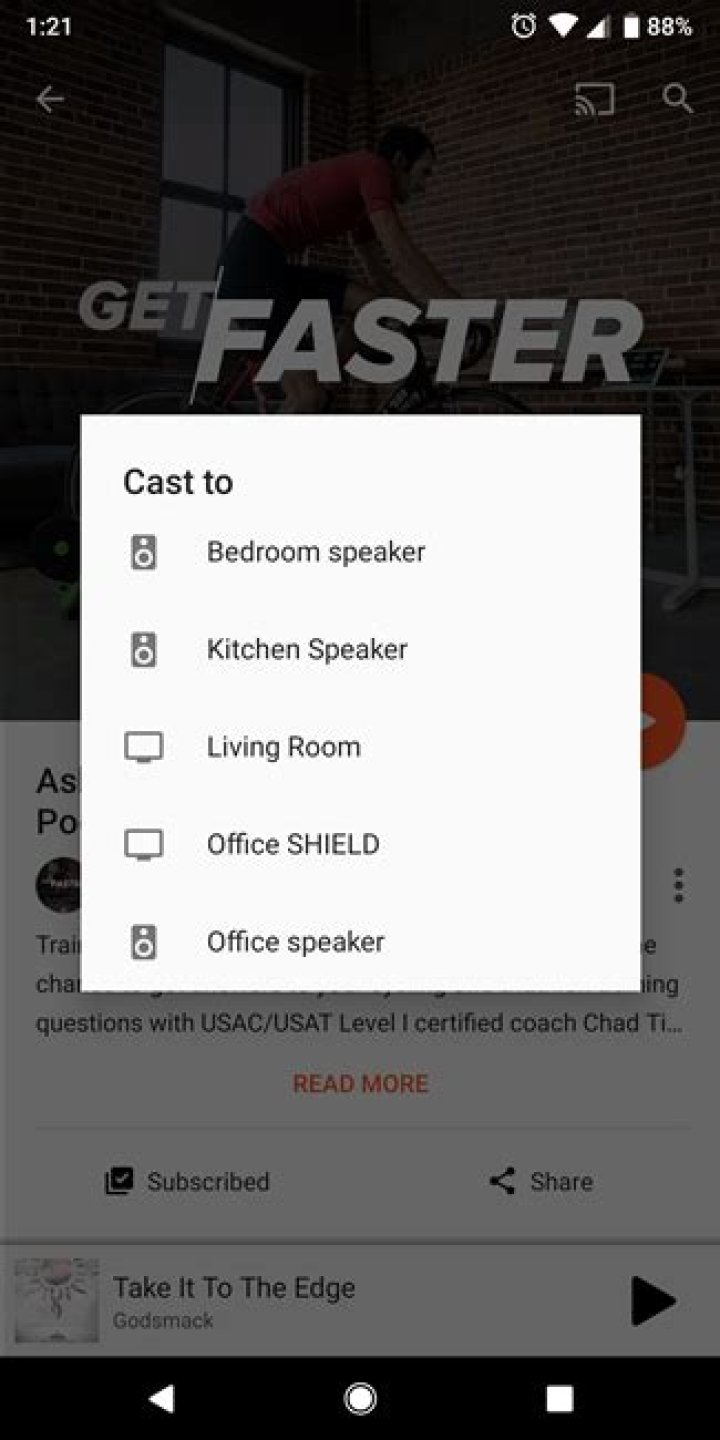
2. Tap the Cast icon at the top-right of the screen.
3. Choose the Google Home speaker that you want to play your podcast.
4. If the podcast was already playing, it will continue playing. If it was paused, you can press play on your phone or say, “Hey Google, resume the podcast.”
Once casting, you can control playback from your phone or use your voice with the speaker.
How to control playback from the Google Home app
If you have the Google Home app installed on your phone, you can also start and stop a podcast on your Google Home speaker from your phone.
1. Start the Google Home app.
2. Tap “Media.”
3. When the media window opens, tap the “Play” or “Pause” button to toggle playback.
Google has podcasts baked into the Play Music app for Android, and it recently released a dedicated Podcast app, as well. But you also can listen to podcasts directly on your Google Home pretty easily.
There are a couple of ways to do this: by using your voice, or by casting. We’ll cover both.
How to Listen to Podcasts on Home with Your Voice
The easiest way to fire up a podcast on Google Home is by simply telling your Google Assistant to play the podcast you want to hear.
You can start a podcast by saying “OK Google, play
.” For example, I religiously listen to the TrainerRoad Ask a Cycling Coach podcast, so I just tell Home to “play the latest episode of the TrainerRoad podcast” and it knows exactly what I’m talking about.
You can pause, stop, and resume with voice commands, as well. Just keep in mind that if you want to resume the podcast, you’ll have to explicitly state the name before it will work correctly—so, “Hey Google, continue listening to the TrainerRoad podcast” should do the trick. This is the recommended command from Google, and I’ve found it to work best.
It would be nice to have the option of playing specific episodes by number, but that doesn’t seem to be supported yet. Even though most podcasts offer show numbers, Home doesn’t yet understand this. I tested with multiple shows, and each time it just played the latest episode of the podcast in question.
Other Ways to Listen to Podcasts on Google Home
While just telling Home to play a podcast is convenient, it isn’t the most versatile option. In fact, it’s almost overly simple. If you’re looking for a little more flexibility from podcast listening but still want to use Google Home, you can make it happen using one of Google best features: casting.
While most Android apps should have this baked in (except, ironically, Google’s own Podcasts app), it’s harder to find on iOS. Pocket Casts is probably the most popular app with Cast support built in if you’re an Apple user.
Using the Casting feature, however, you can cast your podcast to Google Home, then easily pick up in the car or with headphones later on if you can’t finish it all in one sitting. That flexibility is great.
To send a podcast to your Home, just tap on the Cast icon in any app that supports the feature, and then choose the speaker to which you want to cast. The podcast should start playing immediately.
Now you can play, pause, and stop the podcast from your phone, and also take it with you somewhere else to finish later if you need to.
We’ll walk you through the different methods
Listening to podcasts on smart speakers around the home can feel like living ten minutes into the future. But as we explained in our guide on how to play podcasts with Alexa, it can actually be more complicated than you think.
Google’s made strides to make podcasting easier on its smart speakers, including opening up to the likes of Spotify, but there are still a lot of different parts – and things can get tricky when trying to play across multiple speakers in the home.
So read on to find out what you can do now to listen to podcasts with Assistant and Google Home speakers, and what’s still missing.
How to play podcasts with Google Assistant voice controls
Up until fairly recently, if you’re going to use your voice to load up podcasts with the Assistant, you could only use the Google Podcast app. But there is now the option to choose Spotify as your default podcast playback service.
Here’s how to choose your default podcast service for your Google smart speaker.
- Open the Google Home app.
- Go to Services and tap Podcasts.
- For Google Podcasts, your account is automatically linked.
- For Spotify, you will need to link your account.
- Tap Link account and then sign in and follow the in-app steps.
- To choose Spotify, you’ll need a Premium account for podcasts.
However, Google Podcast is probably the more seamless route. One of its best features is that you can pause a podcast playing in the app and (because it’s sharing the same Google account) pick up where you left off on a Google Home speaker.
That said, we’ve found this a little buggy in practice, with the podcast often starting from the beginning again.
If you’re not so bothered about syncing, you can use Assistant to play podcasts independently of the app/service you normally use. We’ve found that when playing from the same speaker(s), it’s usually better at picking up where we left off.
Here are the main voice commands you need to know:
- “Hey Google, play Revisionist History” or “Hey Google, listen to Rookie podcast”
- “OK Google, stop” or “OK Google, stop the podcast”
- “Hey Google, pause” or “Hey Google, pause the podcast”
- “OK Google, resume” or “OK Google, continue playing”
- “Hey Google, next episode/previous episode”
- “OK Google, skip forward/back 30 seconds”
- “Hey Google, listen to the latest episode of The Outline World Dispatch”
- “OK Google, what’s playing?”
Note – if you just say the name of the show and not the episode title, it will play the latest episode.
Once it’s playing, you can also go into the Google Home app, find the speaker, then use the controls there to pause/resume/stop and adjust the volume of the podcast you’re listening to.
On Google Home speakers, you can also use the physical play/pause/volume controls on the device to control it while it’s playing.
If you want to interact with Assistant while listening to a podcast, it will pause the podcast while it deals with your query then start playing again when you’re done.
How to cast podcasts from your phone
If you’re a podcast fiend already, you probably have an app on your phone. In 2018 Google launched its own app, the imaginatively titled Google Podcasts, but there’s also Apple Podcasts for iPhone and also a ton of existing third party podcast apps.
We use an app called Podcast Addict on an Android phone – don’t ask why, it just happened – and Pocket Casts on an iPhone. If you see the familiar Google Cast button on the screen, as you should with both of these, then it’s a breeze.
Just hit the Cast button (usually a screen with Wi-Fi waves beaming towards it) and select the name of the Google Assistant speaker you want to send it to, e.g. ‘Kitchen speaker’. Easy.
Similarly, go back to the phone, hit the Cast button and press Stop Casting at the bottom of the pop-up. Most podcast players for Android will have this baked in, and some iPhone ones do too (Pocket Casts being a good example).
If you plan to listen to a lot of podcasts on your Google Assistant, it might be worth switching to Google Podcasts – if you haven’t already – which, of course, has a Cast button.
If you listen to podcasts on another service, like Spotify or TuneIn, you can start podcasts via the app – on Spotify, just find what you want to play in ‘Podcasts’ then select the right speaker in the Devices menu.
The entire world of NPR is at your command. With a few simple utterances, you can access all the latest news, podcasts, and discussions of the day. Give any of the commands below a try and hear NPR’s critically acclaimed, audio-rich stories come alive on your Google Home voice-activated speaker powered by the Google Assistant.
Live radio from your Member station
Say, “OK Google, play NPR.” This will play live radio from a Member station near you.
You can also say, “OK Google, play [any public radio station’s name or call letters],” e.g., “OK Google, play WAMU” or “OK Google, play Nashville Public Radio.”
National and Local News from NPR
Cast NPR One to your Google Home from your mobile device.
For Google devices with a screen
Say, “OK Google, play the news from NPR” to receive our visual newscast. Hosted by the same voices you know and love from our daily audio newscast, the NPR visual newscast is updated hourly every weekday morning with the latest headlines and footage for a quick look at what’s going on in the news, now.
Podcasts
Say, “OK Google, play the podcast [Podcast Name]” to hear the most recent episode of any podcast.
News briefings
Here are some of NPR’s news briefings:
You can enable these news briefings in your Google Home app under Settings > More Settings > News.
At the bottom of that page, tap “Change news playlist format” and set your format to “News briefings.”
Then, tap “Add shows” to find and select NPR’s news briefings.
To hear your news briefings, say, “OK Google, play the news.”
Google Home is a trademark of Google LLC.
Credits:
Videos
Created by NPR’s marketing creative team
Creative Director: Billy Candela, Senior Copywriter: Sergio Romano, Senior Marketing Associate: Mina Tavakoli
With audio mix by Josh Rogosin and original music by Ramtin Arablouei
Animation by Laundry
Creative Director: PJ Richardson, Managing Director: James Sweigert, Executive Producer: Garrett Braren, Producer: Meredith Panicara, Edit and Sound Design: Justin Freedman, Design and Animation: Yongmin Park, Yoojin Seol, and Xirui Liu
Featured NPR audio clips
Guy Raz – How I Built This, Korva Coleman – NPR newscast, Ailsa Chang – “After Hurricane Katrina, Many People Found New Strength,” as featured on All Things Considered, John Sepulveda – The California Report from KQED
Landing Page
Page Editor: Justin Lucas, UI Developer: Todd Welstein, Senior Copywriter: Sergio Romano, Designer: Erin Culliney, Smart Audio Consultant: Ha-Hoa Hamano, Artwork: Laundry
USA TODAY Podcast (Photo: USA TODAY)
So, you want to listen to a podcast but you have no idea where or how to start.
Don’t worry; it’s simple! Choose your preferred listening option from the list below and follow the instructions:
On your iPad or iPhone
- Open the Apple Podcasts app.
- Search for “USA TODAY” and select your preferred podcast from the list of results.
- Once you’re on the page of the podcast of your choosing, click the “Subscribe” button to have new episodes of that podcast automatically sent to your phone or tablet for free.
Another option: While on the page of the podcast of your choosing, you can also select the name of any episode listed to listen on-demand. You can also choose episodes to download to enjoy even when your device is offline.
You can subscribe to any USA TODAY podcast from the list below right now by clicking on its corresponding purple button:
The news you need to start your day. Five stories. Less than five minutes. Every weekday, plus Saturdays.
She’s a journalist. He’s a comedian. They cover the lighter side of news. Tune in each Monday for a podcast that is, according to one fan, “the perfect amount of news and silliness.”
Get your daily consumer tech news update from Jefferson Graham with the latest gadget reviews and straight talk about (how) the latest tech innovations affect you.
Get down and nerdy every Friday as hosts Brett Molina, Kelly Lawler and Brian Truitt dissect the geekiest video games, TV shows and movies.
We’ve got the NBA covered from A to Z in this inside look at the Association from veteran scribes Sam Amick and Jeff Zillgitt. Great guests and gab for the hoophead in you.
An in-depth look at the MMA’s most prominent fighters, promoters, trainers and managers from the UFC, Bellator and other top promotions.
On your Android phone or tablet
- Open the Google Play Music app
- Search for USA TODAY and select your preferred podcast from the list of results.
- Once you’re on the page of the podcast of your choosing, click the “Subscribe” button to have new episodes of that podcast automatically sent to your phone or tablet for free.
Another option: While on the page of the podcast of your choosing, you can select the name of any episode listed to listen on-demand. You can also choose episodes to download to enjoy even when your device is offline.
On your Amazon Echo
- Go to alexa.amazon.com or open the Amazon Alexa app on Android or iOS.
- Go to “Settings” and select “Flash Briefing”
- Click “Get more Flash Briefing” content
- Search for “USA TODAY” and click on the link for the feed.
- Click Enable Skill to add USA TODAY, or other sources, to your Flash Briefing.
- Activate your device by saying, “Alexa, what’s in the news?” or “Alexa, play my Flash Briefing.” Those are just two of several ways you can access your Flash Briefing every day.
On your Google Home
- Activate your Google device by saying, “OK Google” or “Hey Google,” then:
- To listen to our daily news podcast, 5 Things, say, “What’s the latest news?”
- To listen to another USA TODAY podcast, say:
- “Play the USA TODAY podcast, I Tell My Husband The News.”
- “Play the Talking Tech podcast from USA TODAY.”
- “Play the The Mothership podcast from USA TODAY.”
- “Play the NBA A to Z podcast from USA TODAY.”
- “Play the MMA Junkie podcast from USA TODAY.”
Another option: You can manually add USA TODAY as a new source for your Google Home device via the Google Home app:
- Open the Google Home app.
- Select “More Settings” from the left navigation bar, then select “News.”
- Scroll to the bottom of the page and select “Add news sources.”
- Find and tap the box next to USA TODAY 5 Things to add it as a news source for your device.
In your car
If you have Bluetooth and a smartphone, pair your phone with your car’s sound system, and you can listen to your favorite USA TODAY podcasts on your way to and from work. If you drive a General Motors vehicle that’s a 2017 or 2018 model, we have a special option just for you.
Follow @usatodaypodcast on Twitter to find your next favorite podcast from the USA TODAY NETWORK.
First and foremost, Google Home is a speaker. Here are all the audio services that work with it.
Like the Alexa speakers, Google Home’s primary function is streaming audio. After all, it is a speaker — it just has a lot of extra features (and a growing list of compatible third-party smart home gadgets). With Google Home, you can get your news, listen to your favorite radio station or podcast and listen to music videos.
Here are all the music, podcast and radio services that work with Google Home.
Taylor Martin/CNET
Music
Google Play Music is the default music streaming service for Google Home. Like most other streaming services, however, you will need to sign up for a premium subscription to unlock the full potential of Google Play Music. With a free account, you can listen to ad-supported radio stations with up to six skips per hour. By subscribing to Google Play Music or YouTube Red, you unlock ad-free access to over 30 million songs. This also unlocks ad-free listening in YouTube Music, which works with Google Home.
In the settings, you can change the default music service from Google Play Music to Spotify, Pandora or YouTube Music by going to More settings > Music.
To use Spotify with Google Home, you need a Spotify Premium account. To stream music from Spotify, either specify that you want to listen on Spotify in your command (“OK Google, play indie music on Spotify”) or set it as the default music service.
Pandora works on Google Home without a premium account, but you will still need to link your free account to enable the service. Then, like with Spotify, either clarify that you want to listen to music from Pandora in your command or set it as the default service.
Podcasts
For now, podcasts on Google Home are restricted to Google Play Music. Just say something like, “OK Google, play Serial,” and the most recent episode will begin to play. You can skip through episodes in reverse chronological order by saying, “OK Google, next.” But you cannot listen to a specific episode number on command.
Despite both supporting podcasts, queueing up podcasts on the Google Home through Spotify or TuneIn is not currently possible. Instead, you have to use the mobile apps to cast the audio to the Google Home speaker.
Radio
From launch, users have been able to listen to local and internet radio stations on Google Home using TuneIn. As of this week, Google Home has been updated to also support iHeartRadio.
To play a station, just say, “OK Google, play 106.5” or any station that you like to listen to. If Google Home says the station is not available on one of the services, try asking for the station specifically from the other service.
Like with podcasts, you can’t natively listen to audiobooks through TuneIn on Google Home. What that means is, you can’t use your voice to start listening to audiobooks, but you can cast them to Google Home.
Services
Similar to radio stations, you can get the latest news in short sound bites from some of Google Home’s third-party services, such as AudioBurst, NBC News, NPR One and The Wall Street Journal. Just say, “OK Google, let me talk to AudioBurst” or “OK Google, open NPR One.”
Cast
While Google Home may not operate as a Bluetooth speaker like Alexa, it does have an alternative that’s almost as good: Cast.
At its core, Google Home is just a fancy looking Chromecast ($22 at eBay) with a nice set of speakers attached to it. This means you can stream almost any audio to it, simply by using an audio app on your phone, selecting something to play, tapping the Cast button and choosing the Google Home speaker. There are thousands of apps that support Cast, such as NPR One, Pocket Casts, SoundCloud or Plex. You can see them all here.
- You can play podcasts on a Google Home speaker either by asking your device to play the podcast, or by using a podcast app on your Android device.
- Though you can’t ask for a specific podcast episode, you can use your voice to skip between episodes of the show currently playing, by saying “Next” or “Previous.”
While podcasts have transformed long commutes and exercise workouts into bearable experiences, you don’t have to confine podcast listening to occasions where you’re trapped in a car or a gym.
If you have a Google Home smart speaker, you can listen to podcasts at home just as easily as you would music.
How to play podcasts on your Google Home speaker
Although you can’t select a specific episode, there are a number of commands you can use to control playback:
- Say “Play the next episode” or “Play the previous episode” to change episodes to the previous or next one.
- Say “Pause” or “Stop” to pause and continue listening to a podcast.
- Say “Continue playing the podcast” or “Resume the podcast” to continue where you last left off.
How to cast a podcast from your phone to your Google Home
1. On your Android phone, start Google Play Music, or whichever app you use to listen to podcasts.
- You can also play podcasts on your iPhone, but it’s harder to find an app that’s compatible with your Google Home, although Pocket Casts is a popular one.
2. Tap the Cast icon at the top-right of the screen. 3. Choose the Google Home speaker that you want to play your podcast.
4. If the podcast was already playing, it will continue playing. If it was paused, you can press play on your phone or say, “Hey Google, resume the podcast.”
Once casting, you can control playback from your phone or use your voice with the speaker.
How to control playback from the Google Home app
1. Start the Google Home app.
2. Tap “Media.”
3. When the media window opens, tap the “Play” or “Pause” button to toggle playback.
Google Home smart speakers are great for easily cuing up your favorite songs through Google Play Music, Spotify, or other supported apps.
Unfortunately, Google Home is a little fussier when it comes to podcasts. But not to worry! In this post, we’ll walk you through everything you need to know about how to play podcasts on Google Home.
It’s not overly complicated, but you’ll want to know what’s available, what’s not, and how to get the most out of your smart speaker.
Play podcasts on Google Home: Google Podcasts
The good news is that you can play podcasts on Google Home.
The bad news is you’ll have virtually no versatility, as Google Home doesn’t recognize third-party podcast apps like Spotify, TuneIn, or Apple Podcasts.
EMZ04505
That said, Google does have its own dedicated podcast app for Android. In theory, you should be able to start a podcast while you’re on the go, and then when you get home, say something like, “Hey, Google, resume This American Life.” That feature’s pretty buggy though, so you’ll likely have to start the episode anew and skip forward.
Anytime you start a podcast using Assistant voice commands, your Google Home will assume you want it from Google Podcasts. Not that your preference would matter anyway. As we said, that’s all Google Home is compatible with.
So, it’s about as simple as that to play podcasts on Google Home using simple voice commands.
Examples of voice commands you might use include the following:
- “Hey, Google, play Bad With Money.”
- “Hey, Google, play episode 120 of Reply All.”
- “Hey, Google, pause.”
- “Hey, Google, skip ahead three minutes.”
- “Hey, Google, next episode.”
- “Hey, Google, previous episode.”
Keep in mind that if you don’t specify an episode, Google Home will assume your looking for the latest one.
Play podcasts on Google Home: Casting
Another option — a much more versatile option — is casting.
The major drawback here is that you’ll miss out on the convenience of using voice commands to manage your podcasts. If you’re used to a specific podcast platform though, it’ll allow you stick with what you know.
Most Android phones will have a cast button baked in, though you can also download apps, like Podcast Addict, that make it easy. If you’re an Apple user, you don’t have a ton of options, but Pocket Casts for iOS is a solid choice.
When you play podcasts on your phone, you can hit the cast icon and select your Google Home speaker to cast to.
You’ll be able to control volume using phone commands, but everything else will happen in-phone.
Another advantage to this is that you won’t have to rely on Google Podcasts to sync when you switch from your phone to your Google Home. You can rest assured that when you leave the house, you can resume your podcast from wherever you were.
Play podcasts on Google Home: Wrap up
We can only hope that Google will get its act together to make it easier to play podcasts on Google Home.
For now, the methods above are what we have to work with. It’s certainly not the end of the world, as you can listen to your favorite podcasts without too much effort.
Then again, smart speakers should be about convenience, and syncing your Google Home to your favorite podcast app would be convenient.
It’s a pretty reasonable ask.
Have you run into any problems trying to play podcasts on Google Home? Are you sold on Google Podcasts and wondering what all the complaining is about? Let us know your thoughts in the comments below.
Thousands of audio programmes are free to listen to and most are available via smartphone apps
The Guardian’s Owen Jones and Jonathan Freedland record a politics podcast. Photograph: Linda Nylind/The Guardian
The Guardian’s Owen Jones and Jonathan Freedland record a politics podcast. Photograph: Linda Nylind/The Guardian
First published on Sat 7 Oct 2017 12.41 BST
Listening to audio programmes, or podcasts, is simple if you have access to the internet. You just need to find a podcast platform or app that suits you and then sample some of the many thousands of podcasts made around the world. All podcasts are free, and most are available via many different apps.
On a website
The simplest way to listen to podcasts is on a web browser like Chrome, Safari or Microsoft Edge. You can do this from a computer or from the web browser on your phone.
- Find a website that has podcasts you like, for example the Guardian.
- Find the player on the page, check your device’s sound is switched on and click play to listen to the podcast.
On your iPhone or iPad
If you have an iPhone you can use the Apple podcasts app to listen to podcasts.
- The Podcasts app should already be downloaded on your phone so search your apps for ‘Podcasts’. If it’s not, go to the app store and download it.
- Open the Podcast app and go to the search page (click on the magnifying glass button in the navigation at the bottom).
- A search box should appear at the top, next to another magnifying glass icon. Tap on this and type in the name of the podcast you want to find eg: “Guardian Books”. Hit “enter” on your keyboard.
- Choose the podcast you want from the search results and tap on it. This should take you to the podcast’s homepage.
- Once you’re on the podcast homepage you’ll see a list of recent episodes. Tap on one to play it.
- If you like what you hear, a subscribe button at the top of the page lets you subscribe for free. This means the app will automatically download the latest episodes to your library.
- More information from Apple here.
On your Android phone
If you have an Android phone you can use the Google podcasts app.
- Search “Google podcasts” in the play store app or click this link on your phone to open it in the store.
- Install the app.
- Once you open the app, use the search box (look out for the magnifying glass icon) and type in the name of the podcast you want to find eg: Football Weekly.
- Choose the podcast you want from the search results and tap on it again. This should take you to the podcast’s homepage.
- Once on the podcast homepage you should see a list of most recent episodes. Tap on one to play it.
- If you like it, tap the subscribe button at the top of the page. When you subscribe to a podcast, it’ll appear at the top of the Google podcasts app, and a new section in the app will let you know about new episodes from podcasts you’ve subscribed to. You should also be able to listen to podcasts from the Google search app, just search for the name of the podcast.




