Tumblr is a great service for sharing media and blog posts, but what if you don’t want to share your experiences with the world? Here’s how to create a private, password-protected blog for your family or business.
By default, Tumblr blogs are available for all the world to see. Your boss, the guy down the street, or a kid in Japan, all can see anything you post. This is great for most blogs, as, after all, most of us blog to get our ideas out to the world. We get excited when more people read our posts. But there is still a time and place for privacy, especially in our hyperconnected world today where almost everything is public. Luckily, Tumblr does have an option to create a private, password protected blog, so even if you only want to post pictures to share with Grandma, you can still use Tumblr to do it quickly, stylishly, and privately.
Create a Password Protected Tumblr
As strange as it may seem, if you only want a private Tumblr, you’ll first need to create a standard, public Tumblr. They don’t allow your default blog to be password protected and private, but you can always add a second, password protected blog for free. If you don’t already have a Tumblr blog, check out our article on how to quickly get a Tumblr blog setup. If you only want a private blog, you can just leave the first, public site with the default theme and no content, or otherwise use it as you wish.
Now, to make your private Tumblr blog, click the down arrow beside your blog’s name on the right side and click Create a new blog.
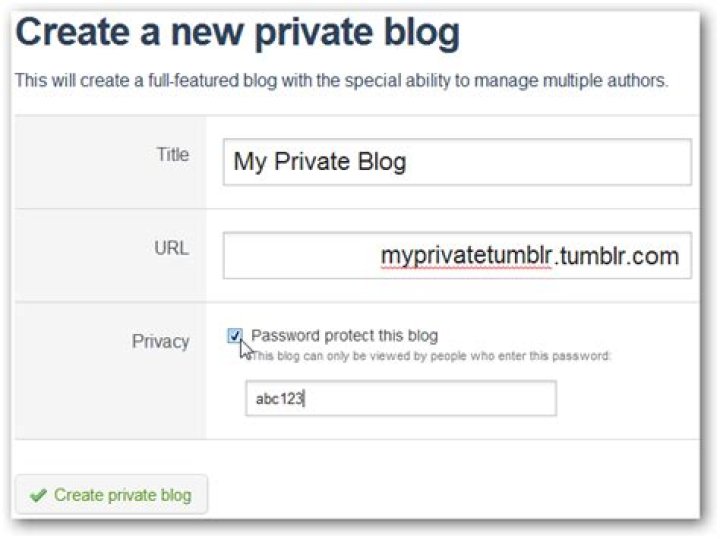
Enter a name and address for your new blog, and then check the box beside Password protect this blog and enter a password if you want to keep it secure. Once you’re finished, click Create Private Blog.
That’s all, folks! As soon as you’ve created the new private blog, you’ll be presented with a new dashboard. Now you can post pictures, text, quotes, links, and more, and they’re all hidden behind your password firewall.
The only people that will be able to visit your site are those you give your password to. When you browse to your_new_private_tumblr.tumblr.com, you’ll see a password box. Enter the password you created, and click Confirm to see the content. You can now give this password out to family, friends, coworkers, or whoever you want to see it.
Your Tumblr dashboard, by default, will go to the first, public blog you setup. To access your private blog’s dashboard, you’ll have to click the down arrow beside your blog’s name as before. This time, select your new Tumblr from the list, and you’ll be presented with your private blog’s dashboard as above.
Turn an Existing Second Tumblr Into a Private Blog
If you already have a second Tumblr blog on your account and would like to make it private, open your second blog’s dashboard as above. Now click Customize under the second blog’s name.
Now, on the Customize page, click the Advanced tab. Check the Password protect this blog box, and enter the password of your choice. You may also wish to uncheck the next two boxes, which will prevent search engines from seeing your blog and not let your blog get promoted by Tumblr.
Once you’re done, click Save + Close.
Now your blog will be hidden behind a password, too!
Conclusion
No matter what you’re blogging about, sometimes you just might want to keep it a bit private. Tumblr makes it slightly complicated to have a private blog, but once you have one, it works great. Since your visitors will only have to enter a password, it’s much easier for them to use than many other systems that would require them to first have an account. Now you can post away, and not worry about what other’s think!
If you don’t already have a Tumblr blog, check out our article on how to Create a Tumblr Blog. Don’t forget; even though your new blog is private, you can still make it look as nice as you want!
Related
- How to Change the Asset Account in QuickBooks
- How to Migrate Your Blog From Blogspot to Your Website
- How to Track Published Google Docs With Analytics
- How to Link a Track to Download on Tumblr
- How to Embed a Wix Site Into a Blogger Blog
Tumblr gives users the ability to “tag” posts with keyword phrases that summarize their content. Using these post tags, you can browse recent posts containing popular tags or look up a specific blog by searching for the tag of your choice. If you are looking for a specific blog on Tumblr, you may navigate to it directly by following Tumblr’s url formatting rules.
Navigate to Tumblr.com in your Web browser, and enter your account information to log in.
Click the “Explore Tumblr” button on the right side of the page. Note that you can also view the “Explore Tumblr” page without creating an account by navigating directly to even though the Tumblr.com home page does not display a link to this section. Use this section to browse recent Tumblr posts about popular topics such as art, crafts and gaming, and click a topic to return to your account dashboard and view recent posts. Click the “Track” button on the right side of the page to begin receiving automatic updates about posts containing that topic.
Click the “Search Tags” field on the right side of your account dashboard, and type a search term to search Tumblr blogs for a specific keyword or phrase. This displays only posts tagged with the keyword that you search for.
Type a URL in your browser’s address bar to navigate directly to a Tumblr blog if you know its title. All Tumblr blog URLs use the format blogname.tumblr.com.
Jason Artman has been a technical writer since entering the field in 1999 while attending Michigan State University. Artman has published numerous articles for various websites, covering a diverse array of computer-related topics including hardware, software, games and gadgets.
Now that you’ve maybe read a Tumblr review or two and signed up for Tumblr, it’s time to create your blog! A “blog” is an online journal that you can use to post thoughts, pictures, videos, songs, links to websites, or even things that other people have posted! It’s an expression of who you are and what you like in life!
Well, actually… if you’ve created a Tumblr account, then you already have a blog! Tumblr creates a default one for you when you sign up for Tumblr. If you want to have more than one blog, though (say, if you want to have one devoted to food and another to fashion and a third devoted to sports), then that’s perfectly fine! This tutorial will show you how to create a new Tumblr blog from scratch.
To make a blog on Tumblr:
Open your web browser, go to and log in.
Click the Account icon in the top-right corner, and then beside “Blogs”, click New.
Enter a name, web address, and (optionally) password for your blog.
Click the check box at the bottom to pass the security check, and then click Create Blog.
Those are the basic steps, but we’re betting that you want to see what the process actually looks like. Well, say no more! Below are complete instructions, with screen captures to guide you every step of the way.
Detailed instructions on how to create a Tumblr blog
Open your web browser and go to Click Log In in the top-right corner.
Click in the box labelled “Email” and type in the email address associated with your Tumblr account. Then click in the box labelled “Password” and type in the password that you picked to secure your Tumblr account with. Finally, click Log In.
Once you’re logged in, click the Account icon in the top-right corner, and then beside “Blogs”, click New.
Here, you will set up the basic information for your blog.
Click in the box labelled “Title” and type in what you want to name your blog. Then, click in the box labelled “URL” and type in a web address that your blog will use. It can be pretty much anything you want, but it has to be in the format “[yourblognamewithnospaces].tumblr.com”.
If you want an extra layer of security for your blog, click the check box labelled “Password-Protect This Blog”. Then, click in the box below it and type in a password of your choosing. If you use this option, your blog will only be accessible to people who know the password for it (besides you, of course).
Finally, you’ll have to pass a security check to prove that you’re not an automated program looking to cause trouble by mass-producing blogs. Tumblr tries to cut down on this because it needlessly takes up available blog web addresses, meaning that other people can’t use them. To pass the security check, simply click the check box labelled “I’m Not a Robot”.
Once you have given your blog a title and a web address, and passed the security check, click Create Blog.
Voila! You now have a brand new blog on Tumblr. There’s just one problem, though: you probably don’t have any content for it yet! In our next lesson, we’ll show you how to fix that by teaching you how to post to a blog on Tumblr!
Tumblr is a great platform to share your media and blog posts. By default, your Tumblr blogs are available for everyone to see. But, what if you want to make your Tumblr blogs private or want to share it with some specific people? In this post, we have listed down some ways by which you can make your Tumblr Private or a password-protected blog. After making the blog private, each user will require entering a password to access your blog.
Steps to make your Tumblr Private
Although, Tumblr is an excellent platform to share your Blog posts with the world. You primary Tumblr Blog always remains public and is accessible to all the people on Tumblr. This might be good for those who want their content to be publicly accessible or if anyone wants to promote their products. But, what if you want to share a Blog that is Audience Specific or you want to share it with only with your Colleagues, and not with your family members? The only option left with you is to make your Tumblr Blog private and secure it using a password.
To make your Tumblr Private, the first thing you need to do is to create a standard public Tumblr and head over to your default dashboard. Tumblr doesn’t allow you to make your default Blog private or password protected. So, you need to create a secondary blog and make it private by protecting it using a strong password. To create the secondary Blog, follow the below steps:
- Click on the Account Icon at the top right corner of the screen and click on +New Button. You will be redirected to a new page where you can create a new Tumblr.
- Enter your new Blog’s Title, preferred URL (Uniform Resource Locator) and click on the checkbox to password protect your Blog.
- Enter a strong password and click on Create Blog to proceed further.
- In the next screen, you can see your new dashboard. Create a new post available in 7 different formats (Text, Photos, Quotes, Link, Chat, Audio, and Video).
- After publishing the post, it will be hidden from all the users and will require a password to grant access. Share the password with people you want to share your Blog with.
- You can also share your Private Blog’s link to your friends and relatives. After opening the link, it will prompt for a password before giving access to your private Blog.
Deleting Private Tumblr Blog
To delete your private Tumblr Blog, simply follow the below steps:
- Click on the Account Icon at the top right corner and click on Settings.
- Under the Blogs section, click on your Private Blog. It will show all the details of your Private Blog.
- Scroll to the Bottom of the page and you will a button to Delete your Private Blog. Click on the Delete Button.
- Before deletion, for security reasons, you will be asked to enter your email id and password. Enter the details of your Tumblr account and proceed with deleting your Blog.
- That’s it. You have successfully deleted your Private password-protected blog from Tumblr.
Wrapping Up
So, this was one simple method by which you can easily create a private Tumblr Blog. We hope you are now able to create a private blog and share your content with some specific list of audience. If you are facing any issues, then please comment down below. Our team will get back to you as soon as possible and we will try to get your problem solved.
Tumblr is one of the leading platforms to create a free blog. You can use Tumblr to write your content and you can also use the platform as a social site to promote your blog content.
What if you want to make your Tumblr blog private? Is that possible?
Definitely, it is possible. In this article, we will see how to make a Tumblr blog private.
When we talk about the private blogs the privacy could be in many levels. You can make a site completely private by password protecting it. You can make a blog open to a group of people while it is not accessible to outsiders.
So, you need to first understand your objective and proceed accordingly.
While most of the bloggers struggle to get more traffic to their blog, why would someone like to make their blog private?
There could be a number of reasons to make a blog private. For example, if you are creating a blog just to write your personal things; it is not a good idea to keep that open to all.
At Tumblr, many folks create a blog just to practice and improve their writing skills, so why to keep that open to all.
If you are blogging professionally, it is better to create your blog on WordPress platform that offers you complete flexibility in terms of design and monetization and SEO benefits. Here is an article that will help you to understand how to create your first blog and get your domain name for free.
Did you know that you can make a lot of money just by taking easy online surveys or just by browsing the web? We have listed the best survey sites that will help you to make $$$ every day.
Make a Tumblr Blog Private
Tumblr doesn’t allow password protect your first blog. If you like to create a private Tumblr blog, you will have to create a secondary blog and password protect it.
However, there are a few options that will reduce the visibility of your first Tumblr blog. Let’s have a look
First Step: Go to your profile and settings
Click on your profile icon on the right top corner of your site and click on the settings tab.
Second Step: Select the blog to change the visibility
Click and select the blog that you wish to make private. When you click on the blog it will take you to the settings of the blog.
Scroll and go down to the visibility settings options and set it up according to your need.
Password Protecting Your Tumblr Blog
As already mentioned, Tumblr doesn’t allow you to password protect your main blog. However, you can create a secondary blog and password protect it.
01. To create a password protect your Tumblr blog, click on the profile Icon at the top right corner and click on +New Button.
02. In the next screen, you will get the option to add the details of your new private blog. Put the name of your blog, the URL and the password for your site.
Now you have your own private blog
Final Word
The process of creating a private blog is quick and simple and you don’t have to go through any complicated settings.
We at begindot already published a number of articles related to the Tumblr platform such as this article about the best Tumblr backgrounds that you can use to make your Tumblr blog look beautiful.
A privacy measure, or the start of a walled garden?
Share this story
- Share this on Facebook
- Share this on Twitter
Share All sharing options for: Tumblr now lets you hide your blog from the internet
Tumblr today introduced a feature that lets you hide your blog from the web so its content can only be viewed on Tumblr.com and in its native apps for mobile devices. The move, which Tumblr positioned as a privacy measure, will “let you better control who gets to see your stuff and who doesn’t,” the company said in a blog post. Once you set your blog to not be shown on the web, anyone who visits its URL will see a 404 error. But anyone who follows your blog will be able to see it on their dashboard when they log into Tumblr, either on the web or in its apps.
Tumblr says the toggle “pairs nicely with the block feature.” The idea behind both features, the company says, is to make it easier to hide posts from the public, particularly trolls and abusers. But Tumblr’s privacy features remain generally confusing. You still can’t make your primary blog private, but you can set up a secondary blog protected by a password. Password-protected blogs feel like something out of another era — Instagram and Twitter are among the social networks that have long let you make your account private and then whitelist your followers, making it easier to keep trolls out.
Dilum Senevirathne
23 Oct 2018
On a desktop, the Tumblr dashboard serves as a useful hub where you can do just about anything. Creating fresh posts, endlessly scrolling through your feed, or messaging with other Tumblrs feel surprisingly good. But there’s one feature that doesn’t make much sense. Obviously, it’s when any blogs that you try to access via your dashboard open inside the dashboard itself.
While the ability to view blogs right from your dashboard sounds like a pretty neat feature to have, it’s actually quite detrimental for a full Tumblr experience. But thankfully, you can use a workaround to open them usually, and that’s what you are going to find out. However, there are also instances where you can’t do anything about it — let’s check out why that happens as well.
Also on Guiding Tech
Top 5 Ways to Open All Links in New Tabs in Chrome
Opening Blogs in Separate Tabs
When you click on a Tumblr username from your dashboard, be it something from your feed, the messaging box, a followed blog, search results, etc., the blog instantly launches it in a sidebar to the right of the screen rather than typically loading like any ordinary site.
It is useful when you need to check a few posts on a blog quickly. The tiny screen real estate of the sidebar, combined with a non-responsive dashboard, can be quite irritating. Definitely not a feasible way to spend some quality time on your favorite blogs, right?
Sadly, that’s a design decision on Tumblr’s side, and you don’t have access to any ‘toggle’ that you can use to turn the functionality off. So how can you view blogs without being restricted to a tiny portion of the screen?
The workaround involves opening Tumblr blogs in their respective tabs. And forget manually inserting URLs into new tabs — there are easier ways to do that directly from the dashboard.
Open in New Tab
The good old fashioned way (and you may already know how) to go about opening a blog in a new tab is to right-click the Tumblr username or avatar. On the context menu that appears, click Open Link in New Tab, and you should be good to go.
However, keep in mind that the new tab opens in the browser background. So you need to switch to the respective tab from your dashboard afterward.
Mouse and Keyboard Shortcuts
If you hate right-clicking to open links in new tabs, then simply click the middle mouse button on the scrollbar instead and the blog should open in a new tab automatically. Very fast and no dealing with menus whatsoever.
And for instances where the middle mouse click is tight or uncomfortable to perform, consider combining the left mouse key with the Ctrl key to achieve the same effect.
Use Chrome Extensions
Do you use Chrome as your go-to browser? Then make use of extensions such as Click to Tab and Long Press New Tab to easily open Tumblr blogs in new tabs without relying on alternate mouse buttons or keyboard combos.
While these extensions forcibly open every link that you come across in new tabs, you can easily enable them just for your Tumblr sessions. To activate or deactivate installed extensions, open the Chrome menu (click three-dots menu), point to More Tools, and then click Extensions.
Password protecting a blog may sound strange at first. After all, don’t you want to be growing and building your traffic, and welcoming as many visitors as possible? Maybe. But there are plenty of reasons why you might want to make your blog private, or not release it publicly!
We’ll take a look at how to quickly and easily password protect your Tumblr blog, so only those with a password can see it!
Why Password Protect Your Blog?
1. Your Blog Is Not Ready to Launch
Perhaps you are building up your blog, setting up the theme and the content and your blog isn’t ready yet. Using a password to protect it will hide it from search results until you are ready to show it off.
2. Your Blog Is for Your Eyes Only (Or a Small Group of People)
The world wide web could be too large for your blog — maybe you just want a specific group of people to see it. Well, set a password and give it to them. This way they will see it as well, but it will be locked to outside eyes.
Perfect for a personal diary, travel blog, or a collection of family photos!
How to Password Protect Your Tumblr Blog
Only secondary blogs can have a password. Your main blog can’t be protected by a password, but if you want to hide it from search results, you can go into the Settings and turn off the option “Allow logged-out users to see this blog”.
Here’s what you need to do to add a password to your secondary blog:
- Go to the Settings (click the user icon) on the top of the dashboard
- Choose your secondary blog in the menu on the right
- On the Settings page enable “Password protect this blog.”
- Enter the password you want to use
If you want to disable the password, follow the steps above and disable that option. Enjoy your new personal, secure place on the internet!
Looking for WordPress hosting? We use Kinsta. They offer world-class WordPress hosting, built to keep your website fast, secure, and always online.
Tumblr does not allow you to create a completely private account. However, you are allowed to create private blogs and posts that are only shared with users who have your permission to view them.
There are two aspects of locking down your Tumblr privacy settings — account management and blog privacy.
Account Management
Manage account settings by clicking on the profile icon on the top right corner of any page. Use the dropdown menu to select “settings.”
The settings tab will bring you to the account management section. Use this section to enhance privacy and prevent unauthorized access of your Tumblr account.
Email search: Prevent individuals from finding your blog by way of searching your email address when you disable this setting.
Password: Create a strong, unique password that contains a combination of uppercase and lowercase letters, numbers and symbols. Change your password at least every 90 days.
Email notifications: Enable email notifications about account activity. These notifications will tip you off to a potential hacker.
Two-factor authentication: Enable this feature to add an extra layer of security. Then, when you log in, a 6-digit PIN will be sent to your phone to act as a second password.
Apps: Select “apps” from the right sidebar to restrict third-parties from using your Tumblr data.
Blog privacy
While the Tumblr privacy settings prohibit private accounts, you may create a secondary blog that is private — allowing only users that know a password to access it. This password is not the one you use to log in.
First, open your dashboard and click on the profile tab to the left.
Select “+New” to create a new blog. This secondary blog will give you the option to make it private.
You will be directed to this page to create your new blog. Select “password protect this blog” and enter a desired password that you may share with followers you pre-select to view content on this secondary Tumblr blog.




