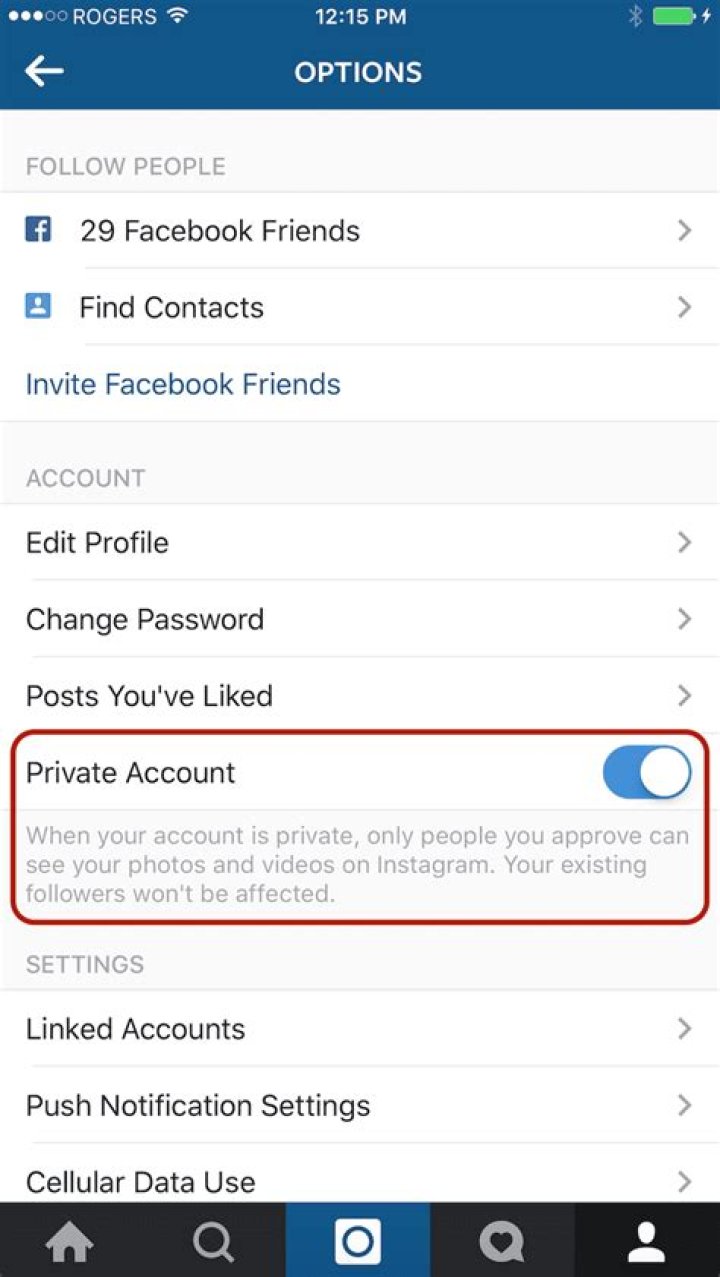
Instagram can be seen as a rather intimate social media platform where we might post photos of our friends, family, and daily lives. It’s a great way of sharing your life with the people around you who don’t get to see you everyday, but it’s not so great when you have random strangers online making weird or abusive comments on your posts.
This is why depending on what you share, you might want to consider making your Instagram profile private, to prevent people you don’t know from following you and seeing what you post, and here’s what you need to do to make your account private.
Make your Instagram profile private
Now that your Instagram profile has been set to private, it means that while you can still be searched for on Instagram, people who find your profile will have to send you a request to follow you, so you can choose to allow or disallow requests depending on whether or not you know that person and if you want to let them follow you and see your Instagram posts.
Additional privacy settings
While your profile might be private, it is still possible that you can be tagged or mentioned in photos or comments. You can disable this and set it so that you can only be tagged or mentioned by people you follow back.
- In Instagram’s Account Privacy settings, go to Interactions
- Tap on Tags and/or Mentions and choose from Everyone, People You Follow, or No One if you’d rather not be tagged or mentioned by anyone at all
Making Instagram Stories even more private
With your Instagram profile now set to private, it means that only people who have been approved to follow you can see your posts, including uploads to Instagram Story. However, within Instagram Stories, you can make that private list even more private and exclusive, where even some of your followers won’t be able to see them.
- Create an Instagram Story
- Before you upload it, tap on the Close Friends button at the bottom of the screen
- Tap Add to List
- Tap Add on all the friends that you want to allow to see your Instagram Story
- Tap Create List
- When you’re done, tap the Close Friends button at the bottom and it will upload the Instagram Story where it will only be visible to those on your Close Friends list
By default, when you post a photo to Instagram, it’s visible to every other user. If you add any hashtags to your photo, like say, #landscape or #selfie, anyone who searches for that hashtag will be able to find it.
While these defaults work if you’re a photographer or brand, some people might feel a bit too public, so let’s look at how to make your Instagram account private.
Make Your Account Private
Open Instagram and head to your profile page. In the top right corner, click the Settings icon.
This will bring you to the Settings screen. Down on the bottom, flip the “Private Account” toggle on.
Now only your Followers will be able to see your posts. You’ll also have to approve anyone new who wants to follow you.
Approving New Followers
When someone new tries to follow you, they’ll send a Follow Request. The next time you log in to the app, you’ll get a notification. Tap the heart icon to view it.
At the top of the Notifications screen, you’ll see your Follow Requests. Tap the area to view them. You can then Confirm or Delete them.
Learn to use Instagram settings to make your account private
- Tweet
- Share
So, you want to make your Instagram account private? Good move — especially if you post content that you don’t want to be viewed by a particular individual or group of people who might go looking for you on Instagram.
These instructions apply to Android and iOS operating systems.
Making your profile private is quite simple. Here are the steps to getting it done, as explained using the Instagram iPhone app:
Tap the profile icon in lower right-hand corner of your screen, then tap the menu icon in the upper right.
Tap Settings > Privacy.
Tap Account Privacy then tap the button next to Private Account.
If it’s not your whole profile you want to make private, but just a few pictures, you also have the option to hide select photos on your Instagram account. The option is in the photo menu.
You have successfully set your Instagram profile to private. (There’s no requirement to save your setting changes.) As long as you that Private Account option is on, only the users who are currently following you, plus any new users you approve if they request to follow you, will be able to see your Instagram content.
Instagram Privacy Q&A
We answer some of the most common questions people have about their Instagram privacy:
What if I tag a user or add a hashtag to one of my Instagram posts when my profile is set to profile? Can people still see it? Only the users who follow you will be able to see it. Tagging other users who don’t follow you or putting a hashtag in the description does not override the privacy of the post. It will not be visible to anyone else who does not follow you already.
What if I want to share an Instagram post on other social network sites when my profile is set to private? If you decide to share a post to Facebook, Twitter, Tumblr, Flickr or another social network, it will be publicly accessible to view as a standalone post. Anyone viewing it will be able to click on the Instagram permalink to view it in full, but if they click on your username to view your full profile, they will not be able to see your other content unless they follow you already.
If someone decides to follow me while my profile is private, will they be able to see my posts? Not until you approve them. When one user taps the Follow button on a user whose profile is private, it only sends a follow request message. So if you get a follow request from someone, they will not be able to see any of your content until you manually approve their request to follow you.
Someone is following me, but I don’t want him or her as a follower anymore. How do I get rid of this person? To stop someone from following you, block the account. Open the profile, tap the three white circles in the top right corner, and tap Block User to remove that account from your followers. (You can alternatively report the account as well.)
Can I set my profile to private by signing in to Instagram.com on the web? Yes, you can do this from the Privacy and Security area of Instagram’s settings.
How often can I switch back and forth between public and private? There doesn’t seem to be a limit as to how often you switch your privacy settings on or off, so if you feel inclined to do it multiple times a day, it shouldn’t be a problem. This flexibility could change because Instagram places restrictions on other forms of activity.
Will I lose followers if I make my profile private? No. You will not lose any of the followers you currently have, and all will have full access to everything you post.
Can I make a business Instagram account private? No. You’ll have to turn it into a personal Instagram account.
Mehvish
13 Aug 2018
In the age of social media where we love to post every single detail of our lives online, privacy plays an important role. All social networks and chat apps offer a bunch of privacy settings, however, very few people utilize them.
Since Instagram is all about photos and videos, it’s necessary to tweak a few privacy settings for a better experience. Here you will find nine such Instagram settings.
1. Private Profile
This is the most popular privacy setting. By default, Instagram accounts are public, meaning, anyone on Instagram can view your photos, like and comment on them. But, thankfully, it gives you an option to make your profile private.
When you have a private profile, only your followers can see your published photos and stories. This doesn’t change your viewing method, as you can still see other public profiles’ photos and stories.
To make your profile private, follow the steps:
Step 1: Open the Instagram app and go to the profile screen. Then tap on the three-dot icon at the top-right corner to open Settings in case of Android phones. On iPhone, tap on the gear icon.
Step 2: Under Settings, tap on Private account and turn it on.
2. Remove a Follower
When you make your profile private, there will be many people in your Followers list that you don’t want there. Earlier, one had to block such users but that has changed now.
Thanks to Instagram, you can now manually remove followers with just one tap. And the best part, they won’t be notified about it. It’s not necessary that you should have a private profile to remove followers, you can do this even if you have a public profile.
To remove followers, do this:
Step 1: Go to your profile and tap Followers.
Step 2: You will see the three-dot icon next to every follower. Tap on it for the follower you’d like to remove and select Remove.
By default, the photos and videos you share on Instagram are visible to everyone. Any person can like or comment on them. You can even add hashtags to your photos like #nature or #landscape so that people searching for these words can easily find them. However, this only makes sense if you’re a photographer, a brand, or a celebrity. We don’t see any point in sharing your private life with unknown people and make it more social. That’s why we recommend you to make your Instagram account private. In this tutorial, we will guide you through the process in detail. Let’s begin:
Requirements
- A smartphone running Android or iOS
- Latest version of Instagram app
- Active Internet connection
You can download the latest version of Instagram for Android or Instagram for iOS from Google Play store or the Apple App store respectively.
Make your Instagram account private in simple steps
Step 1. First of all, launch the Instagram app on your device and go to your profile page
Step 2. Click on the Settings icon in the top-right corner of the page
Step 3. Now, you’ll be navigated to the Options section where you’ll see various options related to your account like Story Settings, Edit Profile, Change Password, Two-factor authentication, etc.
You’ll also see an option by name Private Account. Just toggle it ON
This will make your Instagram account private. From now on, anyone who wants to follow you will have to seek approval from you.
Approving new followers
Once you’ve made your Instagram account private, anyone who wants to follow you will have to send a Follow Request.
Once the Follow Request is sent to you, you’ll receive a notification that you can see by tapping on the Heart icon. Tap on the Follow Request notification and select either Confirm or Delete to complete the action.
That’s all we have in our tutorial to make your Instagram account private in simple steps and ensure your privacy. Stay tuned for more updates!
Worried that some creepy ex or an uninvited stalker might breach your privacy on Instagram? Privacy and security is something users take really seriously and after the recent accusations on Facebook, concerning the Cambridge analytical case, users have become overly cautious of their online data. Instagram provides its users a number of features to protect their online privacy. In this article we’ll show how to make Instagram account private which is one of the surest ways of shielding your pictures and posts from unwanted visitors.
Instagram has amassed quite the users since its advent in 2010. The picture and video sharing application has amassed an impressive 700 million users over the course of 8 years. What’s even more commendable is the immense amount of pictures being shared in a day, 70 million to be precise.
Following in the footsteps of other social media giants, Instagram gives the users the liberty to change the privacy of their profile to private. Your Instagram profile is set to public by default, and is prone to cyber-dangers. Anyone can snatch a couple of your pictures from your Instagram account and make fake profiles in hopes to denigrate your name.
So, I would strongly suggest people to protect their sensitive pictures from unnecessary intrusions. You can make Instagram account private in a matter of seconds and guarantee your online safety. A little laziness on your part can land you in dire trouble, trust me.
You can only carry out this tutorial from your phone through the Instagram App and not from your PC. I’m using an Android phone, but the steps are pretty much the same on other devices as well.
Tutorial: How to Make Instagram Account Private
1. Open the Instagram App on your phone.
2. Go to your main profile page by clicking the user icon on the bottom corner.
3. Click the three vertical dots on the top right corner of your main profile page.
4. Scroll down to Turn on the Private account setting.
What are other methods of staying private on Instagram?
In severe circumstances, you can even restrict the amount of personal info shared on your profile. Some people go so far as to putting up fake aliases to preserve their online privacy, but I don’t think there’s any need to take stern measures, granted you’re not involved in Espionage. Furthermore, you can even block users who you do not wish to share your posts with. Here’s a tutorial on how to do that : How to Block Someone Instagram.
It’s also worth mentioning here that if even if your Instagram account is set to private, the same settings won’t pass on to other social media accounts. For example, if you’ve shared one of your Instagram pictures on twitters, and the privacy of your twitter account is set to public, everyone will be able to see that picture irrespective of the fact that your Instagram is closed off to the general public. So be wary of such subtle details.
Controlling your visibility on Instagram is a serious matter and should not be taken lightly. Check out our FAQ to clear out confusions, if any, regarding this tutorial.
Frequently Asked Questions
What will happen after I set my profile to private?
After doing that, only those people who are your followers will be able to see your information. So, if you have anyone in your profile who is unwanted, you’ll have to block him first to maintain your privacy. Only those people who have their follow requests accepted by you will be able to see your posts after you’ve set your account to private.
Can someone send me a photo or video if they’re not following me?
Yes, this is something that Instagram does not let you control. Any Instagram user can send you a message or a picture if he or she pleases. You can proceed to blocking them if you find their behavior irritable or inappropriate.
So, here is a comprehensive article on how to make Instagram account private. You don’t have to peek into other articles on the Internet because everything you need is present right here. But if you still have any questions or doubts of any sort, we’re here to provide prompt assistance. Don’t hesitate to leave your feedback or comments in the comment section below. We’d love to hear back from you. Also, check out my other tutorials by clicking the link of my profile. I’m sure they’ll help you in other tech-related problems as well.
- 28 Jan, 2021
- 57
How to create an Instagram account For Personal and business Use
How to create an account on Instagram for my business? Can I have two Instagram accounts: one personal and one business Instagram account? That’s the only question my readers asked me last week. That’s why I thought to write on this topic. So, I welcome you to this helping post. As the title of this post suggests, we are going to discuss how to create an Instagram account for both personal and business accounts.
Why choose Instagram for your business? You might have such a question in your mind. All right. Here is the quick answer.
You might be surprised but the fact is Instagram has become a new place for promoting your products and services. As we are talking about the potential use of Instagram for business, it is worth noting that there are more than 1 billion active users on Instagram. And surprisingly, more than 200 million users visit at least one business profile everyday. Reportedly, more than 80% active users watch commercial videos on Instagram. That’s not all, every day several thousand people create accounts on Instagram.
Keeping in mind all above mentioned figures, we can conclude that the idea of creating an Instagram business account can do wonders for your small business. So, let me walk you through the simple step by step process to create a brand new account on Instagram for personal and business use.
How to create an Instagram account for personal use?
A personal Instagram account is a great way to stay in touch with your family members, friends, and contacts. Gladly, the Instagram sign up process for personal use is more simple than you can think. All you need is just download an Instagram app from App Store (iOS) or Google Play Store (Android). However, if you wish you can go through the official website of Instagram and follow these steps I have mentioned below:
- Navigate to Instagram.com .
- Second step is to select the “Sign Up” button.
- Now start entering your personal details such as your valid email id & full name.
- Enter your preferred username and create a unique password.
- Or you can select “Log in with Facebook”. By doing so, you can use your Facebook credentials for accessing your Instagram account.
- If you create your Instagram account using your Facebook account , your both accounts will connect.
- Once you create your account, select your profile to add a profile picture.
- Further, navigate to the setting section to set up an Instagram account.
Important Note: Above mentioned steps are also applicable for creating an Instagram account using phone as well.
How to make an Instagram account private on app?
An Instagram account comes with public account settings. And when a public setting is enabled, it means anyone who uses Instagram can see your posts, comments, and even your profile. Being visible might be beneficial for you in some ways. But, it might hurt your privacy as well. Fortunately, Instagram is made for all kinds of people. It is totally up to you whether you want to keep your account public or make private. These are the steps to follow to make your account private on Instagram.
- Launch Instagram app on your phone.
- Navigate to your profile section and then select settings.
- From the drop down menu, choose privacy and then further pick up account privacy.
- Finally, to make your Instagram account private, select the private account tab.
How do I create an Instagram business account?
What if tell you that you that you don’t need to create a separate Instagram business account? Yes, that is possible. How? Let me explain. Note that you can convert your personal Instagram account to business one in just a few simple clicks. Doing so, you can stay connected with your personal as well as business contacts. In addition to that, you will not have to bear the pain of handling multiple Instagram accounts. These are steps to follow to convert your personal Instagram account to business one.
- Open Instagram account on your phone.
- Navigate to your profile section and then select settings.
- Now select account.
- Here comes an option to choose- Switch to business account.
- The next step is to enter the details about your business.
- Now follow the onscreen instructions and complete the process.
Last Words
So, as you have read today’s post and learnt how to create an Instagram account. Also, we discussed how to switch from personal account to business to use Instagram for business. We are sure all the information we mentioned above will come to your great help. By a matter of chance if you face any kind of problems or just having a question in your mind, feel free to contact us.
How To Private Instagram Account
Here are the steps to obtaining it done, as clarified utilizing the Instagram iPhone application.
The Android app need to look extremely comparable, with possibly some extremely tiny variations.
Make Your Instagram Account Private
Open the Instagram application and also let’s start.
– Tap the profile icon on the much right of the reduced menu.
– Touch the gear symbol in the top-right corner of your profile to access your settings. Under the Account heading concerning midway down your display, you’ll see an alternative identified private Account with an on/off switch.
– Tap the button to make sure that it slides over to the shade blue.
You have efficiently established your Instagram profile to private. (There’s no need to save your setting modifications.) As long as you that private Account option is on, only the users that are currently following you, plus any kind of brand-new users you approve if they ask for to follow you, will be able to see your Instagram content.
Note: If it’s not your entire profile you wish to make private, but just a couple of images, you also have the choice to conceal choose images on your Instagram account. The choice is in the picture menu.
Instagram Privacy
Here are some of one of the most typical inquiries users have concerning their Instagram Personal privacy:
– What happens if I label an individual or add a hashtag to among my Instagram articles when my profile is readied to profile? Can individuals still see it? Just the individuals who follow you will have the ability to see it. Identifying various other individuals that do not follow you or putting a hashtag in the description does not override the privacy of the message. It will not show up to anyone else who does not follow you already.
– What happens if I want to share an Instagram message on various other social media network sites when my profile is set to private? If you make a decision to share a blog post to Facebook, Twitter, Tumblr, Flickr or an additional social network, it will certainly be publicly obtainable to view as a standalone post. Any person seeing it will have the ability to click the Instagram permalink to view it completely, but if they click your username to see your full profile, they will certainly not be able to see your various other web content (unless they follow you already).
– If a person makes a decision to follow me while my profile is private, will they be able to see my posts? Not till you accept them. When one user faucets the Comply with switch on an individual whose profile is private, it just sends a comply with request message. So if you obtain an adhere to demand from someone, they will certainly not be able to see any of your material up until you by hand approve their demand to follow you.
– Somebody is following me, but I do not desire them as a follower anymore. Exactly how do I get rid of them?To quit somebody from following you, you can block their account. Just navigate to their profile, touch the three white circles in the leading right edge, and also tap Block Individual to eliminate them from your followers. (You could additionally report them also.).
– Can I establish my profile to private by signing in to Instagram.com on the web? No. Instagram presently doesn’t allow its customers access their privacy settings from the desktop computer or mobile internet. You can just do it from Instagram’s main apple iphone or Android applications. You can, however, edit your profile information, alter your password and tailor your e-mail membership settings through Instagram.com.
– How usually can I switch over back and forth in between public and private? There doesn’t appear to be a limit as to just how commonly you change your privacy settings on or off, so if you feel inclined to do it several times a day, it shouldn’t be a problem. Remember that this could transform considering that Instagram areas constraints on other forms of activity.
– Will I shed followers if I make my profile private? No. You will certainly not shed any of the fans you presently have, and all will have complete accessibility to everything you post.
Don’t want to share your Instagram with every stranger on the internet?
With Instagram’s standard personal account settings, anyone in the world can see your Instagram profile and any and all photo or video content that you post to the social service.
If you’re sharing photos of your children, or images that reveal your home, or if you’re just a private person, you may wish to protect your profile from snooping eyes. You can choose to make your Instagram account private. This means that only other Instagram users that you’ve approved can see your content.
If you’re looking to turn your existing public account into a private one, we can help. Here’s a simple walkthrough to take you from visible to privacy-protected, on iOS, Android, and via a browser.
How to make your Instagram account private on Android or iOS devices
It’s a simple task to make your Instagram account private, you just need to find out where to do so. Start by opening the app and heading to your profile page by tapping the person-shaped icon at the bottom right-hand corner of your phone’s screen.
Then tap the three lines menu at the top right of your screen on your profile.
Next, tap the cog-shaped icon at the top of the pop-up list that appears to take you to your settings menu.
In the next screen that appears, tap on “Privacy” next to the padlock-shaped icon.
Then, look halfway down the next page to see your “Account Privacy” options. Tap this.
Tap toggle the button to blue to “Private account” to change your Instagram account privacy settings. The first time you do this, Instagram will give you the useful option to review your current followers in case you want to revoke access for anyone on that list.
Once you set your instagram to private, people who don’t follow you can no longer see your photos.
To make your account public again, simply toggle the Private account button back to white to deactivate the extra privacy.
When you first do this, Instagram will show you a warning window to ensure you understand the changes you are making.
How to make your Instagram account private via a computer or mobile browser
If you’d rather change your setting on your laptop, or via a mobile browser, it’s equally as simple. Head over to on your computer or mobile browser and sign in if you aren’t already.
In the top right-hand corner of your screen click on either of your account avatars to go to your profile page.
Next, click the cog-shaped icon to bring up your settings menu.
In the pop-up menu that appears click “Privacy and Security.”
Below the “Account Privacy” header at the top of your screen, click to check the box next to “Private Account.”
What happens now your account is set to private
Now, only people who follow you will now be able to see your posts, your followers list or your following list.
If anyone visits your profile page, they will see your basic information, your profile photo, and a message stating “This Account is Private” giving further instructions on how to send a follow request.
Any follow requests you receive will appear in your “Activity” feed. These can be viewed by tapping on the heart-shaped icon.
It’s entirely up to you whether you approve or ignore the follow requests that you receive.
Privacy first
Now that you’ve changed your privacy settings, there are some important points to remember.
When you make your account private, anyone who was already following you will still be able to see all of your posts
Anyone can still view your Instagram profile picture
Instagram users can still send you messages via Instagram Direct
People may still be able to see your private Instagram content if you share it via social media
Instagram requires everyone to be at least 13 years old before they can create an account. If you’re helping your teen set up their Instagram, then we’d strongly recommend making it a private account from the start. Or at least start a Finsta.
Similarly, if you’re new to Instagram at any age, you may want to go down the private route — at least at first — while you become familiar with the platform and you build up your followers.
For even more Instagram How Tos:




