May 25, 2017
Comment
Let’s face it: battery life on Linux is abysmal. If you take a modern laptop running Windows 10, battery life will probably be somewhere around 6 – 10 hours, easy. Install Linux on that same PC, and you’re lucky to get 4-5 hours. Why is this? Well, many Linux developers don’t do enough to help laptop users. Sure, some add a few tweaks, and others even use some of the software covered in this article to help improve battery life on Linux but the majority of mainstream Linux operating systems have mediocre battery life at best.
SPOILER ALERT: Scroll down and watch the video tutorial at the end of this article.
That’s why in this article, we’ll be going over the best ways to improve battery life on Linux laptops. Let’s get started!
The first piece of software that users can use to improve their battery life on the Linux platform is TLP. It’s a background tool that, once installed, automatically scans the computer it’s on, and adjusts battery usage automatically. For the most part, no tweaks really need to be made with this tool because everything is automatic. However, it is possible to change certain settings if desired.
TLP is widely used by fans of Linux on laptops. Developers looking to get a little bit out of their Linux operating system when it’s running on a laptop turn to this software specifically due to the fact that pretty much everything is automated. No tinkering required for the average user.
To install TLP to your Linux PC, start off by opening a terminal window. Then, enter the command corresponding to your operating system.
Ubuntu
Arch Linux
Fedora
OpenSUSE
Suse has TLP on the OpenSUSE software page. Install it with the “one-click method” here.
Other
As mentioned before, TLP is very popular. Even if your operating system isn’t popular enough to be mentioned in the installation list, there’s still probably a way to install it. Open the package manager that is normally used to install software on the Linux-based operating system you’re using. Search with the term ‘TLP”.
Enabling TLP
The TLP software is very easy to enable at boot. Those running Ubuntu, Fedora, Arch Linux, OpenSUSE, or any other Linux distribution that uses the modern systemd startup system can easily enable TLP. This is done with a single command to make it load at boot.
A second command allows the TLP service to start right away. Otherwise, rebooting is necessary.
Debian users (especially those running the version without systemd) need to start and enable TLP in a different way. When installed, TLP will automatically enable itself. However, it won’t start right away without the the following command.
When TLP is fully enabled, it’ll manage the power usage on Linux automatically. There really isn’t any reason to change any settings. If, however, you’d like to change settings anyways, open a terminal and type: tlp –help . This reveals the many options the program has for managing power usage on Linux.
Powertop
While TLP manages to automatically improve battery life on Linux, it never really gets to the core of the problem as to why battery life is so terrible. To solve this problem, there is a different method. The program that can solve this problem goes by the name of Powertop. Like TLP, it can automatically scan a Linux laptop and try to improve battery life. However, unlike TLP, it’s more about enabling and disabling certain power-management tools within Linux.
Additionally, Powertop has a browser that can help users find what exactly is the power hog so that measures can be taken. Here’s how to install it:
Ubuntu
Debian
Arch Linux
Arch Linux carries powertop. However, unlike a lot of other Linux-based operating systems on this list, there is an extensive article on how Powertop works with Arch Linux. If you’re an Arch user looking to install this software, it’s a good idea to read this page. Install it with:
Fedora
OpenSUSE
Like most software packaged for OpenSUSE, Powertop has a “one-click” install page. Install it here.
Other
The source code for Powertop is available on Github. Along with this, detailed instructions cover exactly how to download it and build it based on the source code. Go here if you’ve searched your Linux distribution for Powertop and came up empty.
Configuring Powertop
Powertop is a powerful tool. A good power saving profile will be configured automatically, by using the “autotune” feature. This feature will automatically go through and enable all the “GOOD” settings. For example: if your WiFi chip uses too much power, the battery suffers as a result. The autotune feature will diagnose this, let you know and turn on power savings.
First, calibrate Powertop. This is necessary for the program to work.
During this calibration process, Powertop collects a lot of data on how your Laptop runs. Your screen may go blank, and WiFi might stop working. This is just Powertop fiddling with things. Leave everything and let Powertop do its thing.
When the calibration is complete, start the autotune process.
Finally, enable these auto-tune tweaks at startup with systemd. Paste the following in nano with: sudo nano /etc/systemd/system/powertop.service
Press CTRL + O to save this file. Then, enable the auto-tunes at boot with:
Conclusion
Battery life on Linux is pretty terrible especially if you compare it with battery life on operating systems like Windows and macOS leaves. It is because of this fact, many Linux users find themselves frustrated. Luckily, with the help of such tools as TLP and Powertop, all is not lost.
1 Comment
Thanks for documenting this. I just got a new laptop and it was great to not have to look all this up and remember it 🙂
Leave a Reply Cancel reply
This site uses Akismet to reduce spam. Learn how your comment data is processed.
Nov 25, 2018
Comment
In a previous article I wrote, I went over how to improve the battery life on Linux laptops by installing battery-saving tools like TLP and PowerTop. While these two tools will significantly save some battery power, it’s not the only thing you can do to improve battery life on Linux. In this post, we will go over some more ways to improve battery life of your Linux PC.
1. Use a Lightweight Linux distribution
Using a flashy desktop environment on Linux is exciting. Everything looks neat, well animated and modern. However, if your laptop has to work hard to render all of these animations, it may cost you precious battery life. How do you remedy this? Simple! Switch to a lightweight Linux distribution, and save some electricity and performance.
Tons of great Linux OSes use dramatically less battery. Not sure what battery-saving Linux distribution to use? Check out our article on the best Linux distributions for good battery life.
2. Disable startup applications you don’t use
Power drain happens when your CPU is working harder than it should be. One way this could happen on Linux is if you have an obnoxious amount of start-up applications going off when you log into your desktop session. A good way to save battery is to stop these applications from automatically turning on.
On Linux, all start-up applications are located in the “autostart” folder. Anything in this directory will automatically launch when you log in, costing you precious CPU and RAM, which can drain your battery more quickly.
To disable startup applications, you’ll need to launch a terminal window. Then, once the terminal app is open, use the CD command to move it to
Run the ls command to view the contents of the autostart folder.
Running ls will allow you to take a look at all of the services starting when your PC comes online.
Once you’ve found service to disable, run the rm command and delete the shortcut from
/.config/autostart. For example:
Repeat this process till all the pesky start-up apps are gone.
3. Switch to an SSD
The spinning disk in your laptop is killing your battery life! Fact! Each time you try to access data on it, the drive has to spin up and search for the data, and this contributes to battery life loss.
If you’ve got money to spare, one of the best things you can do is to swap that old spinning disk drive out for a shiny new Solid State Drive. Seriously! Due to the nature of how SSDs access data, it uses much less electricity, which means your laptop’s battery life will increase!
4. Unplug unused USB devices
While it might be convenient to keep that flash drive or USB gaming controller plugged in for easy access, it’s a bad idea. See, when the USB bus on your Linux computer is in use, it contributes to battery drain. An easy way to stop this battery drain is to only plug in USB devices when you need them!
5. Switch to Firefox for web browsing
At this point, it’s pretty well known that Google Chrome is a resource hog. It uses tons of RAM and CPU and will slow down your Linux laptop, causing your battery to die much sooner. While it’s understandable why a lot of Linux users use Google Chrome (or Chromium,), it’s not a great idea to use on most Laptops, especially those that struggle to handle it’s massive resource demands.
If you’re sick and tired of Google Chrome draining the battery on Linux, do yourself a favor and uninstall it and switch to Mozilla Firefox. It’s open source, uses far fewer resources (RAM, CPU) and has less of an impact on your Laptop’s battery.
6. Customize your Linux desktop’s power settings
Every Linux desktop environment has power management settings. These settings offer quick and easy options that can help improve battery life. Because the parameters are sometimes hard to find, many users don’t bother customizing it.
To get to the battery life settings on your Linux laptop, locate the battery icon in the panel. Click on it, then look for “power settings,” “options,” etc., and open it.
Once you’ve loaded up the power settings, take a look around at the options. Go through and change your power settings. Doing so will help improve battery life.
7. Dim your Laptop’s screen
While this seems obvious, it’s still a great tip everyone should be aware of. One of the most dramatic ways you can improve battery life on your Linux laptop is to reduce the brightness of the screen.
Brightness settings can be found by clicking on the “Battery” icon in the system tray.
8. Disable Bluetooth
If your laptop has a Bluetooth radio in it, chances are it’s always turned on. Leaving the Bluetooth radio on all the time means that it’s contributing to the battery drain on your Linux PC. An easy way to solve this problem is to disable Bluetooth when you’re not using it.
Many Linux desktop environments these days make it quite easy to disable the Bluetooth. To do it, look for the Bluetooth icon on your Linux desktop. Click on it, and look for the “off” or “disable” button to shut it off.
Alternatively, open up the “System Settings” area on your desktop, search for “Bluetooth” and disable it that way.
Conclusion
Battery life on Linux has always been much worse than it is on other platforms. Many developers in the community are working hard to make sure that changes and they’ve been making a lot of progress. Sadly, we’re probably a long way off from seeing significant battery improvements. Until the situation on Linux changes, the only way you’ll ever get the most out of the battery on your Laptop is by following the tips in this list.
Leave a Reply Cancel reply
This site uses Akismet to reduce spam. Learn how your comment data is processed.
Laptop manufacturers spend a lot of time tuning their device drivers for Windows battery life. Linux usually doesn’t get the same attention. Linux may perform just as well as Windows on the same hardware, but it won’t necessarily have as much battery life.
Linux’s battery usage has improved dramatically over the years. The Linux kernel has gotten better, and Linux distributions automatically adjust many settings when you’re using a laptop. But you can still do some things to improve your battery life.
Basic Battery-Saving Tips
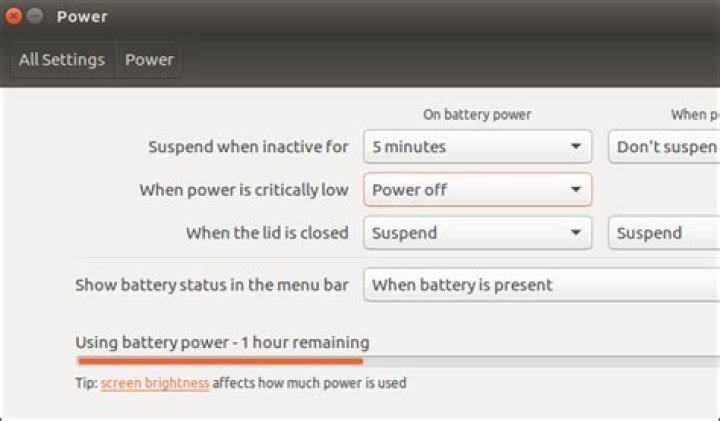
For example, tell your Linux laptop to suspend—this is what Linux calls sleep mode—more quickly when you’re not using it. You’ll find this option in your Linux desktop’s settings. For example, head to System Settings > Power on an Ubuntu desktop.
Screen brightness can affect battery life dramatically. The brighter your display backlight, the worse your battery life will be. If your laptop has hotkeys to change screen brightness, try them—they’ll hopefully work on Linux, too. If not, you’ll find this option somewhere in your Linux desktop’s settings. It’s available at System Settings > Brightness & Lock on Ubuntu.
You can also tell your Linux desktop to turn off the screen more quickly when it’s inactive. The laptop will use less power when its screen is off. Don’t use a screensaver, as those just waste power by making your computer do more work and leaving the display on.
You can also disable hardware radios you don’t use. For example, if you don’t use Bluetooth, you can disable it to gain some more battery life. Head to System Settings > Bluetooth to disable Bluetooth on an Ubuntu desktop.
If you’re not using Wi-Fi, you can save a bit of power by disabling that, too. On Ubuntu, head to System Settings > Network and enable “Airplane Mode” to disable Wi-Fi and other wireless radios.
Remember that what you do with the laptop is also important. Running heavier software and using more CPU resources will cause your laptop to use more battery power. For this reason, you may want to look at a more lightweight desktop environment, such as the Lxde-based Lubuntu instead of the Unity-based main Ubuntu desktop.
Install Proprietary Graphics Drivers (If You Need Them)
If your laptop has integrated Intel graphics, congratulations. You shouldn’t need to worry about power management issues with your graphics drivers. Intel graphics aren’t the fastest, but they have excellent open-source driver support and “just work” out of the box.
If your laptop has NVIDIA or AMD graphics, however, you may need to do some work to decrease power consumption.
The worst case scenario is a laptop with NVIDIA Optimus or AMD’s switchable graphics. Such laptops have two different GPUs. For example, an NVIDIA Optimus laptop will have both a more powerful, battery-draining NVIDIA GPU and a less powerful, battery-friendly Intel GPU. On Windows, where this is properly supported, the laptop is designed to use the Intel graphics until you play a game, when the NVIDIA graphics kicks in.
When you install a Linux distribution on an NVIDIA Optimus laptop, your laptop will use the NVIDIA graphics all the time by default, draining your battery. You’ll need to install NVIDIA’s Linux drivers and set up Optimus—look for the nvidia-prime package on Ubuntu—to make things work properly. On some laptops, you may also be able to enter the BIOS or UEFI firmware settings screen and disable your discrete GPU to force Linux to use only onboard graphics without any additional tweaks.
Even if you don’t have a dual-GPU, switchable graphics setup, you may benefit from installing the proprietary NVIDIA or AMD graphics drivers. They may enable access to power-saving features that don’t work in the standard open-source drivers.
Check if Your Battery Needs to Be Replaced
If you’re struggling with battery life, it’s possible you need to replace your laptop’s battery. All batteries will deteriorate over time, gradually holding less power than they did when they left the factory.
For example, on Ubuntu, you can open the Power Statistics application from the Dash. Look at the “Laptop battery” section. “Energy when full” is how much power your battery can currently store when it’s fully charged. “Energy (design)” is how much power your battery could originally store when it’s fully charged.
Divide “Energy when full” by “Energy (design)”, multiple the result by 100, and you’ll get a percentage. For example, in the screenshot below, we’d do the following math:
For any portable device, the battery life is something really important. It’s more important for laptops and that you’ll carry with yourself for a longer period of time.
Linux is, by default, less tolling operating system platform on the battery life. It’s lightweight, fast and highly optimized. Almost all the different Linux distros consume less hardware resource than Windows. However, if you’re using a Linux laptop, there are some more tricks you can do to increase the battery life. Let’s find out.
Battery life improvements
Using lightweight Linux distros
There are tons of Linux distros available. Some of them are heavyweight, some of them are mid-weight and some are lightweight.
For example, Ubuntu got a number of available flavors – Kubuntu, Lubuntu, Xubuntu, Ubuntu Budgie, Ubuntu MATE etc. Here, Lubuntu, Ubuntu MATE and Xubuntu are the lightest ones.
You can also find out other lightweight Linux distros that consume less hardware resource. The less hardware usage, the less battery consumption.
Disable startup apps
When you’re using a number of apps, it’s pretty common that some of them are loaded when you start your computer. The more app keeps running in the system, the more battery consumption happens.
That’s why disabling the startup apps you don’t need right away is essential. Don’t worry; it’s pretty simple to do so.
Fire up a terminal and run the following command –
You’ll find out all the app shortcuts that are being triggered when your system starts. You can disable the startup action just by deleting the according to “.desktop” file.
Restart your system to take effect.
Switching to an SSD
We all know that SSD is way faster than the traditional HDD. An SSD also consumes less power than an HDD because there are no moving parts. HDD requires more power for rotating the disks and moving the data read/write head.
If your laptop is using an HDD, consider switching to an SSD. This will not only increase the performance of your system but also consume less energy from your laptop battery. If you need an enormous storage, then you can easily get a portable HDD for the same price!
Disable unwanted wireless services
Wi-Fi and Bluetooth are the most common features of any laptop. They allow connecting to a network and sharing data without the hassle of wires. However, running any wireless device requires energy.
If you’re not using Wi-Fi and/or Bluetooth, consider turning them off. This way, the hardware responsible for Wi-Fi and Bluetooth won’t consume any power. This can even save you a lot of battery life.
Change your browser to Firefox
A browser is one of the most basic components of any system. It can also be a major source of pressure on your laptop’s battery life. Google Chrome, for example, is the most popular web browser on both Windows and Linux. Despite providing tremendous performance and features, Chrome is pretty infamous for its hunger for hardware resource.
Almost all the Linux systems ship Firefox as their default browser. Firefox offers similar performance to Chrome, yet consumes less hardware resource. Thus, you can save more energy on your battery.
Power settings
Every single Linux distro comes up with a number of available power management options. Tweaking the power options can essentially increase the battery backup.
For example, you can lower the screen brightness, change how long the monitor will stay up when to go to sleep etc.
Unplug unused devices
If you need to use various devices with your laptop, for example, tons of USB flash drives and other USB devices, make sure to pull them off after their usage is complete.
The longer USB devices stay connected, they draw power from the computer. In the case of your laptop, the power source is the battery.
Hopefully, now you can enjoy more battery backup from your Linux laptop.
A new panel app can help you squeeze more power out of your Linux laptop battery, all thanks Slimbook.
The Spanish Linux laptop seller makes (and updates) a battery optimizer tool for the Ubuntu desktop. It’s simple to use, easy to set up, and can extend your battery life by a couple of hours.
The tool in question is called Slimbook Battery and it lets you switch between different pre-configured performance modes, including a power-friendly ‘energy saving’ mode and ‘maximum performance’ option for when you need more oomph.
For those who want even more control there’s an ‘Advanced mode’ settings panel. There you can easily configure, modify and enable other battery optimizations.
A Battery Saver App for Ubuntu
‘Slimbook Battery 3’ is an open source desktop tool designed to help improve and increase the battery life on Ubuntu laptops.
While the tool is intended for use on Slimbook’s own range of Linux laptops it works on any laptop, regardless of brand, so long as it’s running Ubuntu (or a derivative, like Pop!_OS).
There are two parts to the tool:
The first part is a tray-based applet. Use this menu to select one of three energy modes: “energy saving”, “balanced” and “maximum performance”.
There is also an ‘Off’ setting (self-explanatory) an ‘Advanced Mode’ option (more on that in a moment) and an ‘Exit’ value. The latter closes the app fully and deactivates whatever energy saving mode that was active.
The second part of the tool is an advanced configuration panel. This panel has 7 separate tabs, each providing access to different toggles and preferences for altering the behaviour of (potential) power-sapping features.
Using the ‘Slimbook Battery Preferences’ (aka ‘Advanced Mode’) app you can adjust or fine-tune the behaviour of the three power modes available in the applet, e.g., override a specific setting, re-enable a specific feature, etc.
You can also adjust charging behaviour and alerts (Cycles), and see battery information, such as manufacturer, battery type, current capacity, and original capacity.
This app is useful, but not a guarantee
Keep in mind that using this tool is not a guaranteed way to increase battery life under Ubuntu, but it will certainly help more than if you were using nothing at all.
“This battery optimizer can disable unused hardware features as and when necessary”
Back in 2016 we looked at simple ways to improve battery life on Linux distros like Ubuntu. Our list ran through common sense things: lower screen brightness, don’t leave unnecessary USB devices attached, disable Wi-Fi when using ethernet, and so on. It also recommended TLP.
Like TLP, this battery optimizer app is able to disable unused hardware features as and when necessary (with the option to override).
In short, this is a useful battery saver app for Ubuntu that, for laptops owners especially, is something of a must-have.
How to Install Battery Optimizer for Ubuntu
You can install Slimbook Battery 3 on Ubuntu 18.04 LTS and above by adding the official Slimbook PPA to your list of software sources.
To add the PPA run this command:
Followed by this command to install the battery optimizer applet:
When everything has downloaded and installed you will be able to launch the app from the apps grid. Search for “Battery” and launch the tool.
Keep in mind that this app only works when it is run and an energy mode is specified. If you don’t launch the app, it can’t provide any power optimisations — so consider adding it your Startup Applications.
Home » Hardware » A Handy Battery Optimizer App for Ubuntu Laptops
May 25, 2017
Comment
Let’s face it: battery life on Linux is abysmal. If you take a modern laptop running Windows 10, battery life will probably be somewhere around 6 – 10 hours, easy. Install Linux on that same PC, and you’re lucky to get 4-5 hours. Why is this? Well, many Linux developers don’t do enough to help laptop users. Sure, some add a few tweaks, and others even use some of the software covered in this article to help improve battery life on Linux but the majority of mainstream Linux operating systems have mediocre battery life at best.
SPOILER ALERT: Scroll down and watch the video tutorial at the end of this article.
That’s why in this article, we’ll be going over the best ways to improve battery life on Linux laptops. Let’s get started!
The first piece of software that users can use to improve their battery life on the Linux platform is TLP. It’s a background tool that, once installed, automatically scans the computer it’s on, and adjusts battery usage automatically. For the most part, no tweaks really need to be made with this tool because everything is automatic. However, it is possible to change certain settings if desired.
TLP is widely used by fans of Linux on laptops. Developers looking to get a little bit out of their Linux operating system when it’s running on a laptop turn to this software specifically due to the fact that pretty much everything is automated. No tinkering required for the average user.
To install TLP to your Linux PC, start off by opening a terminal window. Then, enter the command corresponding to your operating system.
Ubuntu
Arch Linux
Fedora
OpenSUSE
Suse has TLP on the OpenSUSE software page. Install it with the “one-click method” here.
Other
As mentioned before, TLP is very popular. Even if your operating system isn’t popular enough to be mentioned in the installation list, there’s still probably a way to install it. Open the package manager that is normally used to install software on the Linux-based operating system you’re using. Search with the term ‘TLP”.
Enabling TLP
The TLP software is very easy to enable at boot. Those running Ubuntu, Fedora, Arch Linux, OpenSUSE, or any other Linux distribution that uses the modern systemd startup system can easily enable TLP. This is done with a single command to make it load at boot.
A second command allows the TLP service to start right away. Otherwise, rebooting is necessary.
Debian users (especially those running the version without systemd) need to start and enable TLP in a different way. When installed, TLP will automatically enable itself. However, it won’t start right away without the the following command.
When TLP is fully enabled, it’ll manage the power usage on Linux automatically. There really isn’t any reason to change any settings. If, however, you’d like to change settings anyways, open a terminal and type: tlp –help . This reveals the many options the program has for managing power usage on Linux.
Powertop
While TLP manages to automatically improve battery life on Linux, it never really gets to the core of the problem as to why battery life is so terrible. To solve this problem, there is a different method. The program that can solve this problem goes by the name of Powertop. Like TLP, it can automatically scan a Linux laptop and try to improve battery life. However, unlike TLP, it’s more about enabling and disabling certain power-management tools within Linux.
Additionally, Powertop has a browser that can help users find what exactly is the power hog so that measures can be taken. Here’s how to install it:
Ubuntu
Debian
Arch Linux
Arch Linux carries powertop. However, unlike a lot of other Linux-based operating systems on this list, there is an extensive article on how Powertop works with Arch Linux. If you’re an Arch user looking to install this software, it’s a good idea to read this page. Install it with:
Fedora
OpenSUSE
Like most software packaged for OpenSUSE, Powertop has a “one-click” install page. Install it here.
Other
The source code for Powertop is available on Github. Along with this, detailed instructions cover exactly how to download it and build it based on the source code. Go here if you’ve searched your Linux distribution for Powertop and came up empty.
Configuring Powertop
Powertop is a powerful tool. A good power saving profile will be configured automatically, by using the “autotune” feature. This feature will automatically go through and enable all the “GOOD” settings. For example: if your WiFi chip uses too much power, the battery suffers as a result. The autotune feature will diagnose this, let you know and turn on power savings.
First, calibrate Powertop. This is necessary for the program to work.
During this calibration process, Powertop collects a lot of data on how your Laptop runs. Your screen may go blank, and WiFi might stop working. This is just Powertop fiddling with things. Leave everything and let Powertop do its thing.
When the calibration is complete, start the autotune process.
Finally, enable these auto-tune tweaks at startup with systemd. Paste the following in nano with: sudo nano /etc/systemd/system/powertop.service
Press CTRL + O to save this file. Then, enable the auto-tunes at boot with:
Conclusion
Battery life on Linux is pretty terrible especially if you compare it with battery life on operating systems like Windows and macOS leaves. It is because of this fact, many Linux users find themselves frustrated. Luckily, with the help of such tools as TLP and Powertop, all is not lost.
1 Comment
Thanks for documenting this. I just got a new laptop and it was great to not have to look all this up and remember it 🙂
Leave a Reply Cancel reply
This site uses Akismet to reduce spam. Learn how your comment data is processed.
Extend laptop battery life
- Check out this page on Dell.com! Email
Laptop technologies have really come a long way.
With advances in processor architecture and mobile-optimized technologies and software, you can experience a near-desktop experience for playing games, listening to and downloading music, and surfing the Internet — all without being leashed to the nearest outlet.
OK, you’ve come a long way. Now come just a little further.
But even with these built-in, mobile-optimized technologies, you may still have to plug in before you’re ready. To squeeze every last drop of power out of your laptop battery, follow these tips and tricks and you’ll stay mobile longer:
1. Charge the battery! Consider keeping it plugged in for 12 hours before you unplug.
Tip! Over time, you may find that you have to recharge your battery more often to get the expected level of performance. If that’s the case, it’s time to replace your battery. Look for lithium ion (Li-Ion) replacement batteries for the greatest longevity.
2. Switch on the optimized battery or power feature. You’ll find this option — sometimes referred to as max battery mode — in your laptop system’s built-in power management control panel. You can select the option to reduce the amount of time your inactive laptop stays on before powering itself down and going to sleep.
Tip! Turning off power-draining facilities like backlights can preserve quite a bit of battery life.
3. Check to see if your laptop has the optimum amount of RAM. You can do this by right mouse clicking on My Computer. The amount of RAM you have will appear under your System Information. RAM enables your system to run program instructions using the computer’s memory instead of its hard disk drive (HDD), where it stores data. Refreshing the RAM requires less power than spinning the hard drive, so having the correct amount of RAM means less drain on your laptop battery.
Tip! Consider 2 GB or more RAM for the best performance!
4. Remove the battery and clean the metal contacts. Wipe them with alcohol, ideally every two months, to ensure that the power transfer between the laptop and its battery is as efficient as possible. Allow the battery to dry thoroughly before replacing it!
5. Unplug any laptop accessories you aren’t using. Even if they’re not in use, accessories drain power from the battery.
Tips!
- Turn your wireless local area network (WLAN) switch off if you don’t need a wireless connection — a button or LED on your laptop usually lights up to indicate wireless activities.
- Use your laptop in the best possible lighting conditions. In brighter conditions, you won’t need to set your laptop screen to maximize brightness so you can save additional battery life.
6. Defragment the hard drive so your system operates as efficiently as possible. The built-in defragmenting utility included with Windows®*-based operating systems decreases the time your system must spend searching for files by rearranging file fragments, so they are closer together on the hard drive. Less time searching means less spinning for the hard drive and less use of battery power.
Tip! Defragment your hard drive at least every two months!
Follow these battery-saving tips and tricks and you’ll be well on your way to staying unleashed longer!
Want to get better battery life for your Ubuntu laptop? Besides struggling with various settings or config files, try the power management tool TLP and Slimbook Battery.
TLP is a feature-rich command line utility for Linux, saving laptop battery power without the need to delve deeper into technical details.
TLP’s default settings are already optimized for battery life and implement Powertop’s recommendations out of the box. So you may just install and forget it.
1.) How to Install TLP in Ubuntu 20.04:
Simply open terminal either from application menu or by pressing Ctrl+Alt+T on keyboard. When terminal opens, run command:
Once installed, you’re done as it runs silently in background with a default configuration already optimized for battery life.
To fulfil your specific requirements, you can install the GTK user interface TLPUI via this PPA.
2.) Install Slimbook Battery:
Slimbook Battery is a graphical tool based on TLP, it offers an indicator menu that includes Energy Saving , Balanced , and Maximum Performance modes.
Advanced mode provides options to change CPU limit, graphics saving, screen brightess, disable animation, bluetooth, auto-suspend USB ports, etc.
To install Slimbook Battery from its official PPA, run following commands in terminal one by one in terminal:
Once installed, launch it from ‘Show Applications’ menu and enjoy!
(Optional) To remove Slimbook Battery as well as its PPA, run following commands one by one:
Linux has a lot of advantages, but long battery life on a laptop isn’t usually one of them.
Today’s Best Tech Deals
Picked by PCWorld’s Editors
Top Deals On Great Products
Picked by Techconnect’s Editors
Linux has a lot of advantages, but long battery life on a laptop isn’t usually one of them.
Manufacturers optimize their device drivers to work best on Windows, and while a laptop may perform just as well with Linux as on Windows, it will often eat through the battery more quickly. New versions of the Linux kernel have improved power-saving this in the past and hopefully will in the future, but here’s how you can get longer battery life today.
For laptops with Nvidia and AMD graphics
If you have a gaming laptop with Nvidia Optimus or AMD’s equivalent switchable graphics, Linux flat-out doesn’t handle it properly out of the box. By default, your laptop will use that power-hungry Nvidia or AMD GPU all the time. This can result in dramatically shorter battery life than you’d get on Windows.
Even if you don’t have switchable graphics and just have Nvidia or AMD graphics, the open-source graphics drivers aren’t as far along with power-management support. You’ll likely get better battery life by installing the proprietary Nvidia or AMD graphics drivers, which can enable the GPU’s lower-power state more reliably.
To fix this, you’ll want to install the Nvidia or AMD drivers. If you don’t care about graphics switching at all, both the Nvidia X Server Settings and AMD Catalyst Control Center tools offer a way to disable the dedicated GPU and always use the integrated one. After you make this change, you could get hours of longer battery life.
This is the one big “gotcha” with many modern laptops. Linux handles everyone else decently out-of-the-box, but not switchable graphics.
The usual power-saving tweaks
The usual tips for boosting battery life on a Windows laptop apply to Linux laptops, too.
You can easily control the power-saving options from your Linux desktop’s main settings window. For example, these options are all available in System Settings on Ubuntu’s Unity desktop.
Reduce your laptop’s screen brightness to get longer battery life. If your laptop has built-in brightness-reducing hotkeys, they should work on Linux. Otherwise, your desktop’s settings window should have a brightness option.
Ubuntu’s power settings.
Configure your display to automatically turn off when you’re not using your computer. Don’t use a screensaver—that just wastes battery power. If your Linux distribution uses a screensaver by default, disable it and just have it turn the display off.
Set your laptop to automatically go into suspend mode after a reasonable amount of time so it will conserve battery power if you step away while it’s on.
Disable Bluetooth if you aren’t using it to lower power usage and get longer battery life. If you’re really desperate—let’s say you’re using your laptop on an airplane and aren’t tapping into the in-flight Wi-Fi—disable Wi-Fi, too.
Advanced tools
Modern Linux systems generally have low-level power-saving features configured in a smart way for laptops, so the below tools aren’t as necessary as they once were.
Dell’s Ubuntu-powered Inspiron 14 3000.
PowerTOP is a utility created by Intel for diagnosing problems with power consumption. It can scan your Linux system, identify what’s using too much power, and provide recommendations. If you’re trying to squeeze as much juice as possible from your battery, this can help.
You should find PowerTOP in your Linux distribution’s package repositories, so install it like you would any other package. You’ll need to run it from a terminal window. For example, on Ubuntu, open a terminal window and run the “sudo powertop —calibrate” command for the most accurate readings and recommendations.
TLP isn’t something most Linux laptop users will want to use, but it will often provide a way to wring a bit more battery life out of a Linux laptop. This command-line utility is designed to help you configure much more aggressive power-saving options.
Install it and it will automatically start at boot, configuring your laptop to use a more aggressive set of power-saving options. In other words, just installing TLP and starting it or rebooting should be enough to improve your battery life somewhat. You can also tweak these options yourself. Some users report another half hour of battery life after installing TLP—your mileage will probably vary.
Want to stay up to date on Linux, BSD, Chrome OS, and the rest of the World Beyond Windows? Bookmark the World Beyond Windows column page or follow our RSS feed.
Ultimately, what you do with your laptop affects its battery life a lot, too. If you’re using a heavy desktop environment and you have a lot of browser tabs open, you might get better battery life if you used more lightweight software. Sure, that much advice is obvious, but you may be better off switching to a lightweight Linux distribution like Lubuntu that comes with a lighter weight desktop and lightweight software. It’s worth a shot if you just aren’t getting enough battery life out of your laptop.
When freelance writer Chris Hoffman isn’t writing about gadgets and software, he’s probably using them in his spare time.




