By: Waseem Patwegar
Here is how to Reset Chrome Browser to Default Settings, if it is causing problems on your computer due to change in settings or other reasons.
Reset Chrome Browser
At times you may find Chrome browser getting slower, becoming unstable, crashing or quitting unexpectedly.
This usually happens due to change in browser Settings, made either by yourself or by certain rogue programs installed on your computer.
A quick way of dealing with Chrome browser problems on your Computer is to undo changes made to Chrome browser by resetting Chrome to its default settings.
What Happens When You Reset Chrome Browser
When you Reset Chrome, the following changes will be implemented in Chrome Browser installed on your computer.
- The Search Engine in Chrome will be reset to Google (default Search Engine)
- All Cookies, Cache, Browsing History and other Site data will be deleted
- All Extensions, Chrome Add-ons and Themes will be disabled
- Home page, New Tab and Pinned Tabs will be reset to default settings
- Your personal settings for websites (if any) will be lost
If you are logged-in to Chrome, above changes will apply to the Chrome profile that you are signed-in and will automatically apply across all devices that you are signed-in to.
Chrome browser Reset will have no impact on your other Chrome profiles (if any), that you are not signed-in.
Chrome Reset will not delete your bookmarks, browsing history and saved passwords. Also, personal settings like Fonts and accessibility settings will not be impacted.
Steps to Reset Chrome Browser to Default Settings
The steps to Reset Chrome browser to default settings are the same on Windows computer, Mac and Chromebook.
1. Open Chrome browser on your computer.
2. Click on 3-dots menu icon and select Settings option in the drop-down menu.
3. On Settings screen, scroll down to bottom and click on Advanced .
4. On the next screen, scroll down and click on Restore Settings to their original defaults option, located under ‘Reset and clean up’ section.
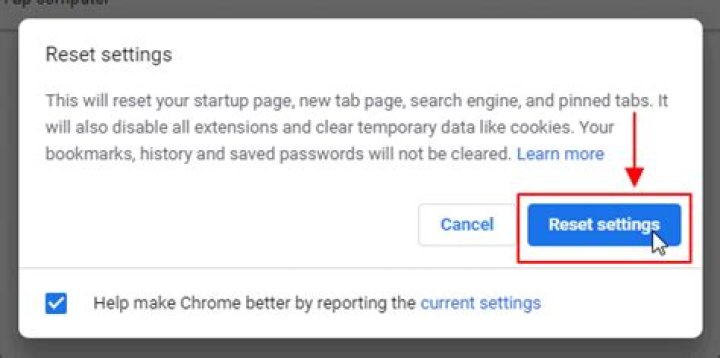
5. On the confirmation pop-up, click on Reset Settings button to confirm.
Optionally, you can check the option to report Google about the current Chrome settings causing problems on your computer.
Google Chrome is one of the most used web browsers. As such it is only natural that some users may encounter strange errors and bugs that make browsing a chore. If that ever happens, you can simply reset Chrome to its default settings. Here’s how.
Not only you might face strange issues like downloading proxy script error or waiting for proxy tunnel issue, etc., but over time, due to all the extensions you install, Chrome can become slower or work in the ways you might not expect. In those cases, you can either completely reinstall the browser, or you can simply reset Chrome.
Resetting is a much simpler task and you don’t have to download and install the software again. So, without ado, let me show you how to reset Chrome browser in Windows 10.
Jump to:
Basically, there are two ways to reset the Chrome browser. The first method will only reset the Chrome settings. This is useful if you want to revert Chrome to its default settings. The second method is for a full reset. When you do a full reset, the browser will essentially become a new installation.
Reset Chrome Settings to Default
If you just want to reset Chrome settings then this method is perfect. This action will reset your startup page, new tab page, search engine, and pinned tabs. Additionally, it will also disable all extensions and clear temporary data like cookies.
Note: Your bookmarks, history, and saved passwords will not be touched or cleared.
1. Open Chrome browser, click on the “Menu” icon appearing on the top right corner and then click on the “Settings” option.
2. In the Settings page, scroll down and click on the “Advanced” option.
3. Scroll down again and then click on the “Reset settings to their original defaults” option.
4. You will see a warning pop-up telling you what the resetting actually does. Click on the “Reset Settings” button to continue.
That is it. You are done resetting the Chrome browser.
Full Reset Chrome and Make It Brand New
When you do a full reset, your Chrome browser will essentially become a new browser. That is, the settings, your browsing history, cookies, extensions, bookmarks, etc., will be removed.
1. Close the Chrome browser if it is open.
2. Press Win + R to open the Run dialog box. In the blank field, type %LocalAppData%\Google\Chrome and press Enter .
3. In the File Explorer, you will see a folder called User Data. Delete that folder and any other folder.
That is it. Launch the Chrome browser and you will see the welcome screen. Sign in to your Google account and the browser should automatically download the sync data like bookmarks, extensions, history, etc.
Hope that helps. If you are stuck or need some help, comment below and I will try to help as much as possible.
Updated on March 17, 2020 by Romeshwar Prasad
Chrome browser in one of the most popular internet browsers in this world, and if you are using Google Chrome browser on your computer. Where it offers some customization and if you have to change the settings, but later you want to reset the Chrome browser setting to the defaults. In some cases, there was some troubleshooting and cases where you want to refresh the Chrome browser and won’t be able to fresh reset chrome settings to the original default.
Today we are going to share a little knowledge to help you with default chrome settings using your platform, including Mac Windows and Linux.
Noteworthy
- All the settings are identical on the computer platforms, chrome sharing similar settings and pages.
- When you are moved to the default chrome setting, then start up the home page customization tab setting search in joint pain, the tab will reset it to the original default setting.
- Chrome extensions will not be removed, but all the chrome extensions that have been installed will be disabled.
- On the other hand, cookie other temporary data like the catcher will be clear and not be restored in the future.
- Meanwhile, your bookmark history autofill suggestion and password will remain the same on the Chrome browser after default settings.
How can you reset the Chrome browser settings to the original default?
Been Always a straight forward method to reset on the computer platform, follow the given guidance instructions down below.
- First thing first, you have to open the Chrome browser to a new window, not on your computer system.
- Then you have to click on the three-dot menu icon placed on the upper right corner.
- After that, you have to choose the setting to appear on the bottom just above the help.
- Kindly scroll down to the bottom of the setting, and there you will find the advance option.
- Click on the advanced option and then scroll to the bottom and find the reset settings.
- Navigate to it and click on the reset the settings.
- Now you have to verify and confirm that you want to reset the settings by clicking on the reset settings.
- That’s it, once you click on the Reset settings your chrome settings will be said to be the original settings.
Furthermore, the resetting chrome setting takes a couple of seconds to reconfigure the chrome setting. Then there are other things that need to be fixed. This method is also responsible for troubleshooting sometimes. If there is any problem, then you can simply reset the settings of your Chrome browser to the original default settings.
Additionally, once your settings are reconfigured you should be able to update your existing chrome application on your computer. Then relaunch the browser again. Additionally, the troubleshooting techniques of the Chrome browser go through a different way is time. But this method is the final phone and a better option to adopt.
Hopefully, you have understood and this article is what your time is. We believe you have now successfully reset the Chrome settings to default. Thanks for being with us and for letting us know your opinion and feedback. If you have any query let us know in the comment section down below.
Also in Chrome Tips
- How to disable Chrome new tab page background image
- Use incognito mode in Chrome
- How to reset Chrome to default settings
- How to Remove Extension in Chrome
How to Reset Chrome to Default Settings – If your Google Chrome web browser suddenly has an unwanted toolbar, or you changed the homepage without your permission, or your search results appear in a search engine you never selected, it may be time to click The browser reset button is out.
During the installation, you can download many legitimate software, especially free software, from the Internet through third-party browser-hijacking extensions. This approach is annoying, but unfortunately it is legal.
Reset Chrome to Default Settings
Resetting Chrome will restore your homepage and search engine to their default settings. It will also disable all browser extensions and clear your cookie cache. However, at least in theory, your bookmarks and saved passwords will remain.
For Windows, Mac and Linux versions of Chrome, the following steps are the same​​.
Click the icon that looks like three vertical dots at the top right of the browser window. Select вЂSettings†in the drop-down menu. Click Advanced in the left-hand navigation bar in the resulting Settings page.
Select вЂReset and clean up†at the bottom of the expanded menu. Select вЂRestore settings to their original defaultsвЂ. Select вЂReset settings†in the confirmation pop-up window.
Note: Another method to go directly to the reset option is by typing chrome://settings/resetProfileSettings in the chrome address bar to bring the Reset option to you and then follow the steps above.
If you have completed the reset of the browser, but the search engine and homepage are still set to unnecessary settings, or they revert to unnecessary settings after a short time, you may have a potentially harmful program (PUP) infiltrating in progress The changed system.
Like browser-hijacking extensions, PUPs are legal in most cases, which makes them equally annoying. However, you need to track each PUP and kill it.
Run one of the best antivirus programs first to try to get rid of the PUP, but be aware that some AV programs will not delete the PUP because the manufacturer of the legitimate but harmful program may file a lawsuit in this case.
Hope to help you !
More:В If you experience malfunctions or improper behavior from the Microsoft Edge browser? please refer to the article How to Reset and Repair Microsoft Edge Browser!
How useful was this post?
Click on a star to rate it!
Average rating / 5. Vote count:
No votes so far! Be the first to rate this post.
Have you messed up with your Chrome profile settings? Chrome is running slow and you have adware or pop-up ads problems? In this tutorial we’ll show you 2 ways to reset your Google Chrome settings and data to default without reinstall.
Method 1: Reset Chrome to default from Chrome settings
This will reset your homepage, new tab pages, and search engine, disable your extensions and unpin all tabs. It will also clear other temporary and cached data, such as cookies, content and site data. However, your saved bookmarks and passwords will not be cleared or changed.
- Open your Chrome browser, and then click the More icon (with three lines or dots) in the upper-right corner and select Settings.
Chrome’s Settings should now be displayed in a new tab. Scroll down to the bottom of the page and click on the Show advanced settings link.
Scroll down to the Reset settings section, as shown in the screenshot below. Click on the Reset settings button.
A pop-up window will come up and ask for confirmation the restoration process.
Once you click Reset, you will get clean and default Google Chrome.
Method 2: Reset Chrome to default by deleting the user profile
Another way of resetting Chrome to default settings is to delete your Chrome profile. This will completely reset all Chrome settings to default and delete your browser profiles, themes, extensions, bookmarks, history, cache, passwords, cookies, and web form auto-fill information. Here’s how:
- Open your Chrome browser, and then click the More icon (with three lines or dots) in the upper-right corner and select Settings.
- In the People section of the Settings page, select your current profile and click the Remove button underneath. After deleting, Chrome will automatically set up a new profile with default settings.
If you want to remove data and settings for all Chrome profiles, just open Windows Explorer and go to the directory C:\Users\user_name\AppData\Local\Google\Chrome\User Data, delete all files in it. That’s it!
The choice of your web browser can make a big impact on your browsing experience. And when you ask for speedy performance, enhanced security, better user interface and easy accessibility then Google Chrome becomes a unanimous choice. If we talk about the present context then Google Chrome is now becoming the most preferred browser for Android as well as Mac users.
But between all this user comes with different complains like browser getting slow, changing of the home page, changing of preferred settings, altering of the search engine, installation of various unknown extensions and much more. If you too are facing any such issue with Google Chrome, then the solution is just resetting your Chrome settings to default. And if you ask how to reset Chrome settings to default then all you have to do is continue reading till the end.
Why do you need to Reset Chrome Settings to Default?
There can be several reasons for you to reset Chrome settings to Default. Some of them we have listed below:
- Sudden Change of Home Page due to a malware attack.
- Change your default search engine due to the installation of a faulty browser extension.
- Degradation in the performance of Chrome because of the installation of unneeded extensions and add-ons.
- Crashing of Chrome due to obsolete and corrupt cookies stored in the browser.
What Alters when Chrome Settings are Reset to Default?
Resetting of Chrome Settings to Default alters the following settings to default:
Homepage and Tabs: Many users confuse between the startup page and home page and consider them the same (although both are different). Startup page is the page that displays when you first launch Google Chrome while the homepage is the page you navigate to when you click on the Home button. So, changing Chrome settings to default will change the homepage and all the startup tabs that you have set will be cleared.
Default Search Engine: Whatever search engine you use will revert back to Google.
Pinned Tabs: All pinned tabs will be unpinned and removed.
Content Settings: Permission to access the camera or microphone or showing pop-ups that you have set for various sites will be reset.
New Tab Page: This will change back to the default New Tab page irrespective of the new tab page you have set earlier.
Extensions and Themes: All the extensions you were using in the past to enrich your browsing experience will be disabled.
Cookies and Site Data: All the cookies and site data stored in the browser will be cleared.
In between all these changes settings like bookmarks, browser history, and passwords, will not be changed.
Also do note that if you are signed in to Google Chrome account then all the above settings will roll back to the default on all the devices on which you are signed in.
How to Reset Chrome Settings
Now since we have well versed with the settings that will revert to default now learn how to Reset Settings to Default.
1. Open Google Chrome and click on the menu icon (three dots) located at the top right corner of the browser.
2. Now from the drop-down list that populates click on Settings. Alternatively, to open Chrome Settings you can type chrome://settings/ in the Chrome browser tab.
3. In the Settings tab, scroll down to the last and click on Advanced.
4. Now further scroll down and click Restore settings to their original defaults in the Reset and clean up section.
5. A warning will be prompted requiring your consent to reset settings to default. Click on the Reset settings button.
6. Once done all Chrome settings will reset to the default.
So, guys, this is how you can speed reset chrome settings to default whenever you are facing any issues with your Chrome browser. If you like this article, then do let us know in the comment box below. Also, don’t forget to share it with your friends and family members.
Last updated: November 10, 2017
Watch the Video: How to reset Chrome to default settings
One day you wake up, and things in Google Chrome have run amok. You’d like to know why, but it is anybody’s guess. A corrupt app or extension update could be responsible. Or an app update changed your settings to something you weren’t expecting. Sometimes a fresh start is all you need, and the time to reset Chrome to default settings may have arrived. Fortunately, Chrome makes it easy to set things right if needed.
Before resetting Chrome, though, keep in mind some of the settings that will revert back to the default. If you’ve set a homepage, or a search engine other than Google, you will need to change them again. The new tabs page and any pinned tabs will also change. Resetting will disable extensions and themes, and clear site data and cookies. Saved passwords, history and bookmarks, however, will not be impacted by a reset.
Head for Advanced Settings
To reset Chrome to default settings, launch Google Chrome. Click the Customize and control Google Chrome button and click Settings.
Scroll down and click the Show advanced settings… link.
Scroll down to the bottom of the Advanced Settings to the Reset settings section. Click the Reset settings button.
A dialog explains what will happen when you click the Reset button. For more detailed information, click the Learn more link in the dialog. You will notice a checkbox is pre-checked for Help make Google Chrome better by reporting the current settings. To review what those settings are before you report them, click the question mark icon at the end of the sentence. Uncheck the box if you don’t want to report the settings. Next, click the Reset button.
No confirmation page or dialog confirms the reset was successful or not. At this point, check to see if the issue that compelled you to reset Chrome still exists. As for clean-up tasks, start by re-enabling your third-party extensions. Just type chrome://extensions/ into the address bar/omnibox, or click > More tools > Extensions. Next, restore your homepage, new tabs page, search engine choice and any pinned tabs.
Thank you for visiting Tech Help Knowledgebase to learn how to reset Chrome to default settings.
Tech Help Knowledgebase creates how-to articles and video tutorials for common issues, and provides technical support for the categories covered by our site.
Get Support.
This guide is about the How to Reset Chrome Browser to Default Settings on Mac, Windows, Linux. I will try my best so that you understand this guide very well. I hope you all like this guide How to Reset Chrome Browser to Default Settings on Mac, Windows, Linux.
Do you need to reset your Chrome browser to its default settings? If Chrome is working and you want to troubleshoot your browser or just want to start over, you can easily reset Chrome to its original default settings. Resetting the Chrome web browser is the same on Mac, Windows, and Linux.
Important: Resetting Chrome will reset everything to its default browser settings, as if it had just been installed and not configured. This means that all landing page customizations, tab settings, search engine, pinned tabs, etc. will be reset. In addition, all Chrome browser extensions will be disabled and all temporary data, such as caches and cookies, will be cleared. However, resetting Chrome will not clear your bookmarks, history, autofill suggestions, or saved passwords (currently, anyway, as of this writing – if you’re concerned about bookmark information and passwords, you can always export them first).
How to reset Chrome browser settings to default
Again, this restores almost everything you do with Chrome on a Mac, Windows, or Linux computer, so be sure you want to do it:
- Open the Chrome browser in a new browser window
- Click the points icon in the upper-right corner, and then click Options
Scroll to the bottom of the Settings and click “Advanced” to see more
Scroll down to find “Restore Settings” and click “Restore Settings to Original Defaults”
Click Reset Settings to confirm that you want to reset Chrome settings
It may take a moment or two to reset Chrome, depending on how you set up Chrome if you have (or more) Chrome extensions installed, and other factors, including the speed of your computer, which resets your Chrome browser. Just give me a moment.
Once Chrome is reset, it’s probably a good idea to refresh your browser, then close and restart the app. You can also manually update the intended extensions, including the Flash update, if you did not update your entire browser. This ensures that Chrome and its extensions are up-to-date with the latest version, features and security updates.
Another option for restarting newly restored Chrome is to clear your Chrome history and browsing data, even though, as mentioned earlier, the caches have been removed during the recovery process.
You’ll probably also want to make the necessary adjustments to Chrome again. For example, if you’ve previously turned off Chrome’s auto-sign in to Google services, turned off Chrome web notifications, muted multiple websites, turned off AutoPlay, set a custom download location, or made other browser customizations, you may want to make them change again when your browser resets. because all these settings will be lost.
Resetting Chrome can also be a useful troubleshooting technique if you find that your Chrome browser experience isn’t working properly, something is wrong, or if spam, pop-ups, and other junk have hijacked your browser, typical troubleshooting methods for crashing cache and browser data.
Do you know of any other useful information related to Chrome browser recovery? Share with us in the comments!
Benefits: How to Reset Chrome Browser to Default Settings on Mac, Windows, Linux
- The How to Reset Chrome Browser to Default Settings on Mac, Windows, Linux guide is free to read.
- We help many internet users follow up with interest in a convenient manner.
- The price of the How to Reset Chrome Browser to Default Settings on Mac, Windows, Linux guide is free.
Browser resetting can be done anytime if you are noticing any unwanted modifications to the preferred browser settings of yours. Resetting Chrome browser will not remove your saved bookmarks and passwords.
However, the new tabs, browsing history, search engine, and extensions are cleared and set to default.
To reset your chrome follow the quick steps:
Method 1: This is the URL for the reset chrome browser “ chrome://settings/resetProfileSettings?origin=userclick ”, just copy the URL and paste it into the address bar.
Reset Chrome
Method 2:
- Click on “ Chrome’s Menu ” then choose “ Settings ”;
Reset Browser Chrome 1
- A settings window will appear, scroll to the bottom and, click “ Advanced ”;
Reset Browser Chrome 2
- Now, scroll down to the “ Reset and cleanup ,” section;
Reset Browser Chrome 3
- Click on “ Reset Settings ” → Reset Settings to confirm the reset.
Reset Browser Chrome 4
If you do not want to reset your whole browser, then you can follow the below instructions to manually remove unwanted extensions and unknown start-pages and URLs from your browser.
Removing unwanted extensions
Steps by slightly differ due to browser versions, to avoid any clash simply copy this URL “ chrome://extensions/ ”, paste it into the search bar and hit enter.
- Click the Chrome menu appearing on the top right corner of the browser as three vertical dots ;
- Select “ More Tools ” and the Click “ Extensions ”.
Remove Chrome Extensions 1
- Once the extension page appears, look for any suspicious extension that you may have to choose to install.
- Click on the trash icon or “ Remove ” button.
- Also, disable the Developer Mode if enabled.
Remove Chrome Extensions 2
Check for existing start page, search engines, and other defaults
- Again from the menu click on settings and go to Set page (for older version), in the newer version on the left menu choose “ Search engine ”.
Or simply copy, paste this URL “ chrome://settings/search ” on browser address bar and hit “ enter”.)
Reset Chrome Browser Search Engine 1
After you have removed all the unwanted search engines, Restart your browser to make sure all changes are made successful.
Browser Infected with Virus
If you still face the issues, this means your browser is infected with some sort of virus or Adware . You need to give a full system scan to your computer to detect and remove the virus.
It is very important to stay cautious while browsing online, any unsafe click or action could make way for uninvited guests to interfere with your browsing. So, it is advised to follow some best practices to avoid such consequences in future.




