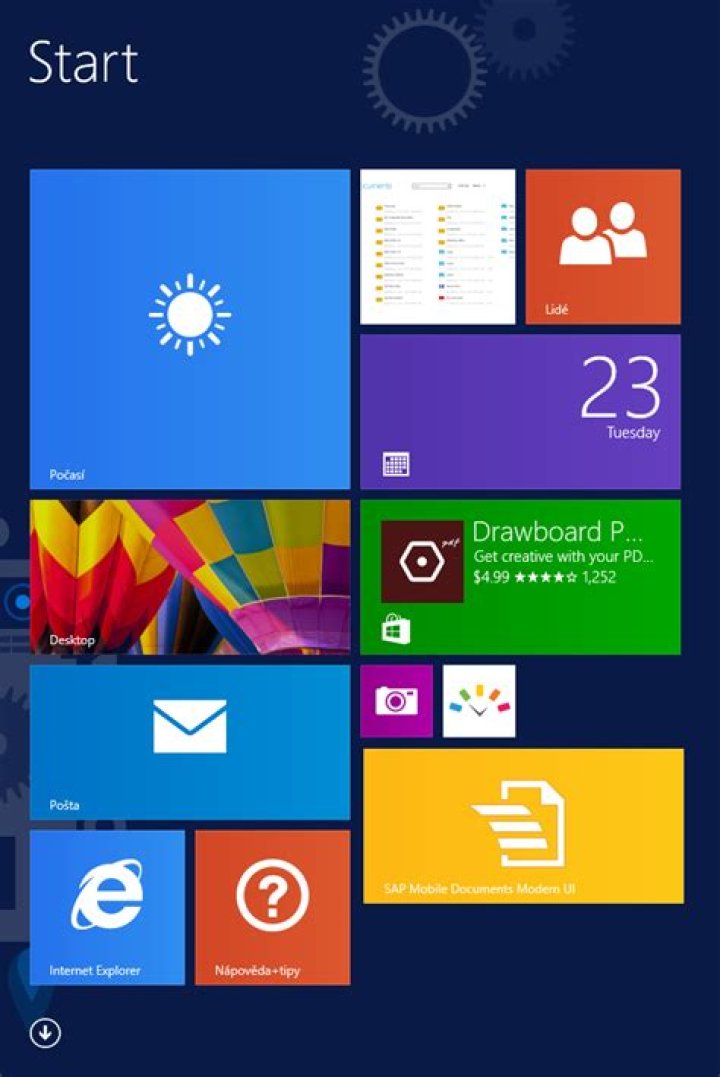
Metro apps are pretty nice, but they absolutely suck on a Windows desktop with a mouse and keyboard. That’s to be expected though, since Metro (also known as Modern UI or Microsoft design language) was created mainly with touch input in mind for Surface Pros and Windows Phones.
But many of the Metro-style apps and games on the Windows Store play rather nicely with a mouse/keyboard setup. Unfortunately, accessing these apps means using the touch-optimized Start menu, and getting back out of them can be a pain without touch input.
While Microsoft claims to be remedying this exchange with new desktop-optimization features in its upcoming Windows release, we don’t have to wait on them to get these features now. The team at StarDock has created a program that will allow you to run Metro apps in windowed-mode, right on your Windows 8 desktop.
Installing ModernMix by StarDock
ModernMix is the free trialware behind this mod, and it’s available on StarDock’s official site. Just head to this link to jump right to the download page.
Be sure to choose the Try it Free! option when downloading to get a copy of the 30-day free trial.
When the download is finished, just click the file in your web browser to launch the installer. If your account is not the primary one on this machine, you may be asked to put in an administrator password at this point.
Next, just accept the terms and conditions and follow the prompts for installation.
You’ll be asked to provide an email address. This is the contact info that will be attached to your free 30-day trial period. Enter a valid email, then check your inbox and click the validation link before proceeding.
When installation finishes, you’ll be taken directly to the ModernMix setup screen. Choose how you would like Metro/Modern apps to start—either full screen like normal, full-screen window mode, or regular window mode.
Further options allow you to toggle a control overlay on windowed Metro apps, and the F10 key will always toggle between Metro and windowed mode.
After the 30-day trial period, you can decide whether you like this feature enough to pay the 5 bucks that the full version costs. For further mouse-and-keyboard optimization, try out Nelson’s Classic Start Menu guide.
Keep Your Connection Secure Without a Monthly Bill. Get a lifetime subscription to VPN Unlimited for all your devices with a one-time purchase from the new Gadget Hacks Shop, and watch Hulu or Netflix without regional restrictions, increase security when browsing on public networks, and more.
Lowell is the founder and CEO of How-To Geek. He’s been running the show since creating the site back in 2006. Over the last decade, Lowell has personally written more than 1000 articles which have been viewed by over 250 million people. Prior to starting How-To Geek, Lowell spent 15 years working in IT doing consulting, cybersecurity, database management, and programming work. Read more.
It was only a matter of time before somebody figured out how to use Metro / Modern apps in a regular desktop window, and naturally it was Stardock who came up with the solution. It’ll cost you a couple of bucks, but you can use the trial mode for free.
ModernMix isn’t free, but it’s probably the most useful Windows 8 tool that we’ve come across, especially if you use Windows 8 on your regular laptop or desktop. It’s only $4.99, which is roughly the cost of an overpriced latte.
Honestly we can’t understand why Microsoft does not already provide this feature in Windows for people that aren’t using a touchscreen device, and especially for people using a multiple monitor setup, where you can’t even use a Modern app on a separate monitor at the same time as a desktop app on the first monitor. It’s a huge oversight, and they should have included it.
Allowing Modern apps to run in a desktop window finally makes them useful, instead of an afterthought that nobody cares about. Sure, on a touchscreen device, the Modern apps work really well, but if you have the power of the desktop at your disposal, why can’t we combine the two by default?
In any case, ModernMix solves this problem, and it isn’t expensive.
Using ModernMix
Just download, install, and run the ModernMix application from Stardock. It’s as simple as that. Well… it’s nearly that simple. Once you’ve installed the application, you’ll notice that there’s a new little icon in the upper right-hand corner of your screen.
Once you’ve hovered over the icon, you can select the icon on the right to switch the Metro app into windowed mode.
Once you do so, you’ll see the application show up in a window. Most applications will work quite well in windowed mode, others written by people who aren’t very good programmers (like the author of this post) won’t scale down quite as well. You’ll notice that Microsoft’s Solitaire app works perfectly, while Geek Trivia does not.
Once you have an app in window mode, you can then pin it to the taskbar and launch it from there from now on.
There’s a lot more options in the settings, but we’ll let you have fun figuring those out on your own.
If you’re a Windows 8 user, have you ever wanted to run the Modern-style apps on the Desktop in resizable windows? Thanks to Stardock’s ModernMix program you can.
If you’re a Windows 8 user, have you ever wanted to run the new Metro / Modern-style apps on the Desktop in resizable windows? Thanks to Stardock’s ModernMix program you can. I’ve tested ModernMix, and here’s what you can expect.
Windows 8 Metro / Modern Style Apps
Currently the desktop works just as it always has with programs opening in different resizable Windows. But when you launch a modern-style app, it launches in full screen mode by itself, like the Xbox Video app for example.
By default, media files, PDFs, and MailTo links open from the desktop in full screen metro-style apps in a full page. I’ve shown you how to change file associations to avoid the annoying behavior of desktop files opening in full screen metro / modern mode.
And you can currently use metro-style apps and the desktop side-by-side in Windows 8 already, Stardock is taking it a step further.
What Stardock ModernMix Provides
ModernMix by Stardock, will run Windows 8 apps in individual windows on your desktop. It’s currently available for a free 30 trial as a public beta. After Installing ModernMix, grab the 30 day trial or you can purchase it later for $4.99.
After that you can configure how you want the metro and desktop apps to behave when you launch them. You’ll have even more options if you already have Stardock’s Start8 menu replacement installed.
After that, play around and enjoy using your metro / modern style apps in windows on the desktop in Windows 8. Here I have the Xbox Music and Windows Store apps running on my desktop with Word and File Explorer going.
Another groovy thing worth pointing out is that when you have metro apps running on the desktop, their icons appear in the Taskbar.
When the Windows 8 apps are running on your desktop, they have the same familiar window size controls like Minimize, Maximize, and Close. It also gives each window it’s own ModernMix overlay to control windows size.
ModernMix is still currently in Beta, and you can tell. There are some things I would like to see improved, mainly having the metro-style apps resize better in their respective windows. But overall, from my testing, I have to this something Microsoft should to take a close look at, and consider adding this type of feature in Future Windows 8 updates.
Windows 8, as you probably know by now, is dominated by the brand-new Metro interface. It appears when you first log in, and there’s no official way to disable it. Microsoft has tried very hard to convince us that the Metro interface is designed for mouse-and-keyboard desktop PC use, but that’s simply a barefaced lie: It’s a touch interface that’s primarily designed for small-screen devices — tablets, or touchscreen laptops at a stretch. In fact, Windows 8’s love of full-screen apps has led some of us here in the ExtremeTech bunker to affectionately refer to Microsoft’s new OS as Window 8.
What if you like the design or features of Metro apps, though? What if you want to use a specific Metro app, but don’t want to be forced into the full-screen, keyboard-and-mouse-hating, alt-tab-abhoring Metro interface? Well, thanks to Stardock’s ModernMix, you now can!
With ModernMix installed, you can run Metro (Modern, Windows 8-style UI) apps on the Windows 8 Desktop. With ModernMix, Metro apps essentially behave exactly like Desktop apps: They can be resized, minimized, maximized, and moved around your Desktop like any other window. They can even be pinned to the taskbar, or snapped to the side of your desktop with Aero Snap.
In practice, using Metro apps in windowed mode is… interesting. You lose some functionality, such as Metro’s built-in split-screen function and drag-down-to-close. Otherwise, though, the apps react as normal: The mouse scroll wheel is still your friend, and don’t forget that right click brings up the app’s settings and menus. Some Metro apps, of course, such as Internet Explorer and Mail, benefit greatly from being run in windowed mode (copy/paste!)
There are a few configuration options, most notably the option to force all Metro apps to start in a window on the Desktop. Beyond that, there isn’t much (but Stardock does say that it’s beta software, to be fair). There’s a curious option to run apps as full-screen Desktop apps — as in, like Metro apps, but without Metro’s drag-down-to-close.
Now, with Metro apps running on the Desktop, the final step to eradicate all traces of the Windows 8 interface is to install a Start menu replacement. If you’ve already done that, check out our huge archive of Windows 8 tips instead.
By Dave Johnson
March 15, 2013 / 7:00 AM / MoneyWatch
(MoneyWatch) Windows 8 is without a doubt the most controversial OS that Microsoft has ever released. It’s not objectively bad in the same way as Windows ME or Windows Vista; instead, it’s reviled by many for its tablet-like interface, even on desktop PCs, and schizophrenic interface that splits you between the windows, multi-tasking desktop and the mono-task modern screen.
Well, good news for anyone who wants to leverage the best bits of Windows 8 without the frustrations. or who simply has no choice but to upgrade with a new PC. Stardock has just released ModernMix, a program that lets you run modern apps in resizable windows on the traditional desktop.
In other words — and I can’t believe I have to say this in 2013 — ModernMix lets you multi-task apps in Windows. Say goodbye to full-screen-only modern apps.
Stardock has a great reputation for releasing utilities that improve on basic Windows features. Start8, for example, is an excellent program that restores the old Start menu to Windows 8, while Fences lets you create structured groups of icons on the desktop, sort of like invisible folders. (Fences, by the way, is one of my favorite programs, ever.) ModernMix, on the other hand, solves the second biggest gripe with Windows 8 (second to the lack of a Start menu) by converting modern apps to run on the desktop.
ModernMix isn’t especially complicated; the app lets you choose whether modern apps will run full screen or in a window, and once on your desktop, modern apps work like any old program, complete with full multitasking, a minimize button, and a close button. You can also pin modern apps to the taskbar, just like traditional Windows programs. And it works like a charm.
You can try ModernMix for free for 30 days, or buy it for $5.
Trending News
View all articles by Dave Johnson on CBS MoneyWatch »
Dave Johnson is editor of eHow Tech and author of three dozen books, including the best-selling How to Do Everything with Your Digital Camera. Dave has previously worked at Microsoft and has written about technology for a long list of magazines that include PC World and Wired.
First published on March 15, 2013 / 7:00 AM
© 2013 CBS Interactive Inc. All Rights Reserved.
– Last updated on March 7, 2013 by VG
One of the most noticeable and interesting feature of Windows 8 is “Metro App” also known as “Modern App” or “Windows Store App”. Microsoft introduced Google Play style “Windows Store” feature in Windows 8 which allows you to download free as well as paid apps on your Windows 8 computer.
These apps run in full screen mode and don’t provide caption buttons such as minimize, maximize, restore or close buttons. That’s why almost all Windows 8 users have following 3 main complaints with Windows 8 apps:
- Users can’t resize Metro apps
- Users can’t run these apps from Desktop
- New users can’t find how to close these apps?
When you launch an app in Windows 8, it takes whole screen space. Although you can take help of Snap feature to divide screen area between 2 apps but its not sufficient. It would have been great if you could run these apps in small windows having titlebar similar to other program windows so that you can resize those apps according to your requirements as well as move them to anywhere on screen.
Also these apps only run from Start Screen, you can’t launch them from Desktop. It would have been really great if you could pin these apps on Taskbar and if you could launch them from your Windows 8 Desktop instead of first going to Start Screen.
The 3rd problem which many Windows 8 users face is the missing close button. New users can’t rectify how to close running app in Windows 8? Actually you can drag-n-drop the app from top to bottom to close it or you can use the good old “Alt+F4” keyboard shortcut to close these apps as mentioned here but its not known to everyone.
If you also feel the same about these apps, this topic will definitely help you. Today in this topic we are going to share a new software which makes your Windows 8 app experience easier.
“ModernMix” is a new software released by StarDock which has released 2 other useful software for Windows 8 in past which are “ Start8 ” to bring Start button and Start Menu back to Windows 8 and “ Decor8 ” to customize Start Screen appearance and functionality.
ModernMix tries to fix all the issues which are present in Windows 8 apps. It allows you to run Metro apps on Windows 8 Desktop. It runs those apps in windows having titlebar and caption buttons so that you can easily minimize, maximize or close them. In also helps you in moving those apps windows anywhere on your screen as well as changing their size.
Features List:
- Allows you to run Metro apps from Windows 8 Desktop
- Runs Metro apps in windows having titlebar and caption buttons
- Adds minimize, maximize, restore and close buttons to apps windows
- Allows you to resize apps windows
- Can remember your preferences for each Metro app
- Provides “F10” hotkey to easily switch between full screen and windowed mode
- Shows running app button in Windows 8 Taskbar
Its really a useful and impressive utility for Windows 8 users. But its not free, it’ll cost you $4.99. Although you can download a fully functional free trial version of ModernMix to give it a try.
Interested people can download it using following link:
BONUS TIP: You can create a direct shortcut of a hidden “Applications” folder in Windows 8 to launch Metro apps directly from Desktop. Check out point 5 in following exclusive topic:
What do you think about this new software for Windows 8? Liked the idea of running apps from Desktop? Feel free to share your comments…
You are here: Home » Software » Run Metro Apps on Windows 8 Desktop, Add Minimize, Maximize and Close Buttons
About the author: Vishal Gupta (also known as VG) has been awarded with Microsoft MVP (Most Valuable Professional) award. He holds Masters degree in Computer Applications (MCA). He has written several tech articles for popular newspapers and magazines and has also appeared in tech shows on various TV channels.
Comments
NOTE: Older comments have been removed to reduce database overhead.
Yet another reason to hate and not use Start screen 😀
People have to pay if they want to customize their “Windows”… Great idea, Microsoft!
AWESOME! FINALLY NOW I’M GETTING WIN8! AND I WILL INSTALL CLASSIC-SHELL AND THIS UPON FIRST BOOTUP. GREAT JOB STARDOCK. VICTORY SHALL BE UPON THE CITIZENS OF EARTH, NOT YOU MICROF**KS ARISTOCRATS!!
wow, stardock team is so creative. .
Amazing share vg.
Windows Blue is next Windows 8 big update 😉
Hey VG , final version of ModernMix available
hello VG.
i installed windows 8 enterprise..when l klick on the mail app ,it shows as if loading,afer a while it remains blank with a grey lin and white space… help me to rectify the problem
^^ Try to uninstall and then reinstall the app using Store.
Why was this listed under freeware? And you didn’t say it was a pay program until the end of your article.
Stup[|||]t thing: It’s paid. Windows 10 does the job for free.
I wish there could be some kind of registry trick to make the metro apps run in windowed instead of using a 3rd app to run the built-in apps.
Here’s a quick time to create desktop shortcuts for Metro apps
Windows 8.1 Update 1 will bring several improvements for Microsoft’s modern operating system, including a new configuration that launches Metro apps in separate windows and allows users to close them with a single mouse click.
In addition, Modern apps are very likely to be transferred to the desktop in Windows 9, according to people familiar with the matter, which means that users might be enabled to access Metro apps without the need for getting to the Start screen.
Since the Metro UI – desktop will play a pretty important role for Windows users in the coming months, we’ve decided to share a very fast way to create shortcuts for Modern apps on the desktop and thus launch them with ease, again without the need for clicking on their live tiles.
It all comes down to just a few steps, so here’s what you need to do in order to create a simple shortcut for any Metro app currently installed on your computer.
First of all, go over to the Start screen and type “shell:AppsFolder” in the search box. Hit “Enter” and you shall get to see a folder named “Applications’ that comprises all Metro apps currently installed on your computer.
The next thing that you need to do is to press “F10” on your keyboard, go over to “View,” click on “Choose details” and select the “AppsUserModelId” option. Switch to the “Details” view mode and you shall notice a new column that displays a lengthy code for every Modern app.
Check out ModernMix, a new application from StarDock, which aims to bring back the familiar resize/close buttons to your Metro apps, as well as the ability to run Metro apps in a Window on your desktop, rather than taking up the entire screen.
“ModernMix is a revolutionary new program that lets you run Windows 8 “Modern” apps in a window on the desktop. Windows 8 Modern apps, also known as Metro or RT apps, will use the full screen on your display regardless of how much of the screen they really need. As a result, that weather app, mail program or stock ticker is going to use the entirety of your computer display,” StaDock explained on their website. Currently in Beta and available for $4.99, ModernMix is pretty straightforward and simply runs Windows 8 Metro apps in a window, with the ability to display and pin apps on your taskbar. You can even close each individual app by pressing the familiar red close button on the top right of the window.
This software brings back the familiar nature of having software open up as windows on your desktop with the ability to close/resize. While this is not Microsoft’s vision of how Windows 8 should be, those who missed these features from Windows 7 will finally be happy (after paying $4.99 of course). Hit the download link to grab the Beta! This software does not work on Windows RT.
Windows 8 apps are limited to running in full-screen mode, but a new program by StarDock allows you to run apps on the desktop like any other desktop program.
Ed Rhee, a freelance writer based in the San Francisco Bay Area, is an IT veteran turned stay-at-home-dad of two girls. He focuses on Android devices and applications while maintaining a review blog at techdadreview.com.
Related stories
- How to log in directly to the Windows 8 desktop with Start8
- 23 new keyboard shortcuts for Windows 8
- How to dual-boot Windows 7 with Windows 8
Windows 8 apps are meant to be run from the Windows 8 Start screen and in full-screen mode. You can snap them to the side of the Start screen, but they’re still limited to the Start screen. If you’re simultaneously using desktop programs and apps, you’ll have to toggle between your desktop and Start screen to use them. This inefficient back and forth can be alleviated with the use of a program called ModernMix. ModernMix, just released by StarDock as a public beta , aims to give Windows 8 users the flexibility to run Windows 8 apps right on the desktop.
To get ModernMix, go to StarDock’s Web site and request the download link by e-mail. Once you’ve downloaded and installed ModernMix, you’ll see the configuration window. To launch Windows 8 apps as windowed apps on the desktop, choose the right-most option. You can also choose the middle option, which launches the app in a maximized window on the desktop.
Screenshot by Ed Rhee/CNET
The next time you launch a Windows 8 app, it’ll appear on the desktop like any other Windows program. You can also toggle modes by clicking on the icon in the upper right-hand corner of the app window, or by using the F10 hot key.
Screenshot by Ed Rhee/CNET
Keep in mind that ModernMix is still in beta and will cost $4.99 to use after the 30-day trial expires.
Windows 8 has several annoyances, but perhaps one of the most notable is its requirement to run apps full screen, or in an ugly 2/3, 1/3 mode. When you’re used to being able to position and arrange application windows just as you like, this seems like a significant backward step: we have far less choice then we did before.
But ModernMix, the latest release from Stardock, changes all that. Because this simple $4.99 program allows you to run Windows 8 apps in a resizable window on your desktop, just like anything else.
Getting hold of the beta build is a little awkward right now, as you have to provide your email address and wait to be sent a link. But with that out of the way, the program downloads and installs quickly, before presenting you with a basic settings dialog. Just clear that for the moment (the default settings are fine), and you’re ready to go.
Now launch an app from the Start Screen, and it’ll appear in a window on the desktop, where you can use it as normal. The window can be freely resized and positioned to suit your needs, and has a regular Close button in the top right corner, so you can shut the app down like any other program.
App windows can be positioned, resized and closed just like any other
The app also has a button on the taskbar, of course, and clicking there will bring it to the foreground. Right-click, though, and you’ll find an option to pin your favourite apps to the taskbar, so avoiding the need to switch to the Start screen at all. (And if you do launch an app that way, it’ll relaunch with whatever window size and position it had last time, so you only need set it up once.)
While this all worked very smoothly for us, it’s possible that some apps might not work so well in a window. Or perhaps you’ll just want to switch back to the Start screen for some other reason. Either way, pressing F10 while running an app will switch you from a desktop window to the start screen, and back again. Or, if you prefer to use the mouse, ModernMix adds a tiny overlay to the top right corner of the app which allows you to do the same thing.
And if you’re unhappy with any of this, a settings box makes it easy to change. You can turn off the window overlay, say; disable or change the F10 hotkey; or maybe set things up so that apps run full screen when launched from the Start screen, but in a window when launched from the desktop.
Despite being a beta, all this worked very well for us, with no noticeable problems or issues at all. And so, if you spend more time on the desktop than the Start screen, ModernMix comes highly recommended: it’s the best Windows 8 extension we’ve seen to date, and at $4.99 is an absolute bargain.
Stardock already offers a way to bring back the familiar Start menu in Windows 8 instead of the much criticized tile-based home screen. But if you’d still like to use “Metro” apps from Microsoft’s Windows Store and can’t wrap your head around having to run things like a calendar or email app either in full screen mode or as a snapped application to the side, with their latest utility you won’t have to.
ModernMix allows you to configure how Windows 8 apps behave depending on where you launch them – Start screen or desktop. Options include launching apps in the standard full screen, a windowed full screen mode, or a smaller window so they can be minimized, moved around, and resized. They’ll operate like regular desktop apps so you can have as many as you like open at a time and even pin them to the taskbar.
The software also remembers app window sizes so that they launch in the same place every time. You can use the F10 key or a little widget in the top right-hand corner of Windows 8-style apps to switch between modes.
ModernMix along with a few other customization tools from Stardock like Start8 and Decor8 appear to be challenging Microsoft’s vision of sharing a single interface design language across all its computing devices, but they are definitely welcome options for those who want to live in the desktop world.
The app is currently in beta and costs $4.99, but there’s a 30-day trial available for those who want to test it out.
There are two different types of apps that run on Windows 8 devices. There are full-screen apps that use the “Modern” user interface and which you can download from the Windows Store. And there are desktop-style apps that look like software you’ve run on every version of Windows up until now.
Modern apps are touchscreen-friendly and support new gesture-based navigation such as pulling down from the top of the screen to close an app, or swiping from the left edge to switch between apps. But these apps aren’t as easy to resize or reposition on your screen as classic desktop-style software.
But it turns out there’s an app for that.
Stardock has released a public beta of a new app called ModernMix which lets you run Modern apps as if they were standard desktop apps. Each app can open in a resizeable window which you can move around the screen any way you like.
You can always flip back and forth between full screen and windowed mode by pressing a hotkey — the default is F10. And you can choose to only open apps in windowed mode if you launch them from the desktop if you like. That way apps will run as Modern apps when you bring them up from the Windows 8 Start Menu, but if you launch them from a desktop shortcut or by using a third-party Start Menu replacement (Stardock makes one of those too), you’ll be able to treat them like classic Windows apps.
All the Modern apps I’ve tested so far have looked at least as good in a small window as they do in full-screen mode. Interestingly, Windows 8 still treats these apps a little differently — if you swipe from the edge of a touchscreen or touchpad you’ll be able to cycle through your currently running Modern apps. But all of your classic Windows apps will be grouped together under “Desktop.”
In other words, I have a few windows open in my desktop including Chrome, Irfanview, and the ModernMix settings app – but using the Windows 8 app-switching gesture cycles through Netflix, the Windows Store, Weather, and Desktop.
If I use Alt+Tab instead of an edge-swiping gesture I can cycle through all of those apps and Chrome and Irfanview.
ModernMix is an interesting option for folks that really hate the Windows 8 Modern user interface, but who still want to access some of the Modern-style apps such as the Netflix or Kindle apps, for instance, or some of the games from the Windows Store.
The app sells for $4.99, but there’s a 30-day free trial available.
Support Liliputing
Liliputing’s primary sources of revenue are advertising and affiliate links (if you click the “Shop” button at the top of the page and buy something on Amazon, for example, we’ll get a small commission).
But there are several ways you can support the site directly even if you’re using an ad blocker* and hate online shopping.
Contribute to our Patreon campaign
Contribute via PayPal
* If you are using an ad blocker like uBlock Origin and seeing a pop-up message at the bottom of the screen, we have a guide that may help you disable it.
4 replies on “ModernMix lets you run every Windows 8 app in desktop mode”
I’m having trouble imagining why I would want to put a Modern app in a window. The only ones I deal with on a regular basis are the weather app, the skype app, and the hulu app, and I don’t really need access to the desktop while using those apps. I must admit to not really understanding the complaints about the disappearance of the start menu either, but that’s a different story.
It’s mainly people who have no use for the Modern UI and just want to make sure their OS supports all the latest features, etc. but not actually change how they use the OS at all.
For them, it’s preferable to keep everything working pretty much the same as traditional desktop.
This is especially true of people who believe they are more productive while multi-tasking. Something that’s harder to do with every app full screen.
Even though only about 4% of the population can naturally multi-task without becoming less productive. Most people have to train their brains for proper multi-tasking and thus most people only think they’re being more productive when multi-tasking.
Since compartmentalizing, etc. is not something most people can do naturally…
Also, people tend to resist change… especially, if they have to relearn how to do things. So lack of familiarity and learning curve help exaggerate the perception that the OS is harder to use than it actually is but that much should alleviate over time as people get used to the OS and how it works…
There are some honest issues with W8, however… Since the Modern UI and desktop are essentially two different OS combined on the same system there are design issues throughout. Like how not all features and options are accessible from either the Modern UI or desktop Control Panels, switching between apps similarly being segregated, etc.
Though, MS isn’t yet finished with W8… like previous Windows releases they’ll continue to work on it for the next few years but unlike the previous versions of Windows they’re open to more major changes as they’re adopting a upgrade system similar to how Apple updates OSX annually.
In other words, for a few bux you can get basic functions that Microsoft could have included but didn’t to force you to love Metro/Modern. Why not just stick with Win7 and wait for Win9, it will almost certainly include both this and an option to restore the Start button. Assuming the first Service Pack for 8 doesn’t give into public pressure and restore a usable desktop environment.
W9 will be over three years from now and not everyone is willing to wait anyway.
3rd party modifiers for Windows is nothing new, there’s plenty for W7 too for features it doesn’t support out of the box either.
So far it looks like RetroUI may be the better deal with a single user license of just $4.95 and it not only allows windowed Modern UI apps but also booting directly to desktop, Start Menu replacement, and a few other things.
Though Stardock does have a massive 1 year subscription to all their W8 modifier apps for about $50 that’ll cover pretty much every aspect of the OS…
While, we’ll see how the upcoming code Blue turns out for MS first major update to Windows 8… They’re basically adopting the same update business model as Apple has for OSX. So expect annual updates that will combine the equivalent of Service Pack releases with UI adjustments, fixes, possible new features, etc. Meaning MS may fix W8 long before W9 comes out.
Most of the netbooks that are available today come with 1024×600 or lower screen resolution. As some of you know, Windows 8 Metro-style apps require a minimum of 1024×768 screen resolution, which means that you can’t run Metro-style apps on-screen resolutions lower than 1024×768.
So, a big chunk of netbook users won’t be able to experience one of the core features of Windows 8.
Users who have already installed Windows 8 on a netbook with a screen resolution lower than 1024×768 probably have noticed that Windows throws “The screen resolution is too low for this app to run” error when you attempt to run an app. Though there are third-party applications available to run legacy Windows applications in a fake resolution, one can’t use these applications with Metro-style apps.
Users who have installed Windows 8 on a netbook would be glad to know that Metro-style apps can be run on your netbook with a small workaround. Paul has suggested a little workaround that will help all Windows 8 netbook users enjoy Metro apps without any issues.
Run metro apps on lower screen resolutions in Windows 8/8.1
Step 1: Open Registry Editor. To do this, open Run dialog (use Windows + R keys), type regedit.exe in the box, and then press Enter key. Click Yes for the UAC (User Account Control) prompt.
Step 2: Once the Registry Editor is launched, press Ctrl + F keys to open Find box. In the Find box, type display1_downscalingsupported in Find what box, check Match whole string only box, and then click Find Next button.
You may get only one or several results.
Step 3: Double-click on display1_downscalingsupported entry and change its value from the default “0” to “1”.
NOTE: If you have two or more display1_downscalingsupported entries in the registry, you need to modify all of them.
Step 4: Exit Registry Editor and reboot your PC.
Step 5: After rebooting PC, right-click on desktop, select Screen Resolution. You should now see the 1024×768 resolution. Select 1024×768 or higher resolution (if available), and then click Apply button. Click Keep changes when you see the confirmation box. You are done! You should now be able to run Metro-style apps on your netbook.
Chris Hoffman is Editor-in-Chief of How-To Geek. He’s written about technology for over a decade and was a PCWorld columnist for two years. Chris has written for The New York Times and Reader’s Digest, been interviewed as a technology expert on TV stations like Miami’s NBC 6, and had his work covered by news outlets like the BBC. Since 2011, Chris has written over 2,000 articles that have been read nearly one billion times—and that’s just here at How-To Geek. Read more.
Windows 8 apps – originally known as Metro-style apps and now known as Windows 8 style, Modern UI style, or Windows Store style apps, depending on which Microsoft employee you ask — are very different from traditional desktop apps.
The Modern interface isn’t just a fresh coat of paint. The new Windows Runtime, or WinRT, application architecture (not to be confused with Windows RT) is very different from the Windows desktop we’re used to.
Only Available From the Windows Store
Unlike standard Windows desktop applications, you can only install Modern-style applications from the Windows Store. Any applications you want to install must be submitted to the Windows Store and approved by Microsoft. If Microsoft removes an app or won’t approve it, you won’t be allowed to install it on your system.
Of course, this has some benefits – users can’t install malware from outside the Windows Store, particularly on Windows RT where users can’t install any desktop applications.
It’s only possible to “sideload” and install unapproved applications if you’re using Windows on a domain (for example, a corporate network), or if you use a developer key to sideload the application.
Sandboxed
Traditionally, standard Windows desktop applications have access to everything on the system. While this has changed with the introduction of User Account Control, which prevents applications from doing things that require administrator access, desktop applications still have a lot of room to wreak havoc. They could read your personal files and upload them to the internet, delete files from your computer to cause havoc, or key-log you to record your credit card numbers and online passwords. While installing (with administrator access), they could even do malicious things to the rest of your system without UAC stepping in.
Modern apps are sandboxed. They have a permissions system similar to Android’s. When you install an app, you’ll see the permissions it requires. While this increases security and allows users to download apps with less fear – similar to how playing a Flash game on a web page is less risky than downloading an .exe file and running it – it can also be annoying. For example, you can’t use the included Photos app to view image files located outside your Pictures library.
No Running Multiple Apps At the Same Time
Traditional desktop apps all run at the same time. You can have multiple application windows open and on-screen at the same time. Many applications can be running in the background.
Modern apps function more like mobile apps. When you open a Modern app, it takes up your entire screen — you can’t view the full interface of two Modern apps on-screen at the same time. (Even if you have multiple monitors.) When you switch away from a Modern app, it goes into a suspended background mode, like a mobile app on a smartphone.
However, the new interface does include some multitasking abilities. You can use the Snap feature to view two apps on-screen at the same time. However, one app will always take up 1/4 of your screen with a simplified interface, while the main app will take up 3/4 of your screen. There’s no Aero snap-like, split-screen, 50/50 multitasking in the Modern interface.
Always-On, No Closing
Because Modern apps function like mobile apps, there’s no reason to close them when you’re done with them. Just switch away from an app and it will stay in the background without using up a lot of your system’s resources. While you can close Modern apps, Microsoft made the method non-obvious for a reason – they don’t want users closing apps whenever they’re done with them. That’s why there’s no X button at the top-right corner of a Modern application.
Design Style
Whether you love Modern apps or hate them, there’s no denying that the new Windows 8 interface has a more consistent, cohesive design style than Windows desktop applications have had.
The interface was originally named “Metro” because of its focus on typography, like signs on public transit systems. Apps have a cohesive look that hides “chrome” – toolbars, buttons, window borders, and other elements that get in the way of the content you’re interested in. Apps generally hide their options by default – for example, the modern version of Internet Explorer 10 is a full-screen browser that hides browser tabs and the navigation bar until you call them up.
Most Modern apps use left-to-right scrolling, along with a semantic zoom feature that allows you to zoom out, get a bird’s eye view, and zoom in on the content you’re interested in.
Interface Integration
Instead of providing their own menus and ways of doing things, Modern apps integrate more with options built into the system. For example, if you want to change an app’s settings, you don’t have to hunt through an app’s menus (was it at Tools –> Options, or maybe Edit –> Preferences?). From within the app, open the charms bar, click Settings, and you’ll see the app’s options. (You can also press Ctrl+I to open the Settings charm.)
To search an app, pull up the charms bar, select Search, and enter your search. You can search any app from one consistent interface – just start typing at the Start screen and you’ll see an option to search every app on your system.
Printing and sharing data between apps works similarly – use the Devices or Share charms.
Programming Languages
While Modern apps can still be written in C/C++ or .NET languages, JavaScript and HTML5 are now first-class citizens. As on mobile platforms, Microsoft is reaching out to web developers and inviting them to create Windows 8 versions of their apps in the programming languages they know.
WinRT apps also support both the x86 and ARM architectures, allowing them to run on both Windows 8 and Windows RT systems.
It’s impossible to look at Windows 8 and not conclude that Microsoft was inspired by mobile platforms and the web – not surprising, considering that Windows 8 is the first version of Windows that’s actually designed for tablets.
We have seen attempts before to bring Windows 8 apps to the desktop of the operating system. RetroUI Pro can do that for instance but all implementations up until now did not feel fluent enough. This changes with today’s release of Stardock’s newest program for Windows 8, ModernMix.
One of the big complaints that many Windows 8 users have is that the start screen of the operating system is limiting how apps can be displayed on it. You can either display apps in fullscreen, or in 1/3 or 2/3 of the screen if the apps have been created for that. There is no option to display apps in different resolutions or screen sizes which may not be a problem if you are running an application that makes good use of the screen estate, but running a calculator in full screen on a 1920×1080 screen is just overkill and not something that many users would want to do.
ModernMix falls right into the line of Stardock products that have been created to resolve popular issues in regards to Windows 8. Start8 for instance was created to bring back the start button to the operating system and provide users with options to enable or disable certain aspects of the interface.
Decor8 on the other hand added an option to add a custom desktop background to the operating system’s start screen, something that Microsoft did not make available natively as well.
And now ModernMix. Once you have installed the program, – download is somewhat of a hassle as you need to enter an email address on the download page to receive a download link to that email address – you can configure how Windows 8 apps are opened on the system.
You configure if Windows 8 apps should be launched in full screen, in a windowed full screen mode, or as a window, and that for apps launched from the start screen and from the desktop. You can for instance configure ModernMix to launch Windows 8 apps like before when you run them from the start screen interface, but in a window when you run them from the desktop.
The implementation itself is excellent as it enables you to run one or multiple Windows 8 apps in windows on the desktop just like any other program installed on the computer. You can move those windows around, resize them or close them just as easily without any issues or problems that the full screen nature of apps usually results in.
What is interesting is that many apps become quite usable once you run them in a window as opposed to full screen. The mail app for instance feels a lot better in windowed mode as it is now a lot easier to copy and paste contents into emails or look something up while you are writing the email without losing focus.
Running those apps in windows on the desktop is a great experience and it is quite puzzling why Microsoft did not implement apps this way in the operating system.
Up until now I thought that a start menu is the essential program that you need to install right away when you run Windows 8. From today on, I’d say ModernMix is the program to go first before you install any other program on Windows 8.
Note that the program will be available for $4.99 after a 30 day trial period. I personally think it is well worth that.
The developers have added a couple of options to the program. You can for instance use the F10 hotkey to switch between modes quite easily. The program furthermore displays a small overlay in the top right corner of the screen if apps are run in fullscreen that enables you to switch between different view modes easily.
Here is a demo of the program in case you want to see it in action.
1. Cross-Platform User Interface Issues in Windows 8/8.1
Being the first cross-platform OS by Microsoft, Windows 8 features many improvements targeting tablets. The new Metro UI is one of them. While mobile device users are generally happy with the interface, the PC version receives mixed or negative responses due to the focus shifted from productivity and multi-tasking towards modal application execution. Modern UI apps introduced in Windows 8 run full-screen and require a user to switch to the Start screen to launch them. Obviously, such behavior isn’t ideal for a desktop PC.
2. Simple Solution
New feature in Actual Multiple Monitors fixes that by transforming Modern apps to conventional resizable windows on user’s desktop. This way, not only can the user work with multiple Modern apps simultaneously, but also can switch between normal desktop programs and Metro-style applications using habitual modus operandi.
A user can define the way Actual Multiple Monitors should treat Modern apps: open them full-screen or windowed, while the program automatically applies the choice to running apps. See examples below:
3. Activation and Customization
To activate windowed mode for an active Modern app, press the Win-Shift-Alt-] hotkey combination (by default). To change this combination, go to the Hotkeys tab in the configuration window of Actual Multiple Monitors . Find the “Toggle windowed mode for a Modern app” action and set the desired combination.
4. Conclusion
Using Actual Multiple Monitors , you can fix some Windows troubles, such a full-screen mode of Modern apps. Also you can improve your multi-monitor environment with many features, such as the multi-monitor taskbar, additional title buttons, and etc.
One of the cornerstones of Microsoft’s revamp of the Windows operating system was building app support into the Windows 8’s ‘Modern’ user interface (previously called ‘Metro’). Microsoft believed that these apps, along with the app store, would offer users new and novel ways to interact with their PC, and put the operating system on an equal footing with OS X, Android, and iOS, which also have dedicated app stores. But a report by PC management service provider Soluto suggests that Windows 8 users are shunning these apps.
The report, which is based on data collected from 10,848 Windows 8 machines and 313,142 Modern app launches across 9,634 unique apps, suggests that Windows 8 users are turning to apps, on average, 1.52 times a day. Breaking this down by type indicates that tablet users are the heaviest app users, launching them 2.71 times per day, while touch-screen notebook users launch 47 percent more apps than those on a standard notebook.
Desktop users make the least use of Modern apps.
Soluto crunched the data further, and took a closer look at those who launch fewer than one Modern app a day. Here, the company noticed that a staggering 60 percent of users launch an app less than once a day. Even when it comes to tablet users, the heaviest users of Windows 8 apps according to Soluto, 44 percent of those sometimes go a day without launching an app.
So, it seems that despite being thrown into the Start Screen, Windows 8 users are, on the whole, turning their backs on Modern apps and instead using traditional applications.
Of the apps that users run the most, nine out of 10 of them are made by Microsoft, the only exception being the Netflix app, which takes the #8 spot. This will come as worrying news to third party app developers who were hoping that Microsoft’s app store will help them rake in cash.
Things are a little better when it comes to the most engaging apps. While the list continues to be dominated by Microsoft apps, we also see apps from Yahoo! and a number of game developers. At the top of the list is the Yahoo! Mail app, and in the #2 and #3 spots are two social networking apps made by Asus.
As someone who has been using Windows 8 for a long time (going back to when early builds were being leaked onto the web), I have to admit that I have mixed feelings about Modern apps. While the idea is sound, and they make sense on Windows RT tablets which can’t run standard x86 apps, on desktop and notebook systems they feel very limited in what they can do. Primarily this comes down to the fact that Modern apps are forced to run in full-screen mode, which limits their use. Another problem I find is that Modern apps put style over function, and the density of the data being display on-screen is low.
Even in a content consumption scenario, you have to devote your entire system to one app, rather than being able to tile applications and multitask. Even simple tasks such as copying and pasting data — such as a password — from one app to another is extremely tedious.
Why bother running a Windows machine if I’m limited to one app like I am on an iPad? The biggest advantage of Windows over iOS is that it offers a powerful, functionality-rich platform. Modern apps hobble Windows, and essentially make it pointless to run Windows in the first place.
Це було тільки питання часу, коли хтось зрозумів, як використовувати Metro / Modern apps у звичайному вікні робочого столу, і, звичайно, саме Stardock придумав рішення. Це обійдеться вам у пару доларів, але ви можете безкоштовно використовувати режим випробування.
ModernMix не є безкоштовним, але це, мабуть, найкорисніший інструмент для Windows 8, який ми зустріли, особливо якщо ви використовуєте Windows 8 на звичайному ноутбуці або на робочому столі. Це всього лише $ 4,99, що приблизно коштує завищеного латте.
Чесно кажучи, ми не можемо зрозуміти, чому корпорація Майкрософт не надає цю функцію в Windows для людей, які не використовують сенсорний пристрій, і особливо для людей, які використовують налаштування кількох моніторів, де ви не можете навіть використовувати сучасну програму на окремій сторінці монітор одночасно з настільним додатком на першому моніторі. Це величезний нагляд, і вони повинні були його включити.
Дозволяє сучасним програмам працювати у вікні робочого столу корисним, замість того, щоб думати про те, що ніхто не піклується. Звичайно, на сенсорному пристрої сучасні додатки працюють дуже добре, але якщо у вас є влада робочого столу, то чому ми не можемо поєднати два за замовчуванням?
У будь-якому випадку, ModernMix вирішує цю проблему, і це не дорого.
Використання ModernMix
Просто завантажте, встановіть та запустіть програму ModernMix зі Stardock. Це так просто. Ну… це майже так просто. Після інсталяції програми у верхньому правому куті екрана з’явиться нова маленька піктограма.
Після того, як ви пересуваєтеся над піктограмою, можна вибрати піктограму праворуч, щоб перемкнути програму метро в режим вікна.
Після цього ви побачите, що програма з’явиться у вікні. Більшість додатків буде працювати досить добре у віконному режимі, інші написані людьми, які не дуже хороші програмісти (як автор цього посту), не будуть також зменшуватися. Ви помітите, що пасьянс Microsoft працює відмінно, а Geek Trivia – ні.
Після того, як у вікні з’явиться програма, ви можете закріпити її на панелі завдань і запустити звідти.
У налаштуваннях є набагато більше можливостей, але ми дозволимо вам розважитися, зрозумівши їх самі.
มันเป็นเพียงเรื่องของเวลาก่อนที่จะมีคนคิดวิธีใช้แอพ Metro / Modern ในหน้าต่างเดสก์ท็อปปกติและโดยปกติแล้วมันคือ Stardock ที่มาพร้อมกับโซลูชัน มันจะทำให้คุณเสียเงินสักสองสามเหรียญ แต่คุณสามารถใช้โหมดทดลองได้ฟรี.
ModernMix ไม่ฟรี แต่อาจเป็นเครื่องมือ Windows 8 ที่มีประโยชน์ที่สุดที่เราเคยพบโดยเฉพาะอย่างยิ่งถ้าคุณใช้ Windows 8 บนแล็ปท็อปหรือเดสก์ท็อปปกติของคุณ เป็นเพียง $ 4.99 ซึ่งประมาณราคาของลาเต้ที่มีราคาสูงเกินไป.
จริงๆแล้วเราไม่สามารถเข้าใจได้ว่าทำไม Microsoft ไม่ได้ให้คุณสมบัตินี้ใน Windows สำหรับผู้ที่ไม่ได้ใช้อุปกรณ์หน้าจอสัมผัสและโดยเฉพาะอย่างยิ่งสำหรับผู้ที่ใช้การตั้งค่าจอภาพหลายจอซึ่งคุณไม่สามารถแม้แต่จะใช้แอพที่ทันสมัยแยกต่างหาก ตรวจสอบในเวลาเดียวกันกับแอพเดสก์ท็อปบนจอภาพแรก มันเป็นการกำกับดูแลที่ยิ่งใหญ่และพวกเขาควรจะรวมมันไว้ด้วย.
การอนุญาตให้แอปสมัยใหม่ทำงานในหน้าต่างเดสก์ท็อปในที่สุด มีประโยชน์, แทนการคิดในภายหลังว่าไม่มีใครใส่ใจ แน่นอนว่าบนอุปกรณ์หน้าจอสัมผัสแอปที่ทันสมัยทำงานได้ดีจริงๆ แต่ถ้าคุณมีพลังของเดสก์ท็อปเมื่อถึงมือคุณทำไมเราไม่รวมทั้งสองอย่างเข้าด้วยกันเป็นค่าเริ่มต้น?
ไม่ว่าในกรณีใด ModernMix แก้ปัญหานี้ได้และไม่แพง.
ใช้ ModernMix
เพียงดาวน์โหลดติดตั้งและเรียกใช้แอปพลิเคชัน ModernMix จาก Stardock มันง่ายอย่างนั้น ง่าย…มันเกือบง่าย เมื่อคุณติดตั้งแอปพลิเคชั่นแล้วคุณจะสังเกตเห็นว่ามีไอคอนใหม่เล็ก ๆ ที่มุมบนขวาของหน้าจอ.
เมื่อคุณโฮเวอร์เหนือไอคอนคุณสามารถเลือกไอคอนทางด้านขวาเพื่อเปลี่ยนแอพ Metro เข้าสู่โหมดหน้าต่าง.
เมื่อคุณทำเช่นนั้นคุณจะเห็นแอปพลิเคชันปรากฏขึ้นในหน้าต่าง แอปพลิเคชันส่วนใหญ่จะทำงานได้ค่อนข้างดีในโหมดหน้าต่างส่วนที่คนอื่นเขียนโดยผู้ที่ไม่ได้โปรแกรมเมอร์ที่ดีมาก (เช่นผู้เขียนโพสต์นี้) จะไม่ลดขนาดเช่นกัน คุณจะสังเกตเห็นว่าแอป Solitaire ของ Microsoft ทำงานได้อย่างสมบูรณ์แบบในขณะที่ Geek Trivia ไม่ได้.
Should I convert my Windows Desktop app to a Windows Store app?
If you have older legacy software, that is well-tested and used by many customers, there is no really reason to convert the application to a Windows Store app. It can still be used on traditional computers with Windows 8 installed. One exception can be if you have created a small application that can be easily converted to a Windows Store app and that you think can be useful on tablet computers. Then there may be a good reason to create a Windows Store app version of the software. But if this not is the case for you, you may consider to instead creating a Windows Store app that co-operates with your current desktop software; for example an app that presents some selected data or a summary report.
Are there any benefits of creating a traditional Windows Desktop app today?
Yes, there are a lot benefits here. Firstly, the most users still have Windows XP, Windows Vista or Windows 7, so by creating a traditional desktop application you will reach them. And as mentioned, the application will also work in Windows 8. So you will reach all users with desktop and laptop computers with the same software.
A well-optimized desktop application, for example created in C++, is also significant faster than a Windows Store app. And if you plan to create a complex program with lots of functions, then the simplified user interface of Windows Store apps may not be enough. A desktop application is also the only option if you want to create an application that uses hardware in a special way. One practical example is our product USB AutoRun Creator that gives AutoRun capabilities to USB flash drives. This product can not be converted to a Windows Store app.
Are there any risks of creating a traditional Windows Desktop app today?
It is hard to predict the future, but cloud-based software are getting more and more common, so more user’s will prefer cloud-based solutions in the future. But it depends of what type of software that you develop. Some software can not be placed in the cloud in an easy way (for example the USB AutoRun Creator product mentioned above), so they will continue to be distributed as a desktop software, for many more years.
Can a Windows Desktop app be touch based?
Yes, they can. There is an API in Windows 8 (named Windows Touch API) that can be used to make a traditional desktop app touchscreen aware. There is also a sensor API in Windows 8 that gives native support for sensors, for example devices that can measure temperature or location.
Can same setup tool be used to install a Windows Store app and a Windows Desktop app?
No, different methods are required. A Windows Desktop app can be installed in Windows 8 by using a traditional setup tool (like our Visual Installer) but a Windows Store app requires a completely different installation method for its installation, which is described in this article on our web site. For more information about how to install a Windows Desktop app (a traditional desktop application) on Windows 8, read this article on our web site.
Can I sell a Windows Desktop app via Windows Store ?
Yes, it is possible. You can sell both Windows Store apps and Desktop apps via Windows Store. More information is available in the blog post Listing your desktop app in the Store on MSDN Blogs.
What is the difference between Windows 8 Store App and Windows 8 Desktop Application. Can I use Javascript to create Windows 8 Desktop Application. I found an article from Intel which give some difference between these two applications. But it is not clear
4 Answers 4
Windows 8 Desktop Application – You can download the softwares and install it . No Marketplace required – Traditional development tools like C# , C++ , Winforms , WPF etc
Windows 8 Store App – You can install it only via Windows Store and uploading the app to the store will undergo certification process. – YOu can develop using XAML with C#/ , HTML/JavaSCript/CSS , Embarcadero Prism etc. – Designed mainly for Touch
no you can’t use javascript to write you own desktop program.
Here a simple overview about both type:
Windows 8 Desktop Application: That just the basic program like notepad, MS Word, AutoCad. Writing in the know language such as C++, C# .
Windows 8 Store App Here you create app in that new start menu. Click on the button in the start menu to open you own app. Here you can write the app also in html5/javascript.
Actually, you can sideload Windows RT apps too, which is useful for LOB apps. Take a look at the Windows RT Development guide –
Section titled “Installing developer packages on Windows RT outside the Windows Store” (Pg 19)
JavaScript can’t be used to create a Desktop Application.
see ,desktop apps are those apps that required you to run Setup.exe file and were installed through a Pen drive or a CD or might be you got it from internet.
These apps run on operating system like Windows 7, Windows XP and gave you the full control on what you want to install and what not .
– Last updated on September 20, 2011 by VG
Microsoft showed a new feature in Windows 8 demos videos, its called “Snap“. You can actually run 2 Start Screen apps or one Start Screen app and one Desktop app side-by-side using this new Snap feature.
But this new feature requires high resolution PCs and if your computer doesn’t support the requirements, this feature will not be enabled for you.
Similarly Windows 8 comes with new metro apps but you need at least 1024×768 screen resolution to run them. If you have a lower screen resolution system such as netbook (1024×600) and you try to open a metro app from Start Screen, you get following error message:
This app can’t open
The screen resolution is too low for this app to run.
Change your screen resolution
No need to worry! Today we are going to share 2 small registry tricks which will help you in enabling Snap feature and running metro apps even if your computer system doesn’t meet the hardware requirements and doesn’t have higher screen resolution.
Method 1: Enable Snap Feature on Lower Screen Resolution
To enable this feature, simply follow these simple steps:
1. Press “WIN+R” key combination to launch RUN dialog box then type regedit and press Enter. It’ll open Registry Editor and go to following key:
HKEY_CURRENT_USER\Software\Microsoft\Windows\CurrentVersion\ImmersiveShell\
2. Under ImmersiveShell key, create a new key AppPositioner.
3. Now select newly created key “AppPositioner” and in right-side pane, create a new DWORD AlwaysEnableLSSnapping and set its value to 1
That’s it. Restart your system or restart Explorer and you’ll be able to enjoy this cool new feature.
Thanks to our reader “Jaycee13” for sharing this trick…
PS: If you don’t want to modify registry and want a ready-made registry script to do the task automatically, download following ZIP file, extract it and run the extracted REG file. It’ll ask for confirmation, accept it:
Method 2: Run Metro Apps on Lower Screen Resolution
To successfully run metro apps on lower screen resolution PC, simply follow these simple steps:
1. Press “WIN+R” key combination to launch RUN dialog box then type regedit and press Enter. It’ll open Registry Editor.
2. Now press “Ctrl+F” keys and it’ll open Find dialog box. You can also open it using “Edit -> Find” menu.
Now type following text in Find text box:
Display1_DownScalingSupported
3. Click on “Find Next” button and it’ll let you go to the first occurrence of the above mentioned registry key. Once you find a key with the name “Display1_DownScalingSupported”, change its value from 0 to 1
4. Press F3 key and it’ll let you go to the next occurrence of the text string. If you find more keys with the name “Display1_DownScalingSupported”, change values of all of them from 0 to 1
5. Once finished, close Registry Editor and restart your system.
6. After reboot, right-click on Desktop and select “Screen Resolution” option. Now you should get 1024×768 option in the screen resolution list. Select it and apply the changes.
7. That’s it. This trick will force Windows to think that your screen resolution is 1024×768 and you’ll be able to run metro apps without any problem.
You are here: Home » Troubleshooting Guides » How to Force Enable Snap Feature and Run Metro Apps on Low Screen Resolutions in Windows 8?
About the author: Vishal Gupta (also known as VG) has been awarded with Microsoft MVP (Most Valuable Professional) award. He holds Masters degree in Computer Applications (MCA). He has written several tech articles for popular newspapers and magazines and has also appeared in tech shows on various TV channels.
Comments
NOTE: Older comments have been removed to reduce database overhead.
I got this to work, but I did it by just using NVidia to change my resolution to 1366X768 and then selected it and it works, but only one problem, the screen doesn’t look clear enough, I mean, it made a little black in bottom and top, but it work perfectly, if you not use to your screen how it look and you don’t mind, then you can try it, if you have NVidia.
open NVidia display setting and go to display, then change resolution and then click customize and click create custom resolution, change horizontal pixels to 1366 and change vertical lines to 768,after this click test and yes to save. then select the resolution you just created and click apply. done! it should work now.
remember to download the latest driver before doing this!
Thanks for askVG. That trick is worked. I like.
Is it applicable for 64 bit version also
cos i doubt we have to select QWORD(64 bit) instead of DWORD(32 bit).
REPLY
By
^^ You’ll need to always create DWORD (32-bit) in both 32-bit and 64-bit Windows editions.
It works in Aspire One Happy. 🙂 Thanks a lot.
Deviation Actions
Add to Favourites
RocketDock is one of the best free launcher applications for Windows that even works properly on latest systems (such as Windows 10) although there hasn’t been an update for a long time. Of course there are alternatives such as XWindowsDock, but I experienced very weird happenigs on Windows 8 (browsers didn’t work properly and most Win8 apps couldn’t start). So I decided to keep using RocketDock. But how about launching Windows 8 (‘Modern’) and Windows 10 (‘Universal’) apps with it? There is a way to do this. You just simply do the shortcut trick on a RocketDock icon.
Requirements:
- Windows 8, 8.1 or 10
- Ribbons disabled
Only needed on Windows 8 and 8.1
Solution by me
- Add an empty icon to your dock (if haven’t already) and open its settings.
- Type ‘explorer.exe’ into the ‘Target’ box and type ‘C:\Windows’ into the ‘Start in’ box.
Replace ‘C:’ with the letter of the drive, you have Windows installed on. - Start ‘Run’ (by pressing [WINDOWS]+[R]), type in ‘shell:AppsFolder’ and press [ENTER].
- You’ll now see an Explorer window that shows every app (desktop and modern) that is installed on your computer.
- Change the view to ‘Details’.
- Press [ALT] to show the classic menu bar and click ‘View>Choose details. ‘.
- Check ‘AppUserModelId’ and press ‘OK’.
You’ll need these for the icon - Now go back to the icon settings you’ve opened.
- Type the following into the ‘Arguments’ box:
shell:AppsFolder\*** the ID of the app you want to launch with this icon *** - Press ‘OK’ and click the icon to test if it works.
If just an Explorer window (showing your ‘Documents’ directory) opens, you might have typing errors in the ID. Repeat step 9. - You’re done!
Alternative solution by lteijeiro
- Start ‘Run’ (by pressing [WINDOWS]+[R]), type in ‘shell:AppsFolder’ and press [ENTER].
- Right click the app you want to launch and click ‘Create shortcut’.
- There will be a message saying ‘Windows can’t create a shortcut here. Do you want the shortcut to be placed on the desktop instead?’
- Click Yes
- There will be a new shortcut on your desktop to this app.
You can move it somewhere else if you don’t want to have it on your desktop (which would make RocketDock quite redundant). - Drag this shortcut into RocketDock
- Open its icon settings
- Insert the following at the beginning of the ‘Target’ box’ value: ‘shell:AppsFolder\’
Of course, without the quotation marks. - Maybe change icon and label as you like.
- Press ‘OK’ and click the icon to test if it works.
- You’re done!
Chris Hoffman is Editor-in-Chief of How-To Geek. He’s written about technology for over a decade and was a PCWorld columnist for two years. Chris has written for The New York Times and Reader’s Digest, been interviewed as a technology expert on TV stations like Miami’s NBC 6, and had his work covered by news outlets like the BBC. Since 2011, Chris has written over 2,000 articles that have been read nearly one billion times—and that’s just here at How-To Geek. Read more.
Windows 10 contains some great new features. if you’re a Windows 8 user, you may be tempted to upgrade just to have your desktop work better. But you can get many of Windows 10’s features without upgrading.
Why not just upgrade? Well, Windows 10 is early in development and unstable. Even if it works for you today, an upgrade in a month could break it. Windows 10 needs more time in the oven.
A Start Menu
You Windows 7 users are already part of the future — you have a Start menu on your desktop and everything! Windows 8 and 8.1 users aren’t yet in luck. After saying they’d add a Start menu in Windows 8.1 Update 2, Microsoft backed off and Windows 8 users will never get an official start menu — not unless they upgrade to Windows 10. That will hopefully be a free upgrade, but Microsoft refuses to confirm that rumor.
You don’t have to wait — install a third-party Start menu today and you’ll never have to see that full-screen interface. Stardock’s Start8 even provides a “Windows 8 style” Start menu that will let you see live tiles in a floating pop-up Start menu, just like the one on Windows 10. If you don’t need that feature, any one of the other Windows 7-style Start menus will work for you. We like Classic Shell, but be sure not to install Classic Explorer or Classic IE while installing it — you probably don’t want those.
“Universal Apps” in Desktop Windows
Metro apps, modern apps, immersive UI apps, Windows 8-style apps, Store apps, and now “universal apps” — whatever Microsoft is calling them this week, they’re inconvenient to use on desktop PCs. As Microsoft put it, there’s a “duality” of competing interfaces here. That will be fixed in Windows 10, where those apps can run in Windows on the desktop. But you can install ModernMix today and get those apps in floating windows on Windows 8.
At $4.99, this is the only feature here that will cost you. But you can install the trial and take it on a test drive for 30 days, if you like.
Virtual Desktops
Virtual desktops have been a part of Linux and Mac desktops for many, many years. Now they’re officially coming to Windows. But you can already get virtual desktops today with one of many virtual desktop utilities.
Microsoft actually built in multiple desktop support into Windows, but there’s no interface around it. The Desktops 2.0 utility, offered by Microsoft themselves, allows you to use that virtual desktop support. Third-party applications like Dexpot also provide virtual desktops and work a little differently.
Task View (aka Exposé)
Exposé was a feature added to Mac OS X, and a similar feature showed up on Linux desktops thanks to Compiz. But Microsoft refused to copy Expose — until now, with Windows 10’s Task View — and instead added the clunky, slow Flip 3D feature to Windows Vista and 7. Microsoft finally came to their senses and just copied Exposé like they originally should have.
There are many applications that do this on Windows. We like Switcher 2.0. It was designed for Windows Vista, it still works on Windows 7 and 8. It was created by Bao Nguyen, a Microsoft employee — although it was written as a hobby project in his spare time.
A Voice Assistant and Notification Center
Windows 10 will bring Cortana to desktop users — eventually. Right now, the feature that will become Cortana is just a redundant search box that tells you topics like “Never chew your hair” are “Trending now” if you make the mistake of clicking it.
You can get a voice assistant and notification center today by installing Google Chrome. Open Chrome and click the microphone icon to perform a voice search. On Google.com, you’ll be able to enable the “Okay Google” voice hot word so you can talk to your PC — just click the microphone on Google.com in Chrome and click the “Enable Ok Google” button. (This feature specifically requires Google.com, the US version of Google — not other Google domains, even English ones like Google.ca or Google.co.uk.)
Chrome also offers a notification center with the kind of smart notifications Cortana will offer, thanks to Google Now. Access Google Now functionality by clicking the Chrome notification center that appears in your system tray. From what we’ve seen so far, the Windows 10 notification center will just be a pop-up that appears from the system tray, too.
A Better Command Prompt
Want a better Command Prompt with Ctrl and Shift key shortcuts? You can get one on Windows 7 or 8 with a third-party Command Prompt replacement. These add features like Ctrl+V to paste, Shift to select text, and transparency to make your Command Prompt look better. They also add other powerful features Microsoft hasn’t added — for example, tabs that allow you to organize all your Command Prompt sessions into a single window.
Sure, all of these features are all already out there. But adding polished versions of them to Windows itself will be a big win for users when Windows 10 is finally released. Windows 10 is currently very early in development and shouldn’t be used on your primary PC, so these third-party tools can hold you over if you see a feature you really like.
If a program that you are trying to run is giving you a Access Denied or No Permission type error, then running it as an administrator can usually give the program the permission it needs to run properly.
This tutorial will show you how to have a program Run as administrator with full unrestricted elevated rights and privileges in Windows 8 and Windows 8.1.
The Run as administrator option is not available for Metro Store apps. Run as administrator is only available for desktop apps (programs).
Some legitimate applications require a full administrator access token to perform their functions or tasks. The User Account Control (UAC) message is displayed to request consent or credentials to allow an application to use the full administrator access token in any of the following circumstances:
- The application developer marked the application to require an administrator access token. This is done by using a development technique known as an embedded manifest.
- UAC detected that the application is an installer or setup application. (Automatic detection can be disabled by using Group Policy.)
- Microsoft analyzed the application and provided an application compatibility shim. A shim is a small amount of extra code provided by Microsoft that supports certain non-Microsoft applications.
- An administrator configured the application compatibility settings on the application’s Program Properties page.
- An interactive user right-clicked the application and then clicked Run as administrator to start the application.
Depending on what the UAC settings are set to, an administrator user may or may not be prompted first by UAC to allow or deny the program to “Run as administrator” (elevated).
A Standard user will not be able to run an elevated program without getting a UAC prompt to first enter an administrator’s password to be allowed to.
You should only allow a shortcut or program that you trust to “run as administrator” since it will have full unrestricted access to everything on your computer until closed. This can be very bad if the program is malware.
To “Run as administrator” from Context Menu
NOTE: This option will only temporarily run the program as an administrator until closed.
On September 13, I will have been using Windows 8 as my main operating system for exactly one year. I have used Windows 8 to play games (Diablo 3, Civ 5, DOTA 2), edit photos and videos (Audacity, Photoshop, Premiere Pro), listen to music (Foobar, Spotify), and surf the web (Firefox, Chrome, IE). For the most part, the experience has been surprisingly good. I’ve had a few driver issues, and a few odd compatibility issues (chiefly Firefox and the Adobe suite), but ultimately it has felt like I’ve just been using an updated version of Windows 7 — an updated version of Windows 7 that does away with the Start menu and introduces the abominably godawful mouse-hating Metro Start screen.
Ah, the new Start screen. Over the last 12 months, it has become almost universally acknowledged that the Metro interface is lovely on a touchscreen — but with a mouse and keyboard it’s like trying to eat M&Ms with oven mitts. With no easy way to manipulate it using a keyboard and a horizontal scrolling paradigm that scorns your mouse, it’s plain to see that Metro simply wasn’t designed for those couple of billion PCs that run Windows XP, Vista, and 7.
I say “almost universally acknowledged” because I don’t agree; I actually like using the Metro interface with a mouse and keyboard. For 12 months I have been using Windows 8 and the Metro Start screen on a dual-monitor setup — the worst possible setup for monogamous-monitor Metro apps — and I can’t see what all the fuss is about. Really, it seems like tech writers and pundits are whining for the sake of hyperbolic titles and a large number of page views — or perhaps they simply haven’t tried the Metro Start screen for a prolonged period of time.
You see, if you use Windows primarily for Desktop apps (i.e. you use a mouse and keyboard), you will only see the Metro interface on two occasions: When you first log in, and if you need to search for an installed application. In the latter case, I won’t deny that it’s a wee bit jarring the first few times you flip to the Metro interface, but you do get used to it — and there’s no doubt that the new Start screen offers a much better search experience than the Start menu.
The first case, though — being forced to use the Metro interface after you log in — is by far the most common complaint when it comes to Windows 8. Again, if you’ve ever used Windows 8 for more than a few days, you will realize this is a non-issue.
Avoiding the Metro Start screen
When you log into Windows 8, you are greeted by a Start screen populated by live tiles (constantly updating icons that hook into Metro apps) and conventional icons. In the screenshot above, most of the buttons on the left are live tiles, and most of the buttons on the right are conventional icons. Now, get this: If you click one of the icons — for Filezilla or Photoshop, say — the Start screen automatically closes and the program opens up.
In my case, the first program I open every morning is Filezilla — so I log in, the Start screen appears, I click Filezilla… and that’s it. On a normal day, that is the sum total of my interaction with Metro. On a bad day (when I need to access an app that isn’t pinned to my taskbar), I hit Windows key, type a few letters, and hit Enter to open a program.
Take a moment to think about that: To hide the Start screen, all you have to do is click a nice, large icon.
Removing the Windows 8 Start screen entirely
If seeing the Start screen once is still too much for your weak constitution, there’s another solution that automatically opens the Desktop after logging in: Simply add C:\Windows\Explorer.exe to your registry in the following location: HKEY_CURRENT_USER\Software\Microsoft\Windows\CurrentVersion\Run . This is very easy to do using Regedit, but there are guides if you need help.
If you don’t want to mess around with your registry, RetroUI ($5) does the exact same thing for you, with the added bonus of letting you disable some other Windows 8 features, too (Charms, hot corners). Ultimately, any Desktop program that executes after logging in will automatically hide Metro.
So, there you have it: Yes, Microsoft doesn’t seem to care that the Start screen is painful to use with a mouse and keyboard — but no, the retirement of the 17-year-old Start menu won’t actually affect your everyday usage of Windows 8. Even if you’re still convinced that the Start screen will completely ruin the Desktop experience, please try to remember that Windows 8 is significantly faster and more efficient than Windows 7 in terms of CPU, RAM, and I/O usage — and a bunch of default tools, such as Explorer and Task Manager have received some really nice tweaks, too.
For more tips on surviving Windows 8 without a touchscreen, read our ultimate guide to Windows 8 on the desktop.
One of my chief complaints with Windows 8 is that Microsoft forced you to boot to the new Start screen rather than giving you the option of booting to the desktop–which is where I prefer to hang my computing hat.
You could work around this using any number of utilities (most of which were designed primarily to restore the missing Start button, essential if you are working in Desktop), but with the release of Windows 8.1, Microsoft has added the capability.
In other words, now you can boot directly to the desktop. It’s not immediately obvious how–Microsoft still doesn’t outfit Windows with any “guides to new features” or the like, a silly oversight–but at least it’s easy once you know the steps.
1. After booting Windows 8.1 (here’s how to get the preview if you don’t already have it), click the Desktop tile to enter Desktop mode.
2. Right-click any open area in the taskbar, then click Properties.
3. Click the Navigation tab, then check the box next to Go to the desktop instead of Start when I sign in.
4. Click OK, then reboot. Windows should plunk you right into Desktop.
And that’s all there is to it. If you want to go back to Start-screen booting, just repeat the process and uncheck the box in step 3. (Also, if you don’t have a Navigation tab, leave a comment letting me know. This appears to be an issue for some users. I’m investigating why.)
What are your thoughts on this? Where do you prefer to land when you boot Windows 8?
If you are using a Solid State Drive as your main drive in Windows 8, you may have found it to quickly fill with data, apps, programs and of course the notorious ever growing Windows folder. It depends a lot on the size of the drive of course, and if you happen to use a 256 Gigabyte or larger drive, you may not run into space issues that easily. Still, it is always good to know your options.
One of the things that Microsoft has not integrated into the operating system is an option to move apps that you have installed from the Windows Store to another drive. This reminds me a lot of how the popular gaming platform Steam started out, as it too would not allow you to install games on another partition or drive of the computer so that you would run into storage issues rather quickly (Valve recently updated that behavior so that you can now install Steam games on other partitions).
Windows Store apps are small in size when you compare them to the average game installation for instance and even lots of programs. The Windows apps folder on my Windows 8 system has a size of less than 3.5 Gigabyte and I have more than 100 apps installed on the system (because of my Betanews weekly series). Still, if you can’t find anything that you want moved the Windows Apps folder may be an option.
You find the folder where all apps are stored in under c:\program files\windowsapps\. Note that the folder is hidden by default and that you are not the owner of it so that you can’t open it or do anything with it.
Move Windows Apps
You need to run the following commands on an elevated command prompt to move the folder to another drive. I would not recommend moving only single apps but that is theoretically possible as well.
- Tap on the windows key, enter cmd, right-click the command prompt search result and select run as administrator from the options displayed at the bottom.
- First thing you need to do is take ownership of the folder so that you can access it and work with it. Run the command takeown /F “C:\Program Files\WindowsApps” /A /R exactly as displayed. You will take ownership of those files which can take a while as the command is run for each file and folder in the directory.
- Now you need to make an exact copy of the folder on the new drive or partition that you want to move it to. Run the command robocopy “C:\Program Files\WindowsApps” “D:\WindowsApps” /E /COPYALL /DCOPY:DAT andchange d:\windowsapps to the drive and folder you want to copy the files and folders to. Make sure that the summary states that there have been no skipped or failed files. Do not proceed if there have been. Delete the destination folder instead and return to 2.
- Now that all files and folders have been copied, it is necessary to delete the original folder and all of its data on the c: drive. Run the command rmdir /S “C:\Program Files\WindowsApps”
- We are now creating a symbolic link that points from the original folder to the new folder. You do that with the following command: mklink /D “C:\Program Files\WindowsApps” “D:\WindowsApps” Change the destination folder again to match the new folder on your system.
Windows won’t really know the difference once you complete the operation and everything should work just like it did before. The only difference is that all new apps that you install and data that apps generate are now saved on the new partition or drive and not the old. (via)
Microsoft, recognizing the disappointing truth that iOS and Android aren’t going to being chivalrous and slow down while it fixes Windows 8, is planning to speed up its release cadence yet again. The original plan was to push out a large update every 12 months, rather than releasing a whole new operating system every three years. Now, however, it seems the next major update will arrive as soon as August or September, just a few months after the release of Windows 8.1 Update 1. Yes, this means that, after a very odd 18 months in limbo, the Start menu will officially return this summer.
At its Build developer conference at the start of April, alongside the official unveil of Windows 8.1 Update 1, Microsoft teased the audience with a new Start menu and the ability to run windowed Metro apps on the Desktop. Everyone was rather excited: These were the two main features that keyboard-and-mouse users had been clamoring for since Microsoft first revealed the new Metro Start screen way back in June 2011. At the end of the demo, as the audience gave Microsoft a resounding why-did-this-take-you-three-years? round of applause, Microsoft’s OS chief Terry Myerson dropped the bombshell that these features would come in a “future update.”
Obviously, given Microsoft’s rather lackadaisical approach to updates, we thought it would be another 12 months until the Start menu and windowed Metro apps actually made it to Windows 8. Not so: According to the (surprisingly accurate) Russian leaker Wzor, Update 2 is coming in September. ZDNet and The Verge, citing their own sources, say that the update is coming in August. None of these sources are confirming that the Start menu will return in August/September, but it’s fairly likely. Windowed Metro apps might make it into Update 2, but they could also be pushed back to Windows 9 (currently due in spring 2015).
Windows 8.1 Update 1 (the current version of Windows). Metro apps can be minimized to the taskbar, but they can’t yet be run in a window on the Desktop.
The Windows 8.1 Start menu, when it eventually returns, will look like a hybrid of the Windows 7 Start menu and the tile-based Windows 8 Start screen. There will be the usual apps list, folder hierarchy, and search box on the left — and a bunch of live tiles on the right. Presumably the live tile section will be configurable (and hopefully removable as well, though Microsoft probably won’t be that graceful in defeat). The windowed Metro apps will basically let you run Metro-style apps on the Desktop — you’ll be able to minimize them to the taskbar, resize them, and drag them freely between monitors. This still doesn’t fix the problem of Metro apps being intrinsically hard to use with a mouse and keyboard, though. (If you don’t want to wait for the official return of the Start menu, check out these third-party Start menu replacements — they’re pretty good!)
While consumers should be rightfully excited by the long-overdue return of the Start menu, Microsoft’s shift to a rapid release cycle may cause problems in business/enterprise settings. When it comes to large-scale PC deployments, Windows is it, and has been for some 20 years. IT and sysadmins are used to a much more sedate Windows release cycle, giving them plenty of time to test and plan rollouts to hundreds or thousands of computers. Earlier in the month, Microsoft upset a lot of businesses by announcing that it would only support Windows 8.1 for 30 days after the release of Update 1 — a window that was later increased to 120 days due to backlash.
Microsoft would love to release Windows updates every few months so that it can keep pace with the iOS and Android competition — but doing so might alienate the large businesses, institutions, and enterprises that make up a sizable portion of Microsoft’s revenues. It will be interesting to see how Microsoft ameliorates the vastly different requirements of consumers and businesses.
Windows 8 represents a significant change for both Microsoft and operating systems in general. As a result of this change, some quirky functionality remains in the OS that Microsoft will hopefully iron out over time. One of these quirky items is the way that Internet Explorer 10 works in both the desktop and “Metro” interfaces.
By default, IE 10 is available to users as a full-screen Metro app via the Start screen. Full-screen apps, especially on desktop platforms, are a controversial subject, so many users quickly installed alternative Web browsers, such as Chrome or Firefox, after upgrading to Windows 8.
Once other browsers were installed, however, some users who wished to go back to the Metro version of IE found that the Start screen app tile looked different, and that clicking on it launched the Desktop version of the browser. This is due to an interesting choice by Microsoft to disable the Metro version of IE 10 if another Web browser has been installed and configured as the system’s default browser.
Internet Explorer 10 in Desktop Mode after setting a third-party browser as the system default.
First, bring up the Start screen and begin to type “Default Programs” until an app with the same name appears on the left. Open it and you’ll be brought to the Control Panel in the Desktop mode. Choose “Set your default programs.”
Next, select Internet Explorer from the list of apps on the left, and then click “Set this program as default” on the right side of the window. After a moment or two, the window will notify you that “This program has all its defaults.”
Finally, close the Control Panel window and go back to the Start screen. You’ll see that the Internet Explorer tile has reverted to the default “Metro” style. Clicking on it will launch the full-screen version of the browser, but launching the app from the Desktop will still enable windowed mode for users who aren’t ready to fully commit to the full-screen experience.
Once Internet Explorer 10 has been set as the default browser in Windows 8, the app will launch in “Metro” mode.
I did some fiddling around the internet, and I finally found a way to access Windows Metro Apps as a Steam Shortcut:
1. Find the app’s name (called its protocol) using these instructions: Here [
2. Make a batch file with these two lines:
3. Convert it to an EXE using the Batch to EXE Converter tool here: Click Here [
I have some premade ones available in my public Dropbox for the following:
- Microsoft Minesweeper: Click Here [dl.dropboxusercontent.com]
- Microsoft Solitaire Collection: Click Here [dl.dropboxusercontent.com]
- Pinball FX2 (Microsoft): Click Here [dl.dropboxusercontent.com]
3. Place them somewhere, and remember where you put them.
4. In Steam, go to Games > Add a Non-Steam Game to My Library
6. Find the shortcut and add it.
Simple as that! Again, I suggest using the premade ones since I’ve already tested them. There are a couple of downsides to it though:
-The Steam overlay will not work. This is unavoidable.
-Whether you are playing the game or not is determined by the console window that pops up when you open the EXE file. Keep it up while you are playing, then press any key in it when you are done.
Hope this helps 😀
-Great Master Mario
Ok, so there is a few things you can do depending how you want it set up. None of them are really ideal, but they will work.
–First and easiest:
You can go back to my site on the downloads page and get the type 2 metrolauncher.
Then rename the file (not the desktop version) to the exact name of the game since its based off of searching, and then add that to your game library. Its a standalone file so you can move it wherever you want and make copies with multiple names for different programs if you want.
The problem with this is that it will stay in memory like the batch file solution above, so you will have to press escape to exit the app.
–Second
Same as first, but use the desktop version of the file. This will not stay in memory so you can close the program however you want. But since it doesnt stay loaded in memory steam will not recognize your in game.
–Third
Same as second, but wrap the file in the batch file above. So it would read:
start “c:\directory_of_renamed_metrolauncher\renamed metrolauncher2Desktop.exe”
pause
This will essentially do the same thing as the first method, but escape will not quit the game. You will quit the game normally and then press any key to end the batch file.
- Share
- Share this post on
- Digg
- Del.icio.us
- Technorati
Though the parent topic is a few months old, I just ran across this particular thread. Let me preface this as someone who has run Windows 8 since the developer preview, had a launch day Surface RT, and currently has a Venue Pro 8 and multiple laptops/desktops running Windows 8; I I like Windows 8 but also recognize several flaws, which though 8.1 and subsequent updates help, still exist. There were a several issues with Windows 8 that caused its bad reputation:
1. Hatred of Microsot: Let’s address this up front. Yes, there was a lot of ‘hatred’ of Microsoft that prevented that prevented Windows 8 from getting a fair evaluation. (I put ‘hatred’ in quotes because I don’t know that it was really hatred as such, but it was cool to slag Microsoft and everything they did, especially since it was different.)
2. It was shockingly different from what went before (basically Windows 95 through Windows 7) for basically ‘everyone’ who wasn’t closely watching what Microsoft was doing, and yet offered no help or concession to users. Seriously, this can’t be underestimated. The first version of Windows that reached broad popularity was Windows 3.0 with its Program Manager and File Manager interfaces. That was a severe change from DOS, and I remember many users decrying its WIMPy (WIndows Mouse Pointer) interface, and then when Windows 95 came out and was even more like the Mac, Microsoft had its “Start me up” campaign to promote the start button, and when Windows 95 launched for the first time, there was the huge arrow indicating to point to the start button. Even so, people back in the day used to revert to Program Manager (progman.exe) and File Manager (filemon.exe) in Windows 95 to make it more like Windows 3.x. As time went on the Win9X interface become more acceptable and became the standard. Even with Windows 7, I’ve seen people revert to a Windows 2000 (very close to the old Win95) type theme to feel comfortable. But with Windows 8 there was no going back, no comfortable transitions, and there was no tutorial or campaign to try to make people feel comfortable with this new interface. That changed with Windows 8.1, but by then, Windows 8.x had acquired its reputation. (You don’t get a second chance to make a first impression. )
Expanding on this further, the original Windows 8 interface was very foreign to new users used to the Win9X paradigm. I originally didn’t think this was really true. After all, it was just replacing the start menu with the start screen, right? Except conceptually that wasn’t strictly true. In the Win9x (meaning everything from Windows 95 through Windows 7) interfaces, when you booted up the computer, it came up in the desktop. It didn’t boot up with the start menu open. But in Windows 8, it booted to the start screen. And when you closed an app, in the Win 9X interfaces, it went back to the Desktop. In Windows 8.0 it went back to the start screen. This changed the ‘anchor point’ of the system from the desktop to the start screen. (The Windows 8.1 updates have changed this behavior quite a bit.) In some respects, it was a reversion to a Windows 3.x type interface where file management was completely separate from app management; this undid almost 20 years (literally a generation!) of user interface expectations.
3. After all these changes, the apps using the new interface/API were awful. I could write pages on this, but to try to cut this down; do you remember the original Mail app? Seriously, email is a primary use case for most people, and their broadband cable accounts are one of their primary accounts. Most of those are POP accounts. What type of email account did Windows 8.0 (and for that matter, the latest 8.1 version) not support? POP mail. So if a regular user managed to figure out the UX changes sufficiently to get to setting up email they’d get the ‘poke in the eye’ for not being able to set up their email. The absolute worst case was when the email app was updated to have a POP mail account option. Selecting that got an ever so helpful message that POP accounts were not supported. That happened to a coworker of mine with a new computer; literally, he was so angry at that point that Microsoft might just as well finished the dialog with a statement like “go f*** yourself, loser”)
4. The bizarre insistence that Windows 8 (Metro, Modern, Windows Store, whatever) apps couldn’t run windowed, but had to run “full-screen” or half screen, or whatever bizarre vertical slice of the screen Microsoft insisted on. This actually drives me nuts on a multimontor computer, even today with the latest Windows 8.1 updates. Here’s a case that happens all the time. I’ve got a Windows store app full screen on one screen (maybe email, Xbox Music, etc, who cares), and on the other screen I’ve got the Windows desktop. So I need to look at one window on the desktop, so I move another off the screen, even just partially, to the other monitor. But Metro apps are such special pure snowflakes that they can’t share the screen with lowly desktop apps, so they disappear. Then I move the other desktop app back and look to the other screen. Oh, the Metro app has gone off and had a sulk so I have to go find it and console it. Now I understand and fully appreciate what’s going on, but it momentarily interrupts my workflow. But this absolutely necessarily because there’s no way whatsoever that Windows 8/Metro/whatever apps can overlap/underlap with Desktop apps. Except the Windows 10 tech preview comes along and all of a sudden there’s no problem mixing Metro and desktop apps.
But other than all of the above, Windows 8 was perfect, and it’s only ignorance that affected the adoption of the OS. Seriously, there were good aspects, but also horrible aspects to Windows 8 that Microsoft is just recovering from.
1. Cross-Platform User Interface Issues in Windows 8/8.1
Being the first cross-platform OS by Microsoft, Windows 8 features many improvements targeting tablets. The new Metro UI is one of them. While mobile device users are generally happy with the interface, the PC version receives mixed or negative responses due to the focus shifted from productivity and multi-tasking towards modal application execution. Modern UI apps introduced in Windows 8 run full-screen and require a user to switch to the Start screen to launch them. Obviously, such behavior isn’t ideal for a desktop PC.
2. Simple Solution
New feature in Actual Multiple Monitors fixes that by transforming Modern apps to conventional resizable windows on user’s desktop. This way, not only can the user work with multiple Modern apps simultaneously, but also can switch between normal desktop programs and Metro-style applications using habitual modus operandi.
A user can define the way Actual Multiple Monitors should treat Modern apps: open them full-screen or windowed, while the program automatically applies the choice to running apps. See examples below:
3. Activation and Customization
To activate windowed mode for an active Modern app, press the Win-Shift-Alt-] hotkey combination (by default). To change this combination, go to the Hotkeys tab in the configuration window of Actual Multiple Monitors . Find the “Toggle windowed mode for a Modern app” action and set the desired combination.
4. Conclusion
Using Actual Multiple Monitors , you can fix some Windows troubles, such a full-screen mode of Modern apps. Also you can improve your multi-monitor environment with many features, such as the multi-monitor taskbar, additional title buttons, and etc.
Don’t like Chrome opening as a Metro-style Windows 8 app? Fret not, it’s easy to make the browser instead open as just another window on your desktop.
Matt Elliott, a technology writer for more than a decade, is a PC tester and Mac user based in New Hampshire.
“Chrome for Windows 8, we need to talk. Listen, I like you. I think you’re a great browser. In fact, you’re my default browser. The thing is, I want to be able to see other windows.”
Screenshot by Matt Elliott/CNET
I’ve been meaning to have that conversation with Chrome for Windows 8 for weeks now. Chrome’s default setting in Windows 8 is to open as a Metro-style app if you have it set as your default browser, which takes you away from the desktop and into a Chrome-only environment. While the animation that moves you in and out of this environment is slick, it makes multitasking difficult. When I’m using Chrome, it’s rarely the only application I have running. I’d prefer it to open as just another window on the desktop, which would allow me to switch between my open applications more quickly and easily.
If you have Chrome set as your default browser and would like to run Chrome as just another window on the desktop instead of opening in its very own Metro environment, the fix is but two clicks away.
Click Chrome’s hamburger button at the top right edge to open Chrome’s menu panel. Next, click the fifth item from the top, Relaunch Chrome on the desktop. Chrome remembers your preference here and will open all subsequent Chrome sessions on the desktop. To return to the default setting, open Chrome’s menu and click Relaunch Chrome in Windows 8 mode.
“In closing, Chrome for Windows 8, I hope you understand why I made this change, and I want us to stay friends.”




