Harry Guinness is a photography expert and writer with nearly a decade of experience. His work has been published in newspapers like The New York Times and on a variety of other websites, from Lifehacker to Popular Science and Medium’s OneZero. Read more.
While audio streaming is nowhere near as hungry as video streaming, you can still burn through your data cap pretty quickly if you listen to a lot of music. And if you happen to be roaming at the time, you can easily rack up a several hundred dollar phone bill just by listening to a playlist or two on Spotify.
Obviously, Spotify is aware of this, so they’ve made it possible for Premium subscribers to save music for offline listening. It’s one of the features that really makes it worth the $9.99 a month. Here’s how to use Spotify offline so it doesn’t use mobile data.
Save Your Music For Offline Listening
If you want to use Spotify offline, you need to make sure you’ve actually got some music downloaded to listen to. With Spotify Premium, you can download 10,000 songs for offline listening on five different devices. That’s 50,000 total tracks across everything.
Strangely, there’s no way to download individual songs; you have to download either albums or playlists.
Open Spotify and head to the album or playlist you want to save for offline listening. As long as you’re a Premium Subscriber, you’ll see a toggle that says Download. Tap it and the album or playlist will save to your phone. Once the songs are saved, you’ll see a little green arrow next to them to show it.
If you want to delete the songs from your phone, just tap the Downloaded toggle again.
Now whenever you play any of the songs you’ve saved—in my case, anything off Twisted Sister’s masterpiece, A Twisted Christmas—it will play from your phone rather than streaming over mobile data.
Turn On Offline Mode to Avoid Streaming Altogether
While just downloading the songs you listen to most often for offline listening will go a long way towards cutting your data usage, anything you haven’t downloaded will still stream over mobile data. If you want to stop Spotify from ever streaming anything, so you avoid accidental data drains, you need to put it in Offline Mode.
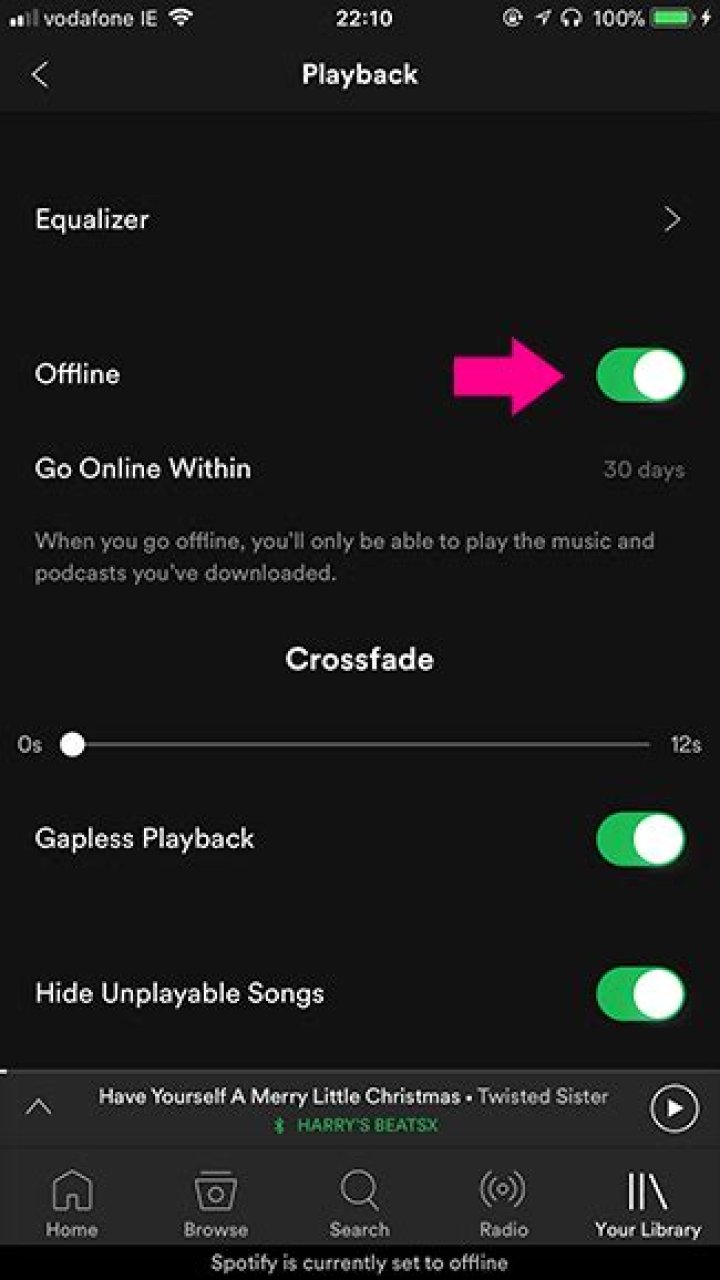
From the Your Library tab, tap the Settings icon in the top right and select Playback.
Tap the Offline toggle to put Spotify in Offline Mode.
Now when you use Spotify, you’ll only be able to play the songs you’ve downloaded. If you use Search, it will only return songs that are on your device.
It’s important to note that you can’t stay in Offline Mode indefinitely. You need to go online at least once every thirty days so Spotify can confirm you’re still subscribed.
Block Spotify From Using Mobile Data, But Not Wi-Fi
Turning on Offline Mode stops Spotify from connecting, even on Wi-Fi. If you want it to be able to connect on Wi-Fi but not when you’re on mobile data, you need to use your smartphone’s data controls to block Spotify from using mobile data. We’ve got full guides on how to handle mobile data on Android and on iOS, so check them out for the full run down.
Once you’ve blocked Spotify from using mobile data, it will automatically launch in Offline Mode when you’re on a cellular connection but still launch in Online Mode when you’re on wifi.
Harry Guinness is a photography expert and writer with nearly a decade of experience. His work has been published in newspapers like The New York Times and on a variety of other websites, from Lifehacker to Popular Science and Medium’s OneZero. Read more.
While audio streaming is nowhere near as hungry as video streaming, you can still burn through your data cap pretty quickly if you listen to a lot of music. And if you happen to be roaming at the time, you can easily rack up a several hundred dollar phone bill just by listening to a playlist or two on Spotify.
Obviously, Spotify is aware of this, so they’ve made it possible for Premium subscribers to save music for offline listening. It’s one of the features that really makes it worth the $9.99 a month. Here’s how to use Spotify offline so it doesn’t use mobile data.
Save Your Music For Offline Listening
If you want to use Spotify offline, you need to make sure you’ve actually got some music downloaded to listen to. With Spotify Premium, you can download 10,000 songs for offline listening on five different devices. That’s 50,000 total tracks across everything.
Strangely, there’s no way to download individual songs; you have to download either albums or playlists.
Open Spotify and head to the album or playlist you want to save for offline listening. As long as you’re a Premium Subscriber, you’ll see a toggle that says Download. Tap it and the album or playlist will save to your phone. Once the songs are saved, you’ll see a little green arrow next to them to show it.
If you want to delete the songs from your phone, just tap the Downloaded toggle again.
Now whenever you play any of the songs you’ve saved—in my case, anything off Twisted Sister’s masterpiece, A Twisted Christmas—it will play from your phone rather than streaming over mobile data.
Turn On Offline Mode to Avoid Streaming Altogether
While just downloading the songs you listen to most often for offline listening will go a long way towards cutting your data usage, anything you haven’t downloaded will still stream over mobile data. If you want to stop Spotify from ever streaming anything, so you avoid accidental data drains, you need to put it in Offline Mode.
From the Your Library tab, tap the Settings icon in the top right and select Playback.
Tap the Offline toggle to put Spotify in Offline Mode.
Now when you use Spotify, you’ll only be able to play the songs you’ve downloaded. If you use Search, it will only return songs that are on your device.
It’s important to note that you can’t stay in Offline Mode indefinitely. You need to go online at least once every thirty days so Spotify can confirm you’re still subscribed.
Block Spotify From Using Mobile Data, But Not Wi-Fi
Turning on Offline Mode stops Spotify from connecting, even on Wi-Fi. If you want it to be able to connect on Wi-Fi but not when you’re on mobile data, you need to use your smartphone’s data controls to block Spotify from using mobile data. We’ve got full guides on how to handle mobile data on Android and on iOS, so check them out for the full run down.
Once you’ve blocked Spotify from using mobile data, it will automatically launch in Offline Mode when you’re on a cellular connection but still launch in Online Mode when you’re on wifi.
Spotify is a prevailing digital music streaming service that gives you access to millions of songs, podcasts, and videos from artists all over the world. But like other music streaming apps, it can really consume a lot of cell phone data usage if you are not careful. We all know that WiFi is the perfect solution, which is doubtless. However, if you are always on the go, you probably won’t have WiFi around all the time, which means you are probably going to be stuck on a cellular network when you want to listen to your Spotify music. So what should we do?
Download Spotify instead of streaming. Yes, if you love any Spotify songs and want to listen to them over and over again without using data usage on the mobile phone, it is a good idea to download the songs. To save your data with offline mode, follow our guide on how to download Spotify songs.
- 1. Upgrade to the Spotify Premium
- 2. Download Spotify Songs with A Music Converter
1. Upgrade to the Spotify Premium
As we all know, there are two main tiers of Spotify: Free and Premium ($9.99 per month). Each of them offers different capabilities and limits depending on which device you use to access Spotify. You can find Spotify’s comparison chart here.
With the Premium, you can download music so it’s available everywhere you go. You can listen without an internet connection and save your mobile data by downloading up to 3,333 songs per device, on a maximum of 3 different devices. Downloading songs, albums or playlists on Spotify is simple. Just switch on “Download” on an album, playlist, or podcast you want to listen to offline. You can also switch it on for all Songs in Your Library. Now, whenever you are not connected to the internet, or when your app is in offline mode, you can still listen to this playlist.
More Tips: To lower the amount of mobile data usage, the Spotify user can change the quality of streaming in the settings on your device. You can also opt to only download music through WiFi by turning off the “Download Using Cellular” option.
Read More:
2. Download Spotify Songs with A Music Converter
Though you can set music to be offline with Spotify Premium, it’s not a real downloading in the traditional sense. So if you are not keen on monthly subscription fees for Spotify Premium, or want to download the songs to burn them to a CD or copy them to other devices. It’s easy to get Spotify songs with a music converter, TuneFab Spotify Music Converter is the best one among them. No matter whether you are a techie or a novice, the converter is easy to use. Working as a powerful Spotify music converter, it allows downloading Spotify songs freely and you can enjoy them on all devices. TuneFab Spotify Music Converter works smoothly on Windows/Mac, it can help to remove DRM from protected OGG audio and convert them into MP3, M4A, etc. with high original quality in no time.
Click on the above downloading button to install TuneFab Spotify Music Converter, then follow the steps to complete the conversion.
Step 1. Launch TuneFab Spotify Music Converter
Launch and run TuneFab Spotify Music Converter and the software will be loaded automatically.
Step 2. Add Music or Playlists to TuneFab Spotify Music Converter for Spotify
Search for the music you want to download on Spotify and copy the music URLs, then click “Add Files” button to paste the link into the search bar. Or you can Drag & drop a song or a Playlist from Spotify.
Step 3. Choose Songs
Choose the added songs you want to convert and then click “Add” button.
Step 4. Choose Output Format
After finishing adding tracks or playlists from Spotify, click “Options” button and you will get another setting window, then choose “Advanced” where you can specify the output settings at will. You can convert Spotify music to MP3, M4A, WAV or FLAC with high quality. And here you also can set the sample rate and bitrate before conversion.
Step 5. Change Output Folder
In the same window, click “General” tab and you will see the default output folder. If you want to change it, click on “Select. ” button to select a folder for your output file.
Step 6. Start Converting
After above settings, just click “Convert” button in the bottom to start converting Spotify music to the format you choose. You can click “History” button to find the music you downloaded from Spotify.
With the help of TuneFab Spotify Music Converter, you can download Spotify songs without limitation and save data usage. Enjoy it!
Spotify needs a WiFi or mobile data connection to work.
Mobile data
It’s best to use WiFi instead of mobile data.
If you don’t have WiFi, the app uses your mobile data.
Reduce data usage
Data Saver reduces the app’s data usage by showing fewer images and reducing audio quality.
- Tap Home.
- Tap Settings.
- Switch Data Saver on.
Tip: Under Data Saver, you can also switch Audio-only podcasts on. This means when you download podcasts it doesn’t download their videos too.
More ways to reduce mobile data usage:
- If you have Premium, download music to listen offline.
Tip: Make sure the app only downloads when connected to WiFi, switch Download using cellular off in the app’s settings (under Music Quality). - Check your Music Quality. Higher quality music uses more data.
- Switch Autoplay off in your app’s settings. This stops it playing after what you’ve selected.
- Use WiFi when using the app abroad. Check your mobile data plan to learn about roaming charges.
- Your device may have its own data saver. Check the support site for your device.
Video data
Videos use more data than music due to larger file sizes, but our data usage is comparable to other popular video channels.
Videos on podcasts
Some podcasts feature videos. You can’t turn these videos off, but they only play when you have them on-screen. If you navigate away from the podcast or lock your device, only the audio plays.
Note: When downloading a podcast, only the audio is downloaded, not the video.
Now playing moving visuals
The moving visuals in Now Playing is a feature called Canvas – a unique form of artistic expression on Spotify.
These are short and looping, so use very little data. After they’ve looped once, they don’t need any more data to keep playing. They also don’t continue to run in the background.
If don’t want Canvas, you can switch it off:
- Tap Home.
- Tap Settings.
- Switch Canvas (under Playback) off.
Bandwidth
The app uses some of your device’s internet bandwidth to play music without buffering.
Khamosh Pathak is a freelance technology writer who specializes in tutorials. His work has also been published on Lifehacker, iPhoneHacks, Zapier’s blog, MakeUseOf, and Guiding Tech. Khamosh has nearly a decade of experience writing how-tos, features and technology guides on the internet. Read more.
If you’re using Spotify Premium, you can easily download any song, playlist, or album that you like and listen to them offline. Here’s how to download music from Spotify for offline use on your mobile and desktop devices.
Download Music from Spotify on Mobile
Spotify allows you to download music on almost every screen in its mobile apps, but the option is curiously different depending on where you are. While you can download any song or album as long as you have Spotify Premium, let’s start with the most obvious, your Liked Songs playlist.
To do this, open the Spotify app on your iPhone, iPad, or Android device and then navigate to the “Your Library” tab.
From the Music > Playlists section, tap the “Liked Songs” option.
You’ll now see a big “Download” option at the top. Tap the toggle next to it to start downloading your Liked Songs. Now, as you keep liking songs, they’ll be saved to your library and automatically downloaded to your device. And, yes, this feature works for any playlist in your Library.
But this is a single switch. What if you only want to download a particular album, perhaps without adding them to your Liked Songs playlist?
Navigate to the album or the playlist and tap the “Download” button below the description.
The music will be added to your Library (but not your Liked Songs playlist), and Spotify will start downloading the songs instantly as long as you’re on Wi-Fi.
If you want to enable downloads over cellular, you can do that by going to Settings > Music Quality > Download Using Cellular and toggling on the option.
Now, as long as your smartphone or tablet connects to the internet once every 30 days, the downloaded songs will remain available for offline use.
You cannot directly download individual songs. Instead, you’ll have to use the Liked Songs feature. Tap the “Heart” icon found next to an individual song to Like it, and as long as you have the downloading feature enabled for the Liked Songs playlist, they’ll be available for offline listening.
Download Music from Spotify on Desktop
Spotify’s desktop app is quite limited when it comes to downloading songs. You can only download your Liked Songs and playlists. You can’t download individual albums or songs.
To download your Liked Songs playlist, open the Spotify app on your Windows 10 PC, Mac, or Linux computer and then select “Liked Songs” from the “Your Library” section in the sidebar. From there, click the toggle next to “Download” to start downloading all liked songs.
To download a playlist, first, open it in the Spotify desktop app and then click the three-dot Menu button. Here, choose the “Download” option.
How to Switch to Offline Mode on Spotify
Unlike Apple Music, Spotify doesn’t have a separate section for downloaded music. Instead, it offers an Offline mode. Once enabled, Spotify will stop interacting with the streaming service, even if you’re connected to the internet.
You’ll still be able to browse Spotify’s catalog of music, but you won’t be able to play them until you go back online. Offline Mode presents you with all of your recent offline music at the top of the Home page, and you can go to the Library to see the albums and playlists that you have downloaded. If a song is not grayed-out, it means it’s downloaded and can be played.
To switch to Offline Mode, click the “Settings” button found at the top of the Home section.
Here, choose the “Playback” option.
Now, you can tap the toggle next to “Offline Mode” to go offline. You can come back here again to go online.
The best thing about Spotify is its music discovery engine. Here are a couple of the best ways to discover new music in Spotify.
While I love Spotify, I don’t like it devouring my data plan when streaming music away from a Wi-Fi network. If you have the foresight or time to download Spotify tracks for offline playback later, great. For those of you who like to listen to your music more randomly like I do, based on your current mood, streaming is the only way to go, and there are settings you can tweak to use up less data.
Just like you can on Google Play Music, Apple Music, Netflix, Hulu, and other streaming services, you can fine-tune your Spotify settings to consume less cellular data when in use. However, as with all of the aforementioned apps, saving data pretty much means lowering quality for streaming content.
Spotify has four choices for streaming quality of music: “Automatic,” which picks the quality based on the strength of your internet connection, “Normal,” which has a 96 Kbps bitrate, “High,” which has a 160 Kbps bitrate, and “Extreme,” which streams songs as 320 Kbps. To save the most data, “Normal” would be your option, if you can handle the loss in quality, that is.
Save Data While Streaming on Android
On Android, tap “Your Library” in the bottom-right corner in the Spotify app. From there, tap the cog icon in the top right to get to your settings. Scroll down to Music Quality and tap the drop-down box next to Streaming. Choose “Normal quality” to save the most data. Additionally, “Download using cellular” should be switched off so you don’t accidentally download a ton of music with your data plan.
Save Data While Streaming on iOS
On iOS, tap “Your Library” in the bottom-right corner in the Spotify app. From there, tap the cog icon in the top right to get to your settings. Next, tap “Music Quality,” then select “Normal” under the Streaming header. Also, make sure “Download using cellular” is switched off so you don’t accidentally download music for offline playback when not connected to Wi-Fi.
Other Ways to Save Data on Your Phone
If you want to save even more data, then you’re best off downloading the music directly for later listening. As long as you have the spare storage and can predict what you’ll want to listen to, it’s the best way to keep your data costs down.
Still having trouble getting under your data cap? For those of you with Android phones, you can do things like set a data threshold warning and disable background app refresh, among other tips. On an iPhone, go to “General” in Settings, hit “Background App Refresh,” and uncheck Spotify. This will prevent it from using data in the background.
Keep Your Connection Secure Without a Monthly Bill. Get a lifetime subscription to VPN Unlimited for all your devices with a one-time purchase from the new Gadget Hacks Shop, and watch Hulu or Netflix without regional restrictions, increase security when browsing on public networks, and more.
These steps show you how to listen to your Spotify tracks offline on your phone and laptop.
Shelby Brown (she/her/hers) is a writer for CNET’s services and software team. She covers tips and tricks for apps and devices, as well as Apple Arcade news.
In March, Spotify revamped its desktop and web apps to work more like the mobile versions, making the music streaming service easier to use across platforms. In addition to the fresh look, Spotify improved playlist creation by adding the ability to drag and drop tracks. You can also now write playlist descriptions and add cover images on desktop and web the same way you would on mobile.
Perhaps one of the biggest updates arrived for premium members : You can now download tracks to a computer with the desktop app. This was already available for the mobile app, but now laptop and desktop users can also enjoy downloaded music while offline.
Here’s how to download Spotify music on the mobile and desktop apps.
How to download music in the Spotify mobile app
In case you didn’t know you could do this on your phone, it’s easy. Build a new playlist by going to the Your Library tab and tapping the Plus sign (+) in the top right corner. Name your playlist and start adding songs. No matter if you’ve got just one song or a dozen, toggle the Download button in the playlist within the mobile app. A little green arrow will appear next to each song to indicated it’s been saved to your phone.
But where do you find the downloads once you’ve got them? Go back to Your Library, and at the top of the screen you should see Playlists, Artists and Downloaded. Choose Downloaded. Now you should see all the playlists and songs you’ve downloaded and can listen to offline.
Now, Spotify’s desktop app works more like the mobile app.
How to download music in the Spotify desktop app
Downloading music with the Spotify desktop or web app is essentially the same as using the mobile app. Unfortunately, you can’t download solely using the web player in a browser, but downloading the desktop app is free.
1. Open the Spotify desktop app (if you haven’t downloaded it already, go ahead and do so from the app store of your choice).
2. Build your playlist. You can do this by clicking a song > Add to Playlist. From there, add it to an existing playlist or choose New Playlist to start from scratch.
3. Open your playlist (if you closed out of it while searching for songs) and toggle on Download.
4. After it’s completed, you’ll see a little green arrow next to the downloaded playlist in the left-hand panel. The little green arrow indicates that the playlist is available offline — no need to go through filters like on mobile.
5. If you no longer want the playlist or songs available offline, simply toggle off Download.
Wanna download your favorite Spotify tracks, albums, and podcasts so that you can listen to them without internet connection? Here we will provide you two solutions: one is to use Spotify Offline Mode, which lets you play all your downloaded songs and podcasts without a connection. And another one is to use a trusted third party program to download Spotify tracks, albums, and podcasts to digital copy .mp3. Now let’s start the illustration.
Method 1: How to Use Spotify Offline Mode on Multiple Devices (Premium)
If you have Spotify Premium account, you just need few steps to download Spotify tracks, albums, playlists and podcast to your devices and set the Offline Mode on Spotify app. Now let’s check the easy tutorial on how to set Spotify Offline Mode, so that you can listen to Spotify music anywhere without internet connection.
Before starting, please make sure that you have upgraded to Spotify Premium, and the internet is connected so that you can download Spotify music.
Step 1 Download Spotify music, playlist or podcast
Before going to Offline Mode, you need to download Spotify music, playlist or podcast so that it is available without internet connection. You can open the music or playlist you want to download, then switch on Download button at the top right of any song or playlist.
Step 2 Set Spotify Offline Mode
Once you’ve downloaded all the music and playlist, you can go ahead to set the Offline Mode of Spotify app.
For PC or Mac: Open Spotify, click –> click File –> select Offline Mode (Open Spotify on Mac, click Spotify in the Apple menu, select Offline Mode).
For mobile phone: Go to your Library page –> tap on –> tap on Playback –> switch on Offline.
With Spotify Offline Mode on, you are allowed to play music that you have downloaded without internet connection.
Method 2: Download Spotify Track/Playlist/Podcast for Offline Enjoy (Spotify Free)
In this part, we will show you how to use Sidify Music Converter to download tracks, playlists or podcast from Spotify as digital copy of MP3, AAC, FLAC, WAV, AIFF or ALAC without Premium, so that you can enjoy them on multiple devices like mobile phone, iPod without internet connection.
Sidify Music Converter
- Download Spotify song or playlist to MP3, AAC, FLAC or WAV.
- Keep 100% original audio quality of Spotify after conversion.
- Keep ID3 tags and metadata to well organize music library.
- Burn Spotify music to CD.
This is tutorial on how to download Spotify tracks, playlists or podcast to PC or Mac with Sidify Music Converter.
Step 1 Run Sidify Music Converter
Launch Sidify Music Converter on your computer. Spotify app will be loaded automatically.
Step 2 Add Spotify Track, Playlist, or Podcast
Click icon at the upper left corner of Sidify main interface, and a separate adding window will be shown. You can find the track, playlist or podcast you want to download on Spotify, then copy the link to the clipboard. Or you can drag & drop a track, playlist or podcast to Sidify Music Converter directly.
After Sidify finishing analyzing the link, you can click “OK” to check the music files you have added.
Step 3 Customize the Output Parameters
You can click on button at the upper right corner of Sidify, and a new dialogue box will pop up to let you choose the output format (MP3, AAC, FLAC, or WAV), conversion mode, output quality (320kbps, 256kbps and 128kbps).
Step 4 Start Downloading Songs or Podcast from Spotify
Now you can click on “CONVERT” button to start downloading Spotify track, playlist, or podcast to the plain audio format you chosen.
After the downloading process completed, you can click the Converted tab to check the well downloaded Spotify music.
We summarized the best two ways to play Spotify music without internet connection, and maybe you are familiar with the first method (Spptify Offline Mode). And now we introduced another useful way (Sidify Music Converter) which works for both Spotify Free and Premium account. So if you want to offline enjoy Spotify music on your multiple device, it is worth trying!
Note: The trial version of Sidify Music Converter enables us to convert the first 3-minute audio from Spotify for sample testing, you can purchase the full version to unlock the time limitation.
Bring your music with you. Spotify Premium users can listen to the streaming service’s expansive library even without an internet connection. Here’s how to download albums, playlists, and podcasts for offline listening.
Music-streaming services like Spotify put millions of songs at your fingertips—provided you have an internet connection. But if you need to preserve data or listen to a playlist on a plane or during a commute with lots of dead zones (when we’re doing that again), download those tunes to your device for offline listening.
Those with Spotify Premium can download up to 10,000 songs on a maximum of five devices. On the free, ad-supported tier, Spotify lets you download podcasts on phones and tablets.
Our Top-Rated Music-Streaming Services
Apple Music Review
Spotify Review
Tidal Review
Amazon Music Unlimited Review
How to Download Music From Spotify on Mobile
On mobile, you can download playlists, albums, or podcasts.
Downloading Albums and Playlists on Spotify
The interface is slightly different on Android and iOS, but the process is similar.
Find the album or playlist you want to download. On Android, tap the Download toggle on the top right; on iOS, tap the downward-facing arrow on the top left.
A downward-facing arrow will appear underneath each song in the album; they’ll turn green as the download completes. How long it takes depends on your internet speed.
When you’re offline and want to listen, tap Your Library > Music and find your music under Albums or Playlists. If the album or playlist has been downloaded and is available for offline use, you’ll see the downward-facing green arrow.
If you know you’ll be offline for awhile, like on a plane, activate Offline Mode, which will show you only the content you have downloaded. On Android, tap Home and the gear icon on the top right, then toggle Offline mode to on. On iOS tap Home > [gear icon] > Playback > Offline.
How to Remove Albums and Playlists From Downloads
If you no longer need offline access or want to free up space on your device, navigate to the album or playlist you want to delete from downloads and simply toggle the Downloaded button to off (Android) or tap the green, downward-facing arrow on the top left and tap Remove in the pop-up window (iOS).
How to Download Podcasts on Mobile
Spotify is one of our favorite podcast apps, and it’s a convenient way to keep your music and podcasts all in one place. For offline use, you can either download one-off episodes you’d like to check out, or follow a specific podcast and download episodes as they appear in your library. The process is the same on iOS and Android.
First, search or browse to find a podcast you want to listen to. On the podcast’s page, you can tap the downward-facing arrow to download specific episodes right away. Or tap Follow, which will add new episodes to your library as they’re released. You can then download episodes at your leisure via Your Library > Podcasts > Episodes. Downloaded episodes can be found via Your Library > Podcasts > Downloads.
How to Preserve Data While Downloading on Mobile
If you’re loading up your phone with a bunch of albums and playlists, you might want to restrict those downloads to when you’re on Wi-Fi, so the process doesn’t eat into your monthly data allotments. On iOS, navigate to Home > [gear icon] > Music Quality > Download Using Cellular. On Android, it’s Home > [gear icon] > Download Using Cellular.
How to Download Music From Spotify on Desktop
On the desktop, Spotify only allows you to download playlists, no albums or podcasts.
Find the playlist you’d like to download, and tap the Download toggle on the top right. When complete, it will say Downloaded. Downloaded playlists will have an downward-facing green arrow on the left menu. Click the toggle again to remove the download.
Pro Tip: Go Online Every 30 Days
To prevent people from downloading a bunch of content to their devices and then cancelling their Premium subscriptions, Spotify requires people to connect to the internet at least once every 30 days. A cellular connection is fine. If not, you’ll lose access to downloaded music and podcasts after a month.
Like What You’re Reading?
Sign up for Tips & Tricks newsletter for expert advice to get the most out of your technology.
This newsletter may contain advertising, deals, or affiliate links. Subscribing to a newsletter indicates your consent to our Terms of Use and Privacy Policy. You may unsubscribe from the newsletters at any time.
Your subscription has been confirmed. Keep an eye on your inbox!
If you have a Spotify Premium subscription, you can download your favorite tracks to play offline. While this is useful, it can quickly eat up your phone’s storage. From time to time, it’s well worth reviewing your downloaded music and deleting any tracks you no longer listen to. This can help free up space on your mobile device. Here we show you how to manage your downloads using the Spotify mobile app for iOS and Android.
If you’re an Android user, your device may support an external SD card, which gives you more options for storing your favorite tunes. If you have an Android smartphone or tablet with an external SD, we also show how to move your playlists onto this external SD card. This enables you to free up a ton of space without having to sacrifice any of your music.
Also read: How to Hide Your Listening Activity on Spotify with These Simple Tips
How to Delete Downloaded Spotify Songs on iPhone and Android
If you’ve downloaded songs via the Spotify app, it’s easy to delete these songs from your phone’s storage:
1. Launch the Spotify app on your mobile device.
2. Tap the “Your Library” tab.
3. Tap either “Playlists” or “Albums,” depending on the content you want to delete. All downloaded items will be displayed with a little green icon.
4. Tap the playlist or album you want to remove from your device’s internal storage.
5. Find the little green “Download” icon and give it a tap.
6. When prompted, tap “Remove.”
This album or playlist will now be deleted from your mobile device. Rinse and repeat for any additional music you want to remove from your internal storage.
Also read: How to Upload Your Music and Local Files to Spotify
Android Users: Move Your Music to an SD Card
For Android users, it’s possible that Spotify may have saved your offline music to Android’s internal storage rather than your external SD card. In this scenario, you can move your Spotify music to an external SD card.
Note: for Spotify to save music to an external SD card, the only requirement is that the remaining storage space in the SD card must be more than the phone’s internal storage. For example, if your SD card only has 4GB of space left and your phone’s internal storage has 5GB, Spotify will still save the offline music to your phone’s internal storage.
First, you have to clear all cached and offline music from your phone’s internal storage. To do that, open the Spotify app on your Android phone and tap the cog icon. This will launch Spotify’s Settings page.
Scroll all the way to the bottom of the screen. Here you should see the option “Delete cache and saved data.” Tap this option and select “OK.” This will delete all cached and saved data from the phone’s internal storage and log you out of Spotify.
Using a file manager, navigate to the “Android -> data” path. Find the “com.spotify.music” folder and delete it.
Lastly, log back into the Spotify application on your phone and resume downloading your favorite playlists and albums ready for offline use. Using the file manager, you should see that your offline music is now saved to your external SD card (in the folder “Android -> data -> com.spotify.music -> files”).
Also read: How to Change Spotify Username, Email, and Password
Wrapping Up
Here we showed you how to manage your downloaded Spotify music and move it to an SD card. You can also learn how to save data with Spotify here.
Our latest tutorials delivered straight to your inbox
Sunscreen; check. Hat; check. Playlists; ready for anything—even a vacation destination without Wi-Fi.
Being completely disconnected from Wi-Fi and data—whether in an airplane or rustic cabin in the woods—doesn’t mean you need to be without your favorite music or podcasts. If you’re a Premium subscriber, it only takes a few simple steps while you’re still at home and on Wi-Fi to download your favorite content and ensure it’s available when you go off the grid or up in the air.
First, if you’d like to use Wi-Fi to download, go to Settings > Music Quality > Download Using Cellular and check that the feature is set to the default “off.” From there, it’s easy to download tracks and podcasts on your cell phone, tablet, or iPad:
- Search for the content you want
- Select the playlist, album, or podcast you want to listen to offline
- Switch the download toggle ON—it will turn green so you know it’s working
- Once tracks in your library are downloaded, you’ll see a little green arrow below each song name
- Connect your headphones and start listening, no matter where you are!
If you’re using Spotify on desktop, but still want to take those songs or podcast episodes with you on your mobile device:
- Select songs to download automatically to your device by clicking the plus symbol next to any track
- That plus symbol will turn into a checkmark, which means the song will sync to your phone next time it’s connected to WiFi
- If you’re looking to organize your downloads, now’s the time! Using your computer to organize tracks into a playlist before you go can be a bit easier
Note that if you’re seeing songs grayed out when you’re offline, it means they’re not downloaded and you won’t be able to play them without Wi-Fi. (It might be a good idea to experiment with going online before you board the plane.) To see everything you’ve downloaded on your phone, check out the “Downloads” tab under “Your Library” on mobile.
Also know that there’s a maximum to the number of songs and podcasts you can download per device. If you do hit the limit, you can always go back and remove some existing downloads.
Plus, keep in mind that in order for Premium subscribers to keep all downloads available, you’ll need to connect your phone to Wi-Fi at least once every 30 days. So if you’re on an extended hiking trip, just make sure to connect to Wi-Fi at least once per month if you want to keep streaming.
For more tips about offline listening, ask a Rock Star for assistance on our Community page .
Get excited for your upcoming trip with our Soak up the Sun playlist, or plan to catch up on the latest Lore . (And if you want to take them with you on your travels, don’t forget to download now.)
If you’re a Spotify Premium member, chances are you have multiple devices connected to your account. You might connect to a speaker at a party, for example, or use your login information on a friend’s computer, but later forget to remove the device.
There are two ways to remove devices from your Spotify account: through the desktop program for Mac and PC, and in the mobile app for iPhone and Android.
When using a desktop computer , it may be easier to forget all devices, and then sign in using your Spotify credentials to the few devices you frequent.
Check out the products mentioned in this article:
iPhone 11 (From $699.99 at Best Buy)
Samsung Galaxy S10 (From $899.99 at Best Buy)
MacBook Pro (From $1,299.99 at Best Buy)
Lenovo IdeaPad 130 (From $299.99 at Best Buy)
How to remove all devices from your Spotify account using a desktop computer
1. Open the Spotify application on your Mac or PC.
2. At the top-right of the Spotify application, click the down arrow icon next to your username.
3. In the drop-down menu, select “Account” from the list.
4. Your preferred browser will open with your “Account overview” page. Scroll to the bottom of the page, and select “Sign Out Everywhere” — this will sign out all the devices currently connected to your Spotify account.
How to remove devices from Spotify using the mobile app
1. Launch the Spotify app on your iPhone or Android device.
2. In the “Home” menu, select the gear icon in the top right-hand corner to access your Spotify settings.
3. Select “Devices” from the menu list.
4. Select “Devices Menu” at the top to edit the devices connected to your Spotify account.
5. Scroll to find the name of the device you want to remove. To the right of the device’s name, select the icon depicting three horizontal dots.
6. A menu will pop up from the bottom of the screen. Select “Forget device” to remove the device from your Spotify account.
By Claire Wilson
For those who like to listen to a lot of songs on multiple music services, have you ever wondered is it possible to easily explore your listening history, discover new music and find friends with the same music taste on one app or software?
If so, then you can’t miss Last.fm which is compatible with Spotify, YouTube, Google Play Music and other services. That means with Last.fm, you can scrobble any songs you listen to on Spotify and other music services from any devices to Last.fm.
Next up, let’s know more about Last.fm and walk through the step-by-step guide for scrobbling Spotify music to Last.fm.
You May Like:
- Part 1. What Is Last.fm
- Part 2. How to Scrobble Spotify music to Last.fm
- Part 3. Pros and Cons of Scrobbling Spotify to Last.fm
Part 1. What Is Last.fm
As the largest online music service that learns what you love, Last.fm enables music fans to:
1. Create their own profiles which indicate their listening habit;
2. Track songs that they have listened to on their music services (which is referred to as scrobbling);
3. Get their own music charts and new music recommendations and meet their musical soulmates;
4. Discuss their favorite artists, albums, the latest obscure genre and so on.
Among the features of Last.fm, scrobbling is the greatest advantage. The scrobble function means to keep track of every songs you’ve played on music services like Spotify from any devices with Last.fm. Only by integrating Spotify account with Last.fm account, you can easily enjoy Spotify and Last.fm at the same time.
Part 2. How to Scrobble Spotify music to Last.fm
Step 1. Join or Log in Last.fm
If you don’t have a Last.fm account, then you need to create a Last.fm account at first:
Click on “Join” on the top right of Last.fm interface, then enter your “Username”, “Email” and “Password” and click on “Create my account” button on the bottom.
After that, you are prompted to verify your email address by clicking on the link on an e-mail sent by Last.fm.
For those who have joined Last.fm before, you need to:
Click on “Login” on the top right of Last.fm interface, then enter “Username” and “Password” and click on “Let me in!” button to log in Last.fm.
Step 2. Allow Access to Spotify Account
Put your mouse on your profile image on the top right corner and then click on “Settings” option from the pop-up list.
After that, go to “Applications” on the top of the settings menu and click on “Connect” button next to “Spotify Scrobbling” option. Finally, click on “Agree” button.
Smartphone owners are constantly lacking one of two resources. Either the battery is prematurely empty or the high-speed data volume is used up, so we have to surf at a snail’s pace. So, how can you reduce your data consumption? And what actually consumes so much data anyway? Here’s how you can stick to your data plan with ease.
Jump to section:
- How much mobile data do you need?
- Measuring data consumption
- Restricting data consumption
- Using offline functions
- Compressing the data stream
How much mobile data do you need?
There are certain data formats on the World Wide Web that unexpectedly cause higher data consumption. For example, animated GIFs are considered inefficient, which you might not initially expect. Not infrequently, it is more than a megabyte for a three-second animation. Even YouTube videos are more economical and should be expected to consume two to more than 10 megabytes per minute. For music, the consumption varies between one and five megabytes per minute, depending on the bit rate.
Measuring data consumption
- Android tools
- Provider apps
Android tools
Android delivers control over your data consumption. Just hold your finger on the corresponding tile in the quick settings, and you’ll get to the consumption overview. For some manufacturers, you need to go into the Data Usage section in Settings.
Looks a bit different everywhere, but works similarly. / © NextPit
In the consumption overview you can also set limits, have it give you warnings and limit background data. We will discuss this in detail later in the article.
Provider apps
There is another way to check your remaining data volume, and this may be somewhat more accurate. You can look directly at your carrier’s app. Practical tip: with many providers, you can put the current status as a widget on the start screen.
Restricting data consumption
- Set an upper limit in Android
- Limit the consumption of individual apps
Set a data limit in the Android settings
This is done primarily via the settings menu of the smartphone. Here, you can see and manage your data consumption. First, set up a consumption cycle that is adapted to your contract and the monthly renewal of your data volume. You can also set a limit at which the mobile data is automatically deactivated or capped.
Only once you set a hard limit will the data consumption stop. / © NextPit
Force individual apps to save data
Here, you also have a list of the consumption of individual apps. Tap on one, and you’ll see in the following view how much the app consumed in the foreground or in the background. There are apps that secretly use your data volume in the background – if all else fails, you can stop it by limiting the background data here. But caution! This may cause some apps to stop working – especially Google apps and system apps.
Reduce the background activity of individual apps. / © NextPit
Using offline functions
- Music streaming
- Offline navigation
Music streaming
Use stored videos and music on-the-go to save data, or use offline features of music and video streaming services.
- The best music streaming apps for Android
Spotify Premium, Tidal, and Google Play Music offer offline music playback. / © Spotify
Most music streaming providers offer an offline feature. This way, you can store your favorite songs on the smartphone and play them when you’re on-the-go. Alternatively, you can convert your CDs to MP3s and copy them to your internal memory or a MicroSD card and play them with a music player app.
Use Google Maps offline
Offline navigation in Android has become quite good. Google Maps will now automatically ask you if you want to keep your map excerpts offline for 30 days. You can now download and save maps to use later offline. This is an excellent way to reduce data consumption in the city you live in, for example. You learn how to do this by following our full guide at the link below.
- How to use Google Maps offline
You can download and save multiple maps for offline use. / © ANDROIDPIT
Alternative apps for offline navigation are here from Nokia/Microsoft or Maps.me. They all pursue different approaches and are well-suited to navigation in the car.
Compressing the data stream
- Only the browser
- All apps
Save data volume when surfing with Chrome’s compression feature
One of the many useful Chrome features is the ability to download compressed website data. You can enable this feature in the settings, almost at the very bottom. In our reviews, it has saved an average of 32 percent of our mobile data. This would equal, for example, 200 MB instead of 300 MB. This extra data volume is gladly accepted.
Compresses websites and saves load time and data volume. / © NextPit
Compress everything with Opera Max
Opera Max is a compression app that helps you save data while Internet surfing. The app sends all data via its own VPN server and compresses the videos and photos on apps and websites. Unfortunately, this is associated with a visible loss of quality. In the app, you will be shown which apps on your phone have the greatest data savings potential.
With the current version, you can save money when streaming music and videos. Thanks to the integrated Rocket Optimizer, MP3s and MP4s are converted to AAC+ format. At a lower bit rate, a similar sound quality can be achieved. Videos streams, like Netflix or YouTube, can be compressed on request by Opera Max. Buffering times are thus shortened, but the quality is visibly lowered. In our review, a 10-minute YouTube video saved more than half of the data, so that only 14.7 MB were consumed, instead of 31.2 MB.
What do you do when nothing helps?
If you are struggling, you have to switch to one of the many free Wi-Fi networks. Or, if you have a dual-SIM smartphone, you can use a SIM card with a pure data plan (without a telephone option) and thus surf cheaply.
What are your tips? Have you tried any of these methods?
Whether driving the familiar streets of your daily commute, breaking out the guide book for a road trip, or just going around the corner to grab some milk, the first thing most people do when they get in the car is turn the volume up. And if you already use Spotify to listen to your favorite songs, artists, and podcasts—maybe through your home speaker or Bluetooth headphones—you can easily and seamlessly continue listening from the car.
And your car listening experience keeps getting better. Thanks to new Spotify playlists such as Your Daily Drive , which combines the very best of news talk shows, including the relevancy and personality of the hosts, with the best of audio streaming (on demand, personalized playing and discovery), you can arrive at your destination even more informed. Plus, we’ve made it even easier to sync Spotify with two of the most popular navigation apps, Google Maps and Waze. It’s quick to enable playback controls within the navigation settings, making switching and selecting music as seamless as possible. And, with our integration to Google Assistant, it’s also possible to use your voice to control what you listen to in the car.
From belting out the best songs to binging a podcast , setting up Spotify in your car is simpler than ever, with a variety of ways to play Spotify through your car speakers. And with a Spotify Premium account, you can save your music and podcasts for offline listening, perfect for when you drive through spotty areas. So no matter what type of car or phone you have, take a look at the options below to see which works best for you. Soon you’ll be well on your way.
Please remember that safety is the #1 priority on the road – ALWAYS observe traffic laws.
NEVER attempt any of these connectivity methods while you are driving, and avoid interacting with your device while your car is in motion.
If your car has an AUX or USB socket, using a cable is probably one of the fastest ways to connect.
- Make sure you have the correct type of cable to connect to your phone (you can check with your car’s manufacturer if you don’t know which type you need). Some phones no longer have a phone jack, so you may also need the dongle that came with your phone.
- Find the AUX or USB socket in your car and plug in the cable. (Try looking for it on the center console.)
- Turn on your car and stereo, select the AUX input, then open Spotify and tap play.
Use Bluetooth to go wireless and enjoy all the functionalities of your smartphone or tablet.
- While you’re in park, go to “Settings” in your car stereo or to find the Bluetooth menu, then choose the option to pair your device. Some cars have a voice control button on the steering wheel instead—press that.
- Sync by turning on Bluetooth on both your mobile device and your stereo.
- Select your car, enter the pairing code if needed, then open up Spotify and hit play.
- You’ll see larger, driver-friendly icons in the Now Playing view on your phone, and you’ll also be able to quickly change songs with the Choose Music icon at the bottom of the screen.
- If you have audio controls on your steering wheel, you may now be able to control what you’re listening to from there.
Have Android Auto or CarPlay? Lucky you—your car is already Spotify integrated!
- For Android Auto, start your car, plug your phone into the USB port, and play Spotify.
- For CarPlay for iOS, start your car and make sure Siri is on. Plug your phone into the USB port or connect wirelessly. Then, on your iPhone, go to “Settings,” then “General,” then “CarPlay.” Select your car and get listening!
- Check out Explore Spotify to see if your car offers the Spotify app built into the dashboard. Just to note, some cars require Spotify Premium for integrated listening.
Take Spotify along for the ride, no matter where you’re going or what you drive to get there.
Also be sure to check out our Driving Hub , the ultimate pit stop for the best driving music and podcasts. Or, take Spotify for the ride with additional information on how to introduce your car to your favorite music and podcasts.
More of an audio learner? Check out our podcast series, “ How to Use Spotify in the Car. ”
Save data in five simple steps
- How to save data in Google Chrome
- How to save data in Google Maps
- How to save data in Gmail
- How to save data in music streaming apps
- How to save data in Facebook
No all of us need or want an unlimited plan. The good news is, you don’t have to sacrifice the convenience of a connected smartphone just to save money on mobile data. Here are five things that’ll take you five minutes to do and can save you a ton of money each month.
Your smartphone is indispensable. There are a ton of varyingly data-hungry apps that improve your mobile experience. Cloud storage, audio and video streaming, rich browsing, turn-by-turn navigation and so on can put a heavy demand on your mobile data connection. Fortunately, though, it’s easy to cut down on mobile data use without hindering your mobile experience.
Save data in Google Chrome
Bandwidth management
Google has implemented a feature in Android called Lite mode that can greatly reduce the amount of data that the Chrome browser demands. Using Google’s servers, Chrome condenses images and other files to optimize page sites on your mobile device. They also give you a visual look at how much you’ve saved over the past month using a simple line graph. According to Google, your data usage can be reduced by up to 60%!
To enable the Lite mode setting, head to:
Chrome menu > Settings > Lite mode
Save data in Google Maps
Caching Google Maps
You can download an area in Google Maps so that it uses less data when navigating to your destination. Not only does this save you tons of mobile data, it also improves the experience if you’re traveling through a low reception area.
While there’s some debate on the size of the cap, there is a limit on the amount of data you can cache. If surpassed, you’ll be asked to zoom on a smaller area.
To save a map for offline use:
- Open Google Maps and search for the location you want to save. Tap the bottom info bar and then tap Download.
- Choose the size of the region you want to save, name it and you’re done!
Get detailed instructions for Android and iOS.
Save data in Gmail
Download Gmail attachments on Wi-Fi
Google allows you to automatically download Gmail attachments over Wi-Fi. If you’re a daily user of the Gmail app, this toggle could help you save big! Sorry iOS users, this one’s an Android-only feature as well.
To enable this setting:
Gmail menu > Settings > [email protected] > (Data Usage) Download attachments
Save data in music streaming apps
Offline listening
All of the popular audio streaming apps offer different ways to listen to your tunes without having to stream them over a network connection.
Save data in Facebook
Disable auto-play videos
Facebook recently added a feature that automatically plays videos in your newsfeed, regardless of if you wanted it to or not. To avoid unintentionally downloading these videos:
Facebook Menu > Settings > Videos and Photos > Autoplay
Didn’t see your favorite app?
Make sure to check the app’s settings page for any data saving toggles that have been added. Developers are constantly improving their applications and may have included the feature since the last time you checked!
Interested in learning more about reducing your cellular data usage? Check out the comprehensive list of our articles on reducing mobile data usage.
How else do you save on mobile data each month?
We’d love to hear your tips in the comments below. We may even include your idea in our next data saving blog post!
What’s in store?
In the Ting Mobile shop you’ll find everything from good ol’ flip phones to the latest iPhone and Android phones.
Spotify is one of the largest music streaming services around the world with more than 140 million users. Although Spotify is equipped with lots of amazing features, it is unavoidable that you may encounter more or less Spotify problems. In this article, I would like to list some of those issues that may occur more frequently than others and show you the way to fix them.
- 1. Spotify Cannot Start
- 2. Spotify Failure to Stream
- 3. Spotify Stuttering
- 4. Spotify Cannot Connect
- 5. Delete Spotify Playlists Accidentally
- 6. Spotify No Sound
- 7. Remove Spotify Offline Devices
- 8. Cannot Add Local Files to A Playlist
- 9. Cannot Download Spotify Music for Offline Playback
- 10. Cannot Add More Tracks to Your Music
1. Spotify Cannot Start
This problem will appear when you try to launch your Spotify after installing but just find it is crashed. It seems that this issue has troubled users for times, therefore, I will provide you with the solution below:
(1) After downloading the Spotify Installer, save it to your computer.
(2) Start the installer then select Properties.
(3) Choose “Compatibility”, check the box of “Run this program in compatibility mode for:” and select “Windows XP (Service Pack 3)”.
2. Spotify Failure to Stream
You have already collected or bought songs with a premium account but it appears a box of “Can’t play the current track” or “You’re offline” while you are totally online. In many cases, these Spotify streaming errors are resulting from your home network or your device. Follow the steps to fix this problem:
(1) Open the Airplane mode of your device and then turn it off.
(2) Reopen the device you use to stream Spotify.
(3) Reinsert the wireless router.
(4) Unplug the modem from your Internet for 30 to 60 seconds.
(5) Put the router to a higher place to secure the WiFi router not covered by other items.
3. Spotify Stuttering
You may come across with the problem that you can listen to Spotify music but it is intermittent, which makes you crazy.
For Windows and Mac, you need to open Spotify Settings and choose “Edit > Preference > Enable hardware acceleration”. If it fails, uninstall Spotify and install this program again. For iPhone or Android, try logging out and back in at first. If it fails, restart the device and try again. Or you need to delete the app and reinstall.
4. Spotify Cannot Connect
There probably exists that you are able to use other apps and visit websites but just cannot connect to Spotify. The solution is as below.
(1) Make sure you can connect to cellular data when disconnecting to WiFi, which narrows the problem.
(2) Force close the Spotify and restart it.
(3) If step (2) fails, restart your device.
(4) Log out the Spotify account and log in again, or you can uninstall it and reinstall directly.
5. Delete Spotify Playlists Accidentally
Very often you may carelessly delete a Spotify playlist. Well, you can use the Spotify website to recover it.
Login the Spotify account and then click on “Recover playlists > Restore”. There will not appear one playlist you deleted right now but in the future. Next time you enter this page, click “Restore” to recover it to your account.
6. Spotify No Sound
When you open Spotify and want to play music now and then, but just find that there is no sound coming out. Check out the following method to the solution.
(1) Check the volume of the Spotify on your device to make sure it is not muted.
(2) On Mac, you need to press the “Option” and click on the “Speaker” so as to connect the right output device.
(3) On iPhone or Android, ensure your system volume is up without connecting Bluetooth headphones. In addition, clear your headphone jack with compressed air to unclog them.
7. Remove Spotify Offline Devices
You may extract music from Spotify with a Premium account and keep music offline by downloading to your devices. However, there are three devices limited for you to keep Spotify music. So, how to remove an unused Spotify offline devices to clear a new space?
Enter your Spotify account page and click Remove to remove device out of the list. while for the offline device, you can only keep 3,333 songs or you may not be able to listen to music.
8. Cannot Add Local Files to A Playlist
You desire to add your own music in the Spotify playlists thus you can listen to it everywhere, follow the guide mentioned below and you can fix this trouble.
(1) Enter “Edit (Windows) or Spotify (Mac) > Preferences > Local Files”.
(2) Search your iTunes files or your Music Library, or directly to the destination of your saved music.
(3) Add local files to your Spotify playlists.
9. Cannot Download Spotify Music for Offline Playback
You can download Spotify songs for offline playback but it just cannot under some circumstances.
First, you must be aware that there is a limitation of 3,333 songs for synchronization to each device, and for you exceeding the limits, you aren’t able to download any more songs unless you delete some songs.
Second, open the “Available Offline” switch will slowly delete its content, however, for fast solving this problem, you should delete the cache.
10. Cannot Add More Tracks to Your Music
There is a limitation on storing songs on Your Music so that you cannot add as many songs as you want. Some of you may be angry about that, but I want you to cool down and look for the following solution.
You are able to create a new playlist named “Library” and add music you like there. After the 10,000 song limitation, you can create “Library 2”, “Library 3” and so on. Add all of these libraries into File > New Playlist Folder, and you can see all the music within it.
In a word, there are 10 common Spotify problems and each of them has the method to fix. However, in order to avoid some unexpected issues, here I would like to recommend you to back up your Spotify Music with TuneFab Spotify Music Converter. If you want to listen to Spotify music at any time and everywhere or in case of the out of service for Spotify or unconnected to the Internet, TuneFab Spotify Music Converter is the best choice for you to listen to music easily.
Music Freedom™ lets you stream all the music you want from participating streaming services with your mobile device without using data.
On this page:
- Plans that include Music Freedom
- Participating streaming services
- How to use Music Freedom
- Roaming experience
Plans that include Music Freedom
Magenta plans and ONE Plan are unlimited so you can already stream all the music you want without worrying. The following plans automatically get Music Freedom at no additional charge:
Plan not listed?
- Some less common plans also get Music Freedom. Check by logging in to T-Mobile.com or the App, select Account, select the line you want to check, then select the name of your plan to see plan details.
- Don’t get Music Freedom? Stop worrying about data limits and make the switch to Magenta where you’ll get unlimited talk, unlimited text, and unlimited 4G LTE data on your device. Learn more about Magenta plans.
Participating streaming services
* These services also include video and are part of Binge On.
† Some music services might download song data to your device for offline listening, counting against your data allotment. To avoid this, make sure any available offline, download, or similar option is not selected for any song, playlist, or album shown.
If there’s a music streaming service you think should be part of Music Freedom, tweet us your favorite service @TMobile #MusicFreedom.
How to use Music Freedom
Music Freedom is enabled automatically if you’ve got an eligible plan – there’s nothing you need to do! However, we’ve got a few tips on how to avoid using data:
- Use the specific music streaming app on your device.
- Don’t stream to devices using Mobile Hotspot or tethering.
- When connected to Wi-Fi, your device uses zero data regardless of your streaming choices.
Downloading Spotify playlists to your Android device is pretty simple today.
Android is a mobile operating system being developed by Google. Among Android products, Android phones are very popular in the market. Most of the people prefer Android phones as they are easy to use and offer more choices – Compared to Apple enthusiasts, Android users have far more brands and models of phones to choose from at different price levels.
After years of development, many Android phones have also become ideal platforms to listen to music with. Currently, most people would subscribe to a streaming music service to enjoy music because we will have access to all the songs in the vast music library with around $10 or even free. And among all the streaming music services, Spotify is the dominant one in the market, offering 82 million songs to about 158 million Premium subscribers worldwide.
How can we stream Spotify songs on Android phones? To download Spotify Android app and then play songs within the app seems to be the only way, as we all know that Spotify offers protected songs only, which prevents us from listening to Spotify songs with other media players or extracting Spotify songs to other devices for offline listening. BUT, things will change if you use a special way to download music from Spotify to Android phones. After that, you can listen to Spotify songs freely
Download Spotify Music to Android via the App
Normally, to download Spotify songs to Android, you will need a Premium account. For Spotify Free users, please follow method 2 to download Spotify Music for free. The following is the step-by-step for paid subscribers to get Spotify music offline on Android mobile:
Step 1 Download the Spotify app on Android and log into the Premium account.
Step 2 Select a Spotify playlist, album, or song on phone.
Step 3 Tap the “Download” icon to start getting Spotify content offline on Android. Once the progress is done, there will be a green arrow beside each ffline song.
Download Spotify Music to Android via NoteBurner
If you want to download Spotify Free music to Android devices, here this method should be your best choice. Before getting started, you’ll be awarded that to download Spotify songs to Android without Premium, you’ll be required a smart tool, NoteBurner Spotify Music Converter.
NoteBurner Spotify Music Converter is a popular Spotify songs Downloader that is able to convert Spotify songs to MP3, AAC, WAV, AIFF, FLAC, or ALAC format with simple steps, keeping ID3 tags and lossless quality after conversion. After getting Spotify audios offline by NoteBurner, you can transfer them to any device without limitations.
Features of NoteBurner Spotify Music Converter:
- Convert Spotify music to MP3, AAC, WAV, AIFF, FLAC, ALAC.
- Record songs at 10X faster speed with 100% lossless quality;
- Upload music to OneDrive directly;
- Keep ID3 tags after conversion;
- Burn Spotify music to CD easily.
Step by step tutorial: Download Free Spotify Music to Android Phone
NoteBurner Spotify Music Converter supports both Windows and Mac OS. Here we will take the Windows version as an example to guide you to download music from Spotify (Free) step by step. For Mac users, please refer to How to Download Music from Spotify Free for Offline Listening on Mac for detailed steps.
1 Add Spotify songs or playlists to the Program
After downloading and launching NoteBurner, copy and paste or drag and drop the song/playlist link from Spotify (Free) to NoteBurner, the program will read and list all songs very soon.
2 Choose Output Format and Customize Output Path
Click “Settings” button on the upper right. Here you can choose output format (MP3, AAC, FLAC, AIFF, WAV, or ALAC), output quality, as well as the output path.
3 Download Music from Spotify Free to Local Computer
Click the “Convert” button to start conversion. Once the conversion is finished, all the Spotify songs you selected in Step 1 will have already been converted and downloaded to the output folder you set in the previous step.
By clicking the “Converted” button on the left side or directly going to the output folder you customized in Step 2, you can find all the downloaded songs from Spotify (Free).
4 Transfer Spotify Songs to Your Android Phone
Simply connect your Android phone to your computer with a USB cable and then send or copy & paste the converted Spotify songs to your Android phone. Or use Free Mobile Phone Manager to import music to Android phone easily.
Now you’ve got music downloaded from Spotify to your Android phone, you can listen to them offline with any media player whenever and wherever you like.
The internal storage space of computers/mobile devices has become bigger and bigger today, but it is still limited. If you install multiple apps or cache too many temporary local files, you may end up running out of space one day. Take the Spotify app for example, which is the most popular streaming service, it use the cache files to help you stream the music files online more quickly or play the files locally without using the cellular data of your mobile devices. Generally it takes 10% of your disk space for cached data. When the space is full, your phone may freeze. So do you want to delete the temporary files to free up more space?
It is not difficult to do that, however, if you haven’t done that, you may have no idea on how to get started and have questions like what happens if I delete Spotify cache and where is the data folder. Here I will offer the ultimate tutorial for you. No matter what devices like Windows, Mac, Linux, Android, IOS devices you have, you will find the right way to do that.
Part 1. How to Remove Cached Data on Computers
There are two kinds of Spotify caches, one is for the downloaded songs of premium account and the other is general cache such as temporary files, snippets which are created to prevent playback interruptions. For the former one, you can follow the steps to clear your cache on desktop.
Step 1. Click the downward arrow icon in the top-right corner of the app and then select “Settings”.
Step 2. Scroll down to find and click “SHOW ADVANCED SETTINGS” menu.
Step 3. Check the the item “Offline songs storage” to see where your cache is stored, you may change this to another folder as you want.
Step 4. Go to the folder to select and delete all the files manually.
For the latter one, there is not such as option to locate the folder, but usually you just need to follow the steps to delete files from the following folders on your computers accordingly.
Clear Spotify Cache Windows 10
C:\Users\[Your User Name]\AppData\Local\Spotify\Storage
Clearing Spotify Cache Mac
/Users/[Your User Name]/Library/Caches/
Part 2. How to Delete Spotify Cache on Mobile Phones
Similarly, you can also delete the downloaded playlists and Spotify app junk files on your Android mobile like Galaxy s9/Note9, LG G7, Huawei P10, Google Pixel 2 and iOS devices like iPhone, iPad and iPod Touch. To delete the downloaded Spotify songs and playlists, you just need to switch the button “Available Offline” off beside the playslists you want to delete. Regarding the Spotify app cache, the instructions to delete it vary on different devices.
Reduce Spotify Storage on iPhone
iPhone app doesn’t have the one-click button to delete junk files, the best way is to reinstall it.
Step 1. Locate and hold the Spotify app from your iPhone main screen until it shakes.
Step 2. Tap the “X” sign beside your app to delete it directly and restart your computer.
Step 3. You can logon to the App Store to search and reinstall a fresh copy of Spotify client.
Clear Spotify Data Android
Unlike iPhone, Android offers an elegant way to delete cache easily, you can do that easily without reinstalling.
Step 1. Go to “Settings” > “Application Manager”.
Step 2. Locate your Spotify app and click to open the app management window.
Step 3. Click “Storage” > “CLEAR CACHE” to delete the data directly.
Extra Tips: How to Download Music from Spotify to Android Phone
The above solutions do help us to free up space on our desktops, mobile phones. But it is not an once and for all solution. This means the cache files may return again quickly if you continue to listen to Spotify songs. What is worse is that if you are using cellular data to stream songs online, it could end up costing you an arm and a leg. Someone around me suggests that to change the audio quality on the settings to reduce the data consumption. Well, why would I want to sacrifice the audio quality considering that I am an audiophile?
Take it easy, here is a best alternative. DRmare Spotify Song Converter for Windows/Mac is an exquisite tool to extract the songs from Spotify app so that you can transfer the files to other media player for playback or any other purposes. For more info about it, you can check the following features.
Dedicated Recorder for Spotify Music
- User-friendly interface, it takes only a few clicks to backup the songs for offline listening
- Powerful enough to keep 100% quality of all Spotify tracks, playlists, radio and so on
- Convert Spotify files to MP3, AAC, M4B, M4A, FLAC, WAV for any mobile devices
- One stop solution to download, convert, tidy up and archive the music by album/artist
After converting, you can put the local songs to any devices like mobile phones, game consoles, streaming boxes, smart TVs for playback. Here I will take Android phone to show you how does it work quickly.
Step 1 Import the link of Spotify playlist Launch DRmare Spotify Converter, then drag and drop the link of your playlist from the Spotify app to the DRmare software main screen. This is by far the most efficient way to import the files. You can import up to 100 songs at a time. Step 2 Set output music format
Undoubtedly, MP3 is a best format for any Android devices, so we’d highly recommend you to keep the default “MP3” and its settings. Of course, you can’t go wrong with other formats too such as WAV, FLAC if you like to listen lossless songs. Step 3 Download Spotify songs offline
After that, you can navigate the bottom of the software and click “Convert”, it should start to save all the Spotify music to your local computer in batch with up to 5X speed. Finally, you can move the downloaded songs to your Android via USB cable and you can delete Spotify app from your device completely so that it won’t generate any cache to occupy extra space and save your monthly subscription fee.
One of the best features of Spotify Premium is the ability to download songs to listen to anywhere, anytime.
Spotify Premium lets you download up to 10,000 songs on up to five devices, so that you don’t have to use your precious mobile data to stream your favorite music and podcasts on the go.
Sometimes, though, Spotify might give you a bit of trouble when you try to download items. If that little download arrow next to your new favorite song, album, or podcast just won’t turn green, there could be a few different things going wrong.
Check out the products mentioned in this article:
Spotify Gift Card (From $10 at Best Buy)
iPhone 11 (From $699.99 at Best Buy)
Samsung Galaxy S10 (From $899.99 at Best Buy)
How to troubleshoot if Spotify won’t download music
Here are the most common fixes for when Spotify songs won’t download on your iPhone or Android device.
Make sure you have a proper internet connection
Check that you have a Wi-Fi connection in the top-left corner of your screen, and that the connection is strong.
If you do see the Wi-Fi symbol, but songs are not downloading, go to the Wi-Fi section of your phone’s settings and make sure that the network you are connected to doesn’t have any error alerts next to it.
If it says “Unsecured Network,” you may have to take further steps to connect. If it says “Connected, No Internet,” there is something wrong with the Wi-Fi network itself.
By default, Spotify prevents you from downloading songs over cellular data networks, so if you have an LTE connection instead of a Wi-Fi connection, the songs will wait until the next time you are connected to Wi-Fi to download.
If you want to enable cellular downloading, tap the Settings gear in the mobile app, tap “Music Quality,” and switch on “Download Using Cellular.”
Nowadays, our mobile phones have become an integral part of our lives. From shopping to health, we are communicating with the world through our mobile phones. While phones keep us connected with the rest of the world, music is something that brings us closer to ourselves. Nothing can be as blissful as listening to music through our mobile devices. If you are wondering about how to download music to your phone, continue reading this article.
Downloading music on your phone can be done in several ways. You can either download a music app, browse your favorite songs on YouTube, or just download it from supported links for offline usage. Each available method will be explained in detail here. So, gear up yourself for the ultimate guide on how to download music to your phone.
Photo by Android Central
Note: Buying the best headphones available in the market will help you enjoy your favorite songs even more.
How To Download Music To Your Phone?
Some download software out there let you get your favorite music for free and share them across different devices. However, they bypass the digital rights encryption of online content and is, therefore, illegal. Our site does not condone any form of piracy. In this article, we provide only the legal means to download music to your phone for offline listening. Take note that since you are getting DRM-protected music, you won’t be able to access them outside the app where you have downloaded them.
Method 1: Using Mobile Apps
If you are using a smartphone, your phone must have a default music app. For Android, the app is Google Music and for iOS, it’s iTunes. These apps are built-in and can work without any download. You can use these apps with an active Internet connection. You can create a playlist of your favorite songs and enjoy them anytime. However, to listen to songs offline, you may need to download them. Follow these steps for the same:
- Open your default music app.
- Tap on the song that you want to download.
- Click on Download.
The song will be saved on your phone for future offline use. You can download the entire playlist as well. For that, you need to open the playlist and tap on Download All.
Method 2: Subscription-Based Service
Many subscription-based apps allow you to enjoy live music streaming and download songs. Amazon Prime Music is the most famous one out of all. If you want to download music from such a service, then these steps should be followed:
- Download the app of your subscription-based service on your phone from Google Play or App Store.
- Set up the account.
- Search the song in the search bar.
- Click on Download.
If you are interested in signing up for Amazon Prime Music, you can sign up by clicking this link right now.
Method 3: Third-Party Applications
If you are not happy with the default music app on your smartphone, there are many third-party music apps available for free to give you a more personalized experience. Apps like Gaana, Wynk, and Spotify are easily available in the App store and can give access to millions of songs suited for every mood. Just like default music apps, you can do music stream online and can download the music on your phone for offline usage.
If you have an Internet connection and uses it abundantly, enjoy the uninterrupted music on your phone by following the below-mentioned steps:
For Android Users
- Open the Google App Store.
- Search the famous music app.
- Click the Download button and wait until it gets completed.
- Once the installation is completed, open the app and start listening to your favorite song.
For offline music, you need to click on the Download button and the song will be available for offline usage. Learn more about how to download music on Spotify here.
How To Download Music To Your Phone: Final Thoughts
Music is what keeps our mood fresh and makes us feel good. The joy of listening to free music from your phone has no comparison. So, follow these steps and download your favorite songs on your phone and enjoy them.
If you would like to know the 50 best free Android apps of 2019, read our comprehensive guide here.
When you play music on any of your devices, whether it Google Home or your PC, Spotify app on your phone will show music playback controls. This is quite handy since you can control music for any of your devices. But, sometimes it is really annoying and battery draining by staying on the notification area and lock screen. We have a solution to disable Spotify connect to avoid getting Spotify playback controls for other devices.
Here, we will show you how to turn off Spotify connect on your iPhone and Android.
Disable Spotify Connect on Android and iPhone
If the Spotify connect playback controls are being so annoying and draining up your battery, you can toggle it off from the Spotify settings. Here is how to turn off Spotify Connect. Before going in, make sure you have the latest Spotify app update on your Android or iPhone.
- Open the Spotify app on your iPhone.
- Tap the gear/cogwheel icon in the upper right corner to go to Settings.
- Go to Devices from the Settings window.
- Toggle off the Devices Lock Screen option.
After disabling the option, Spotify Connect will not appear on your lock screen anymore. Playback controls for another device on Spotify will not always appear on your phone.
In case you still are getting the Spotify Connect music controls for your other device, you can set your smartphone Spotify app offline. For that, go to Spotify app settings and navigate to the “Playback” option. Now, toggle on the “Offline” option which will put your Spotify app offline.
You can thus turn off Spotify Connect from your Android or iPhone and avoid the headache of getting playback controls whenever you play music on your PC or smart speaker. Hope this solves the best for you.
Disclosure: Mashtips is supported by its audience. As an Amazon Associate I earn from qualifying purchases.
Let’s get real for a second: mobile data is expensive, and it can get eaten up quickly by many different apps and performance issues that drain data without you even realizing it.
Fortunately, there are plenty of ways to cut back on your data usage on an Android device.
Check out the products mentioned in this article:
Samsung Galaxy S10 (From $899.99 at Best Buy)
How to save data on your Android device
Here are five ways you can save data on your Android device.
Connect to Wi-Fi frequently
The easiest way to save data on your Android device is to connect to Wi-Fi as often as possible to avoid using unnecessary data. If you’re doing something on your Android device that requires a lot of data, like streaming videos or performing app updates, connected to Wi-Fi will save you a lot of data in the long run.
Use streaming apps in moderation
If an app you’re using streams video, music, or even just large photos, the app is going to eat up a lot of your data. You’re better off using heavy-data apps like Spotify, YouTube, or Netflix on a computer instead of your Android device, or limit their use to times when your Android device has a secure Wi-Fi connection.
Limit data usage for specific apps
Limiting the data usage for specific apps can also help save data in the long run. This involves disabling the feature that allows an app to use data while it’s running in the background of your phone, even if you aren’t using the app.
1. In your Android device’s Settings app, tap on “Apps.”
2. Tap on the app that you want to limit data for.
3. Tap “Mobile data.”
4. If background data usage is enabled, the slider next to “Allow background data usage” will be white and blue. To disable this feature so that you save data, tap on the slider so that it turns only white.
Set a data limit for your Android device
Getting into more extreme measures, you might find it helpful to set a limit on the amount of data your Android device uses. You can do this in your device’s Settings.
1. Open your Android device’s Settings app.
2. Tap on “Connections.”
3. Tap on “Data usage.”
4. Tap on “Mobile data usage.”
5. Tap on the gear icon in the upper-right corner of the screen.
From there, you can set a data warning so that you know when you’re running out of data, or set a complete limit on mobile data usage, so that your device stops using data after a certain point until your next billing cycle.
Turn on data saver mode
When all else fails, there’s always data saver mode. This mode will completely stop all of your Android’s data usage by disallowing all apps to run background data. As you might expect, this can sometimes affect various apps’ functionality.
1. Open the Settings app on your Android device.
2. Tap “Connections.”
3. Tap “Data usage.”
4. Tap “Data saver.”
5. If data saver mode is off, the slider will be white. To turn data saver mode on, tap on the slider so that it turns white and blue.
It is very easy to download Spotify music for offline listening with Spotify premium. All you need to do is switch on Download on a playlist you want to listen to offline. You canВ downloadВ up to 10,000В songsВ on each of up to 5 different devices. However, Spotify free users are not allowed to download Spotify music for offline listening.
Is there any Spotify downloader that can download Spotify music with Spotify free account? The answer is yes. Here we will introduce you free tools for you to download Spotify music to mp3 with either free or premium account.
Note: We once introduced Spotify Deezer Music Downloader – a Google Chrome extension that allows you to download Spotify music, but currently it is no longer available .
Part 1 Free Spotify music downloader
1. AllToMP3
AllToMP3 allows you to download mp3 music from Youtube, SoundCloud, Spotify and Deezer. When you use it to download Spotify music, all you need to do is to copy&paste the song/album/playlist to the area and click Enter. It also search Spotify titles from online libraries and then download them, so some songs may not be downloaded or you may get wrong songs.
2. Spotifyв„ў & Deezerв„ў Music Downloader(Currently unavailable)
Spotifyв„ў & Deezerв„ў Music Downloader is a Google Chrome extension that allows you to download Spotify songs to mp3 from Spotify Web player. You can download music from the Spotify Web player directly, extension adds a download button to web player interface. It’s very easy to download Spotify music if you have Google Chrome browser installed and internet connection. This Spotify Music Saver searches and download Spotify music files from multiple mp3 libraries, however, due to the missing of a certain number of tracks in the libraries, some Spotify tracks won’t be downloaded. Besides, you have to download each song one by one. Some songs may not be in 320 kbps. This kind of extension may be banned frequently, we will update this when we find new ones.
3. Spotify Downloader
Spotify Downloader claims that it allows you to enter a Spotify url to download a song. You can only download Spotify songs one by one. It can’t analysis album or playlist link. Besides, the Id3 tags such as Artist, Album and Genre are not preserved. Downloading is not stable, you may often get error “An error suceeded. Please try again later”.
Although above Spotify music downloader are free, they have various limitations. If you want a stable and professional Spotify music downloader, we recommend Ondesoft Spotify Converter.
Part 2 Best Spotify music downloader
Ondesoft Spotify music downloader
Unlike above Spotify Music Downloader, Ondesoft Spotify music downloader allows you to download Spotify music directly from Spotify library and save them to MP3, M4A, WAV, FLAC, OGG, AIFF at 320kbps. It can download any songs you want, as long as it’s in the Spotify library, so that you can transfer and play the Spotify songs anywhere you want.
As a giant in the streaming music service, Spotify is going to become a podcast company, too. By acquiring two podcast providers Gimlet Media and Anchor in 2019, it shows a big ambition in the content creation business than the music. According to the reports, Spotify spent up to 500 million USD on podcast deals in 2019 and brought more podcasts to run exclusively on Spotify.
Currently, there are thousands of podcasts to stream on Spotify already. Spotify users can listen to podcasts directly from the app on their devices. So, do you know how to download Spotify podcasts to listen offline? Here we’ll show you how to listen to Spotify podcast without an internet connection step by step.
Part 1. How to Download Podcasts on Spotify PC & Mobile
No matter whether you have signed up for a Spotify premium account or not, you can easily download podcasts on Spotify for iOS, Android, Mac, and Windows or from the Spotify web player. After that, you’ll be able to listen to podcasts wherever you have no internet connection. But you have to go online every 30 days to verify your account status. Otherwise, you’ll not be allowed to access those downloaded podcasts. Now follow the simple steps below to learn how to download Spotify podcasts for offline listening.
1.1 Download Spotify Podcasts on Mobile and Tablet
Step 1. Open the Spotify app on your iPhone, Android phone or tablet.
Step 2. Then browse the store to locate any podcast that you want to download, then tap the three-dot icon at the right of the podcast episode.
Step 3. Tap the Download button if you’re an Android user. Or tap the downloaded arrow icon on an iPhone. And then those podcasts will be automatically saved to Your Library. Wait till the downloading process completes.
Note: Make sure you’ve connected to a Wi-Fi network or turned mobile data. We strongly recommend you download podcasts from Spotify when you have a Wi-Fi connection.
1.2 Download Spotify Podcasts on Windows, Mac, and Web
Step 1. Open the Spotify app on a Mac or Windows computer, or go to
Step 2. Find the podcast that you would like to download to your computer.
Step 3. Then click the download arrow button next to the podcast episode. Wait for your podcasts to be downloaded and saved in Your Library.
Part 2. How to Download Spotify Podcast to MP3 on Windows & Mac
Although Spotify enables you to download podcast offline, you can only play those downloaded podcast episodes with the Spotify app. All the Spotify audio content is encoded in a special OGG Vorbis format, which is not supported to play on those unauthorized players or devices. Is it possible to listen to Spotify podcasts offline on any device without using a Spotify premium subscription? Just go on reading. Here we’ll introduce a powerful Spotify podcast downloader to help you achieve that.
2.1 Spotify Podcast Downloader: ViWizard Music Converter
To save podcasts from Spotify to MP3, you’ll need the help of a smart Spotify music downloading tool, that is, ViWizard Spotify Music Converter. By using this software, you can easily download Spotify podcasts, songs, playlists, albums, and audiobooks without limits. It is specially designed to download and convert Spotify music to listen offline.
ViWizard Spotify Music Converter works for both free and premium users of Spotify on Windows and Mac. It can help you download Spotify podcast to MP3, WAV, AAC, FLAC, or other common audio formats. After that, you can play them on any media player or portable device as they’re all saved as local files on your computer. The most important is that ViWizard software can keep 100% original audio quality and metadata information.
Download free music for offline listening
:max_bytes(150000):strip_icc()/GlamProfile-7bfa34647d8e4c8e82097cc1daf8f5ec.jpeg "How to save spotify music offline (and stop using mobile data)")
- Saint Mary-of-the-Woods College
- Tweet
- Share
- Tweet
- Share
In addition to websites where you can download music for free and stream free music online, there are music apps with an offline mode. Here are the best offline music apps that let you save songs to your device so that you can keep listening even when you run out of data or are in an area with spotty coverage.
Listen to New and Old Music Offline: Spotify
Works on popular devices.
Offline mode is free for one month.
Offline mode isn’t free past the trial.
Requires a user account.
Spotify is one of the most popular streaming music services on the internet. In addition to streaming to a computer or mobile device, this service supports other ways to enjoy music, like streaming to home stereo systems.
Along with a large music library, Spotify supports an offline mode. To use this feature, you must subscribe to Spotify Premium. This subscription gives you music caching on a desktop or mobile device so that you can listen to tracks without connecting to the internet.
Get Personalized Music Recommendations: Pandora
Easily discover music.
Two offline listening plans.
Lots of useful features.
Offline access isn’t free.
An account is required to listen.
Pandora is an awesome music service that lets you discover new music by telling the app what you like and dislike. To get offline access with Pandora, subscribe to the Pandora Plus or Pandora Premium package.
With Plus, the app automatically downloads your favorite stations to your mobile device and switches to one of those stations if you lose your internet connection. With Pandora Premium, you get the same feature and the added capability to download any album, song, or playlist in Pandora’s vast library to play offline.
Find Up-and-Coming Artists: SoundCloud
Music from up-and-coming artists.
Offline support is free for some songs.
Minimal and clean design.
Offline listening isn’t free for most songs.
Different music than most similar services.
An awesome way to discover interesting music and songs from new bands is with SoundCloud. Unlike most music streaming apps, you can fast forward and rewind through songs and play any single track you want.
SoundCloud offline access works on both the SoundCloud Go and Go+ membership. However, some songs on SoundCloud are free to download without a paid subscription.
Great for Google Users: YouTube Music
Upload your music and music videos.
Free offline access trial.
Modern and easy to use.
Offline access is not free.
The free version is limited in multiple ways.
YouTube Music is a service to keep in mind when looking for an online and offline listening combo. It’s free for the first 30 days and charges a monthly fee after that.
The YouTube Music app can be used to save music to a smartphone or tablet, so you can stream your library without being connected to the service. However, a YouTube Premium subscription is needed to take advantage of this feature.
Offline Music for iPhones: Apple Music
Huge music selection.
Runs on iOS and Android.
All music is available offline.
No free version.
The recommendation engine isn’t as robust as Spotify’s.
Apple Music offers access to a catalog of more than 50 million songs. You can play anything in its library online or offline without ads.
To avoid using cellular data, download songs to your phone from Apple Music while you have a Wi-Fi connection. You can create and download playlists or try one of the curated playlists Apple Music offers.
Apple Music requires a subscription, but you can try it free for three months.
The Successor to Slacker Radio: LiveXLive
Easy to find certain kinds of music.
Can pay for more features.
Offline music requires payment.
The free plan has lots of ads.
Standard quality unless you pay.
LiveXLive (formerly Slacker Radio) is a streaming music service that provides a multitude of the best internet radio stations. You can also use the service to create personalized compilations. The basic, free membership doesn’t include a downloadable music option. To listen offline, you need a Plus or Premium package.
A feature called Mobile Station Caching, which is available for the Plus and Premium subscription packages, stores the contents of particular stations on your mobile devices so that you can listen to those stations without a network connection.
If you want more flexibility, the Premium package allows you to cache individual songs and playlists for offline listening rather than only the contents of stations.




