There are countless benefits to using cloud storage, and as we show in our Dropbox review, it isn’t a market leader for nothing. However, if you’re not careful, you risk anyone being able to access everything that you’ve stored. In this article, we will be looking through Dropbox’s history and policies to determine how well it can secure your data.
Simply put, if security is your main concern, you should look at our list of the best Dropbox alternatives. This is because Dropbox retains the right to access your information, and it can do this because the encryption isn’t zero-knowledge. There also isn’t a clean history that can prove it’s a secure cloud storage service.
Dropbox does still use some good security tools, with the AES 256-bit encryption for data at rest and AES 128-bit encryption for data in transit. Documents like the Dropbox security whitepaper outline how Dropbox Business protects its users’ devices, but there isn’t an equivalent for the security of personal files.
Previous Dropbox Security Issues and Breaches
Dropbox has been around for almost 13 years and has more than 600 million users. During this time, there hasn’t been a shortage of problems. Hackers caused some of these, but they all show the issue is with how this cloud service deals with user data.
The first mistake was in 2011, when an error in an update allowed anyone to access any Dropbox account with only the email address. There was a fix within four hours, but the update shouldn’t have gone live without proper testing.
The next major problem was a severe data breach in 2012. This leak ended up revealing the emails and passwords of 68 million users, and until 2016 Dropbox believed that only the email addresses were compromised. In response to this Dropbox security breach, the service made a public blog post and added some security upgrades.
At this time, anyone with potentially compromised details received a prompt asking them to change their password. However, we don’t know how many accounts the hackers accessed before the implementation of extra security measures. Options such as two-step verification became available, and the security tab also gained the ability to log out other devices.
The 2012 leak was due to an employee’s compromised Dropbox account, and in 2014 there was criticism around employees having access to encryption keys. However, there was no policy change here, and your files can still be decrypted and viewed at any time.
After the Dropbox security breach, there were no known major problems until 2017, when users saw deleted files reappear on their accounts. Supposedly this was caused by an error that didn’t remove some files, and when fixing it, a mistake led to these files being sent back to users. This means that some data from six years ago was never deleted and was vulnerable to a leak.
Why Does Dropbox Keep Having Security Problems?
In order for Dropbox to interact with other apps, data needs to move freely between the two companies. If the files needed to first be decrypted by your device, the whole process would slow down. To get around this, Dropbox holds on to your encryption key so they can look at your files whenever they want.
However, other services use zero-knowledge encryption, where your password is a secret and no one else can access your files. This slows down most processes, but it also makes it harder for governments and hackers to snoop through your stuff because even the host company doesn’t know what you’ve stored there.
Dropbox’s headquarters are in the U.S., which is another potential security problem. Some U.S. laws, such as the Patriot Act, give agencies the ability to demand access to your data. If Dropbox couldn’t see what you’ve stored, this wouldn’t be a problem. However, as it stands, your files would be at less risk with a company based somewhere with stronger cloud privacy laws.
Simple Ways to Secure Your Data
If you want to protect your files, you could always move to another provider. Our article comparing Dropbox vs Google Drive vs OneDrive compares the big three, but you would need to look somewhere else for a true zero-knowledge cloud service.
To secure Dropbox and get the privacy this service doesn’t already offer, you should look at third-party encryption software. These protect your files before you use cloud storage, and the keys are held on your devices so you know everything is safe.
One of our favorite pieces of encryption software is Boxcryptor. It keeps no information about its users and can protect any files from almost any attack. Although no software is perfect and nothing is ever risk-free, programs like Boxcryptor are a step in the right direction.
Another option for keeping your data hidden is NordLocker from Tefincom, the company that develops NordVPN. Although it’s a newer service, NordLocker sounded impressive enough to give it a shot, and it didn’t let us down. Its protection is among the best, even if it’s a tad light on features. You can find out more information about this encryption software in our NordLocker review.
Is Dropbox Secure?
With basic protections, such as two-step verification, your information isn’t open to every prying eye. As long as you make sure your Dropbox account is using these systems and you use a randomly generated, secure password, most people shouldn’t have any serious problems with Dropbox.
Sign up for our newsletter
to get the latest on new releases and more.
However, if you don’t like the security risk that Dropbox creates and don’t want to use alternative services like iCloud Drive or Sync.com, there are ways to add an extra layer of protection. By separately encrypting your data and using unique passwords, you can help keep your data safe, although these practices are good ideas regardless of the security a service provides.
What do you think of Dropbox’s security? Let us know your thoughts in the comments below. Thanks for reading.
Dropbox’s Security FAQ
Can Dropbox Be Hacked?
Everything that’s connected to the internet has the risk of being hacked. Although it does use industry-standard protections to make it harder for a hacker to gain access, anyone could get your encryption key because Dropbox stores it alongside your data. If you have files you don’t want to risk, we don’t recommend using Dropbox alone.
Is Dropbox More Secure Than Email?
Some email services will encrypt your messages, but most providers still have flaws in how they store and access the data. Email doesn’t prioritize privacy, so Dropbox will be a better place to send files to other people. However, you will lose the simplicity of email without getting the security that other services offer.
@Summerson
Updated November 14, 2019, 2:10pm EDT
Back in May of 2016, Dropbox announced on its official blog that it now has half a billion users. That’s a lot of people, which also means there’s likely a lot of information being stored in this cloud service that you wouldn’t want other people seeing. If you’re one of those 500 million, it’s time to secure your account.
Choose a Strong Password
Wait, don’t skip this section! I know you’ve heard this a million times, but there’s a reason: it’s important. If you’re using some crazy-weak password, it honestly doesn’t matter what else you do, because your account is already halfway to being compromised. So use a strong password!
But that’s not all. The more complex your password, the more secure it is, so I recommend using a password generator and manager like LastPass. Not only can you use this tool to create strong, basically un-guessable passwords, but you can then use it to store those passwords. That way, you need only remember your master password, instead of the dozens of passwords you use for different sites. Like I said, LastPass is my favorite, but there are others out there. Explore your options, then pick the one that’s best for you.
To change your Dropbox password, first log in to the Dropbox website. From there, click on your little avatar in the upper right corner and select “Settings.”
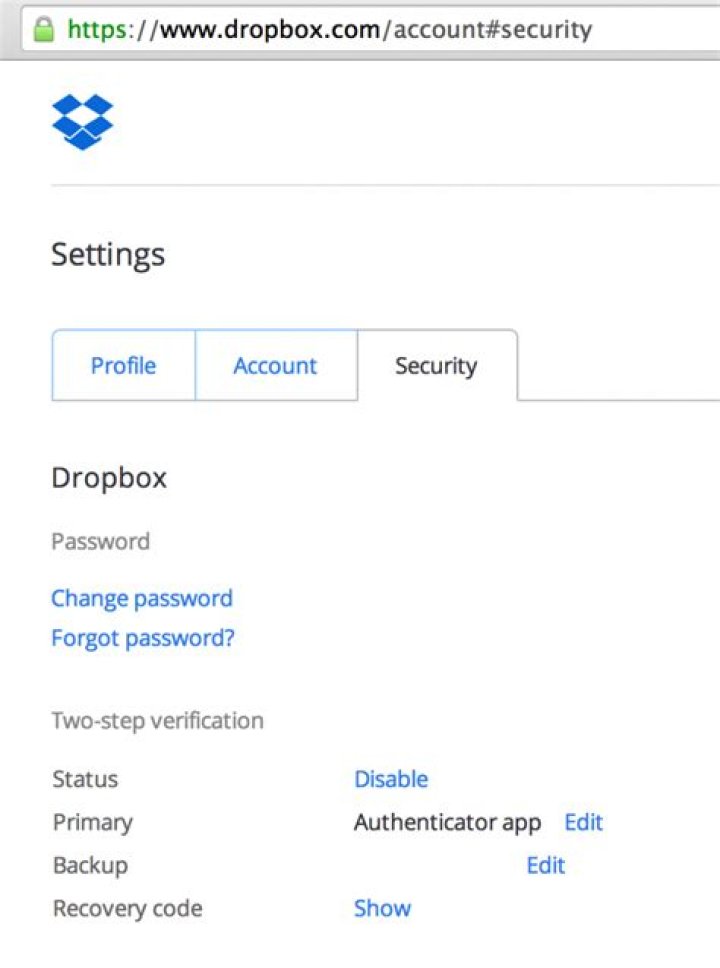
The Settings menu will open in a new tab—click on the “Security” tab. The first option in this menu is “Change Password.” Click that.
You’ll have to first input your old password before selecting a new one, so go ahead and do that. Now choose a good, strong password!
Use Two-Step Verification
Again, this is something you may have heard, but is extremely important—if two-step verification is an option, you should be using it, no questions asked!
If you aren’t familiar with two-step verification (also commonly called two-factor authentication), it’s a second layer of security for your account. Not only will you need your password to log in, but you’ll need to enter a code sent to your phone as well—ensuring that, even if someone somehow got your password, they wouldn’t be able to log in (unless they’d also stolen your phone). You can choose from a couple of different ways to get this code: either via text message to your phone number, or by using an authentication app like like Google Authenticator or Authy. While it’s completely up to you, I recommend going with an app like Authy.
All that said, here’s how to set it all up.
Once you’re logged in on the Dropbox website, click on your avatar in the upper right corner, then select “Settings.”
In the Settings menu, click on the “Security” tab.
Just below the Password section, you’ll see the “Two-step verification” section. Click “Enable” —a dialog will show up, click “Get started” to…well, get started.
On the next dialog, input your current password.
The next screen will ask you to choose the method in which you’ll receive security codes—again, I’d recommend going with a mobile app like Authy, since it’s more secure.
If you choose to use an authenticator app, the next screen will show a QR code—just scan this code from the authenticator app on your phone.
If you elect to just use your phone, you’ll enter your phone number instead. If you set up an authenticator app, you can opt to enter your phone number as a backup.
Lastly, you’ll verify that you indeed have access to the codes by entering the current code—either from your authenticator app or from the text message that will automatically get sent to you with this step.
It will also provide you with a list of 10 backup codes—keep these in a safe place, just in case you ever get locked out of your account and don’t have access to your phone.
Manage Your Current Sessions, Linked Devices, and Linked Apps
If you’ve been using Dropbox for a while, you’re going to want to take a look at the section below two-step authentication in the Dropbox Security menu—this is where you’ll see current sessions, devices linked to your Dropbox account, and apps you’ve granted access to.
Basically, here you’re going to want to just make sure everything is in order—if older devices you no longer have are still listed here, go ahead and delete them. No need to allow access to anything you don’t have!
The same thing really applies to apps—if you don’t use something, revoke its access. Easy peasy. Do this regularly to keep a clean list.
Advanced Users: Encrypt Your Sensitive Dropbox Files
All these security precautions won’t help if Dropbox itself fails to secure your account, or if someone else gains access to your smartphone or a computer with your Dropbox files on them. To protect yourself and ensure your sensitive files remain secure, you can encrypt the files you store in your Dropbox account. To access the encrypted files, you’ll need to know the encryption password – anyone without the encryption key will only see random, jumbled nonsense data. The worst they could do is delete your data, but you should have a backup anyway.
Dropbox itself offers no way to encrypt your files, but there are several ways to do it yourself. Many geeks prefer creating a VeraCrypt volume and storing it in their Dropbox account. If you’re looking for something a bit more user friendly with mobile apps, BoxCryptor is also an excellent solution. Linux users can check out EncFS to do the encryption themselves – EncFS inspired BoxCryptor.
That’s really all there is to locking your Dropbox account up tight. It doesn’t take long at all to get everything set up and secure, so I highly recommend taking the time to do it—it’s well worth the half hour to run through this stuff to make sure your data is safe!
Dropbox is one the most widely used cloud storage services today. It provides client software for Windows, Mac-OS, Linux, iOS, Android, Blackberry OS, etc. It provides a huge space for storing and sharing documents, making it a useful file backup as well as sharing service.
What is Dropbox and How Secure is Dropbox
However, since it is a single cloud storage collection of all your documents, which might contain sensitive data that you may want to keep a backup of, its compromising can cause a lot of problems. Hackers and attackers target services like these to cause trouble. Accounts can be compromised easily and Dropbox itself had a glitch once when it allowed access to all accounts without requiring a password for several hours.
These dangers call for a method to ensure that your data is safe on Dropbox and your identity is kept private. Protection against unauthorized access and data theft are the primary concerns for users today. In this article, we list some methods to help you secure your Dropbox account.
Ways to Secure your Dropbox Account
Two-step verification
You can enable a two-step authentication process for your Dropbox account, similar to how you can enable a two-step authentication process for accessing your email id. You will be asked to enter your Dropbox login password as well as an SMS verification code send to your mobile device.
Enable email notifications
This is a simple way to know whether your Dropbox account is being accessed by an unauthorized user. Enabling email notifications means that you would be sent an email to your registered email address whenever you add a new device or app to your Dropbox account. Although this means that you will be bothered by an email when you knowingly connect a new device to your account, as well as there is a high chance that any hacker accessing your account will most likely disable this option, it is a simple defence mechanism that just might help you.
Manage Apps Linked to your Account
There are many third-party apps that users integrate with their Dropbox accounts. These apps require full access to the account and retain that control even if the user stops using them. This can prove fatal if the app itself is hacked into by someone. To protect yourself against unnecessary damage, revoke the access of such apps by clicking on the My Apps tab on the settings page and then clicking on the X next to the app in the list.
Encrypt Files
The best way to ensure that your Dropbox files are safe even when your account or system is compromised is to encrypt the files on your account. Dropbox does not have its own encryption features, but mobile apps like BoxCryptor are a good way to go about the Dropbox encryption process.
End Note
Dropbox is quite a useful service, but it can become a thorn in your toe rather than an asset if your data on your account is compromised. The methods discussed above are some of the easiest methods to secure your Dropbox account so that you are protected from the attacks of notorious hackers who want to cause trouble.
By Paul Liu
Saturday, May 24th, 2014
Dropbox is one of the most popular cloud storage services on the web with more than 275 million users. The service makes it incredibly easy to store and synchronize files across multiple devices and operating systems as well as share files with others. However, Dropbox has witnessed several security breaches in the recent past which suggests that one’s private and confidential data may not be totally secure on Dropbox’s servers. This article will discuss several ways to keep your personal data safe on the Dropbox cloud.
1) Use a strong password – A lot of security breaches occur because people use weak or same passwords across different websites. Make sure to choose a very strong password for your Dropbox account that is different from the password of your email account. Do not forget to use alphabets (both lowercase and uppercase), numbers and special characters to make the password immune from dictionary and brute force attacks.
2) Use Two-step verification – Like many other service providers, Dropbox allows you to log into the website through a two step authentication process. The two step verification process requires you to input a security code (received through SMS or apps like Google Authenticator) in addition to your username and password while logging into the service. This would prevent anyone from logging into your account even if he/she has access to your password. Dropbox even provides an emergency code that can be used to log into your account even if you are not able to receive the security code for some reason.
3) Share with care – While sharing your data with others, it makes sense to share individual files instead of the entire folder. This is especially important if your Dropbox folder contains sensitive documents like tax returns or bank statements.
4) Managing devices – Dropbox allows you to sync your data across multiple devices with the click of a button. While you can link several devices to your Dropbox folder at the same time, it makes sense to be cautious and unlink devices that do not require continuous access to your folder. This will prevent anyone from accessing your data even if he/she gets access to your computer or mobile device. For additional security, you may also sign up for email notifications that can instantly alert you when a new device tries to access your account.
5) Beware of suspicious third party apps – The beauty of Dropbox is that it is highly compatible with third party apps that enhance the functionality of the service. However, you need to be extra careful while granting full folder and data access to third party apps. Stay away from suspicious apps that have received poor reviews and remember to revoke access to your account as soon as the app has finished its job.
6) Encrypt data – While Dropbox uses encryption while transferring and storing your files, it doesn’t hurt to add an additional layer of encryption for a foolproof level of security. There are several reliable apps like TrueCrypt, Boxcryptor, SecretSync and Safemonk available that allow you to encrypt your data with up to 256 bit encryption. The biggest advantage of using such apps is that the encryption occurs on your computer so even Dropbox staff won’t be able to decrypt your files. Some of these apps even allow you to encrypt the entire folder so you would be able to protect all your files with the click of a button. And if you are really paranoid about the safety of your data, you can password protect your files through an archiving program and then encrypt them with one of the above mentioned apps for one more level of protection.
Dropbox security
Dropbox is designed from the ground up with security in mind. We make sure your data is safe and secure by providing multiple layers of protection as well as controls you can enable to meet your security needs.
From the Security page, you can adjust settings as well as easily monitor connected devices, active web sessions, and third-party apps with access to your account. See something that doesn’t look right? You can disconnect any app, or remotely sign out and wipe a device with a click.
Strong passwords
While we take comprehensive measures to protect your data, you play a key role too. By creating unique, strong passwords for each website, app, and online account you use—and changing them regularly—you’ll help keep your Dropbox account and other accounts safe.
Password managers like 1Password can help you generate strong passwords, store them safely, and sign in easily to your accounts.
How to create a strong password
A secure password is one that’s hard for a stranger to guess. Don’t use common words or a derivative of personal information, such as your name, the name of a family member or pet, or phone numbers, addresses, or birthdates. Uncommon words work well, but only if you use several together.
The following tips will help you create unique, secure passwords. Try to use a combination of some (or all) of the below:
– Uppercase and lowercase letters, symbols, and numbers
– Non-standard uppercasing (for example, “uPPercasing”)
– Non-standard word spelling (for example, “spellllllling”)
– Personal slang words
– Non-obvious numbers and symbols (note: using “$” for “s” or “0” for “o” is fairly common and likely not enough of a security measure)
Use the Dropbox password strength estimator to test your password in our security checkup tool.
There is no perfection in the world of technology. Heck, there’s no perfection in life. Thus, one is constrained to mastering the delicate balance between convenience and security. Dropbox is a very convenient file hosting/sharing/back-up service that is used by millions worldwide.
Dropbox has been in the news lately, with allegations that user login details have been compromised and leaked. The company however strongly denies this. Either way, it is better to be safe than sorry. Thus, I give you some security steps that if followed, could go a long way in securing your Dropbox account whether your login details were compromised or not.
Change Your DropBox Password. Regularly.
It’s a good advise to change your passwords regularly, anyway. A 6-monthly cycle is a good one but at least once a year should be the barest minimum.
Use a STRONG password.
Give yourself a slap for me, if your password appears among the list of The Top Worst 500 Passwords of All Time. Seriously though, your password should be a healthy combination of alphabets (combine lower and upper cases), numbers and special characters with a minimum length of 8 characters in total.
If you can’t be bothered with generating your own password, you’re welcome to make use of strongpasswordgenerator.com – although, you may be left with the conundrum of where/how to save your randomly-generated password since you’re not likely to remember it easily.
Note, some services reject weak passwords anyway.
Enable 2-step authentication
Login to your Dropbox account. Click on your name on the top-right corner. Go to Settings >> Security.
Go through the steps under Two-Step verification to enable 2-step authentication on your Dropbox account.
Enter Your Mobile Number
Dropbox will send you a text message to help authenticate you if your Authenticator app is not available. It’s also helpful to write your Recovery code and keep it somewhere very safe, offline.
Conclusion
While no system is 100% fool-proof, you can go a very long way to secure your Dropbox account should you follow the steps listed above. The tips can also be applied to most other online services like email, social media accounts, domain name accounts etc.
2 Comments
Do you import ANY open view decoders that will show South African dstv and sky tv channels as well as other American channels without requiring any monthly costs just to pay once off. can you help me with a decoder like that ??if so then we will do great business together and we will be buying big shipment of them, I want specifically DSTV and/or Sky tv channels! I am in a very big hurry to buy them as soon as you can tell me you are indeed able to help us with our search maybe you have an email address of someone else that sell them…if you are able to help I will need you to send me one of the decoders for me to test it here and sees if it is doing exactly what I want it to do……..a lot of other sales persons I told this just wanted to show me everything else coz they don’t have the decoder I want, they were wasting my time and money I will buy some other stuff when I want to but for NOW!! I only want an answer to my question can you help me or not?? I sure hope u can…if not then you don’t have to even send me one more further message I will keep on searching till I find one 🙂
Kind Regards
Chiney @ Future Tech
13-12-2014
I love Dropbox, its helping my system memory, thanks for this post.
Dropbox security
Dropbox is designed from the ground up with security in mind. We make sure your data is safe and secure by providing multiple layers of protection as well as controls you can enable to meet your security needs.
From the Security page, you can adjust team-wide settings. For example, you can set the ways your users authenticate to Dropbox, control and limit where your data can be stored, require 2FA when signing in, change default sharing settings, and add or remove team members. You can also review activity logs to make sure your team’s Dropbox accounts are being used the right way, or take advantage of automated log analysis with industry-leading SIEM apps.
See something that doesn’t look right? You can disconnect any app, or remotely sign out and wipe a device, with a click.
More information
Get into the nitty-gritty of all the ways we help secure your data and PII (personally identifiable information), from encryption, distributed back-end infrastructure, and DLP (data loss prevention) partnerships, to customizable settings for both admins and end users.
Set a strong password
While we take comprehensive measures to protect your data, you play a key role, too. By creating unique, strong passwords for each website, app, and online account you use—and changing them regularly—you’ll help keep your Dropbox account and other accounts safe.
Password managers like 1Password can help you generate strong passwords, store them safely, and sign in easily to your accounts.
How strong is your password?
Use the Dropbox password strength estimator to test your password in our security checkup tool.
How to: create a strong password
A secure password is one that’s hard for a stranger to guess. Don’t use common words or a derivative of personal information, such as your name, the name of a family member or pet, or phone numbers, addresses, or birthdates. Uncommon words work well, but only if you use several together. The following tips will help you create unique, secure passwords. Try to use a combination of some (or all) of the below:
Uppercase and lowercase letters, symbols, and numbers
Non-standard uppercasing (for example, “uPPercasing”)
Non-standard word spelling (for example, “spellllllling”)
Personal slang words
Non-obvious numbers and symbols (note: using “$” for “s” or “0” for “o” is fairly common and likely not enough of a security measure)
Get help
Multi-factor authentication
Multi-factor authentication, (which includes two-step verification and two-factor authentication) adds an extra layer of security to your account. With this feature turned on, team members need a six-digit security code as well as their username and password to sign into their account or to link a new computer, phone, or tablet. Users can have the codes sent to their phone in text messages or generated by a mobile app like Google Authenticator or Duo Mobile. Dropbox also offers the option of using a security key, rather than six-digit codes, for two-step verification. Security keys offer extra protection against phishing attacks and are convenient to use.
As an admin, you can require your team to use two-step verification. With this extra measure, company data stays safe even if a device is lost or stolen, or a password gets compromised.
If you’re the admin of a team on an Advanced or Enterprise plan, you can enable single sign-on (SSO) so your team can access their Dropbox accounts without remembering another password.
Set up multi-factor authentication
How to enable multi-factor authentication for your own account
1. Sign in to dropbox.com.
2. Click your avatar (profile picture or initials) in the top-right corner.
3. Click Settings .
4. Select the Security tab.
5. Toggle Two-step verification to On .
– If you see Managed by single sign-on under the Security tab, your team uses single sign-on (SSO) . This means you might not be able to use two-step verification with Dropbox.
6. Click Get started .
7. Re-enter your password.
8. Choose if you want to receive your security code by text messag e or mobile app . Click either Use text messages or Use a mobile app and follow the prompts.
9. Enter a security code to complete the setup (you’ll receive it either via text message or authenticator app, depending on the method you entered).
10. Click Next .
Note: If you use an authenticator app to receive your verification codes, please add primary and secondary backup phone numbers.
Require two-step verification for your team
Dropbox Business team admins can require all or some team members to use two-step verification. You can do this through the admin console or your identity management provider if you use single sign-on (SSO). Each team member has to enable two-step verification on their own account. However, you can request that members enable this feature, and then ensure that it stays on once enabled.
More security you need with your Dropbox account, so you have to be more activated to do well, as there are such user. Dropbox is one of the most popular cloud storage service believed by many users. There are several method to securing Dropbox account using various method, if someone trying to login your account.
Track the session of Dropbox
When you login to your Dropbox account and then choose setting of security where you will get session by visiting security tab these are the web browsers currently logged in to your Dropbox. Ways To Secure Your Dropbox Account
Track Devices logged in with your Dropbox account
Logged in with your devices you will get exact device info with device name, country, Most recent activity, included Version of OS and IP addresses. You’ve linked these devices. If you get any suspected device which is connected with Dropbox account, you can remove those device by clicking on x button on right side of setting>>security.
Change Password timely and make it hard to remember
Some password easily hack-able, where many hacker and your known personas can guess random numbers or activity, it’s a one formula to hack, rest one is by generating random series, or many other ways, but you need to make your password such as [email protected]#AASN, where all the letters and numbers will be covered. How can I protect my Dropbox account, Two-step verification is a highly effective way to protect your account from
Enable Two-step verification with Mobile number
Two factor authentication is most secure way to safe your account, Dropbox enable this feature before some time, so that users can easily secure their accounts, with this functionality you have to put your mobile number, for securing your account with two-factor authentication you have to follow few steps.
- Login to your Dropbox account
- Choose setting >> then security >> select Two-step verification >> click on Disabled (click to enable).
- Now new screen will be shown where it will share message Two-step verification adds an extra layer of protection to your account. Whenever you sign in to the Dropbox website or link a new device, you’ll need to enter both your password and also a security code sent to your mobile phone. Now click on Get started.
- For security, please enter your password for [email protected], now type your Dropbox default current password. Enable two-step verification with Dropbox account
An authenticator app lets you generate security codes on your phone without needing to receive text messages. If you don’t already have one, we support any of these apps.
To configure your authenticator app:
- Add a new time-based token.
- Use your app to scan the barcode below, or enter your secret key manually.
These are the best methods to secure your data on Dropbox without buying any plan, these four method will help you to secure your account so that others can not login and use your Dropbox content.
Something everyone has been eagerly waiting for. You can now secure your Dropbox account using 2-step verification meaning an intruder would need more than just your password to access any of the confidential files stored in your Dropbox folders.
Enable 2-step verification to secure your Dropbox Account
The 2-Step verification system of Dropbox is pretty similar to that of Google.
You can either choose to receive the 6-digit security codes on your mobile phone via text messages (Dropbox supports international phone numbers too) or if you have a smartphone (Android, BlackBerry, iOS or Windows Phone), you can download the Authenticator app and generate time-sensitive codes locally on the phone itself.
To get started, go to your Dropbox account’s security page and Enable two-step verification – the setting is available right at the bottom of the page. Now follow the wizard to associate your phone (or phone number) with the security option. Dropbox will also provide an emergency backup code that you should print and keep at a secure place – this will be required if you ever lose your mobile phone and need to get into Dropbox sidestepping the security settings.
Once 2-step authentication is enabled, go to dropbox.com and download the latest installers for Dropbox (available for Windows, Mac and Linux). There aren’t any new features here except that these new software builds include support for signing-in through 2-step verification.
Also, if you have setup Dropbox on your mobile phones and tablets, it maybe a good idea to unlink all these devices from your Dropbox account and relink – all these device will now require a 6-digit code that is only available on your mobile phone. And whenever a new computer, phone or tablet is used to log into your Dropbox account, you also get an instant email notification.
Safely keep your emergency Dropbox Code because you never know when you may need it.
Thank you Harmeet Singh for the tip.




