Michael Crider is a veteran technology journalist with a decade of experience. He spent five years writing for Android Police and his work has appeared on Digital Trends and Lifehacker. He’s covered industry events like the Consumer Electronics Show (CES) and Mobile World Congress in person. Read more.
If you’ve ever posted a highly-favorited tweet or been part of a popular thread, you’ve probably known the mild annoyance of having your phone overflow with dozens of notifications for retweets and favorites. If this behavior is affecting your enjoyment of Twitter (you social media wizard, you), you’ll probably want to restrict those notifications.
On Twitter’s Mobile App
We’re using the iOS Twitter app here, but these instructions should work whether you’re using Twitter on Android or iOS.
In the Twitter app, tap your avatar in the upper-left corner, and then tap the “Settings and privacy” option. On the “Settings and Privacy” screen, tap the “Notifications” option.
On the “Filters” screen, tap the “Push notifications” option. On the “Push Notifications” screen, tap the “Retweets” and “Likes” options in turn, and toggle them both to the “Off” position.
By default, the Twitter app only notifies you of mentions that it thinks are “important,” based on an algorithm that observes your behavior. If you’d like to see every single mention, tap the “Mentions and replies” option, and then tap the “from anyone” setting.
Press the “Back” button until you return to the main Twitter app screen, and you’re done.
On The Web
Head to Twitter on the web, preferably on a laptop or desktop web browser, and log into your account. Click on your profile image, and then in the dropdown menu, click the “Settings and privacy” option.
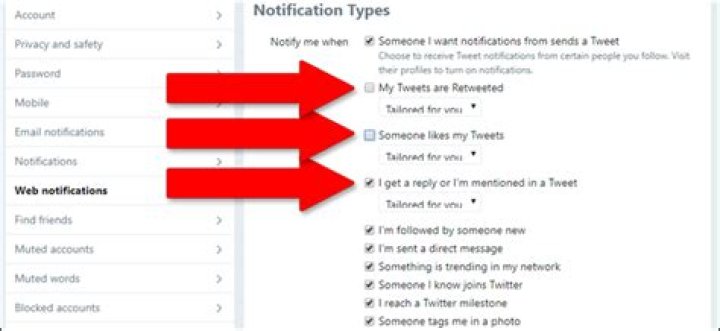
In the left-hand column, click the “Web notifications” option. Note that you won’t be able to see the settings here if you’ve blocked all notifications in your browser.
In the “Notification Types” menu, make sure the “I get a reply or I’m mentioned in a Tweet” option is enabled, and that the “My Tweets are Retweeted” and “Someone likes my Tweets” options are disabled.
When you’re done, click the “Save changes” button and you’re good to go.
On Third-Party Applications
If you’re using a third-party Twitter app, then the process for selecting specific notifications to show and hide will be different for each one. You’ll generally find the options somewhere in the app’s main Settings screen under “Notifications” or “Alerts.” For example, in the popular Fenix Android Twitter client, the process is Profile button > Settings > Notifications, and then you can enable or disable likes and favorites as desired. Poke around for a bit and you should be able to find the functionality you’re looking for.
What is the Notifications timeline?
В
- The Notificationstimeline offers a simple way to see how others on Twitter are interacting with you.В
- From the Notifications timeline, you’ll be able to see which of your Tweets have been liked, the latest Retweets (of your Tweets), Tweets directed to you (replies and mentions), your new List followers, as well as your new account followers.
- You can view your notifications in two ways: All shows you notifications for account activity like new followers, Retweets, mentions, and likes. Mentions shows you notifications only for Tweets that mention your username.
- In addition to your notifications, we will elevate content that we think you’ll be most interested in and contributes to the conversation in a meaningful way, such as content that is relevant, credible, and safe.
Can I filter the notifications I receive?В
В
Yes. You can control what you see and who you interact with on Twitter. You have three options located in your notifications settings to filter the notifications you receive: Quality filter, muted words, and advanced filters.
- Quality filter, when turned on, filters lower-quality content from your notifications, for example, duplicate Tweets or content that appears to be automated — it does not filter notifications from people you follow or accounts you’ve recently interacted with. You have the option to turn this on or off in your notifications settings. (Instructions listed below.)
- Mute notifications for particular words and phrases you’d like to avoid seeing in your notifications with muted words. Learn more here.В Mute notifications for accounts you’d like to avoid seeing notifications from. This includes muting accounts you follow or don’t know. For muted accounts you follow, replies and mentions by the muted account will still appear in your Notifications tab. Learn more here.
- Advanced filters allow you to disable notifications from certain types of accounts you’d like to avoid. In addition, if your account receives a lot of sudden attention, we may insert a notification in your Notifications tab inviting you to adjust these filters to give you more control over what you see. (Learn more about these settings below.)
В
Note: If you are new to Twitter or re-installed your app, the quality filter setting will be on by default. Instructions on disabling and enabling are listed below.
Twitter is a place to share ideas and information, connect with your communities, and see the world around you. In order to protect the very best parts of that experience, we provide tools designed to help you control what you see and what others can see about you, so that you can express yourself on Twitter with confidence.
We make it easy for you to take action on a Tweet. Tap theВ
icon at the top of any Tweet, right from your Home timeline, to quickly access options like unfollow, mute, block, report, and more.В
В
Unfollowing is the simplest action you can take to stop seeing someone’s Tweets on your Home timeline. You can always follow an account again if you change your mind. You can access this option from theВ
icon in a Tweet.
Filter Notifications
Your Notifications timeline displays your interactions with other Twitter accounts, such as mentions, likes, Retweets, and who has recently followed you. If you’re receiving unwanted replies or mentions from accounts you do not follow, you can filter the types of notifications you receive.
Read instructions for adjusting your Notifications timeline.
Show less oftenВ
When you mark a Tweet as Show less often, it helps Twitter better understand the types of Tweets that you’d like to see less of in your Home timeline. We may use this information to optimize and tailor your experience in the future. You can access this option from theВ
icon in a Tweet.
В
Muting another Twitter account means you will not see that account’s Tweets in your timeline. It’s a great way to stay connected with friends, even if you aren’t interested in seeing all of their Tweets. Muted accounts are not notified that you’ve muted them, and you will still get notifications when they mention you in Tweets and send you Direct Messages. You can also mute accounts you do not follow so that you don’t see their Tweets in your Notifications timeline.
Muting is different than blocking or unfollowing: Accounts you have muted have no way to tell that you are muting them. You can access this option from theВ
icon in a Tweet.
When you block an account on Twitter, you restrict that account’s ability to interact with your account. It can be an effective way to handle unwanted interactions from accounts you do not want to engage with.
Accounts you have blocked will not be able to view your Tweets, following or followers lists, likes, or lists when logged in on Twitter, and you will not receive notifications of mentions directly from those accounts. You’ll also stop seeing their Tweets in your timeline.
Blocked account may notice you have blocked them if they try to visit your profile or follow you, but they will not receive any notifications that you have blocked them. You can access this option from theВ icon in a Tweet.
If you think an account or Tweet is in violation of the Twitter Rules or our Terms of Service, tell us about it by reporting the account or Tweet to us. Some of the violations you can report include: abuse, sensitive media, impersonation, and spam. Submitting a report will take a few steps, but your report will help us make Twitter a better place for everyone. You can access this option from theВ
icon in a Tweet.
Control the media you see in Tweets
Your Privacy and safety settings include Tweet media options, if you decide that you want to see a warning over media in Tweets that may contain sensitive content. Your settings default is to provide the warning, but you can change the setting at any time.
Control what others see about you
Protect your Tweets
Protecting your Tweets means your Tweets will only be visible to your followers. With your Tweets protected, you have control of your Twitter experience: every time someone wants to follow your account, you have the choice to accept or decline their request.
Any accounts that were following you before your Tweets were protected will continue to follow you (which means you will not have to approve them again), but you can stop them from following you by blocking them.
Photo tagging
Tagging friends in photos can be a great way to stay connected, but you might decide you want your Twitter experience to be more private. You can choose between allowing anyone, just friends, or no one to tag you in photos.
Discoverability
Finding friends and people you care about on Twitter can lead to a great experience, and by using your email address or phone number we can help you easily make those connections.
However, you may prefer to find friends and contacts without our help, and adjusting the setting to keep your account from being discoverable in this way is easy. Read more about discoverabilityВ settings and how to change your discoverability.
Sharing your location in Tweets
Twitter lets you select whether to include your location on each individual Tweet. While sharing your location allows your followers to comment and make recommendations on things to do or places to go, there are also risks involved with sharing your location publicly. Since you may not know all your followers, it’s a good idea to be conscious of what you are choosing to share.
Media settings
You can flag your own Tweets as possibly containing sensitive media so that other people will see a warning before the media is displayed.
Know what information you are providing third-party applications
Other companies have developed applications to broaden your Twitter experience. Before connecting to a third-party application, be sure to visit their website and familiarize yourself with their Terms of Service. Learn more about authorizing and connecting to a third party application.
If you have more questions about how to take control of your Twitter experience, you can contact our Support team.
Note:В You can also adjust your notification settings by clicking on the unsubscribe link in an email footer, which unchecks the notification setting for that particular type of notification. You can opt out of most communications from Twitter. As part of providing the Twitter service, we may need to send you certain communications, such as service announcements and administrative messages.
Activity related to you and your Tweets
В
You can receive notifications when your Tweets or Retweets are Retweeted or liked, when you are mentioned in a Tweet, if you are followed by someone new, or when someone from your contacts joins Twitter. These are collected on your Notifications page.
As of June 2017, Twitter now sends a digest email referencing all your unread notifications about activity related to your account, instead of separate emails for each type and instance. This is to reduce the noise of Twitter email in your inbox.В
Managing your subscription to the digest:
- You’ll receive the digest email if your settings were enabled to receive all individual activity email notification types. If you previously opted-in to receive all of the individual activity email types for notifications, you qualify for this digest email.
- Control receiving this digest by navigating to your Settings and privacy via twitter.com. From the Email notifications tab, select or deselect “Email me when I have new notifications”.В
В
Digest emails do not apply to Direct Messages. You will receive a notification email every time you receive a new message, if your settings are enabled.
В
Activity from your network
В
Twitter is one of the premier places to get up-to-date news from around the world in real time. These emails help sum up what’s going on on Twitter and keep you in the loop on what’s most relevant and popular in the moment!
В
Updates from Twitter
В
Occasionally, Twitter has some exciting news about new products or features from Twitter or one of our partners, tips for becoming a Twitter expert, or suggestions for relevant and interesting accounts to follow, such as those of people that you may already know. If you haven’t signed into Twitter in a while, we might send you an update with things you’ve missed on Twitter that we think you might enjoy. We may also email you about participation in one of our occasional user research surveys, which help make Twitter better. With these updates, we want to make sure you know about the latest and greatest from Twitter.
В
When will I receive email notifications?
В
You may receive emails from Twitter for the types of communications selected in your settings under email notifications. You may also receive occasional service announcements and administrative messages from Twitter, such as emails asking you to confirm the email address associated with your account or emails notifying you of a password change.
If you enable notifications for Retweets, replies or mentions, likes, or follows, you may not receive a notification for every Retweet, reply or mention, like, or follow. In an effort to send you email only when it’s most relevant, we may not, for example, notify you of mentions by accounts that are new or have not yet confirmed the email address associated with their account. We are constantly experimenting with email notifications to strike the right balance in keeping you up to date.
On Twitter – I don’t want notifications whenever someone likes my tweet, or likes tweets that I’m mentioned in.
However, I do want to be notified when someone replies to my tweets.
I want these settings to apply for what is known as the ‘notifications timeline’ in Twitter’s terminology, ie notifications within the desktop browser application.
Is this possible to set up?
4 Answers 4
One can just use the Tweetdeck client:
Disable “Liked” notifications for Web and Browser
- Log in to
- Navigate to Settings and select Web notifications.
- Clear the check box for Someone likes my Tweets.
- Click Save changes.
NOTE: Although the same can be done for notifications on mobile devices, there is no way to filter the Notifications timeline that specifically. You can only filter words or accounts from your Notifications timeline, according to the Twitter help page About the Notifications timeline (subheading Can I filter the notifications I receive?)
Native Twitter does not have this functionality. They used to, but not anymore.
Twitter has a bunch of notification methods. The twitter.com website has settings for email notifications and for “web notifications” (browser notifications). This page: How to See Twitter Notifications For Mentions, But Not Likes or Retweets (September 2017) has a bunch of methods that are relevant for Twitter’s mobile app (iOS or Android), for the twitter.com website, and for other third-party Twitter apps.
However, none of these apply to (called the “notifications timeline”) that the question here is about. For example, says:
and the official help page about the notifications timeline doesn’t say anything about such filtering either.
So at this point, one’s options, if one wants to avoid notifications for likes and retweets, are:
Don’t consume notifications from at all: use email notifications, or a third-party app, and just ignore (or hide) that tab on twitter.com, or
Use an in-browser method to hide these notifications.
I’ve been trying (2), and this is what I have so far (will update the answer as I make more progress). Type the following into the javascript console:
This will filter out notifications of those types, until the page is reloaded.
This seems to be working so far, so the next step would be to make it a bookmarklet, or a browser extension, or simply add relevant filters to whatever element-hiding extension you may be using. All of those would work; pick your favourite. For example, if you’re using Adblock Plus, you can add the following to “My filter list”:
notifications spam-prevention twitter
In the past, I would get Twitter notifications when someone liked or retweeted a tweet, or started following me. If I hadn’t visited Twitter for a while after, I’d get an e-mail saying there were notifications available.
For the past month or so, I’ve been regularly getting nonspecific e-mails like “See the 2 notifications ready and waiting just for you! Take a look.” Clicking the link shows that the “notifications” are just specific Tweets that Twitter wanted to direct my attention to for whatever reason (e.g. some of the people I follow liked/replied to it). These notification types are shown with a blue Twitter icon, different than the heart icon used for “XYZ liked this tweet,” the generic person icon used for “ABC followed you,” the picture icon used for a reply, etc.
I’d like to disable this entire class of notifications: all of the ones that would use the blue Twitter logo icon. It’s a transparent bid for increasing traffic and time-on-site but focuses attention on low-quality content I’m not actually interested in, and ignoring all notifications mean reducing the social interaction part of the network that I might not want to get rid of.
I’m using only the Web version, with no mobile app.
Under e-mail notifications, my options are set to explicitly DISABLE “activity from your network” including “Top Tweets and Stories:”
The “Learn More” link next to “You have new notifications” goes here, which says in part:
You can receive notifications when your Tweets or Retweets are Retweeted or liked, when you are mentioned in a Tweet, if you are followed by someone new, or when someone from your contacts joins Twitter. These are collected on your Notifications page.
As of June 2017, Twitter now sends a digest email referencing all your unread notifications about activity related to your account, instead of separate emails for each type and instance. This is to reduce the noise of Twitter email in your inbox.
There’s no mention in there about the “Twitter” type notifications generated when Twitter just wants to direct attention to certain tweets or increase traffic, nor anything about how to disable that.
Twitter’s page about the Notifications timeline similarly says nothing about the new annoying class of “you might be interested in this” notifications:
The Notifications timeline offers a simple way to see how others on Twitter are interacting with you.
From the Notifications timeline, you’ll be able to see which of your Tweets have been liked, plus the latest Retweets (of your Tweets), Tweets directed to you (replies and mentions) and your new followers.
You can view your notifications in two ways: All shows you notifications for account activity like new followers, Retweets, mentions, and likes. Mentions shows you notifications only for Tweets that mention your username.
The Web notifications settings page shows that I have Web notifications turned off, but that “These settings do not change your notifications timeline. Learn more.” The Learn more page similarly makes no mention of this new annoying class of notifications, only that
You can get notifications for things like Direct Messages, follows, likes, replies to your Tweets, mentions, and Retweets of your Tweets.
How do I disable this new class of Twitter notifications specifically??
There’s a link to opt-out from these emails in the email itself, click that will disable you from getting those type of emails (it’ll be at the bottom of the email). It will not disable all emails because Twitter will still want you to see your Direct Messages and other more important notifications. Hopefully that helps!
If you are a Twitter user and want to avoid receiving notifications from certain accounts then you can filter notifications on your timeline.
- View in App
Twitter is one of the most widely used application which is used to share information, opinions, thoughts, etc. Twitter users get notifications after the people they follow share a tweet on the application.
However, if you are a Twitter user and want to avoid receiving notifications from certain accounts then you can filter notifications on your timeline.
See Zee Business Live TV Streaming Below:
“Receiving notifications from accounts you’d like to avoid? You can filter notifications on your timeline,” Twitter tweeted.
Receiving notifications from accounts you’d like to avoid? You can filter notifications on your timeline
What is the notifications timeline?
As per the information provided on Twitter website, the notifications timeline offers a simple way to see how others on Twitter are interacting with you. From the notifications timeline, you will be able to see which of your tweets have been liked, the latest retweets (of your tweets), tweets directed to you (replies and mentions), your new List followers, as well as your new account followers.
You can view your notifications in two ways: All shows you notifications for account activity like new followers, retweets, mentions, and likes.
While, Mentions shows you notifications only for tweets that mention your username.
Can you filter the notifications you receive?
Yes. You can control what you see and who you interact with on Twitter. You have three options located in your notifications settings to filter the notifications you receive: Quality filter, muted words, and advanced filters.
Quality filter, when turned on, filters lower-quality content from your notifications. It does not filter notifications from people you follow or accounts you have recently interacted with. You have the option to turn this on or off in your notifications settings.
Mute notifications for particular words and phrases you would like to avoid seeing in your notifications with muted words. Mute notifications for accounts you would like to avoid seeing notifications from. This includes muting accounts you follow or don’t know. For muted accounts you follow, replies and mentions by the muted account will still appear in your Notifications tab.
Advanced filters allow you to disable notifications from certain types of accounts you would like to avoid.
How to use?
Desktop
1: Go to your Notifications timeline.
2: To filter your notifications, click on Settings.
3: Click the box next to quality filter to turn on or off.
To set filters using Twitter for iOS:
1. Go to your Notifications timeline.
2. Tap on the gear icon.
3. Tap Advanced filters.
4. Drag the slider next to your preferred filter(s) to turn on.
To set filters using Twitter for Android:
1. Go to your Notifications timeline.
2. Tap on the gear icon.
3. Tap Advanced filters.
4. Check the box of your preferred filter(s) to turn on.
Twitter is great for keeping you up-to-date on everything happening in your social circle, and in the world around you. But if you follow lots of people, it can be easy to lose track of what any one person is tweeting about. This is where it’s handy to turn on Twitter notifications.
Twitter notifications are turned on by default when you make your account, and will alert you whenever you receive a reply, mention, or when any of your tweets are retweeted or liked. And by default, the only time you’ll see notifications is when you open the website or app.
But with just a few clicks (or taps, if you’re using the iPhone Twitter app), you can make it so you receive a push notification whenever a specific account tweets.
This is a great tool if you want to follow many accounts, but also want to prioritize tweets from certain people.
Here’s how to set it up.
Check out the products mentioned in this article:
iPhone Xs (From $999.99 at Best Buy)
How to turn on Twitter notifications for a specific account
The process for this is the same on both desktop and mobile. We’ll use the Business Insider and Insider as examples.
1. Find the account that you want to receive notifications for. You can do this by clicking their username on your timeline, or finding them in search.
2. To the right of that account’s name and icon, you’ll see the word “Follow.” Click it.
3. Once you click Follow, an icon of a bell will appear next to it. Click that as well, and if you’re on mobile, select “All Tweets” in the menu that appears.
You’re now following and, in theory, receiving notifications for that account. But before you can really receive notifications, you’ll need to make sure to turn on push notifications.
How to turn on push notifications on Twitter
On desktop
Note that to receive push notifications in your browser, you’ll need to use a browser that supports them, like Chrome, Safari, or Firefox.
1. From anywhere on Twitter, click the circle with three dots in it on the left side of your screen. It’ll be between your profile icon, and the compose tweet icon.
2. In the menu that appears, click “Settings and privacy.”
3. This will bring you to your Settings menu. Here, click “Notifications.”
4. Underneath the “Preferences” heading, click “Push notifications.” If this option doesn’t appear, your browser doesn’t support push notifications.
5. You’ll see a gray switch, and a description of what push notifications are. Click the switch to turn it blue.
6. Once you do this, your browser will likely ask you if you want to allow notifications from Twitter. Click “Allow.”
7. In the menu below labeled “Related to you and your Tweets,” make sure that the box in the first section, “Tweets,” is checked. This will make sure that you receive account notifications.
Feel free to configure your other push notification settings as you like.
On mobile
Push notifications should be turned on by default when you download the Twitter app, but in case they aren’t, here’s how to turn them on.
Turning on push notifications on an iPhone is done outside of the app.
1. From your iPhone’s home screen, find and open your Settings app.
2. Scroll down to near the very bottom of your Settings app, and tap the tab labeled “Twitter.”
3. Tap “Notifications.”
4. Make sure the “Allow Notifications” switch is toggled on, and is colored green.
5. In the “Alerts” section, check all three notification types: “Lock Screen,” “Notification Center,” and “Banners.”
6. In the “Options” section, tap “Show Previews” and make sure that “Always (Default)” is selected.
And that’s it. With these settings, you’ll receive Twitter account notifications in your browser and on your phone.
Make Twitter better by changing these crucial settings.
Twitter is one of those apps that can be as simple or as complicated as you want it to be. You can use it to tune in to a stream of news updates and call it a day, or you can really get into it by creating and curating lists, bookmarking Twitter threads, and hosting Twitter Spaces.
No matter how you use Twitter, there are a host of settings that will go a long way toward improving your experience on the app. Let’s explore the most critical ones.
Turn off Twitter’s algorithmic timeline
Turn off Twitter’s algorithmic timeline
It’s been a couple of years since Twitter switched its users to an algorithmic timeline, and, as with Instagram, it’s arguably better for most users, most of the time. But there are still times when you want to see the latest tweets at the top, especially if you’re a hardcore user.But even if you’re not, seeing the most recent tweets might be preferable when you’re following a sports match, election results, or a global event.
The option to switch to the old chronological feed is still here. Go to your Twitter feed, and tap the “Stars” button in the top toolbar. Here, switch to the “See Latest Tweets” option.
Remove yourself from Twitter lists
Remove yourself from Twitter lists
Twitter lists are a handy way to follow separate topics or interests. You can even discover and join lists that others have created. The flip side of this coin is that anyone can add you to their Twitter lists as well. This might actually shuttle bad actors into your feed, however—but there’s a way to remove yourself from someone’s Twitter list.
First, go to the “Lists” section on the Twitter website. Click the three-dotted menu button in the top toolbar, and choose the “Lists you’re on” button. Here, choose the list that you want to leave, click the three-dotted Menu button, and choose the “Block user” option.
Sadly, blocking the user is the only way to remove yourself from their list. You can unblock the user immediately to reduce the chance they’ll notice; you won’t be added back to their list when you do. But that means they can re-add you to any list in the future (provided they notice you blocked and unblocked them).
A number of Twitter users have reported facing issues with likes, retweets and notifications.
According to some users, the new Twitter bug is affecting the number of likes and retweets. In some cases, these numbers appear far lower than actual. A lot of users have pointed out mass deleting of retweets and likes on their tweets. Some also complained about facing issues with notifications.
Twitter, however, has acknowledged the glitch which surfaced about 24 hours ago. The company said it was an “internal bug” and that it would be fixed at the earliest.
According to a TechCrunch report, the bug had mostly affected Android users as it was mislabeling the “social proof” tag on retweet counter.
“Some people around the world are experiencing an issue with notifications, Likes, and Retweets. We’re working on resolving this and will follow up soon. We apologize for the inconvenience,” said the company in a tweet.
Users in India were also affected by the bug.
The timing of #TwitterBug couldn’t have been more unfortunate in light of another #TwitterControversy going on making people believe it’s a #TwitterMischief than a genuine bug.
So this is the most bizarre thing to happen to me on Twitter. I did a tweet. It got retweeted. My mentions say so, but suddenly all the RTs and likes have disappeared.
This is really weird right? The whole thread. It’s still in my TL but shows no RTs or likes. Just empty.
Twitter is broken. I have no idea what is happening.
I’m getting very few notifications, so if it seems like I’m ignoring people more than usual, that’s why.
Also, I’m replying to people but those tweets aren’t showing up in my tweets and replies column.
why do i keep getting randos i’m not following retweeting themselves on my timeline??
Follow HT Tech for the latest tech news and reviews , also keep up with us on Twitter, Facebook, and Instagram. For our latest videos, subscribe to our YouTube channel.
Twitter isn’t going to tattle on you if you share a tweet in a direct message, the social network has confirmed today, putting to rest an ominous rumor from the past few days. Reports had circulated over the weekend that Twitter users would be alerted if their tweets were shared through private DMs.
According to the rumor, Twitter would be adding a new notification to its roster. If another user shared a public tweet of yours with a contact through their direct messages, you’d get a notification.
That alert would only confirm who had shared the tweet, not the recipient, so the rumor went. Even so, it was enough to cause concern among many, given direct messages are among the more private ways to communicate between Twitter users. Happily, though, it’s not actually something to worry about.
“You might have heard chatter about a new update that sends you a notification when someone shares your Tweet in a Direct Message,” the social network said today. “This is not true.”
Only likes, replies, mentions, and retweets will be included in the Notifications timeline, Twitter points out. Of course, the company also injects a few extra things of its own in there too. If you’ve reported another account – whether that be for suspected spam or other issues like harassment or activities that go against Twitter’s term of service – Twitter will acknowledge that report in the Notifications too. It’ll also update you on the outcome of that report later on.
More recently, Twitter has been experimenting with other types of alert, mainly with the goal in mind of encouraging further engagement. The Notifications tab has been used to show other “relevant” tweets, for example, such as updates from people you follow who may have been quiet for an extended time, or tweets that a number of other users have liked or retweeted.
Opinions vary as to how welcome that is. It’s possible to turn on filters in Twitter notifications, like muting certain words and phrases, or switch on the Quality filter that promises to remove “lower quality content” that looks like it make have been automated. Another, lesser-seen option supports disabling alerts from certain types of account – whether that be new accounts, ones you don’t follow, that don’t have a custom profile photo, or which haven’t verified their email address or phone number – but is only offered when an “account receives a lot of sudden attention,” Twitter says.
Comments
fschaap commented Aug 28, 2017
Am I going crazy or did the Notifications tab actually show likes, follows and retweets until recently? Right now the Notification tab is only showing mentions for Twitter.
Expected behavior
Notification tab shows all the notifications that the Twitter web client also shows when the “All” option is selected.
Actual behavior
Notification tab only shows mentions.
Steps to reproduce
Yes, I have been through all the settings.No, I have not checked ‘Only mentions’ in the tab settings. I have enabled, turned off and enable streaming again. I have tried the default Twidere consumer key/secret and the official Twitter key/secret. I tried everything I could think of and I have even removed the accounts, cleared storage, uninstalled the app, rebooted phone, reinstalled app, added accounts. But no dice.
Reproduce: install Twidere, add account, go to Notifications tab and see if it shows likes and retweets of your tweets.
Extra info
Android version: 7.1.1
- Cellular
- Wi-Fi
App version: (version code here)
Build variant: 3.6.24
- F-Droid
- Fanfou
- GNU Social / StatusNet
- Mastodon
The text was updated successfully, but these errors were encountered:
fschaap commented Aug 28, 2017
I forgot to mention: likes, follows and re-toots are shown in the Notifications tab for my Mastodon account. Just not for Twitter any more.
Yowlen commented Sep 10, 2017 •
I’ve personally had no problems using the consumer/secret keys for Twitter’s official Android app, but this isn’t the first time someone’s complained about such an issue. I’ve seen some past reports here saying the same thing.
A few things to make sure of: Twidere has both a “Twidere” and “User settings” mode when adding Twitter accounts. You’ll wanna select “User settings” & then use the button in the top-left to change the keys before hitting the sign-in button – unless you’ve already changed the defaults used for the “Twidere” one in the advanced settings area. I can’t personally vouch for changing the defaults, since I don’t use that method, but I’ve never had any issues using “User settings” & manually changing the keys each time.
Also, some Android versions put leading/trailing spaces on copy/paste operations, and depending on what kind of input is used in Twidere’s code for these boxes, formatting (font type/size/color/etc.) might show up & cause errors, too. So, ensuring the formatting & spacing is correct might also help.
yiskah commented Sep 23, 2017
I’ve been getting this same issue for a long while now.
kuba-orlik commented Oct 21, 2017
Me too! It’s been like that since I use it, I though it’s just not implemented or smth
novadeviator commented Oct 25, 2017
i had this same problem and I thought that it is fixed if you have streaming enabled but i get so little retweets and follows and that i’m not sure if it works.
fschaap commented Oct 25, 2017
We’ve had a couple of updates since I filed this ticket. I have completely wiped and reinstalled the app and I have streaming enabled. Now I see all types of notifications.
However, I used to get all types of notifications without enabling streaming. I will disable streaming and see what happens the next couple of days.
yiskah commented Oct 26, 2017
Even with streaming enabled I only get my mastodon notifications + twitter mentions. No twitter RTs, follows etc.
Yowlen commented Oct 26, 2017
I’d like to try to narrow down the methods by which you’re adding the accounts. As I’ve said above, I’ve never had any problems with my method, so if we can see where we do things differently, maybe we can figure out where things are going wrong.
When I add my Twitter account, here’s the exact steps I follow:
- If I’m re-adding an account, I delete the current one from Twidere’s Account page, just in case. Mariotaku’s own instructions say it shouldn’t be necessary, but better safe than sorry, imo.
- When I add a new account, I select User Settings from the Twitter dropdown box.
- Then I go into the API settings using the icon in the top-right, leaving everything at its defaults except for the consumer/secret keys. (You might wanna use the Load Defaults option at the top just to be sure, or you can line them up with my screenshot below.)
- As for the consumer/secret keys themselves, I use the Twitter for Android ones from this pastebin. I remember having issues with the ones on Mariotaku’s instruction page in the past even though they look identical. I don’t know if it was a Unicode issue, or formatting, or if I just imagined it, but I know the pastebin keys work, so I haven’t gone back to verify.
Important note: Make sure there’s no spaces before or after the keys! Certain keyboards/Android versions will put spaces before or after the pasted text. - After saving the API settings, sign into the account. It should say you’re authorizing the official Twitter client on the login screen.
If any of these steps differ from yours, explaining how may help to get to the bottom of the problem.
- Forums
- Discussion
- EtcetEra Forum
- Oct 18, 2020
entremet
You wouldn’t toast a NES cartridge
- Oct 18, 2020
- Oct 18, 2020
entremet
You wouldn’t toast a NES cartridge
- Oct 18, 2020
Fuzzy
Completely non-threatening
- Oct 18, 2020
- Oct 18, 2020
MikeHattsu
- Oct 18, 2020
Deleted member 21709
User requested account closure
- Oct 18, 2020
entremet
You wouldn’t toast a NES cartridge
- Oct 18, 2020
chuckddd
- Oct 18, 2020
Glasgow Mega-Snake
- Oct 18, 2020
Yeah, there’s no setting to turn them off completely. It’s stupid.
That said, the “see content like this less often” thing actually seems to work. I used to get annoyed by these notifications, but after clicking it enough times I haven’t gotten them in ages
sph3re
One Winged Slayer
- Oct 18, 2020
- Oct 18, 2020
alr1ght
- Oct 18, 2020
sph3re
One Winged Slayer
- Oct 18, 2020
I think the “Show Less Often” refers to notifications of that type.
For reference, I’ve gotten those notifications for news events Twitter thought I might enjoy. I’ve clicked “Show Less Often” enough times that they almost never show up.
GoemonTheNinja
- Oct 18, 2020
I only ever get notifications for tweets I’m interacting with (like someone answers me, tags me or something or liked my tweets). I don’t how and where I set that up.
My biggest enemy with Twitter is the fact that I see more “PersonIFollow has liked a tweet from PersonIDontFollow” and so my feed is filled with stuff I don’t care about from people I don’t give a shit about. It’s getting quite annoying, so I just end up muting a lot of people.
Following the introduction of some new notification filters in March, Twitter is rolling out a whole new host of them to help users control their notifications.
On Monday, Twitter announced the new notification filters via a Tweet. The link led to the feature’s support page, explaining to users how to use it. Users can now allow or block notifications from accounts that are new and that they don’t follow, notifications from accounts that don’t follow them (and that they don’t follow), as well as accounts that they don’t follow in general.
Now you have even more control over your notifications. Mute accounts that don’t follow you, new accounts, and more.
Also, to cut down on spam accounts, they can control notifications from accounts with default profile photos, ones without a confirmed email address or ones without a confirmed phone number – again, these are accounts that users do not follow.
Notifications include, which Tweets are being liked, the latest Retweets of a user’s Tweets, Tweets directed to a user (mentions and replies), as well as new followers. As Twitter explains, notifications can be seen in two ways:
[quote]All shows you notifications for account activity like new followers, Retweets, mentions, and likes. Mentions shows you notifications only for Tweets that mention your username.[/quote]
There are currently three ways a user can filter notifications: A quality filter, muted words, and the advanced filters mentioned above. Launched in August of last year the quality filter “filters lower-quality content from your notifications.” It could be duplicate content or content appearing to have been automated. It will not filter out accounts a user follows or accounts that they’ve recently interacted with.
With muted words, users can filter out specific words or phrases in Tweet notifications. Advanced filters (outlined above) are useful for any user who wants to control what accounts to avoid.
By: Waseem Patwegar
As you must have noticed, Twitter sends you news based “News for You” notifications. If you are not interested, it is easy to stop Twitter News Notifications on your iPhone or Android Phone.
Stop Twitter News Notifications
While Twitter notifies you about likes, retweets and mentions it also sends you news based “News for You” notifications.
These news based notifications are designed to keep you informed about the latest news appearing on Twitter.
While being in touch with the latest news events can be helpful in certain situations, most of the time news related notifications can be distracting and waste your time.
If you are currently focussed on your work and life and do not want to be bothered with Twitter’s “News For you” Notifications, you will find below the steps to Stop Twitter News Notifications.
How to Stop Twitter News Notifications
Follow the steps below to stop Twitter News Notifications on your iPhone or Android Phone.
1. Open the Twitter App on your iPhone or Android Phone
2. Once you are on Twitter, tap on your Profile picture and then tap Settings and Privacy option.
3. On Settings and privacy screen, tap on Notifications .
4. On Notifications screen, tap on Push notifications option located under “Preferences” section.
5. On the next screen, scroll down to “News From Twitter” section and uncheck News option to OFF position.
6. You may also want to disable Popular in Your Network and Highlights to prevent notifications about News stories that people are talking about.
After this, you will no longer find Twitter distracting you with unwanted News Notifications.
Story by
Harrison Weber
Story by
Harrison Weber
Harrison Weber is TNW’s Features Editor in NYC. Part writer, part designer. Stay in touch: Twitter @harrisonweber, Google+ and Email. (show all) Harrison Weber is TNW’s Features Editor in NYC. Part writer, part designer. Stay in touch: Twitter @harrisonweber, Google+ and Email.
Twitter now notifies users when someone favorites a tweet they were mentioned in. Yes, this may seem like a minor change, but it expands Twitter’s existing notification system and gives users a deeper understanding of what’s happening beyond their direct connections.
Now, with this change in place, when another user mentions you in a tweet and that tweet gets ‘favorited,’ you’ll be notified. Previously, users only received notifications when their own tweets were favorited. It appears this update began rolling out as early as June 17th.
Here’s an example of the new notification:
Big Tech wants to be your bank?
Let them deal with AI ethics first
This update falls in line with Twitter’s investments in analytical services like Crashlytics, and nudges the service into Google Alerts territory. We’ve reached out to Twitter in regards to this change and will update this story when we hear back.
Update: It appears users are also receiving notifications when another user retweets a tweet they retweeted. The madness!
Alex Gorka / Shutterstock.com
If you spend any time on Twitter, you know how frustrating the timeline can be. Every third tweet is an ad, and every tweet after that is something someone else liked.
These recommended tweets actively impede your carefully curated follow list. So clean up your newsfeeds once and for all by clearing the clutter.
Ink Drop / Shutterstock.com
Here’s a quick list of steps that can remove unwanted tweets from your Twitter feed.
Option #1. Quit Twitter Altogether
This seems like a radical step, but in the age of fake news and manipulated content, maybe it isn’t so extreme. After all, there are many other ways to access information feeds.
You can make use of other RSS based feeds like Buzzsumo, Feedly, or Tiny Tiny RSS. These alternatives may not have the same kind of UI or features, but you can still digest curated news options.
For those who want a less nuclear option, keep reading; we still have three options left.
Option #2. Remove Tweets you Don’t Like From Your Timeline
Twitter’s “Not interested in this” option
This option requires more personal involvement as opposed to a one-time panacea.
You have to go into the liked tweets or other unwanted tweets and click the right-hand arrow. Then, from the drop-down menu, select “Not interested in this” option.
The more you do this, the more the Twitter algorithm understands that maybe you just want to see regular tweets in chronological order.
As you can see in the image above, you can do this using desktop web browsers, too. But be aware that this method takes more time to see results than other methods.
Option #3. AdBlock Plus with Element Hiding Helper
Screenshot of Adblock Plus
Unfortunately, this nifty trick only works for those using the Mozilla Firefox web browser. But the benefit is two-fold thanks to both AdBlock Plus and Element Hiding Helper.
First, AdBlock Plus removes sponsored tweets from your timeline.
Then, Element Hiding Helper enables you to select an area with a tweet you don’t want to see. Element Hiding Helper removes that tweet from view, so all you see is blank space.
Element Hiding Helper also works for other modules. You can remove “Who to Follow,” as well as “Moments” and “Trends,” too.
Not only that, but you can use it for YouTube and other sites, as well.
Option #4. Use Lists as a Timeline Instead
Create a Twitter list to organize your timeline or make it your timeline.
A Twitter list is particularly useful if you want to segregate the tweets on your timeline. For instance, you can create a list dedicated to SEO, just like in the image above. Just add all SEO experts and accounts on Twitter in your list and get to see their tweets without the noise.
The list feeds are not immune to retweets, but you won’t see any sponsored posts or liked tweets in the feeds. It’s an air-tight method to avoiding promoted tweets if you want to put in the legwork.
Pro-tip: Mute Accounts and Words
Perhaps the most effective way to avoid not just liked tweets, but mentions and all other activities related to a tweet or account you don’t like is to mute it. Yes, Twitter’s Mute option not only works with usernames, but you can also use it to mute particular words, phrases, emojis, and hashtags.
Muted usernames and words will no longer appear on your Notifications tab, push notifications, SMS, email notifications, Home timeline, and from replies to tweets. They will essentially be gone from your Twitter world!
You can Mute usernames, words, phrases, hashtags, and even emojis on Twitter.
If you want to mute usernames, words, phrases, hashtags, or emojis, just go to “Settings and Privacy” > “Content Preferences” > “Safety” > “Muted” > “Muted words.” Then, click on the add button to start muting everything and everyone you don’t want to see on your timeline.
These are just some easy tips to streamline your Twitter experience. But, as we mentioned above, sometimes you just need to ask yourself whether Twitter might be the right platform for you.
Read More: How to Find the Top Hashtags on Twitter
Found this article interesting?
Let Juliet Childers know how much you appreciate this article by clicking the heart icon and by sharing this article on social media.
- ‘)” data-event=”social share” data-info=”Pinterest” aria-label=”Share on Pinterest”>
- ‘)” data-event=”social share” data-info=”Reddit” aria-label=”Share on Reddit”>
- ‘)” data-event=”social share” data-info=”Flipboard” aria-label=”Share on Flipboard”>
Related
- When You Reply on Twitter Can Everyone See Your Reply?
- How to Connect Bit.ly With a Twitter Account
- How to Unlink Twitter & Facebook Status
- How to Connect Stumbleupon to Twitter
- How to Deactivate Twitter
Twitter’s Interactions tab consists of a set of notifications you receive for your account if someone favorites or retweets any of your tweets or retweets, or if you gain a new follower. Twitter does not provide a way to delete these notifications from appearing in your Interactions tab, but you can choose to hide or filter them through various options.
Hide Twitter Interactions
The best way to hide your Twitter Interactions is to switch from the Interactions tab to the Mentions tab. Go to the Connect page of the Twitter website, and then click “Mentions” on the top left to only see tweets that mention your username, rather than activity such as favorites and retweets. You can also filter which Interactions you view by clicking the “People you follow” toggle at the top of the initial Connect page, so that you won’t see any interactions from accounts you don’t care about. As of publication, these features are not yet available on Twitter’s mobile apps — just the website. The only legitimate solution for deleting individual interactions is to delete the tweet itself that attracted those interactions.
Have you ever wanted to change your notification on Twitter? Most likely, some of the notifications you receive are not what you like and you have always wanted to edit them to suit your taste. On the other hand, you may have wanted to edit your notifications to allow you view important notifications. We will show you how to edit your twitter notifications. This way, you can control what you see in your timeline. Are you good to go.
The notifications timeline offers a simple way to see how others on Twitter are interacting with you. From the Notifications timeline, you’ll be able to see which of your Tweets have been liked, plus the latest Retweets (of your Tweets), Tweets directed to you (replies and mentions) and your new followers. You can view your notifications in two ways: All shows you notifications for account activity like new followers, Retweets, mentions, and likes. Mentions show you notifications only for Tweets that mention your username. So, let’s look at How To Edit Your Twitter Notifications.
How To Edit Your Twitter Notifications
- Log into your account
- Click on “Settings”
- Next, click on “Notifications”.
- In the next opened page, there are four options to choose from. We have “Mute notifications from people (a) You don’t follow (b) Who have a default profile photo (c) Who haven’t confirmed their email (d) Finally, Who haven’t confirmed their phone. Note: You can choose the four options, or you select the option of the people you want to mute.
- When done, click on “Save Changes”.
Most Read: How To Upload Twitter Profile Picture; How To Open A Twitter Account; How To Obtain A Verified Twitter Account
Further Settings – How To Change Your Password
You can also change your password if you wish to. The process of changing the password is not complicated. Here are the steps.
- Log into your account
- Click on “Settings”.
- In the next opened page, click on “Password”
- A new dialog box opens with three options.
- To change your password, type in new password into the column “New Password”. Also, retype the same password in “” Verify Password”
- Click on “Save Changes”.
Note: Ensure you write down the password somewhere or use a password that you can easily remember.
The steps on how to edit our Twitter Notifications are clear and simple. However, if you encounter any challenge, we would guide you through. Share this with your friends. Thanks.
Twilert Gives You Rapid Responsiveness
Always-On Business Generator
Looking for a PR opportunity for your client, or a new guestposting spot? Want to find new customers for your local business? Twilert helps you use Twitter Search better in order to generate business opportunity.
Automated Customer Service
Email alerts sent straight to your inbox ensure that you can react to customer queries quickly, even when they have misspelt or forgotten to tag your handle.
Easy Brand Monitoring
Twilert is the easiest and most reliable way to find out what people are saying about your brand on Twitter. Track handles, names, hashtags and competitors, then respond to customers and join in the conversation.
Makes Search Setup Fast & Easy
Twilert supports even the most unique of Boolean search operators and allows you to enter complex search strings. Or, if you need a little help, our simple tools will take your key terms or handles and create the search for you.
Always Catches Conversations
Twilert captures tweets that even Twitter search can miss. From tweets that contain URLs, to keywords mentioned by verified users, Twilert listens and takes a snapshot of everything in realtime. Ensuring that nothing falls under the radar.
Collects Relevant Social Insights
Twilert is used by Brand managers, product owners, and business operators to capture conversations as they happen for future reference and analysis.
Years in service. Trusted platform. A decade of usage.
Active twitter alerts active right now.
Total platform users since 2008. Proven performance across industries.
Our Features in The Media
Twilert is a good-looking web-based Twitter app that actually offers general keyword alerts, and can potentially be used as a simplified monitoring tool. But for our purposes, we tested it as an @mention notifier.
Amy Mae Turner, Mashable
An application that allows you to receive regular email updates of tweets containing your brand, product, service, and any other keywords that you want to search on Twitter.
Arnold Zafra, Adweek
It’s easy to track Twitter users who tag your @username in a tweet, but what if they mention you without tagging your @username? Twilert let’s you monitor conversations exclusively within Twitter. You can set up an alert for your brand name (think: “Bloomerang” instead of @BloomerangTech). That way, you can respond to tweets that mention you without using your @username.
Steven Shattuck, Social Media Today
Twilert works a lot like a Google Alert except it monitors tweets instead of websites and blogs. Set up keywords or terms and get email alerts whenever those are mentioned on Twitter. It’s an easy way to keep up with conversations and developments regarding your business, competitors, industry, etc.
Jeff Haden (via anonymous influencer), Inc.com
Twilert is a new tool for all the buzz monitors out there. The tool, built by Dan Leech and Codegent of the UK , lets you keep track of particular words/terms mentioned on twitter and be notified via email whenever the words/terms are tweeted.
Zee, The Next Web
Parents: Also know there are helpful tools like Twilert to help keep tabs on what’s being said about your little Smurf on Twitter.
Social Smurf, HuffPost
Twilerts is the Google Alerts for Twitter. You can use this tool to set up email alerts based on keywords, hashtags, your business name or any other key information. Use this tool to find out what others are saying about your brand.
Rachel Kelsall, Think Digital First
Get e-mail which alerts you to Twitter conversations that mention you, your firm, your Web site, a client or anything else. Another service that does this is Twilert. Beats having to monitor Twitter’s search page 24/7.
Robert J. Ambrogi, Law.com
Finding Brand Advocates doesn’t have to be as difficult as it seems either. Twilert, a Twitter monitoring tool, allows you to save the history of anyone who’s ever tweeted about your brand, so that finding the people who tweet often is much easier..
Beth Gladstone, Social Media Today
Fortune 1,000 companies
Universities & Institutions.
Non-profit and other organizations
Case Study: Event Marketplace Boosts Business Leads with Twilert
Before working with Twilert, the Universe team was struggling to take advantage of the vast opportunities that social media offers. In a noisy social media world, Universe found a single tool to cut through the noise and generate revenue from social media. Like many of us, it was hard for Universe to see the true value of social media until they had a tool to help them automate the heavy lifting of lead generation.
Craig Follet, CEO and co-founder of Universe.com explains, “Our main purposes for using Twilert are to identify new business leads and to improve our customer service response rate. Because we’re the social marketplace for events and power social ticketing, our current and prospective customers constantly use Twitter to seek advice and search opinions related to our industry.”
‘Being able to find new business leads via Twitter and Twilert has enhanced our engagement with prospective customers and has allowed us to keep a strong customer service reputation on Twitter.”
“The ability to respond to questions immediately results in happy customers, an increase in sales, and better engagement on Twitter. Twilert offers many more features that we are looking forward to implementing within our business flows going forward.
…it’s essential for a brand to listen to their customers and be aware of what people are saying in their industry. Many conversations happen on social media platforms such as Twitter and it’s important to be present in those conversations to be able to optimize marketing, sales and engagement initiatives. Using a service like Twilert can help cut through the noise.”
Do people get notified if you Unlike their tweet?
Yes, they will be notified. However, when you unlike the tweet, the notification will disappear. If they see they are online or active on the device on which they use twitter, they will see the notification appear. So, if they are online, they will see that you liked the tweet.
What happens if I accidentally liked a tweet?
not really. If you like it and they have only one tweet , they will notice it if the tweet is liked and then later they look and find it its not there.
Can I undo a like on twitter?
Log in to Twitter. Open the “Likes” section. Browse the tweets. Click “Undo Like” next to all the likes that you decide to remove.
How can I be invisible on twitter?
How to Make Your Twitter Account Private
- By default, when you Tweet, you’re broadcasting it to the world.
- Advertisement.
- Then check the checkbox that says Protect My Tweets.
- Scroll down to the bottom and click Save Changes.
- Finally, enter your password and click Save Changes again.
- And that’s it, your account is now private.
Why is twitter taking away my likes?
Twitter’s prototype Twttr app hides likes and RTs behind a tap in a bid to “focus on replies”.
Why can’t I see retweets on twitter?
“Retweets” are toggled on by default, but you may have toggled them off when editing. In your Twitter Feed, open the Twitter Feed Editor (or App Settings, if you are using Wix) and go to Content > Twitter Feeds > Show Retweets. Check that toggle is set to On, and you should see all retweets appear in your Feed.
How do you know if you’re Shadowbanned on twitter?
A new #Shadowban-Tester for Twitter can be found on It also checks for Quality-Filter-Discrimination #QFD, which hides your posts in searches. When an account is shadowbanned, other users have to manually go to their accounts to see their posts.
Can you mention someone who blocked you on twitter?
When reporting the account, you will have the option to include Tweets that mention you, unless that account has protected their Tweets and you do not follow them. If the account has blocked you, then their Tweets that do not mention you cannot be viewed or included in your report.
Does blocking someone on twitter delete messages?
Spotted by lifehacker, upon blocking a person your DM history with them will be immediately erased. Be it spam messages from bots or just generally unpleasant Twitter conversations, Twitter has made it pretty easy to black someone.
Can you block someone on twitter without them knowing it?
Some important things to know about block: Blocked accounts do not receive a notification alerting them that their account has been blocked. However, if a blocked account visits the profile of an account that has blocked them, they will see they have been blocked (unlike mute, which is invisible to muted accounts).
Should I block or delete Snapchat friend?
You’ll be removed from each other’s friends list, and your username will no longer be searchable. If you only “remove” them, they’ll still be able to see your public stories, whereas a block will totally prevent them from witnessing any inspired selfies.
How do you permanently delete twitter messages?
To delete a Direct Message, tap and hold the message and select Delete message from the menu that pops up. To delete an entire conversation from your inbox, tap and hold the conversation and select Delete conversation.
Can a blocked person still be able to see past conversations?
Although they can’t message your after you block them, you’ll still be able to see past conversations unless you delete them. Experts say that if you are being bullied or harassed online it can be best to keep evidence for official reports.
Does blocking delete DMs?
Blocking a person hides your personal chat threads from each other in DMs. Meaning, the thread will disappear, and you won’t be able to view the messages (until you unblock them).
What does the other person see when you block them on Instagram?
What happens when you block someone on Instagram. Blocking people on Instagram means they won’t be able to find your profile, posts, or story on the app. And don’t worry, people don’t receive a notification if you block them. If people you block mention you on Instagram, it won’t appear in your activity.
Can someone see you viewed their story if you block them?
Can they still see that I viewed their story? They shouldn’t be able to see you have viewed the story if you block them. No, you will not appear on their viewer’s list.
Yesterday, Twitter users reacted mostly negatively to the widely-reported news that the social media app was looking at removing engagement metrics from tweets. The move, which is being tested on Twitter’s new public beta app ‘Twittr,’ would hide the number of likes and retweets a tweet has gotten.
Many folks thought this meant Twitter was planning to remove the numbers altogether. But that’s not the case. If implemented, the feature would require users to open up a tweet in order to see its number of likes and retweets.
Twitter’s head of consumer product, Jack Coleman, said the platform is considering the feature as a means to make communication between users a bit friendlier, per NBC.
Subscribe for daily Tubefilter Top Stories
“We’re working on changing the product and changing the policies to improve the health of the conversations,” he said. (He also mentioned that Twitter, like YouTube, is putting significant effort into taking down accounts that are spreading hoaxes and conspiracy theories.)
But some users see the proposed changes to engagement metrics as less of a promote-healthy-conversations change, and more of a cover-it-up-when-big-accounts-get-ratio’d change. If you’re not familiar with “getting ratio’d,” here’s the deal: When someone tweets something wrong or unpopular, they tend to receive a very high number of replies, and very low numbers of likes and retweets. So, someone who tweets a sexist or racist comment may receive 10,000 replies from angry users, but only 500 retweets and likes from users who agree. That’s what it looks like to get a big ol’ smacking dose of The Ratio.
Some Twitter users see hiding likes and retweets behind a tap as an attempt on Twitter’s part to assuage the public embarrassment (particularly for users with high follower counts) of getting ratio’d.
Twitter is proposing to hide engagement metrics (likes/retweets) to make the site “friendlier” by removing the appearance of ranking.
Here is the truth: they find the concept of “the ratio” embarrassing to powerful people and embarrassing to be associated with.
RIP the ratio, the capricious, cruel but necessary online moral corrective.
Twitter is removing like and retweet numbers to protect billionaires and thought-leaders from the trauma of being ratio’d for their idiotic statements
— Murtaza Mohammad Hussain (@MazMHussain) March 13, 2019
Twitter is getting rid of the ratio so assholes can feel better about saying dumb shit. Fantastic.
It’s worth noting here that the feature may never actually be implemented. It’s simply in a testing phase. But even if it were to roll out, the hiding of engagement metrics wouldn’t be as stringent as a lot of folks seem to fear. And while implementing it would stop a tweet from looking ratio’d when it comes across users’ timelines, it wouldn’t remove the act of ratio’ing altogether — it’d just make seeing a tweet’s ratio one tap away.
Twitter also announced yesterday that it’s using Twittr to test a new way to thread a tweet’s replies. You can see that in action below:
Here’s what Twitter’s new twttr app looks like when reading a conversation thread
The platform also said it’s making changes to its in-app camera, but those changes aren’t in beta — they’re scheduled to roll out across its iOS and Android apps next week.
Subscribe for daily Tubefilter Top Stories
Stay up-to-date with the latest and breaking creator and online video news delivered right to your inbox.
Twitter has over 320 million monthly active users and you’re most likely one of them. Whether you use it for keeping up with the news or telling the world what you are doing, we’ll show you the best apps on Windows 10 PC or Mobile for your Tweeting needs.
There are many uses for Twitter, and most people use it as a platform to let everyone know what they’re up to. You can find out what’s going on in your town or across the globe. It’s also another way to follow your favorite sites. For example, you can follow Windows Central on Twitter!
There are plenty of great options for Twitter on Windows 10 PC or Mobile — these are the best!
The official Twitter app is great on Windows 10 for PC. It was designed from the ground-up for Windows and was released in July of 2014, and has received some nice updates since. The responsive layout ensures that the app looks great no matter how wide or narrow you set the app window’s width. As you would expect, it has all the latest features from the social network such as thumbnail previews, quote retweets, animated GIFs, multiple image uploads, and multiple account support.
Notifications are supported in the Twitter app, which you can fine-tune in the settings. For example, you can filter mentions, likes, and retweet notifications from just people you follow instead of anyone. The timeline also automatically refreshes when new tweets come in, so you can stay up to date.
While we love the Twitter app for Windows 10 PC, the official app for Windows 10 Mobile hasn’t caught up yet. It’s good enough for basic needs, but it’s missing many of the features available on Windows 10 PC version. We hope it gets updated soon, but there are great third-party apps you can check out in the meantime.
Tweetium
Tweetium has been around for a while and it’s a solid third-party Twitter app. It’s a universal Windows 10 app, so you can install it on both Windows 10 PC and Mobile. It has a responsive design, so it changes the app layout automatically when you change the window’s size. If you make the window narrow enough on Windows 10 PC, it’ll show a layout that looks very similar to what you’ll see on Windows 10 Mobile. It supports the important features like quote retweets, thumbnail previews, and even lets you upload videos.
Even though Tweetium is packed with features, we wish it looked better. The icons aren’t pretty and the interface needs a bit of extra oomph. On a positive note, many users will be glad that they can personalize the app by changing the theme colors.
Tweetium is $2.99 from the Windows Store, and you’ll need to subscribe to Pro for more features. The Pro subscription, which costs $7.99/year, adds support for push notifications, multiple accounts, integrated news reader, and synchronized last read positions.
Fenice
Another favorite third-party Twitter app is Fenice, which brings several unique features to the party. It’s a universal app, so you get a familiar user interface whether you’re using the app on Windows 10 PC or Windows 10 Mobile. One of the top features include interactive notifications, which let you reply, like, and retweet a mention without even launching the app. Another cool feature is the ability to add memes to your tweet. The usual thumbnail previews, quote retweets, and multiple accounts are also available.
Fenice is $1.99 from the Windows Store, but there’s an in-app purchase of $1.49 to add more accounts.
Tweet It!
If you’re looking for a clean design, Tweet It! has it. The icons, layout, and short animations look great, while not ignoring the important features. It supports multiple columns and even automatically determines how many columns to display depending on the width of the window. You can also choose from three themes: light, dark, and grey.
The usual Twitter features such as thumbnail previews, quote retweets, and multiple accounts are included, but Tweet It! doesn’t currently support Moments. It’s a new section introduced by Twitter recently to display the top stories of the day. On the other hand, Tweet It! includes a trending section with popular topics or hashtags.
Tweet It! has the most expensive up-front cost at $5.99. The good news is that there are no in-app purchases to unlock additional features.
Aeries
Power users on Twitter should consider Aeries on Windows 10. It doesn’t have the cleanest design from this list, but Twitter users who follow a lot of people will appreciate some of its features. Aeries lets you create and add sections, which can be really helpful for those who look for certain keywords on Twitter. You can also pin sections that are important to you on the home screen. Another powerful feature is the ability to filter certain hashtags or keywords from showing up in your timeline.
Aeries gives its users control over gesture, allowing you to customize what happens when you tap, double-tap, or tap-and-hold items in the timeline.
Aeries costs $2.99, without additional subscriptions or other in-app purchases.
What’s your favorite Twitter app for Windows 10 PC or Mobile? Let us know in the comments!
We may earn a commission for purchases using our links. Learn more.
Sign up now to get the latest news, deals & more from Windows Central!
Part of our jobs as developer advocates for Google Cloud is to be very well informed on all things related to our platform and help developers find the signal in all of the noise. Monitoring and engaging in social media is a big part of doing this well.
Like most of you, I use the Twitter app on my mobile device as well as twitter.com in my browser, but the growing number of things I needed to track quickly made these tools too onerous. I remembered seeing TweetDeck years ago before Twitter acquired them. TweetDeck has been around for a long time with an interesting history (article, wikipedia) and this weird history might have contributed to the lack of awareness of how amazing it is.
From the official How to use TweetDeck page:
“TweetDeck offers a more convenient Twitter experience by letting you view multiple timelines in one easy interface. It includes a host of advanced features to help get the most of Twitter: Manage multiple Twitter accounts, schedule Tweets for posting in the future, build Tweet collections, and more.”
There is a standalone app for Mac OS but since the app doesn’t really offer any unique advantages, I just use the web version and leave it open in a tab.
Below is a screenshot of my TweetDeck setup. I know, I know. It’s a LOT of stuff on the screen, but I love this level of density. I know exactly where to look to find what I need to know. It’s my Twitter cockpit.
You can add new columns of the following types:
As you will see below, I mostly use the Search column type because it gives me the most flexibility in what is included in a column. Each column has additional filters and settings but I rarely have to use these.
To set this up properly, I had to learn how to do fairly advanced searches in Twitter, so in addition to learning about TweetDeck, you might learn a few search tricks too in this article. All of the search strings in the column descriptions below can be used in the normal Twitter app/site, so I made each of them a link to demonstrate this.
My columns are setup as follows:
- Column 1 (list): All tweets by my fellow Google Cloud Developer Advocates (member list — you should follow them all!). Our team is connected to many Google Cloud product teams as well as many external technical communities so I check this column frequently.
- Column 2 (search): Same as column 1 but without retweets and it only shows me the tweets with 30 or more likes. I’m watching for things that get traction. This helps me discover important content that I may have missed in column 1.
Search string: “list:gcpcloud/developer-advocates min_faves:30” - Column 3. (search): Tweets from the official Google Cloud Twitter handles — This column shows all tweets created by @gcpcloud (mostly tech-focused content) and @googlecloud (announcements, non-tech). I exclude replies in my view.
Search string: “(from:gcpcloud OR from:googlecloud) -filter:replies” - Column 4 (search): Tweets that mention @gcpcloud or @googlecloud that have at least 10 likes. I used to show all mentions, but realized that it’s too much to keep up with.
Search string: “(@gcpcloud OR @googlecloud) min_faves:10” - Column 5 (user): Tweets from @googledevs — pure developer content from across Google. This account has over 2.3M followers, so if you’re a developer, you’re likely already following it.
- Column 6 (search): Tweets from @gsuite without replies. A lot of advancements are happening in G Suite, especially lately, and I want to keep up!
Search string: “(from:gsuite) -filter:replies” - Column 7 (search): This one is a grab bag of other Google-related accounts I want to monitor. Most of these accounts only tweet once or twice a day, so rather than having a column for each account, I just lump them all together into a single column.
Search string: “(from:gmail OR from:googlemaps OR from:google OR from:gsuitedevs OR from:gmapsplatform OR from:firebase) -filter:replies” - Column 8: Notifications. There are settings for this column that allow me to choose the types of notifications (e.g. mentions, retweets, quoted retweets, likes, followers, lists, actions on tweets I’m mentioned in, etc.)
TweetDeck has several useful settings. Mine are set as follows:
I’ve found that I’m much more efficient and effective on Twitter since implementing this. There are many commercial tools that take this to the next level with built-in tooling for responding and assigning, sentiment analysis, etc., but I find that TweetDeck is perfect for what I do.
More than 3.5 billion people are active on social media. In fact, the average person spends nearly two hours on these platforms every day!
It’s not surprising, though, given all that you can do with it. For one thing, you can use it to connect with family and friends. That’s not all, it’s also a great way for businesses to network.
What are some of the most popular social media platforms? Facebook, LinkedIn, Instagram, and Snapchat.
Twitter is another big one. To give you a better idea, they have 330 million active users !
Want to know how to use the platform? Need some help understanding Twitter? We’ve got you covered.
Keep reading to learn more about this popular social platform!
What is Twitter?
Twitter is a social networking service that allows users to post short messages known as “tweets.” More specifically, each message can be up to 140 characters in length.
What’s more, is that you can like and retweet other peoples’ tweets. If anything, the latter has become a convenient way to share information with others.
There’s also an option to follow other users. In doing so, you’ll be able to see their tweets on your timeline.
Who Invented Twitter?
Twitter was created by Jack Dorsey, Biz Stone, Noah Glass, and Evan Williams in 2006. At the time, smartphones were still relatively new; most people spent the majority of their time on their computers.
Wanting to be able to send messages to his friends more easily, Dorsey came up with the idea to create a cross-platform site that would work on computers, phones, and other devices.
By March 2006, he and his team had released a working prototype. From there, Twitter (known as Twttr back then) was released to the public in July 2006.
How to Use the Microblogging Platform
Interested in using Twitter? Here’s a mini-guide on how to get started!
Creating Your Profile
To use Twitter, you’ll have to create an account. The first thing that you want to do is decide on a profile name. Ideally, you want to keep it short and memorable.
Once you’ve done that, you can upload a profile photo. If you don’t, you’ll show up as an egg. Don’t forget to add a cover photo as well—it’s a great way to customize your page!
From there, you’ll want to complete your bio. It’s the part of your profile where you get to tell others a little about yourself. Just keep it under 160 characters.
Finally, you can link to your website if you have one.
Following Other Users
The next step is to follow others. You can follow your friends or celebrities—it doesn’t really matter! Assuming that you know their username, just type it into the search bar.
A list of matching users will come up, with their bios and profile pictures. Click on the follow button and you’ll be able to see their tweets on your timeline.
If you gave Twitter access to your phone contacts, it’ll also suggest people that you already know who are on the platform. That way, you can follow them easily.
Last but not least, there’s also a list of suggested users (based on your interests) that you can check out.
Using Hashtags
What’s a hashtag? Basically, it’s a word or phrase with the pound symbol in front of it. It’s used on various social media platforms, including Twitter, to denote specific topics.
It also doubles as a searchable link. In other words, you can use it to find tweets that are related to the same topic. For example, you can click on a hashtag in a tweet to find posts that mention the same thing in real-time.
It’s perfectly fine to add multiple hashtags to a tweet. Just try not to go overboard!
Using Twitter Notifications
Want to get notified for things like follows, replies, likes, mentions, and retweets? You can set it so that you’ll get web notifications within your browser.
Simply go to the settings page—you should see a “Web notifications” option. Check the boxes for the notifications that you want to receive and click on “Save changes.”
Note: You may have to disable your pop-up blocker for the web notifications. You can read about how to allow pop ups on Mac here.
If you’re using the app on your phone, you can opt for push notifications. To do that, click on “Push notifications” on the “Notifications” page—you’ll be able to choose which types of notification you want to receive.
Posting a Tweet
Select the “New Tweet” button near the top of the page to post a tweet. A small box will appear, from which you can type your message. Aside from text, you can also upload a photo, video—even a gif!
As you grow more comfortable, you can try interacting with other Twitter users. For example, you can click “reply” to reply to someone’s tweet. Alternatively, you can mention them by typing the “@“ symbol before their username.
Understanding Twitter
And there we have it—a short guide on understanding Twitter. As you can see, there are quite a few things that you can do on the platform. It might take some getting used to at first, but you’ll get it eventually!
Want to learn more about Twitter? Then make sure to check out the rest of our site!




