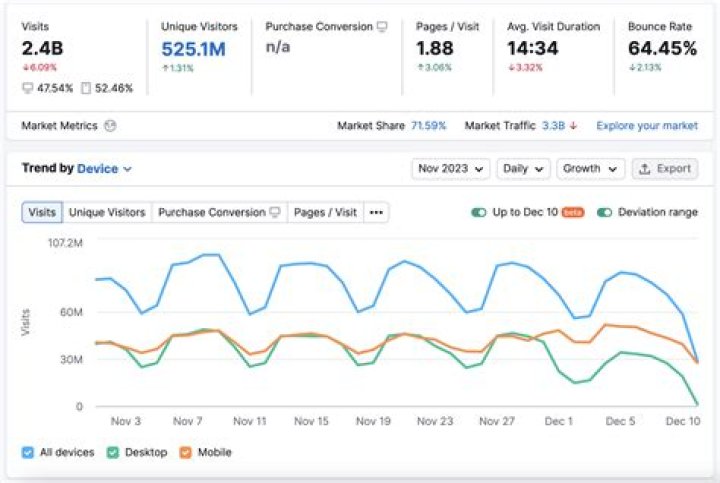
To get away from the separation of search engines, networks, and other sources, all clicks are grouped according to the total number of site visitors. Traffic sources are all transitions to the site that the user makes. These sources are a search engine, the address of the original website, newsletters, and direct access.
There are different channels, such as organic search, cost per click (CPC), referral, the name of the user’s channel that you created, and the direct traffic, which is designated as none. You can control the data summary with the help of the menu below the graph. Settings allow you to make reports on sources, campaigns, keywords, ad content, and landing pages.
To see traffic sources by links, select the Source section, which displays where was the traffic sent from, including UTM tags.
Analyze the table. The main indicators that you should pay attention to are:
- traffic availability;
- quality of traffic.
Pay attention not only to the links from which visitors attend the page but also to the results of clicking on them. The Bounce Rate, the number of visited pages and the session duration demonstrate the quality of the received traffic. Conversion links are the most valuable for the site, so you have to be out of them.
You should pay attention to the high Bounce Rate and the absence of further transitions. Analyze the links without further site transition and find out what is the reason for it. It is possible that the donor subject matter does not match yours, you use the wrong anchor, or another problem has arisen.
If you used internal supervision where donors and landing pages were recorded before links publishing, then you would find resources with active links. To analyze traffic on a specific link, use the search:
After analysis, you can easily find out which links bring the best traffic. Follow them to establish the probable reason for this success. If you understand why users not only go from the donor to you but also stay on your site, then you can focus on arranging the most effective links, which significantly affects the quality of SEO promotion.
However, if it is difficult for you to evaluate the effectiveness and find new directions in the development of link mass, you can conduct an analysis of the competitor’s external links. You can do it with the help of Serpstat.
Links that give you traffic, but have a high Bounce Rate for your topic also require special attention. First of all, make sure that the content of the donor matches your subject, and the link looks harmonious in the text. The location of the link is also important. User has to see it to click, but not find it accidentally while reading. Therefore, it is better to place links in the first part of the page, especially when it comes to reviews.
Not all links lead to a site transition, so you also need to conduct an online analysis of external links that do not influence the traffic level. Firstly, you should analyze these links and make sure that they still contain a hyperlink to your site. Then analyze if is it convenient for the user to find the link; whether the surrounding content is suitable for the topic.
These factors do not guarantee you many clickthroughs but increase their general possibility.
Google Analytics collects all information about the site, including referral sources. To analyze the presence of traffic via an external link, go to the toolbar and select the Acquisition section. Next, click on All Traffic and click on Referrals. Adjust the received report by periods and special report indicators.
During the analysis, pay your attention on:
- if there is traffic, find out what influences it to use it as an example in a future publication of links;
if there is traffic, but the Bounce Rate and visit depth are not justified, then find out the reason for it. Perhaps it can be fixed;
if you do not find links from which you expected to have traffic, then check whether these links are published at all, where they are published and among which content.
Nevertheless, even when there is no traffic, links pass the link juice from donors. However, a link that has clicks is more valuable for search engine optimization. Therefore, you need to focus on finding precisely effective channels.
What we’re looking for is to also answer the question “how to see which pages/posts receive the most traffic”. A little bit like finding popular landing pages.
E.g.: you have a site with 1000 pages that link liberally to each other in their content. Now which of these pages receive the most internal traffic?
Better yet: if page A gets the most internal traffic, from which internal pages does it get that that traffic?
This is the website that you built.
These are the pages that lived on the website that you built.
This is the traffic that came to the pages
That lived on the website that you built.
This is the question that reviews the traffic
That came to the pages
That lived on the website that you built.
The question is, “Which pages receive the most internal traffic and from where?”
Knowing the answer will help evaluate and improve internal linking practices through analyzing facts and user behavior.
Tracking Internal Traffic
One of the ways to find information on internal traffic in Google Analytics is to look at User Flow. Go to Audience > Users Flow. Select Landing Page in the dimension settings.
You will see paths users take through your website. First, second, and other interactions would be pages getting internal traffic. Unfortunately, this view does not provide aggregated data about all internal traffic to each page.
For more comprehensive information, go to Behavior -> Site Content -> All Pages and click on Navigation Summary page. Each page you select will have previous page and next page information. This particular view includes data on traffic (pageviews).
Still, this standard report might still be limited for you. A better way is to create a custom report.
A Custom Report To Show Internal Site Traffic
Custom reports in Google Analytics give you a lot of flexibility. They are very easy to create. Go to Customization in Google Analytics and click on New Custom Report button (top left).
Add metrics for the website pages. For example, pageviews, average time on page, % of exits, page value, page load time, etc. Be careful not to add metrics that apply to sessions (e.g., time on site, goal completions, goal value, etc.) Learn more about session and hit metrics.
Add Page and Previous Page Path dimensions. Filter out referring pages that are not internal – include Previous Page Path that matches regular expression: the path starts with slash and has characters after. This filter removes landing pages from the results. Save the report.
Using this report, you can also drill down which pages are bringing traffic to each page. Click on the Page URL in the report and you see the list of URLs linking to the page and how much traffic they brought. Nifty, huh? But do not stop here. Let’s get even better insights.
Export this report to Excel. On the report page, go to the bottom of the page and expand the table to show as many rows as you need. At the top of the page, select csv or Excel (XLSX) from Export menu. If you select csv, all your data will be delivered in one file. With Excel option, you will get a file with 3 tabs: Summary, Datasheet 1 (the one you will be using), and Datasheet 2. Leave only Datasheet 1. I named mine “Internal Traffic.”
Clean up the Analytics data. By default, Google Analytics omits your domain name. Screaming Frog does not. In order to match the data, I added domain name before the page path in Analytics data.
Data Fusion For Better Analysis
Sometimes Google Analytics does not provide all possible data. It helps to add metrics from other resources to make the insights more comprehensive. For example, use Screaming Frog to generate link data from your website.
Use Internal tab, HTML filter and select Export -> All Links. As a result, you will get a csv file. You can also export specific URLs page by page .
In the exported csv file, you will get all links, including JavaScript, images, etc. Filter out any link type that is not HREF. Make sure all your Source and Destination data starts with your domain name by deleting any URLs that are not internal. You can use Excel data filter.
Create a pivot table to find out how many internal links each page has. Put Destination in rows and Count of Source in Values. Now you have count numbers of links pointing to pages. You can make the report more detailed. For example, add Anchor in Rows to check anchor text diversity. For the purpose of this analysis, I am sticking with just the number of links.
It is usually tricky to work with data that remains in pivot tables. For simplicity, copy the data and paste it as values in a new sheet. I named mine “Links.”
Add “# of links” column to Internal Traffic sheet. We are going to combine link data with Google Analytics data. Enter the formula below:
Here is the formula breakdown. VLOOKUP: take the URL from Page column, compare it to the first column in links sheet and get the value of the second column (number of links) if there is an exact match. I added IFERROR function to display zero if there are no matches.
Insights
The results are interesting. The first page (A2) is a blog post, which has few internal links, but gets a lot of pageviews from those links. It also has a high exit rate. Should I consider putting a call to action on this page?
My third page (A4) is a major conversion page. It has a lot of links, but not very many pageviews. Time on page is ok, but exits are high. I need to make the page more compelling for people to go through the conversion. This page is a candidate for conversion optimization.
Finally, the page in A8 is a product page with very low time on page and exits. Feels like people passing through. The page is definitely not sticky; perhaps, not relevant to the user flow. I would look at the pages that send traffic to the page and where people are going to after. Navigation summary should help with that.
Armed with data, it is now possible to spring into action.
What do you usually learn from your internal traffic? What is your internal linking strategy?
Tuesday, April 9, 2019
In Google Analytics you can see how people are getting to your website by checking the Traffic Sources reports. These reports will tell you the medium (generally one of three – organic/search, direct, or referral) and the source (Google, Twitter, carleton.ca, etc).
Now let’s say you’ve published a post, have optimized it for search engines, and have promoted it on Facebook, Twitter, and the Intranet. How do you know which traffic source was most successful for that post?
You use a tool called ‘secondary dimension’. This tool allows you to dig into more info – such as traffic sources – on specific pages and posts.
To check traffic sources on specific pages:
- Log into Google Analytics. (Don’t know your username and password? Email [email protected]eton.ca and we’ll get you set up.)
- Click ‘Behaviour -> Overview‘.
Your top 10 pages will appear. If you do not see the page you want to analyze, click ‘view full report’ on the bottom right corner. - Click the page you want to analyze.
- Click the Secondary dimension drop down menu.
- Within the drop down menu, click Acquisition -> Source (or medium, depending if you want to see general or specific traffic sources).
Your list of traffic sources for that page will appear.
You can then see how successful each of these traffic sources were by looking at the time spent on the page and the bounce rate. Did they spend enough time there to read the post? Did they only read that post then leave? If you have a high bounce rate you may want to consider adding a call to action at the bottom of the post to keep them on your website.




