- You can connect Spotify to Alexa via the Alexa app to play music with voice commands.
- You can make Spotify your default music player to avoid having to say “On Spotify” in voice commands.
- If desired, you can disconnect Spotify from Alexa via either the Alexa app or the Spotify website.
An Amazon Alexa device can help you accomplish a variety of tasks, from turning on smart lights throughout your home to playing music.
If you use Alexa to play music via voice command, you can connect your Spotify account to Alexa so that all your music automatically plays from Spotify rather than another music streaming source. Here’s what you’d need to do.
How to connect Spotify to Alexa
1. Open the Alexa app on your iPhone, iPad, or Android.
2. Tap the More icon.
3. Select Settings.
4. Choose Music & Podcasts.
5. If you don’t see Spotify listed, choose Link new service. Otherwise continue to the next step.
6. Select Spotify, followed by Link account to Alexa.
7. Tap Enable to use and log in to your Spotify account.
Quick tip: Spotify is supported on the following devices that use the Alexa virtual assistant: Amazon Echo, Amazon Echo Dot , Amazon Echo Spot, Amazon Echo Show, Amazon Tap, Amazon Fire TV Cube, Facebook Portal/Portal+, and all Sonos players.
How to set up Spotify as default music player with Alexa
If you don’t want to have to add the phrase “On Spotify” to your voice commands when playing music, you can make Spotify the default player:
1. Open the Alexa app.
2. Tap the More tab in the bottom toolbar.
3. Hit Settings.
4. Choose Music & Podcasts.
5. Tap Default Services.
6. Tap Change next to the existing default music player, then select Spotify and then hit Done.
Note: This method doesn’t work for podcasts, so you’d still need to specify that you wanted a particular podcast to be played via Spotify in voice commands.
How to disconnect Spotify from Alexa
You can either disconnect Spotify from Alexa via the Alexa app, or on the Spotify website.
On the Alexa app:
1. Open the Alexa mobile app, and tap More.
2. Tap Settings.
3. Tap Music & Podcasts.
4. The Music & Podcasts page lists all the services currently connected to your Alexa (and lets you link new services as well). Find Spotify in the list and tap it.
5. On the Spotify details page, tap Disable Skill and confirm your choice.
On the Spotify website:
1. In a web browser on your Mac or PC, go to the Spotify website and log in to your account.
2. Click Profile in the upper-right corner and then select Account.
3. In the list on the left, click Apps.
4. Find Alexa in the list of apps with access to your Spotify information, and then click Remove Access. Confirm your choice.
Scene: You’re tired. You’ve had a long day. You walk into the house, and you ask Alexa to play a song for you, knowing full well that it’s available in Spotify. Her reply: it’s not available on Prime Music. Now you’re angry. Alexa should know you have your Spotify account linked up, but still it seems like you have to jump through hoops to get her to play music from that service.
There’s a way to make this easier, but you have to dig for it. You can change Alexa’s default music services.
Step 1: Link
First, you need to link your paid Spotify Premium account in the Alexa app. You must have a Premium account to use Spotify on your Alexa-powered devices. If you haven’t already does this, you’ll probably do it in the Music, Video, & Books section of the Alexa app. We say “probably” because that’s the easiest place to find it. It doesn’t matter which Alexa device appears in the header.
Step 2: Choose
Next, if you want Spotify to be Alexa’s first choice for music, you have to set it as your default music service. That’s possible, but it’s buried on a completely different screen.
From the side menu, select Settings. Scroll past all your Alexa devices, down to the Alexa Preferences heading, and select Music & Media.
Next, look below the music services (this is the other place where you can configure those) to Account Settings, and select Choose default music service.
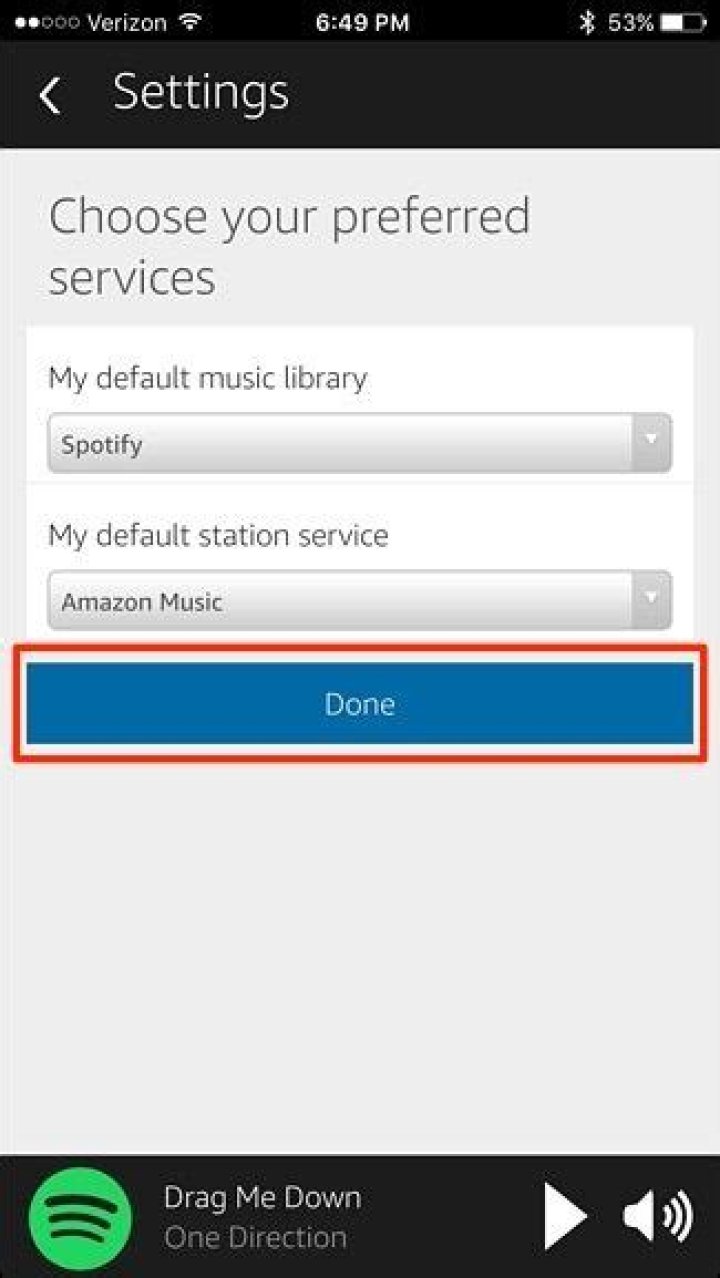
Here you’ll see the default settings. Most likely, Amazon is your default music library and your default station service. If you’ve linked your Spotify account, you make it your default library. When you’ve made your changes, just select Done.
Step 3: Ask and Enjoy
From this point forward, Alexa will first check Spotify when you ask her to play music. No need to specifically tell her you want music from Spotify!
When you ask Alexa to play music, it will always try to find the song, artist, album, or station in your Amazon Music Library or on Prime Music unless you append your request with “…on Pandora” or “…on Spotify.” Now you can change which music service is used by Alexa when no service is specified with your request. To do so, load up the Alexa App, select “Settings” from the left side menu, scroll down and select “Music & Media,” and press the “Choose default music service” button at the bottom. Canon ip6700d driver download mac. You’ll then be given the option to select a default music library other than Amazon, like Spotify, and a default station service other than Amazon, like Pandora or iHeartRadio. The option does not appear to be available through Amazon’s Alexa web portal yet. Changing the default music service will effect all Alexa devices registered to your account. You cannot select the default music service on a per device basis. It’s great to see Amazon giving customers this type of control which opens up their walled garden just a little bit more.
Share
Next, if you want Spotify to be Alexa’s first choice for music, you have to set it as your default music service. That’s possible, but it’s buried on a completely different screen. From the side menu, select Settings. Scroll past all your Alexa devices, down to the Alexa Preferences heading, and select Music & Media. It’s quick and easy to switch the Amazon Echo default music library to Spotify so you don’t get stuck with annoying Prime Music previews. (there’s an Android version of the Alexa app, too). Linking Alexa and Your Spotify Account. The first thing to do set Spotify as the default music player for Alexa. Here are the necessary steps. Launch the Alexa app and hit the hamburger.
I was able to change the music library to Spotify but it’s not an option for the station service.
ReplyAbelesays:July 7, 2016 at 5:36 pm
YMMV. I don’t seem to have the option to change Default Music Service after upgrading the Alexa app to the latest available version from the App Store
Leave a Reply
Use voice commands to control music and podcasts with Amazon Alexa!
Get started
Download the Alexa app, open it, and link your Spotify account with these steps:
1 What is Spotify Premium Mod Apk. 1.1 What are the Issues in the Unpaid version? 1.2 Download Spotify Mod Apk 2020; 1.3 Features of Spotify; 1.4 How to Download and Use. 1.4.1 Spotify For Android; 1.4.2 Spotify Premium for IOS; 1.4.3 Spotify Premium APK Features; 1.4.4 Conclusion. Spotify mod apk on pc.
- Tap the menu in the top-left.
- Tap Settings, then Music & Podcasts.
- Select Spotify, then Link account to Alexa.
- Enter your Spotify account details.
Set Spotify as your default service for music and podcasts so you don’t need to specify “on Spotify” at the end of your voice commands to play music:
- Tap the menu in the top-left.
- Tap Settings, then Music & Podcasts.
- Tap Choose default music services.
Note: To set Spotify as your default podcast service, tap Choose default podcast service. - Select Spotify and tap DONE.
Note: You still need to say “on Spotify” at the end of commands to play podcasts.
Now just ask Alexa to play something! E.g. Download spotify to. ‘Alexa, play Discover Weekly’. Check out the Amazon help site for supported languages.
Supported devices
Set Spotify As Default Music App Echo Download
Free download adobe photoshop for mac os x 10.6 8. Amazon Echo, Amazon Echo Dot, Amazon Echo Spot, Amazon Echo Show, Amazon Tap, Amazon Fire TV Cube, and all Sonos players.
Need help?
For help setting up and troubleshooting, go to the Amazon help site.
Set Spotify As Default Music App
Check out other articles on our support site for help with your Spotify account and payments, listening offline, or if you can’t play music. Best moodle for mac download.
You don’t have to use Amazon Music with your Echo device
Share this story
- Share this on Facebook
- Share this on Twitter
Share All sharing options for: How to connect Alexa to Spotify, Apple Music, and more
Photo by Dan Seifert / The Verge
As you might expect, Alexa-friendly devices tend to assume that you want to hear tunes from Amazon Music. If you prefer Spotify, Apple Music, or another music service, it’s not all that hard to set it up and use it with your Amazon devices.
- In the Alexa app, tap the menu icon at the top left of the screen, and then tap “Settings.”
- Scroll down to “Music” (in the section “Alexa Preferences”) and tap that. You’ll see any services you’ve already installed, and an entry named “Link New Service.” Tap that.
- You’ll see logos for available services, including Apple Music, Spotify, Pandora, Deezer, Tidal, and Vevo, as well as streaming services including iHeartRadio, TuneIn, Radio.com, and SiriusXM. (No, there is no option for Google Play Music. Surprise, surprise.)
- Tap the one you want to install.
- The next page will not only have an “Enable to Use” button, but will include a description of the exact grammar your service uses, so you probably want to take a moment to absorb it. In most cases, the command grammar for Alexa is, “Alexa, on ,” so the full command sequence for Spotify happens to be “Alexa, play Peter Gabriel on Spotify.” Services do sometimes differ, however, so the best thing to do is to at least glance at the instructions before you tap the “Enable to Use button.”
- At that point, you will probably be taken to the Amazon Skills store on your phone’s browser. Depending on the service, you will be asked to log in to the service and / or authorize Alexa to use your data.
And you’re done. You can now use that service with your Alexa device.
How to set a default music service
Specifying the exact station and service all the time can become tiresome. If you have a favorite service other than Amazon Music — or an internet radio station you usually listen to — you can set it as a default.
- Go back to “Settings” > “Music”
- Below the list of installed services on the Music screen is a section called “Account Settings” under which you’ll see “Default Services.” Tap on that.
- On the next page, you’ll be able to set which music service and / or which radio service you want to default to by simply tapping on it.
Now if you have more than one service installed but you have set, say, Spotify as your default, you can ask for songs by a particular musician without having to add “from Spotify.”
Vox Media has affiliate partnerships. These do not influence editorial content, though Vox Media may earn commissions for products purchased via affiliate links. For more information, see our ethics policy.
Updated on December 15, 2021
Got yourself an Alexa device? Perhaps an Amazon Echo. You can play songs from Amazon Music using the voice command, “Alexa, play music.” But you may prefer using another service like Spotify. Although by default, your Alexa device will not be enabled to play from Spotify. It plays songs from Amazon music. But you can change it. Thankfully Amazon gives us the option to change the default music service provider. So now, users can link Spotify to Alexa products.
So in this article, let’s see how to link your Spotify account to Alexa products and set it as the default music provider and play future songs from it. With Spotify, you can enjoy a ready-made curated list and endless series of the latest songs of your preferred language. Let us begin:
How to Link Spotify to Your Alexa Products
Alexa can be easily set up using the Alexa app on Android or iOS. So, first of all, download the app for your app from the Play Store or Apps Store. Then you can follow these steps to connect Spotify to your Alexa enabled devices.
- Once installed, open the app from the app drawer.
- Set up your Alexa device by following the prompts on your screen.
- Now open the menu in the app and tap in Settings.
- Tap on music and tap on “Link new services.”
- Now Tap on Spotify, sign in using your Spotify account, and the account will be linked to your Alexa device.
- Finally, you can select “Default services if you want to set Spotify as your primary player and source to get music.
Spotify connect
Alexa can grab what’s playing on Spotify devices that are connected to the same Wi-Fi network when the user says “Spotify Connect” after the hey Alexa prompt. This will start playing the song on your Alexa Device.
Some Voice Commands suggested by Spotify
Alexa,
- Play Spotify.
- Play my Discover Weekly. hip-hop music.
- Pause.
- Resume Spotify.
- Like this song.
- Play the next song
- What’s playing
- What’s this album
(Source: Spotify, Amazon)
Conclusion
So to wrap it up, this is how you can link your Spotify account to your Alexa devices like Echo or Echo dot. Thankfully the steps are simple and very straight forward, making it very easy to switch to another music service without any worries.
Although using some other popular services like YT music is not possible in Alexa till now. But you can connect your phone to Amazon Echo using BlueTooth and play it using your phone. But it would have been nice if it was available natively.
Connecting Spotify to your Alexa-enabled devices lets you listen to songs and playlists using voice commands alone. Then, you can make Spotify your default streaming service, so you can ask Alexa to play your favorite songs and playlists instantly. Here’s how to connect Spotify to your Alexa speakers and make it your default music player.
How to Connect Spotify to Alexa and Make it Your Default Music Player
To connect Spotify to Alexa, open the Alexa app and tap More. Then go to Settings > Music & Podcasts > Link New Service and select Spotify. Next, tap Enable to Use and select Agree. Finally, go to Visit Music Settings andtap Change to make Spotify your default music player.
- Open the Alexa app. If you don’t already have the Alexa app on your smartphone, you can download it on the Apple App Store or the Google Play Store.
- Then tap More. This is the three-line icon in the bottom-right corner of the screen.
- Next, select Settings.
- Then tap Music & Podcasts. You can find this under Alexa Preferences by scrolling down.
- Tap the Link New Service.
- Then select Spotify.
- Next, tap Enable to Use.
Note: If you are not logged in to your Spotify account already, you will be prompted to enter your username and password. You can also choose to continue with your Facebook, Apple, or Google. Then tap Log In.
Note: If you accidentally tap Not Now or you want to set your default music player later, you can always change it in the Alexa app later by going to More > Settings > Music & Podcasts > Default Services.
After you connect Spotify to Alexa, check out our step-by-step guide on how to set up Alexa routines, so you can create a music alarm and wake up to your favorite playlist.
Spotify is one of the finest streaming music services which offers you access to a vast number of songs all over the world. Millions of people are subscribed to this service as they relish music from the entire world. Why should you be an exception? Did you know that you can play music on Spotify using voice control? This is where Alexa comes into play. Through the smart sound devices, you can command Alexa to play the songs of your choice from this music service. But to achieve this, you will need to connect Spotify to Alexa.
Spotify music service
Therefore, to get started you will need to ensure that the requirements for connecting the two are all in place. First of all, you will need to have the Amazon Alexa app installed on your phone or tablet. This will allow you to set up the Alexa device and link the Spotify account to Alexa. the app is available in the Google Play Store as well as App Store. To download the app, you need to follow the steps given below:
For iOS users:
- In your iOS device, go to the App Store.
- Search for Amazon Alexa app in the search bar.
- Click on Get to install the app into your device.
Downloading Amazon Alexa for iOS devices
For Android Users:
- Go to Google Play Store on your Android device.
- Tap the search tab and search for Amazon Alexa app.
- Tap on Install.
Downloading Amazon Alexa for Android devices
Creating a Spotify Premium Account
Keeping in mind that you already own an Alexa-enabled smart speaker with you, you also need to ensure you have a Spotify Premium account as well. Creating this account is not an uphill task. All you need to do is to follow the sign-up process and you will be done.
However, to access your playlists and library as well as Alexa services, you need to upgrade to a premium (paid) account. This gives you privileges that you cannot get on the normal Spotify account. The sign-up process is as simple as 123 and is as shown in the procedure below:
- Go to the Spotify website to sign up.
- On the sign-up page, enter your email address or tap on Sign upwith Facebook.
- You can enter the email again as confirmation or enter your Facebook login credentials.
- Create a password for the account. Ensure you enter a password that you can remember.
- Next, enter your Date of Birth.
- Select your gender, whether female or male.
- Enter the Captcha code to prove that you are not a robot.
- Finally, click on the Sign-Up button to complete the sign-up process.
After the sign-up process, you will be in a position to easily access the account. This will offer you a free trial for 30 days. After that, you will need to upgrade to a Spotify Premium account which lets you enjoy its features at a fee.
Linking Spotify Account to Alexa
To have Spotify to work with Alexa, you will need to link your accounts. The procedure is straightforward and easy to follow as shown below:
- Open the Amazon Alexa app on your iOS or Android device.
- Click on the menu icon and go to Settings.
- Select Music & Media
- Click on Link accounton Spotify.com.
- Click on login to Spotify button which is highlighted in green.
- Enter your email address and password (for your Spotify Account) or tap on login with Facebook to enter your Facebook login information.
- After reading the terms and conditions, click on I Accept at the bottom of the screen.
- Once you are done, you will get a confirmation that your Spotify account has successfully been linked. Click on the X symbol at the top-right corner of the screen to close the window.
Note: only one Spotify account can be paired per Amazon account, and thus for Alexa-enabled device.
Set Spotify as your Preferred Music Service
After successful linking of Spotify account to Alexa, you need to set Spotify as your preferred music service. Amazingly, Amazon has been good enough to allow you to use Spotify as your default audio provider. To achieve this, follow the steps outlined below:
- Click on the menu option at the top-left corner of the screen.
- Click on Settings and then select the Music option.
- Tap Choose default music services.
- Next, select Spotify and click on DONE.
Choosing the default music service
Spotify Alexa Commands to Use
Now that you have managed to connect Spotify to Alexa, there is still one last thing to take into consideration. What do you say to Alexa? Below are some of the essential voice controls that you can use to choose and play music.
Take note that each command must start with the word “Alexa.” Moreover, since you have set Spotify as the default music service, there is no need to mention the word Spotify at the end of the command. For example, you will not need to say “Alexa, play (song name) from Spotify,” instead omit the phrase “from Spotify” from the command.
“Alexa, play (song name)” – plays a song by the name mentioned.
“Alexa, play (song name by the artist)” – plays a song by the specified name of the artist.
“Alexa, play (playlist)” – plays songs from the playlist.
“Alexa, play (genre)” – plays a genre of music.
“Alexa, which song is playing?” – tells you the information on the type of song that is playing.
“Alexa, Spotify Connect” – you can use this command when you are having issues connecting to Spotify.
“Alexa, who is (artist)” – gives you the information about the musician of the specified song.
“Alexa, volume up/volume down/mute/unmute/volume 1-10.” – this controls the volume of the Alexa-enabled device.
“Alexa, play/pause/stop/resume/shuffle/unshuffled/previous.” – this controls the type of song you are playing.
Spotify is one of the greatest ways to experience your favorite music, both at home and on the go, across a wide array of devices. From building and sharing custom playlists to social listening through services like Spotify Group Sessions, there’s no shortage of ways to experience the world’s most popular music streaming service. What could possibly be better? How about the ability to link Spotify with your home’s Alexa speakers for even greater convenience?
See more:
- Funny things to ask Alexa
- How to play Apple Music on an Alexa device
- Best music hacks for the Amazon Echo
In this guide, we’ll teach you how to link your Spotify subscription with Alexa so you can start experiencing the next wave of controls. If you own an Alexa-enabled device, like an Echo , Echo Dot , or one of the many third-party smart speakers that work with Alexa, you’re halfway there.
Three steps to getting connected
Before we start, there’s one very important thing you need to do: Make sure you’ve got a Premium Spotify subscription — the free, ad-supported tier won’t work with Alexa.
Step 1: Download the Alexa app
If you haven’t already done so, download the Alexa app for iOS or Android. Sign in with your Amazon account and, if needed, go through the quick setup wizard to get your Alexa-enabled device recognized by the app.
Step 2: Add your account
When viewing the home screen of the Alexa app, tap More in the bottom right corner, followed by Settings. Then scroll down and tap Music & Podcasts.
On the next screen, the app will show you a list of services that are already configured — Amazon Music is almost certainly there — as well as the option to add new services using the + button. Tap the plus sign, select Spotify, and enter your account credentials. Then agree to give Alexa certain access permissions to your account.
Once completed, you’ll get a confirmation message, and you can close the window using the X at the top.
Step 3: Set your default music provider
Adding your Spotify account gives Alexa access to your music, but in order to control Spotify without having to constantly remind Alexa to use it by adding “on Spotify” to every command, you need to set Spotify as your default program for streaming music.
On the Music & Podcasts screen, tap Default Services under Settings. By default, your Alexa app is likely set to Amazon Music. Tap Change on the right side of the page, then select Spotify from the list of available services. That’s all there is to it.
What can you ask for?
Now that you’re all set up, it’s time to ask Alexa to play some music on Spotify for you. Here are a few examples of what you can ask for, from Amazon’s complete list of Alexa music voice commands:
- “Alexa, shuffle” or “stop shuffle.”
- “Alexa, stop” or “pause.”
- “Alexa, play” or “resume.”
- “Alexa, play some music.”
- “Alexa, play what’s hot in Brazil.”
- “Alexa, play songs similar to the ’60s.”
- “Alexa, play [song/album/artist].”
- “Alexa, play [emotion] music.”
- “Alexa, play [station name].”
- “Alexa, play [a playlist’s name].”
– Feb. 8th 2021 5:06 am PT
Apple has finally offered the ability to set Spotify as your default music player for Siri commands. This was previously only available on HomePods, and was a feature we asked for back in 2019.
The new behavior appears in the beta of iOS 14.5. The first time you ask Siri to play something, it lists all the streaming services you have installed on your device and ask you which of them you want to use. Once you have done so, Siri then defaults to that service for subsequent requests …
The feature was first spotted by Reddit users (via MacRumors), and includes podcast apps, too. Users without the Apple Music app installed report that it simply defaults to the music player they use.
“I just told Siri to play a song and it started on Spotify without any further questions. I have Apple Music uninstalled.”
“I don’t have the music app installed and it just asked for permission to access YouTube Music. After that, every request has been sent straight to YTM.”
“I asked Siri to play an artist without specifying Spotify and it told me it will need access to my Spotify account and asked if I allowed access. I replied yes and the song played. Now every command controls Spotify even if not mentioned. Great move.”
“It even works when I ask it to play my liked songs and it just goes straight to Spotify to play that playlist, pretty cool.”
Users do, however, note that it seems buggy at present.
“This actually seems fairly buggy. I tried this and it didn’t give me a pop up. Just goes straight to Apple Music.”
“Yeah, it is a bit inconsistent, as with all things Siri. Just now i asked it to ‘Play blue hotel’, after which it offered me to choose, then I dismissed it and asked it again and it played straight on Apple Music, and then the third time I asked it, it asked me for access to my Pocket Casts data, which is a podcast app and obviously doesn’t have music at all.”
Apple has made a number of moves of late designed to keep antitrust actions at bay. iOS 14 last year allowed users to change their default web browser and email app as part of five changes made in response to antitrust concerns. The changes were made after it was suggested that the company was abusing its dominant position to put competitive apps at a disadvantage.
Apple has so far kept this one quiet. It’s worth noting that there is no UI for this in Settings as yet, so it’s possible that the company didn’t intend to have this feature release in iOS 14.5. Either way, it will make a lot of people happy once it is fully available.
FTC: We use income earning auto affiliate links. More.
Robert Hayes Robert is a freelance editor and writer living in Colorado. Read more June 12, 2021
The Echo Dot is Amazon’s inexpensive yet highly functional home automation device. Echo Dot is compatible with nearly every Alexa product and most other automation services, such as your security system, thermostat, and lighting. The device is versatile and compact, and it makes the perfect virtual assistant for anyone.
One of the most popular uses for the Echo Dot is a music control system. It’s truly empowering to be able to sit in any room of your house, have the urge to hear a particular top 40 song, and just say, “Hey Alexa! Play
Save Your Tears by The Weeknd.”
However, while Amazon would like it very much if you would get all your music through its premium services, the fact of the matter is that you can configure your Echo Dot to work with pretty much any music service out there, including Apple Music, Spotify, Google Play Music, and more.
There are a few different ways to get free music from your Echo Dot:
- Link a free music service to your Dot through the Alexa app.
- Play music from a linked device through your Dot.
- Play music in your own personal library through the Dot.
This article shows you how to play free music on your Echo Dot using the three different options above, so you can kick back and enjoy your Top 40 hits or bask in some favorites from the past! Let’s get it started in here!
Use Free Trials & Free Subscriptions in Echo Dot
When you purchase your Echo Dot, you can sign up for Amazon Music Unlimited. While this service offers over 60 million songs for $9.99 per month after a three-month free trial, you can take advantage of the free option with limited listening capabilities. If you’re looking to use the Amazon Unlimited Free Trial, you won’t pay anything until the 90-day trial expires. You can cancel the service before the trial ends, of course.
Most music subscription services offer a free trial for new users. As long as your email account is not already associated with the service, a free trial awaits you!
Link a Third-Party Music Service to Your Echo Dot
As you might expect, your Echo Dot starts with Amazon Music as the default music player. So, if you have a Prime membership, you can leave it there because the music isn’t costing you anything aside from your Prime subscription costs.
However, if you don’t have Prime Music or prefer to use a different streaming service, hook your Dot up to the desired music provider and its source of free music. There are several free services with built-in Alexa integration, including iHeartRadio, Pandora, and TuneIn. You can also link to the free tiers of Spotify and Apple Music as well.
- Open the Alexa app on your phone or computer.
- Select “Settings,” then “Music & Podcasts” under the “ALEXA PREFERENCES” section.
- Choose “Link New Service” under the “SERVICES” section. The items listed underneath are already usable.
- Select your music provider from the list of remaining services.
- Follow the wizard to add logins or set as default.
The ‘Link New Service’ feature includes many of the more popular music services, but it does not include all of them. Regardless, setting up your Echo Dot to use a third-party music service is as easy as following the simple steps listed above.
Use a Linked Device to Play Free Music on Your Echo Dot
The other way to play free music on your Echo Dot is through a linked device such as a smartphone. You pair your phone (or another Bluetooth-enabled device) to your Echo Dot via Bluetooth and use your Echo as the speaker for the music you’re streaming from your phone.
Pairing is very straightforward, but it requires the Alexa app installed on the device. Just follow these steps to get started:
- Make sure Bluetooth is enabled on your phone.
- Open the Alexa app on your phone.
- Using your phone, say the words, “Alexa, pair” aloud where Alexa on the Echo Dot hears it.
- Select the “Echo Dot” on the Bluetooth screen of your phone.
- Say “Alexa, connect” to link your phone and the Echo Dot.
- Play music from any source on your phone to hear it on your newly connected Alexa Dot.
These six simple steps are all it takes to pair your Echo Dot to another Bluetooth-enabled device. For a better audio experience, here’s how to pair your Echo Dot with a Bluetooth speaker.
Play Your Own Music Through Your Echo Dot
If you have an extensive media library on your device, you can use Plex Media Server to organize it and to stream it anywhere in your home, including your Echo Dot. We have a complete walkthrough of setting up Plex with the Amazon Echo if you need more details on the process.
Final Thoughts
The Echo Dot is one of the more useful household tech items. Depending on the devices you already have, you can play music, link to other speakers, set your thermostat, and even start your car.
Free music isn’t as challenging to come by as it once was. There’s no more waiting for hours and risking malware to download your favorite hits from Napster. Instead, most music services give you the option to play free music with ads and limited skips. So if you’re in it to saving money, these free music streaming options are an excellent solution for you!
AppleInsider is supported by its audience and may earn commission as an Amazon Associate and affiliate partner on qualifying purchases. These affiliate partnerships do not influence our editorial content.
Here’s how to change your default music player on iPhone and iPad to Spotify, Pandora, and others in iOS 14.5.
Currently in both developer and public beta, iOS 14.5 for iPhone and iPadOS 14.5 for iPad brings the new ability to update the default audio player to others besides Apple’s native Music app. With this update, many apps can now be set as the default music player. Apple Podcasts, Pandora, Dark Noise, Spotify, iHeartRadio, and TuneIn Radio to just name a few.
Apple has had the ability to update the default browser and email client to third-party alternatives for some time. Now, Apple is laying the groundwork for bringing similar functionality to music.
How to set your default music app on iPhone and iPad
- Ensure your iPhone or iPad is running iOS 14.5 or iPadOS 14.5 (currently in beta)
- Ask Siri to play “music” or request a specific song, album, or artist
- Siri will ask where you’d like to play that music from and a list will appear on-screen
- Choose from any of the supported audio apps you have installed, including Spotify
- Your audio should start to play from that app and each subsequent request will default to that app
Note: Currently, there is no way to change this again. It is not listed as a setting, and you can’t ask Siri to update your “default” player. If you want to play from a different source in the future, be sure to explicitly state in your request which what app you’d like to use.
There is still further work for Apple to do here, and it occasionally reverts back to Apple Music rather than your selected option.
Important: The option to select our preferred music player didn’t appear immediately after updating. If it doesn’t appear for you, try power cycling your device and then try asking Siri again.
This tutorial is about the How to Select Spotify as Default Music Service on Echo. We will try our best so that you understand this guide. I hope you like this blog How to Select Spotify as Default Music Service on Echo. If your answer is yes then please do share with your friends after reading this.
- Check How to Select Spotify as Default Music Service on Echo
- How to connect Spotify to Alexa
- Here’s how to set Spotify as the default music player with Alexa
- How to disconnect Spotify from Alexa
- On the Spotify website:
- Final words: How to Select Spotify as Default Music Service on Echo
Check How to Select Spotify as Default Music Service on Echo
If you have an Echo device, you probably know that you can ask Alexa to play a variety of songs. However, unless you have a paid subscription to Amazon Music, the number of songs Alexa can play for you is somewhat limited. The good news is that you can change Alexa’s default music service to something other than Amazon Music. You can connect Alexa to a music service that you have subscribed to and make this service your default music service for Alexa.
After changing the default music service, Alexa will automatically play songs from that service without you having to request that service every time you talk to Alexa. You are tired. You’ve had a really long day. You walk into the house and ask Alexa to play you a song, knowing that it is available on Spotify. His answer: not available on Prime Music. Now you are angry. Alexa should know that you have linked your Spotify account, but it seems that you will have to go through the obstacles for her to play music from this service. There is an easier way to do this, but you will have to find it. You can change the default Alexa music services.
How to connect Spotify to Alexa
- Open the Alexa app on your iPhone, iPad, or Android.
- Tap the More icon.
- Select Settings.
- Choose Music and Podcasts.
- If you don’t see Spotify listed, choose Link New Service. Otherwise, proceed to the next step.
- Select Spotify, followed by Link account to Alexa.
- Tap Enable to use and log into your Spotify account.
Here’s how to set Spotify as the default music player with Alexa
If you don’t want to have to add the phrase “On Spotify” to your voice commands when playing music, you can make Spotify the default player:
- Open the Alexa app.
- Tap the More tab on the bottom toolbar.
- Press Settings.
- Choose Music and Podcasts.
- Touch Default services.
- Tap Change next to the existing default music player, then select Spotify and then tap Done.
How to disconnect Spotify from Alexa
- Open the Alexa mobile app and tap More.
- Press Settings.
- Touch Music & Podcasts.
- The Music and Podcasts page lists all the services currently connected to your Alexa (and also allows you to link new services). Find Spotify in the list and tap on it.
- On the Spotify details page, tap Disable Skill and confirm your choice.
On the Spotify website:
- In a web browser on your Mac or PC, go to the Spotify website and log into your account.
- Click Profile in the upper right corner and then select Account.
- In the list on the left, click Applications.
- Find Alexa in the list of apps with access to your Spotify information, and then click Remove Access. Confirm your choice.
Final words: How to Select Spotify as Default Music Service on Echo
I hope you understand this article How to Select Spotify as Default Music Service on Echo, if your answer is no then you can ask anything via contact forum section related to this article. And if your answer is yes then please share this article with your family and friends.




