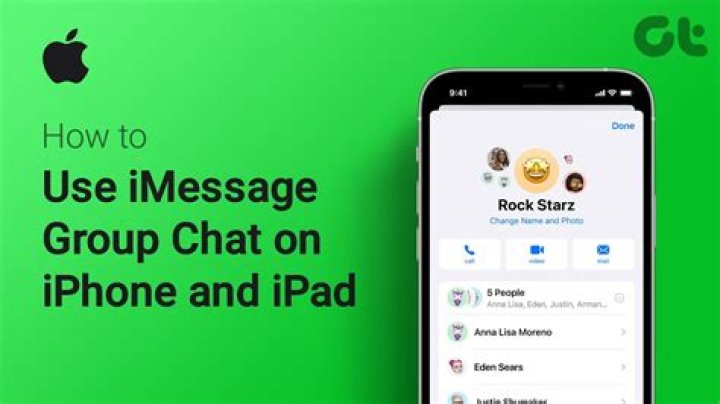
If you are someone who keeps track of all the cool smartphones in the market right now, and their features, then you must know that iPhones are not only famous for their processor, or iOS. iPhone also has apps you cannot use on any other phone, like the FaceTime app and iMessages. iMessage app is one you can use to text your fellow iPhone owning friends using Wi-Fi.
Over the years, Apple has paid a lot of attention to the iMessage app and developed it into being one of a kind. And, with the arrival of iOS 11, iMessage app is now better than ever. iMessages can now be backed up on your iCloud account, and the apps integrated into the app have been revamped. You can now even use Apple Pay on the iMessage app to instantly make person-to-person payments.
Since the iMessage app sounds like such a useful asset, here is how to get into a group chat with iMessage, rename it, mute it, and even get the hell out of it when you want! iMessage allows you to share texts, videos, pictures, voice notes, locations (almost anything you want) with all your friends, at once.
How to Start A Group Message on iMessage
Step #1. Launch the Messages app from your Apple device’s Home Screen.
Step #2. Tap on the compose new message icon, that looks like a paper and pencil.
Step #3. Type in the name of the first contact you want to add in the group chat.
Step #4. Repeat Step 3 and add the next contact you want to add.
Step #5. Tap into the empty text field on the bottom of your message.
Step #6. Type the message you want to send in the group chat, then tap Send.
Creating group chats is as simple as that!
How to Name A Group Chat on iMessage
In case, you keep sending messages in the wrong chat because you are in several groups chats, you can rename the group chat very easily!
Step #1. Launch the Messages app from your Home Screen, and tap the group conversation you want to rename.
Step #2. Tap the Info icon (it has an ‘i’ in a blue circle), then tap on the Group Name.
Step #3. Tap on Enter a Group Name, and enter the name you want. Then, tap Done.
How To Mute A Group Chat in iMessage
All of us have been added to a group chat we have no interest in some time or the other. And the notifications from those chats keep bombing our phone, but, we’re here to help with that.
Step #1. Launch the Messages app, and tab on the group message you want to mute.
Step #2. Tap the info icon on the top right of your screen.
Step #3. Tap the switch next to Hide Alerts. And, the notifications from that chat will stop!
How to Leave A Group Chat on iMessage
You can only leave group chats if all participants use iMessage. But, the process of leaving an iMessage group chat is fairly easy and simple!
Step #1. Launch the Messages app from your Home Screen.
Step #2. Tap on the group chat you want to leave, then tap the Info icon on the top right of the screen.
Step #3. Tap on Leave this Conversation and enjoy the peace.
Talking to multiple people individually can be tedious, especially if it concerns coordinating with your team, friends, or family members for a special project. iMessage group chats on iPhone enable users to send a single message to multiple contacts without installing a third-party application.
If you’re wondering how to use iMessage groups to create a group chat on iPhone, relax! This comprehensive guide is for you! But before we start, let’s go through the types of iPhone group chats.
Types of group chats on iPhone and iPad
There are three types of group chats that can be created on an iPhone:
- iMessage group chats: An iMessage group chat can only be created if you and all other group members own Apple devices with group settings enabled. To do so, go to Settings →Messages → toggle on Group Messaging.
Such messages are visible in blue text bubbles, require an internet connection to use, and are sent through Apple.
- Send and receive amazing message effects, photos, videos, and audio messages.
- Change name and photo of the group, add or remove people from the group, mute notifications and leave the group.
- Share your location as well as your name and photo.
Note: To create an MMS group chat, go to Settings → Messages → toggle on MMS messaging.
- Send and receive photos and videos.
- Mute notifications.
Note: The Messages app automatically creates a group chat based on your iPhone settings.
Now let’s check the steps below to create a group chat:
How to create a group chat on iPhone
- Open Messages.
- Tap Compose at the top right.
- You can type the name of contacts or tap + to add from your contacts.
- Next, type your text in the Subject Field and tap Send icon.
That’s all! You have successfully started a group conversation on your iPhone or iPad.
How to add someone to a group chat in iOS
- Open the group chat in Messages.
- Tap the little arrow under the group name.
- Now, tap info.
- Hit Add Contact.
- Type the contact name or tap + at the right to add a member from your Contacts.
- Once selected, tap Done.
- Finally, tap Done.
Now that a group has been created, you may want to customize it. Let’s surf through different options for customizing your group chat.
Customize your group chats on iPhone
Once you have created the group and added all the members, you can change certain things to customize your group chats.
Note: You can customize only your iMessage group chats.
Add or change the group name and photo:
- Open the group chat in Messages.
- Tap the little arrow under the group name and then tap info.
- Then, tap Change Name and Photo.
- Change your group name and select from a wide range of emojis or Memojis for the group photo.
Note: You can also capture a photo or choose from your library. Also, you can choose from eight different styles. - Once finished, tap Done.
- Then, tap Done again to confirm.
- Hit Done again to exit the tab.
Mute the group chat:
- Under the group name, tap the little arrow to reveal the icons.
- Select info.
- Toggle on Hide Alerts.
Now, you won’t get notifications if anyone messages in the group chat. To unmute the group chat, follow the same steps and toggle off Hide Alerts.
Leave the group chat:
- Once again, tap info under the group name.
- Now, scroll to the bottom and tap Leave this Conversation.
- Tap Leave this Conversation again to confirm.
How to remove contacts from the group chat on iPhone
- Tap the arrow under the group name and go to info.
- Now, slide the particular contact name to the left.
- Tap Remove.
Extra info: As a result of the group conversation, you may end up with less storage than before due to the various media you receive on the group chat. Be sure to check the article on how to delete a picture or video from the Messages app.
This is how you can create a group chat, add or remove members, and customize it to enhance your chatting experience without a third-party application.
Want to do more than just chat? Check out these cool iMessage apps you can try with your group members.
Read more:
iGeeksBlog has affiliate and sponsored partnerships. We may earn commissions on purchases made using our links. However, this doesn’t affect the recommendations our writers make. You can read more about our review and editorial process here.
Group chats are great. They keep you in the loop for team projects, general announcements, or anything you should know about family, friends, colleagues, or classmates. Nowadays, it is impossible not to have group chats whether you are on Facebook Messenger, Viber, or any other third-party messaging apps. If you and your circle are using Apple devices, did you know that you can create an iMessage group chat?
Photo by JESHOOTS.COM on Unsplash
In a nutshell, iMessage is a reliable app that lets you send free SMS, videos, or photos. For a time, it was only available between contact-to-contact threads. Following recent updates in the iOS environment, Apple now allows iMessage group chats. This article will explore the cool feature and teach you how to add friends or other people to keep everyone in the loop.
Inside This Article
Getting Started With iMessage Group Chat
Apple’s Messages app has become more interesting after the latest iOS, iPadOS, and macOS were rolled out. New and cool features that allowed collaboration of Apple device owners got incorporated into the platform. Among those is support for creating group chats using the iMessage feature.
Any Apple gadget user like you can use iMessage group chat but have to keep these in mind:
1. The user must have an active Apple ID account.
2. Users must enable the iMessage feature on their devices.
3. The gadget iMessage is on should be using an up-to-date iOS, iPadOS, or macOS.
4. The user must have a strong internet connection.
With these requirements in mind, anyone can use iMessage as an essential tool to keep everyone in the loop on important conversations wherever, whenever.
How To Make an iMessage Group Chat
If you want to give the iMessage group chat a try, go ahead. You’ll most likely get familiarized with it fast like other users.
Here is a comprehensive walkthrough to refer to:
1. Navigate to the Messages app from your device’s home interface.
2. Press the compose icon on the interface’s top right corner to add a new message.
3. On the recipient field, type the contact names to add to the group chat or tap the + icon.
4. Type a quick message on the compose field and hit send afterward.
© Cellular News
The thread then becomes the group chat for the people you have added. From here, you can customize the thread by renaming it or changing the group chat photo to your liking.
Note
When adding contacts to an iMessage group chat thread and the name turns green, that means the person has not enabled his or her iMessage feature or is not using an Apple device. Also, you can only add up to 25 people to an iMessage group chat, according to Apple.
Adding People to an iMessage Group Chat Thread
Did you miss adding a contact on a thread you have created? There’s no need to repeat everything you did in the previous tutorial.
Here’s a walkthrough to add someone to a pre-created thread on iMessage:
1. Open the Messages app.
2. Locate the group chat thread you have created.
3. Pick the correct thread name near the screen’s center to access the group chat menu.
4. Tap the bar that indicates the number of group chat participants.
5. Select Add Contact then the specific contacts to be added.
6. Once finished, tap Done on the top right corner of the screen.
© Cellular News
Removing a Contact From iMessage Group Chat
Kicking someone out of a thread may be harsh but is necessary for some scenarios. It just really depends on the reason and how you perceive it. Nonetheless, doing that is as easy as how you have added contacts.
Here’s how to remove a contact from your iMessage group thread:
1. Open an iMessage group thread.
2. Tap the group chat name near the middle of the screen to pull out the chat menu.
3. Press the bar indicating how many people are included in the chat thread.
4. Find the contact you want to kick out of the group.
5. Slide the name of the contact toward the left and tap Remove.
© Cellular News
How To Leave an iMessage Group Chat
Is the chat group no longer used or becoming a source of annoying messages? If yes, it is already advisable to exit the thread for good.
Here’s how to leave an iMessage group chat thread:
1. Open the Messages app and locate the thread your wish to leave from.
2. Tap the group chat name on the upper part of the interface.
3. Swipe up to find and click the Leave This Conversation option.
You will no longer be able to participate in the conversation afterward; you will not see the thread itself from your inbox either.
Is iMessage Using Windows PC Possible?
Essentially, iMessage is a feature of the Message app under the iOS environment. Thanks to modern technology such as emulators, everyone can try the cross-environmental experience. That is how other people can use iMessage on Windows PC in the absence of a Mac. Having iMessage on any type of PC saves you from the hassle of having to “fish” for your iPhone or iPad every time. You simply need to type directly on your desktop unit to respond to messages.
Final Thoughts
iMessage group chat is convenient to have. Like the features that make third-party messaging apps appealing on the App Store, it helped iMessage and the Messages app maintain their popularity among Apple device users. To elaborate, it improved how conversations are carried out. So, if your circle is comprised of Apple device users, take full advantage of the Messages app and, by extension, the iMessage group chat feature. Those are the best ways to keep you and your acquaintances in the loop and take conversations with you wherever, whenever.
You don’t have to send iMessages to just one person. Thanks to groups, you can share text, photos, videos, soundbites, location — almost anything you like — with two people, three people, and more. You can even name a conversation thread to make it easier to find and keep track of, or mute it for when it’s getting too noisy to follow.
How to start a group message on iPhone or iPad
- Launch the Messages app from your Home screen.
- Tap on the compose new message button (looks like a pencil and paper).
Type in your first contact’s name (I chose my friend Drew).
Tap inside of the text field at the bottom of your message.
Tap send.
Now you’ll be able to start group chats, instead of having to text each person individually.
How to name a group message
If a few people come and go or the topic of the group message changes, you can easily rename it!
- Launch the Messages app from your Home screen.
- Tap the group conversation you’d like to rename.
- Tap the contacts at the top of the conversation.
- Tap the info button. It’s an ‘i’ in a circle.
- Tap NAME.
- Enter a name.
Tap Done.
Note: Everyone, including you, must have iMessage enabled in order to be able to name the group chat.
How to mute a group message
Got added to a group message that you have no interest in following? No problem! Walk away with no regrets, or just mute notifications with a few taps on your phone.
- Launch the Messages app from your Home screen.
- Tap on the group message you want to mute.
- Tap the name of the group at the top of your screen.
- Tap info.
Tap the switch next to **Hide Alerts*.
How to leave a group conversation
You can only leave group messages if all participants are using iMessage. Since Apple doesn’t have access to block or remove you from SMS/MMS carrier messages, iMessage threads are the only thing they can remove you from on their end.
Many have questions surrounding iMessage groups and don’t know the full extent of the features and how to use it efficiently. Those questions should be answered, and I want to cover everything surrounding the iMessage group in this tutorial. I have mentioned minimum requirements, what do you need to use these functions properly, and more.
How do i create an iMessage group on iPhone and iPad?
Apple created iMessage for advanced instant texting platforms and groups play a major role in modern times. In this tutorial, I will cover how you can start a group conversation and how you can manage it. Make sure to add contacts of the group members to the device and that’s what we are going to use to make this work.
- Go to the “Messages” from the menu.
- Click on the “compose new message” button located at the top right.
- Tap on the plus button located in the top section.
- The contact list shows up on the screen and tap on one number to add. You can repeat the process to add multiple contacts to the group, but you have to keep them saved in the list.
- Write down your message to start the conversation and you have the power to send one message to them all.
- The newly created group will be live once the message is delivered to the Apple device recipients.
I have mentioned important points in the minimum requirements section and make sure to take a quick look at it for confirmation. Of course, you will run into specific problems and you can resolve them by following the basics.
How to mute Group chat notifications in iMessage?
I have joined several groups in the past few years, and most of them highly active. Sometimes I have scenarios where I have to wait for a few minutes to start using my device normally because the phone is loading new unread messages. I always keep my phone connected to the internet, when I’m in the office, and at home. I don’t want my device to keep notifying me about the new replies, and I don’t want to hear the notification alert during work hours.
- Open group thread and click on the group name or on the top.
- A drop-down menu shows up on the screen and then tap on “Info” to continue.
- You have an option “Hide Alerts” and tap on it to continue.
- The green button signifies ”function enabled” and you have successfully turned off notifications from this specific group.
Apple device consumers will keep getting notification alerts from other existing groups or newly added groups. However, you will no longer receive any updates from the specific group, where you have enabled “Hide Alerts” and you can always disable it.
How to change or add a name in Message Group?
Fortunately, the group members have the power to add a new name. Anyone in the group has the power to do so, and I strongly suggest keeping this information hidden from the members because there is no restriction.
- Open a group and tap on the contact name, and click on the (i) button.
- Swipe down a little and you have an option called “Enter a Group Name.”
Fill up the empty space by adding a name. I want to confirm the readers that there is no administrator role for the group, and that leads to power abuse.
How to Leave or Exit Group in iMessage?
The Internet is a crazy place where random people create multiple groups to expand their territory. I have been added to multiple groups by unknown individuals, and I have no idea who they are and where they are coming from. I could not figure out how they were able to find out my mobile number. I believe you should learn how to exit a group.
- Open any group thread and tap on the group name.
- A drop-down menu shows up on the screen and then tap on “Info” to continue.
- Swipe down to the bottom and tap on “Leave this conversation.”
Instantly, Apple SMS/iMessage will remove your contact from the group, and you will no longer receive messages or send messages from the device. Someone else has to add you in the same group to rejoin, and you no longer have the power to rejoin it.
Minimum basic requirements
Apple did not mention the minimum requirements properly, and it led many consumers in confusion. I want to clear everyone doubts and provide proper information, so you can make up your mind.
iOS 10 or above: iMessage group will work for iOS 10 running device or above. However, I recommend the readers to update the software to iOS 12 or iOS 13 for the modern interface and newer features.
SMS Group: Only Apple devices will receive text messages, and it will utilize network credits to send and receive messages.
Android or non-Apple Device: Unfortunately, Apple SMS or texting system does not work on a non-Apple device, and I have already tested it a few moments ago.
SMS/iMessage/MMS: I believe, everyone knows & understands the differences between an SMS, MMS, and iMessage. Apple device owners can create multiple groups of SMS, MMS, and iMessage.
Administrator Role: There is no administrator role in groups, and anybody can add/remove members. Unfortunately, Apple did not add such an important role, and other similar services (WhatsApp) have already implemented it in 2016.
Bottom Line
The group recipients should have an Apple device with iMessage account or else, this function won’t work properly. Of course, you need an active internet connection to Send/Receive messages from the group.
Learn how to add and remove people in group text messages on your iPhone, iPad, or iPod touch.
- With iMessage — an Apple feature — you can add someone to a group text message as long as there are three or more people in the group and everyone is using an Apple device like an iPhone, iPad, or iPod touch. To remove someone, you need four or more people in the group and everyone needs to be using an Apple device.
- You can’t add or remove people in group SMS/MMS messages and you can’t add or remove someone if they’re using a non-Apple device. Learn the difference between iMessage and SMS/MMS messages.
How to add someone to a group text message
- Tap the group message that you want to add someone to.
- Tap the group icons at the top of the thread.
- Tap the gray arrow icon to the right of the contacts, then tap Add Contact .
- Type the contact that you want to add, then tap Done.
If you want to add someone to a group message — but they’re using a non-Apple device — you need to create a new group SMS/MMS message because they can’t be added to a group message using iMessage. You can’t add someone to a messages conversation that you’re already having with just one other person.
How to remove someone from a group text message
- Tap the group message that has the contact you want to remove.
- Tap the group icons at the top of the thread.
- Tap the gray arrow icon to the right of the contacts, then swipe left over the name of the person you want to remove.
- Tap Remove, then tap Done.
You can only remove someone if the group has four or more people, and everyone is using an Apple device, like an iPhone, iPad, or iPod touch.
Want to remove yourself from a group text message? Learn how to mute the notifications from a group text or leave the conversation in the Messages app.
Among the many chat apps available today, iMessage has retained its value because users rely on its privacy and security.
From time to time, Apple introduces new features and bug fixes to the ever popular iMessage. However, there is one widely asked group chat feature missing from iMessage: creating polls.
Until that feature becomes an Apple supported reality, you can use third-party apps to create a poll in iMessage group chats.
Making a poll in an iMessage group chat is extremely easy. You can use an iMessage poll to discuss many things: planning a movie or dinner, the date of a product launch, opinions for a new haircut, and other things.
From serious to not-so-serious stuff, you can ask people to vote by creating a poll in iMessage on your iPhone or iPad running iOS 14.
Note: Since polling apps work in group chats, you’ll need to create a group on your iPhone or iPad first. For this purpose, we have created a beginner’s guide on using iMessage groups on iPhone and iPad. Once you have created an iMessage group, follow this method to create a poll.
How to create a poll in iMessage group chat
Downloading an app in the iMessage App Store requires a different process from downloading an app on the iPhone App Store.
Your poll is ready to be shared. Before hitting the Send button, you can add a comment to the poll.
Finally, tap on the Send button to share this poll in your iMessage group chat.
Note: The person/s to whom you have sent the poll has to download Polls for iMessage on their iPhone or iPad. Only after downloading the app will they be able to register their vote.
Your vote…
There are other third-party apps for creating polls on iMessage; you can use Polls by Ingolf Koch and TinyPoll by Josh Pyles.
It’s mandatory for all group members to download the third-party polling apps on their iOS devices to create and participate in the poll.
What are you going to use iMessage polls for? Share your feedback with us in the comment section. We want to hear from you!
Related Posts:
iGeeksBlog has affiliate and sponsored partnerships. We may earn commissions on purchases made using our links. However, this doesn’t affect the recommendations our writers make. You can read more about our review and editorial process here.
Send a group text message on your iphone, ipad, or ipod touch however, all of the users, including the android, user needs to be included when you create the group. You can send a text message to one or more people.
Pin by OLLIESBLOG ️ on Snapchat Friends Snapchat message
This means you can see if someone read your message by default.
How to add someone to a text message on ipad. Tap the photos app icon. One we find pretty usable is textme, which offers a small. May 13, 2015 7:31 pm in response to ninafromhouston.
1 open messages by tapping the messages app icon on your home screen. The ability to schedule text message has been waited for so long. Send a group message on your iphone, ipad, or ipod touch
Send a text or message. Sometimes there’s no better way to show someone how you feel about what they’ve said than with some sort of visual effect as opposed to simply saying something back, and that’s why apple implemented this feature. Open the messages app on your iphone or ipad and then do the following.
In this article, i will show you 3 ways to schedule text message, imessage, message via whatsapp, or even email. On the messages screen, tap on text message forwarding. It will use information from your contacts app if this is a person whose information is recorded in your iphone’s.
Select who you want to send your image to. Forward a text message on iphone or ipad. Add or remove someone from a group conversation.
Set up messages on ipad. 2 tap to create a new message. If you’re messaging on whatsapp, read receipts are automatically enabled.
A blue send button indicates the message will be sent with imessage; There are other options, however. On the settings screen, tap on messages.
Open whatsapp on your iphone or ipad. This wikihow teaches you how to insert a bitmoji into a text message and send it to a contact, using an iphone or ipad. 1) select the conversation with sender on the messages screen.
Tap , then tap add contact. When someone sends you an imessage on your iphone or ipad, you can do way more than just reply to it; Learn how to add and remove people in group text messages on your iphone, ipad, or ipod touch.
You can remove a person from a group imessage that has at least three other people. After that has been cleared up, tap the speech bubble and it will display the messaging app with the contact's name in the top box. To select a photo, tap the photos icon.
Enter the phone number, contact name, or apple id of each recipient. 2) tap and hold the message you want to forward. To share a newly edited photo with someone via text or imessage, tap on the messages app icon.
You can't add someone to a messages conversation that you're already having with just one other person. You can’t add or remove people from group mms messages or group sms messages. Search the app store for texting apps, and you'll find plenty of free offerings.
You can add someone to a group imessage as long as there are three or more people in the group and everyone is using an apple device like an iphone, ipad, or ipod touch. You can see the message sending with the bubble effect on imessage. Type the contact that you want to add, then tap done.
The messages icon looks like a white speech bubble in a green box on your device's. Finally, ios 13 has provided a perfect solution for sending automatic text messages on ios device, which most of people do not know about. On the next screen, move the slider next to ipad to on position (see image below).
Enter a contact name or phone number. If the ipad has cellular data, you can send messages to imessage addresses or phone numbers. The key elements of the process are numbered on the screen and descriptions below.
Next, you will see a popup asking you to enter a security code from your ipad. Tap the group conversation you want to add someone to. Anyone in a group imessage can add or remove someone from the conversation.
Choose any of the text effects on the screen from invisible ink, gentle, loud, and slam. Open the settings app on your iphone. A green send button indicates the.
Enter the contact information for the person you want to add. You can also send your reaction to the message, starting with ios 10. Tap the send button against the effect to send the message with a bubble effect.
Texts you send and receive using imessage don’t count against your sms/mms allowances in your cellular messaging plan, but cellular data rates may apply. Or, tap , then choose contacts. Tap the text field, type your message, then tap to send.
Open the app on your iphone or ipad. To send a message from an ipad without cellular data, the receiver has to have imessage. It’s a green and white chat bubble icon with a white phone receiver inside.
Speciality level out of ten: Doesn't work in many cases. The same imessage text effect will e visible at the recipient’s iphone as well.
Tap at the top of the screen to start a new message, or tap an existing message. 4) tap the forward arrow on the bottom right of the screen. Open an existing conversation thread or tap the pen on paper icon to start a new one.
How to Translate Languages with Siri on iPhone and iPad
How to Create Signature in Gmail Account? • First, Login
Pin by Zunair Zunair on backgrounds Photo, In this
LIKEtoKNOW.it App, Game design
How to change Whatsapp's font text style Whatsapp, which
Avengers Text Messages Avengers texts, Marvel jokes
How to record phone calls Iphone life hacks, Iphone
New Cool Text Pro ¡Þ Fonts Make Better Messages with Emoji
Pin by Evelyn Zhu on Mobile Phone Huawei, Huawei mate
I have an iPhone 5s running iOS 9.3.2 and I’m having an issue with a group chat. So there are 8 people in the chat (we all have iPhones) and all was going well until one person said something and a whole new chat was started with the same people from the original chat but it’s titled “Group.” I thought the person that did this was the person who said something in the new chat first, but they took a screenshot and sent it and it showed the new chat with me saying something first and all the chat bubbles are green. For everybody else this person was the first to chat on the new one, but for him it’s different with me chatting first. And whenever that person says something you can see “Text Message” above his chat, and the title name changes to Group MMs, but when I say something is says “iMessage,” and it switches back to “Group.” I don’t know if this has anything to do with the new chat being created, but it’s odd that we all have iPhones and it’s switching between these.
If anybody knows what’s going on and you have a solution, please get back to me soon. Thanks!
iPhone 5s, iOS 9.3.2
Posted on Aug 1, 2016 9:57 PM
User level: Community Specialist
Thanks for reaching out about the group conversation splitting up for you recently. It’s definitely easier to manage one conversation than the two you’re seeing now.
Since it’s just the one contact, there could be something going on with their Settings on their iPhone and not your iPhone or anyone else’s in the group.
I’d recommend you, the one person that shows up as “Text Message” and anyone else in the group to check the steps in this article: If you can’t send or receive messages on your iPhone, iPad, or iPod touch – Apple Support
Definitely the top set here:
- Make sure that your iPhone, iPad, or iPod touch is updated to the latest version of iOS.
- If you have an iPhone or iPad (Wi-Fi + Cellular), check for a carrier settings update.
- Check your network connection. To send a message as iMessage or MMS, you need a cellular data or Wi-Fi connection. To send an SMS message, you need to have a cellular network connection. If you have Wi-Fi Calling turned on, you can send SMS messages over Wi-Fi. Contact your carrier for more information.
- Check with your carrier to see if the type of message you’re trying to send, like MMS or SMS, is supported.
- If you’re trying to send group MMS messages on an iPhone, turn on MMS Messaging. If you don’t see an option to turn on MMS Messaging or Group Messaging on your iPhone, contact your carrier.
- Make sure that you entered the correct phone number or email address for the recipient.
Have them do those and then a test message to the group before they move on to the next section of steps, please.




