Eric RavenscraftEric Ravenscraft
Writer
Eric Ravenscraft has nearly a decade of writing experience in the technology industry. His work has also appeared in The New York Times, PCMag, The Daily Beast, Popular Science, Medium’s OneZero, Android Police, Geek and Sundry, and The Inventory. Prior to joining How-To Geek, Eric spent three years working at Lifehacker. Read more.
By default, Google Assistant will filter any bad words that you wouldn’t want to use in front of children. It’s the safer choice, but for adults who prefer their language a little spicier, you might want to turn the *[email protected]$ing filter off.
Google’s profanity filter is weirdly inconsistent. When transcribing text or reading search results aloud, Google will censor stronger words, but has no problem with words like “hell” or “damn.” However, search results are a little inconsistent. For example, if I open Google Assistant and search for “fucking hell,” Google will display both words on the screen and show me a search card for the German pilsner I was obviously searching for. However, it will only read the second word aloud uncensored. Obviously, this helps make sure that kids in the room don’t hear really bad words, but if you don’t have children, it’s a frustratingly inconsistent feature.
To turn it off, open Google Assistant on your phone by long-pressing your phone’s Home button. Tap the menu icon on the right, then tap Settings.
Scroll down and tap Voice.
Disable the toggle that says “Block offensive words.”
This process should work if you have any Android smartphone running Android Marshmallow or higher. For older phones, you can also change this from your Settings app. Open up the Settings app on your phone and scroll down to “Languages & input.”
Next, tap “Virtual keyboard.”
Tap “Google voice typing.”
Disable the “Block offensive words” toggle.
Both options should allow you to send messages with as many unholy and improper words as you’d like. Google may still censor some words when read aloud, but you’re still free to be as profane as you’d like.
- › Why Sublime Text Is Great For Writers, Not Just Programmers
- › What Is a ULED TV, and How Is It Different?
- › Why Professionals Will Actually Want a 2021 MacBook Pro
- › How to Add Images to Questions in Google Forms
- › How to Delete Your Photos on Facebook
Eric Ravenscraft
Eric Ravenscraft has nearly a decade of writing experience in the technology industry. His work has also appeared in The New York Times, PCMag, The Daily Beast, Popular Science, Medium’s OneZero, Android Police, Geek and Sundry, and The Inventory. Prior to joining How-To Geek, Eric spent three years working at Lifehacker.
Read Full Bio »
Đôi khi bạn cần phải nói những gì trong tâm trí của bạn bằng cách sử dụng ngôn ngữ đầy màu sắc. Nhưng ngay ra khỏi hộp, Android có thể cản trở điều đó, làm cho những lời thề của bạn mờ nhạt (hoặc chỉ đơn giản là sai). Đây là cách chấm dứt điều vô lý đó.
Trước hết, chúng ta nên đề cập rằng có rất nhiều, rất nhiều sự lựa chọn cho bàn phím trên Android và chúng tôi không thể bao gồm tất cả chúng ở đây. Thay vào đó, chúng ta sẽ nói về ba loại phổ biến nhất: Gboard, SwiftKey và bàn phím Samsung mặc định. Nếu bạn sử dụng thứ gì đó khác, các tùy chọn tương tự có thể tồn tại, nhưng bạn có thể phải tìm hiểu kỹ trong menu cài đặt của bàn phím để tìm chúng.
Cách cho phép ngôn ngữ xúc phạm trong Gboard
Nếu bạn là người dùng Gboard — đó là bàn phím cổ phiếu của Google trên thiết bị Pixel, nhưng nó cũng có sẵn trong Cửa hàng Play — thì bạn sẽ chuyển đổi một chút khỏi việc nói bất cứ điều gì trong đầu bạn.
Để kích hoạt ngôn ngữ xúc phạm trong Gboard, bạn sẽ cần phải chuyển sang Cài đặt của ngôn ngữ đó. Cách dễ nhất để thực hiện việc này là mở một hộp văn bản và sau đó nhấn và giữ phím / dấu phẩy biểu tượng cảm xúc. Khi ba bong bóng bật lên xuất hiện, trượt qua biểu tượng bánh răng. Trong menu Cài đặt, chọn tùy chọn "Chỉnh sửa văn bản".
Có một chuyển đổi ở đây cho Chặn Tấn công từ-trượt mà cậu bé xấu đi, và bạn có thể gõ bất cứ điều gì bạn ducking muốn.
Nếu bạn sử dụng Voice Text rất nhiều, bạn sẽ nhận thấy rằng nó cũng chặn ngôn ngữ xúc phạm bằng cách sử dụng các dấu hoa thị để kiểm duyệt bạn. Để thay đổi điều này, hãy quay lại Cài đặt và chọn tùy chọn “Nhập bằng giọng nói”.
Trong menu Thoại, trượt nút “Chặn các từ xúc phạm” sang vị trí tắt. Bây giờ, bạn có thể nói tự do.
Cách cho phép ngôn ngữ xúc phạm trong SwiftKey
Theo mặc định, SwiftKey là khá tốt về việc cho phép bạn nói những gì bạn muốn nói miễn là bạn đánh vần chính xác trong lần thử đầu tiên của bạn. Ví dụ: nó sẽ không thay thế “fucking” bằng “ducking”, nhưng nếu bạn vô tình gõ “fuxking”, SwiftKey sẽ không chọn “fucking” làm người thay thế.
Để chỉnh sửa văn bản phù hợp, trước tiên bạn cần phải tìm ra những lỗi chính tả của bạn là gì (vâng, đó là một số công việc, tôi biết) và sau đó sử dụng thay thế văn bản để có được kết quả mong muốn của bạn.
Để thực hiện việc này, hãy mở menu Cài đặt của SwiftKey — bạn sẽ tìm thấy nó trong ngăn kéo ứng dụng. Trong menu, chọn tùy chọn “Nhập”.
Trên trang Nhập văn bản, nhấn vào cài đặt “Clipboard”. Đó là một nơi kỳ lạ để SwiftKey đặt các cài đặt chỉnh sửa văn bản, nhưng đó là vị trí của nó.
Trên trang Clipboard, nhấn vào tùy chọn “Thêm clip mới”. Trong cửa sổ Clip mới bật lên, nhập đánh máy của bạn ở trên cùng, từ thay thế ở dưới cùng rồi nhấn “Lưu”.
Từ thời điểm này trở đi, bất cứ khi nào bạn gõ vào từ cụ thể đó, SwiftKey sẽ tự động thay thế nó bằng hiệu chỉnh bạn thích.
Cách cho phép ngôn ngữ xúc phạm trong bàn phím của Samsung
Bàn phím của Samsung tương tự như SwiftKey ở chỗ nó sẽ cho phép bạn sử dụng ngôn ngữ xúc phạm nếu bạn viết đúng chính tả. Nhưng một lần nữa, nếu bạn đánh máy sự thô tục của bạn . nó thực sự không làm gì cả. Bàn phím của Samsung rất khủng khiếp khi tự động sửa. Nó sẽ đưa ra một số gợi ý, nhưng không thay thế từ (trong thử nghiệm thô tục của tôi).
Cũng giống như SwiftKey, tuy nhiên, bạn có thể sử dụng thay thế văn bản để biến những lỗi "fuxking" thành văn bản "chết tiệt" thích hợp. Với hộp văn bản mở nhưng trống, hãy nhấn vào biểu tượng bánh răng trong thanh đề xuất.
Chọn tùy chọn "Nhập thông minh" và sau đó nhấp vào "Phím tắt văn bản".
Trên trang Phím tắt văn bản, nhấn vào nút “Thêm” ở trên cùng bên phải. Trong cửa sổ Add Shortcut bật lên, gõ nhập typo của bạn vào ô đầu tiên và từ chính xác bên dưới. Khi bạn hoàn tất, hãy nhấn vào nút "Thêm" vàbam– lấy đi.
Mõnikord peate värske keele abil oma meelt leidma. Kuid Android-mängija võib sellest kasti lihtsalt takistada, muutes oma vandesõnad mõttetuks (või lihtsalt vale). Siin on, kuidas peatada selle jama.
Kõigepealt peame märkima, et Androidi klaviatuuride jaoks on palju valikuid ja me ei saa neid siin kõiki katta. Selle asemel räägime kolmest kõige populaarsemast: Gboard, SwiftKey ja vaikimisi Samsungi klaviatuur. Kui kasutate midagi muud, võivad sarnased valikud olla olemas, kuid nende otsimiseks võib-olla pead klaviatuuri seadete menüüs kaevama.
Kuidas lubada solvava keele Gboard
Kui olete Gboardi kasutaja – see on Pixeli seadmete Google'i aktsiaklaviatuur, kuid see on Play poes saadaval ka siis, kui olete ükskõikselt öelnud, mis teie meelest on.
Selleks, et lubada Gondis solvavat keelt, peate oma seadetes hüpata. Lihtsaim viis seda teha on tekstikasti avamine ja seejärel vajutage emoji klahvi / koma. Kui ilmub kolm mulli, libistage see üle ikooni. Valige menüüs Seaded valik "Teksti korrigeerimine".
Blokeeritavate solvavate sõnade jaoks on lüliti sisse lülitatud, et see halb poiss välja lülitada, ja võite kirjutada kõik, mida soovite, et soovid.
Kui kasutate Voice Text'i palju, märkate, et see blokeerib ka solvava keele, kasutades f ****** tärnid teie tsenseerimiseks. Selle muutmiseks hüppa tagasi valikutele Seaded ja vali hääle kirjutamise võimalus.
Klõpsake menüüs Hääl libistades valikut "Blokeeri ründavad sõnad" välja lülitatud asendisse. Nüüd saate vabalt rääkida.
Kuidas lubada SwiftKey'is solvavat keelt
Vaikimisi on SwiftKey päris hea, kui lubate teil öelda, mida soovite öelda niikaua, kui õigesti oma esimest korda proovida. Näiteks ei asenda see "kuradi" koos "duckinguga", kuid kui te kogemata sisestate "fuxking", siis SwiftKey ei vali selle asendajaks "kuradi".
Et teie tekstikorrektsioonid õiged, peate kõigepealt välja selgitama, millised on teie tavalised kirjavigad (jah, see on mõni töö, ma tean) ja seejärel kasutage soovitud tulemuse saamiseks teksti asendust.
Selleks avage SwiftKey menüü Seadistused – leiate selle rakenduse sahtlisse. Valige menüüs valik "Kirjutamine".
Puudutage lehel Trükiteerimine valikut "Lõikelaud". SwiftKey'ile on imelik koht tekstikorrektsiooni seadete saamiseks, aga see on see, kus see on.
Klõpsake lõikepuhvri lehel valikut "Lisa uus klipp". Tippige hüpikaknas Uus klipp, tippige tippige kirjaga, altpoolt asendussõna ja seejärel puudutage "Salvesta".
Sellest hetkest edasi, iga kord, kui te seda konkreetset sõna präänib, asendab SwiftKey automaatselt teie soovitud paranduse.
Kuidas lubada Samsungi klaviatuuril solvavat keelt
Samsungi klaviatuur sarnaneb SwiftKey-ga, kuna see võimaldab teil korralikult õigekirja korral kasutada solvavat keelt. Aga jällegi, kui teete oma vagariteet lahkelt . see tegelikult ei tee midagi. Samsungi klaviatuur on autokorreeritult kohutav. See teeb mõningaid ettepanekuid, kuid ei asenda seda sõna (muul juhul on minu vulgar-testis).
Kuid nagu SwiftKey, võite kasutada ka teksti asendust, et muuta need "fuxking" vead õigeks "kuradi" tekstiks. Avatud, kuid tühja tekstikastiga, puudutage soovituste ribal ikooni.
Valige "Smart Typing" valik ja seejärel "Text Shortcuts".
Klõpsake lehel Teksti otseteed puudutage paremas ülanurgas olevat nuppu "Lisa". Tippige hüpikmenüüst Lisa otsetee, sisestage oma veateade esimeses kastis ja allpool õige sõna. Kui olete valmis, puudutage nuppu "Lisa" jabam-Kaha ära.
Kartais jums reikia pasakyti, kas yra jūsų protas naudojant spalvingą kalbą. Tačiau tiesiai iš dėžutės "Android" gali tai apsunkinti, todėl jūsų prisiekusieji žodžiai bus blogesni (arba tiesiog neteisingai). Štai kaip sustabdyti tokį nesąmonę.
Visų pirma turėtume paminėti, kad "Android" klaviatūros turi daugybę daugybę galimybių, todėl mes negalime jų visus padengti. Vietoj to, mes ketiname kalbėti apie tris populiariausius: Gboard, SwiftKey ir numatytąją "Samsung" klaviatūrą. Jei naudojate kažką kitokio, gali egzistuoti panašios parinktys, bet, norint juos rasti, gali tekti kasti klaviatūros nustatymų meniu.
Kaip leisti įžeidžiančią kalbą "Gboard"
Jei esate "Gboard" naudotojas, tai yra "Google" akcijų klaviatūra "Pixel" įrenginiuose, bet ji taip pat pasiekiama "Google Play" parduotuvėje, tuomet tu vienas nenorite pasakyti, ką tu galvoji.
Norėdami įjungti įžeidžiančią kalbą "Gboard", turėsite pereiti į savo nustatymus. Lengviausias būdas tai padaryti yra atidaryti teksto laukelį ir ilgai paspausti emocijų klavišą / kablelį. Kai pasirodys trys burbuliukai, paslykite per piktogramą. Meniu Nustatymai pasirinkite parinktį "Teksto taisymas".
Čia galima įjungti blokinius įžeidžiančius žodžius – paslėpti blogą berniuką, ir jūs galite įvesti tai, ko nori.
Jei naudosite balsinį tekstą, pastebėsite, kad jis taip pat blokuoja įžeidžiančią kalbą, naudojant f ****** žvaigždutes jus cenzyti. Jei norite tai pakeisti, peršokite į "Settings" ir pasirinkite "Voice Typing" parinktį.
Meniu "Balso" paslinkite "Blokuoti įžeidžiančius žodžius", kad pereitumėte į išjungtą poziciją. Dabar galite laisvai kalbėti.
Kaip leisti įžeidžiančią kalbą "SwiftKey"
Pagal numatytuosius nustatymus "SwiftKey" yra gana gera, kad galėtumėte pasakyti, ką norite pasakyti tol, kol teisingai rašysite savo pirmąjį bandymą. Pavyzdžiui, ji nepakeis "sušikti" su "išsišakojusiu", bet jei netyčia įveskite "fuxking", "SwiftKey" nenorės pakeisti "fucking" kaip pakeitimo.
Norint, kad jūsų teksto pataisos būtų tinkamos, pirmiausia turite išsiaiškinti, kokie yra jūsų paplitimo klaidos (taip, tai yra koks nors darbas, aš žinau), tada naudokite teksto pakeitimą, kad gautumėte pageidaujamą rezultatą.
Norėdami tai padaryti, atidarykite "SwiftKey" meniu "Nustatymai" – jį pamatysite programos skydelyje. Meniu pasirinkite parinktį "Typing".
Puslapyje "Spausdinimas" bakstelėkite parinktį "Iškarpinė". "SwiftKey" keista vieta įdėti teksto pataisymo nustatymus, bet tai yra kur tai yra.
Puslapyje "Pagrindinė plokštė" bakstelėkite parinktį "Pridėti naują klipą". Naujame klipo lange, kuriame pasirodo aukščiau, įrašykite savo klaidingą tekstą, pakeiskite žodį apačioje, tada palieskite "Išsaugoti".
Nuo šio taško į priekį, kai tik suklysite šį konkretų žodį, "SwiftKey" automatiškai pakeis jį pageidaujamu pataisymu.
Kaip leisti "Samsung" klaviatūroje įžeidžiančią kalbą
"Samsung" klaviatūra yra panaši į "SwiftKey", nes ji leis jums naudoti įžeidžiančią kalbą, jei teisingai parašysite ją. Bet dar kartą, jei suklydote savo vulgarus . tai tikrai nieko nedaro. "Samsung" klaviatūra yra baisi, kai automatiškai koreguojama. Tai padarys keletą pasiūlymų, tačiau jo nekeis (vis tiek mano vulgarumo testavimas).
Taip pat patinka "SwiftKey", tačiau galite naudoti teksto pakeitimą, kad "fuxking" klaidas paverstų tinkamu "fucking" tekstu. Jei teksto laukelis yra atviras, bet tuščias, pasiūlymų juostoje palieskite piktogramą.
Pasirinkite "Smart typing" parinktį, tada "Teksto nuorodos".
Puslapyje "Teksto nuorodos" bakstelėkite mygtuką "Pridėti" viršuje dešinėje. Į piktogramą "Pridėti sparčiuosius klavišus" įrašykite įveskite savo klaidą pirmame laukelyje ir teisingą žodį žemiau. Kai baigsite, bakstelėkite mygtuką "Pridėti" irbam-Curse away.
If you ever wanted to send text messages with weird punctuation like someone who is new to thumb-typing, Google’s voice-to-text settings were able to do it for you, Android Police reported.
Google’s voice typing used to only add punctuation when the speaker asked for it specifically (by saying “comma” or “period,” etc.), but after an update last month, the app started adding punctuation automatically. And judging by the 400-plus comments on a support forum post, it was not working well.
A Google spokesperson now tells The Verge that “we were able to identify the issue and pushed out a fix over the weekend that will be rolling out to all users over the next few days.”
The complaints indicate that if you paused too long while speaking into your phone, you may end up with a random period in the middle of a sentence or weird capitalization when the app thinks you’re starting a new sentence. An example from the support forum:
The same thing is happening to me and it is so annoying! I use Voice to Text due to a disability. And it keeps putting in punctuation. Where I don’t want it. Google please fix. This
Gboard dictation didn’t appear to be affected, Android Police found. The “fix” seems to be confined to Google’s voice typing mode, which doesn’t have an on-screen keyboard connected to it.
You can’t turn off the automatically added punctuation. But if you’re really determined to kill this feature before the updates roll out, there is a workaround: uninstall all updates for the Google app on your phone. Which isn’t. Very. Convenient but at least. Your sentences won’t look Like. This.
Update February 10th, 2:11 PM ET: Google says a fix for the punctuation problem is on the way.
After months of it being exclusive to iOS devices, Google made their popular Gboard app available for Android phones and tablets last December. It’s a snappy keyboard with the power of Google search built right in, which allows you to search for and share images and GIFs right from your favorite messaging app.
But much like the “Safe Search” feature in Google Images, Gboard’s GIF-searching utility hides results that might not be safe for work. This is a fairly big disappointment, since most folks will use Gboard’s image capabilities for sharing fun GIFs with their buddies, not their bosses. So developer ImADev stepped in with a new Xposed module that modifies Gboard in a way that gives you uncensored image search results for more adult-friendly sharing.
Requirements
Step 1: Install NSFW Gboard
To start, head to the Download section in your Xposed Installer app and search for NSFW Gboard, then tap the top result. From there, swipe over to the Versions tab, then hit “Download,” and press “Install” when prompted. Once you’re done there, don’t forget to activate the module and reboot to finalize setup.
Step 2: Get Uncensored GIF Search Results
When you get back up, no further setup is needed. We’re a PG-13 website, so I’m not going to post screenshots here, but suffice it to say that when you head to the Google Search tab in Gboard and look for a GIF, your search results will now be a bit more risque, depending on the query.
And no, this is not just about being able to search for porn through your Android keyboard. It’s more about getting the right search results when you need them, without Google’s censorship stepping in to remove relevant results just because they might offend some people.
One final thing to note is that this module is version-specific. That means that if the Gboard app gets an update, it could break the core functionality. If that happens, check back in the Download section in your Xposed Installer app and install any available updates to the NSFW Gboard module, then restart your device, and the functionality should come right back.
Keep Your Connection Secure Without a Monthly Bill. Get a lifetime subscription to VPN Unlimited for all your devices with a one-time purchase from the new Gadget Hacks Shop, and watch Hulu or Netflix without regional restrictions, increase security when browsing on public networks, and more.
Does anyone know how to turn off the auto-complete feature when texting?
Sometimes I just want to text and not have my device try and tell me what I’m thinking. Other times this is OK, but I just want to turn off the autocomplete sometimes.
I looked in the phone settings (not very hard I guess. ) and I didn’t really see anything to allow this.
Anyone know how this is done?
EDIT:
I am using a Droid X.
10 Answers 10
The following works for me on an HTC Incredible. Hopefully your settings are similar.
Settings > Language & Keyboard > Touch Input > Text Input > Prediction. You should be able to un-check Prediction.
I have a Nexus S with 4.0.4 and i have turned off Settings/Language and Input/Spelling correction, but when writing SMSes it still corrects me. Then found another settings: Settings/Language and Input/ Android keyborad -> press settings button next to this, then down you have show correction suggestion (i’m turing it to always hide)
For HTC One VX
Settings > Language & Keyboard > HTC Sence Input> Advance Settings > (turn off) Word Prediction.
For a Galaxy Note 3 Go to settings -> controls -> language and input, Click Samsung keyboard settings icon, deactivate auto replacement
I knew I had turned it on (autotype/autocorrect/word predict) since I first got my phone, but could not figure out how to turn it off, until now.
On my Samsung Galaxy S, I use an Android keyboard. There are keyboard options and typing options for the phone under settings in the app area, but none of those will change the features of the keyboard itself.
These features are accessed from the keyboard, on the bottom line (as it appears when you first start to type). There is a settings button (looks like a cog or a sprocket) next to the “Go” button. You will find all the necessary settings you seek to turn on or off all features that your keyboard does automatically.
Specifically the problem is that Android does not auto complete or correct profanity. It’s in the dictionary, but it will never correct typos for profanity or allow me to swipe type it. Apparently it’s really convinced that I like to talk about ducking, and that when I complain about this fact I am hitching.
I did a bunch of searching on this and couldn’t find a solution. Some mild lateral thinking provided me with one though. Here’s some Google bait to share it.
Basically, the problem is that the word is in the dictionary with a special flag that says “You can’t use this word”. It’s recognised but disallowed.
So the solution is to get it to ignore the fact that it’s in that dictionary. As well as the system dictionary you have your personal dictionary (where it remembers words you’ve said “Remember this word”). You can manually edit that dictionary. This feature is mostly to remove existing words that you’ve accidentally added, but it works for adding new words too.
- Go to settings
- Select “Language and Input”
- Select “Personal Dictionary”
- Select “+”
- Select the Phrase field
- Add the specific profane word you want to use in that field
- Select “Next” on your keyboard
- Select “Done” on your keyboard
- Select “Back” to go back to the dictionary
- That word is now in your personal dictionary and should be usable.
You have to manually add every word that you want to use this way, but once you add any given word it will be picked up correctly. About fucking time.
6 thoughts on “ How to stop Android’s fucking profanity policing bullshit ”
Thanks! Now I can autocomplete “butt,” which clocks in at grade 3 level on the old profanity meter. Does it really expect me to say “posterior” or “bum”? That’s a load of horse shit.
Use Censorshit. It’s fucking awesome.
I share your frustration and appreciate you taking time to tell the world/android that this patronizing moral dictatorship is a major inconvenience to those of us arnt nuns or monks and is also complete fucking bullshit.
I know this is an old post, but fucking CyanogenMod has an option to not suggest profanity. I shut that motherfucker off. Fucking A!
When it comes to virtual and onscreen keyboards for Android, there is actually a limited number of players in the market. And if you ask me about my favorite keyboard app on Android, my answer will be none other than Google’s own Google keyboard aka. Gboard. Gboard is easy to use, simple, lightweight, which makes me stick to it, whatever may be the mobile device I am using. But just like other keyboard apps, Gboard also offer numerous customization options and there are a number of settings, which you can change for your own requirements.
Now that being said, Google automatically blocks offensive words from being predicted, and sometimes it can even mark your words wrong by giving you an opportunity to change whatever you have typed. Yes Google, I understand your point! But blocking offensive words don’t make sense all the time, maybe when you are talking with your BFF, who can understand the sense of humor behind those explicit words. But that doesn’t mean Google will stop you from typing any offensive words for the rest of your life. Changing a small setting will open the option for typing everything you want, without switching from your favorite Gboard.
How to unblock offensive words on a stock Android smartphone or other like Samsung Galaxy S9, S8, S7, S6 or more in you would like to use curse words or allow offensive words during chats…
So let’s find out how to do that. If you are using some other keyboard, I will recommend you to go to the keyboard settings to find a similar option. I am sure, such an option will surely be there.
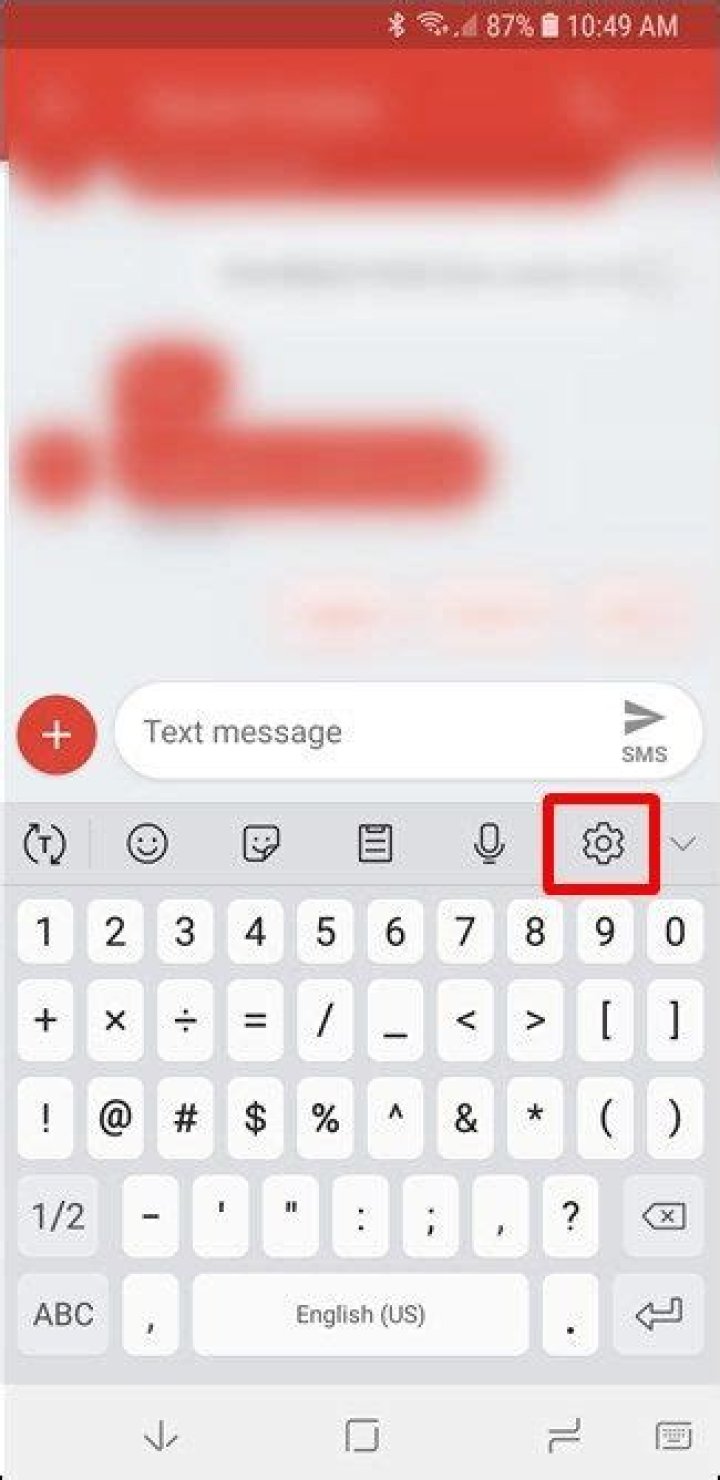
Open Gboard Settings. You can do that by visiting the System Settings from the Notification dashboard, or by long tapping on the ‘ , ’ button present one button after the Spacebar on the left. Then select the small gear icon.
Now tap on ‘ Text correction ’ in the menu which appear.
In the ‘ Text correction ’ settings just turn off the option saying ‘ Block offensive words ’.
Now you can type whatever you want, and Google will no longer flag it as wrong or incorrect piece of text.
Open Gboard settings, the same way you did last time, and choose ‘ Voice typing ’ from the menu.
Now turn off the same option or ‘ Block offensive words ’.
Now you can type anything, or can dictate what exactly you need to say, and Google shouldn’t block any of them.
I know everybody needs to type something sometime. Blocking them forever doesn’t make sense. Just like this, there are a number of other settings, which you can change, to make Google Keyboard or Gboard work the way you want.
Hope the above small tutorial was helpful for you. Do you have anything to say? Feel free to comment it down below.




