Posting a photo or video on Instagram inevitably leads to likes, comments, mentions and friend requests. While your Instagram application does notify you of all these, there are alternative viewers that you can use to see your notifications in a more organized, eye-catching or informative way. You may access these third-party Instagram viewers on the Web or download them as applications on your mobile device or computer.
Explore this article
1 Instagram App
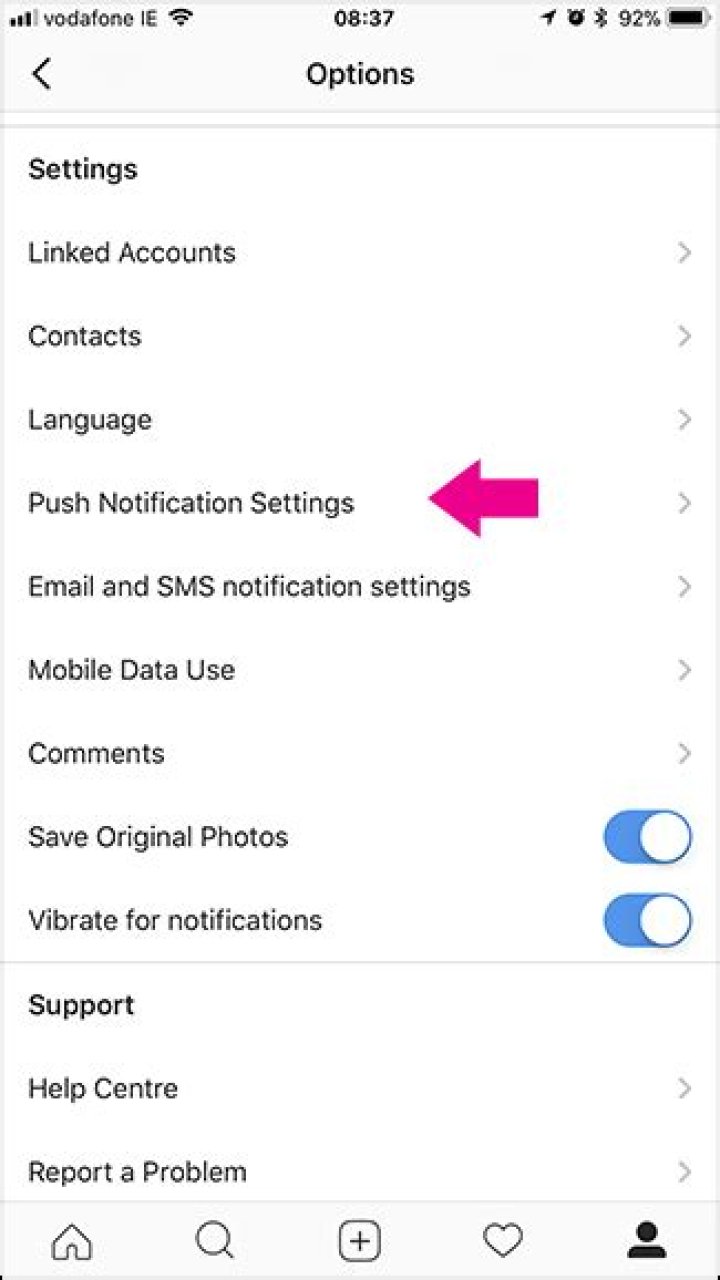
The Instagram app itself offers you a glimpse of your notifications on your mobile phone or tablet. To view them, tap the “Heart” icon at the bottom of the screen, followed by the “News” tab. Here you’ll find friend requests that have been made, as well as recent comments, likes and mentions since the last time you used the app. You can also peruse older notifications. To view Instagram notifications in real time — and not just when you open the app — enable the app’s Push Notifications feature. Tap the “Profile” tab on the lower-right corner, followed by the gear icon. Next, touch “Push Notifications Settings” to specify your desired notifications. Then, configure your device to receive and display the notifications.
2 Web Viewers
Logging in to Instagram on the Web only enables you to view, comment and like your news feed items, view your profile and tweak account details. Consequently, numerous third-party Web viewers have sprung up to give you more Instagram functionality on the Web. Besides many other features, Web services — such as Webstagram, Gramfeed, Copygram, INK361 and Instagreat – provide you with Instagram’s missing Web notifications capability. Other sites, such as Statigram and Nitrogram, even gather your Instagram account analytics and metrics to help you determine things like your most liked photos and total number of likes. To use these Instagram Web viewers, you need to log in with your Instagram credentials and allow the viewers access to your profile and images.
3 Third-Party Apps
Several apps also offer more than the basic Instagram app capabilities on your computer and mobile device. They exclude only the ability to upload photos and videos, which Instagram reserves exclusively for itself. Like the Web viewers mentioned earlier, these apps generally gather the Instagram comments, likes and mentions you receive in an area that’s handily accessible with a tap. These apps include Retro Instagram Viewer for iPad, Padgram for Apple and Android mobile devices, and the Carousel and PhotoDesk for Instagram apps for the Mac. To use these third-party Instagram apps, you also need to log in with your Instagram credentials and allow them access to your profile and images.
4 Privacy Implications
Harry GuinnessHarry Guinness
Writer
Harry Guinness is a photography expert and writer with nearly a decade of experience. His work has been published in newspapers like The New York Times and on a variety of other websites, from Lifehacker to Popular Science and Medium’s OneZero. Read more.
Instagram is by far my favorite social network. It’s a lovely place where people share all the good stuff that’s going on in their lives…and memes. Epic memes. That, however, doesn’t mean it doesn’t have a few annoyances.
The biggest one is Instagram’s constant push notifications whenever someone I follow starts posting a Live Story. If you follow a few hundred people, you’re pretty much guaranteed to get at least a few of these a day. Here’s how to turn them—and any other Instagram notification, for that matter—off.
Open Instagram, go to your profile, and tap the settings icon in the top right. Scroll down and under Settings select Push Notification Settings.
Now you can set Instagram to send you push notifications From Everyone, From People You Follow, or Off for:
- Likes on your photos.
- Comments on your photos.
- Likes on your comments.
- Likes and Comments on photos you’re tagged in.
- Any time you get a New Follower.
- Whenever someone accepts your Follow Request.
- When a Facebook Friend joins Instagram.
- When someone sends you a Direct Message.
- When someone tags you in a photo.
- When you have unseen notifications and you haven’t checked Instagram in a while.
- Someone you follow posts their first photo or Story.
- Product Announcements from Instagram.
- Whenever your videos reach a View Count milestone.
- Whenever Instagram responds to your Support Requests.
- Whenever someone you follow starts a Live Story.
- When ever someone you follow posts a Story Poll.
Scroll through the list and customize the settings so that you get notifications for things you want to hear about—oh, those sweet sweet likes—and don’t get them for the things you aren’t interested in—like Live Stories.
Instagram will also occasionally send you emails or text messages. To customize these, go back to the main settings screen and then select “Email and SMS Notification Settings”. Turn off any emails or SMS messages you don’t want to receive.
- › Why Sublime Text Is Great For Writers, Not Just Programmers
- › What Is a ULED TV, and How Is It Different?
- › Why Professionals Will Actually Want a 2021 MacBook Pro
- › How to Add Images to Questions in Google Forms
- › How to Delete Your Photos on Facebook
Harry Guinness
Harry Guinness is a photography expert and writer with nearly a decade of experience. His work has been published in newspapers like The New York Times and on a variety of other websites, from Lifehacker to Popular Science and Medium’s OneZero.
Read Full Bio »
You can follow any public Instagram account. When you follow an Instagram account, you see all posts from the account in your home feed. If an account you follow goes live, Instagram will send you an alert. If an account posts a photo, or shares a story, Instagram will not send you an alert. When you open the app on your phone, you will see a list of accounts that shared stories at the top. As for any posts by the account, you will have to find them in your home feed or visit the account. The thing is, it doesn’t have to be that way. You can turn on post notifications for an Instagram account and every time the account posts anything, you will get an alert. Here’s how.
Visit the Instagram account you want to enable alerts for. Tap the overflow at the top right. It’s in the same place on both the iOS and Android app. A menu will open with a ‘Turn on Post Notifications’ option. Tap it. Each time this account posts a new photo, you will get an alert on your phone.
This works for all accounts; public and private. If you don’t follow an account, you cannot enable post alerts for it. These post alerts are different from the alerts you get when an account you follow posts something after a long time. The latter cannot be turned off.
The Android alerts are on-point but iOS is sometimes late sending the alert, or it just doesn’t send the alert. It seems iOS behaves this way for private Instagram accounts. For public Instagram account, the alerts are always on time.
To turn off alerts, visit the account again. Tap the overflow button and tap the ‘Turn off post notifications’ option in the menu.
You can turn on post notifications for an Instagram account from your home feed. When you see a post from an account you follow in your home feed, tap the overflow button at the top right of the post. A menu will open with a ‘Turn on Post Notifications’ option. Tap it to enable alerts for new posts by an Instagram account. You can turn alerts off in much the same way i.e. via the overflow button at the top right of a post.
4 Comments
I was paid 104000 dollars previous 12 months by doing a web-based job and also I was able to do it by working in my own time for several hours on a daily basis. I applied job opportunity I found out on the net and I am thrilled that I was capable to earn such decent earnings. It is seriously newbie-friendly and therefore I’m so blessed that I found out about it. Look into what I do…
I was paid 104000 dollars previous year by doing a web based task and also I was able to do it by working in my own time for quite a few hours everyday. I tried job opportunity I came across online and also I am thrilled that I was able to make such decent cash. It is really newbie-friendly and I’m so grateful that I discovered out about it. Look out for exactly what I do… I was without work for 6 months when my early Co-worker at last strongly recommended me to get into freelancing online… That was just after I gained $5000 in my initial month when I really believed I could do this for a living! Nowadays I am joyful than ever… I work from home moreover I am my own boss now that I always wanted… I see a large number of not satisfied people around me, working the same old boring job that is sucking the daily life from all of them day by day… Everytime I notice any person like that I say START FREELANCING MAN! This is how I started >>>>
I have made 104,000 thousand dollars last year by freelancing on-line and I did that by working in my own time for few hours every day. I’m using a business model I came across online and I am happy that i was able to make such great money. It’s really newbie-friendly and I’m just so thankful that i found it. Check out what I do…
I profited 104,000 thousand dollars previous year by freelancing from my house and I did it by working part-time for 3 or sometimes more hrs every day. I used a business opportunity I came across online and I am so thrilled that i earned such great money. It’s very newbie friendly and I’m so blessed that i learned about it. Here’s what I do…
Leave a Reply Cancel reply
This site uses Akismet to reduce spam. Learn how your comment data is processed.
Among other notifications which Instagram can send to you, the email and SMS notifications can sometimes be very annoying. Even if you have been away from Instagram for a while, this won’t stop Instagram from sending you SMS and emails on “so and so posted after a long time or for the first time’, or someone followed you or liked your post. Here’s how you can Turn Off Email And SMS Notifications On Instagram.
Social media notifications are meant for letting you know whenever something that has to do with your account happens, such as someone commenting or liking your photo or notifications about a new follower etc. But then, they are other types of annoying SMS and email notifications which you may not be interested in. This notifications can serve as a major source of distraction and can draw your attention to irrelevant things, or simply fill up your phone SMS storage.
One of the biggest culprits of this type of notifications is “Instagram” . In case you are getting fed up with these Instagram email and SMS notifications, but you do not want to uninstall the app from your phone, then today’s post is meant for you. In this post, I will be exposing how you can turn off all Instagram SMS and email notifications via your Instagram Android app.
With Instagram, I can only accept push notifications on those post I am tagged in, or post from someone I followed, or when someone comments or likes my post, tries to send a direct message to me, follows me. That’s all!
By default, Instagram will send you SMS and email notifications if a Facebook friend joins Instagram, the first time they make a post or add a story on their profile, new app features, and even other reminders just so you can open the app. Below are steps to follow if you want to turn off email and SMS notifications on Instagram.
How to Turn Off Instagram Email and SMS notifications
1. Open the Instagram app.
2. Go to your profile.
3. Tap on the three horizontal lines.
4. Tap on settings.
5. Tap on email and SMS notifications.
6. Turn off all notification.
No one loves being disturbed by what does not concern them. Though Instagram may believe this email and SMS notifications feature is a good way of making users aware of everything going on in their account. This feature can also have some negative effects on users, and most users find it very annoying. If you are one of those Instagram users that dislikes this feature, then I hope I have been of help in bringing you into the light on how to Turn Off Email And SMS Notifications On Instagram for good, and only turn them back on when you so desired. Note that, you need to have an active data connection before you can do this. I will be excited if my readers can try this and give me their feedback via the comment section. Also, if there’s anything you do not understand, feel free to ask questions. Thanks for reading!
Let’s have a look at the method to Stop Instagram from Sending you Constant Notifications using the inbuilt settings of your Instagram account to stop annoying notifications. So have a look at complete guide discussed below to proceed.
Instagram is the open type of social media in which the users could send the connection requests to anyone on the network. This makes it possible to create the connection between the people while on the other hand lot of notifications tends to arise over the device. On Android, if you are using this Instagram service then it is possible that you would face the rush of notifications. This could be annoying to have so many notifications from anonymous users which you just do not wish to see. People would likely to find us the way to stop the notifications from appearing on the device, in other words, you have the way to stop the Instagram from sending the notifications. To help out the users block the Instagram notifications we have written about the way/method in this post. We would be explaining you about the method completely, remain slicked to the page and read it whole up to the end! As in this method, you will be stopping all the annoying notifications of Instagram that hits your android screen again and again and you get disturbed. So easily stop them and just relax from this notification that to using the simple method that we are discussing just right below. So have a look at complete guide discussed below to proceed.
How to Stop Instagram from Sending you Constant Notifications
The method is quite simple and easy and you just need to follow the simple step by step guide discussed below to proceed and you will be implemented using the inbuilt settings of your Instagram. So follow the below step by step guide discussed below to proceed.
Steps to Stop Instagram from Sending you Constant Notifications
#1 First of all go to the Instagram and then log on to your account. Using your account go to the profile and then head to the settings inside it. You could use the Settings icon for the same, this is placed on the top right of the screen.
#2 Now once you have reached this page on the Instagram, you have the ability to make the changes to the notifications for all of the aspects. For all kind of activities on the Instagram, you have the options to individually set the notifications on or off. Use this option according to your wish.
#3 Scroll to the bottom of the page and set the notifications for everything you wish to see while stop for everything else. This is as convenient as turning on the Bluetooth using the toggle buttons.
#4 Now after making the changes to the notifications go back to the settings page and there select Email and SMS Notification Settings. Again in this settings make the changes by turning off the toggle. And by this now the annoying notifications will get stop and you can easily enjoy the silent screen free from any toggle notifications on your smartphone screen.
Over and out! You have got to know about the method of stopping the Instagram from showing up the notifications. We have written about the method in simplest form and our motive was to make the things read as easy as these are. Hope that you would have liked the information of this post, and you would have also got benefited from the above data. Please go and write about your experience and opinions regarding the method or the post in comments section. We value your indulgence so please make it happen so that the techviral team can get to know what issues are you facing and we guys can help you to sort this out asap.
Are you tired of Instagram sending your constant notifications of every new post from the accounts you follow? Here’s good news for you. Now you can stop Instagram notifications. The Facebook-owned company rolled out an option to stop all notifications from the app for a select period of time.
The option to stop notifications called ‘Pause All’, switches off notifications for up to eight hours. The feature has been rolled out to Instagram for iOS and Android beta app. Here’s how you can stop the Instagram notifications.
How to stop Instagram Notifications
- Go to ‘Settings’ by tapping on the three lines on the top right corner of your profile page
- Tap on Notifications->Push notifications
- Here you will see a toggle ‘Pause all’
- Tap on the toggle and you will see options for selecting the time period for which you want to stop the notifications
- You’ll be able to select the time from 15 minutes up to 8 hours.
This can stop all the Instagram notification for the select time and you don’t need to open the app and clear notifications one-by-one. However, you can see the notifications by opening the app.
Wrapping Up
Instagram is becoming quite popular among users in countries like India and people often spend too much of their time just checking the notifications. So, providing a pause switch for some time is really a good option and it will help people save some time.
Stop getting push notifications about Instagram live videos from a certain person.
By default, Instagram sends push notifications when someone you follow goes live or starts a live video. Perhaps, if you have hundreds of followers then you might be getting a lot of alerts. Such constant live notifications from Instagram can be really annoying and distracting especially if they don’t interest you. Above that, there are certain people who go live on Instagram several times a day with wacky stuff.
While you can simply turn off live notifications in the Instagram app to get over this annoyance. However, doing so will completely disable Instagram live video notifications for all of your followers. Wouldn’t it be great if you can just turn off live video notifications for one person on Instagram? Thankfully, that’s possible but most Instagram users are not aware of this feature.
Turn off Instagram Live notifications from specific people
Is there someone whose unwanted live videos are bothering you? If yes, you can stop getting live video notifications from that person without unfollowing, blocking, or restricting their Instagram account. To get rid of live video notifications from specific people on Instagram, follow the below steps.
- Make sure you are running the latest version of the Instagram app.
- Go to the person’s profile whose live stream or live broadcast notification you want to stop.
- Tap the bell icon at the top-right.
- Tap on “Live videos”.
- Select the “Turn off notifications” option.
That’s it. Now Instagram won’t notify you when the particular person or account goes live.
How to turn off live notifications for everyone on Instagram
If you don’t like getting live notifications at all then you can completely turn off live video notifications on Instagram. To do so,
- Open the Instagram app and tap the profile icon at the bottom-right corner.
- Tap the menu button (hamburger icon) at the top-right and select Settings.
- Tap on Notifications and select “Live and IGTV”.
Optionally, you can turn off push notifications for IGTV video uploads and IGTV view counts.
Circulation on Instagram is very fast. Millions of messages are posted, content is shared, or interacts per second. You don’t want to miss all these activities, do you?
Then you have only one thing to do: turn on Instagram notifications!
If you don’t know how to do it, we’ll tell you how to do it in a few simple steps.
You can do this easily for both Android and iOS. Thus, you can follow all the updates from your friends.
- Go to device Settings.
- Tap to Notifications.
- Find the Instagram app.
- And tap on “Allow notifications.”
- Choose the notification type.
- You can do it also at Instagram app settings.
Why Should I Turn on My Notifications?
When you receive a new message on Instagram or when one of your friends shares a new picture or video, you must turn on notifications (aka alerts) to be notified immediately with a badge.
So you get to know your friends’ social lives and use Instagram more effectively.
If you don’t do that, using Instagram may sound a bit boring. You should participate in social life, improve your interaction by writing comments on shared content.
You may want to have more followers on Instagram for many reasons. Some want it to increase their brand’s social…
It will be more fun to use Instagram if you get more followers. The fact that notifications are turned on makes the Instagram app more fun.
Why Instagram Notifications May Not Work?
Have you tried the above methods, and it didn’t work? Don’t panic.
Let’s take a look at the possible problems.
Especially in the Android operating system, you will sometimes not see notifications on your mobile phone’s main screen. This is the classic features of Android.
You may experience this problem not only on Instagram but also on other applications. iOS is less likely to experience problems like this. iOS is better at this and instantly transmits notifications (unless you block it).
Main Reasons for Notification Problems
You wanted to turn on Instagram notifications, but it is not working. Here are some solution methods to fix it:
- In the settings of the Instagram application, it may not be enough to allow notifications. Also, check the notifications in the general settings of your device. Make sure the Instagram application is in the list of permitted applications.
- Restart your Instagram app.
- Update your app. Maybe you are still using an old version.
- Check your OS version. You have to use the updated version. If not, please update it.
- If these suggestions do not work, report a problem to Instagram customer service and request support.
Configuring Your Instagram App Settings
Under Push Notifications, you will find a few options which you can use to customize the push notifications. By default, push notifications are already on for all the activities.
The options are pretty much self-explanatory, and you should not have any problems while figuring them out.
- For example, if you would like to turn off push notifications for Likes, comments, or comment likes on your photos or videos, then Select Off under said tab.
You will also find an option to disable push notifications for Live Videos on the same screen.
Since Instagram is the leading social media platform, many Instagram users want to buy Instagram likes, followers, and views to…
You can also stop receiving First Post and Story Notifications under the First Posts and Stories section.
Similarly, you can go ahead and change other push notification settings if desired.
- You can anytime enable the notifications by following the same procedure but select From Everyone or From People I Follow instead of Off.
From Your Phone (iOS 12)
To turn on Notifications for Instagram as a whole, go ahead and follow these steps.
- First, open Settings on your phone.
- Then tap “Notifications.”
- Next, you will want to select “Instagram.”
- Toggle “Allow notifications” on
- Choose if you want Notifications to show on your lock screen, notification center, and banners.
- You can also adjust if you want to see previews all the time when the phone is unlocked, or never.
On Android:
- First, open Android settings.
- Then, go-to apps.
- Find Instagram and tap it.
- Then, click notifications to open up notification settings.
- Finally, Toggle the Notification On. It should be blue.
Note: If you want to receive notifications from Instagram even in the “Do Not Disturb” mode, toggle the grey “Treat as priority” switch.
How to Turn on/off Push Notifications for Instagram
- Open the Instagram app and tap on the profile icon at the bottom right corner.
- Your profile will show up. Tap on the Hamburger Menu icon at the top right and select Settings from the menu.
- Now, scroll down until you see Push Notification Settings or just Notifications. Tap that.
Instagram Notifications FAQs
You can solve this by going to Settings, Notifications to check that the app lets notifications appear.
They are the alerts that appear when someone likes or comments on your posts, mentions you in a comment, or starts to or requests to follow you.
When you jump into the online world of business, one factor that you must consider to develop a business is…
Click on settings, scroll downwards until you find notifications. Under the notifications, select Push Notifications.
To Conclude
After reading this article, you should have learned how to turn on Notifications for Instagram.
If you still can’t receive a direct message, our team will be glad to help.
Too many pop-ups and constant notifications can become quite annoying on any device, especially when you’re trying to immerse yourself in content. For all the Xbox One users out there, we’ve put together a quick guide showing you how to disable/turn off all notifications that appear during all video playback, including, Netflix, movies, tv shows.
Notifications and alerts on smartphones, tablets, watches, gaming consoles and countless other devices are a great way to make sure you don’t miss a moment of action or important gossip. But what happens when you just want to get away for a while? Just sit back, relax, have a beer and catch up on your favorite tv show. Thankfully, most developers are aware how quickly notifications can become spammy and have started to incorporate notification management settings.
You may not be aware of it yet but Microsoft’s Xbox One console also features notification management, which allows you to customise when and how some notifications are displayed on your machine. If you haven’t extensively explored the settings menu and stumbled upon the option, you can find all the information you need to stop notifications showing while watching video content on your Xbox One console below.
How to Disable Notifications When Watching Movies and Videos on Xbox One.
There are several different options available on Xbox One for notifications. To find the main notifications settings menu go to Settings > All Settings > Preferences > Notifications on your Xbox One Console.
Here you can disable ‘All’ notifications by removing the tick from the Notifications on checkbox. This means you will no longer receive any notifications.
To only disable notifications whilst watching video content, go to Xbox Notifications. On this screen, you will see a list of notification categories: Friends & broadcasts, Achievements, Messages, Incoming calls, and System. Within each of these headings, there are additional options and settings. Unfortunately, you will now need to go through each of these headings and settings and make sure you have placed a tick in the Hide pop-ups during video checkbox.
Even with notifications and popups disabled, you can still check the Notification area at any time to view any notifications you may have missed while you were watching a movie/video. Obviously, there are countless ways to personalize which pop-ups and notifications you receive, so it’s best to play around with the settings here and work out what’s best for your own needs.




