Superhuman’s email tracking informed someone when you opened their email—and from where. Even if Superhuman completely removed this feature in response to privacy pressure, other apps will still be able to track your email opens. Here’s how to stop it.
While Superhuman has now removed location tracking, it still supports email open tracking. And other email tracking apps could let someone who emails you find out your geographical location, too.
How Can an App Track Email Opens?
Superhuman is using a feature that’s existed for a long time. It embeds a tiny tracking pixel image in the emails it sends. When you open an email, your email client requests the image. The image is unique for each email, so Superhuman can see precisely when you opened the email and your general location, based on your IP address.
This isn’t unique to Superhuman! While it’s not normally part of a consumer email application, many email newsletters and other marketing emails have long used tracking pixels. They know how many people open each email—and they can see which people on their mailing list open each email.
Despite all the furor, Superhuman is just using an existing email feature and exposing it a new way—albeit one that seems creepier to many people. Superhuman has now disabled the open tracking feature by default, but anyone Superhuman user can enable it.
Even if Superhuman continues bowing to pressure and completely removes this feature, people will still be able to use other email tools—from dedicated email applications to browser extensions that integrate with Gmail—to track your email opens.
How to Stop Email Open Tracking
To stop email open tracking, you’ll just need to turn off the “automatically load images” setting in your email client of choice.
Superhuman’s CEO Rahul Vohra notes that there are browser extensions like Ugly Email and PixelBlock that can block tracking pixels—without blocking other images—in Gmail in your web browser. However, these will only work in Gmail in your browser and they aren’t guaranteed to block all tracking images. Disabling remote image loading is a foolproof method that will work everywhere—at least, it will work in every email client that lets you disable the loading of images.
After you disable this, you’ll likely see an option to load images whenever you open an email. It depends how your email client works. If you don’t agree, you won’t see images, and no one will be able to see you opened that email. Many email clients, like Gmail, will let you automatically load images from specific senders if you’re not worried about those senders tracking you.
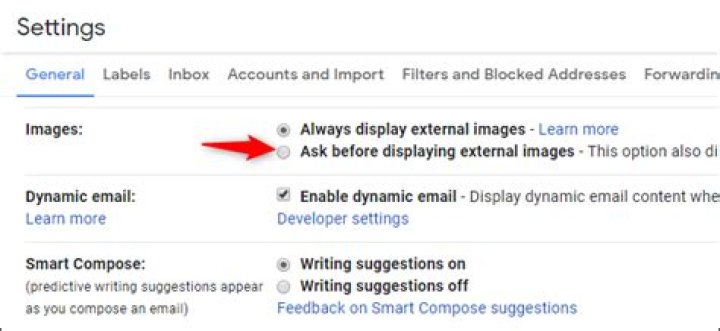
For example, in Gmail, head to Settings > General. To the right of Images, select “Ask Before Displaying External Images.” Scroll down to the bottom of the page and save your changes.
If you’re using another email client, search the web for how to disable automatic image downloads in emails in your email client of choice.
Remember that, even if you choose to disable automatic image downloads, people will still be able to see you opened their emails if you choose to view images after opening an email.
Superhuman itself doesn’t let you disable remote image loading yet, which means that Superhuman users can’t yet block tracking pixels. Vohra promises this feature is being prioritized.
Here’s something you might want to think about next time you check your email: chances are, at least some of your messages are being tracked.
From how many times you open a message, the time of day, and even what city you’re in, the very act of reading an email can send a surprising amount of data back to the sender, even if you never respond.
That unsettling fact was recently thrust back into the spotlight thanks to a much-hyped email startup called Superhuman. The $30/month invite-only email software beloved by Silicon Valley VCs and “inbox zero” adherents is so hyped, there’s currently a waiting list more than 180,000 people long, according to The New York Times.
Then Mike Davidson, a VP at design platform Invision, pointed out that the email app had originally enabled its users to track who is opening their emails by default. The feature, which Superhuman dubbed “read receipts,” allows message senders to see exactly when their messages are opened, what kind of device recipients are using, and where they are. And unlike, say, iMessage read receipts, which are opt-in, Superhuman’s feature is enabled by default.
Davidson, who was previously VP of design at Twitter, penned a lengthy critique of Superhuman’s “spying” on his personal blog, saying Superhuman “has mistaken taking advantage of people for good design.”
In response to criticism from Davidson and others, Superhuman CEO Rahul Vohra said the company would update its software so “read receipts” would no longer be enabled by default and location information would be removed.
But the fact is, Superhuman is far from from the only company quietly surveilling your email habits. Though it’s relatively unheard of for an email platform to offer this level of tracking by default, it’s astonishingly easy to embed tracking software into emails.
What is pixel tracking?
Most email-tracking programs use something called pixel tracking. Here’s how email marketing company SendGrid explains its version of the feature:
Open Tracking adds an invisible, one pixel image at the end of the email which can track email opens. If the email recipient has images enabled on their email client and a request to SendGrid’s server for the invisible image is executed, then an open event is logged.
So when one of these “invisible” images is added into an email, the person who sent it is able to keep track of how often you open the message. It’s also common to track whether or not you click on any links in the email.
Marketers love these kinds of tools for obvious reasons, but there are a ton of similar tools out there that anyone can start using. But just because it’s commonplace doesn’t make it any less creepy or less of a massive privacy invasion.
And while you might expect these tactics from email marketers, there’s something even more troubling when you consider the implications of people using these in their personal lives. As Davidson outlines in his blog post, email tracking could in some cases pose a safety risk to people who don’t realize they are being tracked just by opening their inbox.
Luckily, there are a few ways to block this type of tracking without ignoring your emails entirely.
Image blocking is your friend
One of the most straightforward ways to prevent email tracking software from working is to block images from displaying by default. This is a setting you can enable in just about every email service., though you should note that it means loading images in your email will require an extra click.
In Gmail, click on the settings gear to open up your email preferences. From the “general” tab, scroll down to images and check the box that says “Ask before displaying external images.” Scroll down to the bottom of the page and click “save changes.“
If you use a non-Gmail email provider, you should be able to find a similar setting. Just look for something that says something like “ask before displaying external images.”
It’s also important to note that if you use a third-party email client like Outlook or Apple’s Mail app to check your email, you’ll need to enable this setting in that email app as well. Again, you can typically do this in the app’s settings.
In Apple’s Mail app for iOS, you can disable images by going to the main Settings app, selecting “Mail,” and scrolling down to “load remote images.” (Instructions for disabling images in the MacOS Mail app can be found here.)
Track the trackers
If fiddling with your email settings is too inconvenient, or you’re extra curious about who might be keeping tabs on how often you’re reading your emails, there’s another option available as well. There are a number of browser extensions that will also block the tracking pixels while alerting you to which emails contain trackers.
PixelBlock is a simple Chrome extension that blocks images from loading and displays a red eye at the tope of messages when it detects a tracker.
Similarly, Trocker, which is available for Chrome and Firefox, will show you pixel trackers and identify links that are being tracked.
And Chrome extension Ugly Email, alerts you to the presence of possible trackers in your inbox before you even open a message.
Even with extensions, some trackers may still be able to slip through, but they tend to be pretty adept at identifying the most obvious offenders. Using these is also a pretty eye-opening look at just how commonplace email tracking is.
Related Video: New Apple sign-ins may present issues for Facebook
Email tracking indicates that by simply opening an email, we give up more privacy than expected. Isn’t it efficient to track the exact moment when the recipient opens an email? Many senders execute this practice without the receivers’ knowledge, all thanks to invisible tracking pixels. While monitoring correspondence might be a routine for some, you do not have to accept it. Blocking email tracking will prevent senders from obtaining information about you, which goes beyond timestamps.
How do hidden pixels make email tracking possible?
Email tracking refers to the notion that senders can spy on recipients by concealing tiny pixels into emails. The transparent pixel is a 1×1 sized square integrated into messages. So far, in 2020, people have exchanged approximately 306.4 billion emails daily. It is possible that a significant percentage of these messages’ bodies featured the embedded pixel. In 2017, researchers concluded that senders tracked about 40.6% of electronic mail. Many email tracking tools currently work on the most popular services, such as Gmail, Outlook, and Yahoo Mail. As an example, we have Streak, Sidekick, Mailtrack, Yesware, and a bunch of others.
But how does the pixel work? It appears that trackers add a line of code in emails. While many associate the pixel with a 1×1 image, it can be a part of other components. For instance, custom fonts or hyperlinks can feature the email tracking element, too. Once you open a received message, your computer automatically downloads the pixel.
The tracking chip delivers the timestamp and approximate location of the recipient to the sender simultaneously. Senders might even continue to receive notifications anytime the receiver opens messages. This practice might seem harmless to an extent. However, users can deem it as another way for marketers and companies to record their actions. In fact, email tracking is a productive way to monitor open rates, click-through rates, and conversion rates. Sadly, the sound of yet another privacy violation echoes.
Issues with email tracking
The most prominent issue is that email recipients do not agree to have their behavior monitored. Since devices download the invisible pixels automatically, it might seem unavoidable. The most scandalous news related to Superhuman, an app that gave senders power to learn recipients’ physical address. After the intense pressure over email tracking, Superhuman decided to omit this spying component from their service.
However, others turn a blind eye to the uncomfortable nature of email tracking. For instance, a service called GeoTrack openly promotes its feature for geolocating recipients. Since the app is available to anyone, it could contribute to another pervasive surveillance scheme. Since Gmail can already read your emails, it becomes even more important to guarantee integrity in other areas.
How to prevent email tracking?
Since all email tracking practices rely on the automatically downloaded pixels, there are ways for you to obviate it. The simplest approach is to disable the autoloading process.
Gmail
- Open your Gmail inbox.
- Click on the gear icon on the right. Select “See All Settings.”
- In the “General” tab, find the section named “Images.”
- Select the “Ask before displaying external images.”
- Do not forget to save the changes to block email tracking.
Yahoo Mail
- Select the gear icon.
- Opt for “More Settings.”
- Choose “Viewing Email.”
- Navigate to “Show images in messages.”
- Check the “Ask before showing external images.”
Outlook
- Outlook usually loads images via its own service, meaning that the pixels do not reach your device.
- You can enable/disable this option by clicking on the gear icon and selecting “View all Outlook settings.”
- In the “General” tab, pick “Privacy and data.”
- Check the “Always use the Outlook service to load images.”
Stopping email tracking through email clients
Apple Mail
- Pick “Mail” and find “Preferences.”
- Navigate to “Viewing.”
- Uncheck “Load remote content in messages.”
Gmail on Android
- Select the three horizontal lines beside the “Search in mail.”
- Navigate to “Settings.”
- Opt for the account you want to modify.
- Find the “Images” section.
- Check the “Ask before displaying external images” to prevent email tracking.
Mail on iOS
- Go to “Settings” and select “Mail.”
- Find “Messages.”
- Disable “Load Remote Images.”
There are many downsides to this digital era, and losing our privacy is one of them. Besides email tracking, there are dozens of other violations that happen daily. If we come back to the biggest concerns about email surveillance, it is the fact that a sender can define the time and place you opened an email. But what if you could mislead trackers? A VPN can do precisely that. If you receive emails embedded with pixels when connected to a VPN server, the senders won’t geolocate you. In addition to the overall web traffic encryption, you can enjoy a much more private browsing experience.
FOUND THIS USEFUL? SHARE WITH
Cybersecurity Researcher and Publisher at Atlas VPN. Interested in cybercrime, online security, and privacy-related topics.
Embedding trackers into emails is astonishingly easy.
Mashable
Embedding trackers into emails is astonishingly easy.
The very act of reading an email can send data back to the sender, even if you never respond.
someof your messages are being tracked.From how many times you open a message, the time of day, and even what city you're in, the very act of reading an email can send a surprising amount of data back to the sender, even if you never respond.That unsettling fact was recently thrust back into the spotlight thanks to a much-hyped email startup called Superhuman. The $30/month invite-only email software beloved by Silicon Valley VCs and"inbox zero" adherents is so hyped, there's currently a waiting list more than 180,000 people long, according to
The New York Times.Then Mike Davidson, a VP at design platform Invision, pointed out that the email app had originally enabled its users to track who is opening their emails by default. The feature, which Superhuman dubbed"read receipts," allows message senders to see exactly when their messages are opened, what kind of device recipients are using, and where they are. And unlike, say, iMessage read receipts, which are opt-in, Superhuman's feature is enabled by default.
Davidson, who was previously VP of design at Twitter, penned aof Superhuman's"spying" on his personal blog, saying Superhuman"has mistaken taking advantage of people for good design."In response to criticism from Davidson and others, Superhuman CEO Rahul Vohra said the company would headtopics.com
update its softwareso “read receipts” would no longer be enabled by default and location information would be removed.But the fact is, Superhuman is far from from the only company quietly surveilling your email habits. Though it's relatively unheard of for an email platform to offer this level of tracking by default, it's astonishingly easy to embed tracking software into emails.
What is pixel tracking?its versionof the feature:Open Tracking adds an invisible, one pixel image at the end of the email which can track email opens. If the email recipient has images enabled on their email client and a request to SendGrid’s server for the invisible image is executed, then an open event is logged.
So when one of these"invisible" images is added into an email, the person who sent it is able to keep track of how often you open the message. It's also common to track whether or not you click on any links in the email.Marketers love these kinds of tools for obvious reasons, but there are a ton of similar tools out there that anyone can start using. But just because it's commonplace doesn't make it any less creepy or less of a massive privacy invasion.
And while you might expect these tactics from email marketers, there's something even more troubling when you consider the implications of people using these in their personal lives. As Davidson outlines in his blog post, email tracking could in some cases pose a safety risk to people who don't realize they are being tracked just by opening their inbox. headtopics.com
Luckily, there are a few ways to block this type of tracking without ignoring your emails entirely.Image blocking is your friendOne of the most straightforward ways to prevent email tracking software from working is to block images from displaying by default. This is a setting you can enable in just about every email service., though you should note that it means loading images in your email will require an extra click.
In Gmail, click on the settings gear to open up your email preferences. From the"general" tab, scroll down to images and check the box that says"Ask before displaying external images." Scroll down to the bottom of the page and click"save changes.
"Prevent images from automatically loading in Gmail.Credit: screenshot / gmailIf you use a non-Gmail email provider, you should be able to find a similar setting. Just look for something that says something like"ask before displaying external images."
It's also important to note that if you use a third-party email client like Outlook or Apple's Mail app to check your email, you'll need to enable this setting in that email app as well. Again, you can typically do this in the app's settings. headtopics.com
How to block external images in Apple's Mail app.Credit: screenshot / apple mailIn Apple's Mail app for iOS, you can disable images by going to the main Settings app, selecting"Mail," and scrolling down to"load remote images." (Instructions for disabling images in the MacOS Mail app can be found
.)Track the trackersIf fiddling with your email settings is too inconvenient, or you're extra curious about who might be keeping tabs on how often you're reading your emails, there's another option available as well. There are a number of browser extensions that will also block the tracking pixels while alerting you to which emails contain trackers.
is a simple Chrome extension that blocks images from loading and displays a red eye at the tope of messages when it detects a tracker. Read more: Mashable »
No major injuries after plane runs off Texas runway, burns
Authorities say no one was seriously hurt when an airplane bound for Boston ran off a runway and burned near Houston
Zendaya Wore Nipple Pasties and a Bunch of Necklaces as a Shirt (Yes, She Looked Incredible)Um WOW.
Angelina Jolie's Kids Are All Grown Now And Yes, You're OldTime flies, man. Wow Shiloh looks just like her mom AND dad wow
This Is the Best Way to Wash Cloth Face MasksIt's super important to keep reusable cloth face masks clean—here's what you need to know.
The Manchin and Bernie show consumes DemocratsThe verbal scuffle between Senators Joe Manchin and Bernie Sanders over the pace and scope of Biden's social spending plan is going increasingly public. It's also being tracked by the White House. Sanders is a greedy socialist He want to grab the $-trils for big welfare spending from Medicare for all to free college The next time someone tells you their agenda is transformative. It's code for their agenda is ineffective bs. Sanders is the president we don't deserve.
Only A Soul Made Of Obsidian Has Seen 30/48 Of These Movies'I myself am strange and unusual.'
50 Pictures That Make Me Laugh Uncontrollably No Matter How Many Times I've Seen ThemWhy am I laughing so hard? CrottyKarol No. 50 🤣🤣🤣
Ask or Publish New Topic
How to Stop Superhuman (and Other Apps) From Tracking Your Email Opens
236 people viewed
Superhuman’s email tracking informed someone when you opened their email—and from where. Even if Superhuman completely removed this feature in response to privacy pressure, other apps will still be able to track your email opens. Here’s how to stop it.
While Superhuman has now removed location tracking, it still supports email open tracking. And other email tracking apps could let someone who emails you find out your geographical location, too.
How Can an App Track Email Opens?
Superhuman is using a feature that’s existed for a long time. It embeds a tiny tracking pixel image in the emails it sends. When you open an email, your email client requests the image. The image is unique for each email, so Superhuman can see precisely when you opened the email and your general location, based on your IP address.
This isn’t unique to Superhuman! While it’s not normally part of a consumer email application, many email newsletters and other marketing emails have long used tracking pixels. They know how many people open each email—and they can see which people on their mailing list open each email.
Despite all the furor, Superhuman is just using an existing email feature and exposing it a new way—albeit one that seems creepier to many people. Superhuman has now disabled the open tracking feature by default, but any Superhuman user can enable it.
Even if Superhuman continues bowing to pressure and completely removes this feature, people will still be able to use other email tools—from dedicated email applications to browser extensions that integrate with Gmail—to track your email opens.
RELATED: How People Can See When You Open Emails (and How to Stop Them)
How to Stop Email Open Tracking
To stop email open tracking, you’ll just need to turn off the “automatically load images” setting in your email client of choice.
Superhuman’s CEO Rahul Vohra notes that there are browser extensions like Ugly Email and PixelBlock that can block tracking pixels—without blocking other images—in Gmail in your web browser. However, these will only work in Gmail in your browser and they aren’t guaranteed to block all tracking images. Disabling remote image loading is a foolproof method that will work everywhere—at least, it will work in every email client that lets you disable the loading of images.
After you disable this, you’ll likely see an option to load images whenever you open an email. It depends how your email client works. If you don’t agree, you won’t see images, and no one will be able to see you opened that email. Many email clients, like Gmail, will let you automatically load images from specific senders if you’re not worried about those senders tracking you.
For example, in Gmail, head to Settings > General. To the right of Images, select “Ask Before Displaying External Images.” Scroll down to the bottom of the page and save your changes.
Option to disable external images and thus email tracking in Gmail
If you’re using another email client, search the web for how to disable automatic image downloads in emails in your email client of choice.
Remember that, even if you choose to disable automatic image downloads, people will still be able to see you opened their emails if you choose to view images after opening an email.
Option to load images for an individual email in Gmail
Superhuman itself doesn’t let you disable remote image loading yet, which means that Superhuman users can’t yet block tracking pixels. Vohra promises this feature is being prioritized.
0 Shares 0 Like •
You must Sign in or Sign Up to post content
For you to post content on this website you have to log in or register, it only take few minute to create account
Use Email settings to adjust how model-driven apps in Dynamics 365, such as Dynamics 365 Sales and Customer Service, features appear and function.
These settings can be found in the Power Platform admin center by going to Environments > [select an environment] > Settings > Email > Email Tracking.
Make sure you have the System Administrator or System Customizer security role or equivalent permissions to update the business closures.
Check your security role
- Follow the steps in View your user profile.
- Don’t have the correct permissions? Contact your system administrator.
| Settings | Description |
|---|---|
| Tracking email conversations | |
| Use correlation | Default: On. Select this check box if you want to link email activities with other related records using the information in the email headers. This method uses email properties for correlation and is more accurate than smart matching, but less accurate than folder-level tracking or tracking tokens. More information: Email message filtering and correlation Note: Email correlation using email headers works best when email is processed using server-side synchronization. If you’re using the Email Router to process email, you can use tracking tokens or smart matching to correlate email activities with related records. |
| Use tracking tokens | Default: On. Select this check box to use tracking tokens and to configure how Dynamics 365 displays them in the Subject line of the email messages. |
Tracking tokens provide 100% tracking accuracy. If you don’t want to see tokens in Subject lines, however, consider folder-level tracking, which also provides 100% tracking accuracy.
Folder-level tracking provides 100% tracking accuracy. To use folder-level tracking:
All of those obnoxious marketing emails that crowd your inbox aren’t just pushing a product. They’re also tracking whether you’ve opened the email, when you opened it, and where you were at the time by embedding tracking software into the message. Just type “email tracking” into your search engine and watch all the software apps appear.
There are a variety of methods used to track emails. For example, one of the simplest is a redirect link. Let’s say you click a link in a promotional email that leads to the page for a product you want to buy. The link has been coded to be trackable; it will go to another server with a variety of data, like what browser you are using or where you clicked the link from, before it takes you to the article.
But while it’s fairly easy to spot a redirect link (for one thing, you can often spot all the additional code added to the URL), there are other methods that aren’t quite so obvious. The method that we’re looking at here is tracking pixels.
How does it work? A single tracking pixel is embedded into the email, usually (but not always) hidden within an image or a link. When the email is opened, code within the pixel sends the info back to the company’s server.
There have been some attempts to restrict the amount of information that can be transmitted this way. For example, since 2014, Google has served all images through its own proxy servers, which could hide your location from at least some tracking applications. Extensions such as Ugly Mail and PixelBlock have been developed to block trackers on Chrome and Firefox. And there are alternative browsers that emphasize privacy such as Brave and the Tor Browser.
There is also a simple step you can take to avoid most trackers: stop your email from automatically loading images, since images are where the majority of these pixels hide. You won’t be able to avoid all of the trackers that might be hidden in your email this way, but you will stop many of them.
Disable image autoloading on a computer
- Click on the gear icon in the upper right corner.
- Click on “See all settings.”
- In the “General” tab (the first one), scroll down to “Images.”
- Select “Ask before displaying external images.”
- Scroll down to the bottom of the page and click on “Save Changes.”
Note that this will also turn off Gmail’s dynamic email feature, which makes email messages more interactive.
Turn image autoloading off in Gmail’s settings.
Disable image autoloading on a mobile device
- In the Gmail app, select the three-line icon in the upper left corner.
- Scroll down and select “Settings.”
- Select the email account you want to fix.
- Scroll down to and select “Images.”
- Select “Ask before displaying external images (also disables dynamic email).”
In settings for your mobile Gmail account, scroll down to “Images.”
When you send a tracked email from your email inbox using the HubSpot Sales Chrome extension, HubSpot Sales Office 365 add-in, or HubSpot Sales Outlook desktop add-in, or if you send a one-to-one email from a record, HubSpot will track email opens. If you’re a user with an assigned Sales Hub paid seat, HubSpot will also track when the recipient clicks a link in the email.
To learn more about how HubSpot tracks email opens for marketing emails, learn how to analyze your marketing email’s performance.
Please note: because of changes related to Apple’s recently announced iOS 15 privacy features, your sales email opens may appear higher than usual. Learn more about how to navigate these changes in HubSpot.
Email opens
When you send a tracked email, HubSpot embeds an invisible one-pixel image into the email message once it is sent. When your recipient views the email and the images load, you will receive a notification that the email has been opened.
If the recipient’s email client doesn’t allow the track pixel to load, HubSpot will not be able to track the email open. HubSpot tracking can be deactivated in the following situations:
- The recipient formats their email in plain text.
- The recipient’s email client doesn’t automatically download images.
- The recipient’s corporate filter strips away all images for incoming emails.
If the recipient has a very strict spam filter where they block any images or link tracking from loading in emails, your tracked email could be filtered as spam. However, email tracking tools are common, and the majority of email clients will not view your email any differently than before.
If you don’t want to track one-to-one emails, learn how to disable email tracking for all users in your account.
Please note: it’s not possible to see whether a tracked email was forwarded to another recipient.
Why am I getting multiple email opens for a specific tracked email?
If you receive more email open notifications than expected for a specific tracked email, it may indicate that the email was forwarded or that you copied and pasted a previously sent email. Because of privacy and security concerns, when an email is forwarded, HubSpot defaults to telling you that the original sender opened the email again.
If you copied and pasted an email that you previously had sent, you also copy the original tracking pixel. The same tracking pixel would load for each recipient. It is recommended to send personalized emails, which you can create from scratch in the CRM or your mail client, or to use sales email templates.
Sometimes, a single tracking image will load multiple times because of how the recipient views their emails. For example, a user could be on a server that dynamically changes that user’s IP address. If the image is loaded from multiple IP addresses, then the notifications may indicate that your emails were opened by multiple people.
Also, email clients like Outlook or Apple Mail have a preview pane as part of the inbox view. If recipients scroll over your email in their inbox, this can trigger an email open notification.
What if I’m getting a ‘Someone’ notification?
You may see a ‘Someone’ notification if one of the following occurs:
- If you send a tracked email to multiple email addresses (including CC and BCC), they all receive the same HubSpot Sales tracking image. HubSpot will still notify you of the email open, but HubSpot may not be able to determine which recipient opened the email.
- If you have the General Data Protection Regulation (GDPR) toggle enabled in your HubSpot account and a contact does not have a lawful basis for data processing, HubSpot Sales will track emails you send to that contact, but the notifications will be anonymous. The Recent sales email open date and Recent sales email clicked date properties will also not be updated.
Email clicks (Sales Hub Starter, Professional, and Enterprise only)
When sending tracked emails from your email client or from a record, you can track clicks on links included in the body of the email . Links are tracked by appending tracking to the end of any hyperlink included in your email. You can see click and open information in your HubSpot activity feed.
The temporary redirection to the t.sidekickopen.com domain is necessary for HubSpot to register and track link clicks. The link will automatically redirect to the final URL destination (e.g. ) when clicked.
(Record in HubSpot)
If you want to test link tracking, click the link from an email client and browser that does not have the HubSpot Sales extension installed; otherwise, the click notification may be suppressed. This prevents any notifications triggered by clicks on your own links, but this does not apply to other recipients of your email who may have HubSpot Sales installed.
If you’re not receiving any open or click notifications when sending a tracked email from your email inbox, learn how to troubleshoot tracking issues with your extension:
To get the most out of Dynamics 365 for Customer Engagement, it’s important to keep track of all your customer interactions, and email communications are key. Create a central repository of your Outlook email communications by “tracking” them in Microsoft Dynamics 365 for Outlook. When you track an email message in Dynamics 365 for Outlook, the email is saved as an activity record in Customer Engagement. Then you, or anyone who has access to your activity records, can view that email message along with all other customer activities in Customer Engagement, Dynamics 365 for Outlook, or on a mobile device.
Tracking email in Dynamics 365 for Outlook is a manual process. This gives you the ability to keep your personal email separate from your customer email. You can also set an option to automatically track email messages. More information: Set an option to automatically track incoming Outlook email in Dynamics 365 for Outlook
If your organization synchronizes email through server-side synchronization, you can track email automatically by dragging it to a tracked folder. Folder-level tracking is a powerful and intuitive way to track email messages directly from virtually any device. More information: Track Outlook email by moving it to a tracked Exchange folder
Requirements for tracking email messages
To track email in Dynamics 365 for Outlook, your Outlook email address must match your Customer Engagement email address. You can’t synchronize to or from multiple email addresses.
Which records are associated with the email activity?
By default, when you track an email message, Dynamics 365 for Outlook uses the Customer Engagement address book to link the message to Customer Engagement contacts on the To, From, and Bcc lines. You can also link the email message to a more specific record, such as a specific account, opportunity, or case. It’s usually best to link a message to a more specific record, if possible. This will make the record easier to find.
Track an email message
In Dynamics 365 for Outlook, select the email message you want to track.
Do one of the following:
To track the email message without linking it to a particular record in Customer Engagement, on the Home tab, in the Customer Engagement group, click Track.
To track the email message and link it to a particular record in Customer Engagement, on the Home tab, in the Customer Engagement group, click Set Regarding, click More, and then search for the record in the Look Up Record dialog box. After you find the record you want, click Add.
When you click the Track button or the Set Regarding button, a Dynamics 365 for Customer Engagement pane (also known as the “tracking pane”) appears at the bottom of the email record. This pane shows that the record is tracked and provides links to related records. If you set a “regarding” record, the tracking pane also provides a link to that record. More information: Overview of tracking records in Dynamics 365 for Outlook
You can also tell that a record is tracked by looking in the Outlook folder. You’ll see the Tracked in Dynamics 365 apps symbol next to any tracked records.
To modify the Customer Engagement activity record (for example, to change the regarding record), open the email message in Outlook, and then, in the Customer Engagement group, click View in Dynamics 365 apps.
What else to I need to know about tracking email records?
Customer Engagement address book. The address book is installed automatically when Dynamics 365 for Outlook is installed. This makes it possible to search for a Customer Engagement contact from the To field of an email message or appointment when you create it. By default, Dynamics 365 for Outlook only searches for contacts you own. You can set a personal option to broaden this search. More information: Set address book options in Dynamics 365 for Outlook
Working offline. Email messages you track when you’re offline are saved as activities when you go back online. More information: Work offline with Dynamics 365 for Outlook
Replies to tracked messages. You can set whether replies to tracked messages are also tracked. More information: Set personal options that affect tracking and synchronization between Dynamics 365 apps and Outlook or Exchange
Editing tracked email messages. After an email message has been sent, you can’t edit it, but you can set or change a regarding record for it.
Attachments. Any tracked email message can be accessed by anyone who has permission to view your activities. If the email has attachments, the attachments are included in the activity. If you don’t want to make an attachment available, delete it from the email activity.
Your administrator can block messages from being saved if they contain attachments of specific file types, such as .exe files. Any messages stored in locations other than the default Microsoft Exchange location can’t be linked.




