Brady GavinBrady Gavin
Writer
Brady Gavin has been immersed in technology for 15 years and has written over 150 detailed tutorials and explainers. He’s covered everything from Windows 10 registry hacks to Chrome browser tips. Brady has a diploma in Computer Science from Camosun College in Victoria, BC. Read more.
Google Chrome comes equipped with hardware acceleration, a feature which takes advantage of your computer’s GPU to speed up processes and free vital CPU time. However, sometimes driver incompatibilities can cause this feature to misbehave and disabling it could save you a few headaches.
What is Hardware Acceleration?
Hardware acceleration refers to when a program uses a computer’s hardware in support to perform some functions more efficiently than capable in the software. The hardware was designed to perform some functions faster than software running on the CPU alone.
In Chrome, hardware acceleration utilizes your computer’s graphics processing unit (GPU) to tackle graphics-intensive tasks, like playing videos, games, or anything that requires faster mathematical calculations. Passing off specific tasks gives your CPU a chance to work tirelessly on everything else, while the GPU handles processes that it was designed to run.
While this does sound great in most cases, sometimes hardware acceleration can cause Chrome to lag, freeze, or crash—it could even cause your laptop’s battery to drain a lot faster. As everyone’s computer is slightly different, the issue could lie in the GPU or driver associated with it. If you suspect hardware acceleration is the culprit, the best thing to do is to disable it and see if that fixes the problem.
How to Turn Hardware Acceleration On or Off
By default, hardware acceleration is enabled on Chrome, so let’s look at disabling it first.
Fire up Chrome, click the menu icon, and then click on “Settings.” Alternatively, you can type chrome://settings/ into the Omnibox to go directly there.
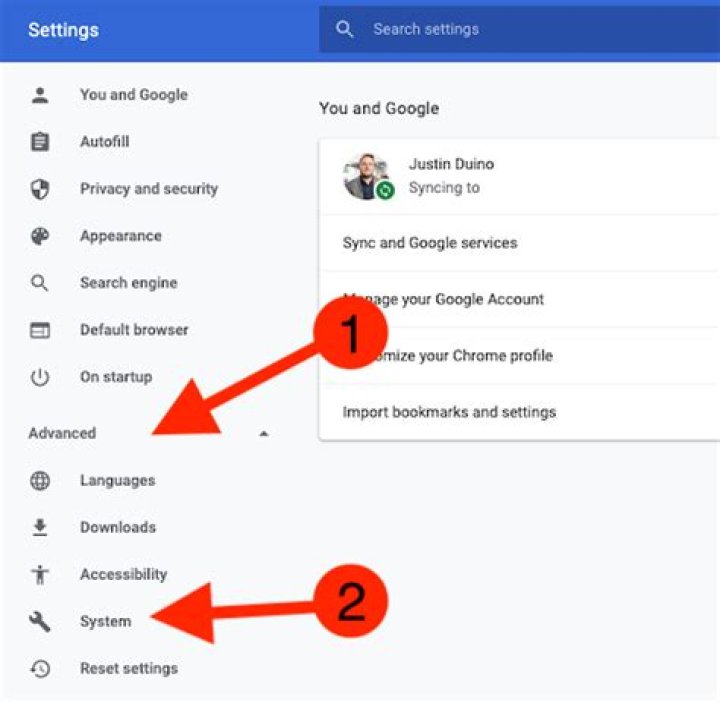
In the Settings tab, scroll down to the bottom and then click “Advanced.”
Scroll down to the System section and find the “Use hardware acceleration when available” setting. Toggle the switch to the “Off” position and then click “Relaunch” to apply the changes.
Warning: Make sure you save anything you’re working on. Chrome reopens the tabs that were opened before the relaunch but doesn’t save any of the data contained in them.
If you’d rather wait to restart Chrome and finish up anything you’re working on, just close the tab. Chrome will apply the change the next time you close and reopen it.
To confirm it has been fully disabled, type chrome://gpu/ into the Omnibox and hit Enter. When hardware acceleration has been disabled, a majority of the items under “Graphics Feature Status” will read “Software only, hardware acceleration disabled.”
If you’re looking to enable—or re-enable—hardware acceleration, head back to chrome://settings and toggle “Use hardware acceleration when available” setting to the “On” position. Then, click “Relaunch” to apply the change.
- › How to Add Images to Questions in Google Forms
- › How to Delete Your Photos on Facebook
- › Razer Thinks You Want a PC Gaming Headset That Vibrates
- › How to Get a Link to a Photo or Video on Instagram
- › The Fix for Slow AMD Processors on Windows 11 Is Here
Brady Gavin
Brady Gavin has been immersed in technology for 15 years and has written over 150 detailed tutorials and explainers. He’s covered everything from Windows 10 registry hacks to Chrome browser tips. Brady has a diploma in Computer Science from Camosun College in Victoria, BC.
Read Full Bio »
What is Chrome hardware acceleration and is it enabled?
- Tweet
- Share
- Chrome
- Safari
- Firefox
- Microsoft
What to Know
- In Chrome, go to Chrome Menu > Settings > Advanced. Under System, enable Use hardware acceleration when available.
- To force acceleration, enter chrome://flags in the search bar. Under Override software rendering list, set to Enabled, then select Relaunch.
- You can check whether hardware acceleration is turned on in Chrome by typing chrome://gpu into the address bar at the top of the browser.
This article explains how to turn hardware acceleration on and off in Chrome, plus how to check to see if it’s turned on, how to force the acceleration if needed, and how to determine whether or not hardware acceleration is helping you.
How to Turn Hardware Acceleration On in Chrome
You can turn hardware acceleration on through Chrome’s settings:
Enter chrome://settings in the address bar at the top of Chrome. Or, use the menu button at the top right of the browser to choose Settings.
Scroll to the very bottom of that page and choose the Advanced link.
Scroll to the very bottom of that page of settings to find additional options.
Under the System heading, locate and enable the Use hardware acceleration when available option.
If you’re told to relaunch Chrome, exit all open tabs and then open Chrome again.
When Chrome starts, open chrome://gpu again and check that the words Hardware accelerated appear next to most of the items in the “Graphics Feature Status heading
If you see that the “Use hardware acceleration when available” option is already enabled but your GPU settings show that acceleration is unavailable, follow the next step.
How to Force Hardware Acceleration in Chrome
The final thing you can try to enable acceleration when Chrome doesn’t seem to want to is to override one of the many system flags:
Enter chrome://flags in the address bar.
Locate the section on that page called Override software rendering list.
Change the Disabled option to Enabled.
Select the blue Relaunch Now button when it appears at the bottom of Chrome after enabling hardware acceleration.
Return to the chrome://gpu page and check whether acceleration is enabled.
At this point, Hardware accelerated should appear next to most of the items.
If they still show up as being disabled, it could signal a problem with your graphics card or the drivers for your graphics card. Update the drivers on your computer to resolve these problems.
How to Turn Off Hardware Acceleration in Chrome
Turning off hardware acceleration in Chrome is as easy as repeating the above steps for turning it on, but removing the option instead of enabling it.
Is Hardware Acceleration Already Turned On in Chrome?
The best way to check whether hardware acceleration is turned on in Chrome is to type chrome://gpu into the address bar at the top of the browser.
A whole host of results will be returned but the bit you’re interested in is the section titled “Graphics Feature Status.”
The important thing to look for is to the right of each of these items. You should see Hardware accelerated if hardware acceleration is enabled.
Some might read Software only. Hardware acceleration disabled, but that’s fine.
The majority of these entries—like Canvas, Flash, Compositing, Multiple Raster Threads, Video Decode, and WebGL—should be turned on, however.
If all or most of your values are set to disabled then you should read on to find out how to turn hardware acceleration on.
How to Know if Hardware Acceleration Helps
See whether hardware acceleration works better on or off. The site is provided by Mozilla who are the people behind the Firefox web browser, but the tests work equally well in Chrome. The page provides a number of links which will show how well your browser performs.
For example, a very simple demo is provided by this animated blob, but there are further examples including these draggable videos and this 3D Rubik’s Cube.
If you have a decent graphics card, try finding websites with high-end Flash animations and games to see whether there’s any stuttering.
Also, try watching high-definition videos on YouTube and make sure the video is crystal clear. Hardware acceleration can’t help with buffering. However, you might find that other features of Chrome perform far better than before.
What is Chrome hardware acceleration? What does hardware acceleration do? If you want to learn more information about the Google Chrome hardware acceleration, you may check out this post from MiniTool.
Quick Navigation :
You may be confused about the term hardware acceleration and don’t understand why Chrome hardware acceleration should be enabled. Don’t worry. After reading this post, you will get all the information about Chrome hardware acceleration.
What Is Hardware Acceleration
Generally, hardware acceleration refers to the execution of some processing (usually 3D graphics processing) is performed on specialist hardware on the GPU rather than in software on the main CPU.
By enabling hardware acceleration, it allows the CPU to offload some page-rendering and loading tasks to your system’s GPU. More specifically, this way is to get better performance by moving some tasks from the CPU to the GPU.
There are five security vulnerabilities found in Nvidia drivers for Windows. Nvidia urges Windows users to update GeForce, NVS, Quadro and Tesla Drivers now.
Google Chrome also has the hardware acceleration feature that enables the browser to access to the device graphics hardware to speed up processes and thus improve Chrome’s performance on your computer.
When Chrome hardware acceleration is enabled, most of the graphical intensive tasks within the browser will be passed to the GPU, in which case it can make the most of your hardware. In the way, the overall performance of the browser can be improved.
So, to improve the Chrome, you should always enable the Chrome hardware acceleration.
How Do I Know If I Have Enabled Hardware Acceleration
Some of you may ask: how do I know if I have hardware acceleration Chrome? Well, this is good question. Maybe the Chrome hardware acceleration has enabled but you don’t know it. How to check if the Chrome hardware acceleration has been enabled?
You can open a new tab in Google Chrome, then type chrome://gpu in the address bar and hit Enter key. Then you will get a whole host of results. Check the items under Graphics Feature status. You should see most features under it are Hardware accelerated if hardware acceleration is enabled.
If the Chrome hardware acceleration is not enabled, you should enable it. How to enable the Google Chrome hardware acceleration? Well, the following will show you some detailed steps.
How to Enable Hardware Acceleration Chrome
If you don’t know how to enable hardware acceleration Chrome, you can follow the steps below to enable it right now.
Step 1. Open Google Chrome, and then click the menu icon (three dots) on the top right corner.
Step 2. Choose Settings from the menu.
Step 3. Scroll down to find and click Advanced button from the page.
Step 4. Scroll down to locate the System section.
Step 5. Find the Use hardware acceleration when available setting. Toggle the switch to On to enable it.
After that, Chrome hardware acceleration should be enabled. If you find this does not help you improve much performance, you can also follow the same steps above to disable hardware acceleration Chrome: just locate to Use hardware acceleration when available Use hardware acceleration when available setting and toggle the switch to Off.
This article will show you how to fix your connection is not private chrome error. If you encounter the same error, you can fix it with the fixes in this post.
Conclusion
After reading this post, you should know what Chrome hardware acceleration is and how to enable or disable it in Google Chrome. If you have different opinion toward Google Chrome hardware acceleration, you can share it with us by leaving a message in the following comment zone.
We can get so used to everything with our technology working properly that it can be really frustrating when an application that used to work properly becomes problematic. Sometimes it can be something as simple as this article on changing a default browser, but other times it’s more confusing. Often restarting a device can fix these issues, but troubleshooting can often involve changing a setting, such as the hardware acceleration option in Google Chrome.
I was recently having a problem in Google Chrome where my mouse was lagging whenever I was trying to click a link or copy text. It was increasingly frustrating, to the point where I was starting to use Firefox more frequently. But Chrome has long been my default browser, and I was not ready to give up on it yet. So I spent a bit of time trying out assorted troubleshooting tips that I could find online, all with little to no effect.
But I was finally able to fix the problem, and my solution rested with turning off hardware acceleration in Google Chrome. Now Chrome is back to being fast and responsive, and the problems that I was previously having are gone. If you are having a similar problem with mouse lag in Google Chrome, then follow our steps below to turn off hardware acceleration and see if it fixes your problem as well.
How to Turn Off Hardware Acceleration in Google Chrome
- Open Google Chrome.
- Click the menu button (It says Customize and control Google Chrome when you hover over it) at the top-right corner of the window.
- Click Settings.
- Scroll down and click the Advanced link at the bottom of the window.
- Scroll down to the System section and click the button to the right of Use hardware acceleration when available.
- Click the Relaunch button to restart Chrome with this new setting.
Our article continues below with additional information on disabling hardware acceleration in Google Chrome, including pictures of these steps.
Turn Off Hardware Acceleration in Google Chrome (Guide with Pictures)
There are many reasons why you might be having problems with performance in Google Chrome, so this solution may not work for everyone. But it fixed my mouse lag and the latency issues that I was personally having, so it is worth a shot if you are experiencing similar problems.
If you are experiencing similar problems in other programs, too, then reading this guide at live2tech.com can show you how to turn off hardware acceleration in a number of different programs on your computer.
Step 1: Open Google Chrome.
Step 2: Click the icon with the three dots at the top-right of the window. It says Customize and control Google Chrome when you hover over it.
Step 3: Click the Settings option near the bottom of the menu.
Step 4: Scroll to the bottom of this page and click the Advanced link.
Step 5: Scroll to the bottom of the page again, then click the button to the right of Use hardware acceleration when available to turn it off.
You can then click the Relaunch button for the changes to take effect. Hopefully your issues with mouse lag in Chrome are now gone. If not, then head over to Google Chrome’s support site for additional help.
Additional Information on Disabling Hardware Acceleration in the Chrome Browser
- Another way to get to the Chrome settings menu involves typing chrome://settings into the address bar at the top of the page. Using the chrome://settings options will take you directly to the menu that you would get to by clicking the menu button then choosing the Settings option. You can then continue to disable hardware acceleration or enable hardware acceleration by choosing Advanced then System.
- One other thing to consider is that it may be an extension that is giving you trouble. Read here to see how to remove a Chrome extension.
- Alternatively, if you are looking for some more detailed information on GPU options in the Chrome browser, you could enter chrome://gpu into the address bar instead. This brings up a lot of extra information about Chrome and GPU usage.
- While disabling usage of the GPU (graphics processing unit) can resolve issues specific to how Chrome interacts with webpages, it’s not usually a good idea to disable hardware acceleration unless you are having a problem with the browser.
- In newer versions of Google Chrome you can show advanced settings by simply clicking the Advanced tab at the left side of the Settings menu.
- Turning hardware acceleration on or off will require you to relaunch the browser for the change to be applied.
- If you’re lucky then disabling hardware acceleration in Google Chrome will resolve the performance issues that you were experiencing with the browser. However, it’s possible that nothing will change or things might actually get worse. If that happens, consider uninstalling Chrome and reinstalling it. if a reinstallation doesn’t improve the situation, then see if a different browser like Firefox works better.
Do you want to set a different Home page in Chrome? This article will show you how.
Additional Sources
Matthew Burleigh has been writing tech tutorials since 2008. His writing has appeared on dozens of different websites and been read over 50 million times.
After receiving his Bachelor’s and Master’s degrees in Computer Science he spent several years working in IT management for small businesses. However, he now works full time writing content online and creating websites.
His main writing topics include iPhones, Microsoft Office, Google Apps, Android, and Photoshop, but he has also written about many other tech topics as well.
Hardware acceleration refers to relieving tasks from one hardware component to another to ensure smooth and fast processing. Specifically, hardware acceleration uses GPU to free some load on the CPU to accelerate the processes. Using GPU is the intense graphics used in games, the latest web apps, and websites. And passing off some tasks to GPU provides CPU a chance to work perform the rest of the tasks more efficiently.
Now answering the question of whether you need to turn ON hardware acceleration or not depends on your PC performance. After turning on Hardware acceleration in Chrome, many users reported early drain of battery, freezing of tabs, and random crashes in the browser. However, it helps the system in running Chrome more efficiently. You can turn it off anytime you encounter the issues mentioned above since it is enabled by default.
How To Turn ON/OFF Hardware Acceleration In Google Chrome?
As told above, hardware acceleration is enabled by default in google chrome. But still, you can check it. There are two simple methods to turn ON/OFF hardware acceleration in Chrome. Let us have a look:
Enable OR Disable Hardware Acceleration Using Chrome Settings
Open the Chrome menu using the three-dot menu button given on the top right-hand side of the chrome browser.
Scroll down and select the Advanced option from the list.
Move to the System section and check the toggle button to enable or disable the hardware acceleration in Chrome.
Turn Hardware Acceleration In Chrome Using Registry(Windows)
The other option for doing the same is using Registry Editor.
Open the Run dialog box by pressing the Windows+R button.
Type “Regedit” in the box and hit enter to open the Registry editor.
Now navigate step by step to HKEY_LOCAL_MACHINE \ SOFTWARE \ Policies \ Google \ Chrome \
Hit right-click on the chrome button to create a new DWORD 32-bit value.
Rename the value to HardwareAccelerationModeEnabled and Set the value 0 to disable and 1 to enable the hardware acceleration on Chrome.
Just restart the pc to apply the settings.
Usually, Hardware acceleration is always enabled on Google Chrome; however, if you want to turn it on occasion, I would suggest you turn it every time you use 3d graphics, high-end games online, motion games, and videos. It will result in high FPS.
If you’ve been around computers for quite some time, you’re probably familiar with the CPU and the GPU. The CPU is responsible for doing the calculations and processing. Meanwhile, the GPU is there to take care of graphical tasks. Fun fact: Did you know that the foundation of the GPU was first set in the 70s?
On our smartphones and computers, the CPU is typically responsible for doing all the processing. The GPU tends to stick to taking care of the graphics in games. That means that even videos and animations in a web browser such as Chrome are handled by the CPU, even when the GPU is more than capable.
Well, that’s how it is by default. But with hardware acceleration, things can be different.
This article will tell you what you need to know about hardware acceleration Chrome and the benefits and potential problems that it might bring.
Do you have a particular question about hardware acceleration in Chrome? Then use the table of contents below to jump to the most relevant section. And you can always go back by clicking on the black arrow in the right bottom corner of the page. Also, please note that some of the links in this article may be affiliate links. For more details, check the Disclosure section at the bottom of the page.
Here’s what we’ll cover:
What is hardware acceleration in Chrome?
Like many applications nowadays, Google Chrome has a hardware acceleration option. This feature can be turned on and off quite quickly, and what this Google Chrome hardware acceleration does is to make Chrome load faster by offloading some of the processes to the GPU.
Instead of processing these in the software, which effectively means the CPU takes care of them, they go to the hardware, in most cases, the GPU, to run them more efficiently. After all, sometimes the hardware is better suited to performing these functions than the CPU. Not having hardware acceleration on, in many cases, is like wasted potential.
For Chrome hardware acceleration, the GPU takes care of browser games, animations, or videos that you might be playing. Not only will the GPU do it better, but it will take some load off the CPU to let it work better.
How to know if Google Chrome hardware acceleration on or off?
Having Google Chrome hardware acceleration on definitely sounds like something with many benefits. You might want to know whether you have it turned on already or not. After all, making google Chrome faster is something that anyone would want.
Fortunately, there is a very easy way to check this.
In the address bar of the browser, simply type in “chrome://gpu.” Then you’ll be able to tell if you’ve got hardware acceleration on. You should see “Hardware accelerated” next to the items in “Graphics Feature Status”. That means you’re good!
You can check the other cool things that you can do straight from the address bar in Chrome, besides a shortcut for opening settings and checking your hardware acceleration.
This is definitely the fastest and easiest way to be sure of this.
How to enable hardware acceleration Chrome?
If you don’t have hardware acceleration on, you probably want to know how to switch it on. That performance boost is too sweet not to take advantage of.
This is also very easy to do! You just need to follow a few steps to turn on your Chrome accelerator.
- Click on the menu button in the top right corner. Then click on “Settings.” Alternatively, you can type “chrome://settings” in the address bar.
- Scroll all the way to the bottom of that window. Click on the text that says “Advanced.”
- Scroll to the bottom of the settings that appear. Look for the “System” section.
- Under that, there should be an option that says, “Use hardware acceleration when available.” If your hardware acceleration is off, this should be toggled off. Simply enable it!
- You may have to reload Chrome before the hardware acceleration takes place.
How to turn off hardware acceleration in Chrome?
Browser hardware acceleration is a great thing to have enabled. Still, it can come with the potential for bugs and other issues. If this occurs, you will likely want to figure out a way to turn it off.
Switching off hardware acceleration can be done in just a few steps.
- Click the menu button in the top right corner. Then click “Settings.” You can also type “chrome://settings” in the address bar.
- Scroll to the bottom of that window. Click on the text that says “Advanced.”
- Scroll to the bottom of the settings that appear. Look for the “System” section.
- Under that, there should be an option that says, “Use hardware acceleration when available.” If your hardware acceleration is already enabled, this should be on. All you have to do is turn it off, and you likely won’t run into any issues!
Google Chrome hardware acceleration problems
It might sound like Chrome acceleration only brings good things. For the most part, that is true. However, some of the most notorious problems you can experience in Google Chrome are caused by your Chrome video acceleration settings.
Some users complain of webpages lagging when hardware acceleration is on. Sites like YouTube can suffer from desyncing, freezes, and stutters when hardware acceleration is on. Sometimes, the browser in Chrome can disappear as a result!
As the most used web browser in the world, many users get annoyed with these issues, as they have been persistent for many years now. They can get bad enough to prompt a person to turn the feature off entirely.
Should I use hardware acceleration Chrome?
There are a lot of issues that Chrome hardware acceleration can cause. But at the exact same time, it can make your Chrome browsing experience very smooth. Choosing whether or not to use it can be difficult.
However, I believe that the easiest way to answer this question is to try it out.
A lot of people get a smoother and faster browsing experience and no lag or issues of any kind. The truth is, you can’t know if you’re going to be lucky like that until you give it a shot! If you run into any problems, you can turn it back off in just a few moments. No harm is done.
Hardware acceleration is a technique wherein a program or application forces various hardware components to perform faster that the standard computing architecture to accomplish their job efficiently. One very common application which uses hardware acceleration is Google Chrome browser.
PIC: How to Disable Hardware Acceleration in Chrome
When hardware acceleration is enabled in Google Chrome it allows the browser to access the device graphic hardware to boost the process and improve the surfing experience. It passes most of the graphical intensive tasks such as games, playing video, etc. within the browser to the graphics processing unit. Bypassing such tasks that require faster mathematical calculations to the graphics processing unit, the CPU gets a chance to work on other tasks. It does sound promising, but many times users have reported that hardware acceleration is making their device run slower. There are unlimited numbers of software configurations and every system is different. Sometimes, hardware acceleration can cause the browser to crash and often causes the system’s battery to drain faster. That is why it is important to know if hardware acceleration is doing anything good for your computer or not.
You can also check if hardware acceleration is enabled in Google Chrome by typing chrome://gpu in the address bar.
You will get a result similar to this:
PIC: HOW TO DISABLE HARDWARE ACCELERATION IN CHROME
You can see that a majority of the items in the list above have hardware acceleration enabled.
If you are facing problems in displaying visual elements correctly or the cursor lags across the screen in the Google Chrome browser, then disabling hardware acceleration can probably fix it. You have the option to turn off hardware acceleration in Chrome. Here is how you can do it with a few simple steps:
Disable Hardware Acceleration through Google Chrome Settings
- Launch Google Chrome and go to the Menu by clicking on the three dot icon
- Go to “Settings” and scroll down to the bottom of the page to click on “Advanced” option
PIC: How to Disable Hardware Acceleration in Chrome
- Now, scroll down to the “System” option.
- There you can toggle “Use hardware acceleration when available” on or off
PIC: How to Disable Hardware Acceleration in Chrome
- Once done, restart your computer
**You can repeat the above steps to turn hardware acceleration back on.
How to Disable Hardware Acceleration in chrome via Registry in Windows
- Hit Windows + R to bring Run window
- Type in “regedit” in the box and hit “Enter”
- Now navigate to HKEY_LOCAL_MACHINE —-SOFTWARE —-Policies —- Google —-Chrome
- Right-click on “Chrome”
- Choose “New”—- “DWORD 32-bit value”
- Keep value name as “HardwareAccelerationModeEnabled”
- You have to set value data to “0” to turn off Hardware Acceleration ( to turn in on-again, set the value to “1”)
- Restart your computer
Conclusion
Disabling hardware acceleration can improve your system’s battery life and the performance of the cursor too. If you had been facing constant issues with your browser, hopefully disabling hardware acceleration can make it perform better. If you notice a boost in the browser’s performance after turning off the hardware acceleration, then it means that it worked.
We explain what hardware acceleration is, when you should turn it off, and how you can enable or disable it in Google Chrome.
Out of the box, in Google Chrome hardware acceleration is enabled. The feature is designed to make your browser faster by making use of your computer’s graphics card. However, while keeping the feature on is the right move for most people, you may need to disable hardware acceleration if it’s causing issues.
What is hardware acceleration?
Hardware acceleration makes use of your computer’s graphics card to speed up the browser and free up your CPU. As your GPU is designed to perform video-based calculations, it’s often better suited for tasks like watching videos or playing browser games.
If you have a dedicated sound card, that can also be used for hardware acceleration, providing higher quality playback and recording than your motherboard audio.
So, should I turn hardware acceleration on or off?
Whether or not you should disable hardware acceleration depends on your scenario. On lower spec PCs, disabling hardware acceleration may make watching high-resolution video (such as 4K) all but impossible.
However, while hardware acceleration in Chrome provides significant advantages for most people, for some it can cause instability. On some devices, Chrome can lag or crash with it enabled, especially on Linux machines.
Lag caused by hardware acceleration is typically the result of an underlying driver or browser incompatibility that should be fixed, if possible. In the meantime, you can turn off Google Chrome hardware acceleration to see if this solves the issue.
How to Enable or Disable Chrome Hardware Acceleration
If you haven’t touched the hardware acceleration setting previously, there’s a good chance it’s already on. Due to its inherent benefits, Chrome tends to enable it by default. Still, it’s worth checking if your performance is sluggish. We’re first going to show you how to turn hardware acceleration on or off, then move on to how to check if the changes have taken.
- Open Chrome settings
Press the three dots in the top-right corner of your browser, then click “Settings”.
You’ll find the “Advanced” button at the very bottom of your Chrome settings window, underneath the “On startup” section.
Once you’re done, press the “Relaunch” button to apply the changes.
In your browser bar, paste chrome://gpu to open the GPU diagnostics page. In the “Graphics Feature Status” list, with hardware acceleration off, you’ll see several items marked as “Disabled”.
That about finishes this Chrome hardware acceleration tutorial. Just remember to troubleshoot the underlying issue if you are having problems. An incorrect video card driver could cause instability in other areas of your system.
You can follow this guide to grab the latest Nvidia drivers, and this one to check what graphics card you have.
Google chrome comes equipped with many quality features that help sustain your PC health and perform tasks more efficiently. Since Chrome uses a huge amount of CPU, it has the feature of hardware acceleration that shifts the process to other hardware components, such as the GPU, to accelerate the job. Hardware acceleration was not so common in the initial days as the processor was responsible for handling all such jobs. Due to the latest trends and updates in web apps, the graph of requirements has potentially raised. In this article, we will be discussing GPU acceleration in Chrome. Make sure you read till the end.
What Is Hardware Acceleration? Do I Need It?
Hardware acceleration refers to relieving tasks from one hardware component to another to ensure smooth and fast processing. Specifically, hardware acceleration uses GPU to free some load on the CPU to accelerate the processes. Using GPU is the intense graphics used in games, the latest web apps, and websites. And passing off some tasks to GPU provides CPU a chance to work perform the rest of the tasks more efficiently.
Now answering the question of whether you need to turn ON hardware acceleration or not depends on your PC performance. After turning on Hardware acceleration in Chrome, many users reported early drain of battery, freezing of tabs, and random crashes in the browser. However, it helps the system in running Chrome more efficiently. You can turn it off anytime you encounter the issues mentioned above since it is enabled by default.
How To Turn ON/OFF Hardware Acceleration In Google Chrome?
As told above, hardware acceleration is enabled by default in google chrome. But still, you can check it. There are two simple methods to turn ON/OFF hardware acceleration in Chrome. Let us have a look:
Enable OR Disable Hardware Acceleration Using Chrome Settings
Open the Chrome menu using the three-dot menu button given on the top right-hand side of the chrome browser.
Scroll down and select the Advanced option from the list.
Move to the System section and check the toggle button to enable or disable the hardware acceleration in Chrome.
Turn Hardware Acceleration In Chrome Using Registry(Windows)
The other option for doing the same is using Registry Editor.
Open the Run dialog box by pressing the Windows R button.
Type “Regedit” in the box and hit enter to open the Registry editor.
Now navigate step by step to HKEY_LOCAL_MACHINE SOFTWARE Policies Google Chrome
Hit right-click on the chrome button to create a new DWORD 32-bit value.
Rename the value to HardwareAccelerationModeEnabled and Set the value 0 to disable and 1 to enable the hardware acceleration on Chrome.
Just restart the pc to apply the settings.
Usually, Hardware acceleration is always enabled on Google Chrome; however, if you want to turn it on occasion, I would suggest you turn it every time you use 3d graphics, high-end games online, motion games, and videos. It will result in high FPS.




