Got yourself a new Microsoft Surface in the last couple of days? The Surface is definitely an interesting new tablet, especially when you pair it with the new Touch Cover and Type Cover that you can use with it. The touch cover is especially cool since it doesn’t even really have buttons like a normal keyboard.
Microsoft has been releasing a bunch of ads recently focused on the “click” sound that is made when you attach a type or touch cover to the Surface. That is a reassuring clicking sound so you know your keyboard it attached correctly. The annoying clicking sound is when you type on the touch cover and Windows plays a clicking sound that makes you feel like you’re using a keyboard with actual buttons. I’m guessing some people will like this because it will help them figure out if they actually pressed a key or not.
However, after a few hours of typing, I quickly became annoyed with the whole fake clicking sound. Thankfully, you can get rid of it. It instantly reminded me of the time when Internet Explorer would make that annoying clicking sound whenever you refreshed a web page or clicked on a link.
Turn Off Clicking Sound
If you want to disable the clicking sound when typing on the touch or type cover, here’s how you do it in Windows 8. Below this, I’ll also explain how to do it in Windows 10. First, you need to swipe from the right side of the device to the left to bring up the Charms bar.
Now you want to tap on Change PC Settings at the very bottom.
Now you want to click on General on the left hand side and scroll down until you see Touch Keyboard. Here there will be an option called Play key sounds as I type, which you can switch from On to Off.
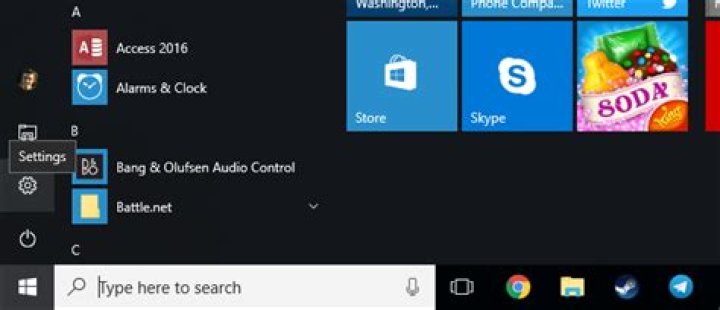
In Windows 10, click on Settings from the Start menu and then click on Devices.
Click on Typing in the left-hand pane and then go to the section that is titled Touch Keyboard. You’ll see the Play key sounds as I type option there.
That’s about it! Note that if you are using Windows on a PC and you have the on screen keyboard enabled, it will also play clicking sounds when you press the buttons. You can disable the clicking sound there by clicking on the Options button on the keyboard.
Now you can just uncheck the Use click sound check box.
Once you get used to the new keyboards for Microsoft Surface, you’ll find you really don’t need those additional clicking sounds to type properly. Enjoy your new Surface!
Founder of Help Desk Geek and managing editor. He began blogging in 2007 and quit his job in 2010 to blog full-time. He has over 15 years of industry experience in IT and holds several technical certifications. Read Aseem’s Full Bio
You may use the Microsoft Touch Cover or Type Cover to pair with Surface RT/Pro tablet instead of touching. When you attach it and go to type something like email, you will hear the clicking sound you are making.
The buttons from the cover don’t like a normal keyboard’s. And the clicking sound let you feel like using actual buttons. However, somebody don’t like to hear the annoying sound.
How to Turn Off additional clicking Sound with Touch/Type Cover for Surface RT/Pro
* Move the mouse cursor from the right side to open charms bar, Click/Tap on “Change PC Settings” at the bottom.
* On the left, select General. Scroll down on the right side, under Touch Keyboard option, switch “Play key sounds as I type” from On to Off.
* You can also disable the feature from on-screen keyboard from Windows 8 computer. Click on the Options button, and uncheck “Use click sound”.
Related Posts
9 thoughts on “ Turn Off Clicking Sound on Touch/Type Cover on Surface Pro/RT ”
This did not work for me. The problem seems to be very common and should fixed immediately. It is very annoying as well as inconvenient.
if you go to the charms portion and go to settings then you can click on change pc settings. once there (your windows 8 should be updated) click on PC and devices. from there click on typing. in that section it will give you the option to turn the sound off. it says “”play key sounds as I type” there you can switch it to off! so much better!!
This does not work for me (Surface RT). It disables the clicking sounds for the on-scree keyboard, but the touch cover still makes clicky noises when I type.
Did not work either. It’s really annoying, Microsoft makes great products but every single one has to have one really annoying feature you cannot turn off. Please start fixing those, it would probably help you with your market ratings as well…
Waited. 2 weeks for this to get here and it does not work at all. Very disappointed
+1 on Surface Pro 2 with Touch cover 2 – very annoying, pls fix immediately! System reset is NOT and option!
If you go to Devices and find Keyboards you can ”Remove” the Cover and then re-install it straight away. No need to actually detach it physically. You may want to check Microsoft website for Surface Pro 4 firmware updates first.
Anyway, after reinstalling it, go to the aforementioned make sounds as I type toggle and turn it on then off.
Worked for me (formerly had to turn sound off)
The only way to disable the sound of the Touch Cover keyboard working with MS Surface 2 is to go to Control Panel, then open Device Manager,. Under System Devices find Surface Cover Audio. Open it and in the Drivers tab, click Disable. Worked for me.
It also appears that there’s a setting on Windows 10 under
Settings > “Ease of Access Center” > Keyboard > Filter Keys > “Beep when keys are pressed or accepted”
If it’s on, turn it off – that’s all there is to the issue we had!
Leave a Reply Cancel reply
This site uses Akismet to reduce spam. Learn how your comment data is processed.
Note: Some products might not be available in your country or region.
Use the built-in stereo speakers and mic or your favorite audio accessories to listen to music, make phone calls, record audio, and more.
If you’re not sure where the speaker and mic openings and volume button are located, see Surface features.
Use your favorite audio accessories
The stereo speakers and microphones built into your Surface let you listen to music and videos, make phone calls, and record audio. Or, you can connect your favorite USB and Bluetooth® accessories like speakers, a mic, or a headset.
To switch between your speakers and connected audio accessories, select the Speaker icon on the right side of the taskbar, and then expand the list to select another audio device.
Adjust the volume
You can control the volume on your Surface in several places:
Volume button: Press the volume button on your Surface to adjust the volume up or down.
Keyboard: If your Surface Typing Cover or other keyboard has volume keys, press the volume-down, volume-up, or mute keys.
Desktop taskbar: In the desktop taskbar, select Speakers and adjust the volume up or down.
Audio accessories: Adjust the volume on the headset, speakers, phone, or other audio accessory, or in the software included with the accessory. To learn more, check the info that came with your accessory or visit the manufacturer’s website.
Apps: Some apps have a volume control within the app.
How volume controls work together
If you raise, lower, or mute the volume using one of the following volume controls, the volume level in the others will also change:
The volume button on your Surface
Desktop volume setting in the taskbar
Volume controls in apps and on accessories such as headphones and external speakers may work independently of the controls built into your Surface. You may need to adjust volume levels in more than one place.
Adjust microphone settings
Here’s how to adjust your mic settings:
Go to Start , and then select Settings >System > Sound > Sound control panel.
Select the Recording tab, select the mic you want, and select Properties.
Be sure to select a mic that’s enabled and connected to your Surface.
Select the Levels tab. You’ll see two sliders:
Microphone or Microphone Array: Controls the mic’s volume.
Microphone Boost: Controls the strength of the mic’s signal.
Adjust the sliders until your mic is recording at the levels you want.
The levels you’ll use will vary depending on the amount of background noise and on whether you’re using the mic that’s built into your Surface or an external mic. A good starting point is to set Microphone to 50 and Microphone Boost to +24.0 dB.
Note: Microphone Boost is not available on all Surface devices.
Use USB or Bluetooth audio accessories
You can connect external USB speakers, headphones, or a headset to a full-size USB port.
You can go wireless by using Bluetooth headphones or speakers with your Surface.
To get the best sound from USB or Bluetooth speakers, turn up the volume on your Surface and in the app (if it has its own sound control), and then adjust the volume on the external USB or Bluetooth speakers.
If you’re having problems with Bluetooth, go to Troubleshoot Bluetooth devices.
Set the default audio device
Go to Start , and then select Settings > System > Sound.
Do either or both of the following:
In the Sound section, select the device you want to use for playback (for example, the built-in speakers on your Surface, external speakers, or a headset), as your output device. When you select this device, you’re also setting it as the default.
In the Input section, select the device you want to use for recording (for example, the built-in mic or an external mic), as your input device. When you select this device, you’re also setting it as the default.
If you are using a communications app, like Skype, you may want to set your communications device separately when using speakers or a headset. Here’s how to set a communications device:
Go to Start , and then select Settings > System >Sound > Sound control panel.
Do either or both of the following:
Select the Playback tab, select the device you want to use for communications playback (for example, the built-in speakers on your Surface, external speakers, or a headset), and then select Set Default Communication Device.
Select the Recording tab, select the device you want to use for communications recording (for example, the built-in mic or an external mic), and then select Set Default Communication Device.
Record audio
You can use the Voice Recorder app to record audio. To open the Voice Recorder app:
Go to Start , and then select Voice Recorder.
Change which sounds play
You can choose which sounds play for notifications and system events (for example, the sound that plays when you get a new message). Here’s how:
Go to Start , and then select Settings > System > Sound > Sound control panel.
Select the Sounds tab, and under Program Events, select an event (for example, Calendar Reminder).
Under Sounds, choose the sound you want to play for that event.
To hear the sound you’ve picked, select Test.
Select Apply to change the sound for the event, and select OK.
Turn typing sounds on or off
The Touch Cover can play key sounds as you press the keys. (If you aren’t sure which Surface keyboard you are using, see Find out which Surface keyboard you have.) Here’s how to turn the key sounds on or off:
Go to Start and select Settings > Devices > Typing.
Under Touch keyboard, set Play key sounds as I type to On or Off.
Note: To adjust the volume level of key sounds, use the volume button on your Surface.
Audio problems
If the sound quality coming from your speakers or an audio accessory isn’t good, it’s possible the audio recording itself isn’t of good quality. Try listening to the same recording on a different device.
If you have trouble with audio while your Surface is connected to another screen, see Connect Surface to a TV, monitor, or projector.
Note: VGA adapters and cables don’t transmit audio. Audio will play from your Surface speakers unless you’ve connected external USB or Bluetooth speakers.
You can customize whether to hear the key sounds or not when using Touch Keyboard on your Windows 10 PC, following the guidance below.
Video guide on how to turn off/on key sounds for Touch Keyboard in Windows 10:
Steps to turn off/on key sounds for Touch Keyboard in Windows 10:
Step 2: Choose Devices to move on.
Step 3: Open Typing, and then switch off or on Play key sounds as I type under Touch keyboard.
Related Articles:
Hot Articles How to Reset Windows 10 Forgotten Password
How to Bypass Windows 10 Password Login with/without Password
Easy Guide to Reset Windows 10 Admin Password Like an Expert
4 Tips to Change Windows 10 Password without Knowing Current Password
Can’t Sign into Microsoft Account Windows 10 | Account Locked/Blocked More + Hot Categories Windows 10 Password Windows 8 Password Windows 7 Password More + Latest Articles How to Calculate Power Consumption of a PC 7 Useful Commands Windows 10 Users Should Know 7 Ways to Access System Restore in Windows 10 How to Create or Delete Partitions Using Command Prompt How to Format Disk Partition Using Command Prompt How to Enable and Use God Mode in Windows 10 More + Hot Products Windows Password Genius iTunes Password Genius Product Key Finder More +
iSunshare is dedicated to providing the best service for Windows, Mac, Android users who are in demand for password recovery and data recovery.
My surface touch cover sound won’ t turn off. I’ve disable the sound but it works only for the onscreen keyboard the touch cover still makes sounds while i’m typing.
What can i do to turn it off? It’s really anoying
- Subscribe
- Subscribe to RSS feed
Report abuse
Replies (4)
I see that this is your first post in this forum, welcome to the Microsoft Community forum.
How did you turn off the sound for the onscreen keyboard?
You can disable the sound for the onscreen keyboard and the touch cover keyboard by following the steps mentioned in this article:
If you have already tried these steps and still the touch cover keyboard sound isn’t disabled, then it could be due to some incorrect audio settings. I would suggest you to try the steps mentioned in this article and check:
If the issue still persists, I would suggest you to post this query in the Surface forum where you can find similar posts and also get answers from surface experts. Here is a link to the forum:
Hope you find this helpful. Feel free to use this forum for any Windows related queries in the future; we’d be happy to help.
Report abuse
Was this reply helpful?
Sorry this didn't help.
Great! Thanks for your feedback.
How satisfied are you with this reply?
Thanks for your feedback, it helps us improve the site.
How satisfied are you with this reply?
Thanks for your feedback.
Report abuse
Was this reply helpful?
Sorry this didn't help.
Great! Thanks for your feedback.
How satisfied are you with this reply?
Thanks for your feedback, it helps us improve the site.
How satisfied are you with this reply?
Thanks for your feedback.
same problem here.
I can disable the sounds with on screen keyboard, but not with touchcover. followed steps above and no joy.
Report abuse
Was this reply helpful?
Sorry this didn't help.
Great! Thanks for your feedback.
How satisfied are you with this reply?
Thanks for your feedback, it helps us improve the site.
How satisfied are you with this reply?
Thanks for your feedback.
we are dealing with faulty drivers all around Surface products. They do not work well right away. After doing all system updates, we should then play around with the machines in order to drivers get well connected with the hardware. Very strange.
Microsoft (and other manufacturers, like Samsung, Nokia, etc. ) are releasing products in to the market for us to test them for free. Well, we pay the product, and then we test them for free.
And here we are.
The list of problems with Surface products are endless. And still this is a very good product.
So, lots of patience is required. They shoul start to put that advertise on packages:
“Microsoft product: please be patient before starting to use it”
My first tablet went off to customer service for replacement.
Now a just bought a touch cover type 1: and problems again.
1st- at first the tablet did not reconize the touch cover. Solution: Factory reset. Ok!
2nd- the sound of the keyboard won’t turn off despite of all settings well configured. Solution: a phone call to Microsoft Surface customer service, and you know what? They don’t have a solution either. What they ask you to do is trying to change every settings regarding de keyboard sound issue (two settings actually), then play with getting off and on the touch cover, and turning on and off the tablet, and finnaly, when nothing works (but everything was done) make a system refresh. And it worked. No keyboard sound anymore.
Well, at least, for the first time in my life, I got a real Microsoft assistance. What an experience.
Whenever you are typing on your Word document, notepad, or any document or spreadsheet for that matter, you hear that beeping sound. While some people prefer it that way, it can be annoying to many. Many users prefer to it be silent while typing. This helps them work distraction-free.
So, how do you turn off the beeping sound of your keyboard in your Windows 10 PC? It’s very simple. Let’s see how.
How To Disable The Beep Sound
Step 1: Click on the Start button on your desktop and select Settings (gear icon) located above the Power option in the context menu.
Step 2: In the Settings window, click on Ease of Access.
Step 3: In the Ease of Access window, on the left side, scroll down and under Interaction section, click on Keyboard. Now, on the right side of the pane, scroll down, under Use Filter Keys section, uncheck the box next to Beep when keys are pressed or accepted.
That’s it! And, you are done changing the settings for the keyboard. Now, when you type, there will be no beeping sound anymore.
Follow the guidance below to turn off click sound for On-Screen Keyboard in Windows 10 computer.
Video guide on how to turn off click sound for On-Screen Keyboard in Windows 10:
Steps to turn off click sound for On-Screen Keyboard:
Step 2: Click Options on the keyboard.
Step 3: Deselect Use click sound and choose OK in the Options window.
Related Articles:
Hot Articles How to Reset Windows 10 Forgotten Password
How to Bypass Windows 10 Password Login with/without Password
Easy Guide to Reset Windows 10 Admin Password Like an Expert
4 Tips to Change Windows 10 Password without Knowing Current Password
Can’t Sign into Microsoft Account Windows 10 | Account Locked/Blocked More + Hot Categories Windows 10 Password Windows 8 Password Windows 7 Password More + Latest Articles How to Calculate Power Consumption of a PC 7 Useful Commands Windows 10 Users Should Know 7 Ways to Access System Restore in Windows 10 How to Create or Delete Partitions Using Command Prompt How to Format Disk Partition Using Command Prompt How to Enable and Use God Mode in Windows 10 More + Hot Products Windows Password Genius iTunes Password Genius Product Key Finder More +
iSunshare is dedicated to providing the best service for Windows, Mac, Android users who are in demand for password recovery and data recovery.
How Do I Turn Off Keyboard Sounds in Windows 10 on the On-Screen Keyboard?
The sounds of key clicks give you some haptic feedback. But it can get annoying if you are a good touch typist or want to type in silence.
The On-Screen Keyboard (OSK) is an accessibility feature on Windows 10.
Turning the sound off on the OSK takes a few steps. Follow the same steps to switch on the keyboard sounds if you want.
To enable the On-Screen keyboard, go to Settings > Ease of Access > Keyboard. Enable the toggle switch for Use the On-Screen Keyboard to display the keyboard.
When enabled, launch the On-Screen keyboard with the Windows key + Ctrl + O anytime.
Select the Options key.
Select Use click sound when you want to hear a sound with each keypress. Deselect the checkbox to turn off the keyboard sound.
You can also open the OSK from the sign-in screen. Select the Ease of Access button in the lower-right corner of the sign-in screen, and then select On-Screen Keyboard.
Manage Other Keyboard Sounds in Windows 10
A few keyboard settings like Filter Keys, Toggle Keys, and Sticky Keys are enabled with sound for ease of use. You can enable or disable them for even physical keyboards as required.
Go to Settings > Ease of Access > Keyboard.
Scroll to Use Toggle Keys and switch off the toggle button for Play a sound whenever you press the Caps lock, Num lock, or Scroll lock keys.
Go to Use Filter Keys and switch on the toggle button. Select Beep when keys are pressed or accepted to enable sounds and deselect for no sound.
How Do I Turn Off Keyboard Typing Sounds in the Touch Keyboard on Windows 10?
The Touch Screen keyboard is only for Windows 10 PCs with touch screens. Any Windows tablet or a PC in tablet mode uses the touch keyboard to enter text. Enable or disable a single setting to control the keyboard sounds when you type.
Open Settings from the Start Menu and select Devices. Alternatively, press the Windows Key + I to open Settings.
Select Typing on the left sidebar. Under Touch keyboard, turn off the switch for Play key sounds as I type.
Exit Settings and start typing without the keyboard sounds.
Follow the same steps but toggle the Play key sounds as I type to the on position to turn on the feature.
To enable or disable the on-screen keyboard in Windows 10, go to Settings > Ease of Access > Keyboard > turn on the Use the On-Screen Keyboard toggle.
To change system sounds in Windows 10, enter Change System Sounds in the Windows search bar and select the Sound tab if it is not already open. From here, you can customize sounds for specific events, or turn off all sound effects by choosing No Sounds in the Sound Scheme drop-down menu.
Enter Change System Sounds in the Windows search bar. Then, in the Sound tab, under Program Events, select Default Beep. Next, choose None in the Sounds drop-down menu.
On Android, open the Settings app and find the Language & Input section. Select On-screen keyboard and look for the feedback options. On iOS devices, go to Settings > Sound and Haptics and disable Keyboard clicks.
When using the keyboard to type, you may need to wait long for the keyboard to slowly spit words out. How can you fix keyboard input lag in Windows 10? To get rid of the slow keyboard response, you can read this post written by MiniTool to get some simple methods and have a try.
Keyboard Delay Windows 10
When you use a PC, you may have encountered some problems. Among them, the lag issue is very common, which may happen on the computer itself, mouse and keyboard. In our previous posts, we have mentioned the first two cases – computer lag & mouse lag and today we will discuss keyboard delay.
Usually, when typing in Windows 10, you find the keyboard responses very slowly. Sometimes intermittent keyboard lag happens.
This is quite annoying and sometimes it may impact your work. Then, you may ask the question – why is my keyboard lagging? Simply put, Windows 10 keyboard lag can be caused by a hardware failure or software change.
While encountering the issue, you can try restarting your computer. If this doesn’t work, try these solutions below to get rid of the issue of keyboard input lag.
Windows 10 Input Lag Fix
Method 1: Run Hardware and Devices Troubleshooter
Windows 10 offers you some troubleshooters to fix some problems with computer hardware, blue screen of death, Bluetooth, etc. If you are having a problem with the keyboard, you can run the Hardware and Devices Troubleshooter to solve it. This can check for common issues and ensure any hardware or device is installed correctly on your PC.
Receive “an error occurred while troubleshooting” message when using Windows Troubleshooters to fix some issues? Here are 8 helpful ways to fix it.
Here is how to run the troubleshooter:
- Click the Windows log and choose Settings.
- Go to Update & Security and choose Troubleshoot.
- Click Hardware and Devices, then choose Run the troubleshooter.
Method 2: Adjust Filter Keys Setting
In Windows 10, there is a feature called Filter Keys. If it is enabled, it may slow down the input of brief or repeated keys and also may not notice the keystrokes that happen continuously. So, turning it off may fix the issue of keyboard input lag.
- Head to Settings > Ease of Access.
- Click Keyboard and turn off the Filter Keys feature.
Method 3: Reinstall or Update the Keyboard Driver
Windows 10 keyboard lag can be caused by corrupted or old keyboard driver. So, trying to reinstall or update it can be a good solution.
- Right-click the Start button and choose Device Manager.
- Find your keyboard driver, right-click on it and choose Uninstall device to remove it or choose Update driver to update it.
- Then follow the on-screen instructions to finish the corresponding operation.
Method 4: Run DISM
Sometimes the corruption and misconfigurations of your computer can lead to the issue – keyboard typing delay Windows 10. If that is the case, you can try the Deployment Image Servicing and Management (DISM) tool that can help fix Windows corruption errors easily.
Are you experiencing some annoying bugs or crashes when using your computer? Right now, you can try to repair Windows 10 image with DISM to fix these issues.
Here is how to do it:
1. Run Command Prompt with admin rights.
2. Input the following commands in order and type Enter after each one:
DISM /Online /Cleanup-Image /ScanHealth
DISM /Online /Cleanup-Image /CheckHealth
DISM /Online /Cleanup-Image /RestoreHealth
Bottom Line
Now, we have introduced four common methods to you to fix Windows 10 keyboard input lag. Actually, there are some other things you can do – check for hardware issues, check on the Keyboard Properties, run System Maintenance Troubleshooter, etc. Just try these methods based on your needs and hope you can easily get rid of typing delay.
ABOUT THE AUTHOR
Position: Columnist
Vera is an editor of the MiniTool Team since 2016 who has more than 5 years’ writing experiences in the field of technical articles. Her articles mainly focus on disk & partition management, PC data recovery, video conversion, as well as PC backup & restore, helping users to solve some errors and issues when using their computers. In her spare times, she likes shopping, playing games and reading some articles.




