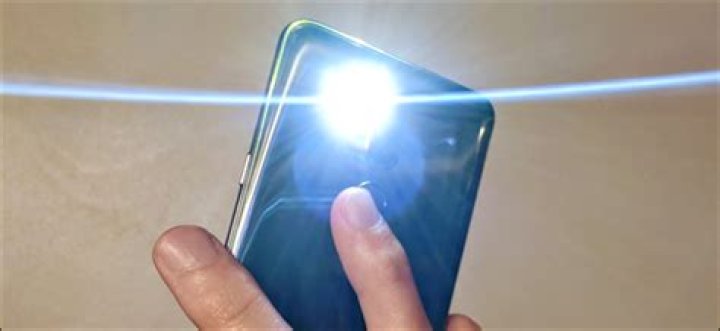
Do I have a flashlight on this phone? We’ve all been here. Stuck in the dark, fiddling around, stumping our toes, and bumping our heads. Your hands clung to your Android smartphone trying to force every spec of brightness out of the screen to light the way. You ask yourself, “How do I turn on my flashlight?” Have no fear, in this article, we teach you to turn on the flashlight on any Android phone!
Turn Flashlight On From Quick Settings
Toggle Flashlight On Via Quick Settings
The quickest method for most Android users would be to activate the flashlight via the quick settings menu. You know, that menu you pull down from the top of your screen.
- Swipe down the top bar at the top of the screen with a finger.
- Tap “Flashlight” to toggle it on or off.
Turn On Flashlight Using Google Now/Voice/Ok
Ok Google – Flashlight On
With the Google Voice command app (OK Google), you can switch on the flashlight on your Android smartphone. You can see this in the image above as well. Simply type or say, flashlight on via the application’s interface to activate your flashlight. See the below video:
Open Flashlight Via A Torch App
Torch because many flashlight applications have the word torch in their name or description. However, if the above methods fail to switch on your Android flashlight, use one of these apps to get the job done.
Power Button FlashLight LED Torch
This app adds a flashlight widget to your device. It does not require root access like some other apps. You download the app (Google Play Link) and install it. Then, do the following,
- Launch the application.
- A popup appears notifying you that the app is functioning and will require a three-press action of the power button to activate the flashlight (four if the device is unlocked).
There are a few settings you can adjust, like the vibration effect once the light is activated, how long it’ll stay active, and the ability disable the service.
- To activate your flashlight while the device is locked, simply press your power button three times within a three-second window (or four if the device is unlocked).
Torchie – Volume Button Torch
If for some reason, your power button is not working, this second app lets you use your volume buttons. With this app, you can press both volume keys simultaneously to quickly enable the flashlight. Once installed, toggle the feature on within your Accessibility services. And, if you want to use it while your phone’s display is off, you have to go to the app’s settings to activate that as well. (Google Play Link)
Flashlight Widget
Who doesn’t like widgets? A very simple app that places a widget on your home screen. When you tap it, it turns the flashlight on. Tapping it again will turn it off. Very simple and effective. Find it on Google Play.
Joe FedewaJoe Fedewa
Writer
Joe Fedewa is a Staff Writer at How-To Geek. He has close to a decade of experience covering consumer technology and previously worked as a News Editor at XDA Developers. Joe loves all things technology and is also an avid DIYer at heart. He has written thousands of articles, hundreds of tutorials, and dozens of reviews. Read more.
Joe Fedewa
There are certain smartphone functions that you want to be able to do quickly. Turning on the flashlight is one of them. We’ll show you how to turn it on by simply tapping the back of your Android device.
This is possible with an app called “Tap, Tap.” Once enabled, it can perform functions when you tap the back of your device. The app is not available to download from the Google Play Store, but it can be easily sideloaded on any Android 7.0+ device.
Before we proceed, follow our guide to get Tap, Tap installed and ready to go.
Now that you have Tap, Tap set up, we can configure the Flashlight gesture. Open the app and select either “Double Tap Actions” or “Triple Tap Actions.” For this guide, we’ll use Double Tap.
Next, tap the “Add Action” button at the bottom of the screen.
From the “Utilities” category, select “Flashlight.” Alternatively, you can take a screenshot by tapping on the back of your phone.
The flashlight will now turn on when you tap the back of your Android device. Next, we can set up some “Requirements.” These requirements need to be met in order for the Flashlight to turn on. You don’t have to add requirements, but if you want to, tap “Add Requirement.”
If you’re worried about the flashlight turning on in your pocket, you could select the “Display On” requirement. This will ensure the flashlight doesn’t turn on when the display is off (though, you may find that handy, too).
You’re done! Now you always have quick access to your Android phone’s flashlight when you’re in a dark situation.
- › How to Add Images to Questions in Google Forms
- › How to Delete Your Photos on Facebook
- › Razer Thinks You Want a PC Gaming Headset That Vibrates
- › How to Get a Link to a Photo or Video on Instagram
- › The Fix for Slow AMD Processors on Windows 11 Is Here
Joe Fedewa
Joe Fedewa is a Staff Writer at How-To Geek. He has close to a decade of experience covering consumer technology and previously worked as a News Editor at XDA Developers. Joe loves all things technology and is also an avid DIYer at heart. He has written thousands of articles, hundreds of tutorials, and dozens of reviews.
Read Full Bio »
As an Amazon Associate and affiliate of other programs, I earn from qualifying purchases.
We all have flashlights in our phones for taking pictures in low light and torch purposes. But sometimes you need a little extra work from your flashlight. Like for call alerts, creating disco effects with music and at times even just for playing with the different colors of the light. So, here is the list of some useful and free Torch/Flashlight apps available for Android and iOS.
Best Flashlight Apps
1. Brightest Flashlight LED
This flashlight app is rated highly on Google Play Store. Apart from working as a torchlight, it can be used as a blinking light. All the modes like – a normal torch, SOS (emergency) mode and blinking frequency can be changed from the home screen itself.
It has the feature to change your incoming call experience. As you can see in the picture, It allows you to try different themes for notifications when someone calls you.
There are other features in the app like enabling ‘shake to turn on’, LED flash for calls and LED flash for notifications. You can add a shortcut to the app on your phone’s home screen for launching the light quickly when needed. You can also apply different skins on the torch by taping on the t-shirt icon in the middle.
App link: Android
2. Disco Light™ LED Flashlight
You are definitely going to like this if you are searching for a flashlight app for Disco feature. This has 3 features related to disco lights other than the basic torch feature. First one is the microphone sensor by which the phone flashes with the beat of the music. Microphone sensitivity can be changed from settings. Then, the strobe light for which you can fasten or slow the speed. And lastly ‘Shake it’ feature which lights the torch when you shake the phone, best for dancing.
Other features in the app are Police light and the Morse code feature. You can also change the text from the settings if you want to convey something in the Morse language.
App link: Android
3.Flashlight – Torch LED Light
This is one of the best flashlight apps as it is loaded with many features and available on both Google Play store as well as iTunes. All the features are on the home screen only and very easy to use.
You can turn it into emergency flashing or a disco light with just one tap. It is possible to minimize or maximize the flash frequency of the disco light. There is an option to minimize the intensity of the light which will turn off the flashlight and make the screen white.
The ‘Clap to light’ feature is also there which works by listening any tap sound through the microphone. It also has a magnifier in which photos can be clicked too. By taping on the ‘i’ button on the home screen you can access the option to set a timer for the flashlight, change the language and switching the app sounds.
App link: Android/iOS
4. Music Strobe – light show
Music Strobe – light show app is just for playing with the light of different colors on the sound of the music played on your phone or any other device. The screen emits different colors and the flash blinks.
When you’re using the app, the controls are placed in notification bar for easy access.
You can choose screen lights color and blink frequency. All colors can also be flashed at once by choosing from the dedicated colors icons.
App link: Android
5. Flashlight for iPhone, iPod And iPad
It is one of the best flashlight apps for iPhone with a cool interface. You can change the color of the screen lights and the frequency of SOS. Surprisingly the intensity of the flashlight can be changed, which I didn’t find in any other app.
It also has a ‘Fire’ feature which lights a candle on the screen with the camera in the background. So, that would be a complete candlelight dinner experience.
Apart from that, it also can blink on music beats by tapping on the dedicated button on the home screen. In settings, you can change the themes and also access compass within the app directly etc.
App link: iOS
6. Tiny Flashlight + LED
This is the most downloaded flashlight app on Google Play store with 100 million users. It does not have any unique feature. You can choose between the simple features like the torch, screen lights, Strobe lights, color and mood lights.
All these features have additional settings which can be explored by tapping on the three-dot icons on the top.
The frequency of ‘On/Off’, and color of the light can be changed in the “Strobe Light” settings.
Also, you can access “Colour & Mood Lights” and set the desired screen color by swiping left or right. Personalization of your phone is also possible by applying the live wallpaper from this app settings.
App link: Android
7. High-Powered FlashLight
High powered Flashlight named as Torch on iTunes is a minimal yet useful torch app and this is also available on both the platforms. If you want a flashlight app just for the blinking feature than this is the one. Additionally, it also has a compass in it which makes it best-suited app just for camping purposes.
App link: Android/iOS
Now, you know what a Flashlight on your phone is capable of. With the help of these apps, you can change your phone’s flashlight experience completely. If you have used any of these or any other flashlight apps, you can share your experience in the comments.
The new Back Tap feature on iPhone lets iPhone users take screenshots and even trigger Google Assistant with a tap on the back of their phones. We have already discussed how we can get the same on your Android phone with screenshots. Now, you can also turn on the flashlight on Android by tapping the back of the Android phone.
Let us take a look at the best possible method to turn on the flashlight on Android by back tap, just like on iPhone.
Turn on Flashlight With Double Tap on Back Of Your Android
- Download and install the Tap Tapapp on your Android phone.
- Enable the service by turning on the toggle at the top.
- Below it, tap the Accessibility services option and grant permission to the app.
- Similarly, tap on Disable Battery Optimization and exclude the app.
- Select the Double Tap Actions or Triple Tap Actions depending on what you prefer.
- Drag any existing action cards to the bottom of the screen to remove them.
- Tap on the AddAction button at the bottom.
- Select Flashlight from the Utilities category.
That’s pretty much it for the most part. You can now turn on the flashlight with a double-tap on the back of your Android. Naturally, this also works with Triple taps if you selected that.
Configure When Flashlight Will Turn on With Double Tap
It’s quite possible you’re worried about accidental taps. Although generally, Tap Tap is good at not registering false taps inside the pocket, there’s always a chance you could bump into something that triggers the gesture. That can be avoided by setting up Requirements.
- Open the Tap Tap app.
- Go to Double/Triple Tap Actions.
- Tap on the “Add requirement…” button on the Flashlight action card.
- Select Display on.
This ensures that the double-tap to turn on the flashlight only works when the screen is on. There are other requirements you can set up in addition or in place of Display on as well. We encourage you to try and experiment and fiddle with the configurations to better configure it to your needs.
You can set more than one action for the Double Tap gesture and similarly for the Triple Tap gesture. The app will prioritize actions based on the order in which they appear. So, the action at the top will have the most priority. That is, of course, as long as the defined requirements for that action are met.
That means, when the requirements are not met, the app will look for the next action on the list. If the requirements are met, that action will instead be performed. In the above example, we set the flashlight action to display on the condition, so that you can enable flashlight on Android by tapping back only when the screen is on.
Disclosure: Mashtips is supported by its audience. As an Amazon Associate I earn from qualifying purchases.
There are certain smartphone functions that you want to be able to do quickly. Turning on the flashlight is one of them. We’ll show you how to turn it on by simply tapping the back of your Android device.
This is possible with an app called “Tap, Tap.” Once enabled, it can perform functions when you tap the back of your device. The app is not available to download from the Google Play Store, but it can be easily sideloaded on any Android 7.0+ device.
Before we proceed, follow our guide to get Tap, Tap installed and ready to go.
RELATED: How to Perform Actions by Tapping the Back of Your Android Phone
Now that you have Tap, Tap set up, we can configure the Flashlight gesture. Open the app and select either “Double Tap Actions” or “Triple Tap Actions.” For this guide, we’ll use Double Tap.
Next, tap the “Add Action” button at the bottom of the screen.
From the “Utilities” category, select “Flashlight.” Alternatively, you can take a screenshot by tapping on the back of your phone.
The flashlight will now turn on when you tap the back of your Android device. Next, we can set up some “Requirements.” These requirements need to be met in order for the Flashlight to turn on. You don’t have to add requirements, but if you want to, tap “Add Requirement.”
If you’re worried about the flashlight turning on in your pocket, you could select the “Display On” requirement. This will ensure the flashlight doesn’t turn on when the display is off (though, you may find that handy, too).
You’re done! Now you always have quick access to your Android phone’s flashlight when you’re in a dark situation.
RELATED: How to Take a Screenshot by Tapping the Back of Your Android Phone
The flash on most smartphones isn’t just there to improve the lighting on your snapshots. It can also serve as a handy flashlight. It’s one of the most useful accessories on your phone, with applications in many different situations, like when you’re having a hard time unlocking your front door late at night or looking for something in a dark room.
But how exactly can you turn on flashlight mode for your Android device? Well, there are more than a few to do it — with some being specific to certain smartphones. You’ll be all set to light your way the next time you come home late from a party with the flashlight options below.
Option 1: Turn on flashlight mode with the quick toggle
Google first introduced a flashlight toggle with Android 5.0 Lollipop, located right in the quick settings. To access it, all you have to do is pull down the notification bar, find the toggle, and tap on it. The flashlight will be turned on instantly, and you can toggle it right back off when you no longer need it.
All current Android smartphones should have this feature, but in the rare case that yours doesn’t, use one of the other options listed below. Here’s a quick reminder on the steps you’ll need:
- Pull down the notification bar by sliding your finger down from the top of the screen.
- Find the Flashlight toggle and tap on it to turn on flashlight mode. That’s it!
Option 2: Use a dedicated app
If you don’t have a simple flashlight toggle in your quick settings, you may have an app instead. However, there’s always the offhand chance that you have neither, and you’ll have to head to the Play Store for a solution. Don’t worry, most are free, and you have many different options to choose from.
There are plenty of apps out there. Lucky for you, it won’t be necessary to search for the right one in a sea of options, because we have already done that for you! Check out the steps you’ll need below:
- Find the flashlight app that is right for you.
- Download the app from the Google Play Store
- Open the app and light your way.
Option 3: Use a smart Assistant
Google Assistant made its debut back in October 2016 on the Pixel smartphones and allows you to interact with your device using voice commands. It’s now available on all smartphones running Android 6.0 Marshmallow and above and is smart enough to play the music you want, give you a weather update, and, of course, turn on flashlight mode.
To launch Assistant, just long-press the home button, and it will pop up on your screen. After that, say something like, “Okay, Google, turn on the flashlight,” and wait for the digital assistant to do its magic. When you don’t need to use it anymore, say, “Okay, Google, turn off the flashlight.”
If you feel that talking to your phone is weird, you can also give your commands to the Assistant in writing. Just open it up, tap on the keyboard icon in the bottom left corner, and type in “turn on the flashlight.”
Samsung offers a similar smart assistant in the form of Bixby. While it may not be quite as popular as Google’s Assistant, the steps are essentially the same. Here’s what to do:
- Activate Google Assistant or Bixby with your home button, the Bixby button, or a voice command
- Say, “Okay, Google (or Bixby), turn on the flashlight.”
- Ask your assistant to turn the flashlight back off when you’re finished.
Option 4: Use a gesture
One final way to control your flashlight is with a gesture. Different phones offer different methods, but they’re among the easiest on OnePlus devices. If you own a OnePlus device, all you have to do is draw the letter V on the screen with your finger while it’s turned off. But before you can do that, you have to enable the function by going into the settings menu.
- Open the settings menu on your OnePlus device.
- Tap on “Gestures.”
- Enable the “Toggle flashlight” option.
- Once enabled, draw a V on the screen with your finger while it’s turned off.
If you have a Motorola device instead, you can shake your phone to activate your flashlight. We all remember the good old days where you could shake your phone to randomize some dice, and now we have a more practical implementation. If your phone doesn’t allow you to shake for the flashlight, you can always head back to the Play Store and download the functionality.
The flash module on most smartphones isn’t just useful for taking pictures in low-light conditions. It can also serve as a flashlight.
This comes in handy in many different situations, like when you’re having a hard time unlocking your front door late at night or looking for something in a dark room.
But how exactly can you turn on flashlight mode for your Android device? Well, there are more ways than one to do it — some are specific to certain smartphones. You’ll be all set to light your way the next time you come home late from a party with the flashlight options below.
Table of Contents
Option 1: Turn on flashlight mode with the quick toggle:
Google introduced a flashlight toggle with Android 5.0 Lollipop, located in quick settings. To access it, all you have to do is pull down the notification bar, find the toggle, and tap on it. The flashlight will be turned on instantly, and when you’re done using it, just tap on the icon again to turn it off.
All current smartphones should have this feature, but in the rare case that yours doesn’t just use one of the other options listed below.
Step by step instructions:
Step 1: Pull down the notification bar by sliding your finger down from the top of the screen.
Step 2: Find the Flashlight toggle and tap on it to turn on flashlight mode. That’s it!
Option 2: Use a dedicated app:
One of the best ways is to us a dedicated app to turn on the flashlight on android devices. So you will find in this list the 10 Best Android Flashlight Apps with Least Permissions and those apps work on all android versions.
Or also, choose from this video:
Option 3: Use Google Assistant:
Google Assistant made its debut back in October 2016 on the Pixel smartphones and allows you to interact with your device using voice commands.
It’s available on all smartphones running Android 6.0 Marshmallow and above and is smart enough to play the music you want, give you a weather update, and, of course, turn on flashlight mode.
To launch Assistant, just long-press the home button and it will pop up on your screen.
After that, just say something like, “Okay, Google, turn on the flashlight,” and wait for the digital assistant to do its magic. When you don’t need to use it anymore, just say, “Okay, Google, turn off the flashlight.”
If you feel that talking to your phone is weird, you can also give your commands to Assistant in writing. Just open it up, tap on the keyboard icon in the bottom left corner, and type in “turn on the flashlight.”
Step by step instructions:
Step 1: Long press the home button to launch Google Assistant.
Step 2: Say, “Okay, Google, turn on the flashlight.”
Option 4: Use a gesture (only for OnePlus devices)
If you own a OnePlus device, the process of turning on the flashlight is extremely simple and fast.
All you have to do is draw the letter V on the screen with your finger while it’s turned off. But before you can do that, you have to enable the function by going into the settings menu.
Step 1: Open the settings menu on your OnePlus device.
Step 2: Tap on “Gestures.”
Step 3: Enable the “Toggle flashlight” option.
Step 4: Once enabled, just draw a V on the screen with your finger while it’s turned off.
No matter which option you choose, turning on the flashlight is a breeze. Which one do you use? Let us know in the comments.
The flash feature on smartphones is not just for taking pictures in dark or low light environment. This feature could also be used as a flashlight and could be handy in many different situations such as when you are having a difficult time unlocking your door at night or whenever you are trying to look something in the dark or when it is brownout. Yes, this feature is one of the most essential tools of your Android device, but, how do you exactly turn your flashlight mode? Through this article, we shall provide you few ways and guides on how to do this.
1. Turn on flashlight mode with quick toggle
With Android 5.0 Lollipop, Google has introduced the flashlight toggle which could be found on the quick settings. To access it all you have to do is pull your notification bar and you will find the flashlight toggle. Tap on it to turn it on. When you are done using it, tap on the icon again and it will turn off.
All Android smartphones now have this feature but in case your phone does not use this, there are several options more that we have featured in this article.
Step by step instructions for method 1:
– Pull down the notification bar. You could do this by sliding your finger down from the top of your screen
– Look for the flashlight icon and toggle.
– Tap on it to turn it on.
2. Use a dedicated app
In case your phone does not have a pre-installed flashlight on your device, you could download one from Google Play Store. Do not worry as there are a lot of apps that are free and there are many to choose from as well.
Step by step instructions for method 2:
– Look for a flashlight app that suits you the best
– Download the app from Google Play Store
– Open the app and now you could use your flashlight
3. Use Google assistant
Launched back in October 2016, Google Assistant has been with smartphones which allows you to interact with through voice commands. Currently, Google Assistant is available on all
smartphone with OS- Android 6.0 Marshmallow and above. Google Assistant could provide you a weather update, play music for you and turn on your flashlight mode.
To launch Google Assistant, press long the home button and a popup will appear on your screen. Talk to Google assistant by saying, “Okay, Google, turn on the flashlight.” Wait for Google Assistant to do its magic and when you are no longer using the flashlight, you could direct Google assistant to turn the flashlight off.
If you are uncomfortable talking to Google, you could give your commands in writing. Just open it up tap on the keyboard icon found at the bottom left corner. Type turn on flashlight.
Step by step instruction:
– Press long the home button. This will launch Google Assistant
– Say, “okay, Google, turn on the flashlight.”
4. Use a gesture (this method is for OnePlus devices only)
If you have a OnePlus device, turning on your flashlight is simple and fast. All you have to do is draw letter V on the screen with your finger while it is still turned off. But, of course, before you do that ensure that you have enabled the function by going to the settings menu.
– Open settings menu
– Enable toggle flashlight option
– Once you have enabled this option, you could now draw a V on your screen with your finger while it is turned off.
When you no longer need a flashlight, pull down the Notification Bar and tap the Flashlight icon a second time to turn it off.
How do I get my flashlight turned off?
Google first introduced a flashlight toggle with Android 5.0 Lollipop, located right in the quick settings. To access it, all you have to do is pull down the notification bar, find the toggle, and tap on it. The flashlight will be turned on instantly, you can toggle it right back off when you no longer need it.
Where is the torch icon on my Samsung phone?
- 1 Swipe down from the top of the screen, to open the notification panel.
- 2 Tap the word Torch, beneath the quick settings icon.
- 4 Tap the switch to turn the torch on.
- 5 Drag the slider left or right, to adjust the brightness.
- 6 Tap Done to confirm.
How do I turn my iPhone flashlight off without swiping?
There is a much easier way to turn it off from the lock screen, without accessing the Control Center. Simply tap or slide up on the camera icon at the bottom right corner of the screen to turn it off.
Why is my flashlight disabled?
There is also a possibility you might have tweaked app preferences in a wrong way that may cause the flashlight to stop working. App preferences include app permissions, disabled apps, and default apps, etc. … Go to the phone “Settings” and tap on “Applications”.
Where is the torch icon on my phone?
How to turn on the flashlight on an Android using Quick Settings
- Swipe down from the top of the screen to reveal the Quick Settings icons.
- Find the “Flashlight” icon and tap it. The flashlight should come on instantly.
- Tap the Flashlight icon a second time to turn it off.
How do I get the flashlight icon on my home screen?
Add Flashlight to Quick Settings
On many phones, the Flashlight icon is in the menu when you swipe down from the top of your screen once. If it’s not, then swipe down again to see all the quick-launch icons and press the pen icon beneath them.
How do I use the flashlight on my Samsung home screen?
With Samsung’s Android 10 update, you can add the flashlight as a lock screen shortcut. Open the Settings app and go to “Lock screen,” then “Shortcuts.” Choose which side you want the shortcut on by hitting either “Right shortcut” or “Left shortcut,” then pick “Flashlight” towards the top of the next screen.
How do you shut the flashlight off on an iPhone?
Use Control Center on an iPhone with Face ID or an iPad Pro
- Swipe down from the upper-right corner to open Control Center on your iPhone or iPad.
- Tap the Flashlight button .
- To turn off the flashlight, tap the Flashlight button. again.
Does the iPhone flashlight turn off automatically?
“The flashlight on the iPhone X turns on by itself. Then you have to turn it on and off to get it to go off. … “My fav feature of the new iPhone is how simple it is to accidentally turn on the flashlight,” writes Twitter user @Nickwiger.
Why does my iPhone flashlight turn on by itself?
Here’s why the flashlight on your Apple iPhone seemingly turns on by itself. … If the flashlight is turning on while inside your pocket, one suggestion you can try is to turn off the Tap to Wake feature. To do that, go to Settings > General > Accessibility > Turn off Tap to Wake.
Why is my camera and flashlight not working android?
If the camera or flashlight is not working on Android, you can try to clear the app’s data. This action automatically Resets the camera app system. Go to SETTINGS > APPS & NOTIFICATIONS (select, “See all Apps”) > scroll to CAMERA > STORAGE > Tap, “Clear Data”. Next, check to see if the camera is working fine.
Why does the flashlight not work on iPhone?
A nearly exhausted battery can prevent an iPhone’s flashlight from working, especially if the phone is very warm or cold. If you cannot find your flashlight in your iPhone Control Center, you may have accidentally removed it, but you can quickly add it back in the Settings app.




