Chris Hoffman is Editor-in-Chief of How-To Geek. He’s written about technology for over a decade and was a PCWorld columnist for two years. Chris has written for The New York Times, been interviewed as a technology expert on TV stations like Miami’s NBC 6, and had his work covered by news outlets like the BBC. Since 2011, Chris has written over 2,000 articles that have been read nearly one billion times—and that’s just here at How-To Geek. Read more.
Ubuntu’s Unity desktop environment has customizable keyboard shortcuts and animations, but its options are all hidden. We’ll show you how to get started with the CompizConfig Settings Manager and point out some of Unity’s more interesting configuration options.
The CompizConfig Settings Manager, available in Ubuntu’s software repositories, is like the About:Config page in Firefox. It contains a lot of options that can cause problems with Unity if used incorrectly. If you encounter a problem, you can reset Unity to its default state with a single command.
Installation
The CompizConfig Settings Manager isn’t installed by default, but you can easily install it from Ubuntu’s Software Center. Just click the Ubuntu Software Center icon at the left side of your Ubuntu desktop to open it.
Search for the CompizConfig in the Ubuntu Software Center and you’ll see the CompizConfig Settings Manager application in the list. Click it, click the Install button and provide your password to download and install it.
If you’re a terminal geek, you can also install CCSM by running the following command:
sudo apt-get install compizconfig-settings-manager
Launching CCSM
CompizConfig Settings Manager appears in your applications menu after you install it. Just click the Dash home icon at the top left corner of your screen, type Compiz and press Enter to open it.
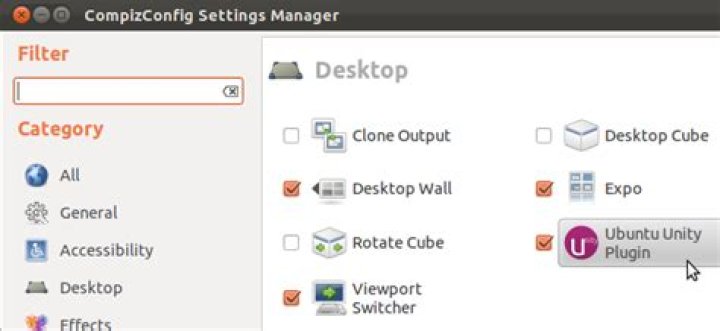
Scroll down to the Desktop section in the list of plugins and click the Ubuntu Unity Plugin to configure Unity.
Configuration
The Ubuntu Unity plugin has three different configuration panels. Configure Unity’s applications launcher on the behavior tab, its Alt-Tab window switcher on the switcher tab and everything else on the experimental tab. If you’re not sure what a setting does, you can hover your mouse cursor over it to see a tooltip with more information.
Many of these options won’t take effect until you log out and log back in, so don’t be surprised if the options don’t appear to work at first.
Behavior Options
Do you hate the way Unity’s launcher slides on and off the screen as you move windows around? Well, just click the Hide Launcher box and select Never to have it always stay on the screen.
The super key (also known as the Windows key) opens Unity’s dash by default, but you can use any key or combination of keys. Just click the “Key to Show the Launcher” box and provide a new keyboard shortcut. Click the Grab Keyboard Shortcut button in the window that appears and type the shortcut.
Switcher Options
Most of the options on the switcher tab just control keyboard shortcuts. You can change any of the keyboard shortcuts or even disable one by clicking its button and unchecking the Enabled checkbox.
Some of the other options here may also be interesting — if you’re a heavy user of multiple workspaces, you can click the “Bias alt-tab sorting to prefer windows on the current viewport” checkbox. Unity’s window switcher will cluster windows from workspaces together if you enable this option.
Experimental Options
The experimental tab contains every option that just doesn’t fit on another tab.
The Backlight Mode options lets you select the type of graphical effect used for application icons in Unity. It’s set to Backlight Always On by default, which means that Unity’s application icons always have a glow behind them. You can select Backlight Toggles instead if you only want running application icons to glow, making them stand out. The Edge Illumination option does what it sounds like; you’ll see an glowing border around the application icon instead of a glow behind it.
You can also customize the animations Unity uses here. Application icons pulse when you click them, but you can click the Launch Animation box and select Blink if you want them to blink instead. Application icons that want your attention, such as Ubuntu’s update manager, use a wiggling animation by default. Click the Urgent Animation box and select None to disable this animation entirely, or click Pulse to select a less attention-grabbing animation.
Troubleshooting
The CompizConfig Settings Manager is a powerful application and some users have reported it breaking their desktop configurations. If you encounter problems after tweaking your setup with CompizConfig, you can reset Unity to its default settings with a single command. Just press Alt-F2 or open a terminal and type the following command:
Hopefully, we’ll see Ubuntu move some of the more useful configuration options into a user-friendly configuration tool soon. Until then, we’ll have to make do with CCSM.
Unity is actually a very customizable desktop environment
Ubuntu can be easily tweaked and it’s not all that difficult to make some visual changes to it. People think that Unity is not all that flexible, but that’s definitely not the case and users need just two apps to make all the changes they want.
Unity is usually regarded as a rather closed desktop environment and people don’t know that it can be customized in a number of ways, well beyond what you might think. In fact, with very few exceptions, Unity can be modified to a great extent.
The first thing that people will ask is if you can move the launcher to another part of the screen and that needs to be dealt with right from the start. The simple answer is no. You can’t move the launcher to the bottom or to the right. You can set it to hide and you can install a dock, if you really want to, but that’s pretty much it.
Unity Tweak
This is one of the best apps you can use to tweak Unity and Ubuntu. You can find it in the official repositories and it can be installed via the terminal or through the Ubuntu Software Center. Once you open it, you will find an entry called Unity right at the top.
From there you can modify the behavior of the launcher, you can set the transparency, and you can even change the animations of the icons. And that’s just the first tab. From the next tabs, users will be able to change the background of the Dash search, what type of entries are displayed, change various settings for the panel at the top of the screen (including the indicators), modify the settings for the desktop switcher, disable the default webapps, and tweak the shortcuts.
Below the Unity settings, users will also find a few more changes for the Window Manager, like hot corners, windows spread, hardware acceleration options for the textures, and even a few window animations to choose from.
CompizConfig Settings Manager
This is a tool for people who usually know what they are doing. You can download it with the Ubuntu Software Center. It’s not something that can be messed with, so be sure you check two times before making any changes. This application houses a lot of options and not all of them are about customizing the OS, but you can access Desktop from the left and then Unity.
You will get access to a ton of features and everything you change here is translated in real time in Unity. It’s also important to mention that under no circumstances are you to uncheck the “Enable Ubuntu Unity plugin” on the left side. Feel free to experiment with all the options, but remember that it’s a trick app and you can mess your system.
Workspaces come in handy when you are working on different tasks in parallel. They not only make it easy for you to immediately switch between tasks but also help you keep your computer-related work organized in general.
By default, Ubuntu offers only four workspaces (arranged in a two-by-two grid).
This is more than enough in most cases, but depending on your needs, you may want to increase or decrease this number. The good thing is that it is possible although not as straightforward as heading to ‘System Settings …’ and changing the value from there.
In this article we will discuss a couple of tools – “CompizConfig Settings Manager” and “Unity-Tweak-Tool” – that you can use to tweak the number of workspaces in Unity.
For Ubuntu 13.04 -14.10 users
If you are using Ubuntu 13.04, 14.10, or any version in between, you can play with the number of workspaces using the “Unity-Tweak-Tool.” You can easily download and install this tool through Ubuntu Software Center.
Once installed successfully, you can launch the Unity-Tweak-Tool from Unity Dash.
Here’s the tool’s UI.
Head to “Workspace Settings” which is the second option in the “Window Manager” row. This should bring up the following settings.
Needless to say, just increase/decrease the value of the “Horizontal workspaces” and “Vertical workspaces” options to achieve what you want. For example, here’s my workspace grid after I increased both values to 4.
In addition to tweaking the number of workspaces in Unity, you can also change workspace color and the key combination that starts workspace switcher.
For users of Ubuntu 15.04 and later
If you’re using Ubuntu 15.04 or up, the “CompizConfig Settings Manager” should be your best bet. You can easily download and install the tool using the following command:
After you’ve installed the tool successfully, it can be launched from Unity Dash.
When the tool is launched for the first time, a warning appears that essentially tells you to be careful about whatever you do to your system using this tool.
Once you understand the risk and are willing to move ahead, hit the “OK” button, and the following window appears.
Click the “General Options” button present in the “General” section.
This should bring up a window containing several tabs – head to the “Desktop Size” tab.
That’s it. The only options that you’ll now see are to increase or decrease the number of workspaces.
Other important info
If you’re using Ubuntu 12.04, you can tweak the number of workspaces on your system by using the “MyUnity” tool – read more about it here.
After you’re done with changing the number of workspaces according to your needs, you may also want to customize Unity Launcher for different workspaces. You can do this by using a tool called “Unity LauncherSwitcher” – more about it here.
Conclusion
Chances are that in most cases you’ll be more than satisfied with the default number of workspaces in Unity. But, you never know, a situation might arise where that number needs to be changed, making it good to know the solution beforehand. You just need to install the tool that works for your system, and the rest is easy.
Himanshu Arora is a freelance technical writer by profession but a software programmer and Linux researcher at heart. He covers software tutorials, reviews, tips/tricks, and more. Some of his articles have been featured on IBM developerworks, ComputerWorld, and in Linux Journal.
- Tweet
Affiliate Disclosure: Make Tech Easier may earn commission on products purchased through our links, which supports the work we do for our readers.
Geoffrey_Carr
Môi trường máy tính để bàn Unity của Ubuntu có các phím tắt và hoạt ảnh tùy chỉnh, nhưng các tùy chọn của nó đều bị ẩn. Chúng tôi sẽ hướng dẫn bạn cách bắt đầu với Trình quản lý cài đặt CompizConfig và chỉ ra một số tùy chọn cấu hình thú vị hơn của Unity.
Trình quản lý cài đặt CompizConfig, có sẵn trong kho phần mềm của Ubuntu, giống như trang Giới thiệu: Cấu hình trong Firefox. Nó chứa rất nhiều tùy chọn có thể gây ra vấn đề với Unity nếu được sử dụng không chính xác. Nếu bạn gặp phải vấn đề, bạn có thể đặt lại Unity về trạng thái mặc định của nó bằng một lệnh duy nhất.
Cài đặt
Trình quản lý cài đặt CompizConfig không được cài đặt theo mặc định, nhưng bạn có thể dễ dàng cài đặt nó từ Trung tâm phần mềm của Ubuntu. Chỉ cần nhấp vào biểu tượng Ubuntu Software Center ở phía bên trái của màn hình Ubuntu để mở nó.
Tìm kiếm CompizConfig trong Trung tâm phần mềm Ubuntu và bạn sẽ thấy ứng dụng Trình quản lý cài đặt CompizConfig trong danh sách. Nhấp vào nút đó, nhấp vào nút Cài đặt và cung cấp mật khẩu của bạn để tải xuống và cài đặt nó.
Nếu bạn là người đam mê thiết bị đầu cuối, bạn cũng có thể cài đặt CCSM bằng cách chạy lệnh sau:
sudo apt-get install compizconfig-settings-manager
Khởi chạy CCSM
Trình quản lý cài đặt CompizConfig xuất hiện trong menu ứng dụng của bạn sau khi bạn cài đặt nó. Chỉ cần nhấp vào biểu tượng dấu gạch ngang ở góc trên cùng bên trái của màn hình, gõ Compiz và nhấn Enter để mở nó.
Cuộn xuống phần Desktop trong danh sách các plugin và nhấn vào Ubuntu Unity Plugin để cấu hình Unity.
Cấu hình
Plugin Ubuntu Unity có ba bảng cấu hình khác nhau. Định cấu hình trình chạy ứng dụng của Unity trên tab hành vi, trình chuyển đổi cửa sổ Alt-Tab của nó trên tab trình chuyển đổi và mọi thứ khác trên tab thử nghiệm. Nếu bạn không chắc chắn về cài đặt, bạn có thể di con trỏ chuột lên đó để xem chú giải công cụ có thêm thông tin.
Nhiều tùy chọn trong số này sẽ không có hiệu lực cho đến khi bạn đăng xuất và đăng nhập lại, vì vậy đừng ngạc nhiên nếu các tùy chọn này dường như không hoạt động lúc đầu.
Tùy chọn hành vi
Bạn có ghét cách trình khởi chạy của Unity trượt lên và tắt màn hình khi bạn di chuyển các cửa sổ xung quanh không? Vâng, chỉ cần nhấp vào hộp Ẩn Trình khởi chạy và chọn Không bao giờ để nó luôn ở trên màn hình.
Khóa siêu (còn được gọi là khóa Windows) sẽ mở dấu gạch ngang của Unity theo mặc định, nhưng bạn có thể sử dụng bất kỳ khóa hoặc tổ hợp phím nào. Chỉ cần nhấp vào hộp “Key to Show the Launcher” và cung cấp một phím tắt mới. Nhấn vào nút Grab Keyboard Shortcut trong cửa sổ xuất hiện và gõ phím tắt.
Tùy chọn Switcher
Hầu hết các tùy chọn trên tab trình chuyển đổi chỉ kiểm soát các phím tắt. Bạn có thể thay đổi bất kỳ phím tắt nào hoặc thậm chí tắt một phím tắt bằng cách nhấp vào nút và bỏ chọn hộp kiểm Đã bật.
Một số tùy chọn khác ở đây cũng có thể thú vị – nếu bạn là người dùng nhiều không gian làm việc, bạn có thể nhấp vào hộp kiểm “Sắp xếp tab altias để thích cửa sổ trên chế độ xem hiện tại”. Trình chuyển đổi cửa sổ của Unity sẽ gộp các cửa sổ từ các không gian làm việc cùng nhau nếu bạn bật tùy chọn này.
Tùy chọn thử nghiệm
Tab thử nghiệm chứa mọi tùy chọn không phù hợp trên tab khác.
Tùy chọn Chế độ đèn nền cho phép bạn chọn loại hiệu ứng đồ họa được sử dụng cho các biểu tượng ứng dụng trong Unity. Nó được đặt thành Đèn nền luôn bật theo mặc định, có nghĩa là các biểu tượng ứng dụng của Unity luôn có ánh sáng phía sau chúng. Thay vào đó, bạn có thể chọn Backlight Toggles nếu bạn chỉ muốn chạy các biểu tượng ứng dụng để phát sáng, làm cho chúng nổi bật. Tùy chọn Edge Illumination thực hiện như thế nào; bạn sẽ thấy một đường viền sáng xung quanh biểu tượng ứng dụng thay vì một ánh sáng phía sau nó.
Bạn cũng có thể tùy chỉnh hình động mà Unity sử dụng ở đây. Biểu tượng ứng dụng xung khi bạn nhấp vào chúng, nhưng bạn có thể nhấp vào hộp Khởi động hoạt ảnh và chọn Nhấp nháy nếu bạn muốn nhấp nháy. Biểu tượng ứng dụng muốn sự chú ý của bạn, chẳng hạn như trình quản lý cập nhật của Ubuntu, sử dụng hoạt ảnh lóe sáng theo mặc định. Nhấp vào hộp Hoạt ảnh khẩn cấp và chọn Không để tắt hoàn toàn hoạt ảnh này hoặc nhấp vào Pulse để chọn hoạt ảnh ít chú ý hơn.
Xử lý sự cố
Trình quản lý cài đặt CompizConfig là một ứng dụng mạnh mẽ và một số người dùng đã báo cáo rằng nó phá vỡ cấu hình máy tính để bàn của họ. Nếu bạn gặp phải vấn đề sau khi tinh chỉnh thiết lập của bạn với CompizConfig, bạn có thể đặt lại Unity về cài đặt mặc định của nó bằng một lệnh duy nhất. Chỉ cần nhấn Alt-F2 hoặc mở một terminal và gõ lệnh sau:
Hy vọng rằng, chúng ta sẽ thấy Ubuntu di chuyển một số tùy chọn cấu hình hữu ích hơn vào một công cụ cấu hình thân thiện với người dùng sớm. Cho đến lúc đó, chúng ta sẽ phải làm gì với CCSM.
Unity Tweak Tool is a free software (GNU GPL 3+) by Freyja Team for customizing Ubuntu Unity graphical user interface. We want to give you examples of using the four tweaking categories inside this tool. We want to make it clear for some the most important only or most notable tweak for Unity. We use Unity Tweak Tool 0.0.7 on Ubuntu 16.04 here. We hope this will help you so much.
The User Interface
There are four categories of tweaking in this tool:
- Unity: covers some aspects about Unity desktop environment such as the Launcher, Search, Panel, and so on.
- Window Manager: covers some aspects around window manager in Unity. This means desktop effects.
- Appearance: covers some aspects around desktop theme generally.
- System: covers some aspects about system, such as security.
Category: Unity
The most notable tweaking example comes from the Launcher subcategory when you may switch Unity vertical Launcher from the left to the bottom (finally). Please not that you may switch this starting in 16.04 (Xenial Xerus) or Unity 7.4.0. Previous Ubuntu versions don’t support this switching. See this picture.
Some another important tweaking examples:
- Hide Launcher: slide ON in the Auto-hide option.
- Disable Blur on Menu: go to Search tab > slide OFF in the Background blur option.
- Disable File Search: go to Search tab > uncheck Enable search of your files option.
- Clear Alt+F2 Command History: go to Search tab > press Clear History button.
- Top Panel Transparency: go to Panel tab > slide the slider Transparency level.
Category: Window Manager
Probably, the most notable tweaking in this category is Windows Animation. It is very similar with few options in CompizConfig Settings Manager. You may change the maximize/minimize animation to Magic Lamp, Glide, Fade, and so on.
Some another important tweaks:
- Icons on Windows Spread: go to Window spread tab > check Icons on previews. This will give you icon for ever window while doing windows spread (Super+W).
- Disable Window snapping: go to Window snapping tab > slide OFF Window snapping option.
- Enable hot corner: go to Hotcorners tab > slide ON Hotcorners option > on the top left selection > select Window spread. This will give you the same effect with GNOME 3 super key windows spread.
Category: Appearance
Good tweaks in this category covers icon theme and cursor theme changing (default Ubuntu System Settings can only switch theme). Example below shows Unity with Breeze icon theme.
Category: System
There is no spectacular tweak in this category. But you may find some useful tweaks such as:
- Two finger scrolling: activated by default in 16.04. If it is not, activate it by go to Scrolling tab > check Two finger scrolling. Make sure your touchpad hardware supports this feature.
- Disable fast user switching: go to security tab > check User switching option.
Revert to Default
You may do this in every tab by pressing Restore Defaults button.
CompanionConfig设置管理器,在Ubuntu的软件存储库中,类似于Firefox中的About:Config页面。 它包含很多选项,如果使用不正确可能会导致Unity的问题。 如果遇到问题,您可以使用单个命令将Unity重置为其默认状态。
在Ubuntu软件中心中搜索CompizConfig,您将在列表中看到CompizConfig Settings Manager应用程序。 单击它,单击安装按钮,并提供您的密码下载并安装它。
sudo apt-get install compizconfig-settings-manager
启动CCSM
Ubuntu Unity插件有三个不同的配置面板。 在行为选项卡上配置Unity的应用程序启动器,其切换器选项卡上的Alt-Tab窗口切换器以及实验选项卡上的其他内容。 如果您不确定某项设置的效果,可以将鼠标光标悬停在其上,以查看包含更多信息的工具提示。
超级键(也称为Windows键)默认情况下打开Unity的短划线,但您可以使用任何键或键的组合。 只需点击“显示启动器的键”框,并提供一个新的键盘快捷键。 在出现的窗口中单击抓取键盘快捷键按钮,然后键入快捷方式。
切换器选项
这里的一些其他选项也可能是有趣的 – 如果你是多个工作区的沉重的用户,你可以单击“偏好选项排序喜欢当前视口的窗口”复选框。 如果启用此选项,Unity的窗口切换器将会将工作区中的窗口集中在一起。
背光模式选项允许您选择用于Unity中的应用程序图标的图形效果的类型。 默认情况下,它设置为背光始终开启,这意味着Unity的应用程序图标总是在它们后面有一个光晕。 如果您只希望运行应用程序图标发光,则可以选择背光切换,使其突出显示。 边缘照明选项做它听起来像; 你会看到一个发光的边框周围的应用程序图标,而不是一个光辉背后。
您还可以自定义Unity在此处使用的动画。 应用程序图标在您单击时会产生脉冲,但您可以单击启动动画框,如果您希望它们闪烁,请选择闪烁。 希望您注意的应用程序图标(如Ubuntu的更新管理器)默认使用摆动动画。 单击紧急动画框并选择无以完全禁用此动画,或单击脉冲选择较少注意力的动画。
CompizConfig设置管理器是一个强大的应用程序,一些用户报告它打破他们的桌面配置。 如果在使用CompizConfig调整设置后遇到问题,您可以使用单个命令将Unity重置为默认设置。 只需按Alt-F2或打开一个终端,然后键入以下命令:
Linux & Ubuntu News, Reviews, Hacks!
Unity has serious performance issues. Improvements are slowly starting to trickle in, but even then, the current state of affairs leaves a lot to be desired. Making Unity faster and slicker should be Canonical’s top priority in my opinion, and that is why I am still a big proponent of “Project Butter” for Ubuntu. Let’s just hope that, Unity’s performance will get the deserved attention it needs to compete with the best out there. In the meantime, here are some nice little tweaks to significantly improve performance of Unity in Ubuntu.
Simple Tweaks to Make Unity Faster
Remove Unwanted Lenses: I wonder why I didn’t think about this before. I have never found video, music or photo lens useful. I know where exactly my files are and I would simply use Nautilus file browser instead. And I have rarely used gwibber and shopping lens, that too mostly for testing purposes. If you’re like me, you might want to remove them for a faster responding Unity dash. Copy-paste the following command into Terminal.
Compiz Config Settings Manager: Further tweaks require good old Compiz Config Settings Manager. Though severely limited when compared to its former self, CCSM still has some interesting tweaks up its sleeve. Click Here to Install CCSM or do the following in Terminal.
Disable Animations and Fading windows: I am all for eyecandy, but it should not be at the cost of performance and responsiveness of the OS. Disabling Animations and Fading windows from CCSM might make your Ubuntu look less attractive. But as far as I can see, it has a significant positive impact on performance.
Set the Texture Filter to “Fast”: Open Compiz Config Settings Manager again and go to the General section. There you will see “OpenGL”. Open it and set Texture Filter to “fast”. You will start seeing a definitive increase in overall Unity performance almost immediately.
Install Preload: Preload has been mentioned a number of times here. It basically monitor applications you run, and by analyzing this data, predicts what applications you might run, and fetches those binaries and their dependencies into memory for faster startup times. And installing Preload can drastically improve your overall Ubuntu Unity performance. To an extent, the kind of slickness you see in distros like elementary OS Luna is because of Preload. Click Here to install Preload or do the following in Terminal.
If you’re already satisfied with the way Unity performs and want some cool, snazzy animations and effects to lighten up your OS, this is what you need to read.
- Tips
- Blog
- Hvordan
- Vinduer
- Telefon
- Vigtigste
- Blog
- Sådan Tweak Unity på Ubuntu Med CompizConfig Settings Manager
Ubuntu’s Unity-skrivebordsmiljø har tilpassede tastaturgenveje og animationer, men dets muligheder er alle skjulte. Vi viser dig hvordan du kommer i gang med CompizConfig Settings Manager og peger på nogle af Unitys mere interessante konfigurationsindstillinger.
CompizConfig Settings Manager, der er tilgængelig i Ubuntu’s software repositories, er som Om: Config-siden i Firefox. Den indeholder mange muligheder, der kan forårsage problemer med Unity, hvis de bruges forkert. Hvis du oplever et problem, kan du nulstille Unity til standardstandarden med en enkelt kommando.
Installation
CompizConfig Settings Manager er ikke installeret som standard, men du kan nemt installere det fra Ubuntu’s Software Center. Du skal bare klikke på ikonet for Ubuntu Software Center på venstre side af dit Ubuntu-skrivebord for at åbne det.
Søg efter CompizConfig i Ubuntu Software Center, og du vil se programmet CompizConfig Settings Manager på listen. Klik på det, klik på knappen Installer, og angiv dit kodeord for at downloade og installere det.
Hvis du er en terminal geek, kan du også installere CCSM ved at køre følgende kommando:
sudo apt-get install compizconfig-settings-manager
Lancering af CCSM
CompizConfig Settings Manager vises i din programmenu, efter du har installeret det. Du skal bare klikke på ikonet Dash-hjemmet øverst til venstre på skærmen, skrive Compiz og trykke på Enter for at åbne den.
Rul ned til skrivebordet i listen over plugins og klik på Ubuntu Unity Plugin for at konfigurere Unity.
Konfiguration
Ubuntu Unity-plugin’et har tre forskellige konfigurationspaneler. Konfigurer enheds program launcher på adfærd fanen, dens Alt-Tab vindue switcher på fanen switcher og alt andet på den eksperimentelle faneblad. Hvis du ikke er sikker på, hvad en indstilling gør, kan du svæve musemarkøren over det for at se et værktøjstip med flere oplysninger.
Mange af disse indstillinger træder først i kraft, indtil du logger ud og logger ind igen, så vær ikke overrasket, hvis mulighederne ikke virker som værende i første omgang.
Adfærdsmuligheder
Har du den måde Unity’s launcher glider på og uden for skærmen, når du flytter vinduer rundt? Nå skal du bare klikke på feltet Hide Launcher og vælge Aldrig for at få det til altid at blive på skærmen.
Supernøglen (også kendt som Windows-nøglen) åbner enhedens dash som standard, men du kan bruge en hvilken som helst nøgle eller kombination af nøgler. Du skal blot klikke på “Nøgle til at vise startprogrammet” og give en ny tastaturgenvej. Klik på genvejstastaturgenvejen i vinduet, der vises, og skriv genvejstasten.
Valg af switcher
De fleste af mulighederne på fanen Switcher styrer kun tastaturgenveje. Du kan ændre nogen af tastaturgenveje eller endda deaktivere en ved at klikke på dens knap og fjerne markeringen i afkrydsningsfeltet Aktiveret.
Nogle af de andre muligheder her kan også være interessante. Hvis du er en tung bruger af flere arbejdsområder, kan du klikke i afkrydsningsfeltet “Bias alt-fane sortering for at foretrække vinduer i den aktuelle visningsport”. Unitys vindueskifter vil sammenlægge vinduer fra arbejdsområder sammen, hvis du aktiverer denne indstilling.
Eksperimentelle muligheder
Den eksperimentelle faneblad indeholder alle muligheder, der bare ikke passer på en anden fane.
Alternativet Baggrundslysfunktion giver dig mulighed for at vælge den type grafiske effekt, der bruges til applikationsikoner i Unity. Den er indstillet til Backlight Always On som standard, hvilket betyder at Unitys applikationsikoner altid har en glød bag dem. Du kan vælge Baggrundslys Skifter i stedet, hvis du kun vil køre applikationsikoner for at lyse, så de skiller sig ud. Edge Illumination indstillingen gør, hvad det lyder som; Du vil se en glødende kant omkring applikationsikonet i stedet for en glød bag den.
Du kan også tilpasse animationerne Unity-anvendelser her. Applikationsikonerne pulser, når du klikker på dem, men du kan klikke på feltet Start animation og vælge Blink, hvis du vil have dem til at blinke i stedet. Applikationsikoner, der ønsker din opmærksomhed, som Ubuntu’s opdateringsmanager, bruger som standard en wiggling animation. Klik på feltet Øjeblikkelig animation, og vælg Ingen for at deaktivere denne animation fuldstændigt, eller klik på Pulse for at vælge en mindre opmærksomt animation.
Fejlfinding
CompizConfig Settings Manager er en kraftfuld applikation, og nogle brugere har rapporteret, at de bryder deres desktopkonfigurationer. Hvis du støder på problemer, efter at du har konfigureret CompizConfig, kan du nulstille Unity til standardindstillingerne med en enkelt kommando. Tryk blot på Alt-F2, eller åbn en terminal, og skriv følgende kommando:
Forhåbentlig vil vi se Ubuntu flytte nogle af de mere nyttige konfigurationsindstillinger i et brugervenligt konfigurationsværktøj snart. Indtil da skal vi gøre med CCSM.
I’m using Ubuntu 13.04 (Raring)
I’ve installed CompizConfig Settings Manager (CCSM) and wanted to enable the wobbling window effect. This disabled some other things and suddenly I didn’t have window borders any more. Following various instructions I found at Google, I’ve tried the following steps:
- Go to CCSM Preferences / Reset to defaults
This disabled all plugins and effects (including Unity) so I didn’t get any further.
- executing dconf reset -f /org/compiz and rebooting
This brought borders back, but still don’t have close/mini/maxi buttons, can’t resize or move windows. And the top left entries of the menu bar vanished (Logout, battery, volume. ) so I have to shutdown my computer via a terminal.
Edit:
- Following the instructions from the first answer.
This brought my menu bar applets back. dpkg-reconfigure didn’t seem to work. Result of this command:
Is there any possibility to reset the settings like they were after installing Ubuntu?
Edit 2:
Just noticed that the title bar of windows isn’t missing; It’s just hidden under the menu bar. So the buttons are only hidden, too.
Edit 3: PROBLEM SOLVED
Started CCSM, went to window management and checked scale windows and move windows. After a re-login everything was fine.




