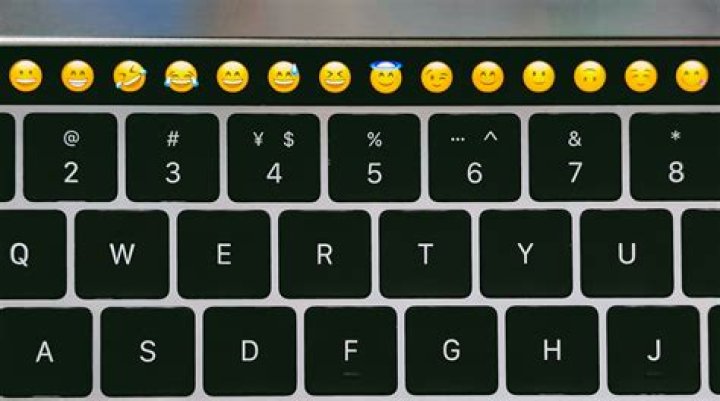
Clearly, using emojis within messages, tweets, and all kinds of communication has become very popular over recent years, particularly on mobile devices where emoji buttons and keyboards have become quite ubiquitous.
But what if you’re working from a desktop and hoping to add an emoji or two to a message?
We’ve got a little-known emoji tip just for you — one that is easy to remember and quick to use. In this post, we’ll cover the little-known shortcuts to share emojis from Mac and Windows desktop as well as sharing how to use emojis to boost your social media posts.
Get ready for some fun!
Update: Emojis in Buffer
We recently added an emoji picker to the Buffer composer to you can add emojis to your social media content in just a few clicks:
To make things even faster, you can even type : (colon) followed by the emoji name, just like in Slack!
The little-known shortcut for adding emojis on Mac and Windows
How to add emojis on Mac (keyboard shortcut): CTRL + CMD + Space
1. Click on any text field
Position your cursor in any text field where you’d like to add an emoji. For example, you can do this in a Buffer post:
2. Press Command + Control + Space
Press the Command and Control keys on your Mac keyboard and then press Space:
3. Choose your emoji from the list
You’ll now see the emoji keyboard palette launch within your screen:
You can scroll through all the available emojis and categories (People, Nature, Food & Drink, Celebration, Activity, Travel & Places, and Objects & Symbols) or search the full list of emoji from the search box at the top of the window.
4. Click to add the emoji to your text
Once you’ve found the emoji you’d like to add, click on it and it’ll appear in your text box to the left of the cursor:
How to add emojis on Windows: Touch keyboard
Update: There’s now a keyboard shortcut for Windows. Press Windows + ; (semi-colon) or Windows + . (period) to open your emoji keyboard.
1. Open the Touch Keyboard
Click on the Touch Keyboard icon in the bottom right corner of your screen:
If you don’t see the Touch Keyboard option on your desktop, this guide will help you to enable it.
2. Click on the smiley face emoji icon
One the keyboard window has opened up, click on the smiley face icon next to the Control button.
3. Choose your emoji
Your keyboard will now switch to an emoji keyboard and you can select the emoji you’d like to add to your text field:
How emojis can impact your social media content
Emojis are incredibly fun, and they can also help increase the reach of your social media posts and boost engagement.
For example, internet marketer Larry Kim ran a quick experiment where he split-tested the same promoted post with and without emojis to the same targeting group at the same time. The results of this experiment were pretty impressive. The emoji version had 25.4% higher engagement (11.06 percent vs. 8.82 percent) and a 22.2 percent lower cost per engagement ($0.18 vs. $0.14)
3 simple-yet-effective ways to use emojis in your marketing
1. As a response
Emojis can be a great way to respond to people on social media. Instead of simply ‘liking’ or ‘favoriting’ a post, an emoji can convey a specific emotion. For example, if something made you laugh, the :joy: emoji could be a great one to react with. ?
2. To represent a topic
No matter the topic, there’s probably an emoji you can use to represent it. For example, if you’re sharing a video on social media you could use the video emoji to highlight that fact. ?
Here’s an example of how we used emojis when we shared a design-focused post on Facebook:
3. To summarize your status
What used to take a few sentences can now be summed up using a few icons. In our social media updates, we regularly use emojis at the end of sentences to summarize the topic we’re talking about.
In the below example we used the ⏰ and ? emojis to essentially say “time is money.”
Over to you
The Mac emoji shortcut has saved me a ton of time since I discovered it and I hope these tips can help you save a little time and enhance your social media posts, too.
I’d love to hear any thoughts you may have in the comments below. How do you use emojis in your marketing?
This guide is about the How to Quickly Type Emoji on Mac with a Keyboard Shortcut. I will try my best so that you understand this guide very well. I hope you all like this guide How to Quickly Type Emoji on Mac with a Keyboard Shortcut.
If you use Emoji characters frequently in Mac OS X, you’ll enjoy knowing that there’s a very quick keystroke that gives you instant access to a special Mac Emoji character panel from anywhere text entry is possible on Mac OS.
In addition, you can navigate this quick Emoji panel entirely with the keyboard, which makes typing Emoji on a Mac quite faster than using the traditional Emoji character control panel.
How to Write Emoji on a Mac Quickly |
The Mac Emoji keyboard shortcut is really easy to remember: Command + Control + Spacebar
Pressing this key combination immediately brings up a small Emoji character panel only. Try it for yourself:
- Place the cursor where you can enter text on your Mac
- Press Command + Control + Spacebar at the same time bring up the Emoji Quick Type panel
- Select an emoji by typing it right into your Mac
Yes, it’s so quick and easy to write Emoji on your Mac now!
Only the emoji character panel is basically a condensed version of the larger Special Characters panel, and is limited exclusively to the Emoji icon set.
Mac Quick Emoji: Command + Control + Spacebar
When the Emoji icon panel appears on the screen, you can use the arrow keys to move around the Emoji icon set, and then click the Return key to place the selected Emoji character in a document, text box, message, or anything else you type on your Mac. This means you can use, type, and place emoticons without your hands ever leaving the keyboard.
You’ll also find a simple Emoji search option in this Emoji panel, so you can quickly search for emoji icons by name or character by description or meaning, and access them the same way. Just like the traditional Emoji panel, you can click and hold many icons to access different skin tones.
For clarity, the Emoji characters shown here are the same;
The Quick Emoji panel and its associated keyboard shortcut require a modern version of MacOS or Mac OS X, version 10.10 or later. Earlier versions of Mac OS X support Emojis, but not in the same shortcut panel or keystroke.
Benefits: How to Quickly Type Emoji on Mac with a Keyboard Shortcut
- The How to Quickly Type Emoji on Mac with a Keyboard Shortcut guide is free to read.
- We help many internet users follow up with interest in a convenient manner.
- The price of the How to Quickly Type Emoji on Mac with a Keyboard Shortcut guide is free.
If you use Emoji characters often in Mac OS X, you’ll enjoy knowing there is a very fast keystroke to immediately access a special Mac Emoji character panel from anywhere text entry is possible in Mac OS.
Additionally, you can navigate within this quick Emoji panel entirely with the keyboard, which makes typing Emoji on the Mac quite a bit faster than using the traditional Emoji character access panel.
How to Type Emoji on Mac the Fast Way
The Mac Emoji keyboard shortcut is really easy to remember: Command + Control + Spacebar
Hitting that key combination will immediately bring up a little Emoji-only character panel. Try it yourself:
- Place the cursor where you can enter text on a Mac
- Press Command + Control + Spacebar concurrently to bring up the Emoji quick type panel
- Select your emoji to immediately type it on the Mac
Yes it’s that fast and that easy to type Emoji on the Mac now!
The Emoji-only character panel is basically a condensed version of the larger Special Characters panel, and limited exclusively to the Emoji icon set.
The Mac Quick Emoji Keystroke: Command + Control + Space
Once the Emoji character panel is shown on screen, you can use the arrow keys to navigate around in the Emoji icon set, then hit the Return key to place the selected Emoji character into the document, text box, message, or where ever else you are typing on the Mac. That means you can access, type, and place Emoji, without your hands ever leaving the keyboard.
You’ll also find a simple Emoji search option in this Emoji panel, so you quickly search for emoji icons by name or characters by description or meaning, and access them that way as well. Much like the traditional Emoji panel, you can click-and-hold on many icons to access the different skin tones.
To be clear, the Emoji characters shown here are the same, this is basically just a quicker keyboard shortcut method to access the Emoji character set than turning to the traditional method from the Edit menu, which will expand into a full sized Special Characters menu with Emoji icons alongside all other special characters available to Mac OS X.
The quick Emoji panel and accompanying keyboard shortcut requires a modern version of MacOS or Mac OS X, versioned at 10.10 or later. Prior releases of Mac OS X support Emoji, but not in the same quick access panel or with the same keystroke.
Today, one could argue that emoji dominate all forms of modern electronic communication, from instant messaging to advertising. First appearing in Japanese phones in the late 1990s, emoji have become ubiquitous only in early 2010s, when major smartphone manufacturers included them in their respective mobile operating systems.
Emoji enrich our conversations and elevate our words by infusing them with meaning that is hard to convey otherwise through a simple use of words. Ok, maybe not that hard for Faulkner, but for most of us on the go, typing a winking face is much more efficient than even trying to explain the meaning behind it.
In other words, by now all of us have emoji keyboards on our iPhones. They are near effortless: just switch the language and type. But it’s a completely different story on macOS. Does anyone really know how to add emoji on Mac effectively?
If you survey how most people type emoji on their Macs, you’d find lots of time-sucking hacks, such as finding the right emoji online and copy-pasting it into the message or downloading apps full of adware that promise a full emoji collection. Luckily, there are a few better ways to do that.
Let Setapp help you with emojis
Get an ultimate collection of Mac apps for any job. Setapp gives you apps for saving emojis, creating shortcuts, sharing content, and whatnot.
How To Type Emoji On Mac
Good news is that all emoji you’ll ever need are already available on your Mac. No need to go looking for them online to copy over.
If you’re not sure how to get emoji keyboard on Mac, do this:
- Open System Preferences ➙ Keyboard
- Check the box next to “Show keyboard and emoji viewers in menu bar”
- Click on the keyboard flag in the menu bar to open emoji keyboard on Mac and select Show Emoji & Symbols
As you can see the Character Viewer does not only contain all the supported emoji, it also features hundreds of rare and normally hidden characters from mathematics, other languages, punctuation, and more.
To see all the available characters, click on the cog in the top-left corner and choose Customize List. There you can include even more categories of braille patterns, various scripts, and code tables. You can also uncheck specific categories you don’t need to simplify the emoji keyboard on Mac.
When you want to insert emoji on Mac, you first need to open a text editor or a program in which you’d like the emoji pasted. In case you’re writing a blog post, there’s nothing better here than Ulysses.
Ulysses is a full-featured writing app that lets you focus on words with no distractions. With support for Markdown, sync with iCloud, and multiple export options directly to WordPress or Medium, it covers all the essentials without being bloated as many contemporary word processors are.
If you need to know how to type emoji on Mac while working on Ulysses, simply click on the keyboard layout icon from the menu bar, select Show Emoji & Symbols once again, set the typing cursor where you want your emoji to be placed and double-click on the emoji from the Character Viewer menu.
To make emoji typing workflow more seamless, click on the top-right icon in the Character Viewer menu, and it will switch to the inline mode, which makes it much easier to insert emoji on Mac.
Learn the essential emoji shortcut on Mac
Even though placing the Character Viewer window in the menu bar gives it the prominence it has never had before, you don’t always want to stop typing, switch to your trackpad, and navigate all the way up there. It’s just too distracting. Luckily, there is an easy-to-remember emoji shortcut on Mac — Control + ⌘ + Space.
If you turned on the Character Viewer to display inline and use the shortcut mentioned above, you can then navigate all the emoji using standard Mac arrow keys and paste any emoji in by pressing Return.
It could be though that you don’t want to use Control + ⌘ + Space as a shortcut for the Character Viewer menu — no problem, you can change that as well.
To use a different shortcut for emoji keyboard on Mac:
- Open System Preferences ➙ Keyboard
- Navigate to the Shortcuts tab
- Click on App Shortcuts in the sidebar
- Press the plus icon to create a new shortcut (as the default Character Viewer shortcut is not listed anywhere)
- In the new pop-up menu, set Application to All Applications, Menu Title to Emoji & Symbols, and Keyboard Shortcut to the shortcut of your choice (e.g. Control + ⌘ + E)
- Click Add
Make sure to add a shortcut combination that is not yet taken by anything else; otherwise, the original action the shortcut belonged to will be left blank.
Truth be told, although setting a single shortcut with the built-in shortcut manager might be fine, remembering another handful of changes suddenly becomes much more difficult. So if you plan on changing any shortcuts in the future at all, you’d be better off by starting with a professional app like BetterTouchTool.
Power over your input devices
Install BetterTouchTool and you’ll have the power to customize any shortcut on Mac. Govern your emoji keyboard the way you want.
BetterTouchTool is the most complete manager for all your Mac input devices, be it a keyboard, trackpad, Touch Bar, or anything else. It lets you customize any shortcut for any action with a few clicks and even records key sequences, with which you don’t need to hold all keys at once to trigger an action.
To set a shortcut and open emoji keyboard on Mac with BetterTouchTool:
- Navigate to the Keyboard tab within the app
- Click “Add New Shortcut or Key Sequence” at the bottom
- Enter the new shortcut in the shortcut field
- Type in the shortcut to be replaced in the “Trigger Other Keyboard Shortcut” field
Now every time you use the new keyword, it would trigger the one you had before. You can similarly adjust other input devices, such as a trackpad or mouse, by using the respective tab at the top. What’s unique about BetterTouchTool is that all keywords will be saved in one place and could be easily viewed and modified.
Trigger an emoji keyboard on Mac easily
In the end, typing emoji on Mac is not more difficult than doing so on your phone. Especially when you’re doing it inline in a word processor like Ulysses by using your personal shortcuts that were set in BetterTouchTool.
Best of all, both Ulysses and BetterTouchTool are available for you to try free via Setapp, a platform of more than 150 distinguished Mac apps and utilities that help you accomplish everything you need to do intuitively, without spending any time tinkering with settings.
We all know how technology has been a great boon to our communication, whether it is done for personal or professional purposes. The transactions and talks happening at any time and the largest of the distances being covered in a matter of moments is something to be appreciated. Speaking of communications, emojis are one of the most popular ways to convey your emotions or simply make your conversations more interesting. Not to mention that they are available on almost all devices that involve social media or any other form of digital communication. They are an integral part of tech culture so when it comes to the Mac, they are included in the OS X and versions beyond it so that Apple users do not feel left out.
An entire character set of emojis is available for free to everyone who uses a Mac, just like their presence on the iPhone and iPad keyboards. There are several ways you can bring them up but the fastest way of opening up an emoji keyboard on the mac is by using shortcuts. The subheadings below will tell more about this.
How to Access Emoji Menu and Type it on Mac with older OS X
- First, let us take a look at the basic or straightforward method of opening on how to open the emoji keyboard on a Mac. This method works on macOS and all of its versions, like OS X Yosemite, Mavericks or Mountain Lion;
- First, open any application that allows keyboard input so that you can type in the emoji;
- Select the Edit menu and select the pull down to “Special Characters” or press Command + Option + T. The newer versions of Mac OS X will call this menu “Emoji and Symbols”;
- You can now select the emoji category by choosing a set, for instance, People, Nature or Symbols;
- After you are done with the category, Select the emoji or character you want to use and to bring into the text field, either double-click the icon in the Font Variation menu or drag and drop it to the text field.
How to Type Emoji in macOS via Keyboard Shortcut
Next, we will be taking a look on how to open the emoji keyboard in macOS with a shortcut. This is one of the quickest ways to use an emoji in your messages, you can quickly open the emoji keyboard on Mac by following the steps below:
- Place the cursor in a text field or any other place where you can enter text on a Mac;
- Press the Command + Control + Spacebar key at once to bring up the Emoji quick type panel;
- You will now see a small version of the larger “Emoji and Symbols” panel that only includes emojis. You can use the arrow keys to navigate around the set and hit the Return key to place your selection in the text area on the map;
- You can also perform a simple Emoji search on the panel and you can select different skin tones for your emoji by clicking and holding the icon.
It’s the best time to ask questions and give us your feedback in comments.
Hi there! My Name is Vincent Lago! My goal is to share insightful reviews, guides, and manuals for people looking to know more about current solutions for Apple hardware and OS. I have years of technological background knowledge including owning a custom iMacs & PCs which was using for different types of business. And now, I want to share my experience with you.
Clearly, using emojis within messages, tweets, and all kinds of communication has become very popular over recent years, particularly on mobile devices where emoji buttons and keyboards have become quite ubiquitous.
But what if you’re working from a desktop and hoping to add an emoji or two to a message?
We’ve got a little-known emoji tip just for you — one that is easy to remember and quick to use. In this post, we’ll cover the little-known shortcuts to share emojis from Mac and Windows desktop as well as sharing how to use emojis to boost your social media posts.
Get ready for some fun!
Update: Emojis in Buffer
We recently added an emoji picker to the Buffer composer to you can add emojis to your social media content in just a few clicks:
To make things even faster, you can even type : (colon) followed by the emoji name, just like in Slack!
The little-known shortcut for adding emojis on Mac and Windows
How to add emojis on Mac (keyboard shortcut): CTRL + CMD + Space
1. Click on any text field
Position your cursor in any text field where you’d like to add an emoji. For example, you can do this in a Buffer post:
2. Press Command + Control + Space
Press the Command and Control keys on your Mac keyboard and then press Space:
3. Choose your emoji from the list
You’ll now see the emoji keyboard palette launch within your screen:
You can scroll through all the available emojis and categories (People, Nature, Food & Drink, Celebration, Activity, Travel & Places, and Objects & Symbols) or search the full list of emoji from the search box at the top of the window.
4. Click to add the emoji to your text
Once you’ve found the emoji you’d like to add, click on it and it’ll appear in your text box to the left of the cursor:
How to add emojis on Windows: Touch keyboard
Update: There’s now a keyboard shortcut for Windows. Press Windows + ; (semi-colon) or Windows + . (period) to open your emoji keyboard.
1. Open the Touch Keyboard
Click on the Touch Keyboard icon in the bottom right corner of your screen:
If you don’t see the Touch Keyboard option on your desktop, this guide will help you to enable it.
2. Click on the smiley face emoji icon
One the keyboard window has opened up, click on the smiley face icon next to the Control button.
3. Choose your emoji
Your keyboard will now switch to an emoji keyboard and you can select the emoji you’d like to add to your text field:
How emojis can impact your social media content
Emojis are incredibly fun, and they can also help increase the reach of your social media posts and boost engagement.
For example, internet marketer Larry Kim ran a quick experiment where he split-tested the same promoted post with and without emojis to the same targeting group at the same time. The results of this experiment were pretty impressive. The emoji version had 25.4% higher engagement (11.06 percent vs. 8.82 percent) and a 22.2 percent lower cost per engagement ($0.18 vs. $0.14)
3 simple-yet-effective ways to use emojis in your marketing
1. As a response
Emojis can be a great way to respond to people on social media. Instead of simply ‘liking’ or ‘favoriting’ a post, an emoji can convey a specific emotion. For example, if something made you laugh, the :joy: emoji could be a great one to react with. ?
2. To represent a topic
No matter the topic, there’s probably an emoji you can use to represent it. For example, if you’re sharing a video on social media you could use the video emoji to highlight that fact. ?
Here’s an example of how we used emojis when we shared a design-focused post on Facebook:
3. To summarize your status
What used to take a few sentences can now be summed up using a few icons. In our social media updates, we regularly use emojis at the end of sentences to summarize the topic we’re talking about.
In the below example we used the ⏰ and ? emojis to essentially say “time is money.”
Over to you
The Mac emoji shortcut has saved me a ton of time since I discovered it and I hope these tips can help you save a little time and enhance your social media posts, too.
I’d love to hear any thoughts you may have in the comments below. How do you use emojis in your marketing?
In a way, emojis have changed the way we communicate, even if it’s to save us words or phrases. A “voucher” or “good” is now replaced with the thumb up, an “I am angry” with the red angry emoji, the “I’m going on a trip” can be replaced by an icon of a plane, car or train attached to the flag of the place. In short, there are many expressions that can be displayed with these elements and although you may think that they are not in macOS, the truth is that they are despite the fact that they are a bit hidden. But don’t worry because in this article we show you how to use emojis on your Mac.
Are they the same emojis as on an iPhone?
Yes, the emojis that you will find on your apple computer are the same that you will find on your phone. And not only that they are all present, but they also have an identical design. Of course, it must be said that if you have an older version of the software, you will only have access to those that existed at that time since new emoji packages are added every year and these only reach the most recent versions. The same thing happens in this case as in iOS, a system that must be updated to its latest available versions to have the implementations made by Apple and the Unicode Consortium in charge of standardizing these characters.
Will they always look the same?
What you should also know is that emojis will not look the same on all devices and not even in all applications. On Android devices there are other emoji designs different from those implemented by Apple on their computers, so on these computers the emojis equivalent to their own design will be seen regardless of whether they were originally in another way. If the emojis are also new and are going to be seen on devices with older Android versions, they may not appear correctly and something like a square with a question mark will be displayed. And as far as applications are concerned, it is also possible to see them in another way if it has its own emoji standard, for example Twitter web, even though it is used through the Safari browser on Mac.
Ways to put emojis on Mac
As in almost everything, there is a long and a short way to access to remove the keyboard of emojis on a Mac. It really is not a keyboard as such but a small window in which to view them. The long way to get to them is to be in any application and go to the top toolbar and follow the Edit> Emojis and Symbols path. Nor is it a very complicated way to reach them, but the truth is that it is much faster to press the Control + Command + Space keys at the same time. In both cases, a box appears on the screen that can be viewed in two ways.
The first one is very similar to the style used in iOS, since the entire list of emojis classified in their corresponding category appears. You can slide between them with the cursor or use the arrow keys, but it is more comfortable the first way. To insert an emoji in a text you just have to click on it, although the moment you do so the window will close. However, you can copy and paste those emojis into the text, so that if you want to repeat the same emoji several times, you don’t have to constantly add it.
The other way to view them is with the character viewer , which will appear if you click on the icon in the upper right part of the window. That way you will not only be able to access the emoji keyboard, but you will also be able to see other special characters such as arrows, bullets, Latin letters, mathematical signs and even pictograms. You can also customize this list, see them larger, see the list with the most used and even perform a search to access the emoji or symbol you want more quickly.
Emojis have become an important part of our conversations, we use them on social media and text messaging on regular basis. While on iPhone you can simply enable the dedicated emoji keyboard and access it using the globe button, some Mac users find it difficult to access the emoji menu. Some OS X apps such the Messages feature a special button that gives access to emoji popup, however such an option is not available on all apps. Luckily for us, there’s a simply keyboard shortcut that gives you quick and easy access to all the emojis.
Access Emoji menu on Mac with keyboard shortcut
The Emoji popup that you can access through the shortcut not only lists all the emojis available on Mac, complete with category tabs but also has a ‘Frequently Used’ section. To access this menu all you have to do is press the ‘Control + Command + Space‘ keys at the same time. Once you get the popup menu, you can just type the emoji of your choice by clicking on the one you want to enter. Once you are done you can click on the ‘x’ button from top right to get rid of the popup.
This menu can be used with any app that allows you to enter text including Twitter, Notes, Chrome and more.
If you are one such make user who is not being able to use emoji on your Mac then you are at the right place. This article will explain you how to use emoji on your Mac with few simple steps.
These emojis will make your chats interesting as well as attracting.
Why should you start using Emojis?
Emojis have become an important part of online chatting or conversation. They not only make chat interesting but also carry different meanings which may help to convince the message clearly to the receiver.
There are hundreds of emojis available like birthday cakes, flags, different expressions etc which can be used at different times to convey different types of messages. Cakes can be used to greet someone on his birthday. Similarly hearts or flowers can be used to express your love for someone and so on.
Without these interesting emojis/smileys your chats looks dry and conversation gets boring. Therefore these emojis have become very important part of chatting. It attracts reader’s attentio.
It is very easy and simple to use emojis on your iPhone or an Android phone. The emoji option is given on the keyboard which you can press and choose your favourite emoji as and when required.
However people using Mac have little difficulty because there is no direct option to use emojis on Mac as in case of iPhone and Android phone. However people do use emoji on their Mac.
How to use Emoji on Mac
Let us see the different methodos by which you can use Emojis on your Macbook.
1) Using keyboard shortcut
Using keyboard shortcuts is the fastest method to insert emoji on your text. It is also very simple and easy to use. Just remember this combination:-
Command + control + spacebar
Now follow these steps:-
- Use the cursor and place it on the text wherever you want to insert an emoji.
- Now press the above combination that is command + control + spacebar
- On pressing this combination emoji panel will appear.
- Now you will come across various categories of emojis.
- Browse through different categories and click on your favourite emoji to insert in the text.
- It will bring your favourite emoji right next to the cursor.
Thua this is one of the fastest method to use emoji on your Mac but however in order to use this method you need to have the modern version of MacOS.
2) Adding emoji to menu bar on Mac
This is another method to use emoji on your Mac that is by adding emoji to the menu bar. Steps to be followed to add emoji to menu bar are:-
- Open Apple menu by clicking on the Apple icon.
- Now select system preference.
- Next steps to click on keyboard pane.
- Now select the input source tab.
- Now tick the box next to show input sources menu in the menu bar
- Now quit system preference and open menu bar
- Now click on input service menu and select show emojis and symbols.
- Now School through the categories in select your favourite emoji.
- Once you have decided favorite emoji double click on it to insert in your text.
This is another method of inserting emoji from you mac. One of the benefit of this method is that it provides wider option of emojis to select from.
3) Edit Menu andn Add your Emoji to the List
Third method is using the option added in edit menu to insert emoji and symbols. Steps are as follows:-
- Open the conversation and click on the edit menu
- Now open symbols and emojis
- browse through different categories of emojis as per your wish
- double click on your favourite emoji and drag into the text.
It is another method of using emoji from Mac however this method is rarely used.
Conclusion
Emojis are used in all popular social media platforms. It is used while tweeting or posting a picture on Instagram. It makes chatting simple and easy and also make it interesting and funny by using different emojis of food, flag, flower etc.
As said earlier it is difficult for Mac user to use emoji directly.
Therefore this article has provided three methods of how to use emoji on Mac so that you can use any of the above method to insert your favorite emoji to fulfill your dream of using emoji from your Mac. This will make your chatting experience even more interesting.




