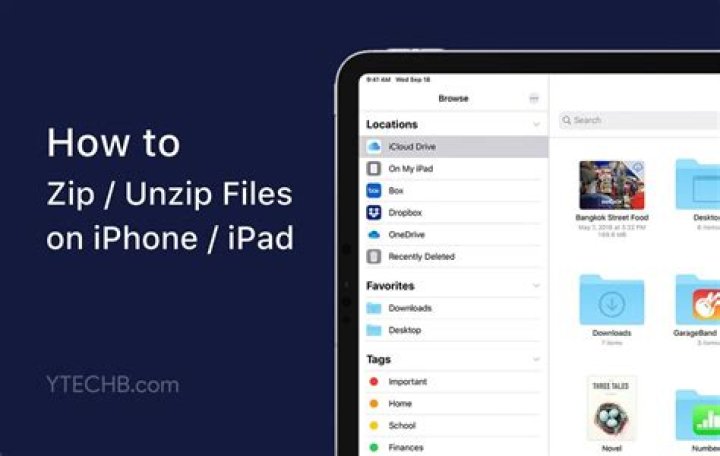
The latest versions of iOS make it easy to download and save Zip files to an iPhone or iPad. This is achieved thanks to the new Files app, which allows an iOS device to interact with files and data directly stored on a device, as well as to access iCloud Drive data.
To use this approach, you must have the Files app on iOS to be able to save and download zip files directly to an iPhone or iPad, as all modern releases do. If your version of iOS does not have the Files app you will need to update it to a newer version that does to use this method. Older iOS devices without Files app can use an alternative method to open zip files in iOS however, though that approach requires a third party app whereas the Files app is native and does not require any other app downloads to iOS in order to interact with zip archives.
Without further adieu, let’s jump into downloading and saving zip files to iOS devices.
How to Save Zip Files to iPhone or iPad
Want to download and save a zip file to an iPhone or iPad? Here is how you can do that directly on your iOS device:
- Open Safari on the iPhone or iPad and navigate to the zip file you want to download and save
- Tap on the link to download the zip file as usual
- A screen will appear in Safari that shows a “zip” archive identifying the file as a zip file and then giving you options for what to do with the zip file, depending on what apps are installed on your iOS device:
- Tap on “Open in ‘Files’” text button and then choose a save destination to download and save the zip file to that location in the Files app, as seen here on iPhone
Alternatively, tap on the “More…” text button and then select “Save to Files” from the options available there as seen here on iPad
That’s all there is to it, now your downloaded zip file will be saved to the iPhone or iPad at the location in Files app of your choosing.
You can often preview zip files in the Files app of iOS, so if you’re interested in doing that then launch the Files app directly on the iPhone or iPad and you can check out the zip file you just saved and downloaded to the device, or to iCloud Drive.
While this allows you to download and save zip files to an iPhone or iPad, unfortunately the iOS Files app and does not include a native unzip or zip function, meaning you will still need to rely on a third party app like WinZip or Zip Viewer to be able to open and extract zip files on an iPhone or iPad. Perhaps one day iOS for the iPad and iPhone will gain native zip archive extraction technology, much like what is available in the highly productive Mac OS environment by default with zip and unzip capabilities on the Mac directly in Finder, but until (or if ever) that happens, third party tools will be required to perform these common zip archive management activities in the iOS side of things.
Remember, Files app has direct access to iCloud Drive, so if the iPhone or iPad is sharing an Apple ID and iCloud account with another device using iCloud Drive the files would be accessible from there too, like on a Mac or another iOS device.
Saving zip files onto an iPhone or iPad is somewhat similar to saving email attachments from the iOS Mail app, as well as saving files from other locations and other file types, unless the file type in question is a movie or a picture, in which case if you’re attempting to save an image file from Safari on iPhone or from the web to an iPhone or iPad, then the image file would default to being saved into the Photos app where it would remain inaccessible from Files app, or if it’s a .mov video file then that would be saved into the Photos app too but in a Video folder, which is also inaccessible from the Files app of iOS for whatever reason. That doesn’t mean you can’t save images and videos to iCloud Drive and in Files app however, and if you save a zip file full of images or movie files into Files app or iCloud Drive then those images will stay within Files app too, but it just means the Files app and iCloud Drive can not access the Photos app photos and video files, and vice versa. Perhaps a future release of iOS will link the two file storage locations in iOS, but for now that is not the case.
Do you know of another approach to saving and downloading zip archives to the iPhone or iPad? Do you have any helpful zip file management tricks for iOS? Let us know in the comments!
Chris Hoffman is Editor-in-Chief of How-To Geek. He’s written about technology for over a decade and was a PCWorld columnist for two years. Chris has written for The New York Times, been interviewed as a technology expert on TV stations like Miami’s NBC 6, and had his work covered by news outlets like the BBC. Since 2011, Chris has written over 2,000 articles that have been read nearly one billion times—and that’s just here at How-To Geek. Read more.
The Files app, added in iOS 11, supports zip files. You can open them, see their contents, and extract files without any third-party apps. You’ll still need an app from the App Store if you want to create zip files.
When you download a zip file in Safari, your iPhone or iPad will offer to open it in the Files app. Tap “Open in Files” to do so. You can also save zip files to the Files app from other applications.
You’ll be prompted to choose a location for the zip file. You’re saving a copy of the zip file to this location.
Select a location—like your iCloud Drive or a folder on your iPhone—and tap “Add.”
Tap the zip file in your Files app to open it.
Tap “Preview Content” to see the contents of the zip file.
You can view the contents of the zip file here. If the zip file contains multiple files, swipe left and right to switch between them.
To extract a file from the zip archive, tap the Share button and select “Save to Files” to save it to your files app, or tap an app to immediately send it to that app.
If you want more features—for example, if you want to actually create zip files on your iPhone or add files to an existing zip file—you’ll need a third-party app for working with zip files.
Khamosh Pathak is a freelance technology writer who specializes in tutorials. His work has also been published on iPhoneHacks, Zapier’s blog, MakeUseOf, and Guiding Tech. Khamosh has seven years of experience writing how-tos, features and technology guides on the internet. Read more.
Historically, Apple made it quite difficult to work with Zip files on iPhone and iPad. Now, starting with iOS 13 and iPadOS 13, Apple has integrated native support for Zip files right from the Files app. Here’s how it works.
How to Zip Files on iPhone and iPad
The Files app got a huge upgrade with iOS 13 and iPadOS 13, finally supporting external storage on the iPhone and iPad. But one of the little things was the native support for Zip files. You’ll no longer need to download third-party apps and shuffle between different apps just to open a Zip file.
To compress files, you’ll first need to add them to the Files app. You can do this easily using the Share sheet.
In this example, we’ll walk you through the process of compressing and uncompressing photos from the Photos app, but it will work using any other type of document.
Open the “Photos” app and navigate to the album containing your photos. From there, tap on the “Select” button.
Here, select all of the photos that you want to relocate.
Tap on the “Share” button.
From the Share sheet, select the “Save To Files” option.
Here, you can choose any available location and even create a folder. For now, you can choose the “On My iPhone” or the “On My iPad” option. After you’ve selected the location, tap on the “Save” button.
Next, go to the “Files” app and open the folder or location where you saved the photos. Tap on the “Select” button.
Select all the photos in the folder and then tap on the three-dot Menu button found in the bottom-right corner.
From the pop-up menu, tap on the “Compress” button. Instantly, you’ll see a new “Archive.zip” file in the same folder.
To rename the Zip file, tap and hold on it until you see the Context menu. Here, tap on the “Rename” option.
From the text box, give the Zip file a new name and tap on the “Done” button.
How to Unzip Files on iPhone and iPad
The process of unzipping an archive in the Files app is even easier than compressing a folder.
Again, you’ll need the Zip file to be in the Files app. You can follow the same process we did in the previous section to add a Zip file to the Files app using the “Save To Files” option in the Share sheet. It will work in most apps, including the Mail app.
Now, go to the location where you saved the Zip file.
Tap and hold on the file. From the pop-up options menu, select the “Uncompress” option.
Instantly, you’ll see a new folder with the same name as the Zip file. Tap on it to see the contents of the Zip file.
iOS 13, iPadOS 13, and newer also feature a native Safari downloader that integrates directly in the Files app. Follow our guide to learn how to use the feature and change the default download location in the Files app.
How to Unzip a Zip File With Your iPhone or iPad’s Files App
The Files app, added in iOS 11, supports zip files. You can open them, see their contents, and extract files without any third-party apps. You’ll still need an app from the App Store if you want to create zip files.
1 – When you download a zip file in Safari, your iPhone or iPad will offer to open it in the Files app. Tap “Open in Files” to do so. You can also save zip files to the Files app from other applications.
2 – You’ll be prompted to choose a location for the zip file. You’re saving a copy of the zip file to this location.
Select a location—like your iCloud Drive or a folder on your iPhone—and tap “Add.”
3 – Tap the zip file in your Files app to open it.
4 – Tap “Preview Content” to see the contents of the zip file.
5 – You can view the contents of the zip file here. If the zip file contains multiple files, swipe left and right to switch between them.
To extract a file from the zip archive, tap the Share button and select “Save to Files” to save it to your files app, or tap an app to immediately send it to that app.
6 – Scroll through your apps to choose Lightrom CC as pictured left. Click “Copy to Lightroom CC”.
Please note that you can find an How to install Mobile Lightroom Presets instructions. Follow our easy guide to install mobile presets into the Lightroom CC Mobile app. The best part is, you don’t need to have Creative Cloud subscription to do this.
A significant change can be seen in the new Files app that comes with iOS 13 and iPadOS. The updated Files app includes native support for creating zip files on iPhone and iPad, thus eliminating the need to use any third-party apps. Earlier, the app could just unzip files or uncompress a zip archive.
Speaking of a ZIP file, it lets you combine multiple files such as photos, videos, and PDFs into a single zipped file. You can easily share the compressed zip file over email and make it easier for the recipient to download several attachments in one go. Moreover, compression usually helps in reducing the original file size, though we didn’t notice a significant reduction in the size of files compressed using the Files app.
In this article, we will guide you through the steps to make a zip file of photos on your iOS device.
Note: For this, your device should be running either iOS 13 or iPadOS.
How to create a ZIP file of multiple photos on iPhone
Follow the steps below if you want to archive a collection of pictures, videos, or screenshots in a single .zip file.
- Open the Photos app on your iPhone or iPad.
- Tap the “Photos” tab and select “All Photos” to view all your photos. Alternatively, you can go to the “Albums” tab to quickly access your videos, selfies, live photos, screenshots, and screen recordings under “Media Types”.
- Tap the “Select” option from the top-right corner and select all the media files that you want to compress in Zip format.
- Tap the “Share” option, scroll down the share menu and select “Save to Files”.
- Choose the Save location – Tap “On My iPhone” and select a directory where you want to save the selected items. If you prefer to save the zip file on iCloud then choose “iCloud Drive” instead. Then hit “Save”. Tip: You can also create a new folder while saving items to the Files app.
- Open the “Files” app.
- Tap on “Browse” and select the location and exact directory where you saved the files.
- Tap “Select” from the upper-right corner and select the desired files or a complete folder.
- Now tap “More” from the bottom-right and select “Compress”.
- That’s it! An “Archive.zip” file will automatically appear in the same location.
Tip: To simply compress a single file or folder, tap and hold the particular file and select “Compress” from the menu. Doing so will create a ZIP archive of the file in the same directory.
How to open ZIP files on iPhone
If you want to view the contents of a zip file on iPhone then you first need to unzip it. This can be done using the Files app itself and in a single tap.
To do so, open the Files app and navigate to the location where the Zip file is stored. Now just tap the zip file or folder, doing so will extract it in the same location. Alternatively, you can tap and hold a .zip file and select “Uncompress”.
Hope you found this article helpful. Do share your views in the comments section.
The iPhone is a great smartphone that can do a variety of things. However, there are a few things which you cannot do it. One of them is to open zip files: there no stock app or feature that lets you open/extract zip files. And so, if you wish to open the zip file on your iPhone/iPad, you’ll have to rely on third-party apps.
Fortunately, there are many free and paid apps in the App Store that will help you to extract zip files right on your iPhone/iPad. Here’s a bunch of these:
How to Unzip Compressed files On the iPhone/iPad Using Zip Extractor Apps for iOS
Before we dive into the list, here’s a simple tip to open zip files using these apps.
#1. Locate the zip file on your iPhone/iPad. Usually, attachments in the mail app might be zip files. Or you might have zip files in your Dropbox/iCloud Drive folder. Tap on the zip file (or just select it) and then tap on the share icon.
#2. Now, tap on Open In… from the options and select the appropriate app to open and extract the contents of the zip file.
#1. WinZip
While the paid versions of the WinZip app are extraordinarily built to handle zip files, for most users, the free version of the app is more than enough. When you open a zip file, it automatically extracts the zip file and displays the contents. You do not need to extract it manually. The only drawback of the app is that it is ad-supported and has minor hiccups in the interface. Otherwise, it’s a good app to use.
Price: Free
Download
#2. Zip & RAR File Extractor
Zip & RAR File Extractor is a good app, but it does not open zip files automatically. When you open a zip file in this app, it only imports it. You tap on the file within the app to extract the contents. It is also ad-supported, and the full-screen ads are kind of annoying. The paid version gets rid of the ads.
Price: Free
Download
#3. iZip – Zip Unzip Unrar Tool
Ask your friends in the business about any app to zip or unzip files, and they would recommend you iZip. With this app, you can unzip files, which are password protected and AES encrypted. You can unzip compressed files with different formats.
It is one of the most advanced zip file management tools in the world as it can open files directly from iCloud, Dropbox, One Drive, Google Drive, and Box.
Price: Free
Download
#4. Zip Browser
Zip Browser is a quick, minimalist zip extractor for the iPhone/iPad. Basic features include fast extraction, good support for a variety of zip formats and a built-in document viewer. An in-app purchase (for Pro upgrade) will unlock many more features like searching within a zip. It’s a cool app that just works fine.
Price: Free
Download
#5. Unzip – zip file opener
Unzip is one of the best zip file management apps on the market. Using this app, you can extract ZIP, RAR, 7Z, TAR, GZIP, and other compressed files.
Apart from unzipping, the app can also compress files into ZIP. Unzip allows you to fetch videos and photos from Camera Roll of your iOS device. Have you protected your pictures and videos with a password? No worries, this app will import those files.
The app supports multiple formats to decompress the compressed files and view many document types. You can select two file transfer ways like USB and Wi-Fi transfer.
Price: Free (In-app Purchases)
Download
Zipping towards being a desktop-class OS.
Zipping and unzipping compressed files can be done natively on iOS 13
- Files app is vastly improved in iOS 13
- Now you can natively zip/ unzip compressed files
- You no longer need a third-party app
iOS 13 adds a few much-needed features to the Files app and one of these is the ability to open ZIP and other compressed files, as well as the ability to create such files on your device. Now that this feature is baked into Files app on iOS 13, it is much closer to how the Finder works on Mac. You will still need third-party apps to open certain compressed file formats such as RAR or 7Z, but the Files app can open ZIP and TAR files, and it can compress your files into the ZIP format. This is good enough for most people.
So, if you’re rocking an iPhone with the latest iOS 13 release, Keep reading this guide as we tell you how you can zip/ unzip compressed files using the Files app.
How to zip or unzip compressed files on your iPhone or iPad
Before proceeding, we’d like to touch down upon the fact that the Files app now supports downloading files from Safari and Mail. Apart from this, you can also plug-in external storage devices such as hard drives, pen drives and SD cards directly to your iPhone, which you’ll be able to access from the Files app.
With that said, follow these steps to quickly zip or unzip compressed files in iOS 13 using the Files app.
How to unzip a compressed ZIP or TAR file on your iPhone or iPad.
Here’s how to unzip a compressed file on iOS 13/ iPadOS 13:
1. Open the Files app and find the ZIP or TAR file.
2. Now tap on the said file, and automatically all the content will be extracted to a folder of the same name. Alternatively, you can tap and hold the file, then tap Uncompress.
How to create a ZIP file on your iPhone or iPad.
Here’s how to create a compressed file on iOS 13/ iPadOS 13. The system supports just one format, which is ZIP.
1. To create a ZIP file, simply open the Files app and put all the files that you want to zip in a single folder.
2. Now go back and tap the Select button at the top and select the folder you just created.
3. Now, tap the three-dot icon present in the bottom-right corner, and tap Compress. Your zip file will appear with the same name and you will then be able to share it or save it according to your liking.
4. In case you want to zip just a single file, open the Files app and tap and hold any file, then select Compress.
And by following these simple steps, you will be able to quickly zip or unzip compressed files in iOS 13 through the Files app.
- How to Automatically Block Unknown Callers on Your iPhone for Free
- How to Enable Dark Mode on Your iPhone or iPad
- How to Pair a PS4 or an Xbox Controller With Your iPhone or iPad
- How to Set a Custom Name and Profile Photo With iMessage on iPhone and iPad
- How to Download Files Using Safari on Your iPhone or iPad
- Understanding iOS 13’s New Bluetooth Access Alerts for Third-Party Apps
- How to Take Full-Page Screenshots on iPhone, iPad, and iPod touch
For more tutorials visit our How To section.
iPhone 11 or iPhone XR: Which is the best iPhone for India? We discussed this on Orbital, our weekly technology podcast, which you can subscribe to via Apple Podcasts or RSS, download the episode, or just hit the play button below.
For the latest tech news and reviews, follow Gadgets 360 on Twitter, Facebook, and Google News. For the latest videos on gadgets and tech, subscribe to our YouTube channel.
Want to share your favorite music album, business documents, or even a slew of high-resolution images with your friends or colleagues? Then, creating a Zip archive is one of the best ways to store the files into one package, that you can send to the others without worrying about losing the quality of photos.
But do you know, how to do it from the iPhone or iPad? In case, you didn’t know, here’s the step by step guide by which you can zip or unzip files on iPhone and iPad.
Apple brings the Zip files support to the iPhone and iPad with iOS 11, which allows users to check the files available in the Zip. Although, the ability to compress or uncompress the archives comes with the iOS 13 or iPadOS 13. But Apple brings a slew of enhancements to the Files app on the iPhone and iPad with iOS 14 / iPadOS 14. The newer OS allows you to select multiple items inside the files app and create a compressed Zip archive within the Files app. Other than that, now you can also directly connect your encrypted USB drive on your iPad. Yes, It reads the data from the encrypted drive as well.
Now let’s dive right into the process of How to Zip files on iPhone or iPad or How to Unzip files on iPhone or iPad running on iOS 13 or iOS 14.
Before heading over to the process, just want to mention that, there are two different methods, that we cover in this article. The first method is the official method, that allows you to pack or unpack zip files directly from the Files app on iOS 13 or iOS 14 / iPadOS 14. While, in the second method, you need to download a thirty-party application on your iPhone or iPad to uncompress or compress the archive.
How to Zip Files on iPhone or iPad (Official Method)
- At first, Open the Files app on your iPhone or iPad.
- Now head over to the folder (or location), from where you can select the files to create an archive (Zip).
- Here you need to select the item(s) which you want to add into the Zip.
- Now tap on the More option available in the bottom right corner on the iPad.
- Then, tap on the compress option, to create a Zip.
- It will automatically create a zipped archived for you, that you can share with your friends or colleagues.
- That’s it.
Now, let’s take a look at how to unzip files on iOS 14 or iPadOS 14. This method also works on the iOS 13 or iPadOS 13.
IMG Source: Apple Support
How to Unzip Files on iPhone or iPad (Official Method)
- Open the Files app on your iOS device.
- Then, head over to the location where you’ve stored the Zip archive.
- Now touch and hold a file you want to uncompress (or unzip).
- Then, tap on the uncompress option.
- It will automatically unzip the files, available in the archive.
- That’s it.
So, this is one of the easiest ways by which you can zip or unzip files on your iPhone or iPad. But, in case, you’re running on the older version of iOS (like iOS 11 or iOS 12) or if you don’t want to use the default Files app on the iPhone or iPad. Then, below you can check how you can compress or uncompress files using the third-party application on the Apple device.
IMG Source: Readdle
How to Zip or Unzip Files on iPhone or iPad (using a third-party app)
- At first, you need to download the “Documents by Readdle” app on your iOS device from the app store.
- Now head over to the folder (or location) in which you have stored the Zip file.
- Tap on the file, it will directly show the contents of the file, but you can also uncompress it by tapping the more icon.
- If you want to create a zip, then select the item which you want to store in a Zip.
- Then, tap on the More icon, then click on Zip.
- It will create a Zip file on your iPhone or iPad running on iOS 11 or iOS 12.
- That’s it.
You can also use other third-party apps like iZip, MyMedia, WinZip, or Zip File Viewer on your iOS device.
You May Also Like – How to take a Long Screenshot on iPhone
In case, we miss your favorite method of zipping and unzipping the files on the iPhone or iPad, then make sure to tell us in the comment box. Also, make sure to share this article with your friends.
You can easily create zip archives on iPhone and iPad of any files or folders through the Files app. For example, if you have a folder or file you want to compress and archive, share, or upload somewhere, you can easily create a .zip of that data right from the iPhone or iPad, and without needing any additional software.
This approach to making a zip file archive works in Files app for data stored locally, on a remote server, external device, or on iCloud Drive, as long as it can be accessed through the Files app of iOS or iPadOS it can be made into a zip file.
This tutorial will walk through the steps of how to create a zip file on iPhone or iPad, which is the process of compressing a file, folder, or multiple files into a single zip archive.
How to Zip Files on iPhone or iPad to Compress into Archives
- Open the Files app on iPhone or iPad
Navigate to the file or folder you want to create a zip archive from in Files app, it can be locally or on iCloud Drive
Tap and hold on the file or folder you want make a zip, then choose “Compress” from the pop-up menu
Wait a moment or few and the freshly created zip archive will appear in the same folder of Files app
Any zip archive can be shared, moved, uploaded, copied, or modified like any other file within the Files app on iPhone or iPad.
The screenshot examples above show a single file being compressed into a zip archive, but it works the same for multiple files stored in a folder. You can always create a new folder in Files app and put items to turn into a zip archive too.
This zip feature was introduced in in modern iOS and iPadOS releases, so you’ll need to be running 13 or later to have the compress and uncompress options for unzip and zip. Earlier versions of iOS could zip (and unzip) files and data through third party applications, whereas only the latest releases have the native compress and uncompress options in Files app.
Of course these capabilities are not limited to iPhone and iPad. If you’re a MacOS user, you’ll find that both making zip files on Mac and opening zip files on Mac is super easy, with the former being a simple contextual menu option, and the latter just being a matter of opening the file like any other in Finder.
And naturally you can also easily unzip zip archives on iPhone and iPad through the similar Files app contextual menu.
Files app is turning into a more powerful file system browser over time with a lot of features that have long existed on the desktop side of things. Don’t miss other tips about Files app and if you use iPadOS with an external keyboard then you’ll likely find these handy keyboard shortcuts for Files app on iPad to be worth knowing too.
For what it’s worth, if you don’t use the Files app or you don’t want to for some reason or another, then you can still use third party apps for zipping and unzipping files in iOS and iPadOS, it’s just that’s no longer necessary now that the compress and uncompress features are built natively into this software.
If you know of any other handy tips or tricks for working with zip files on iPhone and iPad, share in the comments!




