Sony’s DualShock 4 controller for the PS4 is generally very intuitive and comfortable to use, but depending on what you’re using your PS4 for, you may prefer to use another device to control your system.
Some players may prefer to play certain games with a mouse and keyboard, and using your phone as a remote is a convenient way to browse the Internet, sort through the PlayStation Store, and watch content on streaming services.
Fortunately, it’s pretty easy to control your PS4 without a controller. Here’s how you can connect a keyboard and mouse or a cell phone to your PS4.
Use PS4 with Keyboard and Mouse
PlayStation allows you to play games with third-party keyboards and mice. They can be either Bluetooth or USB, and you can install them in place of your regular controllers.
How to Connect a USB Keyboard & Mouse to PS4
To connect a USB keyboard or mouse to PS4, you have to do the following:
- Plug your device into an empty USB port on the PS4.
- The console should recognize your device and ask which profile you would like to pair the device with.
- Select the PS4 profile that you would like to pair with the device.
How to Connect a Bluetooth Keyboard or Mouse to PS4
Setting up a Bluetooth Keyboard is slightly different than USB. Here is what you have to do:
- From the PS4’s Home Screen, press up on the D-pad to select the navigation menu.
- Go to Settings.
- Find Devices.
- Enter Bluetooth Devices.
- Wait for the system to scan for nearby Bluetooth devices.
- Pair the devices normally by following the default pairing process of your Bluetooth device.
- The PS4 will recognize a new device.
- Choose the profile that you want to link with the device.
After following these steps, you should be able to use your Bluetooth keyboard to control your system.
Change the Keyboard Settings
Once you set up your keyboard, you will be able to change the settings by following these steps:
- Go to Settings.
- Select Devices.
- Choose your keyboard.
From here, you’ll be able to change key repeat delay and rate, the keyboard type, and the language.
Can I Play PS4 Games with a Keyboard?
Unfortunately, many PS4 games do not support using a mouse and keyboard. Certain games, likeВ Call of Duty: Modern WarfareВ and Final Fantasy XIV: A Realm RebornВ support keyboards; however, for most other games, you’ll have to use a DualShock 4 controller for an intuitive gameplay experience.
You may not be completely out of luck as products like the XIM APEX keyboard adapter for PS4 allow you to use your keyboard in place of a controller. These devices work by translating your keyboard inputs into controller button presses — essentially tricking your console into believing you are using a DualShock 4. However, some users report having issues with input delay, and at $125, it’s a fairly pricey option.
Still, if you choose not to use an adapter like the XIM APEX, you’ll still be able to use your keyboard for some games and general browsing purposes.
Use a PS4 with a Smartphone
Sony officially launched a PlayStation app (iOS and Android) which enables you to use your smartphone or tablet to control your PS4 remotely. You can use them as a keyboard, as a controller, or even as a remote controller.
The smartphone controller feature is still not available in many games, but it may come in handy in certain situations.
Step 1: Download the App
Before you start connecting the two devices, you need to download the app from the app store. The app is available on both the Play Store and App Store.
Once you’ve downloaded the app, install it on your device, and open it. When prompted about login information, you should enter the same PlayStation Network username and password as you have on your PS4.
Step 2: Link the Devices
Connect your PS4 by using the вЂSecond Screen’ feature. To do this, you need to follow these steps:
- Open the PS4 app.
- Tap the Connect to PS4 icon.
- Select the Second Screen option. If it can’t find the PS4, then make sure they are in the same network.
- Tap to link the devices.
After this, you’ll need to input a unique code to register your device to the PS4:
- Go to the SettingsВ menu on your PS4.
- Find the PlayStationApp Connection SettingsВ menu.
- Select the Add Device menu on your PS4.
- There should be a code displayed on this screen.
- Copy the code to your phone’s app t officially register the device.
The вЂPlayStation App Connection Settings’ screen will display all the devices that you link to your PlayStation, and from this menu, you can unlink them in the future.
Step 3: Start Using Your Smartphone
After the devices are linked, the only thing that’s left is to use it as a remote. To do so, follow these steps:
- Go to the PS4 app on your smartphone.
- Tap the Connect to PS4.
- Select SecondScreen.
- Tap the Second ScreenВ button below your PS4.
- The remote along with four icons will pop up at the top of the screen.
The first icon lets you use the remote in-game, but only if the game is compatible with the feature. The second enables you to use your smartphone as a remote to browse through the PS4 menu. The third is a typing keyboard which enables you to type on the console, and the fourth icon allows you to see comments from the viewers while you’re streaming.
After you’ve finished with all these steps, your phone should automatically connect with your PS4 every time you turn on the app. Note that you won’t be able to play that many games with your phone, but more games are getting compatible with the app every day.
Final Thoughts
Even if you don’t use the controller, you can have a similar experience by using a keyboard, mouse, and even your phone.
Of course, you won’t be able to enjoy many games, but these devices are usually more convenient for out of the game activities. You can easily send a text, browse the web, and even stream a movie with a few clicks or taps instead of trying to do everything with a controller.
What would you use instead of the PS4 controller? Do you know of any PS4-compatible keyboard or mouse? Leave a comment and let us know.
– Source: Android Central
If you own a modern gaming console, chances are you already have a usable Bluetooth controller. That’s because most newer console controllers either use Bluetooth as a standard or include it for use on other platforms. That means, yes, it’s possible to use a PS4 controller on your Android phone, tablet, or TV device. We’re here to show you how, so you can start enjoying the best Android games with your DualShock 4. Here’s our guide on how to use a PS4 controller on Android.
How to use your DualShock 4 on Android devices
- On your Android device, ensure your Bluetooth is turned on by opening settings and heading to the Bluetooth menu.
- Make sure the phone is in scan mode.
- With the controller, simultaneously hold the PlayStation button and the Share button for a few seconds.
- The controller’s light will begin blinking to let you know it’s in pair mode.
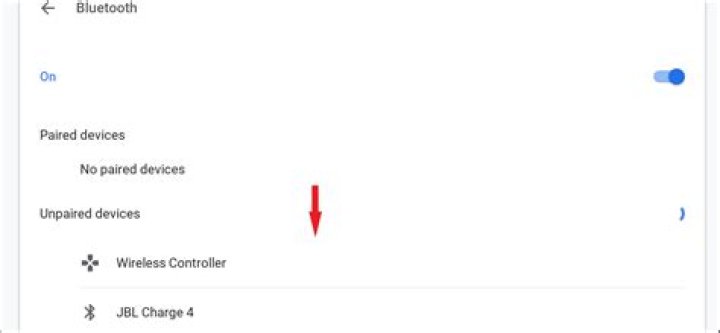
- Back on the phone, look for a device named Wireless Controller in the list of nearby Bluetooth devices.
Tap that device to begin the pairing process.
Source: Android Central
If everything was done correctly, you’ll be connected, and the controller can be used to navigate the Android UI.
Should you use a PS4 controller on your Android device?
Your mileage may vary in actually using a DualShock 4 with your Android device. Give your favorite games a try and see if they present any issues. Ideally, a game would simply let you remap all the buttons like an emulator would, but that’s just not the case with most games.
In testing, I’ve found that it may not behave quite as well as a dedicated mobile controller or even the Xbox One controller. For instance, while I could move my character and turn the camera using the analog sticks in Modern Combat 5, the aim and shoot buttons were relegated to the Share and Options buttons, respectively. This made for a pretty awkward and uncomfortable control scheme. Other titles, such as Genshin Impact, lack native controller support entirely on Android.
If you do have a game that works well with it or allows you to remap the buttons, go nuts. However, there are easier-to-use controllers out there, and certain ones, like the Xbox One Controller, seem more compatible with Android devices. Because of this, we’d recommend an alternative, like the Xbox One Controller or SteelSeries Stratus Duo. Even if you don’t find it immediately useful, some popular games like Fortnite could offer controller mapping in the future, and you’ll be glad that you already know how to set this up if and when that day arrives.
PlayStation power
DualShock controller
Great for PlayStation
Although the DualShock 4 controller is an excellent device and has Bluetooth, it’s not the best choice for your Android phone.
- $93 at Amazon
- $80 at Walmart
DualShock alternatives
There are better choices if you are serious about playing games on your Android phone or tablet. We’ve listed some of the best Android game controllers.
Xbox One controller with Bluetooth ($75 at Amazon)
The Xbox One controller is our favorite controller for Android. It works on almost every game and is very comfortable to use. Make sure you get the Bluetooth version, though.
SteelSeries Stratus Duo ($45 at Amazon)
If you want a no-compromise controller and something that feels just like the controller you use when you’re sitting in front of your television, SteelSeries has what you need.
We may earn a commission for purchases using our links. Learn more.
Keep your setup looking good with the best PlayStation VR display docks
If you’re looking for the coolest and most cost-efficient display stand for your own Virtual Reality headsets, then you’ve come to the right place!
Play anywhere with these great PS4 controller phone mounts for your phone
There are plenty of mounts out there that are great for playing with PS4 games, and we have the best of them right here.
Orcs Must Die 3, Samurai Warriors, and more release for PS4 and PS5 in July
There are some big game releases for the PS4 and PS5 in July. Here are some of the greatest titles to add to your collection.
James Bricknell
Since the days of the HTC Hero James has had two or three Android phones stuffed into pockets. James is always on hand to offer advice on phones, apps and most recently, PlayStation, especially VR, It’s now something of an obsession. Find him @keridel wherever Media Socials itself.
Samuel Tolbert
Samuel Tolbert is a freelance writer covering gaming news, previews, reviews, interviews and different aspects of the gaming industry, specifically focusing on PlayStation on Android Central. You can find him on Twitter @SamuelTolbert.
Android these days comes with a pretty big display, which makes it easier for users to play their favorite games. However, if you have played with a gaming console’s controller, there are great chances that you won’t settle for on-screen controllers, and we can help you with it. In this Vodytech Guide, you will learn how to use a PlayStation 4 controller with Android in 2021. Let’s get started.
Can I use a PlayStation Controller with Android?
Android is a very popular Operating System, and it comes with tons of promising games. One of the main reasons why people love Android is that it’s a very open system, and you can use a wide range of devices with it, including PlayStation Controller.
Android Smartphones allow you to connect PS4 Controller using two ways.
- Using Bluetooth
- Using USB Adapter
How to use a PlayStation 4 Controller with Android Using Bluetooth
One of the biggest benefits of connecting the PlayStation 4 Controller with Android is that it will be wirelessly connected, which means that you won’t have to deal with wires, and you can play comfortably.
Here’s how you can use a PlayStation 4 controller with Android using Bluetooth.
Step 1. In the first step, make sure that Bluetooth is enabled on your smartphone. Swipe down from the top of the menu > tap on Bluetooth icon to turn it on > now long-press the icon to get into settings and make sure that it’s scanning for new devices.
Step 2. Now, move on to your PS4 Controller. Press and hold the PlayStation Button and Share Button to take the Controller into Pair Mode.
Step 3. Move back to your Android smartphone and look for PS4 Controller in the list. Once you find the controller, tap it.
Step 4. Let your Android smartphone complete the pairing process. The blinking light on the controller will stop blinking, indicating that the pairing process has been completed. You will also get a notification on your smartphone proving that your smartphone is now connected to your PS4 controller.
How to use a PlayStation 4 Controller with Android Using USB Adapter
PlayStation 4 Controller comes with both Bluetooth connection and USB Connection. If you want to connect it using USB Connector, you will need a USB Adapter. Now the type of USB Connector will vary depending on the type of port your phone has. If you have a USB-C port on your smartphone, you will need a USB-A to USB-C Adapter. Similarly, if your smartphone hasa Micro-USB port, then you will need a USB-A to Micro-USB Adapter.
Once you have the Adapter, follow these steps to use a PlayStation 4 Controller with Android.
Step 1. Connect your PlayStation 4 Controller with your USB Adapter and make sure that it’s properly plugged into the Adapter.
Step 2. Now connect the USB Adapter to your Smartphone, and once it’s connected, you will be able to use your PlayStation 4 Controller with your Android Smartphone.
Should you use a PlayStation 4 Controller with Android?
If you are an avid PlayStation 4 Player, then we can understand that it’s difficult for you to transition to on-screen controls. When it comes to performance, we think that using a PlayStation Controller will surely give you an advantage because you are well-versed in it.
However, the biggest problem of using a PlayStation 4 Controller with Android is that most games are not ready for PS4 Controller. It means that you will have to spend some time customizing the controls to make them useable with the controller.
If you are not a PlayStation 4 User and you just want to use the controller for fun, we would not recommend it. It’s because some games don’t support the PS4 controller, and you will be spending way a lot of time customizing the controls, which will waste your time. So, we only recommend using the PS4 controller with your Android smartphone if you are a regular PS4 User.
Which Android Games Support PS4 Controller?
There are millions of games available on the Google Play Store, but only a handful of them support Console Controllers. Following are some of the best games that come with PS4 Controller Support.
- GRID Autosport
- The Grand Theft Auto Series
- Fortnite
- Call of Duty Mobile
- Oddmar
- DOOM
- Dead Cells
- Brawlhalla
What Games are better with Controller on Android?
Android Smartphones come with different types of games, but it’s a fact that you can’t enjoy every game with a Controller. There are some specific games that work flawlessly with a Controller. In our experience, games from racing, combat, and action genre work really well with a Controller. As these games come with tons of controls, you can use the number of buttons on your controller to play the games efficiently.
Bluetooth vs. USB: Which connection type is best for the controller to connect with Android?
Honestly, both connection types are equally good, and you won’t experience any issue in performance. However, we recommend using a Bluetooth connection because of its wireless nature, which makes it easier for players to move around while playing their favorite games.
Can I use Xbox Controller with my Android Smartphone?
Like PS4 Controller, you can also connect your Xbox Controller with your Android Smartphone. To connect your Xbox Controller, turn on Bluetooth on both devices and then pair the controller with your smartphone from the Bluetooth settings.
Conclusion
That’s all, folks. In this guide, you learned how to use a PlayStation 4 Controller with Android in 2021. If you have any questions or suggestions, please let us know in the comments. Also, check this guide if you want to learn How to secure your Android Smartphone from intruders.
in Smartphone February 12, 2020 Comments Off on How to use a PlayStation 4 controller on Android 0 Views
If you own a modern gaming console, chances are you already have a usable Bluetooth controller. That’s because most newer console controllers either use Bluetooth as standard or include it for use on other platforms. That means, yes, it’s possible to use a PlayStation 4 controller on your Android phone, tablet, or TV device. We’re here to show you how.
Products used in this guide
How to do the thing
- On your Android device, ensure your Bluetooth radio is turned on by opening settings and heading to the Bluetooth menu.
- Make sure the phone is in scan mode.
- With the controller, simultaneously hold the PlayStation button and the Share button for a few seconds. The controller’s light will begin blinking to let you know it’s in pair mode.
Back on the phone, look for a device named Wireless Controller in the list of nearby Bluetooth devices. Tap that device to begin the pairing process.
Source: AndroidCentral
If everything was done correctly, you’ll be connected, and the controller can be used to navigate the Android UI.
Should you use a PS4 controller on your Android device?
Your mileage may vary in this regard. Give your favorite games a try and see if they present any issues. Ideally, a game would simply let you remap all the buttons like an emulator would, but that’s just not the case with most games.
In testing, I’ve found that it may not behave quite as well as a dedicated mobile controller or even the Xbox One’s controller. For instance, while I could move my character and turn the camera using the analog sticks in Modern Combat 5, the aim and shoot buttons were relegated to the Share and Options buttons, respectively. This made for a pretty awkward and uncomfortable control scheme.
If you do have a game that works well with it or that allows you to remap the buttons, go nuts. However, there are easier to use controllers out there, and certain ones, like the Xbox One Controller, seem more compatible with Android devices. Because of this, we’d recommend an alternative, like the Xbox One Controller or something like the SteelSeries Stratus Duo. Even if you don’t find it immediately useful, some popular games like Fortnite could offer controller mapping in the future, and you’ll be glad that you already know how to set this up if and when that day arrives.
Sony company is growing day by day PlayStation Games. PS4 games are worldwide popular because of its awesome features. It’s the best gaming console which growing per day its customer. The Remote Play is recently launched by the company and it’s now not avail
Table of Contents
What is the PS4 Remote Play Chromebook?
The largest company of Sony recently launch the app PS4 Remote Play Chromebook and Sony’s Remote Play app for PlayStation 4 is only available for Xperia devices. Then if you want to install ‘PS4 Remote Play’ on your non-Xperia device, you need to be root your device.
If you’ve already Sony Xperia mobile device you don’t need to root your device to play PS4 Remote Play Chromebook.
PS4 Remote Play Chromebook
The Sony company provides the PS4 Remote Play app on Google Play Store, but it’s only officially compatible with Xperia devices. But there are many developers that they managed it to mod apks and you can use them other non-compatible devices. But you need to break some rules to install the mod apks on your device.
There is some risk when you break the rules to install the mod apks on your device. Because you need to enable “Unknown Sources” settings in your device. This allows your device to install third-party apps that are not virus free apks. This does you at your own risk. To get this working, you’ll first need to open Android’s Settings app and tap the “Security” category. Enable the “Unknown sources” setting. This will allow you to install the modified Remote Play app from outside of Google Play. You may want to disable this setting after you successfully install the app.
Increase PS4 Pro Internet Speed 100% Working Method
If you want to use ‘PS4 Remote Play’ then you will need the following:
If these things are not available with you you can’t able to install it on your device. So, first confirmed there are already these things are available with you, if not first buy these things. See the following:
- The computer will be available
- You must have the PS4 System.
- PS4 DualShock 4 Wireless Controller
- USB Cable
- Wireless adapter – which can be used wirelessly using the controller.
- PlayStation Network Account (PSN)
- High-speed Internet connection with at least 15 Mbps upload and download speed is required.
- If you want to use a voice chat, you will need a microphone, a computer’s built-in microphone can also be used.
How to Install on Chromebook
If you decided to install PS4 Remote Play on Chromebook Just follow these below steps:
- First of all, you need File Manager Apps through ‘PlayStore’.
- Download the PS4 Remote Play File Installer for Chromebook
- Enable “unknown source” from the apps setting.
- After downloading the PS4 Remote Play, launch the file manager apps that you have downloaded before. If not available, visit the download directory and open the APK file and you will definitely see a regular application installation interface from Android.
- Now, install the PS4 remote play by clicking on the Install button.
- Where you will find that APK set up takes a lot of time.
- Thereafter once the Chromebook apps are set up and once pressing Open to operate remote play for the Chromebook.
PS4 Error NW-31194-8 Fixed – 100% Working | Best Solution
FAQs on PS4 Remote Play Chromebook
1. Does PS4 remote play work on Chromebook?
PS4 Remote Play Chromebook. to get work PS4 Remote play on Chromebook, you need few things which are mentioned below. apart from that, Sony provides a PS4 Remote Play app in Google Play, but it’s only officially compatible with certain Xperia devices.
2. How can I play my ps4 on my laptop without remote play?
Connect the PS4 and the laptop with your HDMI cable.
Use the USB-C to USB-A cable to connect the capture card to your laptop. Launch the desktop application that you downloaded earlier.
3. Does remote playwork away from home?
Can Remote Play work outside the user’s home network? We strongly recommend that Remote Play be used within the same WiFi network where PS4 is connected. Remote Play may or may not work over a wide area network.
4. What devices support ps4 Remote Play?
PlayStation Vita (model 1000 , or 2000)
Windows 8.1/10 (Desktop/laptop/or Tablet)
Mac Computer.
Sony Xperia Phones/Tablets.
Sony PSTV (although this is not a handheld device)
5. Can I use my controller on ps4 Remote Play? Can I use a DualShock controller with PS4 Remote Play?
Yes, on certain devices like PC, Mac, and Sony Xperia phones. It is not natively compatible with PS4 Remote Play on iOS yet, but there are workarounds so that you can use one with the app
How to PS4 Initialize? – 100% Working | Best Solution
PlayStation Network Maintenance – PSN Down? | Get Solution
Conclusion
We hope Sony company will be launched the PS4 Remote Play Chromebook soon for all Android devices. This is also an experiment for the company of Sony.
The PlayStation 4 controller, the DualShock 4, is an incredible improvement over Sony’s previous joysticks. It’s so good that you may want to use with your PC, too.
Here’s how to se up your PS4 controller with your PC:
1. Go to the Microsoft Download Center and download the Xbox 360 installer for Windows. Choose the correct operating system and click “Download.”
2. After the download, launch the Installation Wizard, click “Agree” then “Next” to start the installation process.
3. Next, download the latest DS4 version at the PCSX2 forum. After completing the download, locate file named “DS4 Tool,” click it to open the installation wizard and install the necessary components.
4. Once the necessary components are installed, the DS4 installer will automatically launch. Choose where you want to install the program, tick the “Agree” box, and click “Install.” If the DS4 tool installation is successful, you will see a setup menu for your PS4 controller when the program launches.
5. Now, it’s time to connect your DS4 controller either via USB or Bluetooth. then, go back to the DS4 Tool on your computer and click to open where it will automatically detect the controller. Navigate the settings and modify them according to your preferences, such as joystick sensitivity and button layout. After that, you’re ready to play.
Don’t buy a mobile controller before trying your DualShock 4.
If you own a modern gaming console, chances are you already have a usable Bluetooth controller for your Android phone. That’s because most newer console controllers either use Bluetooth as standard or include it for use on other platforms.
Which means, yes, it’s possible to use a PlayStation 4 controller on your Android phone, tablet, or TV device. We’re here to show you how.
What you’ll need
You’re going to want a DualShock 4 controller, first and foremost. Unlike the Xbox One controller, all DualShock 4 controllers have Bluetooth built-in no matter when and where you got it because the PlayStation 4 uses Bluetooth as its standard wireless connection protocol.
If you already have a PS4, congratulations — you have all you need. And if you don’t have a PS4 controller, you can always buy one on Amazon (though we’d sooner recommend you buy something else, and we’ll tell you why in a bit).
How to use a PS4 controller on Android
With the controller and phone in hand, the pairing process is simple. We’ll take you through it step-by-step:
On your Android device, ensure your Bluetooth radio is turned on by opening settings and heading to the Bluetooth menu. Make sure the phone is in scan mode.
With the controller, simultaneously hold the PlayStation button and the Share button for a few seconds. The controller’s light will begin blinking to let you know it’s in pair mode.
Back on the phone, look for a device named Wireless Controller in the list of nearby Bluetooth devices. Tap that device to begin the pairing process.
The controller’s light should stop blinking and you should get confirmation on your phone that the connection was successful.
If all goes well, you’ll be connected and the controller can be used to navigate the Android UI.
Potential issues
In testing, I’ve found that it may not behave quite as well as a dedicated mobile controller or even the Xbox One’s controller. For instance, while I could move my character and turn the camera using the analog sticks in Modern Combat 5, the aim and shoot buttons were relegated to the Share and Option buttons, respectively. This made for a pretty awkward and uncomfortable control scheme that I certainly couldn’t play the game with in the long run.
Your mileage may vary in this regard. Give your favorite controller games a try and see if they present any issues. Ideally, a game would simply let you remap all the buttons like an emulator would, but that’s just not the case with most games.
One potential route you can take is to root your device to customize the HID profile and make your controller layout more standardized for the games you play, but we wouldn’t recommend this option for the inexperienced. In fact, you should try to stay away from rooting your device in general, as it can open you up to nasty security issues and odd device behavior that just might not be worth it.
Should you use a PS4 controller on your Android device?
If you have a game that works well with it or that allows you to remap the buttons, go nuts. But we’d sooner recommend an alternative, or just pick up the Xbox One controller with Bluetooth. Even if you don’t find it immediately useful, some popular games like Fortnite could offer controller mapping in the future, and you’ll be glad that you already know how to set this up if and when that day arrives.
If you own a modern gaming console, chances are you already have a usable Bluetooth controller. That’s because most newer console controllers either use Bluetooth as standard or include it for use on other platforms, which means, yes, it’s possible to use a PlayStation 4 controller on your Android phone, tablet, or TV device. We’re here to show you how.
Products used in this guide
- In case you don’t have one: DualShock 4 controller ($46 at Amazon)
How to do the thing
On your Android device, ensure your Bluetooth radio is turned on by opening settings and heading to the Bluetooth menu. Make sure the phone is in scan mode.
With the controller, simultaneously hold the PlayStation button and the Share button for a few seconds. The controller’s light will begin blinking to let you know it’s in pair mode.
Back on the phone, look for a device named Wireless Controller in the list of nearby Bluetooth devices. Tap that device to begin the pairing process.
The controller’s light should stop blinking and you should get confirmation on your phone that the connection was successful.
If all goes well, you’ll be connected and the controller can be used to navigate the Android UI.
Should you use a PS4 controller on your Android device?
In testing, I’ve found that it may not behave quite as well as a dedicated mobile controller or even the Xbox One’s controller. For instance, while I could move my character and turn the camera using the analog sticks in Modern Combat 5, the aim and shoot buttons were relegated to the Share and Option buttons, respectively. This made for a pretty awkward and uncomfortable control scheme.
Your mileage may vary in this regard. Give your favorite games a try and see if they present any issues. Ideally, a game would simply let you remap all the buttons like an emulator would, but that’s just not the case with most games.
If you do have a game that works well with it or that allows you to remap the buttons, go nuts. However, we’d recommend an alternative, or just pick up the Xbox One controller with Bluetooth instead. Even if you don’t find it immediately useful, some popular games like Fortnite could offer controller mapping in the future, and you’ll be glad that you already know how to set this up if and when that day arrives.
PlayStation Power
DualShock Controller
Great for PlayStation
Although the DualShock controller is an excellent device, and it does have Bluetooth, it’s not really the best choice for your Android phone.
DualShock alternatives
There are better choices if you are serious about playing games on your Android phone or tablet. Here are our top picks.
Xbox One controller with Bluetooth
The Xbox One controller is our favorite controller for Android. It works on almost every game and is very comfortable to use. Make sure you get the Bluetooth version though.
SteelSeries Stratus Duo
If you want a no-compromise controller and something that feels just like the controller you use when you’re sitting in front of your television, SteelSeries has what you need.
want to get all the latest from Gadgets Africa on your favourite platfoms?
Subscribe today and never miss out!
We do not sell or share your information with anyone.
Mobile games on both Android and iOS are proving to get better and better with time. This is especially evident through the upcoming FPS games like PUBG Mobile, Fortnite and the latest Call Of Duty Mobile among others. And with these, in particular, demanding multiple controls at once, many are devising ways to use their regular console controllers to play the games easily. Thanks to Android’s numerous updates, you now can connect your controller to your Android phone or tablet.
If you own a gaming console, chances are your controller is Bluetooth enabled. That’s because most modern controllers either use Bluetooth as standard or include it for use on other platforms, which means, yes, it’s possible to use a PlayStation 4 controller on your Android phone, tablet, or TV device. We’re here to show you how.
All you need is your Android device and your DualShock 4 controller.
How To Do It
- Turn on your phone’s Bluetooth radio in the settings menu and start scanning.
- With the controller, hold the PlayStation and Share buttons simultaneously for a few seconds. The controller’s light will begin blinking to let you know it’s in pair mode.
- On the phone, look for a device named Wireless Controller in the list of nearby Bluetooth devices. Tap that device to begin the pairing process.
- The controller’s light should stop blinking and you should get confirmation on your phone that the connection was successful. If all goes well, you’ll be connected, and the controller can be used to navigate the Android UI.
Should You Use A PlayStation Controller On An Android Device?
After connecting, you might find that it may not behave quite as well as a dedicated mobile controller or even the Xbox One’s controller. For example, you may find that some of the controls that you normally use have been moved to buttons that you normally aren’t accustomed to using on your DualShock 4 controller.
However, this mileage varies a lot with every Android device, so maybe it could work perfectly on yours. Give your favourite mobile games a try and see if they present any issues. Ideally, a game would simply let you remap all the buttons like an emulator would, but that’s just not the case with most games.




