Khamosh Pathak is a freelance technology writer who specializes in tutorials. His work has also been published on iPhoneHacks, Zapier’s blog, MakeUseOf, and Guiding Tech. Khamosh has seven years of experience writing how-tos, features and technology guides on the internet. Read more.
Recording and sending Memoji videos is quite fun. But did you know that Apple automatically creates a sticker pack for every Memoji character? It’s like Bitmoji but even better. Here’s how to use Memoji stickers on iPhone and iPad.
First, Create Your Memoji
As Apple generates the stickers automatically, they are available to use in the Messages app and in the Emoji keyboard as well. This means you can send Memoji stickers in any supported third-party messaging app (like WhatsApp).
All you need to begin is a Memoji character. Here’s how to create your own personalized Memoji character using the Messages app on your iPhone.
How to Send Memoji Stickers in iMessage Conversations
First, let’s talk about sending Memoji stickers in iMessage conversations using the Messages app.
Swipe down from your iPhone home screen to open “Spotlight Search.” From here, search for “Messages,” and tap on the app icon to open the Messages app.
From the Messages app, tap a conversation to select it.
From within the conversation, tap the “Memoji Stickers” app from the toolbar above the keyboard. It looks like a face with heart emoji positioned over it.
If you don’t see these icons, tap the gray app store icon (it looks like an “A”) to the left of the text bar and to the right of the camera icon.
You’ll now see all the available Memoji and Animoji characters. Select the “Memoji” character you want to use.
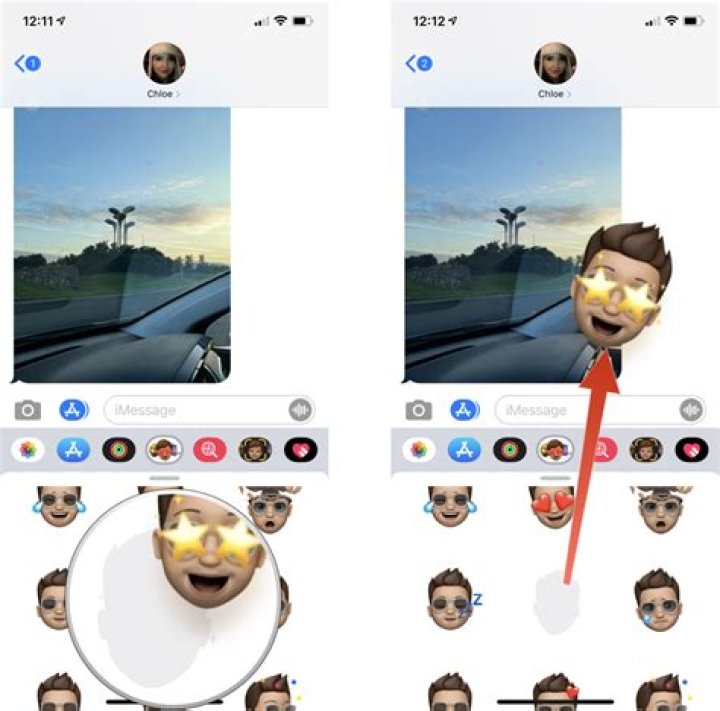
Here, you can swipe up to expand the Memoji Stickers app. Scroll through all stickers and select a sticker you want to send.
You’ll see the sticker attached to the text box. You can add a message if you want. To send your sticker, tap the “Send” button.
The sticker will be sent to the iMessage conversation.
How to Send Memoji Stickers in Third-Party Messaging Apps
As Memoji stickers are integrated directly into the keyboard, they work with many third-party messaging apps. WhatsApp is a prime example.
To send Memoji stickers using WhatsApp, open a “WhatsApp” conversation, and switch to the Emoji keyboard by tapping the “Emoji” button to the left of the Space bar.
Here, you’ll see a grid of Memoji stickers at the beginning of the “Frequently Used” section. If you don’t see them, swipe left in the keyboard view to access the Frequently Used section.
Now, if you have previously used Memoji stickers, you’ll find some of your recently used stickers right here. But to see all stickers, tap the “Menu” button that looks like a “…”.
Here, select a Memoji character, and swipe up to see all available stickers.
Tap the sticker you want to send.
WhatsApp will prepare the sticker. In a second, it will show up directly in the conversation.
Once you have created your Memoji character, try creating your very own WhatsApp sticker pack as well!
Source: Rene Ritchie / iMore
When Apple first introduced Memoji, it was only available on devices that had Face ID. Animating Memoji still requires Face ID, but who needs to animate them when you can send emoji stickers instead? You can choose from a variety of skin tones, hair colors, and accessories (a list that continues to grow each year). Once you’ve customized your Memoji, check out your sticker pack in the Messages app.
Where can you use Memoji stickers?
Memoji stickers work similar to any sticker pack you can add to your keyboard on iPhone and iPad. They work best in the Messages app where you can “peel” them off and stick them on a message bubble. But you can also use them in Apple’s built-in apps like the Mail and Notes app, as well as, third-party apps like Twitter and Slack. Pretty much the only place you can’t use Memoji stickers is when you’re typing into a browser URL or some similar text field.
How to create a Memoji on iPhone or iPad
Before you can use your Memoji, you’ll need to create one. You can create multiple Memoji for yourself and others. You can make your Memoji look like anyone you want. Here’s how.
How to use Memoji on iPhone and iPad
Once you’ve created your Memoji, you can use them the same way you would any sticker pack in the Messages app. And, they’re easily accessible from your emoji picker in any almost text field.
- In an app that supports Stickers, bring up the keyboard.
- At the top of the keyboard, tap on the new Memoji stickers icon.
- Scroll to find the Memoji or Animoji sticker pack to use.
Tap on the preferred pack.
To send, tap the up arrow.
Any questions?
Do you have any questions about Memoji or these all-new stickers? Leave a comment below.
The Nooie Cam Doorbell seems to be more trouble than it’s worth
With the Nooie Cam Doorbell at your front door, you’ll know who’s there and who’s been there.
Jason Sudeikis says social media companies must do more to combat racism
The writer and star of Apple’s Emmy-nominated comedy ‘Ted Lasso’, Jason Sudeikis says companies must do more to combat racism on social media in the wake of abuse directed at England players.
Rumored new iPad mini 6 could feature A15 chip from iPhone 13, USB-C
A new report claims that Apple’s rumored new iPad mini will feature an A15 processor and a USB-C connector.
Protect your iPad 10.2-inch screen with these handy protectors
Don’t let your new 10.2-inch iPad screen get scuffed up! We have the best screen protectors for you.
With iOS 12 and later, and iPadOS, you can create a Memoji to match your personality and mood, then send it in Messages and FaceTime. And with a compatible iPhone or iPad Pro, you can create an animated Memoji that uses your voice and mirrors your facial expressions.
How to create your Memoji
- Open Messages and tap the Compose button to start a new message. Or go to an existing conversation.
- Tap the Memoji button , then swipe right and tap the New Memoji button.
- Customize the features of your memoji — like skin tone, hairstyle, eyes, and more.
- Tap Done.
How to create Memoji stickers
With iOS 13 and later, and iPadOS, your Memoji automatically become sticker packs that live in your keyboard. You can use them in Messages, Mail, and some third-party apps.
Here’s how to create a Memoji sticker:
- Create your Memoji.
- Open the keyboard, then tap the Memoji Stickers button .
- Select the sticker that you want to send.
- Tap the Send button .
Memoji Stickers aren’t supported on iPad Air 2.
How to use an animated Memoji in Messages
- Make sure that you have a compatible iPhone or iPad Pro.
- Open Messages and tap the Compose button to start a new message. Or go to an existing conversation.
- Tap the Memoji button , then swipe left to pick your Memoji.
- Tap the Record button to record and to stop. You can record for up to 30 seconds. To choose a different Memoji with the same recording, tap another Memoji that you created. To create a Memoji sticker, touch and hold the Memoji and drag it to the message thread. To delete a Memoji, tap the Trash button .
- Tap the Send button .
How to use an animated Memoji in FaceTime
- Make sure that you have a compatible iPhone or iPad Pro.
- Open FaceTime and make a call.
- When the call starts, tap the Effects button .
- Tap the Memoji that you want to use.
- Continue your FaceTime call with your customized Memoji. Or tap to continue without a Memoji or go back to the FaceTime menu.
To change your Memoji or to remove it during a FaceTime call, repeat steps 2-4.
Manage your Memoji
Want to change a Memoji that you already created? You can edit the features, duplicate an existing Memoji with new features, or delete a Memoji.
- Open Messages and tap the Compose button to start a new message. Or go to an existing conversation.
- Tap the Memoji button or Memoji Stickers button , then select the Memoji that you want.
- Tap the More button . Then choose Edit, Duplicate, or Delete.
If you want your Memoji on all of your compatible devices, you need two-factor authentication enabled for your Apple ID, and you need to be signed into iCloud with the same Apple ID on all the devices. You also need to have iCloud Drive turned on. Go to Settings > [Your Name] > iCloud > iCloud Drive.
To use an animated Memoji, you need a compatible iPhone or iPad Pro.
One of the new features of Apple’s latest operating systems, iOS 13 and iPadOS, are Memoji sticker packs for older iPhones right in the Messages app. It’s been possible to send Animoji and Memoji stickers in texts before, but now it’s easier than ever for a larger number of iPhones and iPads to send Memoji stickers, even if they can’t create and send the animated emoji videos. Let’s get started learning about Memoji and Animoji stickers, how to create them, and which devices can send and receive them.
* This post is part of iPhone Life‘s Tip of the Day newsletter. Sign Up. *
How Do You Get Animoji & Memoji Stickers?
Update Your Operating System
The first thing you’ll need to do to get the new Animoji and Memoji sticker packs is to update your iPhone to iOS 13, and your iPad to iPadOS. If you’re not sure whether or not your iPhone and iPad are able to be updated to these operating systems, we have the answers you’re looking for.
If you’ve already created Memoji, your personalized emoji will be automatically included as a sticker pack in Apple’s Messages and Mail apps, as well as several third-party apps like Facebook Messenger. If you haven’t yet made Memoji or Animoji, refer to our tutorials to get started with this fun, creative process.
Who Can Create & Send Memoji & Animoji Stickers?
You can create Memoji and Animoji stickers on any device that can run iOS 13 or iPad OS. This means that devices that aren’t able to create Memoji or Animoji videos can at least create the sticker versions!
How To Use Memoji & Animoji Stickers
Once you’ve updated your operating systems and created Memoji, Animoji, or both, you’ll be ready to access and use your sticker packs.
- Open the keyboard in an app that supports the stickers; for this example, I’m using Messages.
- Tap the Memoji stickers icon (three cartoon faces) at the top of the keyboard.
- Scroll to find the sticker pack you’d like to use.
Enjoy sending and receiving these cute Animoji and Memoji stickers!
Make your conversations more interactive with iMessage stickers.
Install a sticker pack
- Open Messages and tap the Compose button to start a new message. Or go to an existing conversation.
- From the app drawer, tap the App Store button .
- When you find a sticker pack that you like, tap the Get button or the price icon next to the app, then install the app.
- Enter your Apple ID password, or use Face ID * or use Touch ID if you have it enabled.
- Tap the Close button to return to your message.
* You need an iPhone X or later to use Face ID.
Add a sticker to a conversation
- Open Messages and tap the Compose button to start a new message. Or go to an existing conversation.
- Swipe left or right over the app drawer to find the one that you want to use.
- Then tap the app to open it.
If you want to add a sticker, touch and hold the sticker, then drag it to the message bubble. The sticker will automatically send when you add it to the message. You can also pinch or zoom to resize stickers before sending.
If you receive a message with a sticker from an iMessage app that you don’t have, touch and hold the sticker, then tap Sticker Details to view the app in the App Store.
Use Memoji stickers
With iOS 13 and iPadOS, your memojis automatically become sticker packs that live in your keyboard. You can use them in Messages, Mail, and third-party apps. After you create a memoji, open your keyboard and tap the Memoji Stickers button , then select the memoji sticker that you want to send.
Memoji stickers aren’t compatible with iPad Air 2.
Delete stickers
- Open Messages and tap the Compose button to start a new message. Or go to an existing conversation.
- Swipe left over the app drawer and tap the More button .
- Swipe left over the app, then tap Delete.
Do more with Messages
- Collaborate with others in a conversation, decorate with stickers, and more with iMessage apps.
- Personalize your conversations with Message effects on your iPhone, iPad, and iPod touch.
- Learn more about how to use Messages and get help with common tasks.
Stickers sent as an MMS message are sent as photos.
Information about products not manufactured by Apple, or independent websites not controlled or tested by Apple, is provided without recommendation or endorsement. Apple assumes no responsibility with regard to the selection, performance, or use of third-party websites or products. Apple makes no representations regarding third-party website accuracy or reliability. Contact the vendor for additional information.
By Zoe | Follow | Last Updated February 02, 2021
Summary :
Memoji lets you design your own personalized avatar. How to make your memoji? This post is going to show you how to make a memoji and how to use an animated memoji in Messages (Need to make a GIF meme? Try MiniTool MovieMaker).
Quick Navigation :
- How to Make a Memoji
- How to Use an Animated Memoji in Messages
- How to Manage Your Memoji & How to Save Memoji Stickers to Camera Roll
- Conclusion
- User Comments
Memoji is a fun feature available on iPhones and iPads under the support of facial recognition technology. It allows you to create customized avatars to express your feelings.
To make a customized Memoji, you can choose skin color, hair color and style, facial features, headwear, rose and lip shape and more.
What devices support Memoji? Here are:
- iPhone X
- iPhone XR
- iPhone XS
- iPhone XS Max
- iPad Pro 11-inch (3rd generation)
- iPad Pro 12.9-inch
How to Make a Memoji
Here’s how to make a Memoji.
Step 1. Open the Message app and click the Compose button in the upper-right corner of the screen.
Step 2. Click the Memoji button, swipe to the right and find the + icon. Tap on it to create a new Memoji.
Step 3. Now, you can customize your own Memoji, such as skin color, hairstyle, head shape, eyes, ears, headwear, and more.
Step 4. After creating your Memoji, tap on the upper right corner of the screen.
The Memoji you just created will become sticker packs and can be used in Messages, Mail and other apps. Also, you can create other Memoji stickers.
Here’s how to make Memoji stickers.
Step 1. Create your Memoji.
Step 2. Go to the keyboard and tap the Memoji Stickers button.
Step 3. Then you send your Memoji sticker to others.
Want to make a Memoji on Android? Read this post: The Best Alternative App to Memoji for Android.
How to Use an Animated Memoji in Messages
To make an animated Memoji, you need to make sure that your iPhone or iPad supports using Face ID. Then follow the steps below to make an animated Memoji.
Step 1. Open Messages and start a message by clicking the Compose button.
Step 2. Tap on the Memoji button and swipe left to find the Memoji that you want to record.
Step 3. Then tap and hold the red Record button in the lower right corner to record. You can record a memoji video for up to 30 seconds.
Step 4. Afterward, click the Send button.
This post collects 6 best profile picture makers. With them, you can make cool profile pictures to attract viewers or just for fun. Don’t miss this post!
How to Manage Your Memoji & How to Save Memoji Stickers to Camera Roll
After learning how to make a Memoji, let’s see how to manage your Memoji and how to save Memoji stickers to the camera roll.
Here’s a quick guide on how to manage Memojis
Step 1. Open Messages and start a new message.
Step 2. Click on Memoji and choose the Memoji you want.
Step 3. Tap the three dots button and select Edit, Duplicate or Delete.
How to save your Memoji stickers to camera roll? Follow these steps!
Step 1. Open Notes and tap the Compose button to create a new note.
Step 2. On the keyboard, click the Emoji icon and tap on the three dots icon to open your Memoji stickers.
Step 3. Choose a Memoji sticker you want to save and add it to the note.
Step 4. Then tap on the added Memoji sticker and click the Share button in the lower-left corner.
Step 5. From the pop-up menu, select the Save Image option. Then it will save to the camera roll.
Conclusion
This post shows how to make a Memoji in detail. Now, follow the step-by-step guide to make your own Memoji right now!
ABOUT THE AUTHOR
Position: Columnist
She works as editor at MiniTool for many years, writing articles about video editing skills. She has published hundreds of articles about video editing, video conversion, video downloading, audio editing and photo editing. She also writes some articles about YouTube, Facebook, Instagram and Twitter.
During her spare time, she loves reading, traveling, skating, watching movies, musicals and plays. She’s favorite musicals include The Phantom of the Opera, Hamilton and Le Rouge et le Noir.
Create a Memoji to match your personality and mood, then make as many alter egos as you want in Messages and FaceTime.
source: Apple
Create your Memoji
- Open Messages and tap the Compose button to start a new message. Or go to an existing conversation.
- Tap the Animoji button , then swipe right and tap the New Memoji button.
- Customize the features of your memoji — like skintone, hairstyle, eyes, and more.
- Tap Done.
With iOS 13 and iPadOS, your Memoji becomes sticker packs that live on your keyboard. From there, you can use them to bring personality to Messages, Mail, and other apps. Learn more about using stickers.
You can create a Memoji sticker on any device with iOS 13 or iPadOS, but you need an iPhone X or later, iPad Pro 11-inch (1st generation and later), or iPad Pro 12.9-inch (3rd generation and later) to create and use an animated Memoji.
Use your Memoji
Now it’s time to put your animated Memoji to use in Messages or FaceTime.
Messages
To send an animated Memoji or a Memoji sticker:
- Open Messages and tap the Compose button to start a new message. Or go to an existing conversation.
- Tap the Animoji button , then swipe left to pick your Memoji.
- Tap the Record button to record and to stop. You can record for 30 seconds. To choose a different Memoji with the same recording, tap another Memoji that you created. To create a Memoji sticker, touch and hold the Memoji and drag it to the message thread. To delete a Memoji, tap the Trash button .
- Tap the Send button .
To use an animated Animoji and Memoji, you need a compatible iPhone or iPad Pro.
FaceTime
- Open FaceTime and make a call.
- When the call starts, tap the effects button .
- Tap the memoji that you want to use.
- Continue your FaceTime call with your customized Memoji or tap to continue without a Memoji or go back to the FaceTime menu.
To change your Animoji or Memoji, or to remove it during a FaceTime call, repeat steps 2-4.
To use an animated Animoji and Memoji, you need a compatible iPhone or iPad Pro.
Use Camera Effects with your Memoji
With iOS 12 and later, and iPadOS, you can use Camera Effects to liven up your conversations even more. Quickly create and share a photo or video with Memoji:
- Open Messages and tap the Compose button to create a new message. Or go to an existing conversation.
- Tap the Camera button , then take a photo or video.
- Tap the effects button , tap the Animoji button , then pick the Memoji that you want to use. You can add more effects to your photo or video.
- After you pick your Memoji, tap in the bottom-right corner, then tap .
- Tap the Send button or tap Done to add a personal message before you send your photo. If you don’t want to send the photo, tap in the upper-right corner of the photo.
To use an animated Animoji and Memoji, you need a compatible iPhone or iPad Pro.
Manage your Memojis
Want to change a Memoji you already created? You can edit the features or duplicate an existing Memoji with new features, or delete a Memoji.
- Open Messages and tap the Compose button to start a new message. Or go to an existing conversation.
- Tap the Animoji button , swipe right until you find the Memoji you want.
- Tap the More button . Then choose Edit, Duplicate, or Delete.
If you want your Memoji on all of your compatible devices, you need two-factor authentication enabled for your Apple ID, and you need to be signed into iCloud with the same Apple ID on all the devices. You also need to have iCloud Drive turned on. Go to Settings > [Your Name] > iCloud > iCloud Drive.
To use an animated Animoji and Memoji, you need a compatible iPhone or iPad Pro.
Memoji Stickers offer a fun way to use any custom Memoji as iMessage stickers within Messages conversations on an iPhone or iPad. Furthermore, the Memoji stickers work in other messaging apps like WhatsApp, Facebook, Discord too. Essentially, Memoji stickers are the personalized Memoji feature combined with iMessage Stickers, and they can be used in all sorts of fun ways to slap onto messages and decorate conversations you’re having on your Apple device.
This article will show you how you can create and use Memoji stickers on an iPhone or iPad.
First of all, you need to make sure your iPhone or iPad is updated to iOS 13 before you go ahead with this procedure, as earlier versions of system software don’t support Memoji Stickers. The ability to create a new Memoji requires you to have an iPhone X or newer too. So, if you have an older iPhone or iPad, skip to Step 5 where instead we describe how to use these stickers. Without further ado, here are the steps to create your own Memoji sticker.
How to Create & Use Memoji Stickers on iPhone & iPad
Let’s take you through the step-by-step process so you can easily create a 3D model of your own face and start using it as stickers within minutes. If you have already created a Memoji before then you can use that one, or make a new one.
- Open the default “Messages” app and go to any of the messages you have. Now, tap on the “Memoji” icon which is located right next to the Apple App store icon. Once you’re done, tap on the “+” icon as shown in the screenshot below to create your own Memoji.
You’ll be taken to a new dedicated section where your phone starts tracking your facial expressions and movements. Here, you can customize various facial features to match your appearance, like skin tone, hairstyle, eye color, ears, facial hair and more.
There’s so much customization here, that Apple even lets you add AirPods to your 3D avatar like I did in the screenshot below. Regardless, once you’re done fine tuning your new Memoji, tap on “Done” at the top-right corner of your screen. Now, you should be able to see your newly created avatar in the Memoji section. You can edit your Memoji any time by simply tapping on the “triple dot” icon located next to the list of all the stickers you have.
Here, you can either make a new Memoji, duplicate the existing one or simply just tap on “Edit” to further customize your current Memoji and make sure it keeps up with your current appearance.
Scroll through all the various Memojis and tap on any of the stickers available right below a certain Memoji to send it.
You don’t necessarily have to use iMessage. Here, I’ve used WhatsApp to send Memoji stickers, but you could also use social networks like Facebook Messenger, Twitter or Discord.
Well, that’s all there is to it. Hopefully that was a fun process to learn. All you need is a few minutes of patience and you could easily create a Memoji of your own face to share stickers with your friends and annoy them while you’re listening to your favorite song on Apple Music.
From a pre-generated unicorn to a 3D avatar of your own face, there are plenty of Memojis to choose from before you start getting bored of it. Hopefully, Apple keeps adding more of them with newer versions of iOS to keep the users constantly engaged.
What’s the History & Background of Memoji & Animoji?
You may be wondering where all this Memoji and Animoji stuff got started, and that’s a fair question. So let’s review that a bit: Two years ago, when Apple unveiled the completely redesigned iPhone X at the Steve Jobs Theater in Cupertino, California, Phil Schiller kept going on and on about how advanced the front facing camera module was. Apart from its application in Augmented Reality and the much touted highly secure facial recognition system dubbed Face ID, the TrueDepth camera system drove a new feature that the company proudly called “Animoji“. Like anyone would expect, it was sort of like an animated emoji which used the camera’s depth sensing capabilities to track your facial expressions.
A year later, Apple introduced an add-on feature alongside the release of iOS 12 called Memoji that allowed a user to create a 3D model of their face and then share it with friends via iMessage. However, it was restricted to devices with the TrueDepth camera system, which meant that you needed an iPhone X or newer to take advantage of that feature. Fast forward to late 2019, you can now use Memoji stickers on any iOS device powered by an Apple A9 chip or newer. This includes devices like the iPhone SE, iPhone 6S, iPad (2017) and newer models. Although the ability to track the face and turn it into a 3D model is still restricted to iPhones and iPads with the TrueDepth camera system, older devices still have access to pre-generated stickers that could be used in various messaging platforms like iMessage, WhatsApp, Facebook, Discord and more.
And so that’s some general history on Memoji and its precursor feature, Animoji. Now get out there and make your own, and have some fun!
Let us know your thoughts on Memojis, or briefly describe how you annoyed your friends with the vast array of stickers or artfully crafted animated GIFs in the comments section down below.
With the passing of the versions of the different operating systems, Apple always introduces new features that, although functionally they do not contribute much to the user, aesthetically they tend to be very pleasant and even fun, as were the animoji and memoji in their day, a different form and glad to “communicate” with our loved ones. In this post we will tell you everything about them.
What are the differences between Animojis and Memojis
If you have read the short introduction to this post, or even the title itself, you may be wondering what the difference is between Animojis and Memojis, since surely until now you thought they were exactly the same, and no, they are not the same.
The Animoji are the animated stickers that Apple already offers you by default, those that you can use without touching anything and that, so far, are the following:
- Rabbit
- Octopus
- Cow
- Giraffe
- Shark
- Owl
- Wild pig
- Bow
- Robot
- Cat
- Dog
- Alien
- Fox
- Poop
- Zerdo
- Panda
- Rabbit
- Rooster
- Unicorn
- Lion
- Dragon
- Caravel
- Bear
- Tiger
- Dinosaur
- Ghost
On the other hand, Memoji are personalized Animoji, that is, Animojis that you can create and that users usually try to be an image of themselves, since Apple offers a large number of ways to personalize them.
The way to share both Animoji and Memoji varies. On the one hand, you can create videos in which the chosen Animoji or Memoji imitate all the gestures that you make with your face while you speak, to later share it through different media. On the other hand, you can make use of the Animoji or Memoji stickers, which have also been increasing throughout the iOS updates.
Are Memoji compatible with all devices?
Unfortunately, Memoji are not compatible with all devices, at least not their creation. Only those devices that are compatible with iOS 13 or higher have the possibility to create Memojis to be able to use them in the different applications.
Initially, the Cupertino company reserved this function only for those users who had an iPhone that had a TrueDepth camera, however, after the update to iOS 13, all devices compatible with this version can, at least, create their own Memojis, however, not everyone can make use of animated Memoji, that is, to be able to record video and have the Memoji itself imitate the gestures that the user makes with their face, to be able to make use of this on the iPhone or iPad if they have to have TrueDepth camera.
Steps for creating a Memoji
The steps to follow to create your Memoji are really simple and it will take more or less time to do so depending on the degree of customization and detail that you want to give your Memoji.
Create it from scratch
- First of all, what you have to do is open the Messages application and press the compose button to write a new message. You can also open an existing conversation.
- Press the Memoji button, then swipe right and press the New Memoji button.
- Customize the characteristics of the Memoji, such as skin tone, hairstyle, hair color, eyes and all the available customization options. As we said, this step will take you more or less time depending on the degree of detail you want to give your Memoji.
- Finally, when you have it as you want, click Ok and the Memoji will be available to be used in the different applications.
Customize and edit it
If what you want is to be able to edit your Memoji after having created it, the process is just as simple. You just have to go to the messages application, click on the Memojis button, go to the one you want to edit, click on the three dots that appear at the bottom left of the screen and click Edit. At this time you can carry out all the modifications you want to make to your Memoji. Once you have it ready, you just have to click Ok.
How to delete a Memoji
In the same way that you can create and later also edit a Memoji, you can delete it. For this, the steps are exactly the same as for editing it. Go to the messages application, click on the Memojis button, choose the one you want to delete, click on the three dots that appear in the lower left corner of the screen and then press Delete. This way you will have completely removed the Memoji.
Save your Memoji as a photo
This process is a bit more complicated, but still, it is really simple and will only take a few seconds. Follow the following steps to be able to save an image of the sticker that you want from your Memoji.
- Open the messaging app and get into a conversation with yourself or someone you trust.
- Choose the sticker you want to get as an image and send it to the conversation.
- Click on the sent Memoji sticker.
- Click the share icon at the bottom left of the screen and click save image.
In this way you will have available on your reel an image of the Memoji sticker that you have selected, in this way you can use it as a profile photo of any social network.
How to send a Memoji
The Memoji and Animoji were initially intended to be used through Apple’s own Messages application, however, these can be used in different ways in multiple applications. The stickers can be sent through different messaging applications such as Telegram or WhatsApp, and the animated videos can also be saved on the reel to share them through social networks or these same apps.
How to save Memoji stickers
You don’t really need to save the Memoji stickers since they are accessible from the iOS keyboard itself. In this way, Apple provides all users with the possibility of using this fun function that so many people like since it gives the possibility of having and using completely personalized stickers.
The fact that Memoji stickers are accessible from the keyboard itself means that they can be used not only in messaging applications but also in others such as Instagram, that you can share in your stories as many stickers as you want in the same way that you can write text on them.
Can Memojis be sent to Android?
Obviously, Android users do not have the possibility to create their Memoji stickers, however, if they can have them if they have a family member or friend with an iPhone, since they can create their Memoji on their iPhone or iPad and pass the stickers to them. through WhatsApp so that it saves them and can use them in this instant messaging network.




