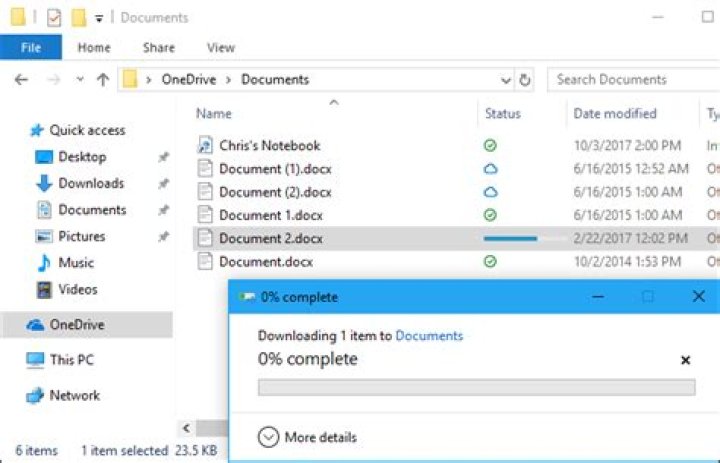
Starting with the Windows 10 Fall Creators Update, OneDrive gets a new feature called “Files On-Demand,” which lets you access your entire catalog of files stored in the cloud with File Explorer without having to download them and use local storage on your device.
In other words, OneDrive Files On-Demand is very similar to what placeholders used to be and Microsoft later deprecated, but that feature now works more intelligently.
Unfortunately, after upgrading to the new version of Windows 10, some users have been reporting that the feature is nowhere to be found. Although this may seem like a problem, it appears that Microsoft is rolling out Files On-Demand slowly and not everyone will it immediately.
In this Windows 10 guide, we walk you through the easy steps to get OneDrive Files On-Demand after upgrading to the Fall Creators Update.
How to install OneDrive Files On-Demand
You’re probably not getting the feature because the upgrade process didn’t install the latest version of the OneDrive client, and in order to use Files On-Demand you must have version 17.3.7064.1005 or later.
To get OneDrive Files On-Demand use these steps:
- Download the latest available OneDrive client.
- Double-click the OneDriveSetup.exe file to install new client.
- Restart your computer.
- Open Start.
- Search for OneDrive and click the result to launch the app.
- Follow the on-screen directions to complete the setup as necessary.
- Right-click the OneDrive (cloud) icon in the notification area, and select Settings.
On the “Settings” tab, you should now see the Files On-Demand section, and make sure the Save space and download files as you use them option is checked to enable the feature.
Once you complete these steps, OneDrive Files On-Demand will be enabled on your device running the Windows 10 Fall Creators Update. You can check out our guide to learn more about this feature.
More Windows 10 resources
For more helpful articles, coverage, and answers to common questions about Windows 10, visit the following resources:
We may earn a commission for purchases using our links. Learn more.
Why World of Warcraft players are leaving for Final Fantasy 14
Is World of Warcraft about to suffer another cataclysm? Let’s explore some of the main reasons WoW players are actively jumping ship, seeking greener MMO pastures.
Why Steam Deck will be better than Steam Machines
Valve’s Switch-like Steam Deck looks incredibly promising, but many are worried that it will flop like Valve’s Steam Machine consoles did. Here’s why we think the Steam Deck will be different (and better).
The second half of July is packed with new games for Xbox Game Pass
Xbox Game Pass just revealed its list of new games heading to the service in the second half of July, and it’s filled with games like Microsoft Flight Simulator, Battlefield V, The Ascent, and much more.
These are the best PC sticks when you’re on the move
Instant computer — just add a screen. That’s the general idea behind the ultra-portable PC, but it can be hard to know which one you want. Relax, we have you covered!
If you use OneDrive Files On-Demand properly, you can sync your entire OneDrive folder without clogging your hard drive.
Senior Editor, PCWorld |
Today’s Best Tech Deals
Picked by PCWorld’s Editors
Top Deals On Great Products
Picked by Techconnect’s Editors
Where is OneDrive Files On-Demand? If you downloaded Microsoft’s Windows 10 Fall Creators Update, you might be interested in the terrific new OneDrive placeholders feature. But on some PCs, it never showed up.
OneDrive Files On-Demand returns the Windows 8.1 placeholder functionality to Windows 10. This displays shortcuts to all the files stored in your OneDrive account in a File Explorer window, rather than storing a local copy on your hard drive. Even if you have hundreds of gigabytes stored in OneDrive, you’ll be able to see them all in a folder that takes up a megabyte or two. It’s one of the Windows 10 Fall Creators Update’s best new features.
Mark Hachman / IDG
The OneDrive Files On-Demand within Windows 10 Fall Creators Update can turn gigabytes’ worth of files into a relatively tiny index on your hard drive.
Do I have OneDrive Files On-Demand?
If you wait long enough, it’s probable that Windows 10 will update the OneDrive capability by itself. But there are a few easy steps you can take to download it (yes, download it) now and turn it on yourself.
First, you’ll need the Windows 10 Fall Creators Update, which began rolling out on October 17. If it hasn’t arrived and you’d like it right now, you can use the Windows Update Assistant and begin the upgrade manually. Take the usual precautions, including backing up your data. The process can take a while, perhaps 45 minutes to an hour.
Mark Hachman / IDG
Before you can use OneDrive Files on Demand, you need Windows 10’s Fall Creators Update.
Once that process has completed, find the tiny OneDrive icon on your taskbar. (If you have a number of different processes running, try expanding the Notifications area in the lower right-hand corner of the Windows taskbar. That should bring up a small window of icons, including the small cloud icon that indicates OneDrive. Right-click it, and select Settings from the popup menu.
Mark Hachman / IDG
To enable Files On-Demand, you’ll need to find the OneDrive icon, which hides out in your taskbar.
Doing so will actually open another window, which will probably be open to the Account tab. If you don’t see the fancy introduction to Files On-Demand, try clicking one tab over to the Settings tab. (Yes, there’s a separate Settings tab within the Settings menu. No, we don’t know why, either.) If you see, at the very bottom of the Settings tab, a header marked Files On-Demand, hurray! Your problem is solved. Ensure that the checkbox next to Save space and download files as you use them is checked to enable Files On-Demand. On my machine it was not enabled by default.
Mark Hachman / IDG
The most important step of all: eventually, you’ll need to ensure the Files on Demand checkbox is checked.
How to download OneDrive Files On-Demand
If you’re not seeing the introductory blurb or the Files On-Demand menu item, you’ll need to take action. Although you can download the OneDrive app from the Store, the OneDrive Files On-Demand feature is also available to download from this page, or as an automatic download.
Installing it is extremely simple: Download the file, click it to begin the installation, and reboot when you’re finished. I’ve tried it on two Fall Creators Update machines that failed to receive OneDrive Files On-Demand, and both times the update installed without a hitch.
A quick guide to OneDrive Files On-Demand
Once you’ve installed the OneDrive update and rebooted, open the Settings menu and make sure OneDrive Files On-Demand is turned on. Then enjoy it!
If you’re like me, you turned off OneDrive file syncing before now, fearing that your hard drive would become overrun. Right-click the OneDrive icon and select Settings. Click the Account tab and go to Choose Folders.
Mark Hachman / IDG
Once you have Files on Demand enabled, you can sync your entire cloud storage in OneDrive.
This time, discard any trepidation you felt earlier and click the Make all files available checkbox. Almost instantly your OneDrive folder should fill up with placeholders of every file and folder you’ve stored in OneDrive: documents, music, photos, the works. Those placeholders take up very little space—you can see by right-clicking the OneDrive folder and selecting Properties to view the file size: it should be a megabyte or so.
If it’s not, there are two possibilities: One, Files On-Demand hasn’t actually been turned on, or two, you already chose to sync some files between your hard drive and OneDrive, such as your documents folder.
You may continue to do so, to ensure that those synced documents will be available while on a plane, for example, But the secret to storage-capacity bliss is in that column of icons that flows down the OneDrive file window. Files stored locally will have a small blue circle with a check mark in the center. Files stored in the cloud will have a small cloud logo next to them.
By default, files that you drag into the OneDrive folder will be stored locally on your hard drive, and a synced copy will be backed up in your OneDrive cloud. If you’d like to store that file only in the cloud, right-click the file and click Free up space. Alternatively, you have the option to always keep [the file] on this device. (If there’s a file already stored on OneDrive, you’ll need to download it and then select this option.) Naturally, these options apply both to files and the folders that store them.
What makes OneDrive Files On-Demand such an attractive feature is that a typical document is only a few megabytes in capacity, and can be downloaded relatively quickly. All in all, it’s one of the Windows 10 Fall Creators Update’s best new features.
As PCWorld’s senior editor, Mark focuses on Microsoft news and chip technology, among other beats.
In Windows 10 Fall Creators Update, you can now easily see and download files that aren’t stored locally from your OneDrive account. Here’s how to set it up.
I use OneDrive constantly, especially to save all the articles I write for PCMag so that they’re accessible from anywhere. I also sync all the photos I shoot on my iPhone so that I can get to them easily from a web browser.
But before Windows 10 Fall Creators Update, OneDrive, like most syncing services, could take up lots of local disk space if you synced everything. Of course, OneDrive always let you decide which folders you wanted synced locally, but then on those occasions when you wanted a file from a non-synced folder, not only was it not there, but you couldn’t even see that it existed.
Enter OneDrive Files On-Demand. This brings back functionality called Placeholders, which was a part of Windows 8.1. That older feature confused some users, who couldn’t access the files while offline, so Microsoft removed it. On-Demand brings back the capability, and hopefully makes it clearer to all. How? It shows all your files stored in OneDrive ($5.00 Per User Per Month at Microsoft365 for Business) , but marks those that aren’t saved locally with a cloud icon. It’s a lot like what iTunes has done for a few years to show you which tunes needed to be downloaded.
Of course, even before Files On-Demand, you could always access all your files by downloading them from the OneDrive website. But having them all visible in File Explorer is a great deal more convenient. Follow through the quick slideshow below to see how to set up and use it.
- The Unofficial M365 Changelog
- Sponsors
- Learn
- Forums
- Podcasts Toggle children
- Enterprise Dish
- M365 Knowledge
- MJF Chat
- Petri Dish
- Resources Toggle children
- Webinars
- Conferences
- Newsletters
Windows Store Apps Can Compromise PC Security
Paul Thurrott’s Short Takes: November 10
Managing OneDrive Files On Demand in The Windows 10 Fall Creators Update
In today’s Ask the Admin, I’ll show you how you can manage the new OneDrive Files On-Demand feature in the Fall Creators Update.
Files On-Demand is the long-awaited replacement for Windows 8.1-era OneDrive placeholders, a flawed system that allowed users to see their full OneDrive file hierarchy without downloading the contents to the local device. Placeholders were popular because OneDrive can store much more data than there is disk space on a device, especially in the case of devices using solid-state drives.
Subscribe to Petri Newsletters This Week in IT
Petri.com may use your contact information to provide updates, offers and resources that may be of interest to you. You can unsubscribe at any time. To learn more about how we manage your data, you can read our Privacy Policy and Terms of Service.
! Already a Petri.com member? Login here for 1-click registration.
Due to the way placeholders were implemented in Windows 8.1, issues could arise that meant applications would not retrieve files that were only available in the cloud. Placeholders relied on Windows Explorer and the OneDrive sync client to do the heavy lifting. The Explorer icon overlays, which indicated whether files were available offline, sometimes failed to display if other apps also registered overlays with Explorer. This lead to confusion for users.
Files On-Demand in the Windows 10 Fall Creators Update uses a file system driver and the OneDrive client to resolve the issues with placeholders. Instead of icon overlays in Explorer, Microsoft has added attributes that display the status of OneDrive files, which can be always local, demand-synced and available offline, and demand-synced but not available offline. The new attributes are displayed in a separate column in File Explorer and in the details view.
OneDrive Sync Status Is Displayed in File Explorer (Image Credit: Russell Smith)
OneDrive Files On-Demand works with consumer OneDrive, OneDrive for Business, and SharePoint Online team sites. Microsoft hasn’t forgotten about enterprise control. Group Policy options allow organizations to force the use of Files On-Demand, which can help reduce network traffic. Users will be able to browse team sites and OneDrive in File Explorer without downloading the entire contents. The same setting can be used to block use of File On-Demand. You can find the Enable OneDrive Files On-Demand setting in Group Policy under Computer Configuration > Administrative Template > OneDrive.
A second GPO control, Migrate Pre-existing TeamSite with OneDrive Files On-Demand, sets any existing team sites that users had synced locally, to online-only. Files added or updated in a team site will be set to online-only and downloaded as and when required.
Scripting OneDrive File Attributes
Because File On-Demand uses NTFS attributes to set the status of files, organizations can determine which files and folders are always available locally (pinned) or online-only (unpinned). For instance, if you want to make a document online only, you can run the attrib command-line tool to set the unpinned attribute. In the command below, -p removes the pinned attribute and +u sets the unpinned attribute.
You can also remove the pinned attribute but leave the file on the device:
OneDrive Files Attributes Can be Programmatically Modified Using the Attrib Command-Line Tool (Image Credit: Russell Smith)
Or to make a document always available offline, set the pinned attribute:
Add the /s switch to modify file attributes on all files and folders in a directory recursively:
In this Ask the Admin, I showed you how to force or restrict the use of OneDrive Files On-Demand using Group Policy and how to modify file attributes. From there, you can set files and folders to always be available offline.
OneDrive is the online document storage solution created by Microsoft which comes bundled with Windows 10. It can be used to store your documents and other data online in the cloud. It also offers synchronization of stored data across all your devices. “Files on-demand” is a feature which can display placeholder versions of online files in your local OneDrive directory even if they were not synchronized and downloaded. If you didn’t get the Files On-Demand feature after installing Windows 10 Fall Creators Update, here is simple fix.
As you may already know, the Files On-Demand feature is not a part of the operating system. It is a feature of the bundled OneDrive software in Windows 10. By default, Windows 10 Fall Creators Update comes with the outdated OneDrive client, which is supposed to be updated automatically. If that is not happened for you, you can fix manually.
To get OneDrive Files On-Demand in Windows 10 Fall Creators Update, do the following.
- Download the updated OneDrive application using the following link: Download OneDrive Client.
- Install it.
- Sign out from your user account and sign in again. This will ensure that OneDrive is restarted.
Now you should get access to the Files On-Demand feature. You might need to enable it in app’s settings. See the following article:
Once the Files on Demand feature is enabled, File Explorer will show the following overlay icons for the files in the cloud.
These are online files only, which are not stored on your computer.
File placeholders will have the following icon.
When you open such a file, OneDrive will download it to your device and make it locally available. You can open a locally available file anytime, even without Internet access.
Finally, the following overlay icon will be used for always-available files.
Only the files that you mark as “Always keep on this device” have a green circle with a white check mark. These files will always be available even when you’re offline. They are downloaded to your device and take up space.
That’s it. Thanks to MSPowerUser for this tip.
Winaero greatly relies on your support. You can help the site keep bringing you interesting and useful content and software by using these options:
Share this post
About Sergey Tkachenko
Sergey Tkachenko is a software developer from Russia who started Winaero back in 2011. On this blog, Sergey is writing about everything connected to Microsoft, Windows and popular software. Follow him on Telegram, Twitter, and YouTube.
Leave a Reply Cancel reply
Connect with us
We discontinued Facebook to deliver our post updates.
The OneDrive Files On-Demand within Windows 10 Fall Creators Update can turn gigabytes’ worth of files into a relatively tiny index on your hard drive.
Do I have OneDrive Files On-Demand?
If you wait long enough, it’s probable that Windows 10 will update the OneDrive capability by itself. But there are a few easy steps you can take to download it (yes, download it) now and turn it on yourself.
First, you’ll need the Windows 10 Fall Creators Update, which began rolling out on October 17. If it hasn’t arrived and you’d like it right now, you can use the Windows Update Assistant and begin the upgrade manually. Take the usual precautions, including backing up your data. The process can take a while, perhaps 45 minutes to an hour.
Mark Hachman / IDG
Before you can use OneDrive Files on Demand, you need Windows 10’s Fall Creators Update.
Once that process has completed, find the tiny OneDrive icon on your taskbar. (If you have a number of different processes running, try expanding the Notifications area in the lower right-hand corner of the Windows taskbar. That should bring up a small window of icons, including the small cloud icon that indicates OneDrive. Right-click it, and select Settings from the popup menu.
Mark Hachman / IDG
To enable Files On-Demand, you’ll need to find the OneDrive icon, which hides out in your taskbar.
Doing so will actually open another window, which will probably be open to the Account tab. If you don’t see the fancy introduction to Files On-Demand, try clicking one tab over to the Settings tab. (Yes, there’s a separate Settings tab within the Settings menu. No, we don’t know why, either.) If you see, at the very bottom of the Settings tab, a header marked Files On-Demand, hurray! Your problem is solved. Ensure that the checkbox next to Save space and download files as you use them is checked to enable Files On-Demand. On my machine it was not enabled by default.
Mark Hachman / IDG
The most important step of all: eventually, you’ll need to ensure the Files on Demand checkbox is checked.
How to download OneDrive Files On-Demand
If you’re not seeing the introductory blurb or the Files On-Demand menu item, you’ll need to take action. Although you can download the OneDrive app from the Store, the OneDrive Files On-Demand feature is also available to download from this page, or as an automatic download.
Installing it is extremely simple: Download the file, click it to begin the installation, and reboot when you’re finished. I’ve tried it on two Fall Creators Update machines that failed to receive OneDrive Files On-Demand, and both times the update installed without a hitch.
A quick guide to OneDrive Files On-Demand
Once you’ve installed the OneDrive update and rebooted, open the Settings menu and make sure OneDrive Files On-Demand is turned on. Then enjoy it!
If you’re like me, you turned off OneDrive file syncing before now, fearing that your hard drive would become overrun. Right-click the OneDrive icon and select Settings. Click the Account tab and go to Choose Folders.
Mark Hachman / IDG
Once you have Files on Demand enabled, you can sync your entire cloud storage in OneDrive.
This time, discard any trepidation you felt earlier and click the Make all files available checkbox. Almost instantly your OneDrive folder should fill up with placeholders of every file and folder you’ve stored in OneDrive: documents, music, photos, the works. Those placeholders take up very little space—you can see by right-clicking the OneDrive folder and selecting Properties to view the file size: it should be a megabyte or so.
If it’s not, there are two possibilities: One, Files On-Demand hasn’t actually been turned on, or two, you already chose to sync some files between your hard drive and OneDrive, such as your documents folder.
You may continue to do so, to ensure that those synced documents will be available while on a plane, for example, But the secret to storage-capacity bliss is in that column of icons that flows down the OneDrive file window. Files stored locally will have a small blue circle with a check mark in the center. Files stored in the cloud will have a small cloud logo next to them.
By default, files that you drag into the OneDrive folder will be stored locally on your hard drive, and a synced copy will be backed up in your OneDrive cloud. If you’d like to store that file only in the cloud, right-click the file and click Free up space. Alternatively, you have the option to always keep [the file] on this device. (If there’s a file already stored on OneDrive, you’ll need to download it and then select this option.) Naturally, these options apply both to files and the folders that store them.
What makes OneDrive Files On-Demand such an attractive feature is that a typical document is only a few megabytes in capacity, and can be downloaded relatively quickly. All in all, it’s one of the Windows 10 Fall Creators Update’s best new features.
Did you know that with OneDrive Files On-Demand you can access all your files in OneDrive, without having to download them and use storage space on your device?
Related
With the Windows 10 Fall Creators Update, you can access your saved files in OneDrive just like any other file on your PC without filling up your disk space. Easily tell which files are available online only or offline. Online-only files download on demand with a double-click, and you can make them online only again to free up space – or, you can select files to always be available offline.
When you turn on Files On-Demand, you’ll see all your files in File Explorer and get new information about each file. New files created online or on another device appear as online-only files, which don’t take up space on your device. When you’re connected to the Internet, you’ll be able to use the files like every other file on your device.
Here’s how to turn on Files On-Demand:
Make sure you’re signed into OneDrive on your device. Right-click the OneDrive cloud icon in the notification area, at the far right of the taskbar, and select Settings – or, select Start, and search for OneDrive.
On the Settings tab, select the Save space and download files as you use them box.
Make a file online-only to save space, and make a file always available offline so it’s always with you:
Right-click a file or folder, and select Always keep on this device or Free up space.
Head over here to learn more about OneDrive Files On-Demand and how to enable it, or here for how to get the Fall Creators Update. Have a great week!
In this course:
- Create and share files in a library
Video - Sync SharePoint files and folders
Video - Restore a shared library
Video - Sync files with Files On-Demand
Video
Try it!
With OneDrive Files On-Demand, you can get to all your files in SharePoint in Microsoft 365 without having to download them and use storage space on your device.
Turn on Files On-Demand in OneDrive
Select the white or blue OneDrive cloud icon in the Windows notification area.
Note: If you’re on Windows 10, your computer already has the OneDrive desktop app on it, but you’ll need to turn on Files On-Demand in OneDrive settings.
Select Settings .
Select Settings > Save space and download files as you use them.
Work with files in Files On-Demand
When Files On-Demand is on, you’ll see new status icons next to each of your SharePoint files. You can now copy or move files from your computer to SharePoint in Microsoft 365 right from your file system.
Save space on your device by making files online-only.
These files are only available when you’re connected to the Internet, but don’t take up space on your computer.
When you open an online-only file, it downloads to your device and becomes locally available.
You can open a locally available file at anytime even without Internet access.
To make a file always available, even when you’re offline:
Right-click it and select Always keep on this device.
To change a file back to an online-only file:
Right-click it and select Free up space.
Windows 10 Fall Creators Update brings a new OneDrive Files On-Demand which helps users save storage space on their computer. OneDrive Files On-Demand won’t automatically download all of the files and folders from your OneDrive account — instead, it will only download them locally when you actually open a file. The feature is very much like OneDrive Placeholders, but it’s been significantly improved with the Windows 10 Fall Creators Update.
Microsoft actually started rolling out the Windows 10 Fall Creators Update yesterday which is supposed to bring the OneDrive Files On-Demand feature. However, the feature isn’t included as part of the OS update itself — instead, it is tied to the OneDrive client in Windows 10. As a result, some users aren’t getting Files On-Demand right after installing the Fall Creators Update.
If you are also experiencing the same issue, you can download the updated OneDrive client from here (warning: direct download link) which includes the Files On-Demand feature. After that, you will need to restart your computer and open up OneDrive to finish setting up your account. Files On-Demand should now start working on your PC — but if it still does not work, sure it is enabled in OneDrive settings.
Some links in the article may not be viewable as you are using an AdBlocker. Please add us to your whitelist to enable the website to function properly.




