Matt Klein has nearly two decades of technical writing experience. He’s covered Windows, Android, macOS, Microsoft Office, and everything in between. He’s even written a book, The How-To Geek Guide to Windows 8. Read more.
Getting out of bed can be a constant daily battle but having a good alarm clock can sometimes help a great deal. You may not realize it, but you can set Pandora to act as your alarm, which we’ll show you how to do today.
One of the benefits of using the Pandora app on your smartphone or tablet is that you can set it to turn on at certain time to play your favorite station. This alarm function is unique in that it’s akin to waking up to an alarm clock radio rather than the normal, boring alarm on your phone.
To set an alarm using Pandora, first fire up the app and then tap open the “Settings”. On Android, the settings can be found in the upper-right corner of the app.
On the iOS app, the settings can be accessed from the bottom-right corner. Once you have opened the settings panel, you can tap on the “Alarm Clock” function in either version of the app.
Once in the settings, it’s just a matter of tapping open the “Alarm Clock” option.
Here in the iOS version, you will need to set the time, station, and volume to which you want to wake. Additionally, you can set the snooze time, which defaults to five minutes.
On the Android app version, there’s an additional feature, which will let you repeat the alarm on the days you need to use.
The Android app’s alarm clock is almost exactly the same as the iOS version, except you can choose to repeat them.
For example, as seen here in this screenshot, you can decide what day or days Pandora wakes you.
The Android app will let you repeat the alarm for every day you need it.
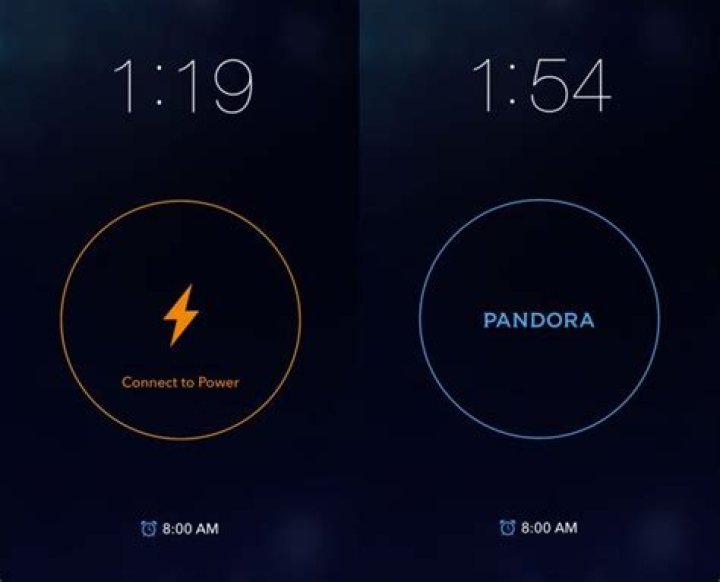
Once you’ve set up your Pandora alarm, you need to turn it on. Once on, you will need to plug your device in and Pandora will need to remain on for the alarm to function. Pandora will appear on your screen in alarm clock mode, which will dim considerably so it doesn’t shine brightly in your darkened room
Your device needs to be connected to a power source or it will run the device down. On the right, we see that everything is blue and good to go.
From hereon, you can wake up to any station or type of music you desire. Furthermore, if you want to really make sure you wake up, you could output your device to larger speakers in another room via a Bluetooth connection.
Note, if you want to turn off your Pandora alarm clock, simply tap the screen and you will be given that option.
Conversely, if you like to fall asleep to music, you can also set Pandora’s sleep timer so it shuts off after a certain duration. To do this, again open the settings on your app and simply choose how long you want your station to play. You can let Pandora play for up to an hour in 15-minute increments.
After your timer’s duration expires, Pandora will turn off. Bear in mind, you can use the sleep timer in conjunction with the alarm function, so you can not only wake up to music, but fall asleep to it as well!
Let’s hear from you now, do you have a favorite way you like to wake up in the morning, such as a preferred alarm clock app? Please leave your questions or comments in our discussion forum. We appreciate your feedback.
The alarm clock on your iPhone is incredibly useful, and may have already replaced any separate alarm clock that you had previously used. You can customize the iPhone alarm in several ways, and you could even set the alarm to play a song when it goes off.
But you might not like to hear the same song every morning, or you might like to lay in bed for a while after your alarm goes off. The perfect solution to this is to have a variable music option start playing when your alarm is going off, and the Pandora app on your iPhone can help with that. Our guide below will show you how to set an iPhone alarm in the Pandora app and have it play a station instead of a sound or specific song.
How to Set a Pandora iPhone Alarm
The steps below were performed on an iPhone 7 Plus, in iOS 10.2. Note that this won’t disable or replace any alarms that you have set via the Clock app on your iPhone. Note that you will need to leave the Pandora alarm screen on, and you will need to connect your iPhone to power before you go to sleep.
Step 1: Open the Pandora app.
open the pandora app
” data-medium-file=” data-large-file=” svg+xml,%3Csvg%20xmlns=%22http:// data-src=” alt=”open the pandora app” width=”350″ height=”622″ data-srcset=” 350w, 169w” data-sizes=”(max-width: 350px) 100vw, 350px” />
Step 2: Tap the menu icon at the top-left of the screen.
open the pandora settings menu
” data-medium-file=” data-large-file=” svg+xml,%3Csvg%20xmlns=%22http:// data-src=” alt=”open the pandora settings menu” width=”350″ height=”622″ data-srcset=” 350w, 169w” data-sizes=”(max-width: 350px) 100vw, 350px” />
Step 3: Select the Settings option.
tap the Settings option
” data-medium-file=” data-large-file=” svg+xml,%3Csvg%20xmlns=%22http:// data-src=” alt=”tap the Settings option” width=”350″ height=”622″ data-srcset=” 350w, 169w” data-sizes=”(max-width: 350px) 100vw, 350px” />
Step 4: Tap the button to the right of Alarm.
turn on the alarm clock
” data-medium-file=” data-large-file=” svg+xml,%3Csvg%20xmlns=%22http:// data-src=” alt=”turn on the alarm clock” width=”350″ height=”622″ data-srcset=” 350w, 169w” data-sizes=”(max-width: 350px) 100vw, 350px” />
Step 5: Choose the time, station, snooze, and volume, then tap the Save button at the top-right of the screen.
configure the settings on the Pandora alarm
” data-medium-file=” data-large-file=” svg+xml,%3Csvg%20xmlns=%22http:// data-src=” alt=”configure the settings on the Pandora alarm” width=”350″ height=”622″ data-srcset=” 350w, 169w” data-sizes=”(max-width: 350px) 100vw, 350px” />
As mentioned above, be sure to leave the Pandora alarm screen open, and connect your iPhone to power.
how to set a pandora alarm on an iPhone
” data-medium-file=” data-large-file=” svg+xml,%3Csvg%20xmlns=%22http:// data-src=” alt=”how to set a pandora alarm on an iPhone” width=”350″ height=”622″ data-srcset=” 350w, 169w” data-sizes=”(max-width: 350px) 100vw, 350px” />
Do you have too many Pandora stations, making it difficult to find the one you want to listen to? Learn how to delete Pandora stations on your iPhone and remove the ones that you aren’t listening to anymore.
Kermit Matthews is a freelance writer based in Philadelphia, Pennsylvania with more than a decade of experience writing technology guides. He has a Bachelor’s and Master’s degree in Computer Science and has spent much of his professional career in IT management.
He specializes in writing content about iPhones, Android devices, Microsoft Office and many other popular applications and devices.
Pandora updated its iOS app to include an alarm clock feature. And the feature has also been added to Android smartphones. Here’s a look at using it.
Pandora made an update for iOS that includes an alarm clock feature about a month ago. And on the heels of that, the Android version has been updated to include the same feature. The Alarm Clock feature is available for for the iPhone, iPod touch, and Android smartphones.
The iOS version received the Alarm Clock feature in early December. According to a recent post on the Pandora blog, user reaction for the feature was overwhelmingly positive. So the company decided to add Alarm Clock to Android smartphones too.
Pandora’s Alarm Clock allows you to wake up to your favorite music as well as hit a snooze button – it can be set for 5, 10, 15, or 20 minute increments. If you like to fall asleep with your favorite music playing on Pandora, there is also a Sleep Timer.
Using the Pandora Alarm Clock on Android and iOS
Make sure you’ve updated Pandora on your Android smartphone to the latest version via the Google Play Store.
Then you’ll find the Alarm Clock and Sleep timer at the bottom of the Settings section that slides over from the right.
Pandora’s Alarm Clock feature works virtually the same on the iPhone and iPod touch as well. Pull it up, set the Sleep Timer before you go to bed if you want. Then turn on the Alarm Clock and set it to the time to get up, the Station you want to wake up to, Snooze interval, and the volume.
This is definitely a welcome feature for Pandora users and it works well from my tests. However, the fact it’s not available on tablets something that’s hard to overlook. Hopefully we’ll see it added in a future update.
Story by
Emil Protalinski
Story by
Emil Protalinski
Emil was a reporter for The Next Web between 2012 and 2014. Over the years, he has covered the tech industry for multiple publications, incl (show all) Emil was a reporter for The Next Web between 2012 and 2014. Over the years, he has covered the tech industry for multiple publications, including Ars Technica, Neowin, TechSpot, ZDNet, and CNET. Stay in touch via Facebook, Twitter, and Google+.
Pandora today updated its Android app with tablet additions: an alarm clock and sleep timer. You can download the new version now directly from Google Play.
The full Pandora 5.2 for Android changelog is as follows:
- Sleep timer and alarm clock are now available for your tablet: djust the sleep timer time from 15/30/60 minutes, use the snooze feature on the alarm clock to sleep in, and use both together to dream away and wake up to your favorite station.
- Receive personalized notifications on your smartphone or tablet: Hear about new music or comedy added to your stations, and find out your friends’ activities including follows and comments.
- The usual improvements and bug fixes.
Psst. need help reaching your clients?
Here’s how AI can improve your company’s customer journey
Pandora for iOS first got an alarm clock back in December. The Android app received the features for smartphones in January, and tablets finally have them too.
Getting out of bed can be a constant daily battle but having a good alarm clock can sometimes help a great deal. You may not realize it, but you can set Pandora to act as your alarm, which we’ll show you how to do today.
Getting up may be an uninterrupted battle every day, but having a good alarm clock can sometimes help a lot. You may not realize it, but you can set Pandora as an alarm clock and we will show you how to do it.
One of the benefits of using the Pandora app on your smartphone or tablet is that you can set it to turn on at certain time to play your favorite station. This alarm function is unique in that it’s akin to waking up to an alarm clock radio rather than the normal, boring alarm on your phone.
One of the benefits of using the Pandora app on your smartphone or tablet is that you can set it to turn on at a specific time to play your favorite radio stations. The unique feature of this alarm feature is that it is similar to a wake-up alarm clock radio, rather than the normal boring alarm on a mobile phone.
To set an alarm using Pandora, first fire up the app and then tap open the “Settings”. On Android, the settings can be found in the upper-right corner of the app.
To use Pandora to set up alerts, first launch the application and then tap to open “Settings”. On Android, you can find the settings in the upper right corner of the app.
On the iOS app, the settings can be accessed from the bottom-right corner. Once you have opened the settings panel, you can tap on the “Alarm Clock” function in either version of the app.
On the iOS app, the settings can be accessed from the bottom right corner. After opening the settings panel, you can click on the “Alarm Clock” function in any version of the application.
Once in the settings, it’s just a matter of tapping open the “Alarm Clock” option. After entering the settings, just click to open the “Alarm” option.
Here in the iOS version, you will need to set the time, station, and volume to which you want to wake. Additionally, you can set the snooze time, which defaults to five minutes.
In the iOS version, you need to set the time, time and volume you want to wake up. In addition, you can set the snooze time, the default is five minutes.
On the Android app version, there’s an additional feature, which will let you repeat the alarm on the days you need to use.
In the Android app version, there is an additional feature that allows you to repeat reminders on the days you need to use.
The Android app’s alarm clock is almost exactly the same as the iOS version, except you can choose to repeat them. The alarm clock of the Android application is almost identical to the alarm clock of the iOS version, but you can choose to repeat the alarm.
For example, as seen here in this screenshot, you can decide what day or days Pandora wakes you.
For example, as shown in this screenshot, you can decide the date when Pandora wakes you up.
The Android app will let you repeat the alarm for every day you need it. The Android application allows you to repeat the alarm every day you need it.
Once you’ve set up your Pandora alarm, you need to turn it on. Once on, you will need to plug your device in and Pandora will need to remain on for the alarm to function. Pandora will appear on your screen in alarm clock mode, which will dim considerably so it doesn’t shine brightly in your darkened room
After setting the Pandora alarm, you need to turn it on. After turning it on, you need to plug the device into a power source, and Pandora needs to stay on for the alarm to work. Pandora Box Cat will appear on the screen in alarm mode, which will be significantly dimmed, so it will not glow brightly in a dimly lit room
Your device needs to be connected to a power source or it will run the device down. On the right, we see that everything is blue and good to go. Your device needs to be connected to a power source, otherwise it will shut down the device. On the right, we see that everything is blue and everything is going well.
From hereon, you can wake up to any station or type of music you desire. Furthermore, if you want to really make sure you wake up, you could output your device to larger speakers in another room via a Bluetooth connection.
From here, you can wake up any radio station or music genre you want. In addition, if youReally want to make sure I wake up,canConnect via BluetoothOutput device toLarger speakers in another room。
Note, if you want to turn off your Pandora alarm clock, simply tap the screen and you will be given that option.
Please note that if you want to turn off Pandora’s alarm, just tap the screen and the system will provide you with this option.
Conversely, if you like to fall asleep to music, you can also set Pandora’s sleep timer so it shuts off after a certain duration. To do this, again open the settings on your app and simply choose how long you want your station to play. You can let Pandora play for up to an hour in 15-minute increments.
Conversely, if you want to fall asleep to music, you can also set Pandora’s sleep timer to turn off after a certain amount of time. To do this, open the settings on the app again and simply choose how long you want the radio station to play. You can make Pandora play up to one hour in 15-minute increments.
After your timer’s duration expires, Pandora will turn off. Bear in mind, you can use the sleep timer in conjunction with the alarm function, so you can not only wake up to music, but fall asleep to it as well!
After the timer’s duration expires, Pandora will shut down. Remember, you can combine the sleep timer with the alarm function so that you can not only wake up to music, but also fall asleep!
Let’s hear from you now, do you have a favorite way you like to wake up in the morning, such as a preferred alarm clock app? Please leave your questions or comments in our discussion forum. We appreciate your feedback.
Now let us listen to your message. Do you have a favorite way to wake up in the morning, such as your preferred alarm clock app? Please leave your questions or comments in our forum. Thanks for your feedback.
Your Android phone’s alarm clock is handy and can wake you up with ringtones or your own music. But if you prefer waking up to a station, now you can with Pandora for Android.
Related stories:
- How to set Pandora’s new sleep timer for mobile
- Wake up to your favorite music with Pandora’s new alarm clock
- Payoff for picking Pandora on your drive? Even fewer ads
More and more people are relying on mobile phone alarm clock apps to wake them up in the morning. To wake up to your favorite music, you can load up your own songs, but that takes time and planning. Chances are, you’ll also get tired of waking up to the same songs over and over again.
Instead of waking up to ringtones or your own music, you can now wake up to your favorite Pandora stations on Android. Previously only available on iOS, Android users can now join in on the fun.
To use the alarm clock, first make sure you’re on the latest version of Pandora for Android. Then, go to the Menu from the Now Playing screen and tap on the alarm clock setting.
Screenshot by Ed Rhee/CNET
When the alarm details appear, you can choose the time, music station, snooze time, and volume. Unique to Android, you can also customize repeat settings for each day of the week.
Screenshot by Ed Rhee/CNET
When the alarm goes off, you have the option of turning it off or snoozing. If you choose snooze, a timer will display on the screen.
Screenshot by Ed Rhee/CNET
That’s it. Keep in mind that the alarm function only works on Android phones for the time being. There’s no word on whether the feature might eventually make it to Android tablets.
Story by
Emil Protalinski
Story by
Emil Protalinski
Emil was a reporter for The Next Web between 2012 and 2014. Over the years, he has covered the tech industry for multiple publications, incl (show all) Emil was a reporter for The Next Web between 2012 and 2014. Over the years, he has covered the tech industry for multiple publications, including Ars Technica, Neowin, TechSpot, ZDNet, and CNET. Stay in touch via Facebook, Twitter, and Google+.
Pandora today updated its Android app with a new alarm clock feature. You can download the new version now directly from Google Play.
The update follows the release of Pandora 5.1 for iOS, which first featured the new alarm clock feature. At the time, the company said the Android app would get it too, but it wouldn’t say when.
TNW Conference is back, baby!
Secure your spot today at super early bird prices!
Now it’s here. The full Pandora 5.1 for Android changelog is as follows:
- By popular demand, our new alarm clock lets you start your day with Pandora on your Android smartphone Pick one of your favorite stations to wake up to – if you like what you hear, you can keep the music playing.
- Set and forget – customize how often your alarm repeats throughout the week.
- Need a few extra minutes of shut eye? Hit snooze to catch more zzz’s.
- Use with the sleep timer to listen to music you love morning and night.
- Other small improvements and bug fixes.
Just like on iOS, the alarm clock lets you wake up to your favorite Pandora music. When the alarm goes off, your music will begin to play with album art scrolling in the background, and you can choose to snooze, keep listening to your music, or turn off the alarm simply by tapping the song title or artist name.
The snooze option can be set for 5, 10, 15, or 20-minute increments. When the snooze option is activated, your music will pause and the amount of time remaining will be displayed along with a progress bar counting down how many minutes you have left before the alarm goes off again.
The alarm clock complements Pandora’s recently-added feature for falling asleep to your favorite stations: the Sleep Timer. The company says both were top-requested additions by its users.
Top Image Credit: khrawlings / Flickr
With its latest update for iOS, Pandora Radio introduces a new design and an alarm clock feature.
Waking up to the loud beeping of an alarm clock is no way to start a day, particularly if you regularly hit the snooze button and repeat the process once or twice before rolling out of bed. Pandora offers a better way. The free Pandora Radio app for iOS just received an update that introduces a new design for iOS 7 along with a long-awaited alarm clock feature.
Screenshot by Matt Elliott/CNET
To set the alarm, tap on the menu button in the upper-right corner when viewing the Now Playing screen. At the bottom of the menu you’ll see a new line for Alarm Clock. Tap on the line to set the alarm. In addition to setting the time, you can choose the Pandora station to which you’d like to arise, the length of the snooze timer, and the volume. Tap the Done button to return to the main menu and then tap the slider button to turn the alarm on.
Screenshot by Matt Elliott/CNET
Two important notes: for the alarm to work, you must keep the Pandora app open to the alarm screen and your iPhone, iPad, or iPod plugged in. (Update: the alarm clock feature is not available for the iPad; a Pandora spokesperson says “we are hoping to develop this soon.”) Also, you will need a network connection — cellular or Wi-Fi — for the alarm to work.
Screenshot by Matt Elliott/CNET
When the alarm goes off, you can tap the top half of the big button to turn the alarm off or the bottom half to snooze. You can also shake your iOS device to snooze. Artist and track information is displayed at the bottom of the alarm screen, and album art is displayed in the background. If Pandora wakes you up with a particularly choice track and you want to jump out of bed and keep the song playing, just tap the artist and track information. It turns off the alarm and opens whichever station you selected to wake to.
Should you want to drift off to sleep to Pandora Radio — before waking up to its alarm clock — learn how to set Pandora’s sleep timer for mobile that was introduced earlier this year.
While the Pandora Radio app for iOS was updated today with the alarm clock feature, the Android app has not.
Submitted by Fred Straker on May 13, 2014 – 11:09pm
Practically everyone with an iPhone or iPad knows how to set an alarm to get themselves out of bed in the morning. But how many of these iOS users know that a music sleep timer is also available? Setting the iPhone to automatically stop playing music after a set time interval can help one fall asleep without draining the battery into the night.
While the music sleep timer works with the built-in Music app and some others such as Pandora, the feature is hidden in the Clock. To set up your music to fade out quickly and stop playing when the timer ends, first open the Clock app and navigate to Timer.
Next tap When Timer Ends to change the alarm ringtone. Instead of choosing an alarm, swipe up to scroll all the way to the bottom. The last choice on the list is Stop Playing. Select Stop Playing and tap the Set button in the upper right corner.
Next set the timer interval like normal and hit start. While the timer is counting down the minutes, switch over to the Music app and start playing the desired album or playlist. Lock the iPhone to turn off the screen and enjoy the tunes.
When the timer ends, iOS will automatically stop playing the music, fading it out quickly.
While Music and Pandora work with the Stop Playing feature, make sure to test other audio apps before trying to use the sleep timer on them. Some apps, such as TuneIn Radio (6.1) will not stop playing when the timer ends.




