One of the cool things with Kindles is you can load them up with ebooks and then give it to your kid or use it as a guest ebook reader to give to people who visit your home or office.
The same thing can be done with Kindle Fire tablets. You can load them up with apps, ebooks, movies, music, whatever you want. And then give it to someone else to use and not have to worry about them having access to your Amazon account and content, and buying stuff with your money.
The best way to setup a Kindle for a child or a guest is to use the built-in parental controls feature. This lets you set a password to restrict access to the web browser, Kindle Store, Goodreads, and cloud items on Kindle ebook readers. On Kindle Fire tablets, there are even more options to set restrictions, and you can even setup kid-specific profiles using Kindle FreeTime and assign books and apps to that profile.
Setting up parental controls is different on each Kindle model. Here’s how the process works on each line of Kindles.
Kindle Paperwhite
Tap the Menu button, then tap Settings.
Select Device Options, then Parental Controls, then Restrictions.
From here you can choose to restrict the web browser, Kindle Store, Cloud ebooks, and Goodreads access.
All you have to do is create a password to turn them on and off. A lock icon appears at the top of the screen when Parental Controls are set.
The Kindle Paperwhite also has the option to create separate profiles for kids with Kindle FreeTime in addition to setting parental controls. To setup Kindle FreeTime, go to the homescreen, then tap the menu button and select Kindle FreeTime. This will automatically block access to the Kindle Store, the web browser, and Wikipedia, and hildren can only read ebooks that you add to their profile’s library.
Basic $69 Kindle
From the homescreen, press the Menu button, then scroll down and select Settings.
From the Settings Menu, turn to page 2 and then select Parental Controls.
From here you can turn on and off access to the web browser, Kindle store, and archived items simply by entering a password.
Kindle Fire Tablets
With the Kindle Fire HDX tablets and the 2nd gen Kindle Fire HD, you have the option to create separate profiles in Kindle FreeTime in addition to setting parental controls to restrict access to certain elements.
With Kindle FreeTime, you can create personalized profiles for kids, and set daily time limits, and subscribe to kid-specific content for a monthly fee. Here’s more about setting up and using Kindle FreeTime.
Older Kindle Fires have parental control options as well, just not the Kindle FreeTime option.
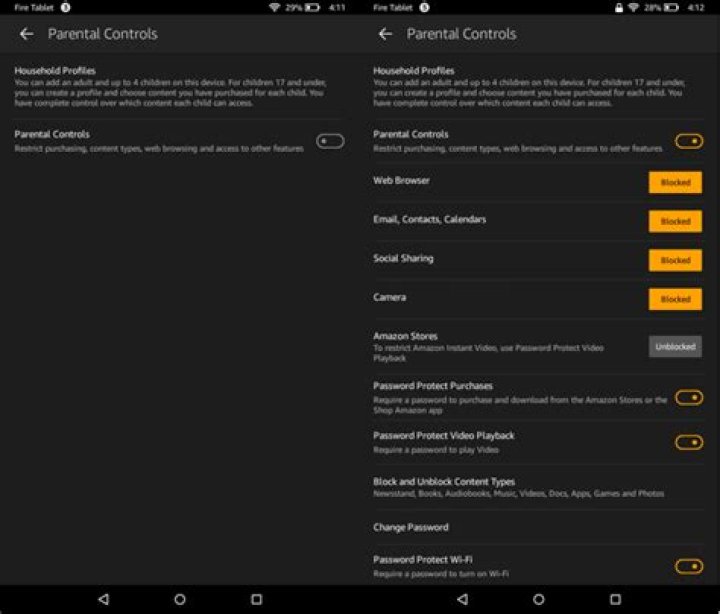
To set Parental Controls on Kindle Fire tablets, pull down from the top of the screen to open the Quick Settings bar, then tap Settings (More on older models). Select Parental Controls, then from there you can turn on and set various restrictions by setting a password.
The following items can be restricted:
- Web browsing
- Email, Contacts, and Calendars apps
- Social network sharing
- Camera
- The ability to purchase from the content stores on your device (for example, the Amazon Appstore)
- The ability to play movies and TV shows from Amazon Instant Video
- Specific content types (for example, Books or Apps)
- Wireless connectivity
- Location-Based Services
A lock icon appears at the top of the screen when Parental Controls are set.
How to Reset Parental Control Password Kindle
Everything is available on the internet these days- from moral to sensitive data. So, one cannot provide children with access to everything. With parental control, one can manage the access and filter the type of content. But, what if you forgot parental control password on amazon fire tablet ? Well, no worries at all! You can reset parental control password kindle. As the latest versions of Kindle are being used these days, therefore, the steps for forgetting parental control password kindle fire 7 are discussed in this article. So, let’s get started!
Steps to Reset Parental Control Password Kindle
No one can take a chance or risk with their children. As children are very sensitive, and they catch everything very easily whether it is a good or bad thing. Therefore, it is the responsibility of the parents to set the parental control. Even if they have forgotten the password, then they just need to follow the steps to reset parental control password kindle given below:
- Step 1: Swipe down the screen of the Amazon Kindle Fire.
- Step 2: Now, from the settings, select the option of the Parental control.
- Step 3: Enter the password even if it is wrong for 5 times continuously so that pop up could appear.
- Step 4: Then, the pop- up will appear for the login to the Amazon account.
- Step 5: Now, enter the credentials for the Amazon account, and login into it.
- Step 6: Click on the Continue button.
- Step 7: Then, enter the new password for the parental control, and tap on the Finish button.
In this way, you will be able to reset parental control password kindle, if you have forgot parental control password on amazon fire tablet . In case, you are new to all this, and have not set the parental controls earlier, then you need to move to the next section in order to know how to do this.
Setup the Parental Control on Amazon Kindle
To set the parental control on Amazon Kindle Fire to manage the access to the data for children you need to go with the steps mentioned below:
- Step 1: Swipe down the notification panel or top of the screen.
- Step 2: Select the option of the Parental Controls.
- Step 3: Toggle the button to ON for the parental controls.
- Step 4: This will ask you to set the password for the parental control.
- Step 5: Set the new password and then hit the Finish button.
In this way, you will set the parental control on the Amazon Kindle device, and filter the type of content to which your children can have the access. In case, you don’t know how to monitor the data which your children are accessing, then the next section will explain it to you in detail.
Monitoring the Access to Data
When you have set the parental control, then it is not just enough. You should monitor the data which your children are accessing, and then control it, to which content they can have the access. To do so, follow the instructions given below:
- Step 1: Swipe down the screen of the Amazon Kindle.
- Step 2: Then go to the option of the Parental Control.
- Step 3: Then, the prompt will open asking you to enter the password.
- Step 4: Enter the required password, and tap on the OK button.
- Step 5: Then, allow or block the sites by controlling the access.
- Step 6: To know what your children are doing, toggle on the button for the Monitoring this profile.
- Step 7: This will show you the information you required.
Parental Control is Must!
Parental Control is a must these days as the internet is full of sensitive data these days. No one wants their children to have access to the bad things. So, the above mentioned are the features to have the parental control on the Amazon Kindle Fire. Even, upon setting if you have forgot parental control password on amazon fire tablet, then you can reset parental control password kindle . With this, you will again have the access to your children’s profile, and manage the information which you want them to access. In the end, wish you happy parenting!
App Profiles
Amazon Echo
Amazon Fire Stick
Android Devices
Apple iPhone & iPad
Apple MacBook
Apple TV
Chromebook
Chromecast
Gabb Wireless
Google Home
Kindle Fire HD
Nintendo 3DS
Nintendo Switch
PlayStation 4 (including VR)
PlayStation 5
Roku and Roku TV
Smart TVs
Wii U Gaming System
Windows (PC)
Wireless Routers
Xbox Gaming System
The Complete Guide to Kindle Fire Parental Controls
The Kindle Fire’s web browser, Silk, is difficult to filter and doesn’t make a very good “training ground” for young internet users. As you’ll see below, we recommend turning the browser off and enabling the great parental controls that come on the device.
The following layers will help protect your kids from inappropriate exposures on their Kindle.
We recommend 3 Layers of Kindle Fire protection:
- Layer 1: Guard the location of the Kindle Fire.
- Layer 2: Love your router (WiFi)!
- Layer 3: Set up the Kindle Fire correctly.
(Tap the image for more free information)
Layer 1: Guard the location of the Kindle.
Remember, where kids use technology often dictates how they use their technology. We have strong opinions about controlling where kids use their tech. For example, let’s keep all internet-ready devices out of bedrooms at night, where kids take more risks, and sleep is constantly interrupted.
Just know that the combination of boredom, bedrooms, and darkness (the Toxic Trio) can be tempting spots to make bad digital choices (whether you’re 14 or 40 years old!).
Layer 2: Love your WiFi (router)!
The Router is the most important digital hardware in the house! And, it’s often the most ignored. We joke that routers are the social distance champion of technology. But, get this part of your internet safety plan correct! You are responsible for every digital click on your home’s network, so be sure to control the router.
Popular options for parents are:
- Gryphon Advance Security & Parental Controls router. We have really enjoyed the Gryphon. Top-notch set of parental controls. This is the router used by our CEO, Chris, with his four children. It gives you time control, YouTube Restricted Mode, and more. Easy set-up and a parent app that allows you to pause the internet with one touch.
- Circle acts as an accessory to your router, giving you stronger parental controls over your home’s network. It’s not a router but connects to your router. Easy-to-use app for you to exert screen time and app control over your kid, but weak on content (porn) with a motivated kid.
Tap/click the image to head over to Gryphon. We’re affiliates because they’re great! You pay the same.
Layer 3: Set up the Kindle Fire correctly.
Give the Kindle a name. Go to Settings (Apps – Settings – Device Options) to give the Kindle a name, preferably one that implies both child and parental ownership, e.g., “Dad and Daughter’s Kindle”. This creates a culture of parental involvement in the device’s usage from the beginning. Maybe use a selfie with both of you in the picture as the profile picture.
This communicates very early on that all devices are co-owned. There’s no such thing as device privacy in the home! Every internet-ready device is co-owned by parents.
Create user profiles. Go to Settings (Apps – Settings – Profiles & Family Library) and customize each user profile.
Set up Kindle’s free parental controls
- Swipe down from the top of the screen, exposing a series of options, and tap Settings (the gear icon).
- Tap Parental Controls and toggle it on.
- Enter a password that your kid doesn’t know (this is different than the Kindle’s lock screen passcode). You’ll notice a few things happen.
- By default, this will block Alexa, the Silk web browser, email, contact, calendars, and the camera. You can choose to turn any of them back on.
- It will also password-protect purchases and videos and block social sharing.
- You can also toggle on Set Restricted Access and select hours when the tablet should not be used without your password.
How to block in-app purchases on Kindle Fire:
- Swipe down on the home screen and click the settings gear
- Under Device click Apps & Games
- Click Amazon Application Settings
- Click Appstore
- Click In-App Purchasing
- Make sure the box is unchecked, (as shown below)
Consider using Amazon’s new Amazon Kids+ (paid) parental controls
If you want even more control over screen time, filters, and access to a library of kid-friendly content, then consider Amazon’s Kids+ (formerly Free Time). For $2.99/month, it’s pretty good.
A Kindle Fire warning for parents with sneaky kids:
A distraught mother told us about the following porn pathway that he son found on a Kindle Fire.
The Alexa App is all but impossible to remove from the Kindle Fire. It might be disabled via parental controls, but you can still browse the Alexa app for other Alexa “skills” and “games.”
Through those other “skills” and “games” within the Alexa app, there are terms & conditions that can lead to hidden Google searches, Twitter, and more.
You can’t remove the App. But, you can block porn by changing the DNS of the device to something like CleanBrowsing and/or make sure the device is connected to a WiFi signal that has porn blocked.
Related posts:
Busy Parents! Download The Protect App today!
We share amazing content like everything we know about Kindles, Among Us, Snapchat, and 450+ other mini-lessons, all in bite-sized chunks so that you can learn on the go. Learn more today!
Click/tap the image for more details!
Utilizing Parental Controls and Child Profiles for an Amazon Fire Tablet
Utilizing Parental Controls and Child Profiles for an Amazon Fire Tablet
Amazon’s Fire Tablet provides both parental settings for quickly locking down a t l also fine-grained “child profiles”. These youngster (or teenager) profiles make use of the Kindle FreeTime function, which is possibly the most sophisticated parental-control solution for a tablet os
Fire OS is actually quite compelling if you’re trying to find powerful parental settings and features that are child-friendly. It’s here that Amazon’s hardware really stands out on more than just price.
Parental Controls vs. Child Pages
It is possible to lock down your device in another of two methods. There are parental settings, and you can find child pages that utilize Kindle FreeTime. Both are meant for securing down your device and limiting exactly what your children can do, but they simply take different approaches.
Parental Controls Enable parental settings therefore the Fire table will block usage of a number of things — the web browser, email, connections, calendars, social sharing, the camera, Amazon’s stores, purchases, video playback, various kinds of content, Wi-Fi settings, and location services. You are able to ch se which of these you need to block.
This doesn’t need you to setup any other account. Effortlessly, it is a restriction placed on the account that is current can’t be eliminated until you know the password. It is possible to just activate parental controls, set a control that is parental, and access to sensitive and painful content may be limited. Then you’re able to control the tablet to a kid and allow them to put it to use because they wish.
Son or daughter pages Rather than just activating parental controls, you can get more sophisticated settings by producing up to four “child pages” or “teen profiles”. You’d create a different profile for each young one who can make use of the device. These use Amazon’s Kindle FreeTime feature, and you may ch se which apps, eB ks, as well as other content you intend to share. You’ll be able to change many different other settings — for instance, setting a time that is“bed for each young one after which it they can’t utilize the tablet, establishing limits how much they are able to utilize the tablet for various purposes, or requiring them to utilize academic content before they can play games.
Enable Parental Controls
To activate parental settings, start the “Settings” software — swipe down from the the top of display and tap “Settings.” Touch the “Parental controls” option under private. Activate the “Parental Controls” slider and you’ll be prompted to create a control password that is parental. This password is essential for enabling, disabling, or configuring parental controls. It is possible to change it using this display screen later — assuming you understand the password that is current.
Use the other choices regarding the display to control access to the internet browser, e-mail, connections, calendars, social sharing, the digital camera, Amazon’s stores, videos, other styles of content, Wi-Fi settings, and location solutions settings.
While parental controls are enabled, you’ll see a lock symbol in the notification club the display. To disable them, pull the notification shade down at the display, tap the “Parental controls are enabled” option, then enter your password.
You could keep controls that are parental except when you need to use the tablet your self, ensuring your children can’t make purchases, wreak havoc on your e-mail, watch age-inappropriate videos, or browse the web — depending on which choices you ch se.
Create Child Profiles
Start the Settings display screen and tap “Profiles & Family Library” under Personal to produce new pages and handle ones that are existing. This uses your configured “Family” and works along side Kindle Family Sharing.
Tap the “Add child profile” option hot or not Hoe te zien wie je leuk vindt zonder te betalen and you’ll be able to add one or more pages. A “child profile” will receive a simplified, content-centric program, while a “teen profile” can get Amazon’s standard Fire tablet program.
You’ll be able to ch se which content you need to share, and you will tap the child’s name later on to include more settings. As an example, you could set up day-to-day time limits, selecting once the kid is allowed to utilize the tablet as well as for how long they can do different things about it.
Through the lock display, you or other people utilizing the tablet can touch the profile photo during the top-right corner associated with display and select an user that is new switch users. You may also pull down the quick settings menu while finalized in, tap the profile picture, and ch se a new individual account.
To see information regarding how your child happens to be utilising the tablet, you’ll open the “FreeTime” application.
Amazon will probably carry on incorporating brand new controls that are parental Fire OS. It’s ahead of every other operating that is mobile in terms of kid-friendly features and parental settings. It’s especially ahead of Apple’s iOS, which nevertheless doesn’t provide multiple individual accounts or pages on a iPad that is single.
By Kelly Woo 25 December 2020
A new update means it’s time to learn how to add Fire TV profiles
Amazon’s Fire TV interface is finally adding multiuser support, so it’s time to learn how to add Fire TV profiles, as you get up to six for the same Amazon Prime Video account.
The new Fire TV update features a complete redesign, with a simplified main menu, a tailored Home screen, a Find hub with recommendations and a Live area that includes a guide of currently-airing shows and movies on services like IMDb TV.
But the biggest (and most welcome) change is the ability to create up to six user profiles — one default and five additional profiles for either adults or kids.
- How to use the Amazon Fire TV Stick
- Amazon Fire TV Stick vs Apple TV: Which is right for you?
By using profiles, you, your family members and friends can personalize your watch lists, viewing history and recommendations. Kids profiles can be managed with parental controls to ensure that little ones only see appropriate content. And you can even create an Alexa voice profile and link it to your Fire TV profile.
Multiple user profiles is something that Fire TV users have wanted for a long time and they’re finally here! At least for some people. The new interface is rolling out first to the new Fire TV Stick 2020 and Fire TV Stick Lite; the Fire TV Cube and Fire TV Stick 4K will get it in early 2021.
Here’s a guide on how to set up, add, manage and delete Fire TV profiles.
How to add a new Fire TV profile
The new Fire TV interface provides a number of ways to add a new Fire TV profile:
1. From the start-up screen after turning on your Fire TV Stick
2. From the center navigation menu, Profiles (icon on far left)
3. From Settings (gear icon on far right) > Account & Profile Settings > Profiles
4. By saying “Profiles” after pressing the voice button on the remote
Once you get to the Profiles page, follow these steps:
1. Under “Who’s Watching Fire TV?”, use the remote to select Add Profile.
2. Select “Enter Name” for an adult or “This is a Child Profile” for children under 12.
3. To enter a name, use the remote to type in the keyboard or press the voice button to say words.
3. If it’s a child profile, enter the name and date of birth.
4. Select “Profile Icon” to add an icon.
5. Choose from a range of options.
6. Click Add. The profile should now be listed under “Who’s Watching Fire TV?”
How to use Alexa to switch Fire TV profiles
To use Alexa to switch to your personal Fire TV profile, you need to set up an Alexa voice profile first:
- Press the voice button on the Fire TV Stick remote.
- Say “Alexa, learn my voice.”
- Follow Alexa’s instructions to set up your voice profile.
- Press the voice remote, then say “Alexa, switch to my profile.”
How to delete Fire TV profiles
In the same three ways where you can add new profiles, you can manage all profiles, edit them or delete them.
From the start-up screen, main screen or profile settings tab:
1. Under “Who’s Watching Fire TV?”, use the remote to click the edit/pen icon underneath an individual profile.
2. Select “Remove” to delete the profile.
3. Confirm you want to remove the profile.
Now you know how to add and remove Fire TV profiles, and enjoy the ability to control your own recommendations!
Utilizing Parental Controls and Child Profiles for an Amazon Fire Tablet
Amazon’s Fire Tablet provides both parental settings for quickly locking down a t l also fine-grained “child profiles”. These youngster (or teenager) profiles make use of the Kindle FreeTime function, which is possibly the most sophisticated parental-control solution for a tablet os
Fire OS is actually quite compelling if you’re trying to find powerful parental settings and features that are child-friendly. It’s here that Amazon’s hardware really stands out on more than just price.
Parental Controls vs. Child Pages
It is possible to lock down your device in another of two methods. There are parental settings, and you can find child pages that utilize Kindle FreeTime. Both are meant for securing down your device and limiting exactly what your children can do, but they simply take different approaches.
Parental Controls Enable parental settings therefore the Fire table will block usage of a number of things — the web browser, email, connections, calendars, social sharing, the camera, Amazon’s stores, purchases, video playback, various kinds of content, Wi-Fi settings, and location services. You are able to ch se which of these you need to block.
This doesn’t need you to setup any other account. Effortlessly, it is a restriction placed on the account that is current can’t be eliminated until you know the password. It is possible to just activate parental controls, set a control that is parental, and access to sensitive and painful content may be limited. Then you’re able to control the tablet to a kid and allow them to put it to use because they wish.
Son or daughter pages Rather than just activating parental controls, you can get more sophisticated settings by producing up to four “child pages” or “teen profiles”. You’d create a different profile for each young one who can make use of the device. These use Amazon’s Kindle FreeTime feature, and you may ch se which apps, eB ks, as well as other content you intend to share. You’ll be able to change many different other settings — for instance, setting a time that is“bed for each young one after which it they can’t utilize the tablet, establishing limits how much they are able to utilize the tablet for various purposes, or requiring them to utilize academic content before they can play games.
Enable Parental Controls
To activate parental settings, start the “Settings” software — swipe down from the the top of display and tap “Settings.” Touch the “Parental controls” option under private. Activate the “Parental Controls” slider and you’ll be prompted to create a control password that is parental. This password is essential for enabling, disabling, or configuring parental controls. It is possible to change it using this display screen later — assuming you understand the password that is current.
Use the other choices regarding the display to control access to the internet browser, e-mail, connections, calendars, social sharing, the digital camera, Amazon’s stores, videos, other styles of content, Wi-Fi settings, and location solutions settings.
While parental controls are enabled, you’ll see a lock symbol in the notification club the display. To disable them, pull the notification shade down at the display, tap the “Parental controls are enabled” option, then enter your password.
You could keep controls that are parental except when you need to use the tablet your self, ensuring your children can’t make purchases, wreak havoc on your e-mail, watch age-inappropriate videos, or browse the web — depending on which choices you ch se.
Create Child Profiles
Start the Settings display screen and tap “Profiles & Family Library” under Personal to produce new pages and handle ones that are existing. This uses your configured “Family” and works along side Kindle Family Sharing.
Tap the “Add child profile” option and you’ll be able to add one or more pages. A “child profile” will receive a simplified, content-centric program, while a “teen profile” can get Amazon’s standard Fire tablet program.
You’ll be able to ch se which content you need to share, and you will tap the child’s name later on to include more settings. As an example, you could set up day-to-day time limits, selecting once the kid is allowed to utilize the tablet as well as for how long they can do different things about it.
Through the lock display, you or other people utilizing the tablet can touch the profile photo during the top-right corner associated with display and select an user that is new switch users. You may also pull down the quick settings menu while finalized in, tap the profile picture, and ch se a new individual account.
To see information regarding how your child happens to be utilising the tablet, you’ll open the “FreeTime” application.
Amazon will probably carry on incorporating brand new controls that are parental Fire OS. It’s ahead of every other operating that is mobile in terms of kid-friendly features and parental settings. It’s especially ahead of Apple’s iOS, which nevertheless doesn’t provide multiple individual accounts or pages on a iPad that is single.
How to Reset Parental Control Password Kindle
Everything is available on the internet these days- from moral to sensitive data. So, one cannot provide children with access to everything. With parental control, one can manage the access and filter the type of content. But, what if you forgot parental control password on amazon fire tablet ? Well, no worries at all! You can reset parental control password kindle. As the latest versions of Kindle are being used these days, therefore, the steps for forgetting parental control password kindle fire 7 are discussed in this article. So, let’s get started!
Steps to Reset Parental Control Password Kindle
No one can take a chance or risk with their children. As children are very sensitive, and they catch everything very easily whether it is a good or bad thing. Therefore, it is the responsibility of the parents to set the parental control. Even if they have forgotten the password, then they just need to follow the steps to reset parental control password kindle given below:
- Step 1: Swipe down the screen of the Amazon Kindle Fire.
- Step 2: Now, from the settings, select the option of the Parental control.
- Step 3: Enter the password even if it is wrong for 5 times continuously so that pop up could appear.
- Step 4: Then, the pop- up will appear for the login to the Amazon account.
- Step 5: Now, enter the credentials for the Amazon account, and login into it.
- Step 6: Click on the Continue button.
- Step 7: Then, enter the new password for the parental control, and tap on the Finish button.
In this way, you will be able to reset parental control password kindle, if you have forgot parental control password on amazon fire tablet . In case, you are new to all this, and have not set the parental controls earlier, then you need to move to the next section in order to know how to do this.
Setup the Parental Control on Amazon Kindle
To set the parental control on Amazon Kindle Fire to manage the access to the data for children you need to go with the steps mentioned below:
- Step 1: Swipe down the notification panel or top of the screen.
- Step 2: Select the option of the Parental Controls.
- Step 3: Toggle the button to ON for the parental controls.
- Step 4: This will ask you to set the password for the parental control.
- Step 5: Set the new password and then hit the Finish button.
In this way, you will set the parental control on the Amazon Kindle device, and filter the type of content to which your children can have the access. In case, you don’t know how to monitor the data which your children are accessing, then the next section will explain it to you in detail.
Monitoring the Access to Data
When you have set the parental control, then it is not just enough. You should monitor the data which your children are accessing, and then control it, to which content they can have the access. To do so, follow the instructions given below:
- Step 1: Swipe down the screen of the Amazon Kindle.
- Step 2: Then go to the option of the Parental Control.
- Step 3: Then, the prompt will open asking you to enter the password.
- Step 4: Enter the required password, and tap on the OK button.
- Step 5: Then, allow or block the sites by controlling the access.
- Step 6: To know what your children are doing, toggle on the button for the Monitoring this profile.
- Step 7: This will show you the information you required.
Parental Control is Must!
Parental Control is a must these days as the internet is full of sensitive data these days. No one wants their children to have access to the bad things. So, the above mentioned are the features to have the parental control on the Amazon Kindle Fire. Even, upon setting if you have forgot parental control password on amazon fire tablet, then you can reset parental control password kindle . With this, you will again have the access to your children’s profile, and manage the information which you want them to access. In the end, wish you happy parenting!
November 16, 2014 by Nathan
This past week Amazon issued a software update for the Kindle Voyage, Kindle Paperwhite, and $79 Kindle that adds the ability to create separate user profiles so that the device can be shared among friends and family.
The update also enabled a new feature that Amazon has just introduced called Family Library, which allows users to link two Amazon accounts together to share ebooks between accounts.
These same user profile and Family Library features are available on Fire HD and HDX tablets as well with the newer Fire OS 4 software. And with Fire tablets content sharing extends beyond ebooks to other Amazon content, including apps, games, audiobooks, and Prime Instant Video.
Since the update, there’s been some confusion about how to setup Family Library and Profiles to enable sharing. The main thing is the process has to be initiated from a Kindle/Fire device itself; you cannot setup Profiles or Family Sharing from Amazon’s website.
You can use the Manage Your Content page after setting things up on a Kindle or Fire tablet, but the option doesn’t exist until you add a new Profile on a device first.
Setting up Profiles
You can create profiles for up to 2 adults and 4 children. With adult profiles you can share content after authorizing two separate Amazon accounts. With child profiles, adults manage all the content available on that profile.
To setup a profile on a Kindle, go to Settings > Registration and Household > Household and Family Library > Add a New Person.
To setup profiles on Fire tablets, open the settings menu and select Household Profiles. Each profile maintains personalized settings for things like email, social network accounts, the home screen carousel, book and movie locations, gaming levels, etc. You can switch profiles from the lock screen, add a custom image, and you can also manage content for child profiles using the Amazon FreeTime app.
You’ll have to set a parental password when starting new profiles so they cannot access your profile. Adding another adult profile enables Family Library; the second adult has to sign in with a second Amazon account and authorize sharing (see below).
Note: According to Amazon, profiles are only available in the U.S., U.K., and Germany.
How to Setup Family Library Sharing
Family Library lets you link your Amazon account to that of another adult so you can easily share Kindle books and Amazon content across devices and apps.
It’s unclear if Family Library has been setup to allow content sharing on Fire tablets yet. There’s no mention about how any of it works on Amazon’s help pages, but it does specifically state on the product description page for Fire tablets that Family Library allows sharing apps, games, audiobooks, books, and Prime Instant Video content between two adult accounts without changing accounts.
As of this writing, the Family Library help page at Amazon only talks about sharing ebooks. It says that each person can choose to share all of their Kindle ebooks or just selected titles when enabling Family Library.
Once you’ve setup Family Library, shared content appears in the Cloud tab on the Kindle and can be filtered by See My Books, See My Partner’s Books, See All Books, etc. When accessing shared content, each person has their own settings for furthest page read, notes and highlights, etc.
Here’s the direction on how to setup Family Sharing:
On Kindle ereaders go to Settings > Registration and Household > Household and Family Sharing and add a second adult profile.
On Fire tablets open the settings menu and select Household Profiles to add an adult profile.
You’ll be asked to hand the device to the person for them to sign in with an Amazon account and authorize sharing.
You can choose specific ebooks to share after setting up a profile. Once a profile is setup, you can use the Manage Your Content page at Amazon to share content by checking the box next to the Kindle books that you want to share and then click Add to Family Library. From there you can choose the adult or kid’s FreeTime profile that you’d like to share the selected content with.
Tip: If you do not see the Add to Family Library button, click Show Family Library. This option only appears after creating a profile on a Kindle or Fire tablet.
How do you reset parental controls on Kindle Hearth?
Swipe down from the highest of the display screen, and faucet the Parental Controls notification. Enter your password or PIN incorrectly 5 occasions in a row to view the popup, and faucet the Reset your Parental Controls Password message. You will be requested to signal into your Amazon account. Enter your account password and faucet Proceed.
Does Hearth 7 pill have parental controls?
You possibly can go to Settings > Parental Controls and toggle it on. You will need to enter a password. It’ll additionally password defend purchases and movies, and block social sharing. You may as well toggle on Set Restricted Entry and select hours when the pill ought to be inaccessible with out your password.
How do I put youngsters mode on Amazon Hearth?
That baby profile will seem on your Hearth pill, you can swap customers by tapping the icons on the lock display screen, or by swiping down from the highest to alter consumer. In your (the grownup’s) profile, click on on the Hearth for Children icon on the house display screen and choose the kid profile you wish to edit, by tapping the settings cog.
Can you put Netflix on Kindle Hearth child?
Reply: You possibly can watch Netflix in any mode with this pill.
How do I put parental controls on a pill?
How do I arrange parental controls on a Kindle Hearth pill? Go to Settings and faucet Parental Controls. You will discover Settings by swiping down from the highest of the display screen when the pill is unlocked: search for the cog icon. Faucet on it then faucet on Parental Controls.
How do I share apps between profiles on Kindle Hearth?
Go the settings>parental controls>family profile>handle kid’s profile>add content material>share content material, after which choose whichever apps you wish to share.
How do I unhide my childs profile on Kindle Hearth?
For Cover/Present profiles on LockScreens, go to the grownup Profile and Household Library settings on the Hearth, if you need the profile to indicate, you need the wording to be “Present Profile on Lock Display screen with the toggle swap ON (highlighted).




