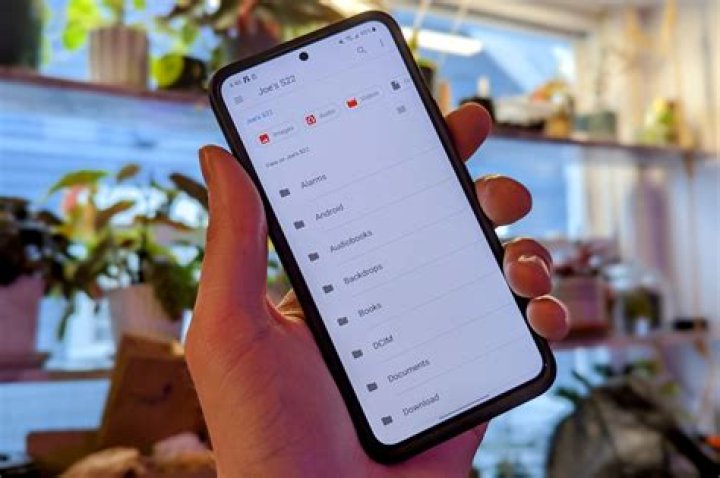
In case you want to cover your tracks
Did you know that Google Maps has an Incognito mode, just like in Google Chrome? And here too, there are legitimate reasons to use the private mode. By default, Google Maps keeps a track of all your movements, and it’s available to Google family members and trusted contacts.
But what if you want to hide your activity for a while? If you’re going somewhere to buy a gift for your spouse, or if you’re planning a surprise, you might not want someone else to see this data.
While you can always erase your Google Maps location history later, it’s best if it’s not tracked in the first place. Here’s how to use the Google Maps incognito mode on your Android device.
How Does Google Maps Incognito Mode Work?
As we mentioned earlier, Incognito Mode is a private browsing feature that’s designed to protect your location (GPS) and search data on Google Maps. When you enable Incognito Mode, Google Maps immediately disables the Location History feature. The app stops recording where you go and what you search for.
Google Maps won’t save your browsing history, or your search history. It won’t send you notifications either. It won’t update your shared location if you have enabled the feature.
But this doesn’t change your Google Maps navigation experience. You’ll still be able to see where you are, you’ll be able to search for a place, and you’ll be able to use Google Maps’ turn-by-turn navigation as well.
The following features won’t be available to you when you’re in Google Maps Incognito Mode:
- Commute
- For You
- Location History (According to Google, Location History will be paused for your entire device, not just Google Maps).
- Location Sharing
- Notifications and messages
- Search history
- Search completion suggestions
- Google Maps Contributions
- Google Assistant microphone in Navigation
- Offline Maps
- Your Places
- Media integration
During navigation, the Microphone feature in Google Maps won’t work, but you can still use the “OK Google” command. This will bring up Google Assistant, and as it’s not a part of the Google Maps app, that data will be stored and will be available in your Google account history.
How To Turn on Google Maps Incognito Mode
Now that you have understood how the feature works, here’s how you can use it on your Android smartphone.
- Open the Google Maps app on your Android device.
- You’ll see the familiar Google Maps home screen with the current location. Tap on your Profile icon from the top-right corner of the screen.
- Now, choose the Turn on Incognito Mode option.
- Google Maps will show a menu explaining the features. Here, choose the Close button.
- Now, you’ll see the Incognito Mode icon on the screen and the Google Maps app will restart.
Once it restarts, you’ll be in the Incognito mode. You’ll be able to tell because the Incognito mode icon will replace your Profile icon in the top-right corner.
You can now carry on searching and navigating, without the worry of being recorded.
How To Turn Off Google Maps Incognito Mode
Once you are done with your Incognito escapades, you might want to disable it, and go back to the default setting (after all, the Google Maps Incognito Mode offers fewer features).
- Open the Google Maps app and tap the Incognito icon from the top-right corner of the screen.
- Then tap the Turn Off Incognito Mode button.
And just like that, Google Maps app will restart, and your familiar Google Maps home screen will be back.
How To Delete Google Maps History
What if you forget to enable Google Maps Incognito mode and you want to hide or delete activity from Google Maps? You can do this as well, just like the Google Chrome browser.
And you can do this right from the Google Maps Android app.
- Open the Google Maps app on your Android smartphone.
- Tap the Profile icon from the top-right corner and choose the Settings option.
- Here, choose the Map History option.
- This will bring up a Google Account web page with a reverse-chronological list of all your Google Maps location and search history.
- You can scroll through the list to find a particular entry. Or you can use the search feature on top. From here you can filter using a particular date as well.
- When you find the data you want to delete, tap the three-dotted Menu button and choose the Delete option. Then tap the Close button to continue browsing.
Google will now delete the particular data from your Google Account. It won’t show up in the Google Maps app and no linked account will be able to access it.
How was your experience using Google Maps in Incognito Mode? Share with us in the comments below.
Looking for a Google Maps alternative? Here are your 8 best options.
Khamosh is a technology writer and a how-to expert with more than 7 years of experience. He specializing in writing guides and tutorials that are to the point and easy to understand. While he specializes in the Apple ecosystem, his passion for technology is platform agnostic. He strives to simplify technology so that anyone and everyone can use technology to improve their lives. Read Khamosh’s Full Bio
- Telegram
Report this app
Smartphone has become a part of our life, most of our privacy are stored on our phones, this documents can include our personal photos, pdf files, soft copy of bank account details or statements, Videos etc, You never know when you may grant someone access to phone consciously or otherwise, without proper protection of your private files or photos, they will end up accessing those files, this can be embarrassing in such a situation you will end up wishing you had those files lock or hidden from Public areas of your android smartphone.
Today will we discuss How you can hide your files and photo on an Android smartphone, this method requires no tweaking, you can confidently hand your phone to anyone knowing that your privacy is safe, following simple instructions below, you can safely hide and secure your private photos and files from anonymous views.
How Hide Files And Photos On Android
1. Hide Files And Photos On Android By Creating Hidden Folders
Creating Hidden folders is the swiftest method of hidden files or photos we wish to keep private, this folder locks this files out of your android document viewers, gallery, WS Office etc, to achieve this create a hidden folder and move the files or photos you wish to hide to this folder.
This Folder can be created using your default file manager, Android phones without a default file Manager can make use of external file explorer, Es file Explorer or the likes, for the sake of this tutorial we will use ES File Explorer.
To create a hidden folder on Android follow the instructions below:
1. Navigate to your File manager(ES file manager), you will see all your Android folders. Here, we need to create a new “hidden” folder in which you will add all your private files and photos, tap on new at the bottom of the screen and then tap on “Folder”. You will be prompted to give the folder a name. To hide the new folder, you need to add a “dot” (ie .) before the name of the folder and it will be marked as hidden for android system. Your new created folder should look something like this “.Private files”
Once this folder is successfully created you can now move your photos or files you wish to keep private to them,
2. Like I said Earlier, this folder can only be accessed through the File manager and you can hide it in the file manager as well. Just tap on the main menu on the upper left corner and from there tap on “Settings” at the bottom, you will see the option show sudden folders under display settings , uncheck the folder and those hidden files will not be accessible on the file manager also, to view this files on the file, manager reverse this procedure.
How To Hide Files And Photos On Android With A .Nomedia File
A .nomedia file is a command that tells the Android system to hide all the files on a specific folder, you don’t necessarily need to create a hidden folder to add files manually, To do this, open your file manager open the specific folder and tap on “New” located the bottom of the screen. When prompted, tap on “File” and name the file “.nomedia” and save it, You will still be able to see your files using the file manager, but it will be hidden in the main interface of your android phone. If you would like to see the files again, delete the “.nomedia” file you just created.
3. How To Password-Protect Files And Photos On Android.
The methods above is an easy and most convenient way of hiding your private files and photos on an Android smartphone, however, the downside is that anyone with a little tech knowledge will be able to access those hidden files via your file manager, without your knowledge, to tighten the security of your photos and files you might need to password lock them, lets take a look at how you can password lock your files and photos on android
To achieve this we make use of the Folder Lock App, this app is one of the best file password lock apps, with this app you can lock any photo, audio, video, documents, etc on your android smartphone.
Here are the instructions on how to lock your files and photos on android with Folder Lock App:
- Download Password Lock App from Here
- Install and open the app.
- Provide the password as per your wish. Make sure that you can easily remember the password and it is difficult to identify by others. Later, you can change the login access types to the password, pin or pattern in the login options of settings.
- In the next step, you’ll be required to provide the email address. If you don’t provide the email address, you can’t able to recover the password if you forgot. You can change or set an email address in the recover security lock option in settings.
- Now, you are in the folder lock screen. Tap the photos option to password protect the photos. click on the second option in the top right corner. it will display a list of location from where you want to import the images.
- I choose the gallery for this instance as you can see in the screenshot below. Once you select the images, click on the download button at the top right corner to import the images to the folder lock app.
Now, the images are password protected.
If you want to unhide the image, select the image that you want to unhide. Tap on the unhide button at the bottom of the left corner. The selected images will be unhidden.
You can import the videos, audios, documents, contacts, folders (click on the miscellaneous option to import folders) to folder lock app to make them secure and password protected.
The Folder lock app has other cool features like Private contact( add confidential contacts to the lock folder app), Private browser, Secure wallet( can be used to store bank account details), Data recovery( recovers lost data if any) etc.
Do well to share any other methods that help hide your files and photos on Android other than those highlighted on this post.
Disclaimer
At NaijaTechNews, we recommend you download all Apps/software from the official source. Apps/Software from third-party sites can endanger your device. See our Disclaimer page. Android is a trademark of Google Inc. All the trademarks and logos belong to their respective owners. Our website shares content for educational purpose only
As we all know when you use the incognito browser in Firefox and Chrome as well there is no possibility that you will know what they are doing online. If you suspect that your partner is cheating online then this technique can help find out where your husband hangout on the internet.
There are two videos below that you can follow. One is for people using Windows operating system and familiar with cmd command. The second video is for Windows and Linux users. It is a no brainier solution because all you need to do is to run .bat command.
Windows System using CMD command
Using .bat file
What if he already deleted his browsing history?
No worries the same command above will do the trick. It would be very impossible to cover the track using the cmd command.
Cool! Now there no way your spouse can hide from you using using private browsing.
What if there’s an easy way for you to check on your spouse without you lifting a finger 24/7?
I know it’s hard to uncover the truth and get the evidence you need but using an easy to use software it will be a breeze for you to finish all the things you need to do for the whole day.
I hope you get the truth you are looking for.
“How To Catch A Cheating Spouse, Girlfriend or Boyfriend’ — Absolutely FREE!”
Receive FREE email newsletter that is absolutely jam-packed with the hottest information to help you catch your cheating partner, PLUS true-life stories of how people have caught their spouses cheating on them.
Enter your email address to receive this free newsletter
Privacy Policy: We hate SPAM and promise to keep
your email address safe.
Think that your browser’s private mode keeps your browsing completely private? Not so! More often than not, you’re still leaving traces of your browsing session behind, and today we’ll tell you how to get rid of them for truly private browsing.
The Problem
Keeping track of where you’ve been doesn’t end with simply clearing out your browsing history and other private data—your operating system continues to store more information about what you’ve been up to, like cached DNS lookups and worse, Flash cookies that don’t get wiped . It’s worth noting that you won’t be able to erase all of your tracks all the time—if you are browsing stuff that you shouldn’t at work, you can still get caught by a system admin even if the history on your PC is gone. On your own PC, however, here’s how we suggest boosting your browsing privacy (complete with a couple of scripts to automate the process).
Web Sites Using Flash Instead of Browser Cookies to Track Your Activity
Wired reports that over half of the web’s most popular sites are using Flash to track users who…
Cached DNS Entries
Every time you browse to a web page, your PC has to request the IP Address for that web site from your default DNS server, and then caches them locally on your machine for a while to speed up future access to that web site—even in a private browsing session.
You can see these for yourself by opening up a command prompt and typing in ipconfig /displaydns to see the full list of cached DNS entries, then open up a new private browsing session and go to a site you don’t normally access. If you re-run the command again, you’ll see that it’s been added to the DNS caching, telling anybody with access to your machine that you’ve been watching the PowerPuff Girls. Cleaning the cache is easy, just type in ipconfig /flushdns to wipe everything.
Worse: Flash Cookies
The secret tracking information doesn’t stop with simple DNS entries, which don’t really tell anybody much about what exactly you were looking at—but the hidden Flash cookies will tell a whole different story.
Best Android web browsers with private browsing mode!
Let’s admit; Privacy is a bigger deal now than ever before. Everything you do on the internet is somehow tracked. For example, websites that you visit daily logs your browsing activity to show you relevant ads. To deal with web trackers, security experts recommend the use of a VPN or private browser.
There are plenty of web browser apps available on the Google Play Store that supports private web browsing. Private web browsers don’t track your browsing activity and eliminate web trackers. Not only that, but browsers with the Android browser with private browsing mode also have ad-blockers, VPNs, and other privacy features.
List of 10 Best Android Web Browser With Private Browsing Mode
So, in this article, we are going to share some of the best Android web browsers with private browsing mode. So, let’s check out.
1. Epic Privacy Browser
Well, it’s one of the best and top-rated Android web browsers available on the Google Play Store. The great thing about the Epic Privacy Browser is that it’s based on Chromium and it’s designed to protect your privacy online. It has an always-on Private/Incognito browsing mode, which doesn’t save your browsing history and eliminates ads from the webpages. It also has a built-in VPN to unblock geo-restricted sites.
2. Brave Private Browser
Well, if you are searching for a fast, free, and lightweight privacy-focused browser for your Android, then Brave Private Browser might be the best pick for you. Guess what? It is a private web browser app that has a built-in ad blocker, pop-up blocker, and web tracker blocker. The private browsing mode of Brave Private Browser doesn’t save any history, and it offers personalized private search options.
3. DuckDuckGo Privacy Browser
This is one of the unique web browsers on the list which provides enough privacy-focused features to control your personal information as you search and browse the web. It has a private browsing mode that blocks hidden third-party trackers from the web. Not only that, but the web browser also force sites to use an encrypted connection wherever available.
4. Aloha Browser Turbo
Well, if you are searching for a fast, free, full-featured private web browser for your Android device, then you need to give Aloha Browser Turbo a try. Guess what? The web browser for Android has a built-in VPN, Adblocker, web tracker, etc. The web browser even allows you to lock private tabs with fingerprints or passcode. Apart from that, there’s a private vault, download manager, media player, and VR player included with the web browser.
5. Opera browser
It is another top-rated Android web browser on the list which has a private browsing mode. You can use the private browsing mode to go incognito anywhere on the internet without leaving a trace behind. Some other features of the Opera browser include free VPN, Adblocker, a personalized news feed, Night mode, screen dimmer, etc.
6. Firefox Focus
Firefox Focus is a privacy-focused web browser for Android. The good thing about Firefox Focus is that it automatically blocks a wide range of online trackers. You can also set Firefox Focus to erase history automatically when you close the app.
7. InBrowser
Well, InBrowser is one of the best and most advanced web browsers for Android available on the Play Store. The web browser comes with TOR and video support. Apart from that, the web browser automatically removes all data and history each time you exit the app.
8. Phoenix Browser
Phoenix Browser also has a private browsing mode that makes your browsing experience perfectly private without leaving any history, cookies, cache, etc. The web browser also has an ad blocker that blocks ads, pop-ups, and banners from the webpages. Apart from that, the Phoenix Browser has every feature to fulfill your web browsing needs.
9. Firefox Browser
As of now, Firefox Browser is the best Google Chrome alternatives for Android. The web browser is very fast, private & safe. Firefox Browser also has a private mode that automatically erases your browsing history once you close the app. Apart from that, Firefox Browser also offers lots of customization options like multiple themes, multiple color modes, etc.
10. Private Browser
It’s a web browser that offers an incognito mode and an ad blocker. The Private browser’s incognito mode and a built0in AdBlock prevents advertisers from tracking your web activity. The web browser also offers few other security features like Pin lock, secure browsing mode, etc. So, Private Browser is definitely the best web browser with a private browsing mode that you can use in 2020.
So, these are the ten best Android web browsers with a private browsing mode. I hope this article helped you! Share it with your friends also.
- Features
- Sent / Received SMS
- Call logs
- Facebook messenger
- Snapchat
- Keylogger
- Current GPS Location
- Photos
- More features
- Products
- iPhone Tracking
- Android Tracking
- Parental Control
- Tutorial
- Topic
- Support
- Sign Up
- English
- Deutsch
- Français
How to Check Private Browsing History on Android
The availability of the Internet on the smartphone has made our life easier than before. We can access the Internet when we are on the go. Like our computer’s web browser, android phone’s browser also keeps a list of the sites that we open or visit.
If you are a parent, you might want to give your child their privacy but you also have to make sure they are not visiting the seedier parts of the internet. Similarly, if you are an employer, you might be interested to know what your employees do on the internet with the company’s phone. Whatever the reason why you want to access someone’s search and web browsing history on their Android devices, there are a few ways to do so.
Here we will talk about some methods to view android phone browser history. You can follow any of them.
1. How to Check Browser History on Your Own Android Device
If you use the Android browser to surf the Internet, then you might also want to know which websites you have visited today, yesterday or the last seven days. For this purpose, the Android browser has a so-called history in which all visited web pages are saved and listed. If you would like to access the browser history within the Android browser, then you can find it as follows:
Check Browsing History in Chrome for Android
- Simply open Chrome on you Android phone.
- Go to the browser menu by tapping on the three dots at the upper right corner, and History.You will get a list of all the pages you visited with Google Chrome.
Check Browsing History in Mozilla Firefox for Android
- Start the browser and go to the tab History.
2. How to Check Other’s Browsing History on Android Phone Remotely
If you wanna know how to view or track browser history of someone else’s Android device, then you need the help of a third-party tool like PanSpy. This application is a fully-featured phone tracking solution that allows you to access browsing history of the target device remotely including the link of browsing website, the correct records of browsing date and time, and available information for browsing histories. Along with monitoring the web browser history on Android phone, you are also able to spy on their SMS, location, contacts, call logs, Keylogger, Apps, E-mails, IMs chats like Facebook, WhatsApp, Snapchat etc. A wide range of Android devices including Samsung, Huawei, HTC, Oppo, Sony, LG that is running on Android version 5.0 or higher are supported.
Key Features of PanSpy
- Track Cell Phone Activity: Call logs, Messages, E-mails, Document, Calendar, Photo, Video, Apps and more
- Track Current Location: GPS, Geofencing, WiFi logger
- Monitor Social Apps: Whatsapp, Skype, Facebook, Instagram, Snapchat, Line, Kik, Tinder, Hangouts and more
- Remote Control: App blocker, Schedule restriction
Three Steps to Check Private Browsing History on Android Phone with PanSpy:
Step 1: Create A PanSpy Account.
Go to the PanSpy website, click on Sign UP button. Enter your authentic e-mail to create an account. You will receive a confirm e-mail to activate your account. Then follow the Setup Wizard to complete the setup process.
Step 2: Install Application and Set up.
Simply select a subscription you prefer from the two editions: Premium Edition and Ultimate Edition. After that, you will get a download link to download and setup the PanSpy app. Now, download PanSpy app on your target phone. Then follow the instructions given to set and give the app permission to access data on the target device.
Step 3: Start Tracking the Browsing History on Android Phone.
Once completed the setup process on target device, turn back to your computer, on the PanSpy window, you can click on to the left side of the control panel to view the browsing history.you can view all the the browser history of the target phone.
That’s it. Now you have learnt how to check your browsing history in Chrome or Mozilla Firefox for Android phone.
PanSpy is designed for legal use only. It shall be used only with the aim of parental control of their children, by employers to monitor the devices which belong to them and by you with a consent of a device owner.
Years ago, hiding your online activities like your browsing history will make you appear suspicious. People were under the notion that only people with illicit or illegal activities would think about hiding their online activities. And this was true to some extent many, many years ago.
Today, this line of thought is already backwards. Hiding your online activities does not necessarily mean that you are engaged in illicit or criminal affairs. With the rampant occurrence of cybercrimes, hiding your online activities have become a must these days. Online security has become more and more fragile as technology and the internet become more and more enhanced and advanced.
Table of Content
- How to hide your browsing history from your network admin
- Why would network administrators look at your browsing history
Cyber criminals seem to have thought of every way to break through the security of internet users. Email scams, phishing, identity theft, fraud, and many other crimes are constantly being uncovered, and people who do not protect themselves against these crimes are very vulnerable. Hiding your browsing history and other online activities is one way of actively protecting your security.
Aside from security, another valid reason for hiding your browsing history is privacy. They say that privacy is really non-existent in the world of internet. However, privacy is and should still be present even on the internet. There are still millions of people out there who value and care so much for their privacy. It is quite spooky to know that anyone can just see what you are doing online, even when you are not doing anything illegal or shameful.
One of the people who have free access to your online activities is your network administrator. He or she is responsible for maintaining the system of computers, printers, and other devices that are interconnected with each other. This network can be at your home (home network), or at work (work network). Your Internet Service Provider or ISP is also considered as a network administrator as it oversees every device that connects to them via the internet.
Again, let us emphasize that all these people have free access to everything you are doing on the network. This is why if you value your privacy, you would need to hide your online activities, and one of which is your browsing history. By hiding your browsing history, other people cannot see what you are doing, or where you have been on the internet. Hiding these things from your network administrator is actually valid and should not a source of suspicion.
How to Hide Your Browsing History from Your Network Admin
The question now is; how do you actually hide your browsing from network administrators? Is deleting your computer’s cache and browsing history enough? The answer to the second question is a resounding NO. Even when you delete your browsing history, your network administrator can still access it and see what sites you’ve been visiting and how long you spent on a specific webpage.
The only way to hide your browsing history from your network administrator is by getting out of the network. You can do this virtually by using a virtual private network before connecting to a website or webpage. Here are two main reasons why a virtual private network can help you hide your browsing history from network admin:
1. You will be assigned a different IP address.
When you are within a network, your IP address will show that you belong to that particular network. Thus, your network administrator knows who is using a particular IP address. If you use a VPN, you will be assigned a different IP address which does not belong to the network anymore. This way, you can freely browse through the internet without fear of someone peeking through your browsing history.
2. Data packets are transmitted with encryption
All the things you send and receive on the internet are called data packets. When you are connected to a network, the network admin can intercept all data packets and see what they contain. Therefore, network admin will know what you are doing online. However, if you connect to a VPN, all data packets you send and receive will be heavily encrypted, making it difficult and even impossible for network administrators to decrypt them and see what the packets contain.
LimeVPN, one of the best VPN service providers, makes use of military-like encryption that will make it impossible for even your ISP to know your online activities.
Why Would Network Administrators Look at Your Browsing History?
There could be a number of different reasons why network administrators want to know your browsing history. If you are connected to your work network at the office, your boss and the company’s management would want to know if the sites you are accessing affect your productivity and performance. It is their call, so you better use a Virtual Private Network for valid reasons only.
Most Internet Service Providers, on the other hand, keep a record of everything you’ve done using the internet. They also store your data, including the text messages and calls exchanged through their network. ISP Verizon, stores the record for one year, followed by Sprint who keeps the same record for eighteen months. T-mobile stocks this list for five years, while it is seven years for AT&T.
Alarmingly, however, Verizon keeps the actual contents of your text messages. They store it for five days, while the other ISPs – Sprint, T-mobile and AT&T – do not store actual contents of your text messages at all. Aside from all these, other data that ISPs are tracking include the following:
- The exact time you connect to the internet;
- The websites you visit and their specific URLs;
- The specific pages you open in each website;
- How long you were online;
- How long you visit websites;
For those who are also using your mobile phones, ISPs can obtain the following:
- Your call logs – everyone you talked to using the internet;
- Your text logs – everyone you exchanged text messages with, online;
- Your actual text messages – if your ISP is Verizon;
- The apps you are using and how much time you spend on these apps;
- How frequently you use your apps.
In Conclusion
While network administrators have different reasons for tracking your online activities, users also have varying reasons why they want to hide. Hiding your browsing history is one of the ways in which you can protect your online privacy and security. One of the most effective ways to uphold your security and privacy while browsing the internet is to subscribe to a virtual private network. You should do away with the backwards notion that only people who are engaged in illicit activities would hide their browsing history. You should start actively protecting your privacy by subscribing to a VPN service provider, one which is LimeVPN.
Rachael Chapman
A Complete gamer and a Tech Geek. Brings out all her thoughts and love in writing blogs on IOT, software, technology etc
Warning: if you are worried about someone knowing you have visited this website please read the following safety information.
How can an abuser discover your internet activities?
Please take a few minutes to read the warning below and to take steps to increase your safety when visiting this website.
As a rule, internet browsers will save certain information as you surf the internet. This includes images from websites visited, information entered into search engines and a trail (‘history’) that reveals the sites you have visited. Please follow the instructions below to minimize the chances of someone finding out that you have visited this website.
If you know what browser you are using, then skip to the relevant instructions below. If you do not know the type of browser you are using, click on Help on the toolbar at the top of the browser screen. A drop down menu will appear, the last entry will say About Internet Explorer, About Mozilla Firefox, or something similar. The entry refers to which browser type you are using – you should then refer to the relevant instructions below.
General security – be aware
If you do not use a password to log on to your computer, someone else will be able to access your email and track your internet usage. The safest way to find information on the internet would be at a local library, a friend’s house, or at work.
The following information may not completely hide your tracks. Many browser types have features that display recently visited sites. There is also spyware that can be used more secretly to track your activity. The safest way to find information on the internet, would be at a local library, a friend’s house, or at work.
Exit site button
The green Exit Site button on the right of the Women’s Aid website will quickly hide the page but you will still need to delete your history fully cover your tracks.
Private browsing
All leading web browsers have a “private browsing” mode that, once enabled, stores nothing about your activity on your computer in that browsing window. This won’t stop online services from seeing what you get up to, but it won’t leave any traces of your activity on your computer (no history, web cache or anything else) and so it’s always a useful first step to take.
Internet Explorer: Go to Safety – Tools – “InPrivate Browsing”.
Firefox: Click the Menu button with three horizontal lines – “New Private Window”.
Chrome: Click the Menu button with three horizontal lines and select “New Incognito Window”.
Similar options can be found in Opera and Safari.
It is also best to double check that nothing has been stored by following the steps below.
Internet Explorer
Click on the Tools menu and select Internet Options. On the General page, under Temporary Internet Files, click on Delete Cookies and then OK. Click on Delete Files, put a tick in the box labelled Delete all offline content and click OK. Under History, click on Clear History and then OK. Now look at the top of the window and click on the Content tab, select AutoComplete and finally, Clear Forms.
Firefox
Click on Tools and then Options, then click on Privacy. Click on the Clear button next to Cache and Saved Form Information.
Deleting your browsing history
Internet browsers also keep a record of all the web pages you visit. This is known as a ‘history’. To delete history for Internet Explorer and Firefox hold down the Ctrl key on the keyboard, then press the H key (Ctrl, Alt and H for Opera). Find any entries that say right click and choose Delete.
If an abuser sends you threatening or harassing email messages, they may be printed and saved as evidence of this abuse. Any email you have previously sent will be stored in Sent Items. If you started an email but didn’t finish it, it might be in your Drafts folder. If you reply to any email, the original message will probably be in the body of the message – print and delete the email if you don’t want anyone to see your original message.
When you delete an item in any email program (Outlook Express, Outlook, etc.) it does not really delete the item – it moves the item to a folder called Deleted Items. You have to delete the items in deleted items separately. Right click on items within the Deleted Items folder to delete individual items.
Toolbars
Toolbars such as Google, AOL and Yahoo keep a record of the search words you have typed into the toolbar search box. In order to erase all the search words you have typed in, you will need to check the individual instructions for each type of toolbar. For example, for the Google toolbar all you need to do is click on the Google icon, and choose “Clear Search History”.
Don’t forget to log out
If you use our Survivor’s Forum, don’t forget to log out of your account when you have finished your browsing session so no one else can log in as you.
How to hide your IP address while browsing the internet? There are various options, you can subscribe to a VPN service or use a browser that comes with this feature. Tor is the most well known software that masks your IP address, for those using Google Chrome and doesn’t want to migrate to a new browser, using the Tor extension works too but somewhat defeats the purpose as the browser still tracks your movement. For those into watching the 東京 Tokyo 2020 Summer Olympics and Paralympics games live online, there is a good chance these free VPN might work.
If you are looking for ways to bypass the internet monitoring in your office, university, school, or public library, these browsers with even more security and privacy enhancement will block most tracking via proxy, or a VPN. Defend yourself against tracking, spying and surveillance. Circumvent censorship with these anonymous browsers that mask your IP Address and identity via proxy. Perhaps the best way to stay 100% untraceable and invisible is to use a no log VPN services on a public wifi, if possible on a laptop purchased via cash.
Can I be tracked if I use incognito mode? The short answer is yes. You’re tracked by Google, by your ISP, your government and hundreds of data collectors while in incognito or other private browsing modes. Your browsing history is easily accessible (via your DNS cache) upon incognito window close. Incognito mode simply deletes your browsing history and cookie after you close the browser in your computer, that’s all.
↓ 01 – Tor Project [ The Best ] | Windows | macOS | Linux | Android
With Tor Browser, you are free to access sites your home network may have blocked. They believe everyone should be able to explore the internet with privacy. They are the Tor Project, a 501(c)3 US nonprofit. They advance human rights and defend your privacy online through free software and open networks.
The Tor software protects you by bouncing your communications around a distributed network of relays run by volunteers all around the world: it prevents somebody watching your Internet connection from learning what sites you visit, it prevents the sites you visit from learning your physical location, and it lets you access sites which are blocked.
- Block Trackers – Tor Browser isolates each website you visit so third-party trackers and ads can’t follow you. Any cookies automatically clear when you’re done browsing. So will your browsing history.
- Defend Against Surveillance – Tor Browser prevents someone watching your connection from knowing what websites you visit. All anyone monitoring your browsing habits can see is that you’re using Tor.
- Resist Fingerprinting – Tor Browser aims to make all users look the same making it difficult for you to be fingerprinted based on your browser and device information.
- Multi-Layered Encryption – Your traffic is relayed and encrypted three times as it passes over the Tor network. The network is comprised of thousands of volunteer-run servers known as Tor relays.
↓ 02 – Opera | Windows | macOS | Linux | Android
Opera is the first and still only major browser that integrates a free, unlimited VPN service, allowing you to focus on the content that matters without fear of losing privacy. With Opera’s VPN turned on, your IP address will be replaced with a virtual one, making it harder for websites to track your location and identify your computer. Many tracking cookies will also be blocked.
- Free, unlimited, and with no subscription – Enhanced online privacy is a right for everyone. Our free, built-in VPN requires no subscription, payment, or additional extensions.
- Shield your browsing in public networks – Surfing on free, public Wi-Fi in airports, cafes, and event venues is a treat, but it can also be a danger. Using VPN shields your activity from being sniffed out by other users sharing the network.
- Search locally while on VPN – Disguising your IP address throws off trackers from knowing your location, but your online search results can be influenced as well. Not so with Opera’s VPN! It offers an automatic way for your online searches to bypass your virtual location to your actual location, giving you relevant results – then, you can continue to your target destination over VPN.
↓ 03 – Brave (with Tor Tab) | Windows | macOS | Linux | Android
The new Brave browser blocks ads and trackers that slow you down and invade your privacy. Discover a new way of thinking about how the web can work. Brave never remembers what you do in a Private Window. With Tor, your browsing is also hidden from your ISP or employer, and your IP address is hidden from the sites you visit.
Tor hides your IP address from the sites you visit, by routing your browsing through several Tor servers before it reaches your destination. These connections are encrypted, so your ISP or employer can’t see which sites you’re visiting either. Tor can slow down browsing and some sites might not work at all.
↓ 04 – Epic Privacy Browser | Windows | macOS
Epic’s Encrypted Proxy is a free built-in VPN that protects your browsing history from your ISP & other data collectors and secures you on public WiFi. Epic Privacy Browser blocks ads, trackers, fingerprinting, cryptomining, ultrasound signaling and more. Stop 600+ tracking attempts in an average browsing session. Turn on network privacy with our free VPN (servers in 8 countries).
Behind a VPN, your real IP address can leak through certain types of WebRTC calls — only Epic blocks them. Even if your IP address is hidden, tens of thousands of websites use fingerprinting techniques such as accessing image canvas data to track you. Epic blocks fingerprinting scripts and functions like image canvas data access to protect you which no browser extension can do. There is no combination of settings changes and browser add ons which provides the same level of protection, let alone the ease and speed of use that Epic does.
- Blocks Cryptomining – Blocks scripts which can use your CPU and GPU to mine for cryptocurrency.
- Removes Social Media Tracking Buttons – Removes social media buttons which may track and aggregate your browsing history across many websites.
- Blocks Tracking Scripts – Refuses requests to load tracking and fingerprinting scripts.
- No Tracking – Eleven different ways from ID numbers to server-based services which can be used to know what you browsed
- One-Click Encrypted Proxy – Click the red open socket icon to turn on Epic’s built-in encrypted proxy. This hides your IP address (with a U.S -based IP) and encrypts all your data when you want to be very private.
These are the most secure web browsers for Android!
Most users think they are very safe over the internet for browsing lots of sites on their devices. But that’s a misunderstanding as today there are lots of spy agencies that keep track of users, so it is necessary to ensure your privacy by securely browsing the web. Time to browse securely over the internet on your Android as you may not know people can be spying on you through your browser
In this cyber world, security is always the priority in any region. Similarly, secure browsing is a way to browse safely or anonymously over the internet. Mostly user thinks that they very safe over the web for browsing lots of sites on their device.
But that’s a misunderstanding as today there are lots of spy agencies that keep track of users, so it is necessary to ensure your privacy by securely browsing the web. And in this article, I will discuss the same for Android users as in my previous I had stated the method to browse on PC securely. So have a look at the complete guide explained below to proceed.
List of Best Secure Android Browsers To Browse Web Securely
Here I will tell you some of the best secure browsers for Android that are always in incognito mode and always keep your data clear whenever you close it. And these will provide you a safe browsing experience on your Android. So have a look at these browsers.
1. Ghostery Browser
This is one of the best browsers that every security alert user knows. This popular browser provides you the private browsing by default. The major part is that when you close it, the app erases all data, such as browsing history, downloaded files, forms, cookies, and entered passwords. Also, this app provides you the fast page access from the websites.
2. Opera browser
Well, Opera browser is one of the leading web browsers for Android available on the Google Play Store. Guess what? The web browser is fast, safe, and private. It has a built-in ad blocker that automatically blocks ads from web pages. Also, for security & privacy, it offers a VPN feature. With VPN, you can easily hide your IP Address and unblock sites. The latest version of Opera browser also has a night mode and customization options.
3. Avast Secure Browser
Avast Secure Browser is a new and feature-packed private web browser app for Android smartphones. Guess what? To protect your privacy, it offers a built-in AdBlocker and VPN. The web browser is developed by cybersecurity experts at avast, one of the leading security companies. The web browser is fast, and it also has an Incognito mode to guard your sensitive data.
4. InBrowser – Incognito Browsing
Well, InBrowser is an incognito/private browser for Android with TOR and video support. Each time you exit InBrowser, everything you’ve done in the app will be erased, including history, cookies, and sessions. InBrowser is a feature-rich browser, and it’s in permanent private mode.
5. Orbot: Proxy with Tor
It is a free proxy app that empowers other apps to use the internet securely. Orbot uses Tor to encrypt your Internet traffic and then hides it by bouncing through a series of computers around the world.
6. Dolphin
If you are searching for a fast, private and secure web browser for your Android smartphone, then you need to give Dolphin Browser a try. The web browser offers a wide range of features like Flash player, pop-up blocker, personalized search, download manager, private browsing mode, etc. For security, it only offers a private browsing mode that doesn’t save your browsing activity and cookies.
7. Brave Browser
Brave is a privacy browser that provides a secure, lightning-fast web browsing experience on Android. The web browser for Android automatically blocks popups, ads, malware, and other malicious scripts from the internet. Apart from that, it also has a private browsing mode that automatically deletes your browsing history upon exit.
8. Firefox Focus
If you are looking for a web browser that lets you browse like no one’s watching, then you need to give Firefox Focus a try. The web browser for Android automatically blocks a wide range of online trackers. As soon as you close the app, it automatically deletes all your browsing histories, cookies, and tackers. Firefox Focus is extremely lightweight, and it’s pretty easy to use.
9. Frost Incognito Browser
It is another best private browsing app that you can have on your Android. The great thing about Frost Incognito Browser is that it comes with a hidden, password-protected image and bookmark vault, which you can use to store sensitive details. Apart from these, the browser also brings several other privacy features.
10. DuckDuckGo Privacy Browser
It is one of the best secure web browsers for Android available on the Google Play Store. The great thing about DuckDuckGo Privacy Browser is that it offers everything you need to protect your privacy. The DuckDuckGo Privacy Browser web browser for Android can block ads and web trackers, and it forces web pages to use an encrypted connection. Apart from that, DuckDuckGo Privacy Browser allows users to search privately.
Apart from a browser, you can use some Best VPN For Android to secure a private network to browse anonymously over the internet.
So above is all about How To Browse Securely On Android. I hope this article helped you! Please share it with your friends also. If you know of any other such web browser, let us know in the comment box below.




