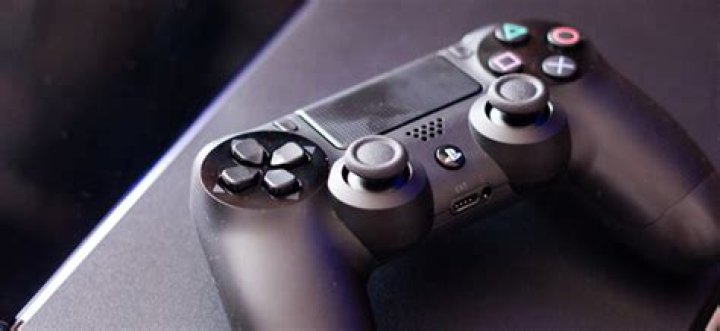
Sony is all set to launch PS5 gaming console, and first game information also revealed. But, currently, the best Gaming Console available in the market, is PS4. Recently, I have seen on some forums, many users are facing some issues with their controller. And, One of my friends was asking me “my ps4 controller not charging, what I can do to fix it?”. I was able to fix that charging problem, So I have decided to write this article. So, If you’re also facing some charging issue, with the PS4 controller. Then, you can follow this article to get the solution.
Why is my ps4 controller not charging?.
There could be numerous reason behind, “why your PS4 controller isn’t charging”.
- PS4 Controller battery is damaged.
- Damaged charging port or charging cable.
- Some unknown software issues, which prevent charging. (Yes, In electronics devices, software or drivers helps to flow the electric current in the right direction.)
- Or, maybe you have dropped the controller from the height, and some internal parts are Damaged.
Note : If you have purchased PS4 Controller recently, then I suggest you, go to that store, from where you purchased. Because your device is under warranty period. And, you can get a replacement for your faulty PS4 controller. But, If you’re using PS4 console from many months, then try these Solutions.
Fix – PS4 Controller not Charging.
Solution: 1 Reset PS4 Controller.
Resetting a controller can fix issues, such as a flashing light bar, input lag, pairing issues and charging problems. So, before trying out any complicated solution, I suggest you to factory reset PS4 Controller.
Step: 1 First completely turn off your PlayStation 4.
- PS4 Controller uses Bluetooth and USB Cable to Connect. So, I suggest you turn off your wireless router also. Otherwise, 2.4 GHz signal of PS4 Console can interfere with Bluetooth.
Step: 2 On the backside or underside of PS4 Controller, you”ll able to locate reset switch. (You can see reset switch, near upper right side of the screw.)
- Now, use a pin or toothpick to press RESET switch for 10 seconds.
Image Credits – YouTube Video.
- After 10 seconds, you can release pin or toothpick. And, Controller will reset back to factory reset settings.
Done, now you can connect the charging cable. And hopefully, “PS4 controller not charging” problem got Solved.
Solution: 2 Select USB as the communication method.
If your PS4 controller battery is low and connected to the PS4, then you can try this solution. Although, I don’t know this might work or not. But, I have found this solution on the tech forum. So, there isn’t anything wrong to try out this solution.
In this solution, we are changing the communication method from Bluetooth to USB. As I mentioned above, the software helps to flow electric Current. So, if your console settings are Bluetooth for the controller. Then, by changing it to USB, you can solve “PS4 controller not charging” problem.
Go to PS4 settings > Devices > Controllers > communication method > select “use USB method” option.
Solution: 3 Change Charging Cable.
This is the simplest solution, that you can try, or maybe you have already tried. But, if you haven’t tried, then you should change the charging cable. Or if you haven’t another charging cable.
Then, you need to connect the different device to that charging cable. To find out, cable is working correctly or not. Because if you roughly or badly use cable, then chances are high, it might get damaged. And, if other devices are getting charged with that cable. Then maybe your charging port is damaged.
Solution: 4 Charge Controller battery directly. (jump-start battery)
If you are unable to try any of the mentioned solutions. Because your PS4 controller battery has no power to turn the controller on. Then, this could be the best solution, which you can try to fix “ps4 controllers not charging” problem.
Warning – If you have not done anything like this before, then do not try. Because this solution can damage controller Battery. Or, if anything goes wrong, it can harm you Also. So, If you’re under 18, and reading this article then skip this solution.
- To charge controller battery directly, you need to open PS4 controller by using the screwdriver.
- Then, take out the battery, unplug it slowly. (Don’t open controller widely, else wires can damage.)
- Now, cut the USB cable wire from charging side. You will able to see the red and black wire. The red wire is for positive electric current and black for the negative electric current.
- Connect wires directly to battery, negative and positive Point. Do it only for about 30 minutes, else battery will start heating.
- After charging the battery, connect it back to the controller. And, you can try above solution to fix charging issue.
- If controller started working, but not able to Charge it with the USB port. Then, it could be possible that your charging port is damaged.
(If you’re unable to understand this solution by reading, then you can watch YouTube video.)
Solution: 5 Change the Battery.
Ok, so after charging the battery directly, if still controller doesn’t work. Means, your controller battery is damaged. You can buy a new battery or can give the PS4 controller to repairing shop. And, this is the last solution which you can try to fix “PS4 controller not charging” Problem.
Summing – up. (PS4 Controller not Charging)
According to some of our readers, their charging issue got resolved. By, putting the controller in the freeze for few minutes. I know it sounds crazy, but you can try this solution if nothing works. Also, don’t put the controller on the hot surface while charging it. So, these are the solutions that you can try. Some solution works only when your controller has the few percentages of the battery. And, if battery completely drained, then the only thing you can do is charge battery Directly. But, if you don’t know how to do it, and don’t want to do It. Then, simply take your controller to the repair shop. Or, you can buy the new controller, if it’s not in the warranty period.
Sony’s approach with PlayStation controllers isn’t quite the same as Microsoft’s with Xbox.
The PlayStation 4’s so-called “DualShock 4” and the new PlayStation 5’s “DualSense” controllers have similar button layouts but they sport different looks. More importantly, the newer option introduces some advanced features. So while you can use either for PC gaming, there are reasons to explore upgrading to a DualSense if you’re still rocking something older.
Whichever controller you’re using, it’s pretty simple to get yourself connected. There are some added considerations with the DualSense (which we’ll get to), but let’s start with the DualShock 4. All you need is the controller and either a micro-USB cable — the one you use for charging is fine — or a Bluetooth receiver on your PC.
To go the wired route, simple connect the cable to your controller and then plug it into a USB port on your computer. (I’ve seen reports that USB 2.0 ports are your best bet, but I’ve had no issues with USB 3.0 ports personally.) And that’s it, provided you’re on Windows 10 or Apple computers using macOS Catalina or later.
For a wireless connection, you’ll need a Bluetooth receiver either built into your motherboard or in USB dongle form. To turn on the controller’s pairing mode, press and hold the PS button and Share button simultaneously for a few seconds. You’ll know pairing mode is active when the controller’s light bar starts flashing.
Once that’s done, jump over to your computer and open up the Bluetooth settings menu. You should be able to scan for new devices from there. Once the controller appears as an available device — it should be “Wireless Controller” — click that. You’ll know it worked if the light bar switches to a solid blue.
Just note that the Windows setup process with Bluetooth can be a little tricky. When you click the “Add Bluetooth or other device” option on the settings menu, a window pops up asking you what kind of device you want to connect. You might think the third option, “Everything else,” is the correct one since Xbox controller is one of the examples it offers. That’s not it, though. You actually need to click the first option, “Bluetooth.” The controller should appear as a pairing option there.
The DualSense connection process is basically the same. For a wired connection, you’ll need a USB-C to USB-A (i.e. USB-C to standard USB) cord. Connect the C end to your controller and the A end to your PC, Windows or Mac, and that’s it.
For Bluetooth, it’s also the same deal: Press and hold the PS and Create buttons — Create is in the same spot as the DualShock 4’s Share button — until the controller’s lights start flashing. Then go into your Bluetooth settings and pair the “Wireless Controller” using the same process you would for a DualShock 4.
There’s just one issue: Because the DualSense is so new, not every game will recognize it. There’s a workaround, but you’ll need to install the Steam client to make it work. You see, Steam added beta support for the DualSense back in November, and then pushed that support into the non-beta version earlier in December.
That means Steam should automatically recognize your shiny, new PlayStation controller as soon as it’s connected. Emphasis on should. If Steam games aren’t playing nice with the DualSense, pop back into the Steam Settings menu, head to the Controller sub-menu, and click the “General Controller Settings” button.
The PlayStation 4’s DualShock 4 controller is a fantastic gamepad, and with some tinkering you can get it to work with your PC.
The DualShock 4 is a great controller, but it’s designed specifically for the Sony PlayStation 4. That means, at least on paper, that it’s not meant to be used with PC games. Fear not, since PCs are such powerful and flexible systems, you can get nearly any peripheral to work on them with a little effort. Here’s how to connect a DualShock 4 controller to your PC.
The Connection Itself
There are two ways to connect a DualShock 4 to your gaming rig. You can go the wired or wireless routes, but setting up those connections is a bit different than how you would do it on a PlayStation 4 console.
The Wired Method
- Plug your controller into a USB port with a USB-to-micro-USB cable.
- That’s it, as far as connecting the controller goes. More on getting it to work in a bit.
The Bluetooth Method
- With the DualShock 4 turned off (You’ll know by the deactivated light bar), press and hold the PlayStation and Share buttons for three seconds until the light bar starts double flashing.
- Access the Bluetooth menu on your PC via the system tray.
- Click “Add Bluetooth or other device.”
- Click “Bluetooth.”
- Select the DualShock 4 controller from the list that pops up.
Getting the Gamepad to Work
Connecting the controller is only the start of the process, due to how the DualShock 4 communicates with your PC. Most current Windows games use Microsoft’s XInput, an interface that processes Xbox 360 and Xbox One controller inputs. The DualShock 4 doesn’t send XInput commands, so a wrapper is needed to translate its inputs into something your PC can deal with easier. There are two good options: DS4Windows and Steam’s controller compatibility settings.
The Comprehensive Way: DS4Windows
DS4Windows is a freeware program that tricks your PC into thinking an Xbox 360 controller is connected, instead of a DualShock 4. Follow these steps to get it to work.
- Download DS4Windows and unzip it to a directory.
- Open DS4Windows.exe in the directory you just unzipped.
- Click “Install ViGEmBus Driver.”
- Follow the steps in the driver installer. This installs a multipurpose gamepad driver to your system that DS4Windows uses to get the DualShock 4 to work.
- Click “Finished.”
- Connect your DualShock 4 to your PC.
- The controller should show up under the Controllers tab. Wait a minute to make sure all of the necessary drivers show up. Once Windows pops up a message saying it has connected a new Xbox 360 controller, you’re ready to play!
What Else Can You Do With DS4Windows?
By default, the DualShock 4 acts like an Xbox 360 controller, with the touchpad functioning as a mouse. That said, DS4Windows offers more options. To start, click the Profiles tab and double-click the Default profile (or create your own new profile). This causes an outline of the DualShock 4 to appear surrounded by various settings. Here, you can remap the physical controls, program the touchpad and motion controls to act in different ways, adjust rumble settings, and tweak the analog sticks’ dead zones and movement curves. You can even change the light bar’s color.
DS4Windows
DS4Windows offers many more options for getting your DualShock 4 to feel good on your PC. You shouldn’t have to open these settings, because most games will behave properly after you set the software up the first time.
The (Potentially) Easier Way: Steam
If your favorite games are on Steam, they’ll work with the DualShock 4 with a quick tweak.
- Go to the Settings menu in Steam (under Steam on the taskbar).
- Select the Controller menu.
- Click “General Controller Settings.”
- Check the box marked “PlayStation Configuration Support.”
- Connect the DualShock 4 to your PC.
Steam’s DualShock 4 compatibility is pretty hit-or-miss, and this technique obviously won’t work with non-Steam games. As a result, you may have better luck simply using DS4Windows.
Start With the Right Controller
For more, head over to our guide on how to choose the right controller for your PC. If you’re a multi-console gamer, check out our guides for connecting your Nintendo Switch and Xbox controllers to your PC.
Table of Contents
Many PC gamers will probably not entertain the idea of using a controller to play PC games. But arguably, there are a lot of games that works far better using a controller.
If you’re going to opt for a controller, then the PlayStation 4 Dualshock 4 is a better choice. The button layout has all the buttons that most PC games require. Also, you can even use the trackpad as a mouse input.
The only disadvantage is that the controller’s audio jack isn’t currently supported. This means you’ll have to plug your headphones directly into your PC if you want to use them.
You don’t even need a PlayStation 4 to get the DualShock 4 experience. What you just need is the controller, a Windows PC and a USB cable. There used to be a need to use specialist software to use the DualShock 4 on a PC. But Sony has now made it pretty easy to connect the DualShock 4 to your PC and start making use of it.
The PS4 controller can also work wirelessly with your PC via Bluetooth.
Now, here are the steps to use the PlayStation 4 DualShock controller on a Windows PC.
Download DS4Windows
Using the PS4 DualShock 4 controller on your PC is pretty simple, but it’s not plug-and-play. You’ll need to install a piece of software to get it running on your PC.
This software is called DS4Windows, and it makes connecting the PlayStation 4 controller to your PC pretty simple. It pretty much fools your PC into thinking the connected DualShock 4 is an Xbox 360 controller, which Windows supports.
To download it from the DS4Windows website, click the Download Now button.
Install DS4Windows
Look for the downloaded DS4Windows.zip file in your Downloads folder, right-click and select ‘Extract All…’
A window will display asking you where you want to extract the files to. You can either choose the folder to which you downloaded the zip file, or choose another one.
After the files have been extracted the folder will open, and you’ll see two files. The first, DS4Updater.exe, is a program that keeps the DS4Windows program updated with the latest drivers. So, you may have to run this file if you encounter problems later.
Then, double-click the second file, DS4Windows.exe, to start the setup procedure that will get the PlayStation 4 Dualshock Controller working on your PC.
Set up DS4Windows
If you launch DS4Windows for the first time, you’ll be asked where you want your settings and profiles saved to. I recommend using the default choice ‘Appdata’.
Now, a new window opens. Click on ‘Install the DS4 Driver’ to allow you use the PS4 DualShock controller in Windows 8, Windows 8.1, and Windows 10.
In a case where you have Windows 7 or older, you’ll have to click on ‘Install 360 Driver’ as well.
Connect the PS4 controller to your PC via USB
Now you can be able to connect your PS4 DualShock 4 controller to your PC in two ways. Either through a USB cable or through Bluetooth.
To connect the PlayStation 4 DualShock controller to your PC via a USB cable, you need a regular micro USB cable. The same type that comes with most modern smartphones.
After you’ve plugged the cable into both the DualShock controller and your PC, Windows will detect it. Then you’ll be ready to play your PC games using the PS4 controller.
Connect the PS4 controller to your PC via Bluetooth
One of the great things about using the PS4 DualShock 4 controller on your PC is that it can be used wirelessly. Which gives you better flexibility when gaming.
The PlayStation 4 DualShock 4 controller uses Bluetooth. So you’ll need to ensure your PC or laptop has a Bluetooth receiver inbuilt. If it doesn’t, you can buy an external Bluetooth USB dongle.
To connect the PS4 controller through Bluetooth, press and hold the central PS Button + the Share button for three seconds. Until the lightbar at the top of the controller starts to flash.
Next, open the Bluetooth settings on your PC. In Windows 10, click the Bluetooth icon in the Taskbar at the bottom-right corner of your screen. Click on ‘Bluetooth’ and then select ‘Wireless Controller’.
You may be required to enter a pairing code. If so, type in 0000. The PlayStation 4 DualShock controller will then be connected wirelessly to your PC.
Then you’ll be ready to play your PC games using the PS4 controller.
I hope you’ve learnt a few from this post. If there’s any area that needs clarification, just drop it in the comment section and I’ll be ready to oblige.
how to use ps4 controller on pc fortnite : Additionally, there is the trackpad, which you may use as a mouse input if you’d like.
The PC does not have a de-facto controller only yet. The Xbox One control, and its predecessor, the Xbox 360 controller, are near applicants, but they are not universally regarded as the most”go-to” controller. And, while the typical mouse keyboard combo may be suitable to use, it does not just come close to replicating the feel of a console control.
Essentially, you have each tiny motive to want to begin using PS4 control on PC, and we are here to inform you that setting up it is not as tough as it seems.
The PS4 DualShock 4 control is usually thought of one of the greatest console controllers available on the market if not the very best.
The mainly unchanged design since its original iteration means that many players are familiar with the control. Not just this but, by default, but it’s many, if not all, of the buttons required for controller-based PC games to operate.
That, brings us .
How to Start Using a PS4 Controller on PC
First things first, you don’t need an actual Sony PlayStation 4 to do this. You can just go out and buy a DualShock 4 controller and start using a PS4 controller on PC without any problem.
- A Dualshock 4 Controller
- A Windows PC
- A standard micro USB cable
You could also decide to buy the official USB Wireless Adaptor out of Sony, however any Bluetooth adapter which has support for Bluetooth version 2.0 and upwards should do good.
It’s also likely to make the most of the wireless use of the PS4 control on PC through Bluetooth. You will either have to get a Bluetooth adapter to your PC or use a PC with the Bluetooth operate built in, which many contemporary notebooks and mid-end or high-end gaming keyboards do.
It could also be necessary that you utilize a third party software to utilize the DualShock 4 onto a PC. But it will not take too much time for one to set this up, and as soon as you’re finished, you can essentially take advantage of the complete attributes of this DS4, from altering the lighting to assessing the battery position and even utilizing the built-in sound jack in the DS4 controller.
Possibly the only drawback of working with the PS4 control on PC wirelessly is the fact that you can not take advantage of this control’s audio jack. It follows you’ll need to plug your headset straight in your personal computer, which may hamper your trainer gambling session if you don’t set it with a wireless gaming headset.
In an odd twist of fate, Microsoft, not Sony, will keep the PlayStation 4’s DualShock 4 controller alive for next-gen gaming.
As it gears up for a big PS5 price reveal and console teardown, Sony today announced the DualShock 4 won’t be compatible with PS5 games. The DualShock 4 can still be used on PS5, but only to play PS4 games. Some peripherals like headsets, the PSVR HMD, cameras, and legacy controllers can be used on PS5, but not all are compatible with next-gen games.
Oddly enough, Microsoft will carry the DualShock 4’s legacy forward into its next-gen games. Not on consoles, of course, but with Game Pass and Project xCloud streaming. The PS4’s DualShock 4 is one of the controllers supported by Project xCloud, Microsoft’s new game streaming service. It’s also compatible with PC games via Game Pass.
Remember that all of Microsoft’s major first-party games are coming to Game Pass too, including those that are exclusive to Xbox Series X like the new Forza, new Fable, and Obsidian’s new RPG Avowed.
All of these games will support the DualShock 4 on PC and other devices via Project xCloud. So in a very real sense, Microsoft is picking up the DualShock 4’s torch and will carry it forward into next gen.
Halo: The Master Chief Collection
Derek joined the TweakTown team in 2015 and has since reviewed and played 1000s of hours of new games. Derek is absorbed with the intersection of technology and gaming, and is always looking forward to new advancements. With over six years in games journalism under his belt, Derek aims to further engage the gaming sector while taking a peek under the tech that powers it. He hopes to one day explore the stars in No Man’s Sky with the magic of VR.
The PlayStation 4’s DualShock 4 controller is a fantastic gamepad, and with some tinkering you can get it to work with your PC.
The DualShock 4 is a great controller, but it’s designed specifically for the Sony PlayStation 4. That means, at least on paper, that it’s not meant to be used with PC games. Fear not, since PCs are such powerful and flexible systems, you can get nearly any peripheral to work on them with a little effort. Here’s how to connect a DualShock 4 controller to your PC.
The Connection Itself
There are two ways to connect a DualShock 4 to your gaming rig. You can go the wired or wireless routes, but setting up those connections is a bit different than how you would do it on a PlayStation 4 console.
The Wired Method
- Plug your controller into a USB port with a USB-to-micro-USB cable.
- That’s it, as far as connecting the controller goes. More on getting it to work in a bit.
The Bluetooth Method
- With the DualShock 4 turned off (You’ll know by the deactivated light bar), press and hold the PlayStation and Share buttons for three seconds until the light bar starts double flashing.
- Access the Bluetooth menu on your PC via the system tray.
- Click “Add Bluetooth or other device.”
- Click “Bluetooth.”
- Select the DualShock 4 controller from the list that pops up.
Getting the Gamepad to Work
Connecting the controller is only the start of the process, due to how the DualShock 4 communicates with your PC. Most current Windows games use Microsoft’s XInput, an interface that processes Xbox 360 and Xbox One controller inputs. The DualShock 4 doesn’t send XInput commands, so a wrapper is needed to translate its inputs into something your PC can deal with easier. There are two good options: DS4Windows and Steam’s controller compatibility settings.
The Comprehensive Way: DS4Windows
DS4Windows is a freeware program that tricks your PC into thinking an Xbox 360 controller is connected, instead of a DualShock 4. Follow these steps to get it to work.
- Download DS4Windows and unzip it to a directory.
- Open DS4Windows.exe in the directory you just unzipped.
- Click “Install ViGEmBus Driver.”
- Follow the steps in the driver installer. This installs a multipurpose gamepad driver to your system that DS4Windows uses to get the DualShock 4 to work.
- Click “Finished.”
- Connect your DualShock 4 to your PC.
- The controller should show up under the Controllers tab. Wait a minute to make sure all of the necessary drivers show up. Once Windows pops up a message saying it has connected a new Xbox 360 controller, you’re ready to play!
What Else Can You Do With DS4Windows?
By default, the DualShock 4 acts like an Xbox 360 controller, with the touchpad functioning as a mouse. That said, DS4Windows offers more options. To start, click the Profiles tab and double-click the Default profile (or create your own new profile). This causes an outline of the DualShock 4 to appear surrounded by various settings. Here, you can remap the physical controls, program the touchpad and motion controls to act in different ways, adjust rumble settings, and tweak the analog sticks’ dead zones and movement curves. You can even change the light bar’s color.
DS4Windows
DS4Windows offers many more options for getting your DualShock 4 to feel good on your PC. You shouldn’t have to open these settings, because most games will behave properly after you set the software up the first time.
The (Potentially) Easier Way: Steam
If your favorite games are on Steam, they’ll work with the DualShock 4 with a quick tweak.
- Go to the Settings menu in Steam (under Steam on the taskbar).
- Select the Controller menu.
- Click “General Controller Settings.”
- Check the box marked “PlayStation Configuration Support.”
- Connect the DualShock 4 to your PC.
Steam’s DualShock 4 compatibility is pretty hit-or-miss, and this technique obviously won’t work with non-Steam games. As a result, you may have better luck simply using DS4Windows.
Start With the Right Controller
For more, head over to our guide on how to choose the right controller for your PC. If you’re a multi-console gamer, check out our guides for connecting your Nintendo Switch and Xbox controllers to your PC.
Troubleshooting PS4 analog stick problems
- Tweet
- Share
This article explains how to fix PS4 controller drift (aka analog stick drift). Instructions apply to the official Sony DualShock 4 controller, but these troubleshooting tips will also work for third-party controllers.
Causes of PS4 Controller Drift
If your character or the camera keeps moving when you’re not touching the controller, the problem’s source is likely analog stick drift. PS4 controller drift can be due to one of two things:
- The analog stick is dirty.
- The analog stick or the potentiometer is damaged.
You can expect general wear-and-tear from frequent use. If cleaning the controller doesn’t fix the problem, you should look into getting your controller replaced or repaired before disassembling it.
How to Fix PS4 Controller Analog Stick Drift
Ensure your controller is turned off, and then follow the steps below until it is working properly.
After trying each fix, test the analog sticks by moving them around in circles and clicking the L3 and R3 buttons (by pressing on the analog stick).
Reset your PS4 controller. Resetting the DualShock 4 can solve a lot of issues that suddenly pop up. If a soft reset doesn’t work, try a hard reset.
Clean your PS4 controller. Gently wipe around the crevices of the analog stick with a dry microfiber cloth. To get rid of grime, use a cotton swab dipped in a mixture of water and isopropyl alcohol. If you see dirt that you can’t reach, you can use pressurized air to dislodge it.
Cleaning your controller every few months prevents build-up that can cause problems with the DualShock 4.
Get your PS4 controller repaired or replaced by Sony. If your controller is relatively new, it may still be under warranty. Go to the PlayStation Repair & Replace page, choose DualShock 4, then follow the prompts to see if you qualify for a free repair or replacement.
Disassemble your PS4 controller to clean the analog stick. To deep clean the controller inputs, you must remove the outer casing and lift the battery to access the motherboard. Use a cotton swab and a mix of water and isopropyl alcohol. Do not use pressurized air on the interior parts.
When taking apart your PS4 controller, be very careful not to disconnect anything other than the motherboard’s battery.
Replace the PS4 analog sticks. If you have the necessary tools and you’re willing to put in the work, you can try replacing the analog sticks and the potentiometer (the sensor for the analog sticks). In addition to the parts, which you can purchase online, you’ll also need a soldering iron. Unless you want to do it yourself, buying a new controller is the cheaper and easier solution.
Removing the outer casing will void the warranty on your PS4 controller, so open it up only if the warranty has expired.
The PC gaming community has shown a growing interest in essential peripherals (keyboards, mice, headsets etc), but at the same time has forgotten somewhat about the humble, generic gaming controller. This type of controller pad is particularly popular with GTA V gamers. This article will show you how to play GTA V with a generic controller, or a PlayStation, or Xbox controller on your PC.
- Connect a Generic Controller
- Connect a Xbox Controller
- Connect a PS4 Controller
- Connect a PS3 Controller
Connect a Generic Controller
If you play GTA V on your PC you may find only playing with your mouse and keyboard uncomfortable or limiting. A generic controller will allow you to overcome these issues and explore a new way of enjoying this game.
In order to connect a generic controller to your PC, you will need your device and PC to recognize each other. If the connection is established via Bluetooth, open the control panel to see which devices that your PC can detect, making sure that the controller is both on, and has enough battery.
If the generic controller is connected by cable, make sure that you have the drivers for the controller itself. Often you do not need to install anything manually, since these controllers usually come equipped with their own plug-and-play system. If this is not your case, go to the manufacturer’s page and locate the driver for your specific controller model.
If you have a Sony controller, you will not be able to use it immediately to play GTA V on your PC. Don’t worry though, there is a solution, and we will explain it to you below.
Connect a Xbox Controller
Good news! Both the Xbox One controller, and the Xbox 360 controller work on PC without needing to install any additional programs. Simply connect the wired or Bluetooth controller to your PC. We recommend using the built in configuration button on the Xbox controller. That said, you may have your personal preferences which you can edit in the options section.
The method used to connect an Xbox controller to the PC is the same as above. If you don’t have a controller yet, have a look at this article with a selection of the best wireless controllers.
Warning:You will notice that the Xbox 360 controller does not work well when you connect it to your PC via Bluetooth. The Xbox 360 controller works better when you plug it in with the cable.
Connect a PS4 Controller
The Windows operating system does not support PlayStation controllers natively. Don’t worry: you can connect your PS4’s DualShock 4 controller to your PC and play GTA V by doing the following:
Download the DS4Windows driver (there are other options but this is our favorite). The driver works well and is easy to install. By downloading the DS4Windows driver, your PC will think that the controller you are connecting is an Xbox 360 controller instead.
To install it, you just have to follow the usual steps: locate the compressed file containing the installation package in the downloads folder, run the installer file and follow the process indicated by the PC. The alternative to installing this driver is to buy a wireless USB adapter from Sony.
Tip: When you install DS4Windows for the first time, you will have to choose where to save your settings and profiles. We recommend using the default option (Appdata). Also, if you use Windows 7, remember that you will have to click on ‘Install Driver 360’.
Connect a PS3 Controller
PS3 controllers have the same limitation as the PS4 controllers: they are not easily recognized or activated by the PC, so you need to install a driver before use.
In the case of the PS3 controller, to connect it to your PC we recommend downloading and installing SCP Server from this link. Once SCP Server is downloaded and unzipped, a folder will be created on your system called PS3 JOYSTICK. All you have to do is open that folder, double-click on the ‘Bin’ subfolder and launch the app that you will find inside, called ScpDriver. After installation, go back to the ‘Bin’ folder, connect the PS3 controller to your PC and launch the SCP Server app. You are ready to play.
Warning: Don’t forget to uncheck the Bluetooth Driver box, as your PS3 controller will only work with your PC when connected by cable. Also don’t forget to check the Force install box.




