by Anna Sherry Updated on 2020-08-21 / Update for Wi-Fi Password
If you are a frequent regular to a certain restaurant or cafe, chances are you have the password saved. But what happens if your friends come and they want to use the Wi-Fi. Well, you can always ask the barista, but sometimes, you do not want to bother him/her. Today, we will teach you how to find wifi password on Android step by step.
Part 1. How to View Wifi Password on Android 10 Directly
How to find wifi password on android without root? Well, Android 10 now supports viewing the saved wifi password from the settings application without root. Here’s how to do.
- Go to Settings > Network and Internet > Wi-Fi
- Tap the Wi-Fi network you want to find the password
- There are two options in blue, “Forget” and “Share”. Tap “Share”.
- Then, you need to verify your identify through fingerprint sensor, facial recognition or password.
View the Wi-Fi password below the QR Code.
Part 2. How to Find Wifi Password on Android 9 Pie or Older (Root Required)
For Android phone running Android 9 pie or older, we will talk about two apps that help you find wifi password Android. One is ES File Explorer, the other is Wifi key recovery. Important notice, the apps works only on rooted device.
App 1. ES File Explorer
To view Wi-Fi password saved on Android phone, you have to install ES File Explorer app on phone firstly. After installing ES File Explorer app, follow steps below.
Go to the root folder in ES File Explorer and find the directory called data.
Find the network you want to know the password. Note that not edit the file or you will get Wi-Fi connection problems.
App 2. Wifi Key Recovery
The application is compatible with all devices. But you need to understand this is not a hacking application. Instead, it is an app that will help you recover password on a device you have connected once in the past. You can then share the password via a message or a QR code. You can also use the app to backup or restore your current Wi-Fi. Here is a step by step guide how to use the app.
The first step is the simplest one, and requires you to launch the app to start looking for the password.
Select the password you want to recover. Click on the password, and the app will give you three options, including copy password, show all, and show QR code.
Once you select an option, the app will display the password of the devices you selected. If you click show all, it will show the passwords of all the networks you once connected.
Bonus Tips: How to Find Wifi Password on iPhone/iPad
If your smart phone is iPhone or your used tablet is iPad, then I strongly recommend Tenorshare 4uKey – Password Manager to help you find Wi-Fi password in Apple device. With this powerful iOS password finder installed to your Windows/Mac computer, there’s no worries about forgetting Wi-Fi network password.
Video Guide on How to Find Wifi Password on iPhone with 4uKey Password Manager
Conclusion
If your Android phone is running Android 10, well, you can view wifi password on Android settings directly. But if it’s Android 9.0 pie or lower, you have to root Android or you can’t find wifi password on Android phone. For Apple users, it’s very easy to find wifi password with the help of 4uKey – Password Manager.
Updated on 2020-08-21 / Update for Wi-Fi Password
Taylor Gibb is a professional software developer with nearly a decade of experience. He served as Microsoft Regional Director in South Africa for two years and has received multiple Microsoft MVP (Most Valued Professional) awards. He currently works in R&D at Derivco International. Read more.
Have you ever been in a situation where someone in your family hooked your phone or tablet up to the wireless and now you don’t know the password to connect your other devices?
Note: This requires a rooted Android device.
How to View That Forgotten Wireless Password on Your Android Device
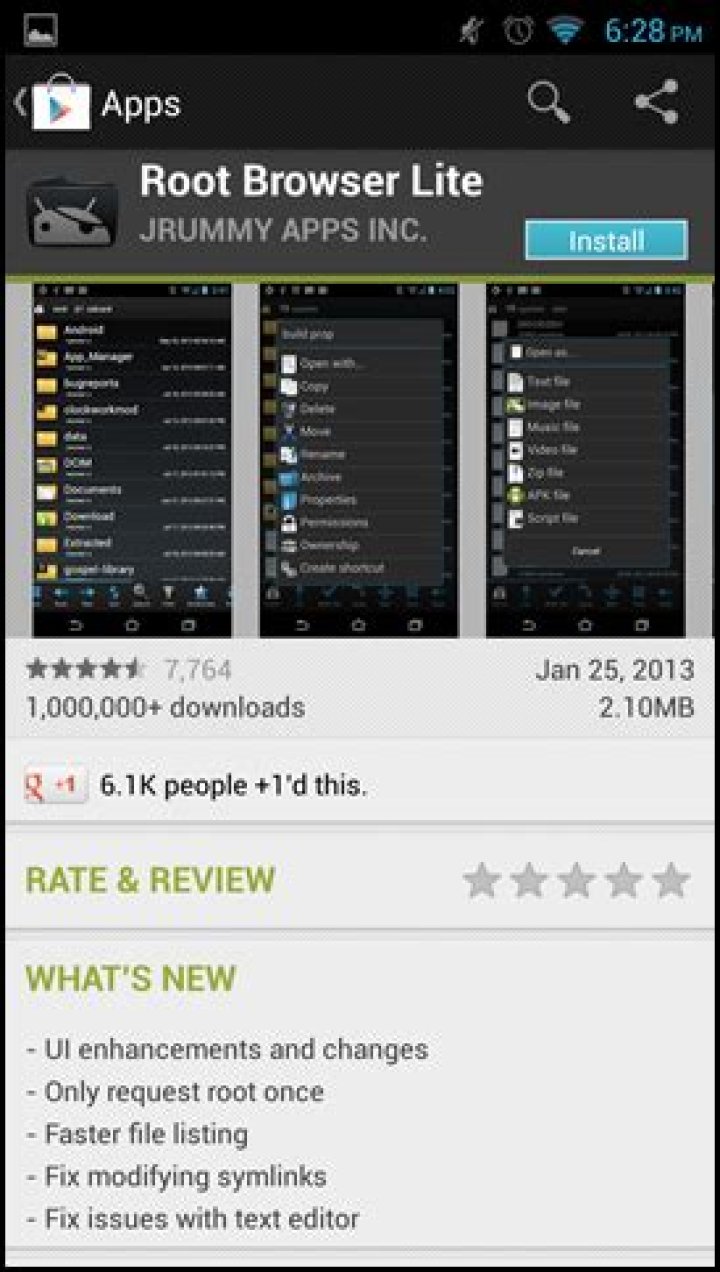
The first thing you will need to do is hit up the play store and download a copy of Root Browser. The lite version will be sufficient.
Once downloaded, open up the app and head into the data folder, as seen below.
From here you will need to head into the misc folder.
Then into the wifi folder.
Finally, you will find a file called wpa_supplicant.conf. Tap on it to open it with your favorite text editor.
Here you will see a list of all the networks you have connected to, along with their security mechanism and password if applicable.
by Anna Sherry Updated on 2020-08-21 / Update for Wi-Fi Password
If you are a frequent regular to a certain restaurant or cafe, chances are you have the password saved. But what happens if your friends come and they want to use the Wi-Fi. Well, you can always ask the barista, but sometimes, you do not want to bother him/her. Today, we will teach you how to find wifi password on Android step by step.
Part 1. How to View Wifi Password on Android 10 Directly
How to find wifi password on android without root? Well, Android 10 now supports viewing the saved wifi password from the settings application without root. Here’s how to do.
- Go to Settings > Network and Internet > Wi-Fi
- Tap the Wi-Fi network you want to find the password
- There are two options in blue, “Forget” and “Share”. Tap “Share”.
- Then, you need to verify your identify through fingerprint sensor, facial recognition or password.
View the Wi-Fi password below the QR Code.
Part 2. How to Find Wifi Password on Android 9 Pie or Older (Root Required)
For Android phone running Android 9 pie or older, we will talk about two apps that help you find wifi password Android. One is ES File Explorer, the other is Wifi key recovery. Important notice, the apps works only on rooted device.
App 1. ES File Explorer
To view Wi-Fi password saved on Android phone, you have to install ES File Explorer app on phone firstly. After installing ES File Explorer app, follow steps below.
Go to the root folder in ES File Explorer and find the directory called data.
Find the network you want to know the password. Note that not edit the file or you will get Wi-Fi connection problems.
App 2. Wifi Key Recovery
The application is compatible with all devices. But you need to understand this is not a hacking application. Instead, it is an app that will help you recover password on a device you have connected once in the past. You can then share the password via a message or a QR code. You can also use the app to backup or restore your current Wi-Fi. Here is a step by step guide how to use the app.
The first step is the simplest one, and requires you to launch the app to start looking for the password.
Select the password you want to recover. Click on the password, and the app will give you three options, including copy password, show all, and show QR code.
Once you select an option, the app will display the password of the devices you selected. If you click show all, it will show the passwords of all the networks you once connected.
Bonus Tips: How to Find Wifi Password on iPhone/iPad
If your smart phone is iPhone or your used tablet is iPad, then I strongly recommend Tenorshare 4uKey – Password Manager to help you find Wi-Fi password in Apple device. With this powerful iOS password finder installed to your Windows/Mac computer, there’s no worries about forgetting Wi-Fi network password.
Video Guide on How to Find Wifi Password on iPhone with 4uKey Password Manager
Conclusion
If your Android phone is running Android 10, well, you can view wifi password on Android settings directly. But if it’s Android 9.0 pie or lower, you have to root Android or you can’t find wifi password on Android phone. For Apple users, it’s very easy to find wifi password with the help of 4uKey – Password Manager.
Updated on 2020-08-21 / Update for Wi-Fi Password
It’s actually easier than you think
We connect to so many different networks and the password usually gets entered just once. So what would you do if you forgot the WiFi password? Having a good password safe would prevent this problem, but you can also find the WiFi password off your Android phone. It’s easier than you might think.
For iPhone users, we’ve got an article on how to see the WiFi password on an iPhone too.
We also created a short video on our YouTube channel where we go through the process, so check that out in case you don’t feel like reading a lot of text.
Find The WiFi Password On a Pixel Phone
If you’ve got a Google Pixel phone with Android 10, this is the easiest way possible to find your WiFi password.
- Go to Settings >Network & Internet >WiFi .
- Tap on the name of the WiFi network you want to recover the password from to get to the Network Details Screen.
- Tap on the Share button. It will ask you to authenticate with a fingerprint or PIN.
- The phone will display a QR Code. Right below that is the WiFi password for that network.
Find The WiFi Password On Other Android Phones
If you’ve got a non-Pixel phone with Android 10, it’s slightly more complicated but still very simple.
- Go to Settings.
- Tap on Connections.
- Tap on Wi-Fi.
- At the bottom-left of the screen, tap on QR Code.
- Take a screen capture of the QR Code.
- Using a QR Code scanner, like TrendMicro’s QRScanner, load the screenshot. Do this by tapping the QR code icon in the bottom-left corner.
- You’ll see the password now. In TrendMicro QRScanner, it shows in the 2 spots highlighted by the red rectangles below.
Find The WiFi Password On Android 9 & Older Phones
If your Android phone runs Android 9 (Pie) or an older version of Android, finding the WiFi password is more difficult. You’ll need to root your phone first. That means giving yourself the highest access level possible.
We have articles on how to root a Pixel, Galaxy, or Nexus phone. Then you’ll need to install some software on your computer and be able to connect your phone to the computer.
- Enable Developer Mode on your phone. Go to Settings >System >About Phone then scroll down to Build number.
- Tap on Build number 7 times. You’ll see the message You are now a developer!
- Go back one screen and scroll to Developer options. Go into that.
- Scroll down to USB debugging and turn it on.
- Install Universal ADB Drivers on your PC. This helps your computer talk to the Android over a USB connection. Make sure your USB cable is for data transfer, not just charging.
- Download and install the Minimal ADB and Fastboot Tool on your PC.
- Connect the phone to your computer and open the Minimal ADB and Fastboot app. It opens as a command prompt.
- Type in the command and press Enter.
- The command will copy the wpa_supplicant.conf file to your PC in the same folder Minimal ADB and Fastboot is installed in. In File Explorer navigate to that location.
- Open the file with Notepad and you’ll find the WiFi password.
Android WiFi Password Reveal Apps
You may be tempted to download a password recovery app. After reviewing several of the WiFi recovery apps listed in the Google Play store, we couldn’t find one that we would trust.
Some have decent ratings, but the reviews seem fake. You’ll also find that they require you to root your phone. Even if they did work, should you really trust them? Are you sure they’re not sending your information somewhere they shouldn’t? We recommend avoiding these apps.
Still Can’t Recover The WiFi Password?
Recovering the WiFi password on your Android phone is really just a convenience. You can find the WiFi password using the Command Prompt in Windows, if the computer can connect to the WiFi. If the methods above don’t work for you, then reset the WiFi password on your router.
If it’s not your WiFi router, then ask the person who manages it for the password. If you don’t own the router, or you don’t want to talk to the person who does, you probably shouldn’t be using the WiFi anyway.
Guy has been published online and in print newspapers, nominated for writing awards, and cited in scholarly papers due to his ability to speak tech to anyone, but still prefers analog watches. Read Guy’s Full Bio
If you have a Google Pixel phone running Android 10, this is the easiest way to find your Wi-Fi password. Go to Settings> Network & Internet> Wi-Fi. Tap the name of the Wi-Fi network from which you want to recover the password to go to the network details screen. Tap on the Share button.
Dans cet article :
How can I know my mobile WiFi password?
Does Google backup Wi-Fi passwords ?. “Back up my data” option – located in “Settings> Backup and backup; reset ”on most Android phones – allows you to back up some things, including Wi-Fi passwords, to the cloud. The label for the current setting is: “Back up application data, Wi-Fi passwords, and other settings to Google’s servers. Read also : How to unlock android phone without password.” And that’s exactly what it does.
How can I see my Wi-Fi password on my iPhone ?. How to find WiFi password on your iPhone. To find the password for a Wi-Fi network on your iPhone, go to Settings & gt; Wi-Fi> and tap “i” next to your network. Then tap and hold the number next to your router, select Copy and paste it into the browser. Finally, enter your router’s username and password and select Wireless Settings.
Finding Wi-Fi Passwords in Root Manually First, you need to authorize the file explorer to open the root directory. The option is at the bottom of the application settings. Then go to the directory tree by following the path: data> misc> wifi. In that folder, find a file called wpa_supplicant.
In the Network and Sharing Center, next to Connections, select the name of your Wi-Fi network. In Wi-Fi Status, select Wireless Network Properties. In the wireless network properties, select the Security tab, and then select the Show characters check box. The password for the Wi-Fi network is displayed in the Network security key field.
What application can display the Wi-Fi password ?. WiFi Password Show is an application that displays all passwords for all WiFi networks you have ever connected to. To use it, you need root privileges on your Android smartphone. It’s important to understand that this app is NOT used to hack Wi-Fi networks or anything like that.
Can I hack WiFi password?
If the attacker has an administrator password, he can change the SSID, WiFi password, and any other WiFi router settings. To fix: Make sure your Wi-Fi security setting is WPA or WPA2.
Show Android Wifi Password Using WiFi WPS WPA Tester Run the app. You will see that it starts searching for Wi-Fi networks around you. Once the search is complete, it will list all the Wi-Fi networks in your location. You will notice that each Wi-Fi network has a colored lock sign.
What is the WIFI password?. WPA key or security key: This is the password to connect to the wireless network. It is also called Wi-Fi security key, WEP key, or WPA / WPA2 passphrase. This is another password name on the modem or router.
Could my Wi-Fi be hacked by my phone ?. Yes, it is possible to hack a cell phone if a hacker breaks the vulnerability or connects to a Wi-Fi connection. What a hacker can do. It can perform a “DNS Spoofing” attack to forward your request to a malicious website and the likely malicious application will be downloaded and installed automatically on your Android phone.
How do I check who is using Wi-Fi ?. Look for a link or button labeled “connected devices”, “connected devices”, or “DHCP clients”. You can find this on the Wi-Fi setup page or on some status page. For some routers, a list of connected devices may be printed on the main status page to save a few clicks.
Yes! Without a password, your wireless network is open to everyone.
For little money, a hacker can rent a computer in the cloud and most often guess the network password in minutes by brute force or by using a powerful computer to try out multiple password combinations. Your home Wi-Fi network can easily be hacked if you have a weak password.
How to check WiFi password on Android
- Go to the Settings app and head towards Wi-Fi.
- You will see all saved Wi-Fi networks. …
- There you will see a QR code option or tap to share the password.
- You can take a screenshot of the QR code. …
- Open the QR scanner app and scan the generated QR code.
How do I find my router username and password without resetting it?
How do I change my router’s password if I don’t know it ?. If you cannot access the router’s web-based configuration page, or you forgot your router’s password, you can reset the router to its factory default settings. To do this, press and hold the Reset button for 10 seconds. NOTE: Resetting the router to its factory defaults will also reset the router’s password.
If you have changed your password and lost or forgotten it, you need to do a factory reset. To do this, look for the little hidden RESET button on the back of your router. Press and hold this button for about 10-15 seconds using a paper clip or a needle.
2) Generally, the default username and password for most routers are “admin” and “admin”. However, these credentials may differ depending on the router manufacturer.
To find the router’s default username and password, see its manual. If you’ve lost your manual, you can often find it by searching for your router’s model number and “manual” on Google. Or just search for your router model and “default password”.
How can I connect to WiFi without password on Android?
(If you’re not currently connected, you’ll need to tap Saved Networks to view other networks you’ve connected to in the past.) Then tap the Share button and the network password will appear below the QR code. Without Android 10, you can’t see your Wi-Fi network password unless your phone is rooted.
Easily recover lost WiFi Passwords on Android!
It’s true that Android offers users more features than any other mobile operating system. But, at the same time, it misses out on some basic features. For example, Android doesn’t allow you to view the saved WiFi networks on your device.
Although Google introduced the password viewing option on Android 10, the older versions of Android still lacks this useful feature. So, to view the saved WiFi passwords on an older Android version, you either need to use third-party file explorer apps or Android Debug Bridge on PC.
View Saved Wifi Passwords In Android in 2021
In this article, we are going to share some of the best methods to view Saved WiFi Passwords on Android. With these methods, you can easily recover the lost WiFi Passwords. So, let’s check out.
1. Using File Managers
First of all, you need to use a file explorer that can access the root folder. For that, you probably need to root your device. However, if you don’t want to root your device, then you need to install File Managers like Root Explorer, or Super Manager to view saved passwords. Here’s what you need to do.
Step 1. First of all, open the File Explorer that can access the root folder. Next, head to the data/misc/wifi folder.
Step 2. Under the given path, you will find a file named wpa_supplicant.conf.
Step 3. Open the file and make sure to open the file in a built-in text/HTML viewer for the task. On the file, you need to look at the SSID and PSK. The SSID is the WiFi name and PSK is the password.
Now note down the network name and its password. In this way, you will be able to view all saved WiFi passwords on the Android device.
Note: Please do not edit anything in wpa_supplicant.conf, or else you will end up having connectivity issues.
2. Using ES File Explorer
Well, ES File Explorer is no longer available on the Google Play Store due to security reasons. So, you need to sideload the app from a third-party app store. The good thing is that ES File Explorer lets you access the root folder without having root access.
Step 1. Download and Install ES File Explorer App on your Android device and open the app.
Step 2. Now you need to enable the “Root Explorer” option in ES File Explorer.
Step 3. Now you need to move to the Root folder in ES File Explorer, and you need to find the ‘Data’ folder.
Step 4. Now under the “Data”, you need to locate the folder “Misc”
Step 5. Now under the WiFi folder, you need to locate the file with the name wpa_supplicant.conf. Simply open the file with ES File Explorer’s built-in text/HTML viewer.
Step 6. Now you can see all your SSID (network name) along with PSK (Password) next to it and close the file.
That’s it! You are done, this is how you can find saved WiFi password using ES file explorer.
3. Using Wifi Password Recovery (Root)
Wifi Password Recovery is a free tool that requires root access to recover saved passwords in your Android smartphone. You can use this tool to backup all your wifi passwords on your device.
Step 1. You need to download & install the Wifi Password Recovery app on your rooted Android smartphone.
Step 2. After you installed it, you need to grant the Root Permissions.
Step 3. Now you can see all your saved wifi passwords listed with SSID Name and Pass. If you want to copy the password just tap on the network and then select “Copy password to clipboard.”
That’s it you are done! This is the easiest way to know saved WiFi passwords in your Android smartphone.
4. Using ADB
Android Debug Bridge (ADB) is just like CMD for Windows. ADB is a versatile tool that allows users to manage the state of an emulator instance or Android-powered device. Through ADB, you can execute commands through the computer to your Android device to perform sets of tasks. Here’s how you can use ADB commands to view saved WiFi Password on Android.
Step 1. First of all, download the Android SDK Package on your Windows computer and install it.
Step 2. Next, enable the USB Debugging on your Android device and connect it with the computer via USB Cable.
Step 3. Next, head to the folder where you have installed Android SDK Platform Tools. Now on your computer download & install ADB drivers from adbdriver.com
Step 4. Now from the same folder hold the Shift key and right-click inside the folder. Click on the ‘Open Command Windows Here’
Step 5. To check whether the ADB is working or not, enter the ‘adb devices’ command. It will list the connected device.
Step 6. Next enter ‘adb pull /data/misc/wifi/wpa_supplicant.conf c:/wpa_supplicant.conf’ and press Enter.
That’s it, you are done! Now you will find the wpa_supplicant.conf file in the Platform-tools folder. You can open the file in Notepad to view all saved SSID and Password.
So, that’s all from us for today! With these four methods, one can easily view all saved WiFi passwords on Android. I hope this article helped you! Please share it with your friends also. If you have any doubts related to this, let us know in the comment box below.
Your Android smartphone must have been connected to hundreds of Wifi networks over the years like your home, school/ college, workplace, and many more. The Android devices save these passwords so the next time you come inside one of these known networks, the smartphone can connect to them without entering the password again.
The problem comes up when you want to know WiFi password for these known networks on your Android smartphone. All because your friend wants to connect to the same network but you forgot the password. Now, the only thing which can help you is the saved password on your device but how to access them?
It’s pretty easy if you are running a smartphone with the latest Android 10 or the latest version. But if your phone is running the Android 9 Pie or any previous version then you have to root your phone to access those passwords.
Method 1: Android 10 and above
This method is pretty easy but if you are looking for the steps for Android 9 Pie devices then you can jump right to the other method below.
- Open Settings on your phone and go to Network and Internet.
- Now, open the Wifi option from the list and you will see the Wifi network your phone is connected to.
- Below that list, you will see a Saved Network option, tap that list to see all the saved networks.
- Select the network which you need to access the password for and verify your fingerprint to go to the next page.
- On the next page, you will see a QR code to share the Wifi network. Below that QR code, you will see the password mentioned.
Method 2: Android 9 or below
This method is for the smartphone or tablets running the Android 9 or the previous version of Android.
Note: Your phone needs to be rooted for this method to work because this app only works on rooted phones.
- Open Google Play Store and download the WiFi Password Viewer app.
- Once installed, launch the app and grant the root access.
- The main page will show you all the saved WiFi networks.
- Select the one which you need to know the password of, then select Share from the popup list.
- Now, you can share the password with your friends using the share menu.
Wrapping up
This is how you can know WiFi password on Android for the saved networks on your devices. For more Android tips and tricks, you can follow us on social media pages to stay updated with new ones.
James Davis
Jun 23, 2021 • Filed to: Remove Device Lock Screen • Proven solutions
Since the invention of Android OS in 2008 by Andy Rubin, our world has faced a dramatic change. Android seems to be controlling a considerably high portion of our life. We have bought many gadgets that use this amazing OS and most of which are phones. But how much can you do with your Android phone? Developers are always making it more interesting to use this interface.
Most of the time, we use Android phones, we get faced with the need to access the internet. The Wi-Fi capability of these Android gadgets makes it super easy for us to surf the web. Throughout using Wi-Fi, we connect to a number of them. This could be at school, a sub-way cafГ©, the gym, buses, hospitals, hotels, towns, and the list is endless. A password secures most of this. Needless to say, our brain is weak to store all these passwords for future use, especially if you would want to connect with a different gadget you have recently bought or even your laptop. In this article, we will introduce you to how to find wifi password on rooted and also unrooted Android devices.
- Part 1: Show Wifi Password on Rooted Android Device
- Part 2: Show Wifi Password on Android without Root
Part 1: Show Wifi Password on Rooted Android Device
What is Rooting?
First of all, what does rooting mean? You have probably used a Windows computer or even Linux. For the case of Windows, when installing a new program or software, it always prompts a dialog box saying, “Administrator permission required to run this program.” If you don’t have the administrator permission, you won’t install the program. In Android, this is called rooting. In simple terms, it means having the root permission to your phone. Some Android apps will require you the root permission, e.g., flashing your ROM. In this part, we will explain how you can show the Wi-Fi password on your Android with root.
To find the Wi-Fi passwords on your Android phone, you need to have an app to explore files which also supports a root user. In this case, ES FileExplorer or Root Explorer will come in handy. However, it turns out that the latter is offered at $3. Let’s use the free ES File Explorer.
Steps of getting Wi-Fi password on Android with root
In only four steps, we, at this moment, learn how we can find the password of a Wi-Fi on an Android phone.
Step 1: Install the ES File Explorer
Download the ES File Explorer from your play store, install it, and open it.
Step 2: Enable Root Explorer
The root explorer needs to be enabled so that you can reach the root folders of the Wi-Fi passwords you need. By default, the root feature in this ES explorer is not enabled. To enable it, just tap on the list menu on the top left corner.:
This will drop down a list of controls. Scroll down and find the Root Explorer option and enable it.
Step 3: Get the passwords’ file.
Go back to ES file explorer, and this time, find the folder named data.
When this folder opens, find another one named misc. Open it and find another one named wifi. Here, find a file named wpa_supplicant.conf.
Step 4: Retrieve the wifi password on Android
Make sure that you don’t edit anything in the file. You might mess up with important data and fail to access the Wi-Fi(s) in the future.
As you can see above, we have found the Wi-Fi passwords on the android device. On each network profile, we have the name of the network represented by name (ssid=”
Part 2: Show Wifi Password on Android without Root.
What if I don’t have root access to my Android, can I still see Android Wi-Fi password? The short answer is yes. However, this is a bit involving but simple. You don’t need to be a computer guru to do it, but you need to have a computer and some internet access of course. The key thing is to find a way through which we can fetch the password file from the phone without using a root access protocol in the Android. This is made possible by some little programming insight using the Windows Command prompt.
Steps to show Wi-Fi password on Android without root
Step 1: Access the Developer authority
To access the files that Android uses to run passwords, you must first become a developer. This is very simple.
Get your Android phone and go to settings. Scroll down and find “About phone.” Tap on it and scroll down again to find Build number.
Tap on this “build number” 5 to 6 times until a message pops up, saying, “You are now a developer”.
Step 2: Enable the debugging.
Go back to Settings. Scroll down for developer options. Turn on the button for “Android/USB debugging”.
Step 3: Install ADB drivers.
Now, open your Windows desktop. Download and install ADB drivers. (Use this download link adbdriver.com). You need to download and install platform tools (minimal ADB and fastboot) from Now open the folder where you’ve installed the above tools. By default, it is in the Local disc C\windows\system32\platform_tools location. However, you might want to locate them by searching on the windows search engine. You have to hold the Shift key and right-click inside the folder to click on”Open Command Window Here.”
Step 4: Test the ADB
Here, we would like to test whether the ABD is working properly. To do this, connect your phone to the PC using a USB. In the command prompt, type adb services and then press enter. If it’s working properly, you should see a device on this list.
Step 5: Find the Android wifi password.
Now, it is time to type the given command in the command prompt and type: adb pull /data/misc/wifi/wpa_supplicant.conf c:/wpa_supplicant.conf. This will fetch the file from your phone to the local disc C drive of the PC.
Step 6: Get the wifi passwords.
Lastly, open the file with a notepad, and there you go.
Now you learned how to show the wifi password on your Android device.
Forgot password or pattern on lock screen for Android Phone? Don’t be panic, there are many solutions about recovering passwords for Android phone on this article, read about them carefully below, and choose the best one to carry out to solve your problem.
Part 1: Recover forgotten password for Android phone without losing data
Different Android devices on various situations have different solutions to recover forgotten password and unlock phone screen. Read about the solutions below, and choose the one according to your Phone devices.
Method 1: Unlock with security question
This may be the easiest and fastest method to unlock your Android phone when you forgot the lock screen password or pattern, without connecting to internet, without using a PC, and without losing any data.
Step 1: Enter an incorrect password 5 times on the locked screen.
Step 2: When get the hint Try again in 15 seconds, touch the “Forgot password?” or “Forgot Pattern?” button on the right bottom of the screen.
Step 3: Select Unlock with security question, touch Next, and then it will ask you the questions you set on it when you created the password (If you did not set a question before, it would not work for you, try the next method.).
Step 4: Enter the right answer of question, reset the unlock screen password or pattern, and then your Phone is unlocked.
Method 2: Unlock with Google account details
If you have activated your Android device with Google account before, and your Android device is connected with internet, then you can unlock your phone screen with Google account, or it would not work for you.
Step 1: Just like the solution 1, enter an incorrect password 5 times on the locked screen.
Step 2: When get the hint Try again in 15 seconds, touch the “Forgot password?” button.
Step 3: Select Unlock with Google account details, touch Next to continue.
Step 4: Sign in with your google account and password you previously add to your device, reset unlock screen password for your Android phone, and then your Phone screen unlocked successfully.
Part 2: Reset Android Phone to factory settings or erase data
Erasing your Phone device or resetting it to factory settings will result in the data of loss – like your Apps, Photos, and music – from your device. Before choosing the methods below, think carefully about that whether you have any very important data on it, or choose the other methods instead.
Method 3: Reset Android Phone to factory settings directory
If your have no important data on your Phone, and you are urgent to unlock your Phone, reset it to the factory settings directly would be very fast and simple.
Step 1: Turn off your Android Phone.
Step 2: Press the “Volume -“+ “Power” + “Home” button simultaneously until get into the Recovery mode.
Tips: Different Android devices have different methods to boot into Recovery mode, if the “Volume -” key does not work, try the “Volume +” key, or check them on the device site.
Step 3: Press “Volume up/down (+/-)” key and move to Recovery option, press “Home” or “Power” button to select it.
Step 4: Move to Factory Data Reset option or “wipe data/factory reset”, press “Home” or “Power” button to select it.
Step 5: Move to “reboot system now”, press “Power” or “Home” button to reboot your Phone device.
Step 6: After unlock your Android Phone device, set a screen lock password or pattern.
Method 4: Backup data before doing the erase or reset
Before the operations, remember to remove the SD card from your device in case of deleting the data from SD card accidently. If the USB Debugging is enabling on your phone, connect your Phone to a PC device or your laptop with a micro USB cable, backup and restore the data from your Phone to your PC. The following steps to erase or reset Android device are the same with the steps above.
Tips: After resetting your Android Phone to factory settings or erasing it, remember to put your SD card back, and copy the other data back to your device, from the location you save them on your PC or laptop device.
Part 3: Unlock Android Phone from computer with Command Prompt
Method 5: Run the commands on Command Prompt
The Android ADB can help you to unlock your Android device without resetting it to factory setting, without google account, without connecting to the internet. But you will need a PC in order to download Android SDK and run the commands on Command Prompt. You will also need that the USB Debugging is enabled on your Android device, or this method won’t work for you.
Step 1: Download and install Android SDK on your PC, and make sure the specific drivers for your Android device is already installed.
Step 2: Connect your Android device to the PC with a micro USB cable.
Step 3: Open the Command Prompt on your PC, and enter the commands to unlock your Android Phone device.
Tips: If you reset your device to factory settings or erase your device accidently to cause important data lose, what to do to recover the lost data? Android data master can help you.




