Lori Kaufman is a technology expert with 25 years of experience. She’s been a senior technical writer, worked as a programmer, and has even run her own multi-location business. Read more.
If you have a lot of RSS feeds in Outlook, it may get very chaotic in your RSS Feeds folder. There is a way you can set up your RSS feeds using Search Folders so you can view only today’s unread feeds.
To set up a new Search Folder that will display only the current day’s unread feeds, make sure the Mail module is open. If not, click the Mail link at the bottom of the Outlook window. Right-click on Search Folders in the left pane.
On the New Search Folder dialog box, scroll down under Select a Search Folder and select Create a custom Search Folder in the Custom section. Click Choose to select the criteria for this Search Folder.
On the Custom Search Folder, enter a name for the new Search Folder, such as “Today’s Unread RSS Feeds,” in the Name edit box and click Criteria.
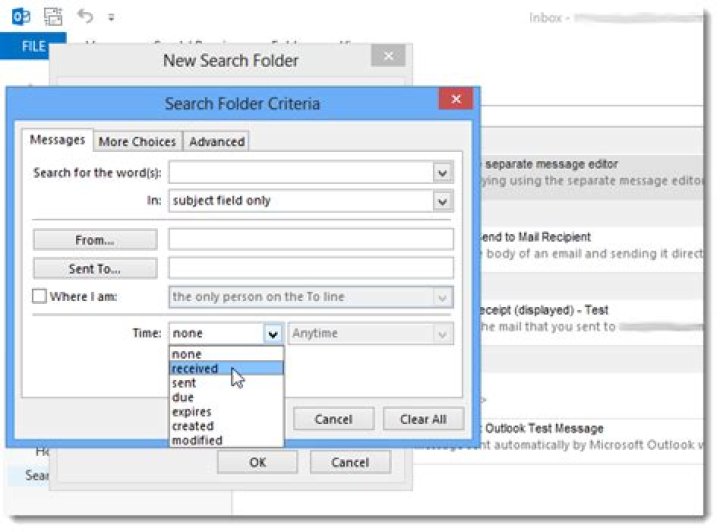
On the Search Folder Criteria dialog box, select received from the first Time drop-down list.
Select Today from the second Time drop-down list.
Click the More Choices tab and select the Only items that are check box. Make sure unread is selected in the drop-down list to the right of the check box. Click OK to accept your changes and close the dialog box.
To specify the RSS Feeds folder as the folder in which this custom search will occur, click Browse on the Custom Search Folder dialog box.
Click in the check box at the top of the Folders next to the email address for the selected account (so there’s no check mark in the box) to not include email items in this search. Select the RSS Feeds check box so there is a check mark in that box. Make sure the Search subfolders check box is selected at the bottom of the dialog box. Click OK.
The Mail from these folders will be included in this Search Folder edit box should now read RSS Feeds. Click OK to accept the changes and close the Custom Search Folder dialog box.
Click OK on the New Search Folder dialog box to close it.
Now you should have a Search Folder titled “Today’s Unread RSS Feeds” that should only be displaying the current day’s unread RSS feeds.
If you follow more than one RSS feed, you can specify which feeds to include in this Search Folder by clicking the arrow to the left of the RSS Feeds folder on the Select Folder(s) dialog box (accessed using the Browse button on the Custom Search Folder dialog box) and selecting or de-selecting feeds to include or not include in the custom search.
Outlook 2013 and Outlook 2016 include RSS Feed customization options, such as how frequently to check for updated items, where RSS Feeds are saved, and whether to download attachments.
What do you want to do?
Review or change how often items are downloaded
When you subscribe to an RSS Feed, Outlook periodically checks for updated postings.
RSS Feed publishers can specify the maximum frequency at which a check for new postings should occur. These limits help manage the demand on servers. For example, an RSS Feed might have a maximum polling frequency of 60 minutes — this means don’t check for updates multiple times per hour.
Important: Some publishers strictly enforce these limits. If you check for updates more frequently than the specified limit, the RSS Feed publisher can temporarily or permanently block your access. Neither Microsoft nor Outlook can assist you if your access is suspended or banned by an RSS Feed publisher.
To check whether a time limit is specified by an RSS publisher, do the following:
Click the File tab.
Click Account Settings, and then click Account Settings.
On the RSS Feeds tab, click a feed, and then click Change.
In the Update Limit section, the Current provider limit time appears.
We recommended that you don’t clear the Update Limit check box. This setting helps prevent a ban from content publishers because of checking for updates too frequently.
If a value isn’t specified by your RSS Feed, the Send/Receive setting for RSS Feeds is used. To check or change this setting, do the following:
In the Send & Receive group, click Send/Receive Groups.
Click Define Send/Receive Groups.
Keyboard shortcut To open the Send/Receive Groups dialog box, press Ctrl+Alt+S.
Under Group Name, select the group that contains the account named RSS.
By default, RSS is in All Accounts. If you aren’t sure which group the RSS account is in, select a group name, and then click Edit. Repeat until you locate the group that contains RSS as displayed in the following illustration.
Under Setting for group “All Accounts”, select the Schedule an automatic send/receive every n minutes check box.
Type a value of up to 1440 into the text box.
Note: If you specify a time interval that is more frequent than the limit set by the publisher, Outlook uses the publisher’s setting. This helps prevent a ban from the content publisher because of ignoring the limit.
Change where RSS Feeds are saved
In most cases, you don’t need to change where RSS Feeds are saved. However, one scenario where you might consider changing the location is when you are using a Microsoft Exchange Server account and your mailbox has a small storage limit. By saving RSS Feeds to an Outlook Data File (.pst) on your computer, your RSS Feed content doesn’t use your server space allotment.
If you decide to keep RSS Feeds in an Outlook Data File (.pst) file, you’ll only have access to those items on the computer where the file is located.
RSS Feeds that save items to a folder that is located within your Exchange mailbox are available from any computer that has Outlook and connects to your Exchange account. This includes if you connect to your Exchange account by using Outlook Anywhere or from Outlook Web App.
Click the File tab.
Click Account Settings, and then click Account Settings.
On the RSS Feeds tab, click an RSS Feed, and then click Change Folder.
Under Choose a folder, select a new RSS Feed delivery location or create a folder by clicking New Folder.
Click OK to return to the Account Settings dialog box.
Change RSS Feed display name
Each RSS Feed has a name that is specified by the RSS publisher. You can change the name as it appears in the Navigation Pane and Account Settings.
Change the RSS Feed name in the Navigation Pane
Right-click the folder, point to Rename, type a new name, and then press ENTER.
Change the RSS Feed name in Account Settings
Click the File tab.
Click Account Settings, and then click Account Settings.
On the RSS Feeds tab, click Change.
In the General section, type a new name in the Feed Name text box.
Note: If you use the RSS Feed sharing feature with someone, they will receive the original RSS publisher’s feed name, not the customized title that you may have used.
Download linked articles as an attachment
Many RSS Feeds use messages that contain a summary of a larger message or an article with a link to the full content. You can configure Outlook to automatically download the linked content as an attachment to the RSS messages.
Click the File tab.
Click Account Settings, and then click Account Settings.
On the RSS Feeds tab, click Change.
Under Downloads, select the Download the full article as an .html attachment to each item check box.
Download attachments automatically
RSS messages can contain attachments. By default, those attachments aren’t downloaded by Outlook. If you want attachments to be automatically downloaded, do the following:
Click the File tab.
Click Account Settings, and then click Account Settings.
On the RSS Feeds tab, click Change.
Under Downloads, select the Automatically download Enclosures for this feed check box.
By default, Outlook blocks potentially unsafe attachment files such as .bat, .exe, .vbs, and .js that can contain viruses. You can’t view or access a blocked attachment. The paper clip icon in the Attachment column lets you know that the message has an attachment. Any blocked attachment files are listed in the InfoBar at the top of your message.
It’s recommended that before you open attachments they be scanned for viruses with antivirus software.
Delete an RSS feed
To delete an RSS feed from Outlook, right-click on the folder for the RSS feed and choose Delete folder.
Really Simple Syndication (RSS) provides a quick way to read the latest updates from your favorite websites. Many websites offer RSS Feeds so that when a news article or a summary of an article is posted, it’s also sent to your RSS Feed folder in Outlook. If you’ve added an RSS Feed to Outlook and want to unsubscribe from the RSS Feed, see Remove an RSS Feed from Outlook.
The first time you add an RSS Feed to Outlook, you’re prompted to choose if you want to keep your RSS Feeds subscriptions list synchronized between Outlook and the Common Feed List (CFL). Regardless of the option you choose, you can change your choice later.
On the File tab, choose Options > Advanced.
In the Outlook Options dialog box, under RSS Feeds, select or clear the Synchronize RSS Feeds to the Common Feed List (CFL) in Windows check box.
Synchronize RSS Feeds
On a webpage, choose the RSS Feed icon, such as , or, , for the content you want to receive.
When the RSS Feed opens in Internet Explorer, choose Subscribe to this feed.
Note: If you haven’t opted to synchronize your RSS feeds to the Common Feed List (CFL) in Windows, you won’t see that RSS feed in Outlook.
In Outlook, right-click the RSS Feeds folder and choose Add a New RSS Feed.
In the New RSS Feed dialog box, enter the URL of the RSS Feed.
Tip: If you need help finding the RSS feed URL on a website, look for an RSS icon. Right-click that icon, and then copy the shortcut to the Clipboard. Press Ctrl+V to paste the information from the Clipboard into the RSS Feed location box.
To remove an RSS Feed from Outlook, right-click the folder containing the RSS Feed and choose Delete folder. This action will unsubscribe you from the RSS Feed in Outlook.
Note: You can’t delete the default RSS Feeds folder from Outlook. But you can delete any subfolders that contain RSS feeds you’ve added.
You can also remove an RSS Feed through the Account Settings dialog box.
Choose File > Account Settings > Account Settings.
On the RSS Feeds tab, choose the RSS Feed you want to unsubscribe from, and then choose Remove.
Note: If you can’t remove an RSS Feed in Outlook, and you synchronized Outlook with the CFL, see Remove an RSS Feed that keeps reappearing in Outlook.
Really Simple Syndication (RSS) provides a quick way to read the latest updates from your favorite websites. Many websites offer RSS Feeds so that when a news article or a summary of an article is posted, it’s also sent to your RSS Feed folder in Outlook. If you’ve added an RSS Feed to Outlook and want to unsubscribe from the RSS Feed, see Remove an RSS Feed from Outlook.
The first time you add an RSS Feed to Outlook, you’re prompted to choose if you want to keep your RSS Feeds subscriptions list synchronized between Outlook and the Common Feed List (CFL). Regardless of the option you choose, you can change your choice later.
On the File tab, choose Options > Advanced.
In the Outlook Options dialog box, under RSS Feeds, select or clear the Synchronize RSS Feeds to the Common Feed List (CFL) in Windows check box.
Synchronize RSS Feeds
On a webpage, choose the RSS Feed icon, such as , or, , for the content you want to receive.
When the RSS Feed opens in Internet Explorer, choose Subscribe to this feed.
Note: If you haven’t opted to synchronize your RSS feeds to the Common Feed List (CFL) in Windows, you won’t see that RSS feed in Outlook.
In Outlook, right-click the RSS Feeds folder and choose Add a New RSS Feed.
In the New RSS Feed dialog box, enter the URL of the RSS Feed.
Tip: If you need help finding the RSS feed URL on a website, look for an RSS icon. Right-click that icon, and then copy the shortcut to the Clipboard. Press Ctrl+V to paste the information from the Clipboard into the RSS Feed location box.
To remove an RSS Feed from Outlook, right-click the folder containing the RSS Feed and choose Delete folder. This action will unsubscribe you from the RSS Feed in Outlook.
Note: You can’t delete the default RSS Feeds folder from Outlook. But you can delete any subfolders that contain RSS feeds you’ve added.
You can also remove an RSS Feed through the Account Settings dialog box.
Choose File > Account Settings > Account Settings.
On the RSS Feeds tab, choose the RSS Feed you want to unsubscribe from, and then choose Remove.
Note: If you can’t remove an RSS Feed in Outlook, and you synchronized Outlook with the CFL, see Remove an RSS Feed that keeps reappearing in Outlook.
Lori Kaufman is a technology expert with 25 years of experience. She’s been a senior technical writer, worked as a programmer, and has even run her own multi-location business. Read more.
RSS stands for “Really Simple Syndication” or “Rich Site Summary.” It’s a document specification that allows you to easily collect and organize web-based news and information from websites in a standardized format commonly called a feed, which is like a bookmark that actively updates itself.
You can subscribe to RSS feeds using a tool called an RSS feed reader. There are many free feed readers available out there that allow you to follow your favorite websites without having to visit each one separately. We have previously published an article explaining what RSS is and how you can benefit from it.
If you already use Microsoft Outlook for your email, you can also use it to subscribe to RSS feeds. We will explain how to add a new RSS feed to Outlook using the How-To Geek RSS feed as an example. To get the URL for the HTG RSS feed, move your mouse over SUBSCRIBE on the menu bar of our site (seen below) and click on an RSS feed on the far right in the RSS section of the drop-down box. Later, you will need the URL for the selected RSS feed page.
In Outlook, click the FILE tab.
On the Account Information screen, click Account Settings and select Account Settings from the drop-down menu.
On the Account Settings dialog box, click the RSS Feeds tab and click New.
NOTE: You can also right-click on the RSS Feeds folder on the left and select Add a New RSS Feed from the popup menu.
Go back to your browser and copy the URL from the address box for the RSS feed page that you opened. Paste the URL into the edit box on the New RSS Feed dialog box and click Add.
The RSS Feed Options dialog box displays. Change whatever options you want to change and click OK.
The RSS feed is added to the list of feeds and says “
” because it hasn’t yet been updated. Click Close to close the Account Settings dialog box.
The How-To Geek RSS feed is now listed under the RSS Feeds folder on the left. Click on it to update it and display the content.
The articles from the RSS feed are displayed in the middle pane. Click on an article to display it in the right pane.
When you select an RSS feed, the RSS section of the Home tab is available with additional options. You can Download Content for currently selected article, such as attachments, enclosures, or the full content. Click Share This Feed to send a link to the selected RSS feed to someone else via email. You can also read the selected article in the RSS feed in your default browser using the View Article option.
If you decide you don’t want to follow one of your RSS feeds anymore, you can delete it. To do so, right-click on the feed and select Delete Folder from the popup menu.
A confirmation dialog box displays to make sure you want to delete the RSS feed. Click Yes if you’re sure.
NOTE: Deleting an RSS feed this way also deletes all articles downloaded from the feed source.
To remove an RSS feed and keep the articles you’ve already downloaded, go back to the Account Settings dialog box, as described earlier. Click the RSS Feeds tab, select the RSS feed you want to delete from the list and click Remove.
A confirmation dialog box displays to make sure you want to delete the RSS feed. Click Yes to delete the feed.
You can also add RSS feeds to Outlook using the Common Feed List and import RSS feeds from Google Reader into Outlook.
NOTE: Google Reader will be retired on July 1, 2013, so, if you have used it and have data you want to download from your account, you can use Google Takeout, which allows you to download a copy of your data stored within Google products.
How to set and change the update interval of RSS Feeds in Outlook?
By default, RSS Feeds use the publishers’ update recommendations and update quite frequently. Sometimes, the publishers’ update recommendations may be not fit for you, and you need the RSS Feeds update more frequently or less. Actually, you can customize the update intervals of RSS Feeds. This article will introduce steps about how to set and change the update intervals of RSS Feeds in Microsoft Outlook.
- Auto CC/BCC by rules when sending email; Auto Forward Multiple Emails by rules; Auto Reply without exchange server, and more automatic features.
- BCC Warning – show message when you try to reply all if your mail address is in the BCC list; Remind When Missing Attachments , and more remind features.
- Reply (All) With All Attachments in the mail conversation; Reply Many Emails at once; Auto Add Greeting when reply; Auto Add Date&Time into subject.
- Attachment Tools : Auto Detach, Compress All, Rename All, Auto Save All. Quick Report , Count Selected Mails, Remove Duplicate Mails and Contacts.
- More than 100 advanced features will solve most of your problems in Outlook 2010-2019 and 365. Full features 60-day free trial.
There are two parts to set and change the update intervals of RSS Feeds in Microsoft Outlook. The first part is to uncheck the publisher update recommendation, and the second part is to define a new send/receive group for the RSS Feeds that you will change their update intervals. We will introduce the steps in details.
Part 1: Disable the publisher update recommendation for RSS Feeds
Step 1: Open the Account Settings dialog box:
- In Outlook 2007, please click the Tools >Account Settings.
- In Outlook 2010 and 2013, please click the File >Info >Account Settings >Account Settings.
Step 2: In the Account Settings dialog box, click the RSS Feeds tab and select the feed name that you will change its update interval, and then click the Change button.
Step 3: In the RSS Feed Options dialog box, please uncheck the option of Use the Publisher update recommendation. in the Update Limit section. See the following screen shot:
Step 4: Click OK and Close to exit two dialog boxes.
Part 2: Customize update intervals for RSS Feeds
Step 5: Open the Send/Receive Groups dialog box:
- In Outlook 2007, please click the Tools >Send/Receive >Send/Receive Settings >Define Send/Receive Groups.
- In Outlook 2010 and 2013, please click the Send/Receive Groups >Define Send/Receive Groups on the Send / Receive tab. See the following screen shot:
Step 6: In the Send/Receive Groups dialog box, please click the New button.
Then a Send/Receive Group Name dialog box comes out, please enter a name for the new group in the box, and click the OK button.
Step 7: In the new popping up Send/Receive Settings dialog box:
- Select and highlight the RSS in the Accounts box in the left section;
- Keep checking the option of Include RSS Feeds in this Send/Receive group;
- Go to the Feeds section, and only check the feed names’ boxes that you will change their update intervals;
- Click the OK button.
Step 8: Now you will go back to the Send/Receive Groups again:
- Select and highlight the name of new created Send/Receive group in the Group Name box;
- Check the option of Schedule an automatic send/receive every x minutes, and specify the update interval in the box.
- It’s optional to check the option of Schedule an automatic send/receive every x minutes in the When Outlook is Offline part, and specify the update interval in the box.
- Click the Close button.
From now on, the specified RSS Feeds will be updated based on your specified intervals automatically.
RSS Feeds are an easy way to stay up to date with your favorite websites, such as blogs or online magazines. If a site offers an RSS feed, you get notified whenever a post goes up, and then you can read a summary or the whole post.
And, if you turn on RSS Feed Synchronization in Outlook, any feeds you subscribe to and their posts are delivered straight to your Outlook RSS Subscription folder.
Subscribe to an RSS feed from your web browser
See if the site has an RSS feed. If it does, you’ll usually find a button that looks something like this:
If you don’t see this button, look for a link named RSS feed or something similar.
To add the feed to your browser, click Subscribe to this feed on the page that appears in your browser after you clicked the RSS Feed button.
Click the Subscribe button.
Set Outlook to pull in feeds when you subscribe to them
In Outlook, click File > Options > Advanced.
Under RSS Feeds, make sure the Synchronize RSS Feeds to the Common Feed List (CFL) in Windows check box is selected.
Click OK, and then restart Outlook.
Now, your existing feeds and any new feeds will go straight to Outlook.
Manually add an RSS feed to Outlook
In your web browser, copy the web address of the feed page from the address bar.
In Outlook, in the Mail Navigation Pane, right-click RSS Feeds (Outlook 2013) or RSS Subscriptions (Outlook 2016), and then click Add a New RSS Feed.
In the dialog box that appears, paste the address you copied earlier into the box, click Add, and click Yes.
Original KB number: В 917125
Symptoms
When you subscribe to an RSS feed in Microsoft Office Outlook 2007, Outlook 2010, or Outlook 2013, you may receive one of the following error messages:
Outlook cannot download the RSS content from Web_site_URL because you do not have the required credentials.
Outlook cannot download the RSS content from Web_site_URL because of a problem connecting to the server.
Cause
This behavior may occur if the RSS feed requires authentication. Outlook supports authenticated RSS feeds only in the scenarios that are described in the Workaround section.
Workaround
To work around this behavior, use one of the following methods: В
- Use an RSS site that is a Microsoft Office SharePoint site and that is internal to your domain. In this scenario, Outlook allows the use of NTLM credentials that are passed to the SharePoint site.
- Add the RSS feed in Microsoft Internet Explorer. Then, let the RSS feed synchronize with Outlook. This scenario requires synchronizing the RSS feeds list between Outlook and Windows.
Outlook 2007
To configure this option in Outlook 2007, follow these steps:
- On the ToolsВ menu, select Options.
- Select the Other tab, and then select Advanced Options.
- Enable Sync RSS feeds to the System Feed List. В
Outlook 2010 and Outlook 2013
To configure this option in Outlook 2010 and Outlook 2013, follow these steps:
- Select File, then select Options.
- Select Advanced.
- Enable Synchronize RSS Feeds to the Common Feed List (CFL) in Windows.
How to only show today’s tasks in Task view and To-do bar in Outlook?
Some Outlook users are used to making work schedules and creating a verity of tasks in Microsoft Outlook. As a result, there are too many tasks to find out ones that you need to deal with in recent days. Actually you can filter today’ tasks and only show them out. In this article, I will describe how to only show today’s tasks in the task view, and only show today’s task in the To-do bar in Outlook as well.
- Auto CC/BCC by rules when sending email; Auto Forward Multiple Emails by rules; Auto Reply without exchange server, and more automatic features.
- BCC Warning – show message when you try to reply all if your mail address is in the BCC list; Remind When Missing Attachments , and more remind features.
- Reply (All) With All Attachments in the mail conversation; Reply Many Emails at once; Auto Add Greeting when reply; Auto Add Date&Time into subject.
- Attachment Tools : Auto Detach, Compress All, Rename All, Auto Save All. Quick Report , Count Selected Mails, Remove Duplicate Mails and Contacts.
- More than 100 advanced features will solve most of your problems in Outlook 2010-2019 and 365. Full features 60-day free trial.
Only show today’s tasks in Task view in Outlook 2010 and 2013
If you need to show only today’s tasks in the Task view in Microsoft Outlook 2010 and 2013, firstly shift to the Task view and open the specified task folder that you want to show only today’s task, then click the Change View > Today on the View tab.
Only show today’s tasks in Task view in Outlook 2007
If you need to show only today’s tasks in a specified task folder in Microsoft Outlook 2007, you have to configure the view settings and make a custom filter.
Step 1: Shift to the Task view, and open the specified task folder that you will show only today’s tasks in.
Step 2: Click the View > Current View > Customize Current View to open the Custom View dialog box.
Step 3: In the popping up Customize View dialog box, click the Filter button.
Step 4: Now you get into the Filter dialog box, go to the Advanced tab, and:
(1) Click the Filed > All Task fields > Due Date;
(2) Click the Condition box, and specify the on or before from the drop down list;
(3) In the Value box, enter the text of Today;
(4) Click the Add to List button.
Step 5: Click both OK buttons to exit two dialog boxes.
Then you will see only tasks whose due dates are on or before today show in current task folder, and the others are hidden immediately.
Only show today’s tasks in To-do bar
The following method will walk you through only showing today’s task in the To-do bar in Microsoft Outlook.
Step 1: Make sure tasks are showing in the To-do Bar. If not, click the To-Do Bar > Tasks on the View tab.
In Outlook 2007, you can click the View > To-Do Bar, and then make sure both of Normal and Task List are checked in the submenu.
Step 2: Right click the text of Arrange by above the task list in the To-Do Bar, and select the View Settings (or Custom in Outlook 2007) from the right-clicking menu.
Step 3: Then you will see the Advanced View Settings dialog box (or Customize View dialog box), and you can follow the same way we described in Outlook 2007 to filter today’s tasks.




