Subscribing to existing and curated calendars is a great way to put your Google Calendar to work for you. Here are five important calendars to get you started.
Once you get into the habit of regularly adding events and tasks to your calendar, it can become an irreplaceable asset to your digital organization. But calendars can be used for so much more than scheduling meetings or remembering birthdays.
You can subscribe to existing calendars, share calendars with your friends or family or even keep up with when your favorite show will return to TV.
Here are some of the most useful things you can add to your Google Calendar to put it to work for you.
Weather
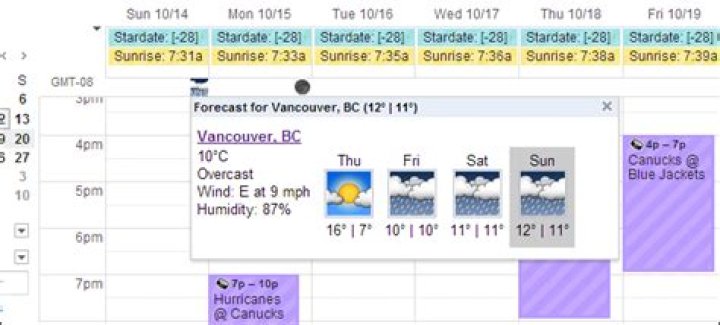
Before it met its untimely demise, one of my favorite features of Sunrise Calendar was its inline display of the weather forecast. Fortunately, Google has a weather feature built into Google Calendar, at least for the web client.
To enable weather forecasts, go to calendar.google.com and login to your account. Click on the cog icon dropdown in the upper right and select Settings. Scroll down to location and enter your home ZIP code. Below that, beside Show weather based on my location, select either Celsius or Fahrenheit.
A 5-day forecast will now appear in the upper right portion of each day display in the calendar.
Favorite sports team schedule
Another helpful inbuilt function is the ability to add interesting calendars. Outside the usual holiday calendars or birthdays are sports. You can choose from baseball, basketball, cricket, football, hockey, rugby and soccer. Each category has a list of included leagues, ranging from collegiate to minor and major leagues from around the world.
After you narrow down the results to the proper league, find your favorite team and click Subscribe. Once the selected team’s schedule is available, it will automatically appear in your calendar.
TV episodes
Sadly, Google’s selection of calendars to add is fairly limited. If you want more, such as a custom calendar including when all your favorite television shows air and or return to television, you’re going to have to do some manual configuration.
Several services will allow you to sign up, add your favorite shows and export them to a Google Calendar for a monthly fee. However, PoGDesign TV Schedule & Episode Calendar will allow you to do this completely free of charge.
Open your browser and head to and click Register. Fill out the appropriate forms and begin adding television shows to your filter. Once you have added all your favorite shows, right click the .iCal button at the top of the page and copy the address URL. Go to calendar.google.com and click the drop down menu beside Other calendars. Select Add by URL, paste the iCal URL in the text field and click Add Calendar. The days and air times of your selected shows will now be added to your Google Calendar automatically.
Movie releases
You can also add a calendar with all the release dates of new movies for individual countries. For the US, the best movie release calendar I came across was provided by First Showing. (For other countries, you can add a Google Calendar that is built from IMDb’s release schedules here.)
To add the calendar to your Google Calendar, go to Click on the Google Calendar button. This will open the web view of the calendar. Click the Google Calendar button with the plus sign in the lower right corner. When your own Google Calendar loads, confirm that you want to subscribe to the calendar.
You will now see all the major upcoming movie releases in the US for all of 2016.
Facebook events
For the most part, I’ve always made it a point to avoid Facebook events. They’re mostly filled with spammy invitations from people I knew in high school and haven’t spoken with since. However, if you subscribe to events from your favorite artists, bands or venues, you can receive notifications for events you actually care about that are happening near you.
You can subscribe to these events in your Google Calendar by navigating to and right-clicking Upcoming Events under the Events Happening This Week section in the right sidebar. Copy the address URL and go to calendar.google.com. Click the drop-down menu beside Other calendars and select Add by URL. Paste the calendar URL in the text field and click Add Calendar.
Bonus: Skimm Ahead
If you’re looking for something a little different, theSkimm just released its curated calendar, called Skimm Ahead, which has all the important stuff you could hope to follow on a calendar. It will add events for things like upcoming airings of popular TV shows and movie releases, holidays, important events and more. And for stuff like Father’s Day or July 4, Skimm Ahead will remind you well in advance to make reservations or purchase a gift so you don’t wait until the last minute.
The downside? It doesn’t integrate with Google Calendar, it’s only available on iOS and will cost you $2.99 per month. But the value in following a highly curated calendar is undeniable.
Ticktock, 2020, your time is up. Welcome, 2021, let’s see what you’ve got.
The end has come for 2020, a difficult year we’re not sorry to see go, and 2021 is now on the clock. In its traditional New Year’s style, Google created an animated Doodle to mark the final minutes of our old year and a follow-up Doodle to welcome the new year of 2021. At the center of the Google Doodle celebration is a cuckoo clock, and as we begin 2021, a very excited cuckoo.
Google typically rings in the new year with an animated animal. A year ago, it chose the familiar Froggy , the search giant’s weather frog, to welcome 2020. Perhaps Google actually saw into the future at the time, knowing that 2020 would be a toad of a year.
Stay in the know
So it’s perhaps no surprise that Google has decided to return to the feathered friends of new years past . If you checked in during the revelry leading up to midnight, it should’ve been no mystery what awaited us with Google’s clock, all closed up but bouncing with anticipation. Why, you’d have to be cuckoo to miss it.
Google even alluded to how crazy 2020 has been , noting that “it’s been a cuckoo year,” but it’s also optimistic for a better one ahead for us all. “The countdown begins now, and when the clock strikes midnight a new year will spread its wings!” Google said in introducing its party host.
And then when the New Year’s Day doodle landed on its perch on Google’s search page, the tech titan and its winged emissary extended their exuberant well-wishes. “‘All the best for the new year,’ the cuckoo bird chirps for all to hear!”
You can also celebrate the new year by going to Google search and punching in the search term “New Year’s Day.” A confetti popper will shower your results.
While we celebrate surviving another trip around the sun, it’s also important to survive well into the new year. In years past, that meant not drinking and driving. While that’s still essential, it’s also important to remember that this year’s challenges don’t fly away with the changing of the calendar. Stay close to the nest with your core flock, but if you do need to venture out, please remember to wear a mask.
Whatever you do, stay safe in 2021 — hopefully, a much better year for us all.
Can Google applications really become an alternative to the venerable Microsoft Office suite? Conventional wisdom may say no, but practical wisdom says otherwise. Right now, 100,000 small businesses are currently running trials of Google office applications. So are large corporations such as General Electric and Proctor & Gamble. Google Apps Hacks gets you in on the action with several ingenious ways to push Google’s web, mobile, and desktop apps to the limit.
The scores of clever hacks and workarounds in this book help you get more than the obvious out of a whole host of Google’s web-based applications for word processing, spreadsheets, PowerPoint-style presentations, email, calendar, and more by giving you ways to exploit the suite’s unique network functionality. You get plenty of ways to tinker with:
Google Documents — Share and edit documents with others in real time, view them on the run with Google Docs mobile service, and use Google Notebook for web research
Google Spreadsheets — Add real-time data to spreadsheets, and generate charts and tables you can embed in web pages
Google Presentations — View them on a mobile phone and save them as video
Gmail — Send email to and from a mobile phone, adjust Gmail’s layout with a style sheet, and a lot more
iGoogle — Create your own gadgets, program a screenscraper, add Flash games, and more
Google Calendar — Add web content events, public calendars, and your Outlook Calendar to this application
Google Reader, Google Maps, Google Earth, and Google SketchUp: the new 3D modeling software tool
Picasa, YouTube, and Google Video — discover new ways to customize and use these media management apps
In addition, Google Apps Hacks outlines ways you can create a simple web site with nothing but Google tools, including Page Creator, Blogger, Google Analytics, and content from other Google apps. This amazing collection just might convince you that Microsoft Office is not the last word in business applications. The price is certainly right.
Sold by Avenue A
Highlights
- Condition: New
- Networking & Wireless Type: Other
- Voice Control App: Google
Product Details
Google Nest Hub Max (Chalk) GA00426-US
Google Nest Hub Max (Chalk) GA00426-US
Multitask while you make Video Calls on it’s 10″ HD touchscreen.
Make your smart home even smarter using voice to control thousands of compatible devices all on 1 screen
Ultimate Google Photos digital picture frame
Chromecast Built In
Listen to music, check the weather or show off photos with this Google Nest Hub Max. Google Assistant lets you look up information and access apps with voice commands for effortless interaction, while the stereo speakers and subwoofer provide rich sound. This Google Nest Hub Max features a 10-inch touchscreen for easy interfacing.
Hey Google, make it easier
Google Nest Hub Max helps your busy family stay in touch and on track. And with the Google Assistant, you don’t have to lift a finger. Just use your voice.
Mobile control from your smartphone or tablet
With the Google Home app, set up, manage, and control your Google Home and Chromecast devices, plus thousands of connected home products, such as lights, cameras, thermostats and more – all from one app.
Keep everyone connected
Hey Google, call Mom. Make video calls to friends and family. You can also leave video messages for each other on Nest Hub Max.
Stay in touch and in sight
Multitask while you make video calls. With auto-framing, the camera keeps you in view as you move around the room.
Ultimate digital picture frame
See your latest great shots from Google Photos automatically. They’ll all look beautiful on a 10″ HD screen.
Check in on home when you’re away
Keep an eye on things at home with the built-in Nest Cam. Check in from your phone, and get motion and sound alerts. With a Nest Aware subscription, you’ll also get continuous video recording and familiar face alerts.
Make your smart home even smarter
Use your voice to control your Nest thermostat, Nest x Yale lock, lights, TVs, and thousands of other compatible smart home devices. See them all on one screen – no more opening app after app.
Watch what you want and when you want
With Chromecast built in, stream movies and TV shows from services, such as Google Play Movies, HBO NOW, Hulu and more.
Google Assistant shows you all you need to know
Nest Hub Max automatically shows your calendar, commute, reminders and more.
To make video calls or send video messages, you need a Google Duo account.
To see personal photos, Google Photos is required.
Night vision is not supported.
Familiar face alerts are not available on cameras used in Illinois.
Compatible smart devices are required.
Subscriptions may be required for some content.
Personalized features require additional enrollment and setup.
Virtual Assistant Support
Google Assistant
OS Compatibility
Android 5 or Later
iOS 11 or Later
Display Size
10.0″ / 25.4 cm
Screen Resolution
1280 x 800
Touchscreen
Yes
Image Resolution
6.5 MP
Angle of View
127°
Camera Off Mode
Off Button
Power Output
50 W
Drivers
1 x 2.95″ / 75 mm Woofer
2 x 0.71″ / 18 mm Tweeters
Microphone Mute
Yes
Audio
None
Ethernet
None
USB
None
NFC
No
Bluetooth
5.0
Wi-Fi Standards
Wi-Fi 5 (802.11ac)
Wi-Fi Bands
2.4 GHz, 5 GHz
Dimensions (W x H x D)
9.85 x 7.19 x 3.99″ / 250.19 x 182.63 x 101.35 mm
Weight
2.91 lb / 1.32 kg
Google Nest Hub Max (Chalk) GA00426-US Other
- Voice Control App: Google
- Condition: New
- Dimensions: 4.0 inches (H) x 8.0 inches (W) x 10.0 inches (L)
- Weight: 3.0 pounds
- Made in China
We have created a Service Account in Google and Using Calendar API for adding events, it worked fine before ,after google stopped the account and reactivated it , it didn’t work
We have tried new service account and debugged line by line of our code and no error and also returning created events but not showing in calendar
Expected Result is Inserted Event Display in Calendar but Actual Result is Not Displayed in Calendar
2 Answers 2
In the past few weeks, my team have the same issues, and this is what my team’s workaround.
- We create a service account called [email protected]
- We using service account’s credential from 1) for Google Calendar API
- Create an event into a service account’s calendar like the code below
What we have done for a workaround.
- Create a new company’s user (let’s say [email protected] )
- Share [email protected] ‘s calendar with a service account by
- going to “Calendar > Settings > Share with specific people” then
- adding [email protected] with “Make changes to events”
- Update the code from creating an event to service account’s calendar to just-created-user’s calendar like a below
After changing it, the created-event will be shown in Google Calendar as what it should.




